How to fix
Teams error code 1:403
on Windows
Resolve Teams error code 1:403 on Windows 10 and Windows 11 with effective solutions. Get back to seamless communication, expert-tested fixes here.


What causes How to fix Teams error code 1:403 in Windows?
- Misconfigured permissions
- Account issues
- Service outages
- Inadequate permissions
Repairs Windows system files, removes malware, and restores a clean OS state — without reinstalling.
I can't log into Teams anymore for some reason - there's always an error code 1:403 that pops up when I try. Could you be of any assistance here?
Users of Microsoft Teams may sometimes get error code 1:403, which usually shows up when a permissions problem prevents access to specific features or services in the application.
This error can be particularly disruptive, as it may limit collaboration and communication capabilities within Teams. Understanding the root causes and knowing how to approach this error can help users quickly regain full functionality of their Teams application.
What does error code 1:403 mean?
Error code 1:403 in Microsoft Teams is generally related to HTTP status codes that denote permission errors. It indicates that access to a resource or operation within Teams is forbidden due to inadequate permissions. This might occur during attempts to join meetings, access specific teams or channels, or use certain features.
What causes error code 1:403?
The error is most commonly triggered by:
- Misconfigured permissions: If user permissions within Teams or related services are not set up correctly, it can lead to access issues.
- Account issues: Sometimes, the problem may be with the user's account settings or status, which may need updating or reconfiguration.
- Service outages: On rare occasions, Microsoft service outages or disruptions might temporarily affect permissions and access within Teams.
Addressing error code 1:403
Resolving this error involves checking and adjusting permissions, ensuring user accounts are properly configured and active, and verifying there are no widespread issues with Microsoft Teams services. Users might need to contact their IT department to adjust permissions or resolve account-related issues effectively.
For those who find manual troubleshooting challenging or if the problem persists, considering the use of a specialized [d1] repair tool might provide a simpler and more effective solution. These tools can automate the process of checking and fixing common issues, potentially saving time and effort while restoring full functionality to Microsoft Teams.

Fix 1. Run Windows Store apps and Network troubleshooters
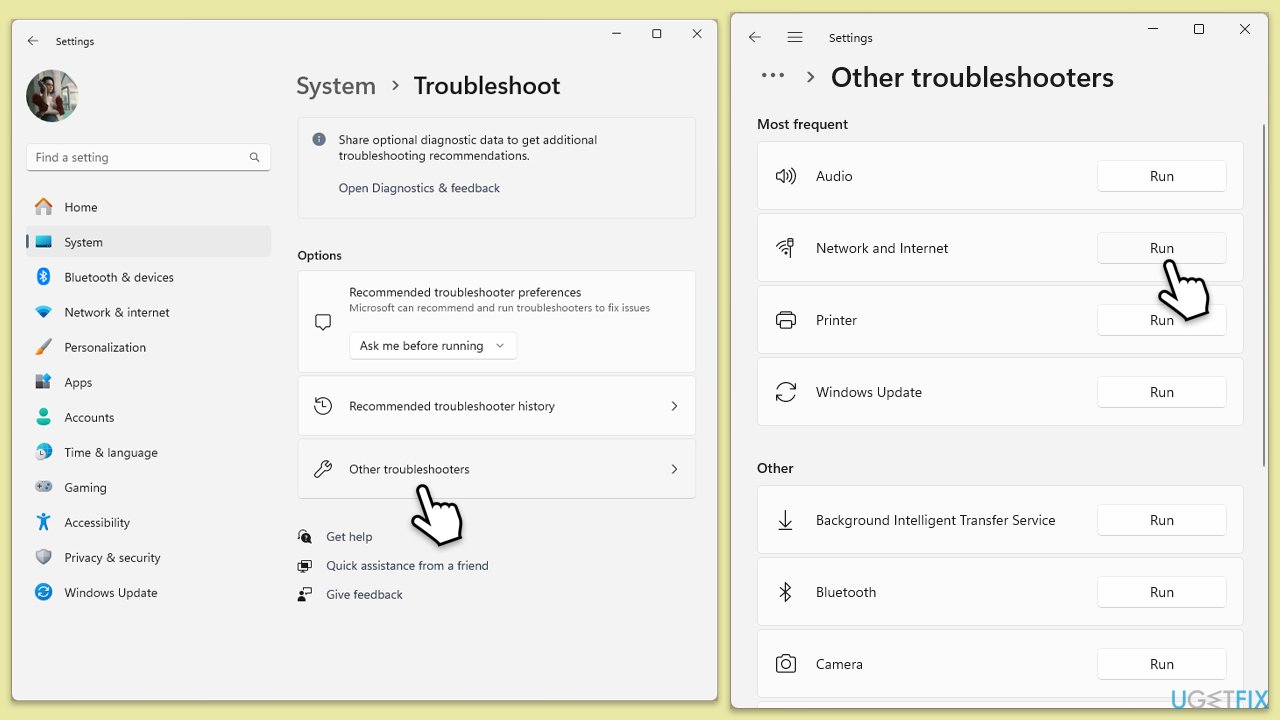
Windows 11:
- Type Troubleshoot in Windows search and hit Enter.
- Select Other troubleshooters.
- Locate Network & Internet troubleshooter from the list and click Run.
- Wait till the process is finished and apply the recommended fixes.
- Restart your computer.
- Repeat with Windows Store apps troubleshooter.
Network troubleshooter in Windows 10:
- Right-click on Start and pick Settings.
- Go to the Network & Internet section.
- On the right side, find the Advanced network settings section.
- Click Network troubleshooter and wait.
- The fixes will be automatically applied.
Fix 2. Run Teams in compatibility mode
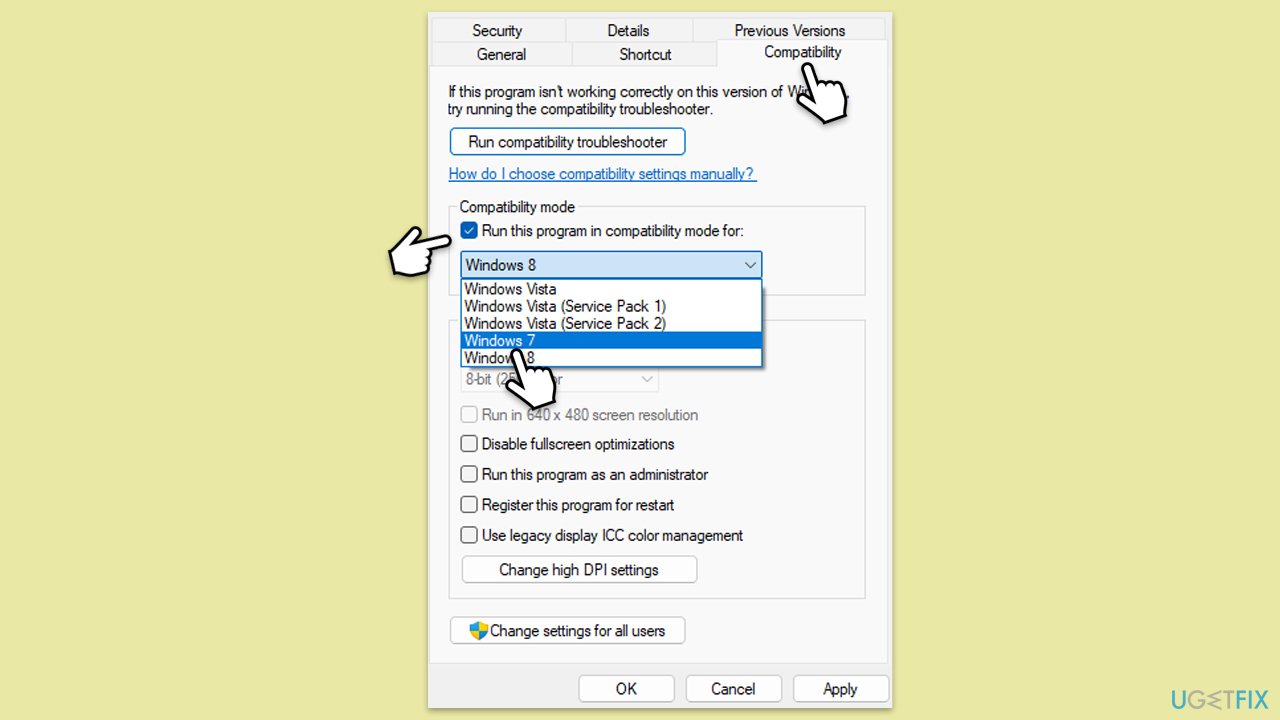
- Right-click the Teams shortcut or executable file.
- Select Properties.
- Go to the Compatibility tab.
- Check the box for Run this program in compatibility mode for.
- Choose another Windows version from the dropdown menu.
- Click Apply, then OK.
Fix 3. Clear Teams cache
Clearing the cache can resolve issues caused by outdated or corrupted data stored on your device.
- Close down Microsoft Teams.
- Press Win + E to open File Explorer.
- Ensure Hidden files are visible.
- In the address bar, type in %appdata%\Microsoft\teams and press Enter.
- Delete the contents of the following folders:
%appdata%\Microsoft\teams\application cache\cache
%appdata%\Microsoft\teams\blob_storage
%appdata%\Microsoft\teams\Cache
%appdata%\Microsoft\teams\databases
%appdata%\Microsoft\teams\GPUcache
%appdata%\Microsoft\teams\IndexedDB
%appdata%\Microsoft\teams\Local Storage %appdata%\Microsoft\teams\tmp - Make sure you empty the Recycle Bin (or use Shift + Del combination to delete these files).
- Restart your computer.

Fix 5. Repair or reset Teams
- Click on Start and pick Settings.
- Go to the Apps section.
- Locate Microsoft Teams from the list.
- Click on the three vertical dots and pick Advanced options.
- Click Terminate to ensure that the app is not running.
- Under the Reset section, click Repair and see if that solved your issue.
- If not, then try the Reset option.

Fix 6. Use web version of Teams
Using the web version of Teams may bypass some client-specific issues causing error code 1:403.
- Open your web browser.
- Go to the official website for the web version of Teams.
- Log in with your credentials and try to access the same resources.
Fix 7. Reinstall Microsoft Teams
If updating doesn’t work, reinstalling Teams can provide a fresh start.
- Type Control Panel in Windows search and press Enter.
- Go to Programs > Uninstall a program.
- Find Microsoft Teams, right-click, and select Uninstall.
- Follow the prompts to remove the app.
- Once done, press Win + E to open File Explorer.
- In the View tab at the top of the window, enable Hidden Files.
- Go to C:\Program Files\WindowsApps location.
- Scroll down to find the Microsoft Teams folder and delete it (alternatively, you can rename it).
- Now type %AppData% in Windows search and press Enter.
- Delete the Teams folder here.
- Finally, restart your system and reinstall the app.
Bottom line
To fix error code 1:403 in Microsoft Teams, users should run the Windows Store apps and Network troubleshooters, check and adjust permissions, and ensure their account settings are properly configured. If the issue persists after these steps, consider using a specialized repair tool or contacting your IT department for further assistance.
Frequently asked questions
Teams error code 1:403 typically indicates a permission issue, preventing access to certain features or files. This can occur due to incorrect settings or network restrictions.
To fix this error on Windows 10, check your internet connection, ensure that Teams has the necessary permissions, and try clearing the Teams cache by deleting the contents in the %appdata%\Microsoft\Teams folder.
Yes, ensuring that Windows 11 is fully updated can help resolve compatibility issues that may contribute to Teams error code 1:403. Make sure to regularly check for updates in the Settings app.




Report an issue
What's wrong with this guide? We review every report and update or remove content.
Report received — thank you. We'll review and fix it.
You need a free account to submit a report.
Be the first to comment