How to fix
Teams error code 5
on Windows
Resolve Teams error code 5 on Windows 10 or Windows 11 effortlessly with our expert-tested solutions. Get back to seamless communication in minutes!

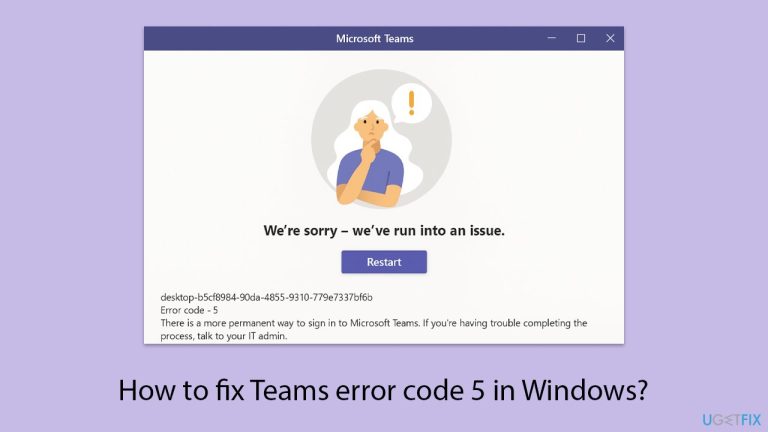
What causes How to fix Teams error code 5 in Windows?
- Access Denied due to permission issues
- Interference from antivirus software or system policy
- Corrupted Teams settings or cache files
- Network issues such as firewall rules or proxy configurations
- System file corruption or registry issues
Repairs Windows system files, removes malware, and restores a clean OS state — without reinstalling.
I started working from home recently, but I need Teams for it as well. Af first, everything was fine and I was able to communicate with colleagues with no problems. Unfortunately, it all changed today as I noticed that I can't log in with the error code 5. Any ideas on how to deal with this?
If you're seeing error code 5 in Microsoft Teams on Windows, you're not alone. The error typically presents an "Access Denied" issue and typically happens because of permission issues within the operating system. Users have seen this error happen when attempting to launch Teams or sign in, particularly after making some changes to Windows updates or user account configurations.
One of the more common reasons is not having permission to access certain files or directories required by Teams. This can happen if software is not installed in its administrative version or when user accounts have restrictions imposed upon them. Secondly, interference from other software or services, such as antivirus software or system policy, can also lead to the Teams error code 5.
Corrupted Teams settings or cache files could be another cause. The files might be outdated or get corrupted with time, and lead to many issues, one of which is error code 5. Users have managed to fix the problem by clearing the cache or reinstalling Teams settings.
Network issues should also not be overlooked. If Teams cannot connect to the necessary services due to firewall rules, proxy configurations, or network restrictions, it may result in access failures. One should ensure that Teams possesses the appropriate network rights.
In other situations, the problem may be due to more profound system-level problems, such as system file corruption or registry issues. Running system diagnostics or system repair utilities can detect and repair these deeper problems.
If you're facing Microsoft Teams error code 5, attempt the following remedies. In case of recurring issues, using a comprehensive system repair utility like [d1] can detect and repair more complex Windows-related problems.

Fix 1. Update Microsoft Teams
An older version of Teams might struggle with the latest authentication methods, and fetching the newest update aligns it with current standards.
- Open Microsoft Teams.
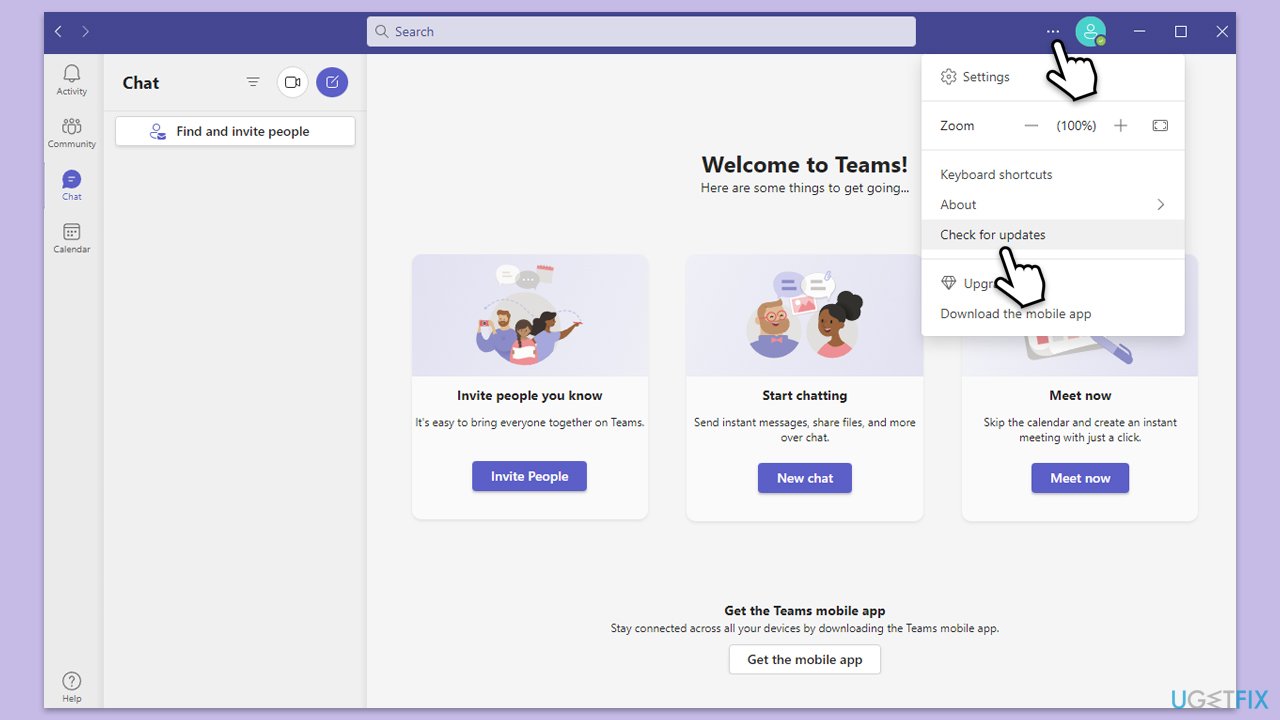
- Click on the Settings and more button at the top-right corner.
- Select Check for updates.
- Teams will automatically download and install any available updates.
- Restart Teams after the update is completed.
Fix 2. Clear Teams cache
Stored data in Teams can become outdated and interfere with sign-in, and clearing it gives the app a clean slate to reconnect with your account.
- Close down Microsoft Teams.
- Press Win + E to open File Explorer.
- Ensure Hidden files are visible.
- In the address bar, type in %appdata%\Microsoft\teams and press Enter.
- Delete the contents of the following folders:
%appdata%\Microsoft\teams\application cache\cache
%appdata%\Microsoft\teams\blob_storage
%appdata%\Microsoft\teams\Cache
%appdata%\Microsoft\teams\databases
%appdata%\Microsoft\teams\GPUcache
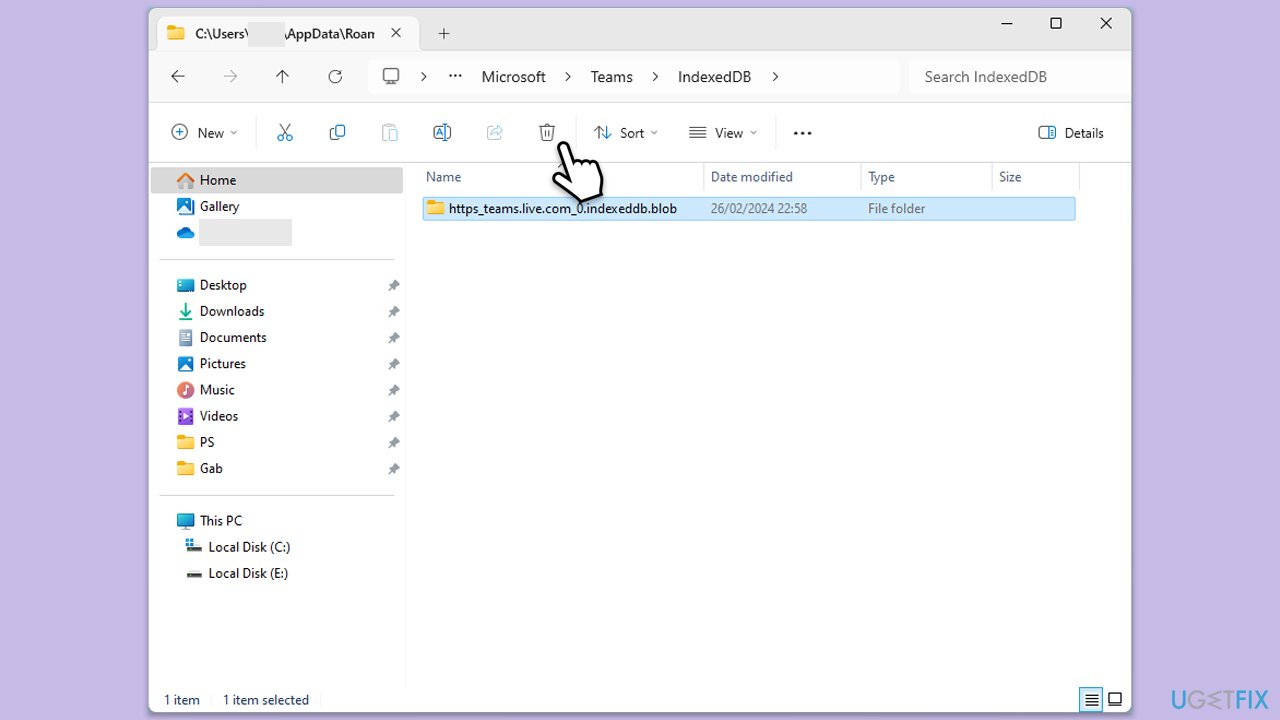
%appdata%\Microsoft\teams\IndexedDB
%appdata%\Microsoft\teams\Local Storage %appdata%\Microsoft\teams\tmp - Make sure you empty the Recycle Bin (or use Shift + Del combination to delete these files).
- Restart your computer.
Fix 3. Disable the firewall temporarily
A strict firewall might prevent Teams from accessing the internet, and turning it off briefly can allow the app to establish a connection.
- Open your antivirus and disable it.
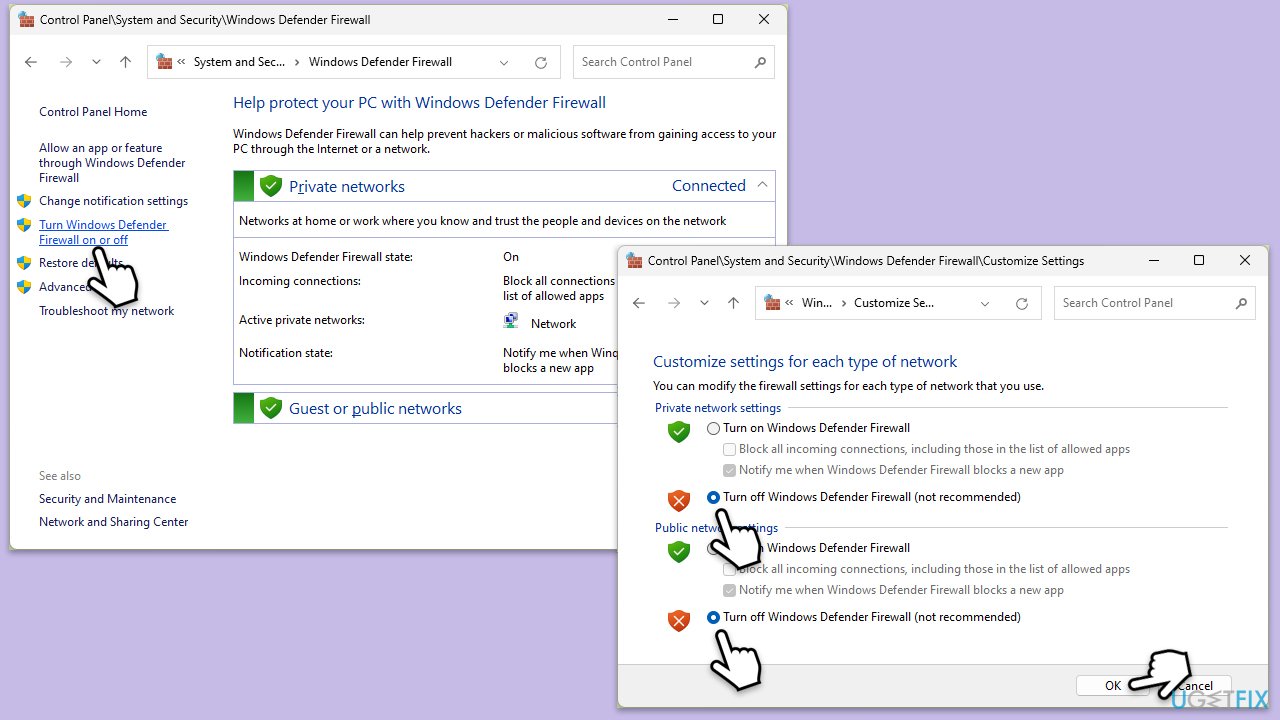
- Open the Control Panel and navigate to System and Security > Windows Defender Firewall.
- Click on Turn Windows Defender Firewall on or off.
- Select Turn off Windows Defender Firewall for both private and public network settings.
- Try using the Teams again to see if the error is resolved.
Fix 5. Run SFC and DISM
Damaged system files can disrupt Teams’ operations, and a scan with this tool restores their integrity to support a seamless login.
- Type cmd in Windows search, right-click on Command Prompt, and select Run as administrator.
- When UAC shows up, click Yes.
- Copy and paste the following command, pressing Enter after:
sfc /scannow - Wait till the scan is finished. If Windows finds system file integrity violations, it will attempt to fix them. After this, use the set of the following commands, pressing Enter each time:
DISM /Online /Cleanup-Image /CheckHealth
DISM /Online /Cleanup-Image /ScanHealth
DISM /Online /Cleanup-Image /RestoreHealth - Close down the Command Prompt and restart your PC.

Fix 6. Reinstall Microsoft Teams
If alternative solutions fail, reinstalling Teams can fix any corrupted application files that may be causing the problem.
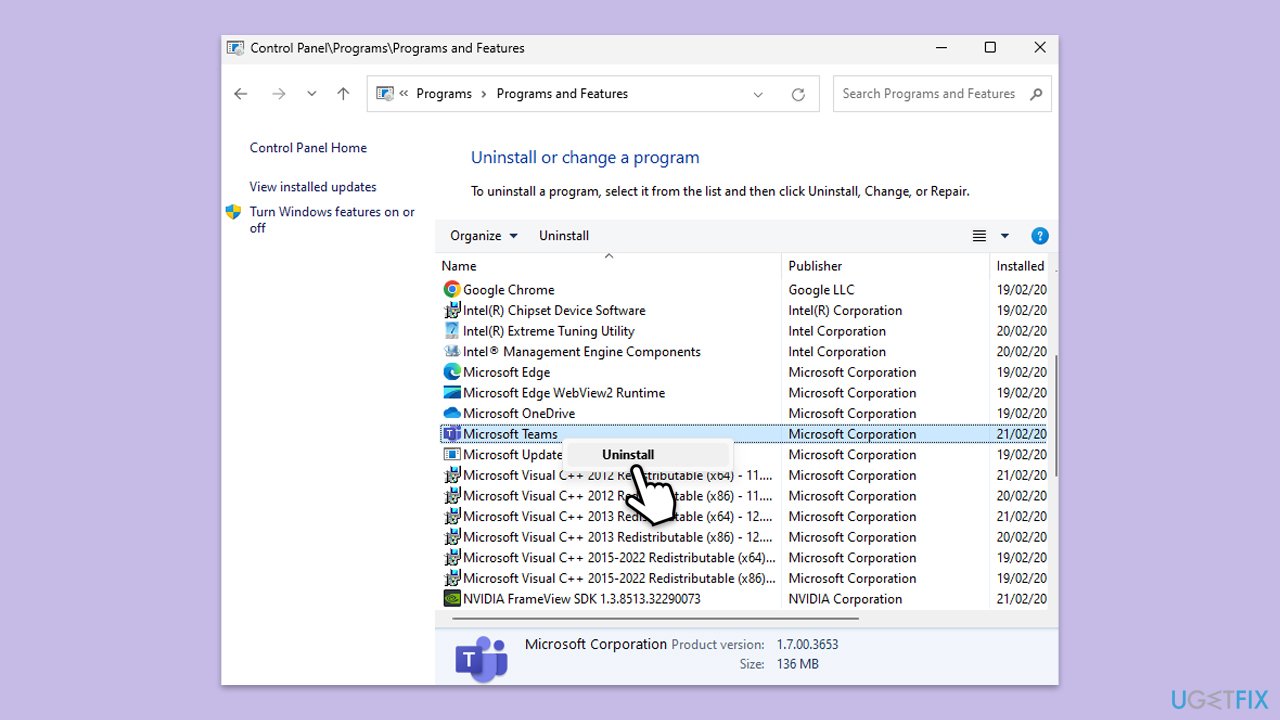
- Type Control Panel in Windows search and press Enter.
- Go to Programs > Uninstall a program.
- Find Microsoft Teams, right-click, and select Uninstall.
- Follow the prompts to remove the app.
- Once done, press Win + E to open File Explorer.
- In the View tab at the top of the window, enable Hidden Files.
- Go to C:\Program Files\WindowsApps location.
- Scroll down to find the Microsoft Teams folder and delete it (alternatively, you can rename it).
- Now type %AppData% in Windows search and press Enter.
- Delete the Teams folder here.
- Finally, restart your system and reinstall the app.
Fix 7. Check the Microsoft server status
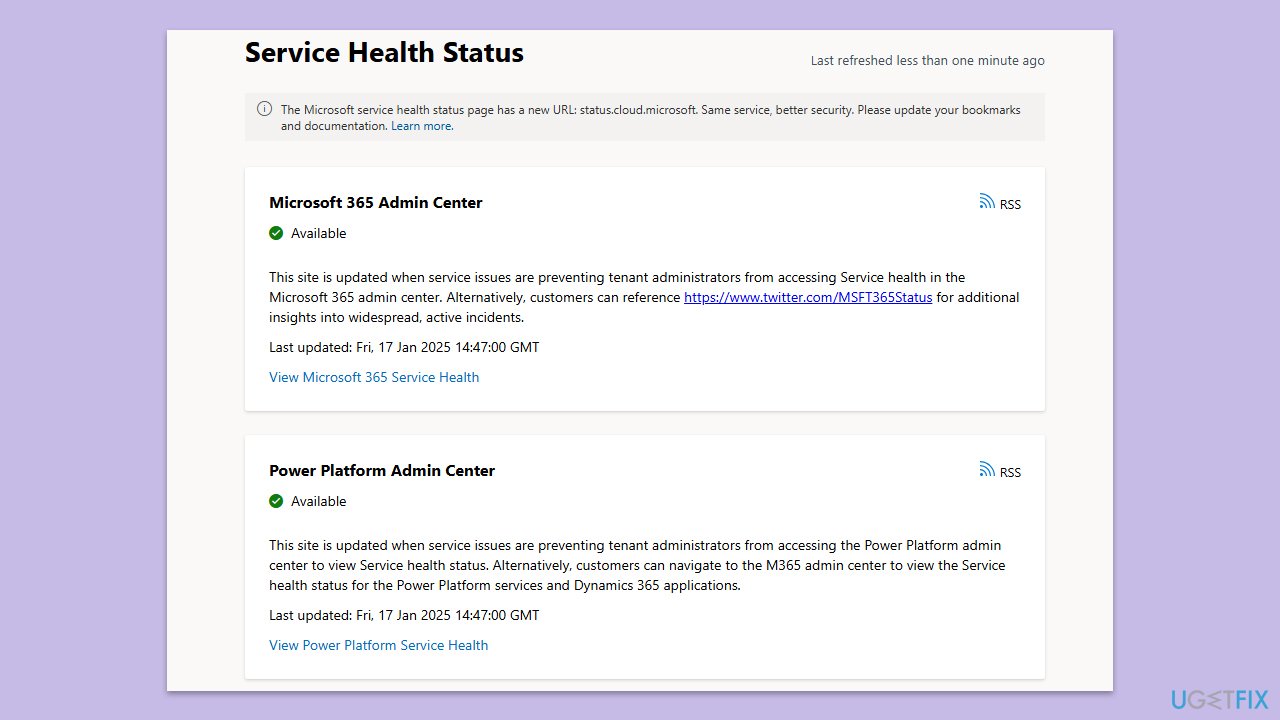
Server outages on Microsoft’s end can prevent sign-in, and checking their status ensures the problem isn’t beyond your control.
- Visit the Microsoft Service Status page.
- Look for any ongoing issues or outages related to Teams or Microsoft services.
- Wait for the server issues to go away.
Bottom line
To fix Teams error code 5, try updating Microsoft Teams, clearing the cache, or reinstalling the application. Additionally, ensure that Teams has the appropriate network rights and run system diagnostics to address any deeper system problems. If these solutions do not work, consider using a comprehensive system repair utility.
Frequently asked questions
Teams error code 5 typically indicates a problem with your account permissions or a connectivity issue affecting the application's functionality.
To resolve this error, try clearing the Teams cache by navigating to %appdata%\Microsoft\Teams and deleting the contents of the folder, then restart Teams.
Yes, reinstalling Microsoft Teams can effectively fix error code 5, as it resets the application and can resolve underlying issues related to corrupted files.




Report an issue
What's wrong with this guide? We review every report and update or remove content.
Report received — thank you. We'll review and fix it.
You need a free account to submit a report.
Be the first to comment