How to fix
Teams error code – 6
on Windows
Resolve Teams error code -6 on Windows 10 or 11 quickly and easily with proven solutions. Get back to collaborating hassle-free, expert-tested.

What causes How to fix Teams error code – 6 in Windows?
- Issue with account authentication
- Program damage
- Variations in account credentials
- Obsolete application data
- Corrupted user profiles
Repairs Windows system files, removes malware, and restores a clean OS state — without reinstalling.
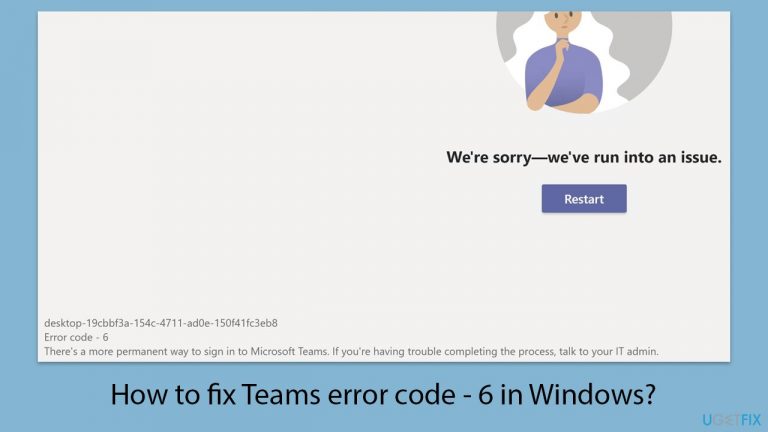
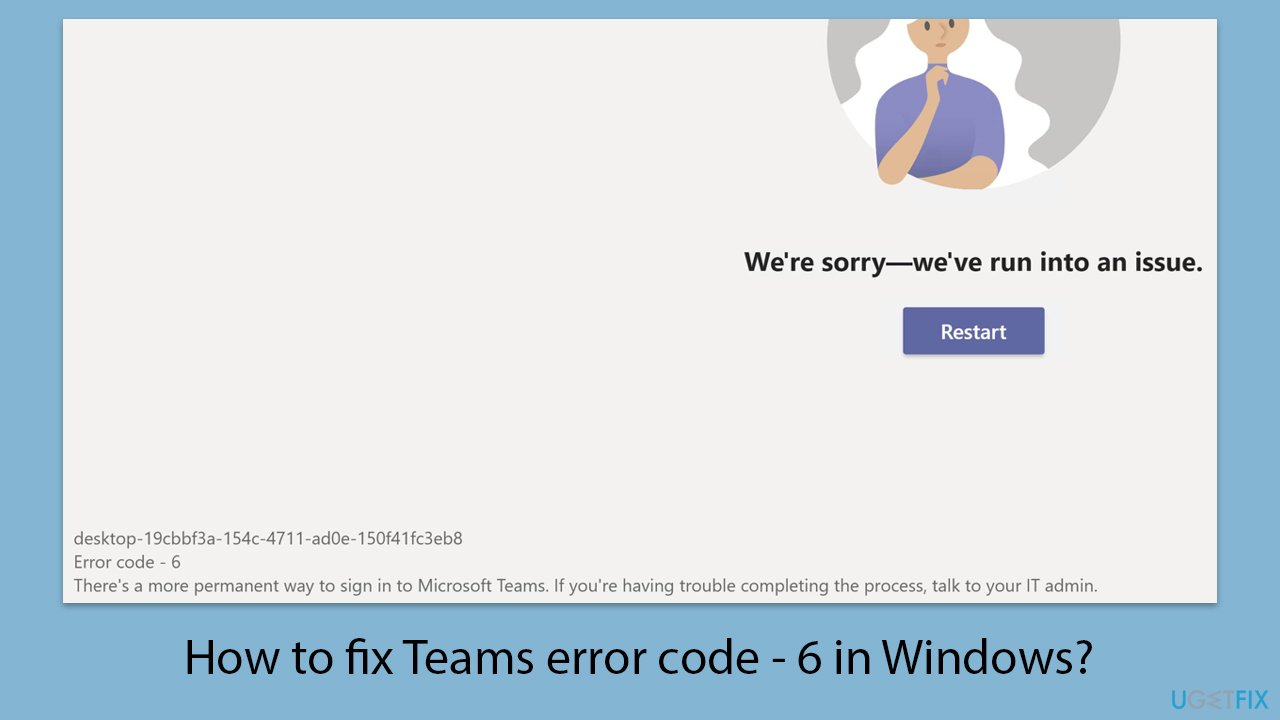
There seems to be some issue with my Teams app - I can no longer connect to it. Every time I try to connect it says "We're sorry - we've run into an issue. Error code - 6." What can I do to log back in again?
Microsoft Teams is a complete communication and collaboration software commonly utilized in business settings. It easily interacts with Microsoft's Office suite, giving users a single platform for video conferencing, file sharing, and real-time collaboration. The connectivity with a user's work or school account is critical to its functionality, as it allows for individualized access to teams, channels, and documents relevant to their organizational role.
Windows users may occasionally receive Teams error code -6, which indicates an issue with account authentication or program damage. This issue often occurs when the Teams program is unable to synchronize with the user's work or school account, which could be due to variations in account credentials, obsolete application data, or corrupted user profiles. Such a problem disturbs the smooth user experience, preventing access to critical work resources and communication channels.
To address Teams error number -6, a direct and effective solution is to ensure that the user's school or work account is correctly connected and authorized within Teams. This could include signing out and then back into the account to refresh the authentication tokens.
Furthermore, creating a new user profile on Windows or emptying the cache files in the Teams application might assist erase any corrupt data that may be causing the error. These actions are intended to restore the application's optimal working condition by renewing its connection with the user's account and removing any temporary files that may interfere with its operation.
For individuals looking for an easier solution to underlying Windows issues that may be causing the Teams error number -6, a PC repair program [d1] can be a useful option. This software is intended to automatically diagnose and repair common Windows issues, perhaps addressing any conflicts that may be affecting Teams without the need for manual interaction.
Fix 1. Make sure other users aren't connected to your account on other devices
Ensuring that your account is not being used on multiple devices simultaneously can prevent issues with account synchronization and authentication, which may solve the Teams error code -6. This is because concurrent logins can sometimes lead to session conflicts or authentication errors.
- Sign out of your Teams account on all devices.
- Wait a few minutes to ensure the sessions have fully expired.
- Sign back into Teams on your primary device.
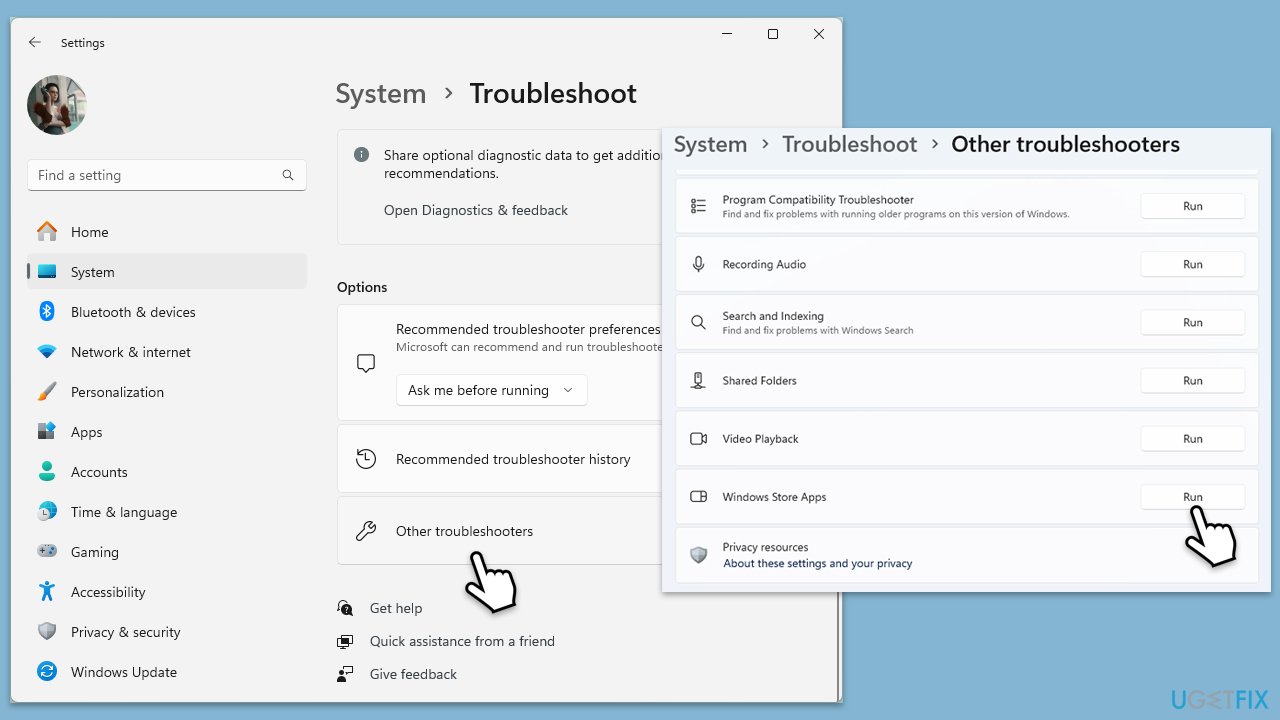
Fix 2. Run Windows Store Apps troubleshooter
The Windows Store Apps troubleshooter can help identify and automatically fix issues with apps downloaded from the Microsoft Store, including Teams. It checks for common problems such as incorrect app settings or conflicts.
- Type in Troubleshoot in Windows search and hit Enter.
- Pick Additional Troubleshooters/Other troubleshooters option.
- Scroll down to find Windows Store Apps section.
- Click Run the troubleshooter/Run and wait for the troubleshooter to finish scanning the system.
- Follow the on-screen instructions to fix any issues that the troubleshooter has found.
Fix 3. Clear Teams cache files
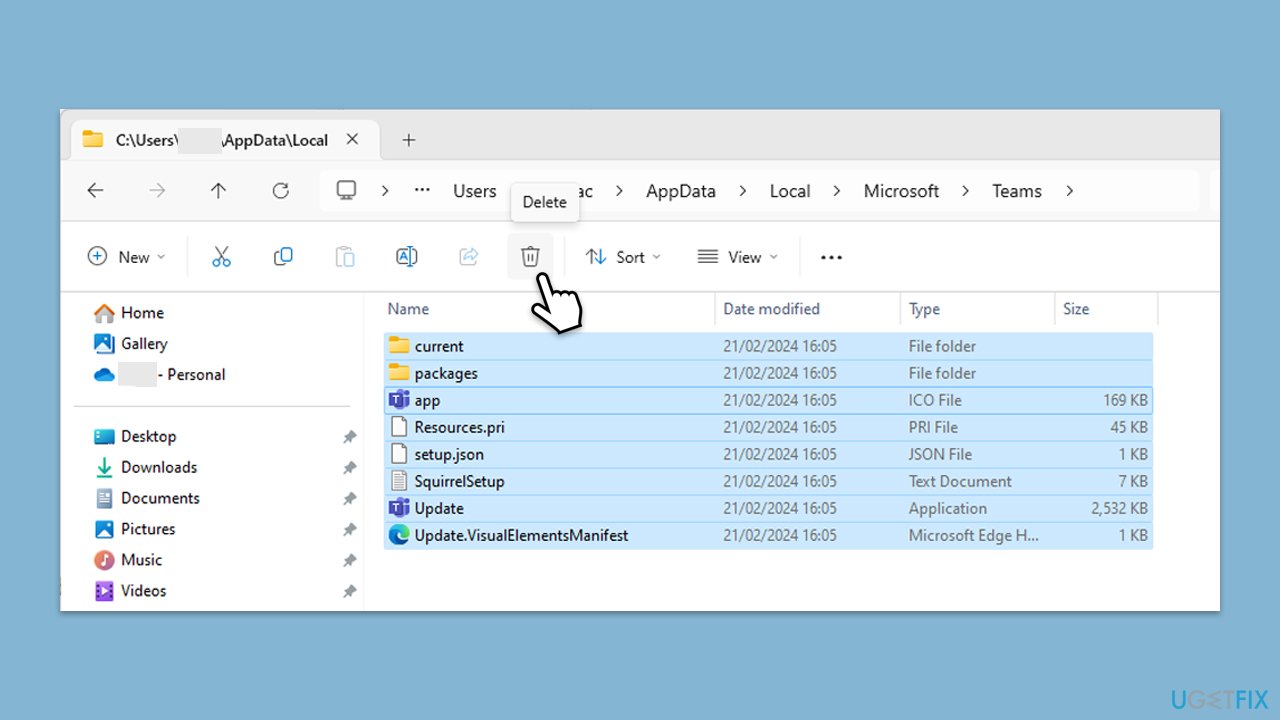
Clearing Teams cache files removes temporary data that might be causing issues. This can resolve problems related to outdated or corrupted information that prevents Teams from operating smoothly.
- Close Microsoft Teams.
- Press Win + R on your keyboard to open the Run dialog.
- Type %AppData% and press Enter or click OK.
- Go to the following location:
C:\Users\USERNAME\AppData\Local\Microsoft - Delete all the files and folders located in the Teams folder.
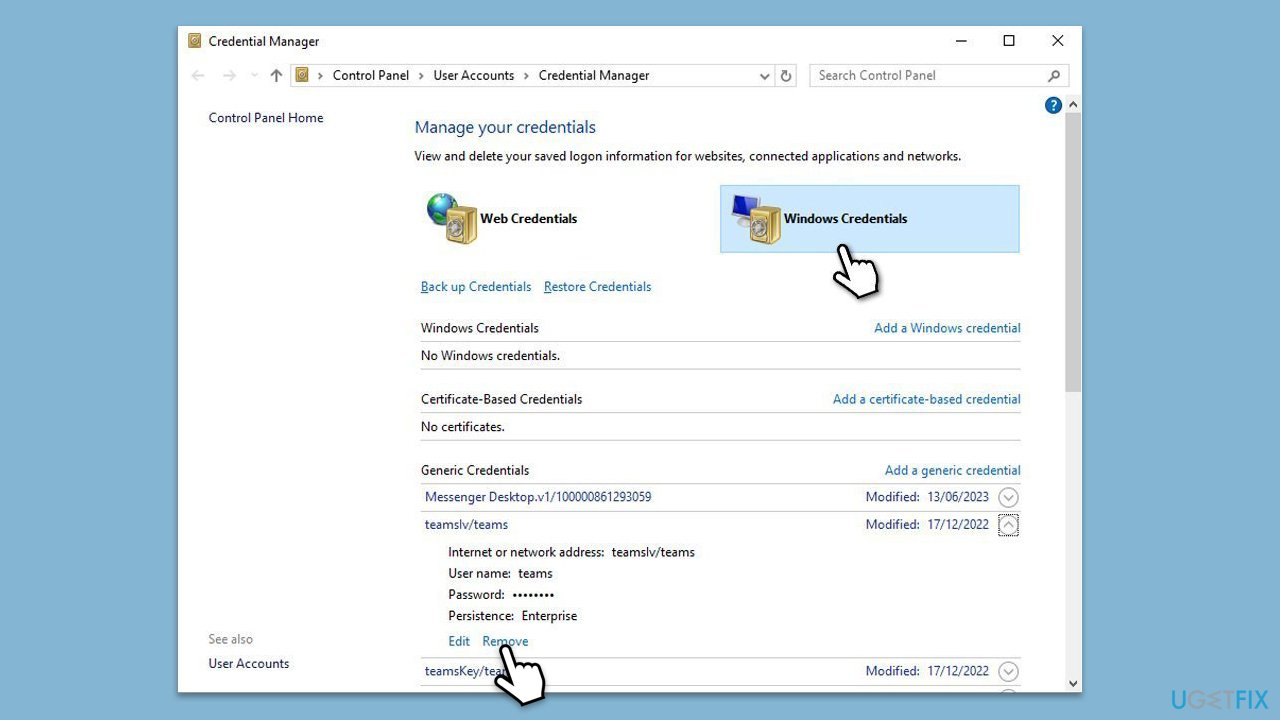
Fix 4. Clear Teams credential cache
Clearing the team credential cache can help resolve issues related to account authentication by removing stored login information and forcing a fresh authentication process.
- Type Credential Manager in Windows search and press Enter.
- Select Windows Credentials.
- Locate and remove any stored credentials related to Microsoft Teams.
- Restart Teams and re-enter your login details.
Fix 5. (Re)Connect your work or school account
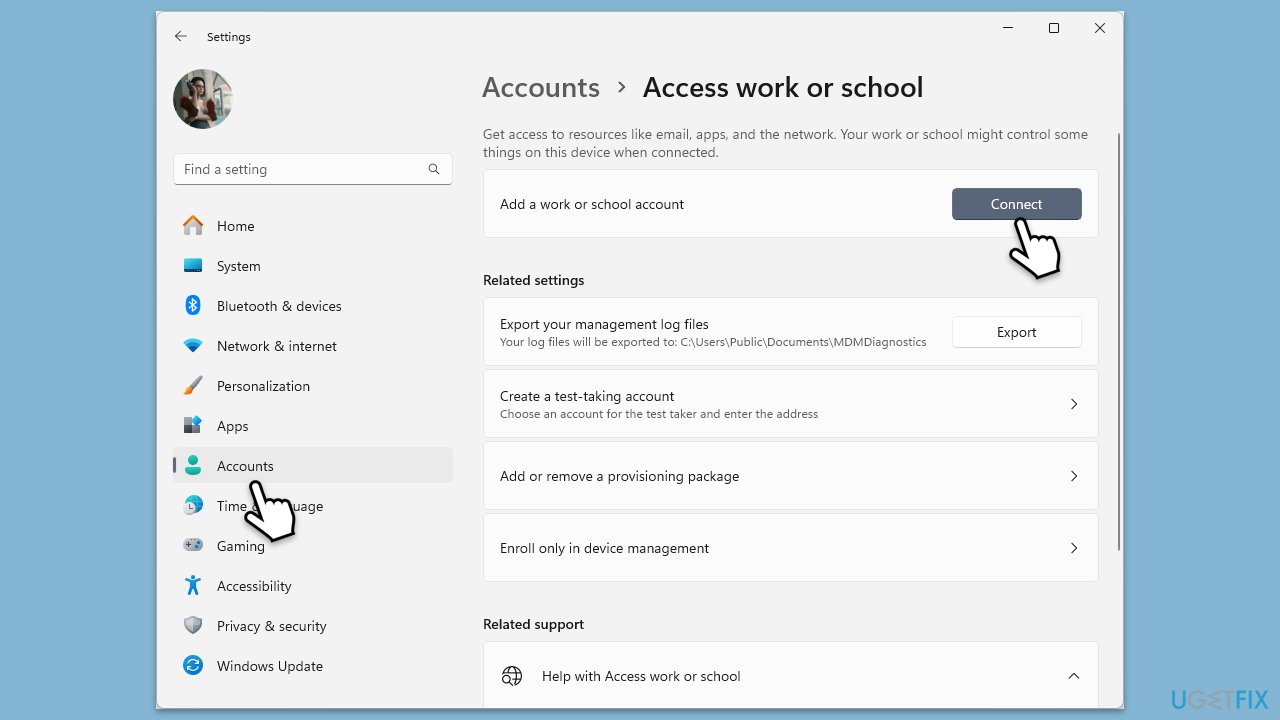
Reconnecting your work or school account ensures that Teams has the correct permissions and access required for your organizational resources. This can resolve synchronization issues with your account.
- Right-click on Start and pick Settings.
- Click on Accounts.
- Select Access work or school.
- If connected, click Disconnect.
- Navigate to C:\users\USERNAME\AppData\Local\Packages (replace USERNAME with your actual username).
- Delete the contents of the folder.
- Restart your computer.
- Return to Access work or school and connect your account again.
Fix 6. Repair or reset Teams
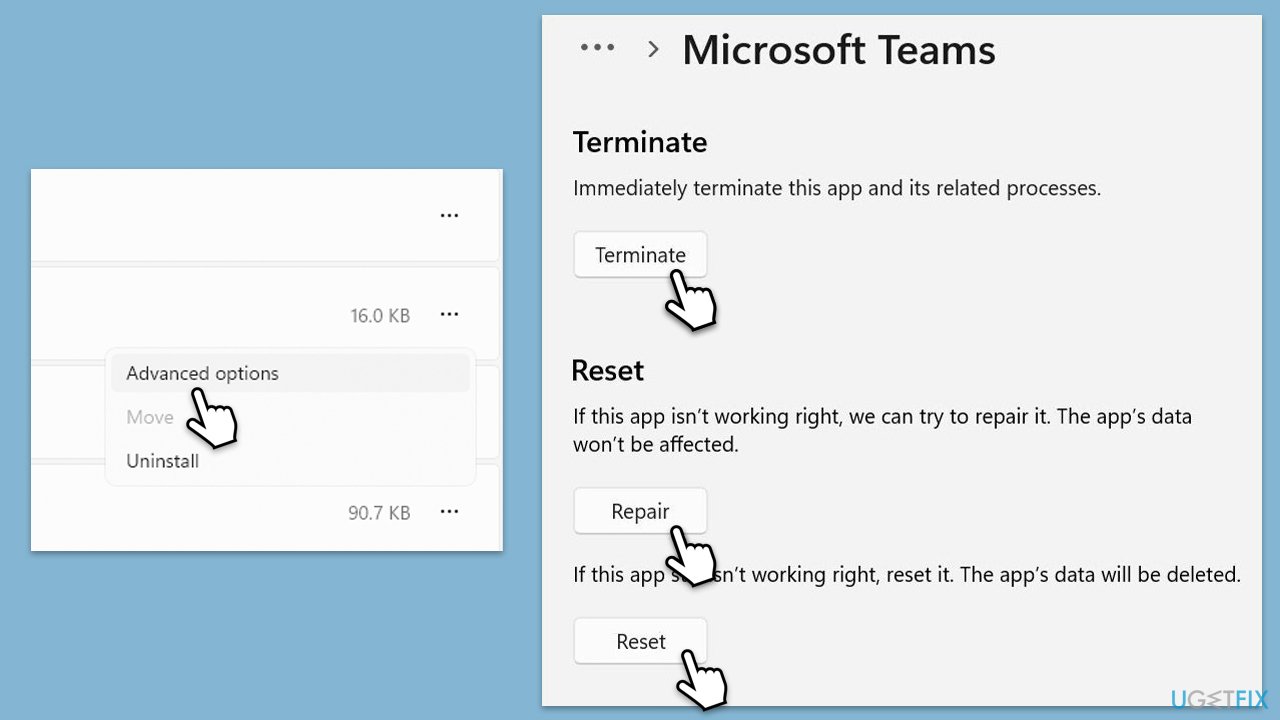
Repairing or resetting Teams can fix issues without affecting your app data, refreshing the app's operational state and potentially resolving error code -6.
- Click on Start and pick Settings.
- Go to the Apps section.
- Locate Microsoft Teams from the list.
- Click on the three vertical dots and pick Advanced options.
- Click Terminate to ensure that the app is not running.
- Under the Reset section, click Repair and see if that solved your issue.
- If not, then try the Reset option.
Fix 7. Reinstall Teams
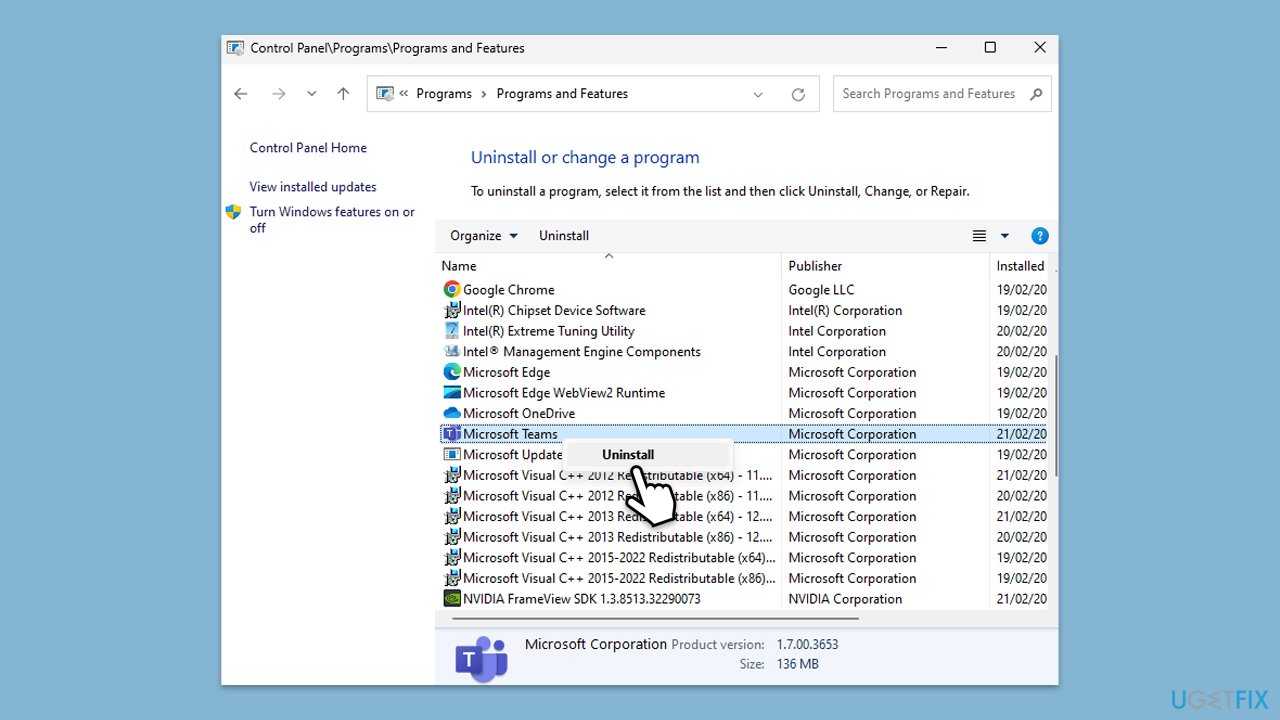
Reinstalling Teams is a more drastic step that removes the current installation and replaces it with a fresh copy.
- Type Control Panel in Windows search and press Enter.
- Go to Programs > Uninstall a program.
- Find Microsoft Teams, right-click, and select Uninstall.
- Follow the prompts to remove the app.
- Once done, press Win + E to open File Explorer.
- In the View tab at the top of the window, enable Hidden Files.
- Go to C:\Program Files\WindowsApps location.
- Scroll down to find the Microsoft Teams folder and delete it (alternatively, you can rename it).
- Now type %AppData% in Windows search and press Enter.
- Delete the Teams folder.
- Finally, restart your device and reinstall the app.
Bottom line
To fix Teams error code -6, ensure that your work or school account is correctly connected and authorized within Teams. You can also try signing out and back in, creating a new user profile on Windows, or clearing the Teams cache files. If these solutions do not work, consider using a PC repair program to diagnose and repair underlying Windows issues.
Frequently asked questions
Teams error code - 6 typically indicates a network connectivity issue or problems with the Teams application itself on Windows devices.
To fix Teams error code - 6 on Windows 11, try clearing the Teams cache by navigating to %appdata%\Microsoft\Teams and deleting the contents of the Cache folder.
Yes, ensure that your firewall settings allow Teams to connect, and check that your internet connection is stable to avoid error code - 6.




Report an issue
What's wrong with this guide? We review every report and update or remove content.
Report received — thank you. We'll review and fix it.
You need a free account to submit a report.
Be the first to comment