How to fix
Teams error code 80090016
on Windows
Resolve Teams error code 80090016 on Windows 10 and 11 effortlessly. Follow our expert-tested guide to fix the issue in minutes!

What causes How to fix Teams error code 80090016 in Windows?
- Out-of-date firmware
- Hardware problems
- Incompatibilities from new upgrades
- Corrupted Teams cache
- Corrupted BrokerPlugin folder
Repairs Windows system files, removes malware, and restores a clean OS state — without reinstalling.
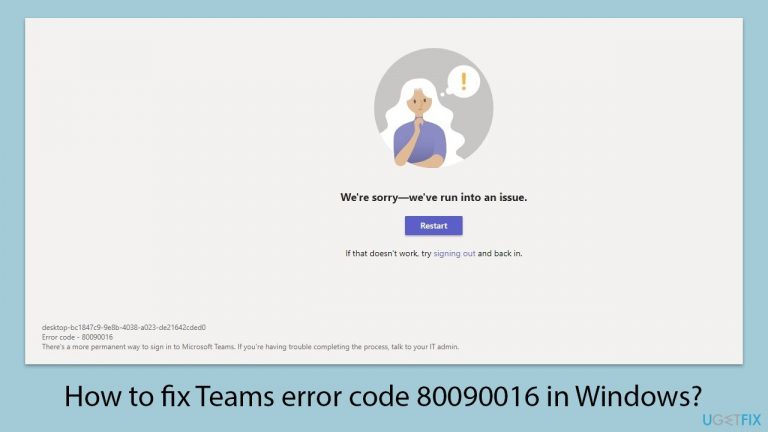
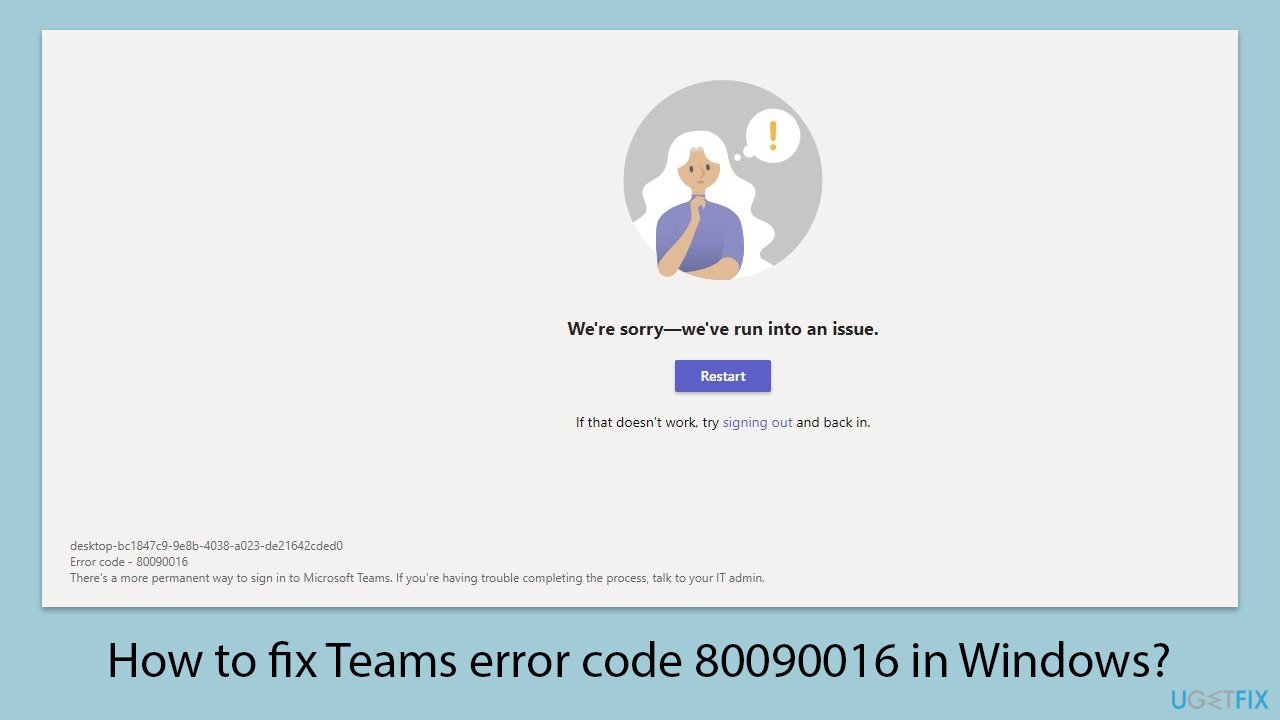
Whenever I try to login to Teams I get this error: "We're sorry - we've run into an issue. Error code 80090016." What does this mean? I have been dealing with this for almost two weeks now.
When trying to log in to Microsoft Teams on Windows, you might encounter the "We're sorry - we've run into an issue. Error code 80090016" message, which typically means that the Trusted Platform Module (TPM) has malfunctioned. TPM is a critical component that provides hardware-based security functions, such as managing cryptographic keys and protecting sensitive data.
Issues related to TPM can often disrupt the proper operation or login process of Teams or other Microsoft Office apps. There are several possible causes for the issues, such as out-of-date firmware, hardware problems, or incompatibilities brought on by new upgrades or software modifications. We are here to help you permanently fix the 80090016 error since it is understandable that not being able to connect to Teams can be a serious issue.
Cleaning the Teams cache is a common method to fix this problem. The cache holds temporary files that let the application function better, but they can occasionally become corrupted and cause issues like 80090016.
Another effective solution is to clear the BrokerPlugin folder, which is associated with the authentication processes in Teams. Corrupted or outdated files in this folder can also lead to the error code 80090016, and clearing it can help resolve the issue.
While these methods are often sufficient, some users might require additional solutions to fully address the problem. This could involve more advanced troubleshooting steps, all of which we describe below. Before proceeding, we recommend scanning the system with [d1] to make sure that no underlying Windows issues are causing Teams error 80090016.
Fix 1. Update Teams
Keeping Teams updated ensures you have the latest features and bug fixes, which can resolve many issues including error code 80090016.
- Open Microsoft Teams.
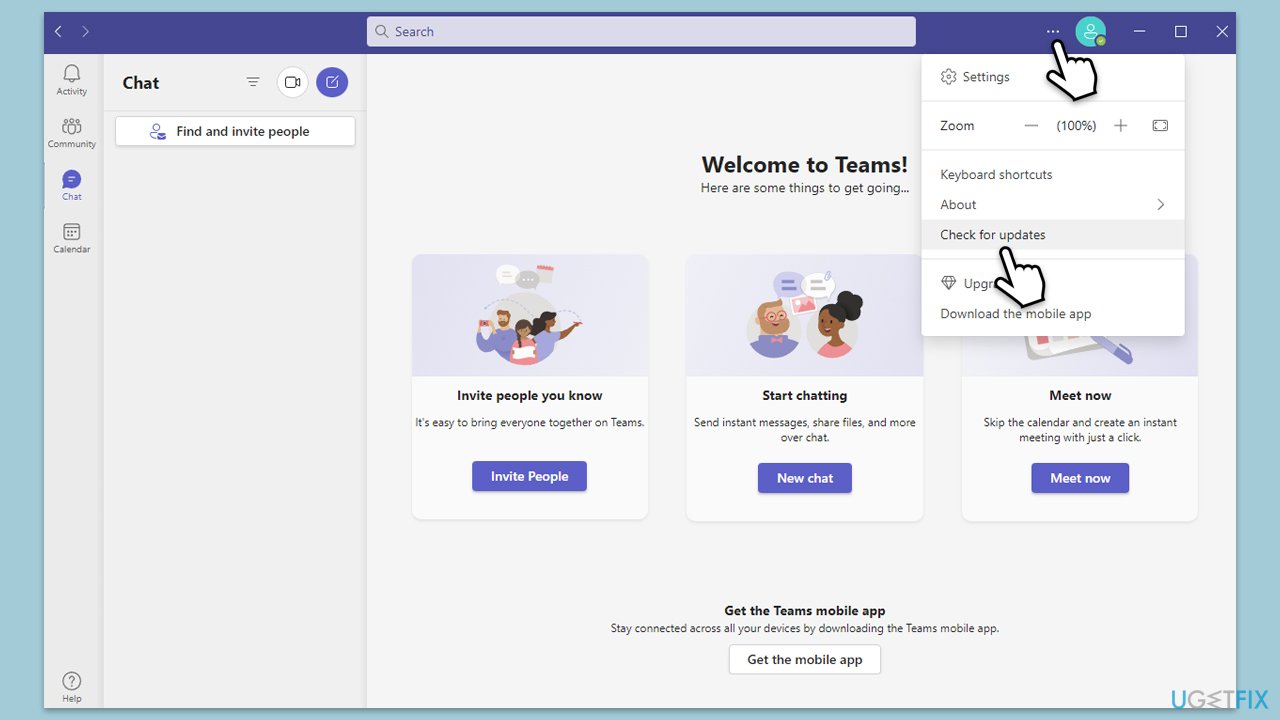
- Click on the Settings and more button at the top-right corner.
- Select Check for updates.
- Teams will automatically download and install any available updates.
- Restart Teams after the update is completed.
Fix 2. Clear Teams cache
Clearing the cache removes temporary files that might be corrupted, which can fix authentication and loading issues.
- Close down Microsoft Teams.
- Press Win + E to open File Explorer.
- Ensure Hidden files are visible.
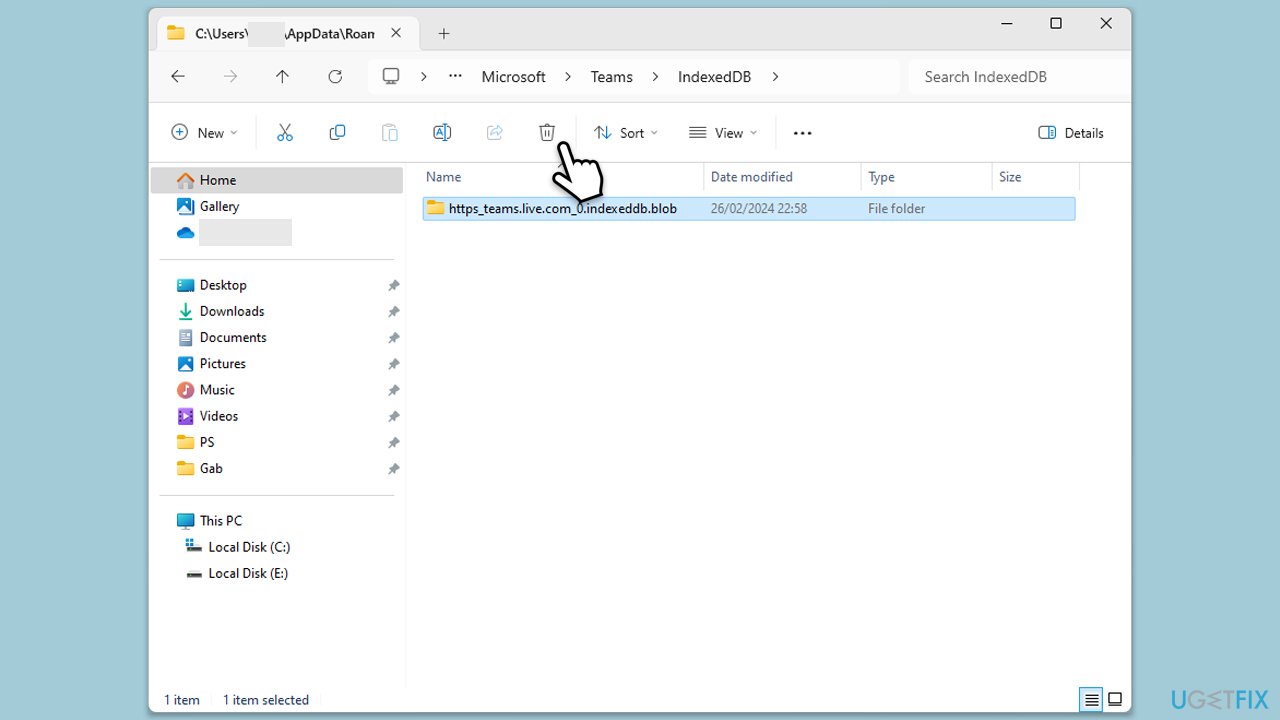
- In the address bar, type in %appdata%\Microsoft\teams and press Enter.
- Delete the contents of the following folders:
%appdata%\Microsoft\teams\application cache\cache
%appdata%\Microsoft\teams\blob_storage
%appdata%\Microsoft\teams\Cache
%appdata%\Microsoft\teams\databases
%appdata%\Microsoft\teams\GPUcache
%appdata%\Microsoft\teams\IndexedDB
%appdata%\Microsoft\teams\Local Storage %appdata%\Microsoft\teams\tmp - Make sure you empty the Recycle Bin (or use Shift + Del combination to delete these files).
- Restart your PC.
Fix 3. Delete BrokerPlugin folder
Removing the BrokerPlugin folder can resolve issues related to authentication processes within Teams.
- First, log into a different admin account. Create one if you don't have it.
- Open File Explorer and navigate to the following location:
C:\Users\USERNAME\AppData\Local\Packages\Microsoft.AAD.BrokerPlugin_cw5n1h2txyewy - Delete this folder: Microsoft.AAD.BrokerPlugin_cw5n1h2txyewy.
- Now log back to your main account and open Teams.
- Enter your credentials - you might get the error again, but you should ignore it as the app continues to load.
Fix 4. Use Online repair for MS Office
Using the Online Repair option can fix any issues with Office applications that might be affecting Teams.
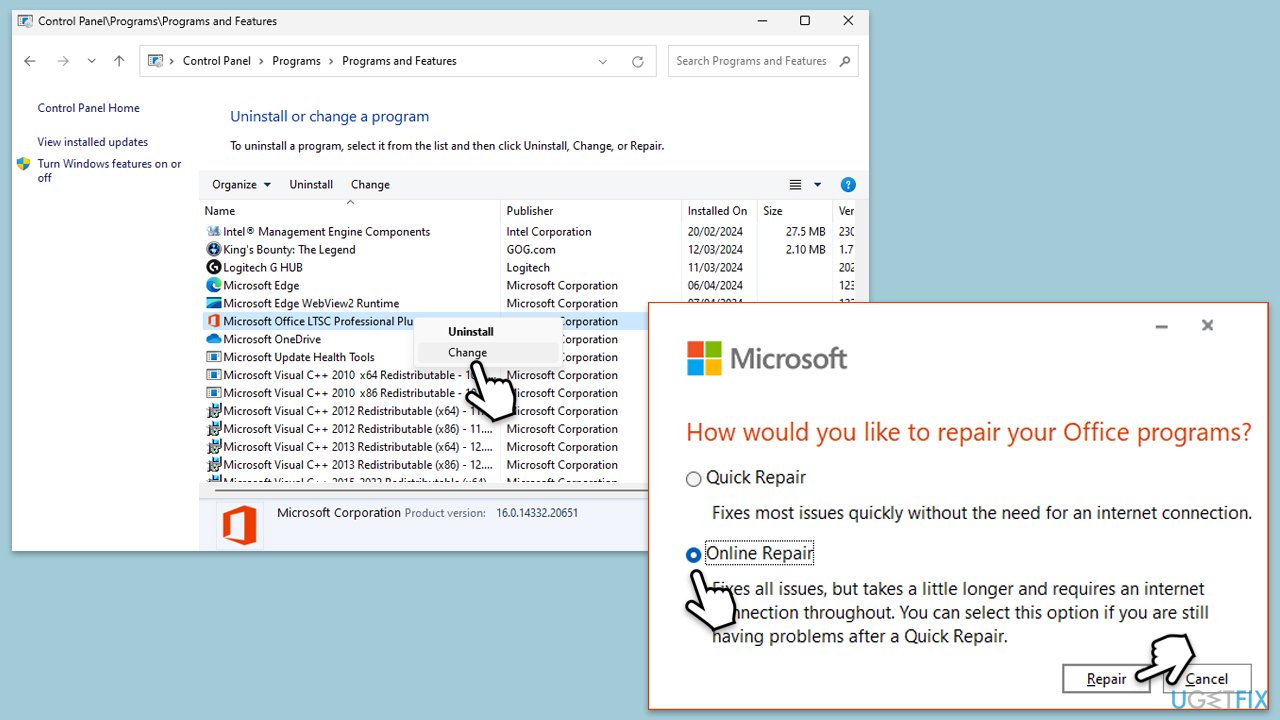
- Type Control Panel in Windows search and press Enter.
- Select Programs > Programs and Features.
- Select Microsoft Office and click on Change.
- Choose the option for Online Repair and click Repair.
- Follow the prompts to finish the process.
Fix 5. Repair or reset the Teams app
Repairing or resetting the Teams app can resolve issues caused by corrupted app files.
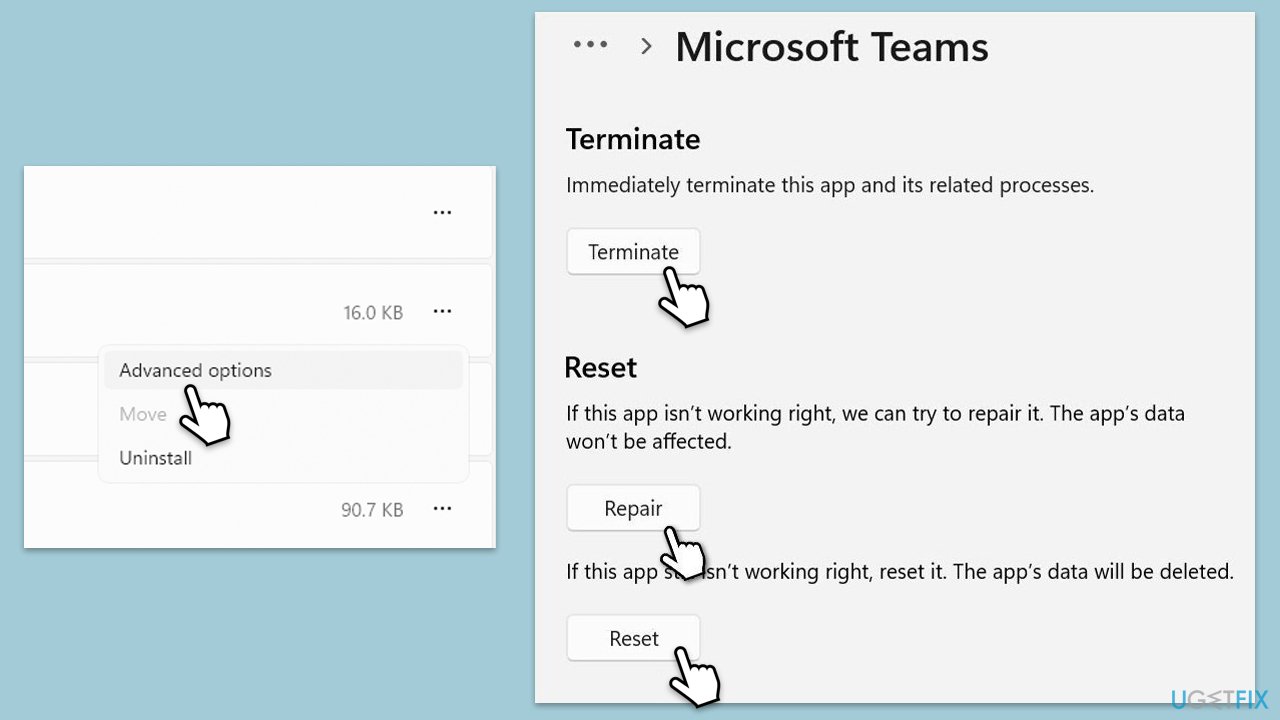
- Click on Start and pick Settings.
- Go to the Apps section.
- Locate Microsoft Teams from the list.
- Click on the three vertical dots and pick Advanced options.
- Click Terminate to ensure that the app is not running.
- Under the Reset section, click Repair and see if that solved your issue.
- If not, then try the Reset option.
Fix 6. Reinstall Teams
Reinstalling ensures that all application files are in their proper state, which can fix persistent errors.
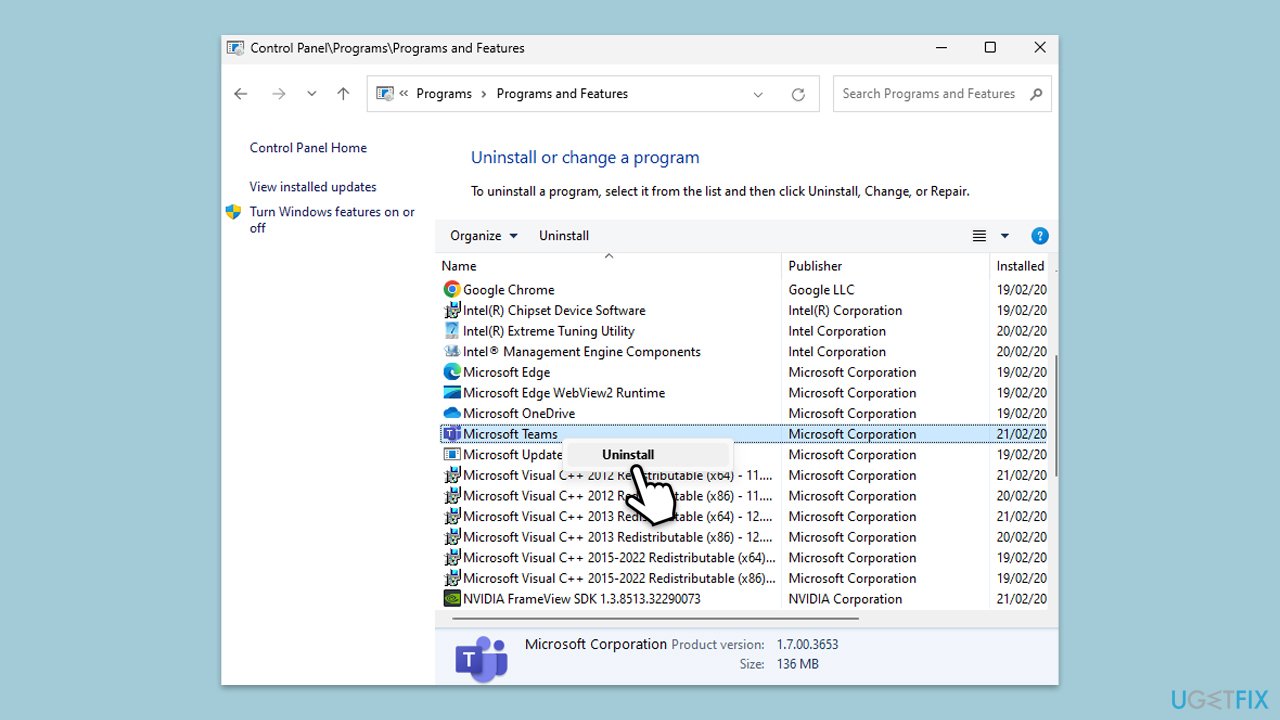
- Type Control Panel in Windows search and press Enter.
- Go to Programs > Uninstall a program.
- Find Microsoft Teams, right-click, and select Uninstall.
- Follow the prompts to remove the app.
- Once done, press Win + E to open File Explorer.
- In the View tab at the top of the window, enable Hidden Files.
- Go to C:\Program Files\WindowsApps location.
- Scroll down to find the Microsoft Teams folder and delete it (alternatively, you can rename it).
- Now type %AppData% in Windows search and press Enter.
- Delete the Teams folder here.
- Finally, restart your system and reinstall the app.
Bottom line
To fix error code 80090016, you can try cleaning the Teams cache and clearing the BrokerPlugin folder. Additionally, keeping Teams updated can resolve many issues. If these methods do not work, consider more advanced troubleshooting steps or scanning the system for underlying Windows issues.
Frequently asked questions
Teams error code 80090016 typically occurs due to issues with the Microsoft account credentials or problems with the Windows credentials manager.
To reset Windows credentials, open 'Credential Manager' from the Control Panel, remove any stored credentials related to Microsoft Teams, and then restart Teams to re-enter your login information.
Yes, ensure that your Windows 10 or Windows 11 system is up to date by checking for any pending updates, as these can often resolve compatibility issues that lead to error code 80090016.




Report an issue
What's wrong with this guide? We review every report and update or remove content.
Report received — thank you. We'll review and fix it.
You need a free account to submit a report.
Be the first to comment