How to fix
Teams error code auth_roadblock_auth_strap
on Windows
Resolve the Teams auth_roadblock_auth_strap error on Windows 10 or 11 with our expert-tested solutions. Fix it in minutes for seamless communication!

What causes How to fix Teams error code auth_roadblock_auth_strap in Windows?
- Unstable internet connection
- Disabled TLS protocols
- Corrupted cache data within Teams
- System clock out of sync with server time
- Firewall restrictions
- Conflicting background processes
Repairs Windows system files, removes malware, and restores a clean OS state — without reinstalling.
I’m on Windows 11 and keep hitting "Error auth_roadblock_auth_strap" when signing into Microsoft Teams. It says "We're sorry - we've run into an issue" and tells me to try again (but of course it doesn't work). I am not sure what to do, so I'm hoping you can help me with this.
Microsoft Teams brings collaboration and communication within reach of Windows 11 users through its desktop app, which can support features like sharing files, messaging, and meetings. Nevertheless, auth_roadblock_auth_strap errors can halt such experiences, particularly at the login attempt juncture. The problem comes in the form of the user entering credentials, and the outcome is only a prompt:
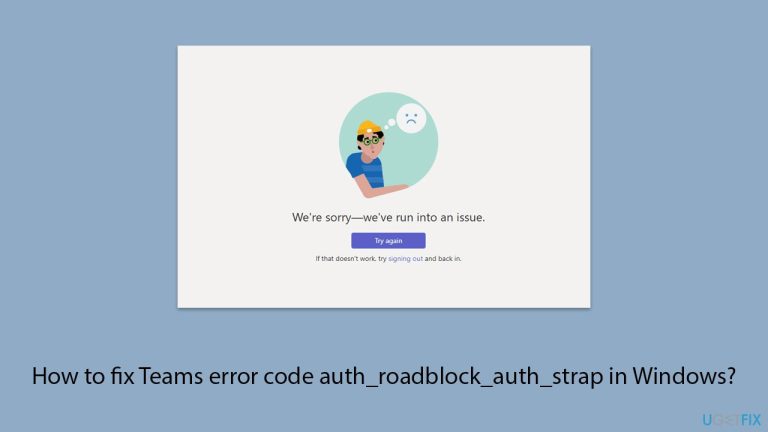
We're sorry - we've run into an issue.
Try againError code: auth_roadblock_auth_strap
While some users will try some of the more basic troubleshooting steps, such as closing and restarting the PC or app, the auth_roadblock_auth_strap problem can persist and thus be a more stubborn issue.
This error prevents Teams access, suspending productivity by stopping participation in scheduled calls or access to shared files. The problem typically arises from connectivity between the app and Microsoft servers, perhaps the product of an unstable internet connection or slow security settings like disabled TLS protocols.
Corrupted cache data within Teams might also trigger the auth_roadblock_auth_strap error, as could a system clock out of sync with server time, which disrupts authentication. Firewall restrictions or conflicting background processes may further complicate matters.
Since the exact cause of the auth_roadblock_auth_strap error isn’t immediately clear, users face uncertainty in restoring functionality. This disruption can frustrate those dependent on Teams for daily tasks, requiring a systematic approach to resolve. The fixes below provide actionable steps, with [d1] available to address underlying Windows issues that might contribute to the auth_roadblock_auth_strap, ensuring Teams reconnects effectively.

Fix 1. Check Network connection
A spotty network might be the root cause of the error, so verifying it could get you back online.
Windows 11:
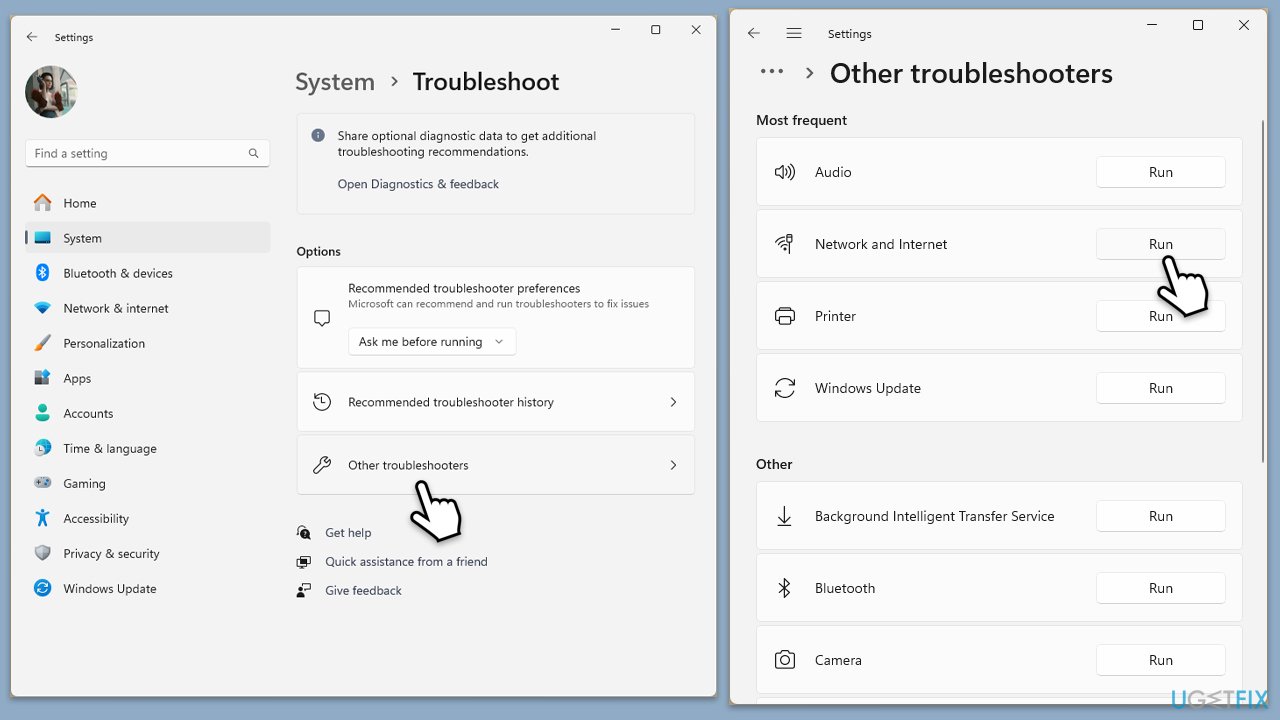
- Type Troubleshoot in Windows search and hit Enter.
- Select Other troubleshooters.
- Locate Network & Internet troubleshooter from the list and click Run.
- Wait till the process is finished and apply the recommended fixes.
- Restart your computer.
Windows 10:
- Right-click on Start and pick Settings.
- Go to the Network & Internet section.
- On the right side, find the Advanced network settings section.
- Click Network troubleshooter and wait.
- The fixes will be automatically applied.
Fix 2. Enable TLS protocols
Teams relies on modern security protocols - ensuring TLS 1.1 and 1.2 are active might clear the error.
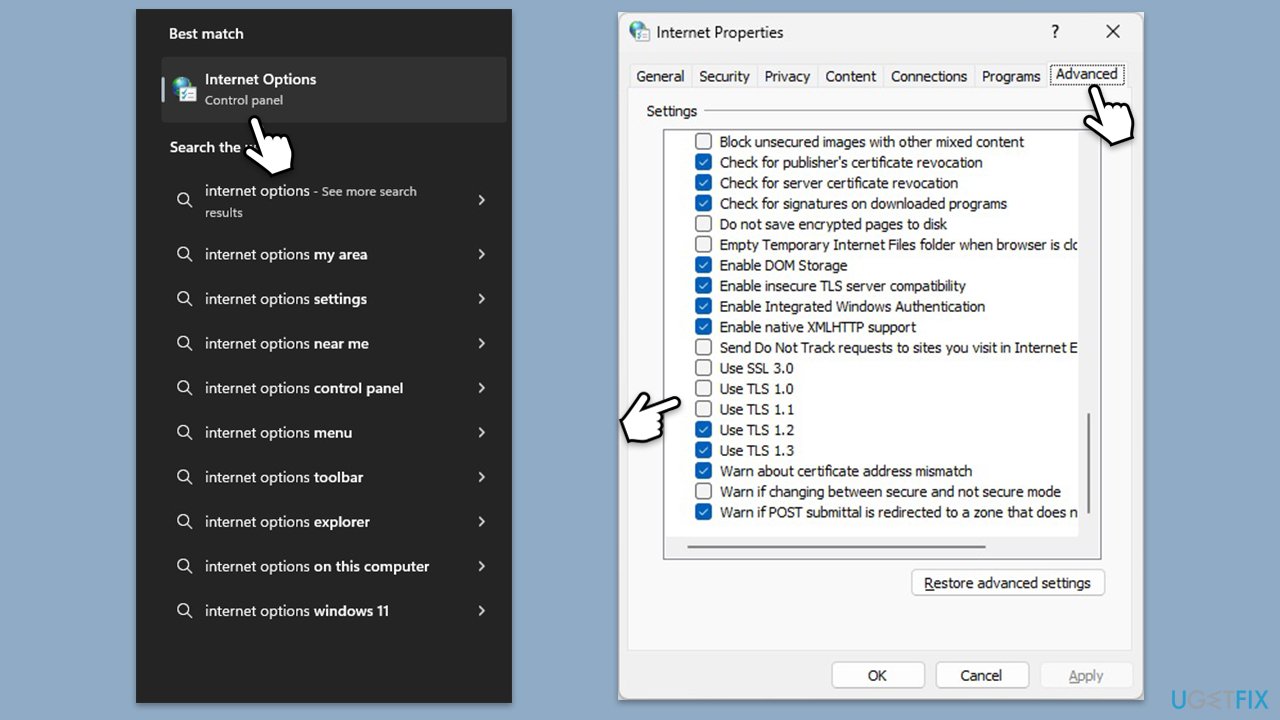
- Type Internet Options in Windows search and press Enter.
- Go to the Advanced tab.
- Scroll down to the Security section.
- Ensure the following settings are applied:
- SSL 3.1, TLS 1.0, and TLS 1.1 are disabled.
- TLS 1.2 and TLS 1.3 are enabled.
- Click Apply and then OK.
- Restart your PC and try using the Microsoft Teams again.
Fix 3. Clear Teams cache
Wipe corrupted cache files to allow a fresh connect to occur.
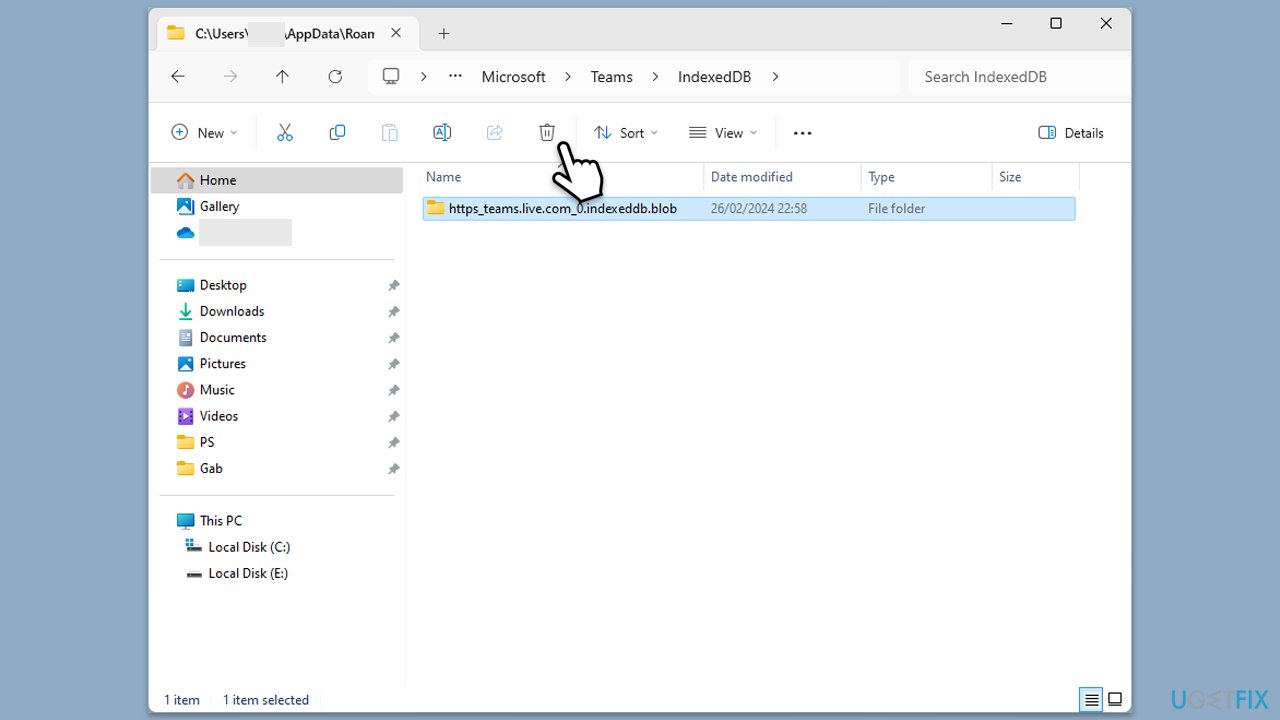
- Press Win + E to open File Explorer.
- Ensure Hidden files are visible.
- In the address bar, type in %appdata%\Microsoft\teams and press Enter.
- Delete the contents of the following folders:
%appdata%\Microsoft\teams\application cache\cache
%appdata%\Microsoft\teams\blob_storage
%appdata%\Microsoft\teams\Cache
%appdata%\Microsoft\teams\databases
%appdata%\Microsoft\teams\GPUcache
%appdata%\Microsoft\teams\IndexedDB
%appdata%\Microsoft\teams\Local Storage %appdata%\Microsoft\teams\tmp - Make sure you empty the Recycle Bin (or use Shift + Del combination to delete these files).
- Restart your computer.
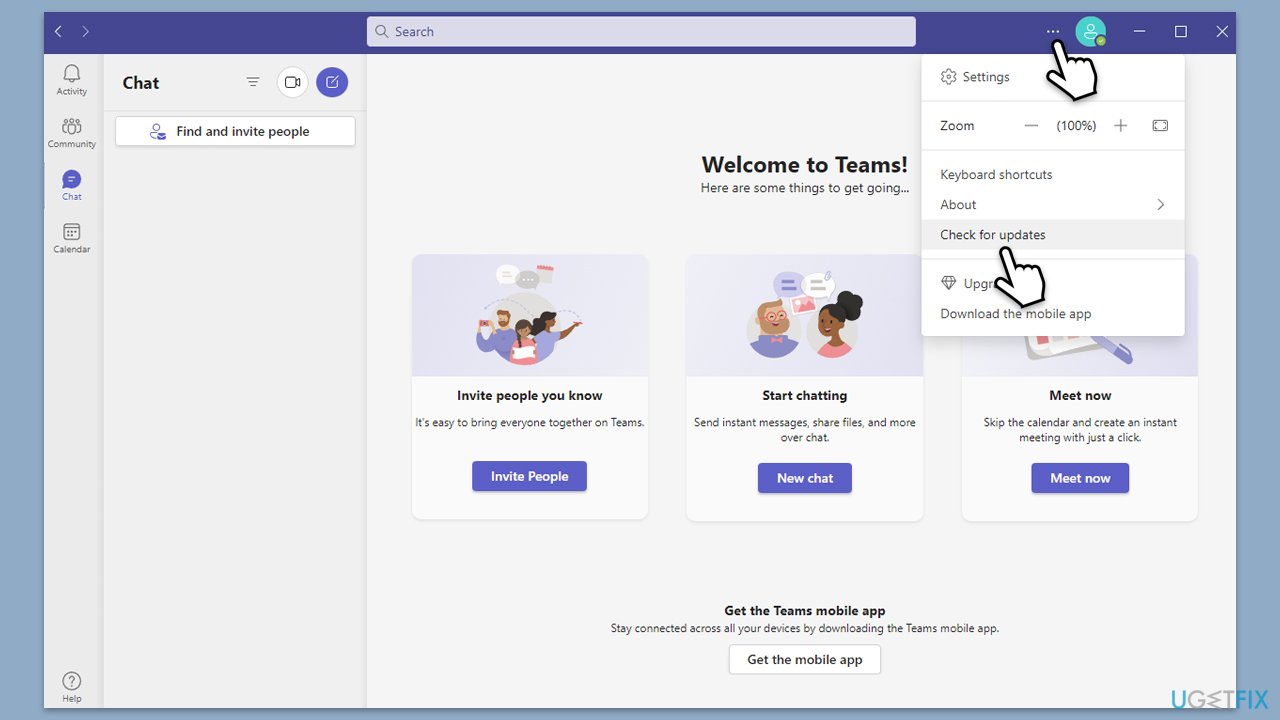
Fix 4. Update Microsoft Teams
An outdated app might struggle with server handshakes. Make sure it is updated as follows:
- Open Microsoft Teams.
- Click on the Settings and more button at the top-right corner.
- Select Check for updates.
- Teams will automatically download and install any available updates.
- Restart Teams after the update is completed.
Fix 5. Set time and date automatically
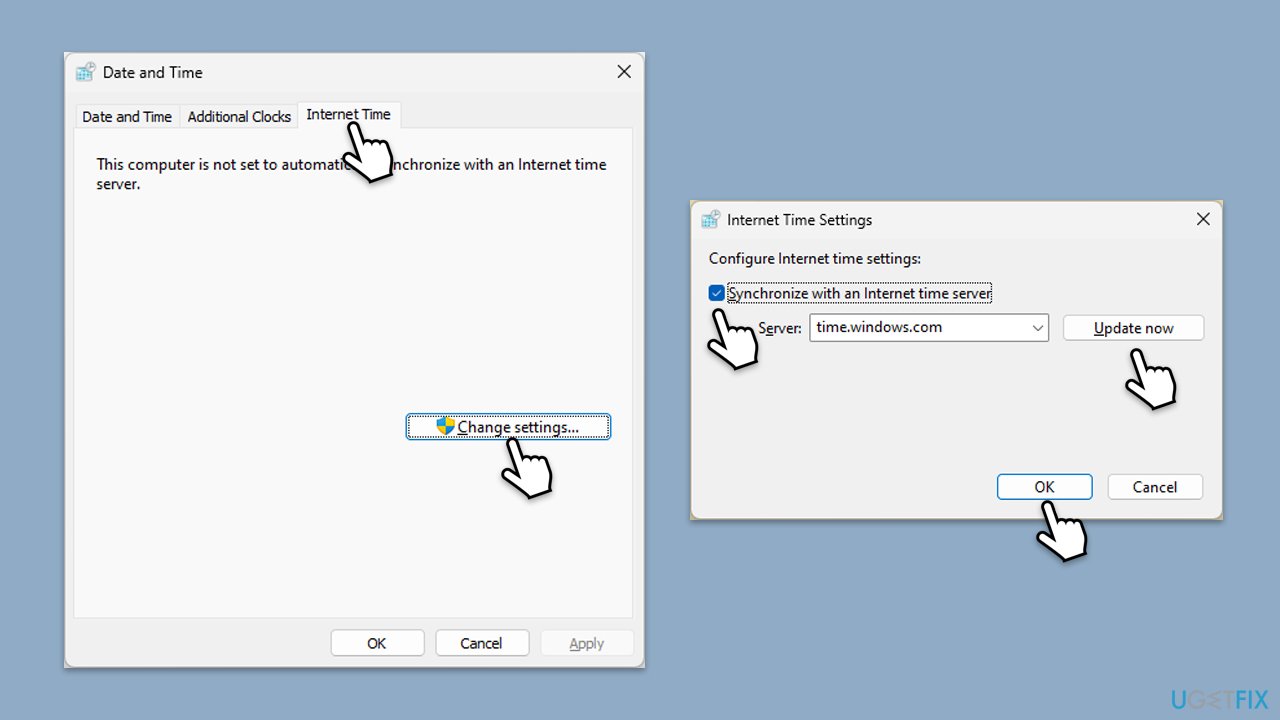
A mismatched clock can trip Microsoft’s security - syncing it automatically might fix the login block.
- Type in Control Panel in Windows search and press Enter.
- Go to Clock and Region and click on Date and Time.
- Pick the Internet Time tab and select Change Settings.
- Make sure that Synchronize with an Internet time server box is ticked.
- Click Update now and OK.
Fix 6. Restart in Clean Boot
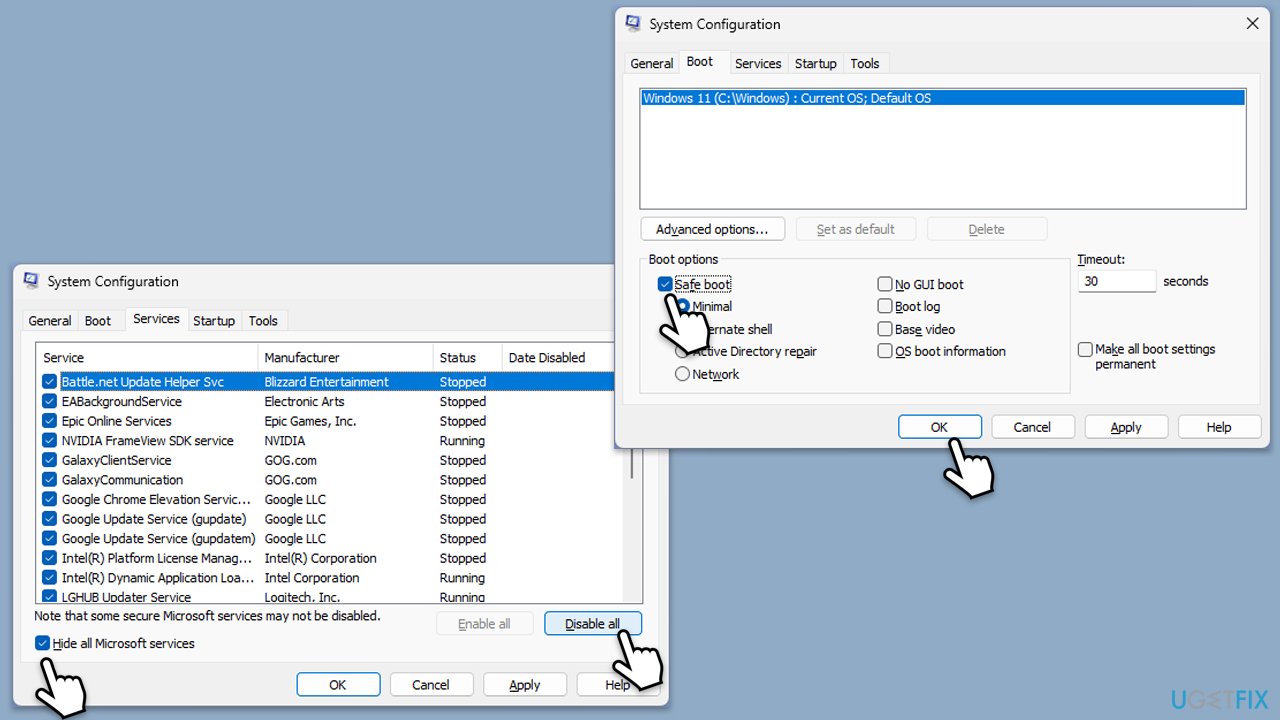
Clean Boot tests whether background apps are the culprit(s) by limiting interference for a clean login attempt.
- Type msconfig in Windows Search and press Enter.
- Click on the Services tab and check the Hide all Microsoft Services box.
- Click Disable all to disable non-Microsoft services, then click the Startup tab.
- Open the Task Manager, disable all startup items, and close the Task Manager.
- Go to the Boot tab and mark the Safe boot option.
- Click OK on the System Configuration window and restart your computer.
- If the problem does not exist, third-party software is at fault. To determine which app is causing it try enabling half of the available programs, restarting, and checking if the problem is still absent. Continue till you find the offending software and either update or uninstall it.
Fix 7. Reinstall Teams
If Teams installation files become corrupt or deleted accidentally, it might lead to log in issues.
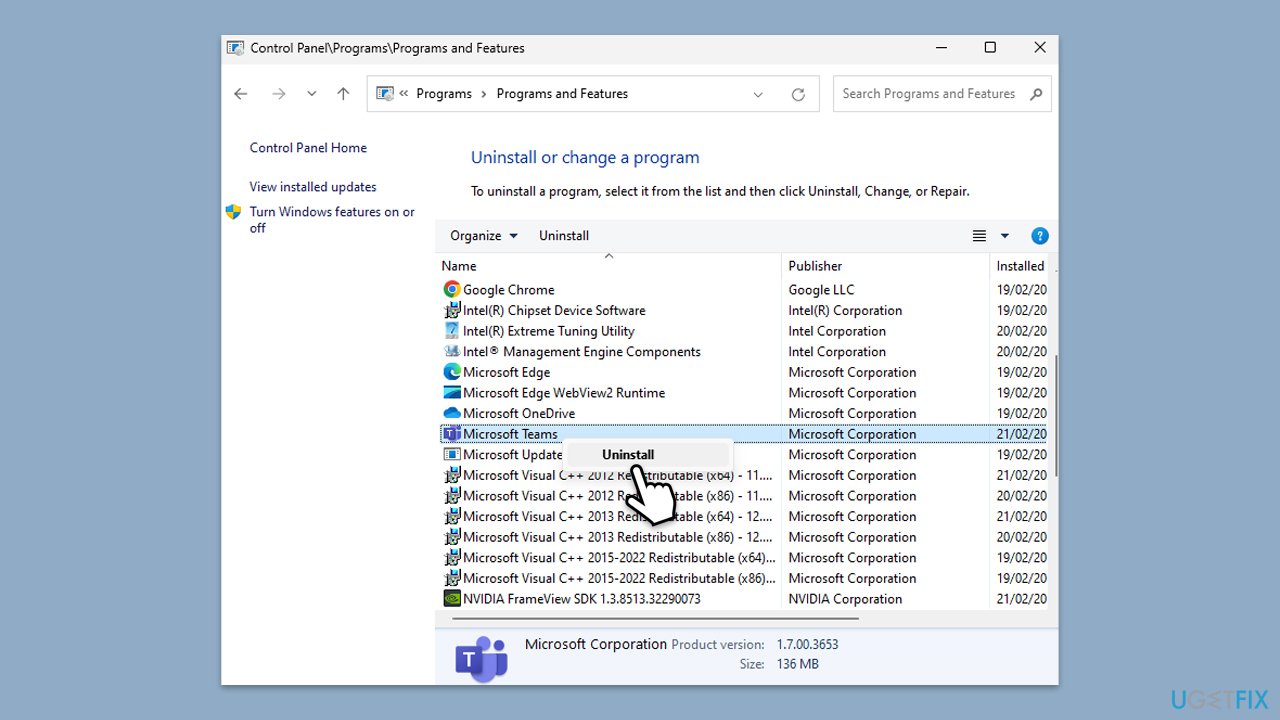
- Type Control Panel in Windows search and press Enter.
- Go to Programs > Uninstall a program.
- Find Microsoft Teams, right-click, and select Uninstall.
- Follow the prompts to remove the app.
- Once done, press Win + E to open File Explorer.
- In the View tab at the top of the window, enable Hidden Files.
- Go to C:\Program Files\WindowsApps location.
- Scroll down to find the Microsoft Teams folder and delete it (alternatively, you can rename it).
- Now type %AppData% in Windows search and press Enter.
- Delete the Teams folder here.
- Restart your computer and reinstall the app.
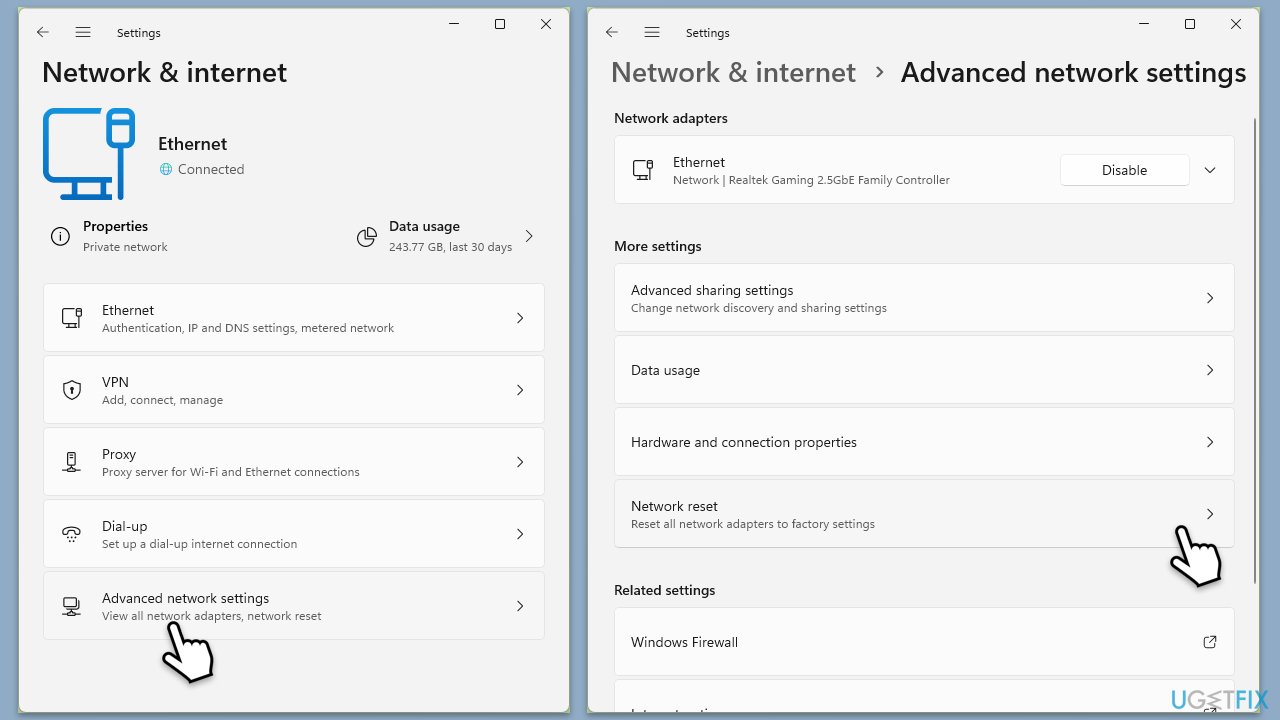
Fix 8. Reset network
The problem could still lie in your network, so you could try resetting it and seeing if that helps.
- Right-click on Start and pick Settings.
- Go to Network & Internet.
- Under Advanced network settings, click Network reset.
- Click Reset Now.
- Confirm the action and then restart your system.
Bottom line
To resolve the auth_roadblock_auth_strap error, users can check their network connection, troubleshoot internet issues, and ensure TLS protocols are enabled. If the problem persists, clearing the Teams cache and syncing the system clock may help. If none of these solutions work, further investigation into Windows issues may be necessary.
Frequently asked questions
This error typically occurs due to authentication issues, often related to cached credentials or network problems affecting Microsoft Teams connectivity.
To clear cached credentials, go to Control Panel > User Accounts > Credential Manager, and remove any stored credentials related to Microsoft Teams before restarting the application.
Yes, uninstalling and then reinstalling Microsoft Teams can resolve the error by refreshing the application and its associated files on Windows 10 or Windows 11.




Report an issue
What's wrong with this guide? We review every report and update or remove content.
Report received — thank you. We'll review and fix it.
You need a free account to submit a report.
Be the first to comment