How to fix
Teams error code CAA2000B
on Windows
Resolve Teams error code CAA2000B on Windows 10 or 11 effortlessly. Follow our expert-tested solutions for a hassle-free experience. Fixed in minutes!


What causes How to fix Teams error code CAA2000B in Windows?
- Invalid date and time settings
- Corrupted cache
- Improperly configured permissions
- Disabled critical services
- Expired licenses or disabled service principals
Repairs Windows system files, removes malware, and restores a clean OS state — without reinstalling.
Hi. I have an active Office 365 subscription but unfortunately I'm facing a log-in issue with Microsoft Teams. Whenever I try to log in, I always get "Something went wrong" with error code CAA2000B. Could you help me here? I'm using Windows 11 Home edition.
Microsoft Teams error code CAA2000B generally prevents Windows users from signing in, displaying the message, "Something went wrong. We couldn't sign you in." The issue occurs during sign-in both for desktop and web applications.
Users often notice error code CAA2000B after updates, account changes, or switching accounts. This issue can linger despite application restarts, locking out Teams access for meetings and collaboration.
Error code CAA2000B may be due to invalid date and time settings, corrupted cache, or improperly configured permissions. It can also result if critical services such as Yammer are disabled by the administrator. Expired licenses or disabled service principals may prevent authentication.
To fix this problem, users can modify system settings, clear the Teams cache, or reset accounts. Checking the device's date and time should be the initial response. If the issue continues, users may need to reach out to IT to verify account permissions and subscriptions.
[d1] repair software is beneficial for users with the CAA2000B error code. The tool fixes system problems like corrupt files and registry problems, aiding in finding and repairing the cause.

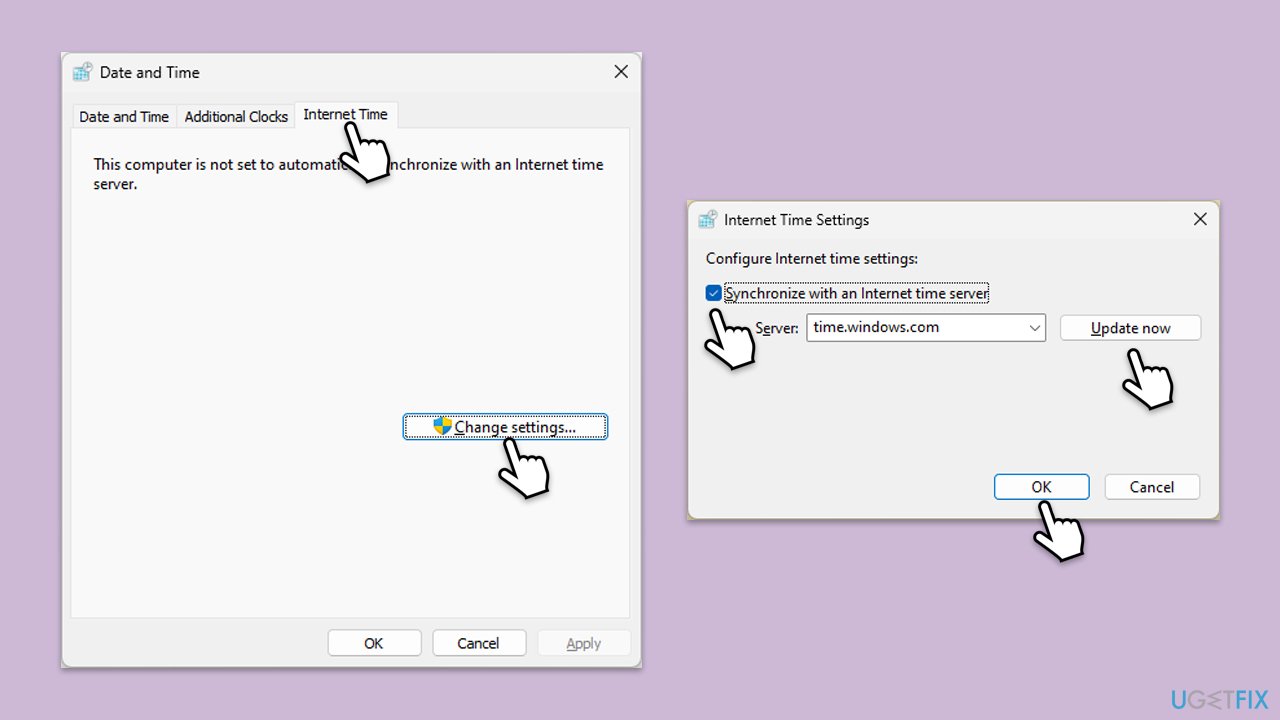
Fix 1. Check date and time settings
Incorrect date and time settings can disrupt the authentication process, leading to error code CAA2000B. Ensuring the system clock is accurate allows Teams to verify login credentials properly.
- Type in Control Panel in Windows search and press Enter.
- Go to Clock and Region and click on Date and Time.
- Pick the Internet Time tab and select Change Settings.
- Make sure that the Synchronize with an Internet time server box is ticked.
- Click Update now and OK.
Fix 2. Clear Microsoft Teams cache
A corrupted Teams cache can lead to sign-in errors. Clearing the cache forces the app to rebuild its data, often resolving error code CAA2000B.
- Close down Microsoft Teams.
- Press Win + E to open File Explorer.
- Ensure Hidden files are visible.
- In the address bar, type in %appdata%\Microsoft\teams and press Enter.
- Delete the contents of the following folders:
%appdata%\Microsoft\teams\application cache\cache
%appdata%\Microsoft\teams\blob_storage
%appdata%\Microsoft\teams\Cache
%appdata%\Microsoft\teams\databases
%appdata%\Microsoft\teams\GPUcache
%appdata%\Microsoft\teams\IndexedDB
%appdata%\Microsoft\teams\Local Storage %appdata%\Microsoft\teams\tmp - Make sure you empty the Recycle Bin (or use Shift + Del combination to delete these files).
- Restart your computer.

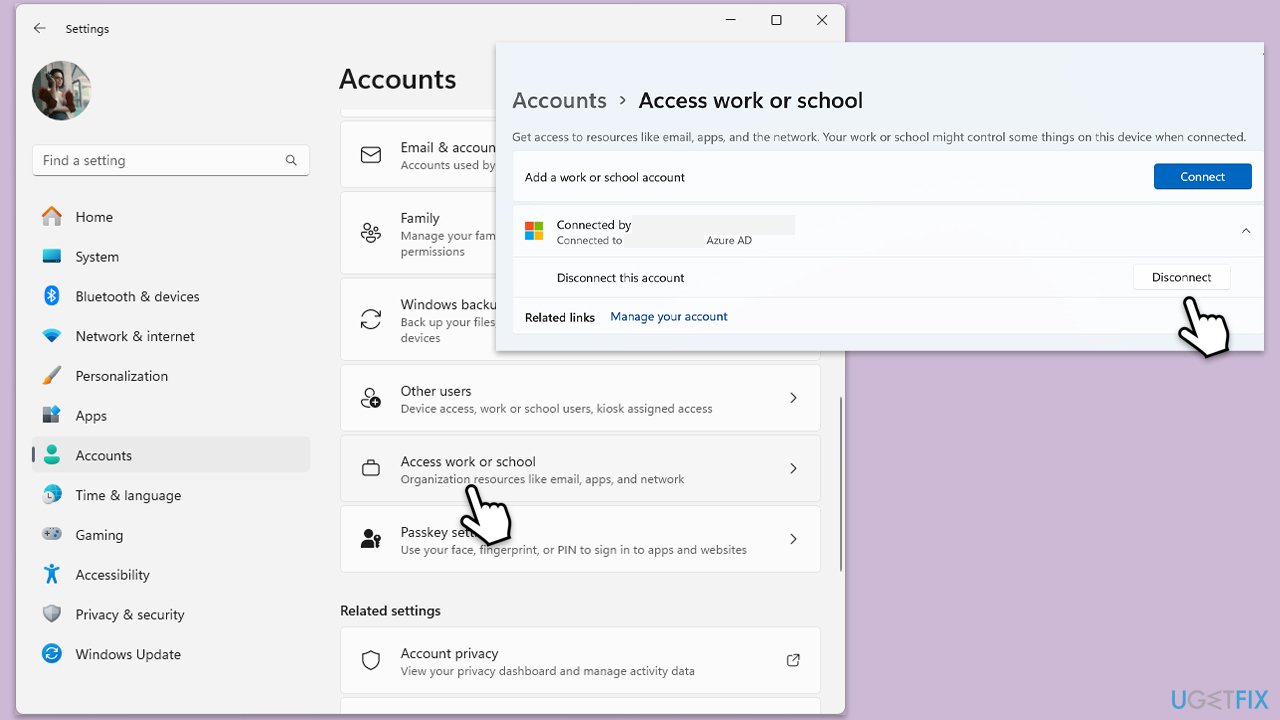
Fix 3. Check account permissions
Error CAA2000B may occur if account permissions are misconfigured. Verifying that the user account has the necessary access rights can resolve the issue.
- Open Settings and go to Accounts.
- Select Access work or school.
- Ensure your work or school account is listed and properly connected.
- If necessary, remove and re-add the account.
Fix 4. Repair or reset Microsoft Teams app
Repairing or resetting the Teams app returns it to its default state, resolving issues caused by corrupted settings or configuration errors.
- Click on Start and pick Settings.
- Go to the Apps section.
- Locate Microsoft Teams from the list.
- Click on the three vertical dots and pick Advanced options.
- Click Terminate to ensure that the app is not running.
- Under the Reset section, click Repair and see if that solved your issue.
- If not, then try the Reset option.

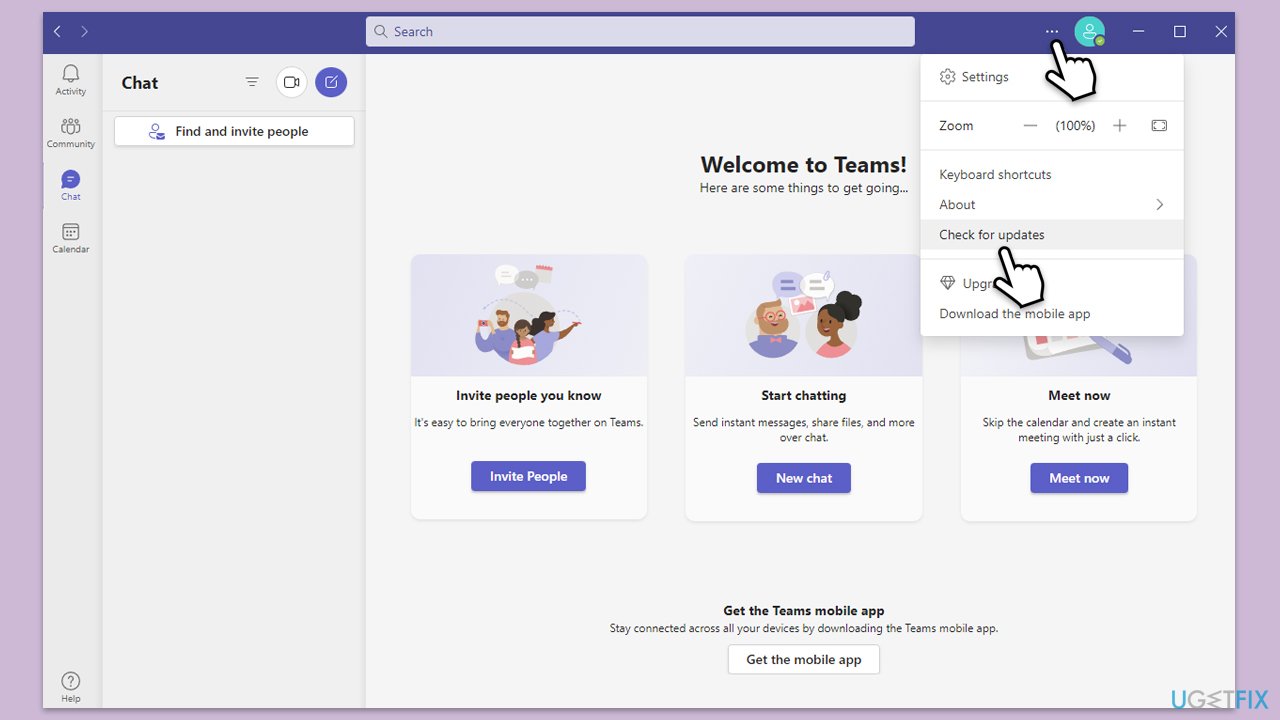
Fix 5. Update Microsoft Teams
Outdated versions of Teams can encounter compatibility issues, resulting in error code CAA2000B. Keeping the app updated ensures compatibility with system services.
- Open Microsoft Teams.
- Click on the Settings and more button at the top-right corner.
- Select Check for updates.
- Teams will automatically download and install any available updates.
- Restart Teams after the update is completed.
Fix 6. Try Clean Boot
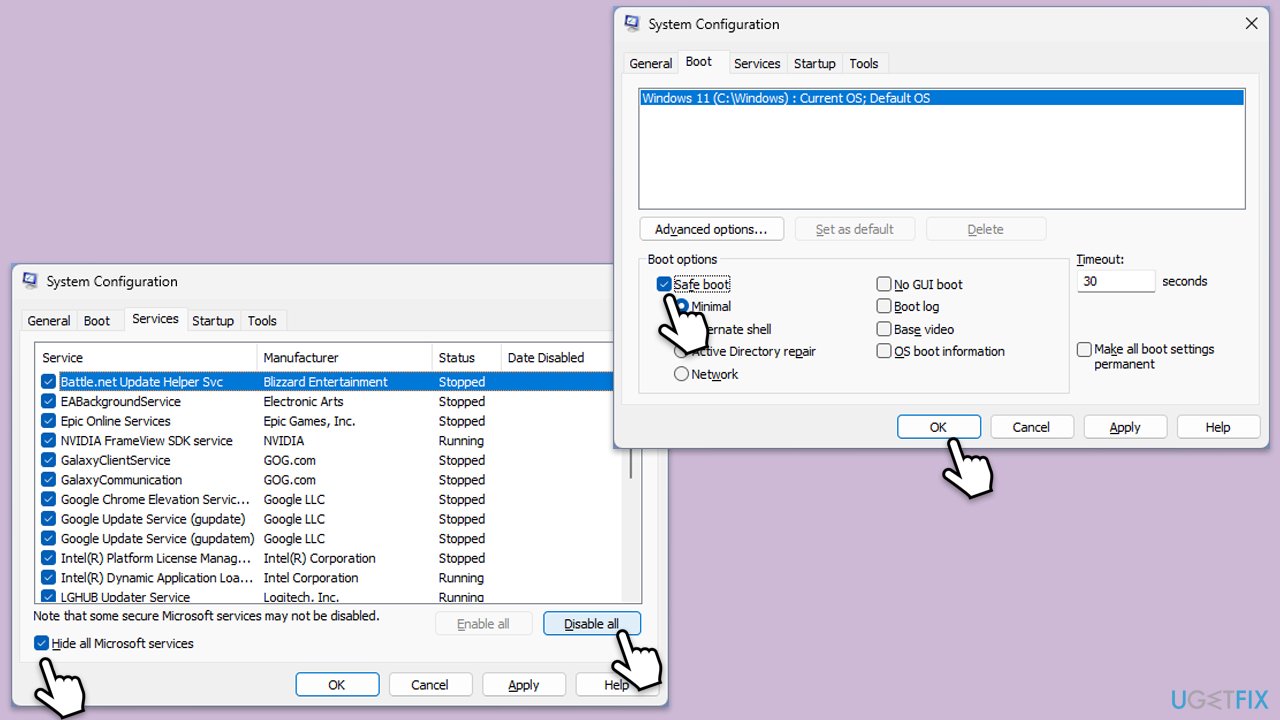
Third-party applications and background services can sometimes interfere with Microsoft Teams, causing error code CAA2000B. Performing a clean boot starts Windows with only essential services, helping to identify if a background app is causing the issue.
- Type msconfig in Windows Search and press Enter.
- Click on the Services tab and check the Hide all Microsoft Services box.
- Click Disable all to disable non-Microsoft services, then click the Startup tab.
- Open the Task Manager, disable all startup items, and close the Task Manager.
- Go to the Boot tab and mark the Safe boot option.
- Click OK on the System Configuration window and restart your computer.
- If the problem does not exist, third-party software is at fault. To determine which app is causing it try enabling half of the available programs, restarting, and checking if the problem is still absent. Continue till you find the offending software and either update or uninstall it.
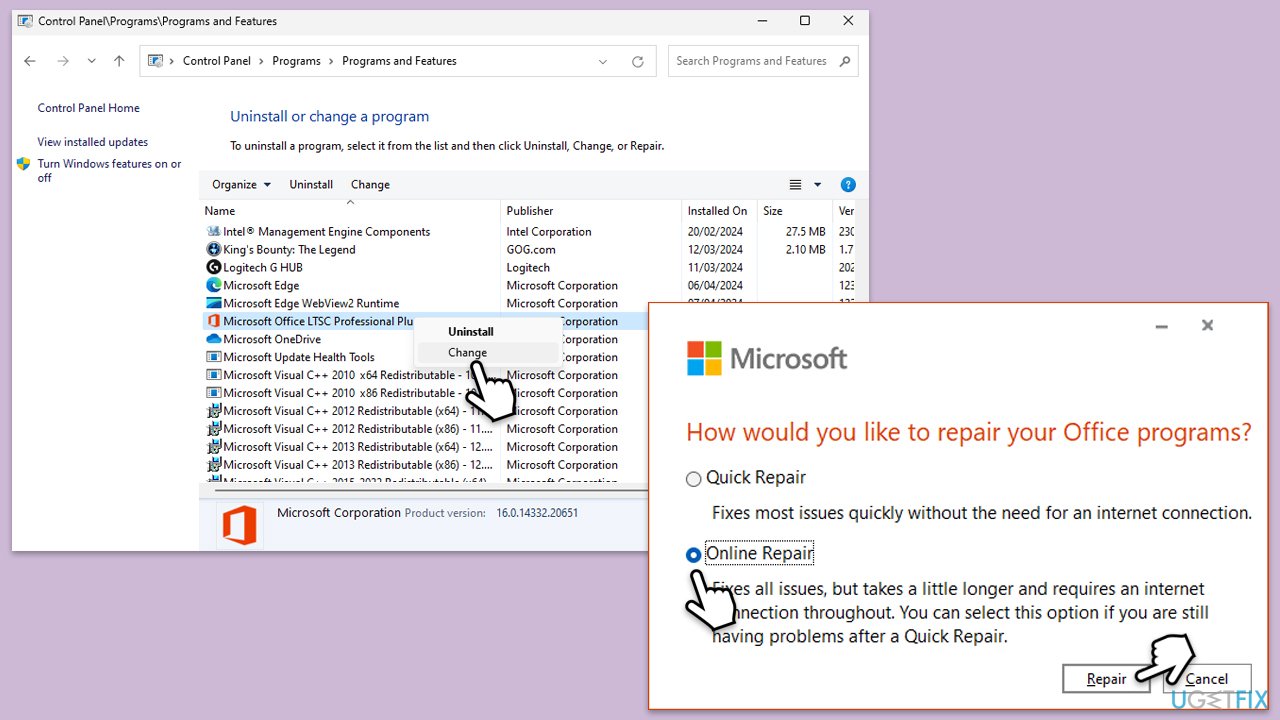
Fix 7. Repair Office Installation
A corrupted Office installation can affect Teams functionality. Repairing Office often resolves underlying issues, including error code CAA2000B.
- Type Control Panel in Windows search and press Enter.
- Select Programs > Programs and Features.
- Select Microsoft Office and click on Change.
- Choose the option for Online Repair and click Repair.
- Follow the prompts to finish the process.
Fix 8. Re-register Microsoft Teams
Re-registering Teams refreshes its registration with Windows, resolving conflicts that might cause login errors.
- Type PowerShell in Windows search.
- Right-click on the result and select Run as administrator.
- When UAC shows up, click Yes.
- Copy and paste the following command and press Enter:
Get-AppxPackage MicrosoftTeams | Remove-AppxPackage - Close down PowerShell and restart your system.
- Reinstall Teams from Microsoft Store.

Bottom line
To fix the Teams error code CAA2000B, users should first check their date and time settings to ensure accuracy. If the issue persists, clearing the Microsoft Teams cache may help resolve the sign-in problem. If none of these solutions work, users should reach out to IT to verify account permissions and subscriptions.
Frequently asked questions
The Teams error code CAA2000B typically occurs due to network connectivity issues, corrupted Teams application files, or improper account settings in Windows 10 or Windows 11.
To fix the CAA2000B error, try clearing the Teams cache, signing out and back into your account, or reinstalling the Teams application on your Windows 10 or Windows 11 system.
Yes, you can troubleshoot the CAA2000B error by checking your network settings, ensuring that Teams has the necessary permissions, and running the Windows Network Troubleshooter.




Report an issue
What's wrong with this guide? We review every report and update or remove content.
Report received — thank you. We'll review and fix it.
You need a free account to submit a report.
Be the first to comment