How to fix
Teams error code caa7000a
on Windows
Resolve Teams error code caa7000a on Windows 10 and 11 effortlessly. Get expert-tested solutions and fix it in minutes, ensuring smooth collaboration.


What causes How to fix Teams error code caa7000a in Windows?
- Network connectivity issues
- Corrupted local client credentials
- Interference from security software
- Outdated application data
- Problems with the Teams desktop client
Repairs Windows system files, removes malware, and restores a clean OS state — without reinstalling.
Microsoft Teams sign-in on Windows 10 notebook fails with error code caa7000a, although it does work on the browser and also on my iPad. So there must be something wrong with Windows, right? Please advise.
Microsoft Teams error code caa7000a typically surfaces due to network-related issues that prevent proper connection and authentication with Microsoft Teams servers. This can be particularly troublesome when trying to sign in or during active sessions, leading to unexpected disruptions.
Common causes and context
There are numerous reasons why caa7000a error might occur - here are a few of them:
- Network connectivity issues can hinder Teams from reaching the necessary online services.
- Corrupted local client credentials may disrupt the normal authentication processes.
- Interference from security software like antivirus programs or firewalls might block Teams' network traffic.
- Outdated application data stored locally on your device could lead to conflicts with newer versions of Teams or server-side data.
Users typically encounter this error when attempting to sign in to the Teams desktop client, and it can be recurrent if underlying issues are not addressed. The error signifies a disruption in connecting to Microsoft Teams services, which could be temporary or indicative of a more persistent issue depending on the cause.
Addressing the Teams error caa7000a
To fix the Microsoft Teams error code caa7000a, start by checking your internet connection to make sure it's stable, as poor connectivity often triggers this error. If the problem persists, try updating or reinstalling Microsoft Teams to clear out any corrupted files that might be causing the issue.
Also, clearing Teams cache and credential cache files often results in the resolution of the caa7000a error. If you're still experiencing issues, using the web version of Microsoft Teams might help you avoid the problems associated with the desktop client. Alternatively, check the system with the [d1] repair app to ensure the problem is not connected to some underlying Windows issues.

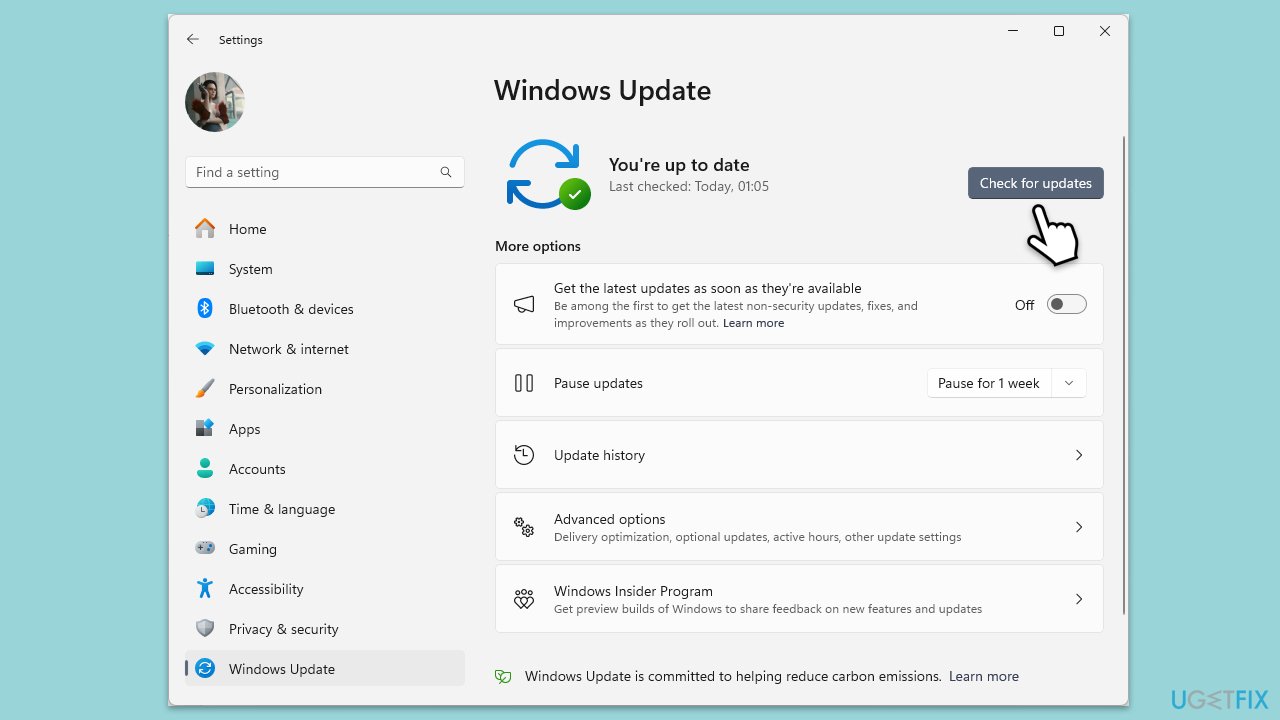
Fix 1. Update Windows
- Type Updates in the Windows search bar and hit Enter.
- If updates are pending, click Download and install. Otherwise, click Check for updates.
- Make sure you choose to install optional updates as well.
- Restart your system to implement the changes.
Fix 2. Clear Teams cache files
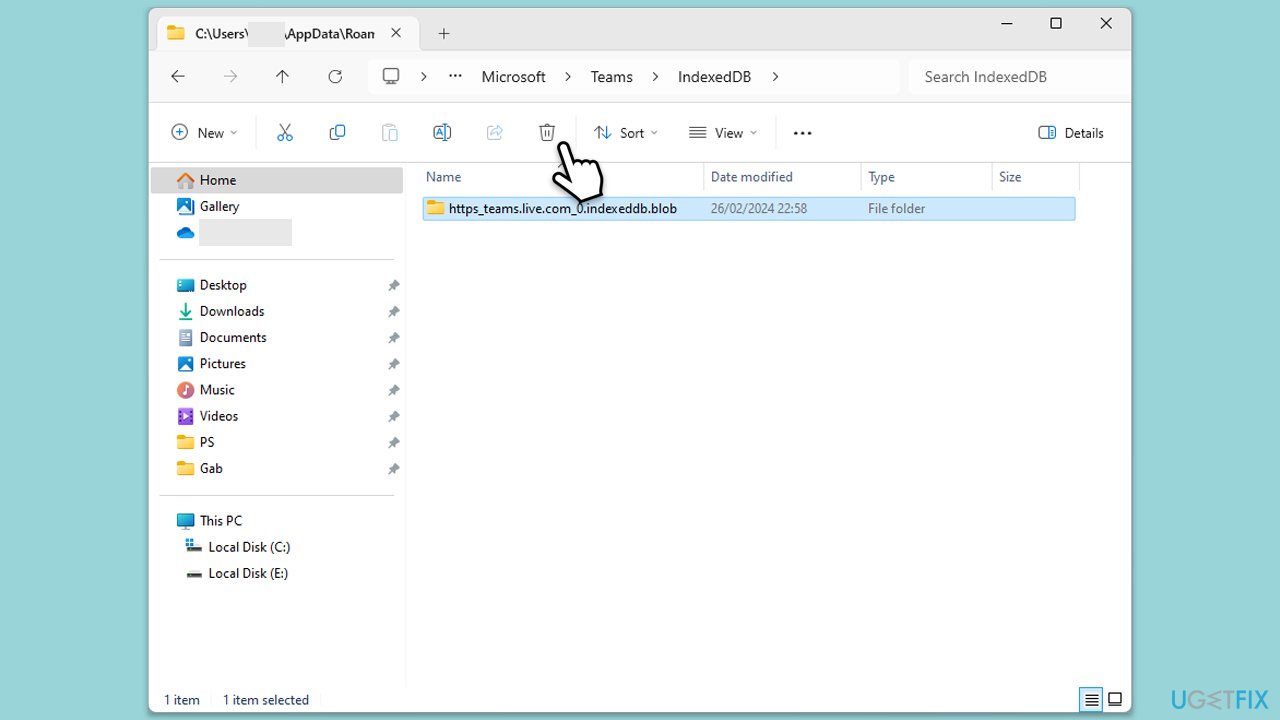
- Close down Microsoft Teams.
- Press Win + E to open File Explorer.
- Ensure Hidden files are visible.
- In the address bar, type in %appdata%\Microsoft\teams and press Enter.
- Delete the contents of the following folders:
%appdata%\Microsoft\teams\application cache\cache
%appdata%\Microsoft\teams\blob_storage
%appdata%\Microsoft\teams\Cache
%appdata%\Microsoft\teams\databases
%appdata%\Microsoft\teams\GPUcache
%appdata%\Microsoft\teams\IndexedDB
%appdata%\Microsoft\teams\Local Storage %appdata%\Microsoft\teams\tmp - Make sure you empty the Recycle Bin (or use Shift + Del combination to delete these files).
- Restart your computer.
Fix 3. Clear Teams credentials
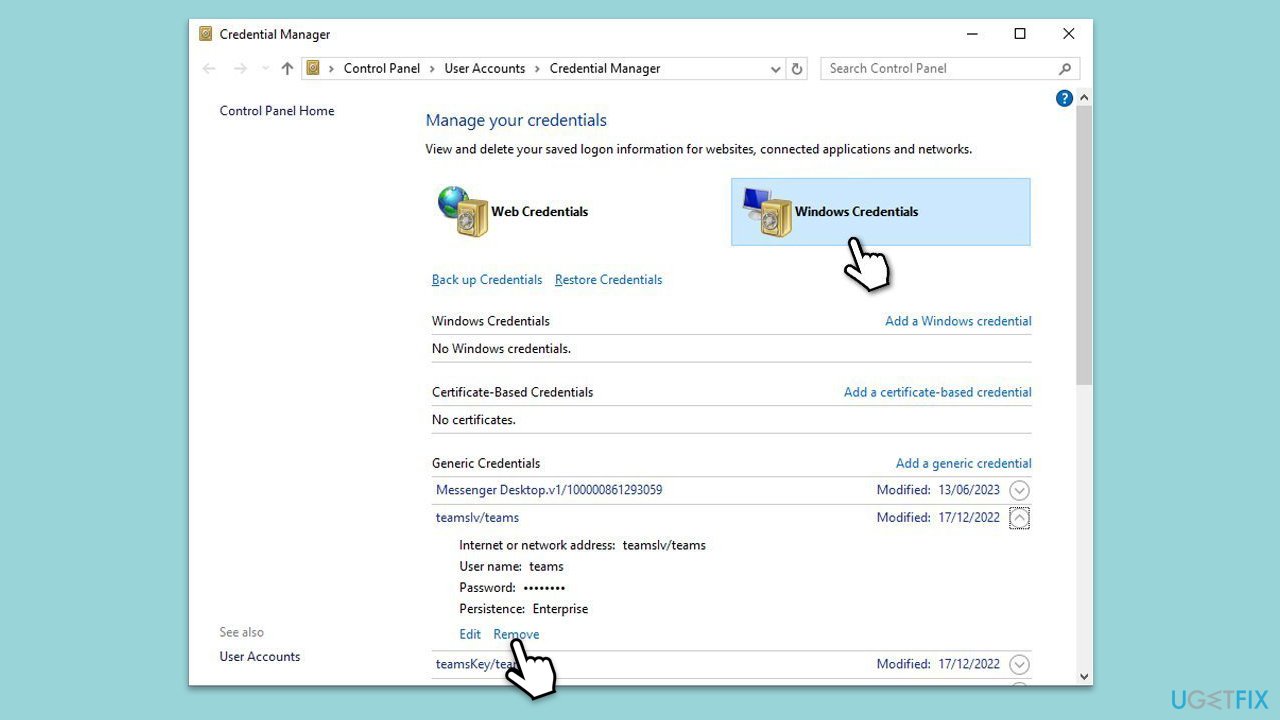
- Lof off from Microsoft Teams.
- Type Credential Manager in Windows search and press Enter.
- Select Windows Credentials.
- Locate and remove any stored credentials related to Microsoft Teams.
- Restart Teams and re-enter your login details.
Fix 4. Repair Microsoft Office installation
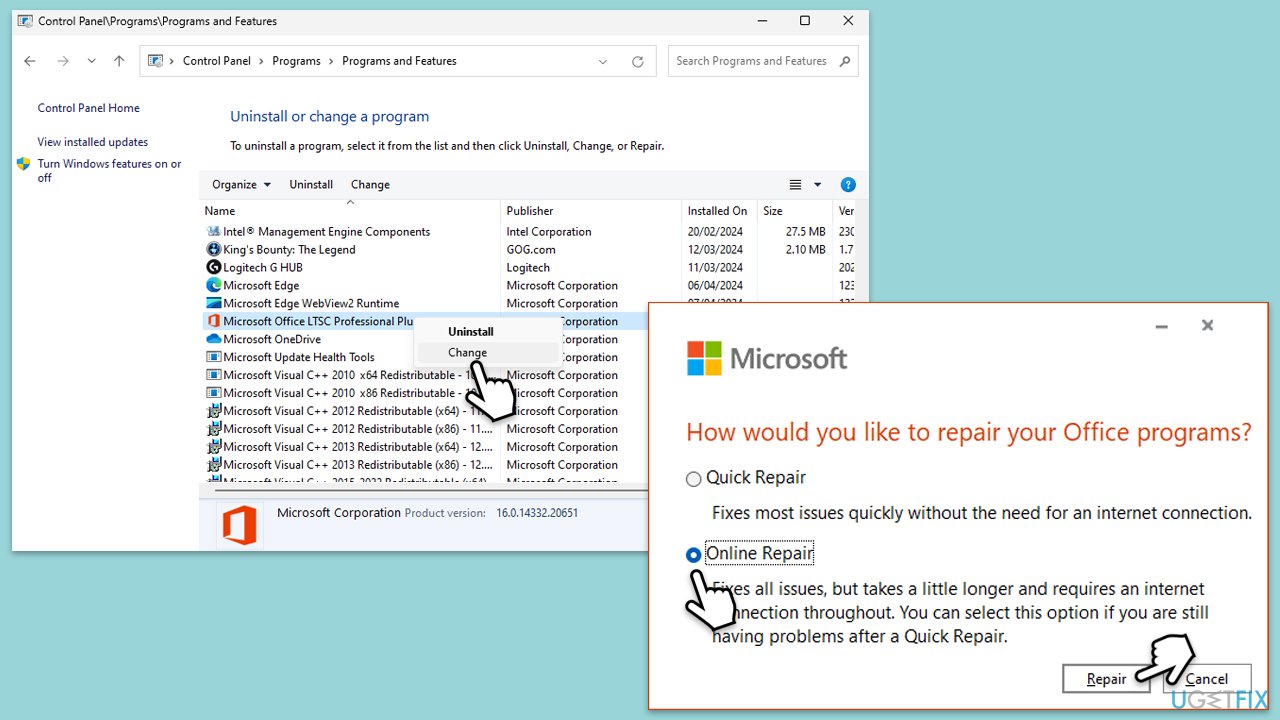
- Type Control Panel in Windows search and press Enter.
- Select Programs > Programs and Features.
- Select Microsoft Office and click on Change.
- Choose the option for Online Repair and click Repair.
- Follow the prompts to finish the process.
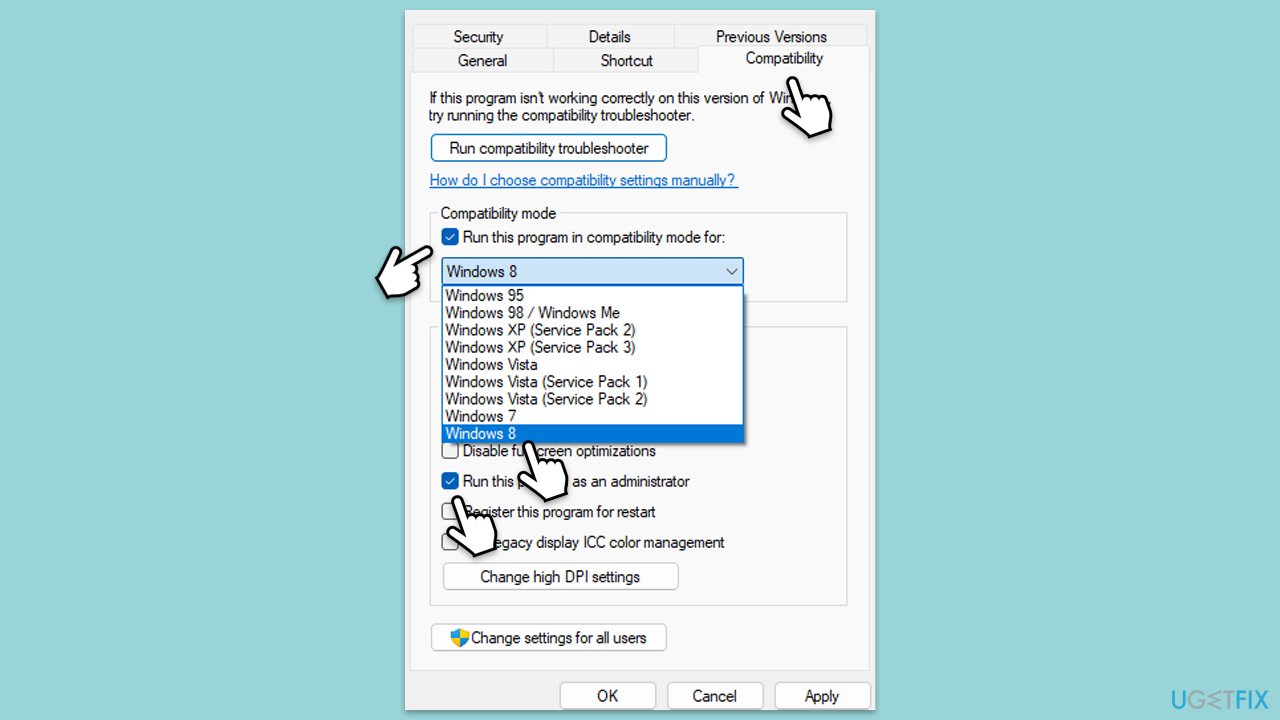
Fix 5. Run Teams in compatibility mode
- Right-click the Teams shortcut or executable file.
- Select Properties.
- Go to the Compatibility tab.
- Check the box for Run this program in compatibility mode for.
- Choose another Windows version from the dropdown menu.
- Mark the Run this program as an administrator checkbox.
- Click Apply, then OK.
Fix 6. Reinstall Teams
If updates and cache clearing don't work, try uninstalling and then reinstalling Teams.
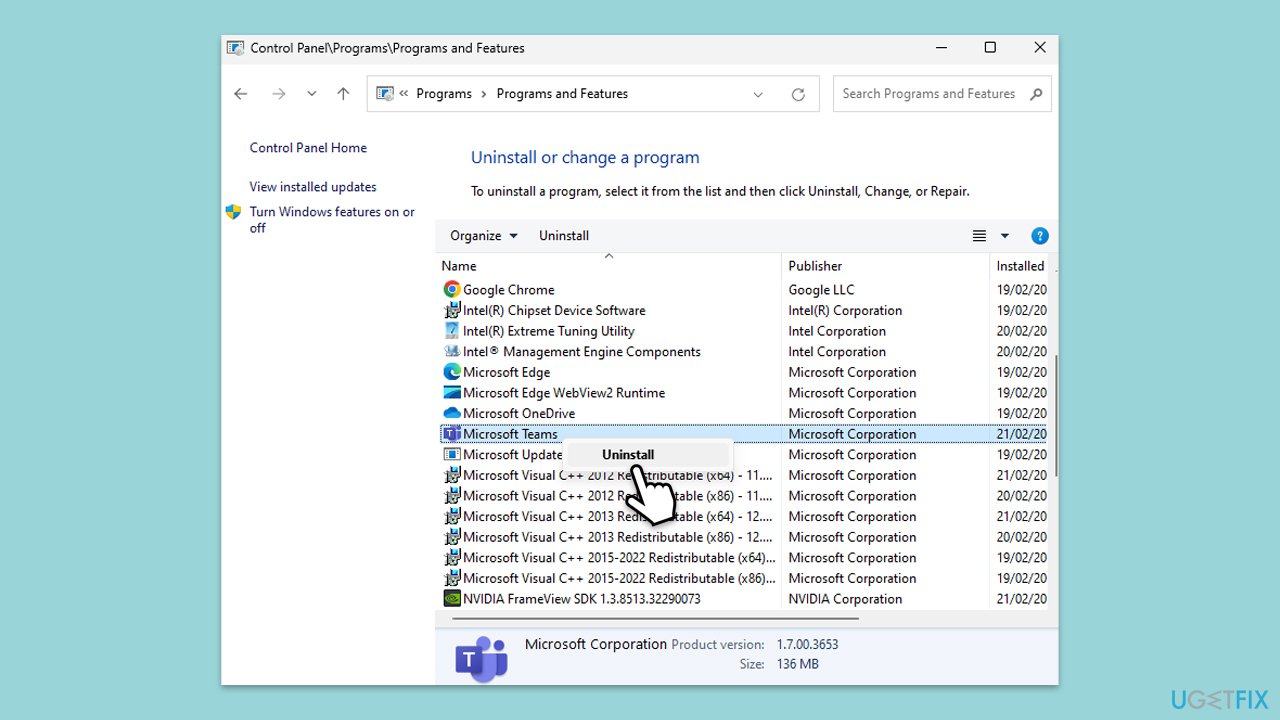
- Type Control Panel in Windows search and press Enter.
- Go to Programs > Uninstall a program.
- Find Microsoft Teams, right-click, and select Uninstall.
- Follow the prompts to remove the app.
- Once done, press Win + E to open File Explorer.
- In the View tab at the top of the window, enable Hidden Files.
- Go to C:\Program Files\WindowsApps location.
- Scroll down to find the Microsoft Teams folder and delete it (alternatively, you can rename it).
- Now type %AppData% in Windows search and press Enter.
- Delete the Teams folder here.
- Finally, restart your system and reinstall the app.
Fix 7. Reset your network
To fix issues related to connectivity, reset your internet connecter as follows:
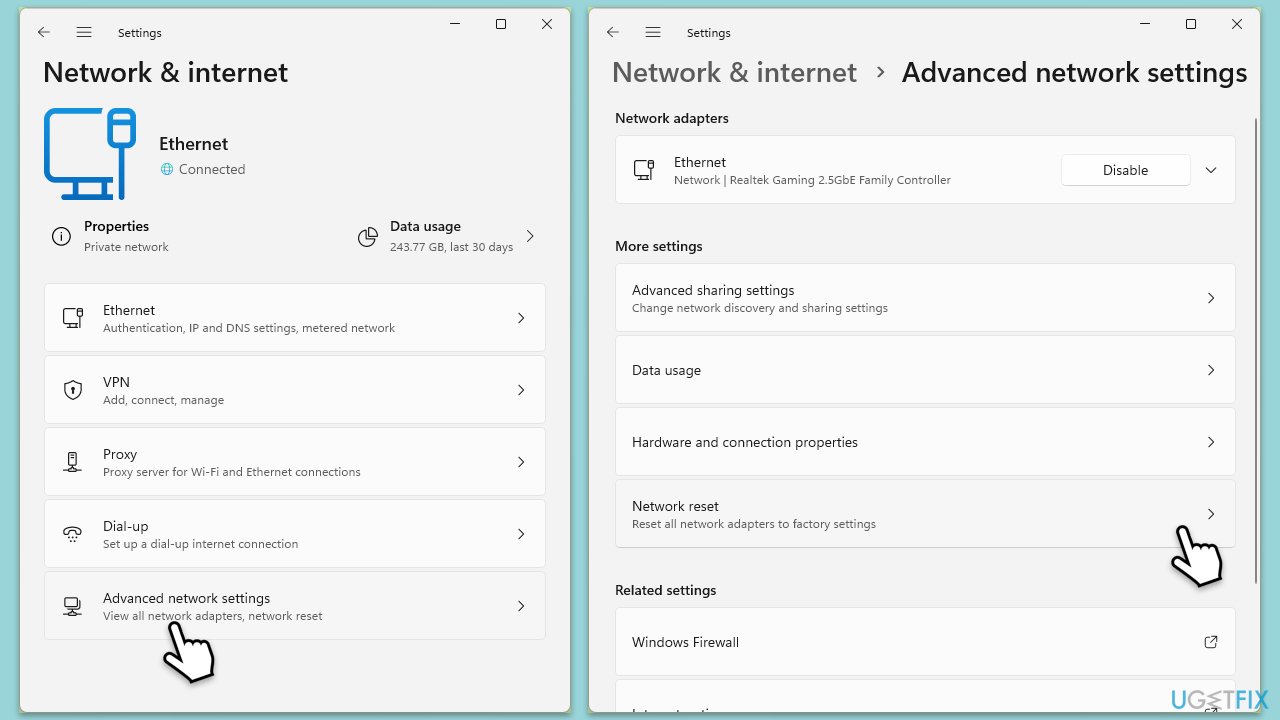
- Right-click on Start and pick Settings.
- Go to Network & Internet.
- Under Advanced network settings, click Network reset.
- Click Reset Now.
- Confirm the action and then restart your system.
Bottom line
To fix the Microsoft Teams error code caa7000a, start by checking your internet connection, updating or reinstalling Microsoft Teams, and clearing Teams cache and credential cache files. If issues persist, consider using the web version of Microsoft Teams or running a repair app to check for underlying Windows problems.
Frequently asked questions
The Teams error code caa7000a typically indicates a problem with the authentication process, preventing users from signing in. This may be caused by issues with your network connection or Teams settings.
To fix this error, try clearing the Teams cache, restarting the app, or ensuring your Windows 10 or Windows 11 is updated to the latest version. Additionally, checking your Internet connection and firewall settings may help.
To prevent the caa7000a error from happening again, regularly update Microsoft Teams and your Windows operating system, and ensure that your network settings are configured correctly.




Report an issue
What's wrong with this guide? We review every report and update or remove content.
Report received — thank you. We'll review and fix it.
You need a free account to submit a report.
Be the first to comment