How to fix
Teams error “Couldn’t load your calendar”
on Windows
Resolve the "Couldn't load your calendar" error in Teams on Windows 10 and 11 effortlessly. Get expert-tested solutions and fix it in minutes.

What causes How to fix Teams error “Couldn’t load your calendar” in Windows?
- Connectivity problem between Microsoft Teams and the Exchange server
- Incorrect account configurations
- Outdated app versions
- Temporary glitches within the Teams app
- Issues with underlying Office 365 services
Repairs Windows system files, removes malware, and restores a clean OS state — without reinstalling.
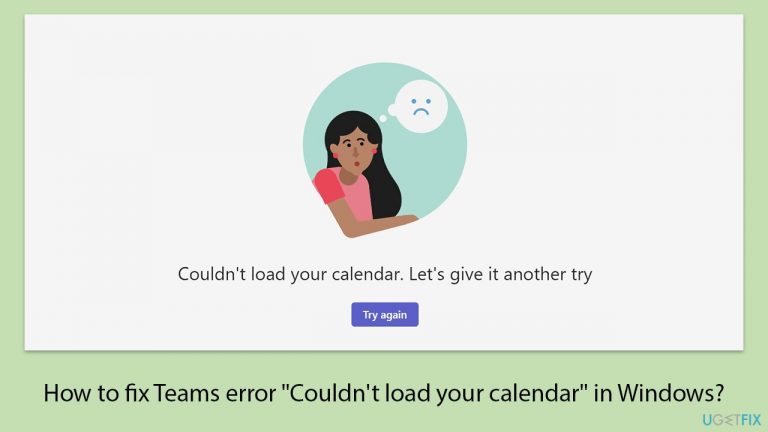
I have recently installed Microsoft Teams as I need it for work. Everything works fine apart from the Calendar. As soon as I try to access it, I receive a "Couldn't load your calendar. Let's give it another try" error message. How do I fix it?
Understanding the "Couldn't load your calendar" error in Microsoft Teams
Microsoft Teams is a widely used collaboration platform that integrates various Office 365 tools, including Outlook Calendar, to streamline workflow and communication. Teams' calendar function lets users track and handle their appointments and meetings straight from the app.
However, some users might encounter the error "Couldn't load your calendar" when attempting to access this feature in Windows. This error prevents the calendar from loading, disrupting the planning and scheduling of meetings.
Why does this error occur?
The "Couldn't load your calendar" error can be triggered by several issues. A common cause is a connectivity problem between Microsoft Teams and the Exchange server, which is responsible for managing calendar data. If there's a disruption in this connection, Teams won't be able to retrieve calendar information.
Additionally, incorrect account configurations or outdated app versions can lead to this error. The issue may also arise from temporary glitches within the Teams app or the underlying Office 365 services.
Fixing the "Couldn't load your calendar" error
There are a few things you can do to resolve the "Couldn't load your calendar" error. To start, make sure Microsoft Teams is up to date with the most recent version, as this can help fix known defects and issues with compatibility. In order to create a reliable connection for data retrieval, it is also critical to verify the network connection and settings pertaining to Exchange server access.
Re-logging into your account can also clear any temporary issues that may be interfering with the app's functionality and refresh your session. Cleaning the app's cache might also be a useful strategy to get rid of any corrupted data that might be keeping the calendar from loading correctly. For detailed guidance on resolving these issues, users can refer to the troubleshooting steps provided below this article.
Using a PC repair program [d1] is advised for thorough system checks and automated fixes for underlying problems like corrupted files or system misconfigurations.

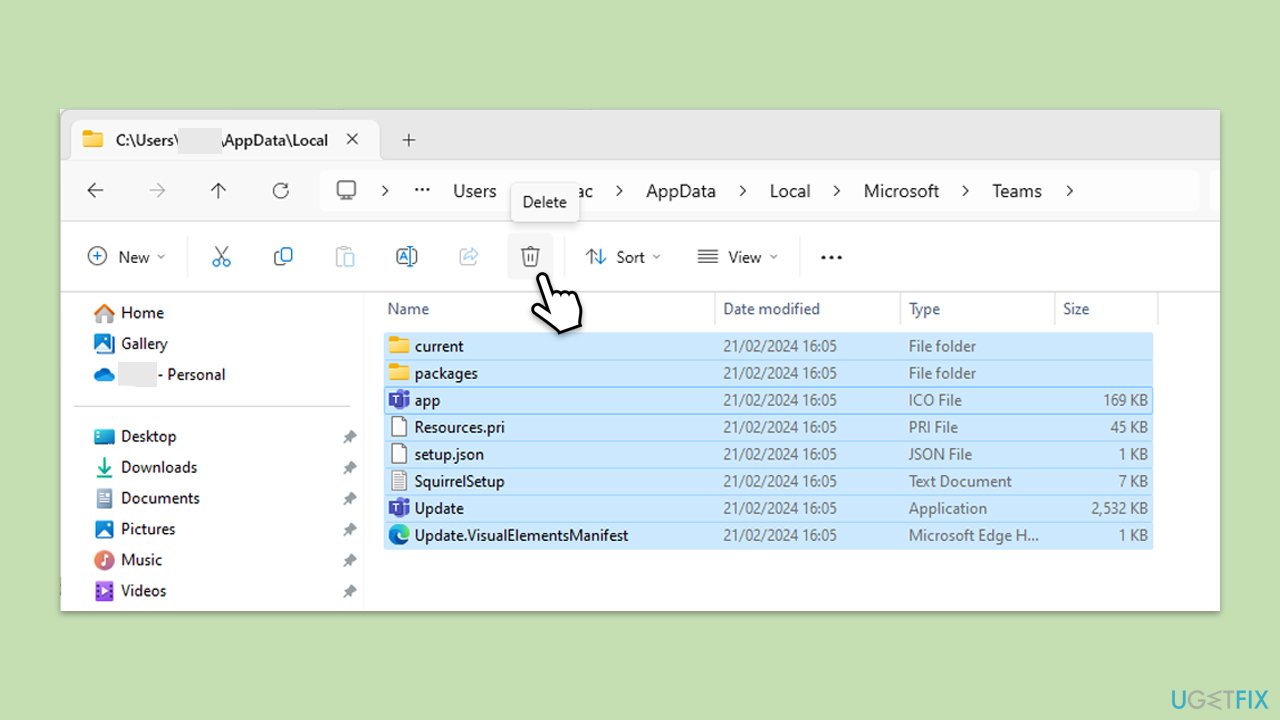
Fix 1. Clear Microsoft Teams cache
Clearing the cache in Microsoft Teams can resolve issues caused by corrupted data which may be preventing the calendar from loading.
- Make sure Teams is not running (close from the system tray or Task Manager).
- Press Win + R on your keyboard to open the Run dialog.
- Type AppData and press Enter or click OK.
- Go to the following location:
%userprofile%\appdata\local\Packages\MSTeams_8wekyb3d8bbwe\LocalCache\Microsoft\MSTeams - Delete all the files and folders located in the Teams folder.
- Start the app again.
Fix 2. Check network connection
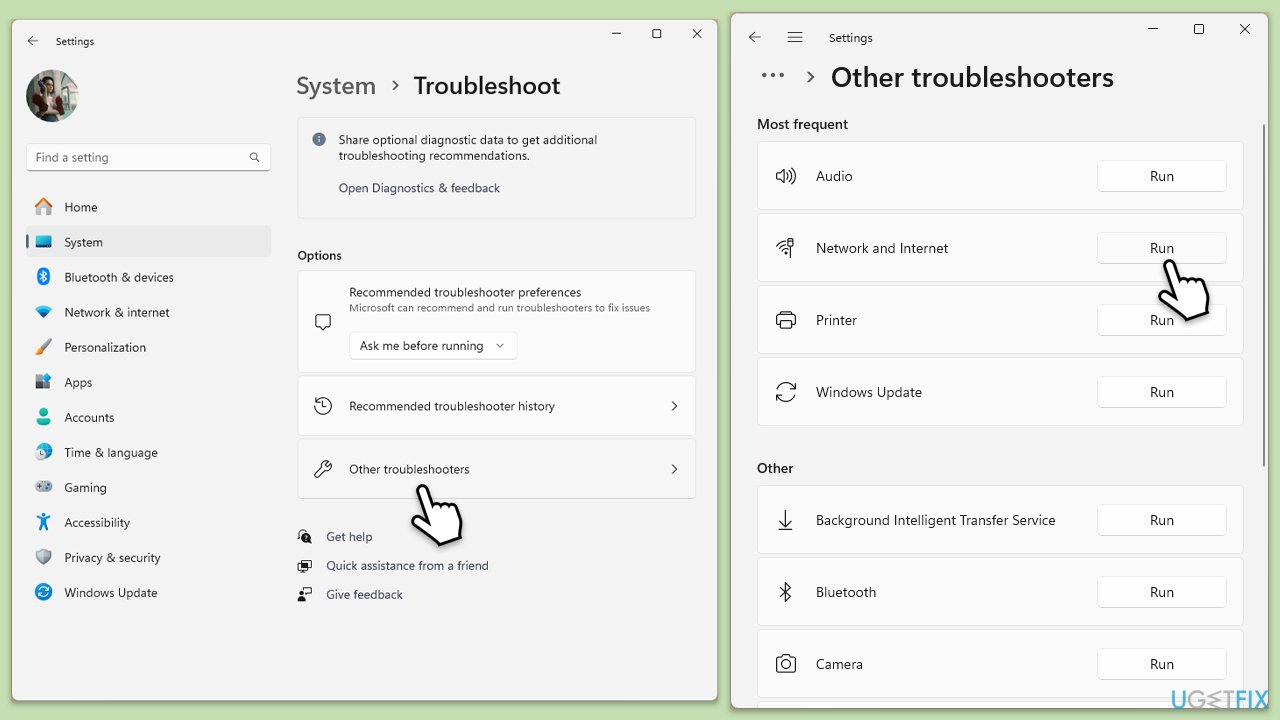
A stable network connection is essential for Microsoft Teams to communicate effectively with server-based resources like the calendar. One of the easiest ways to resolve these is to run a Network troubleshooter.
Windows 11
- Type Troubleshoot in Windows search and press Enter.
- Select Other troubleshooters.
- Find Network & Internet troubleshooter from the list and select Run.
- Wait till the process is finished and apply the offered fixes.
- Restart your device.
Windows 10
- Right-click on Start and pick Settings.
- Go to the Network & Internet section.
- On the right side, find the Advanced network settings section.
- Click Network troubleshooter and wait.
- The fixes will be automatically applied.
Fix 3. Update Microsoft Teams
Running the latest version of Microsoft Teams ensures that any patches or bug fixes are applied.
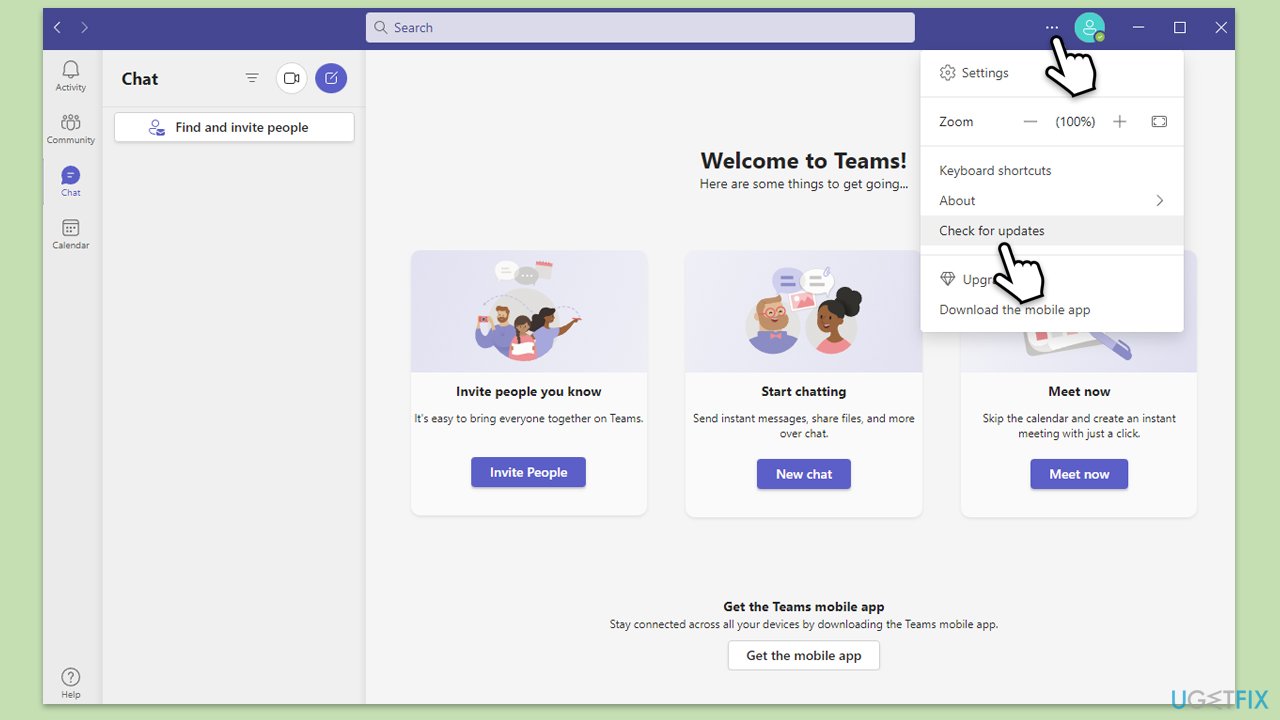
- Open Microsoft Teams.
- At the top-right corner, next to your icon, click on three horizontal dots (⋅⋅⋅).
- Select Check for updates.
- Wait till updates are applied and restart your system.
Fix 4. Verify account configurations
Incorrect account settings can interfere with accessing server-based resources like the calendar.
- Ensure that your Teams account is correctly configured with your organization’s credentials.
- Check that your account has the necessary permissions to access calendar services.
- Consult your IT department if you are unsure about the correct configurations.
Fix 5. Use the web version of Microsoft Teams
Sometimes, using the web version of Teams can circumvent issues present in the desktop app.
- Open a web browser.
- Go to the Microsoft Teams website and log in with your credentials.
- Check if the calendar loads properly in the web version.
Fix 6. Repair or reset the Microsoft Teams
- Click on Start and pick Settings.
- Go to the Apps section.
- Locate Microsoft Teams from the list.
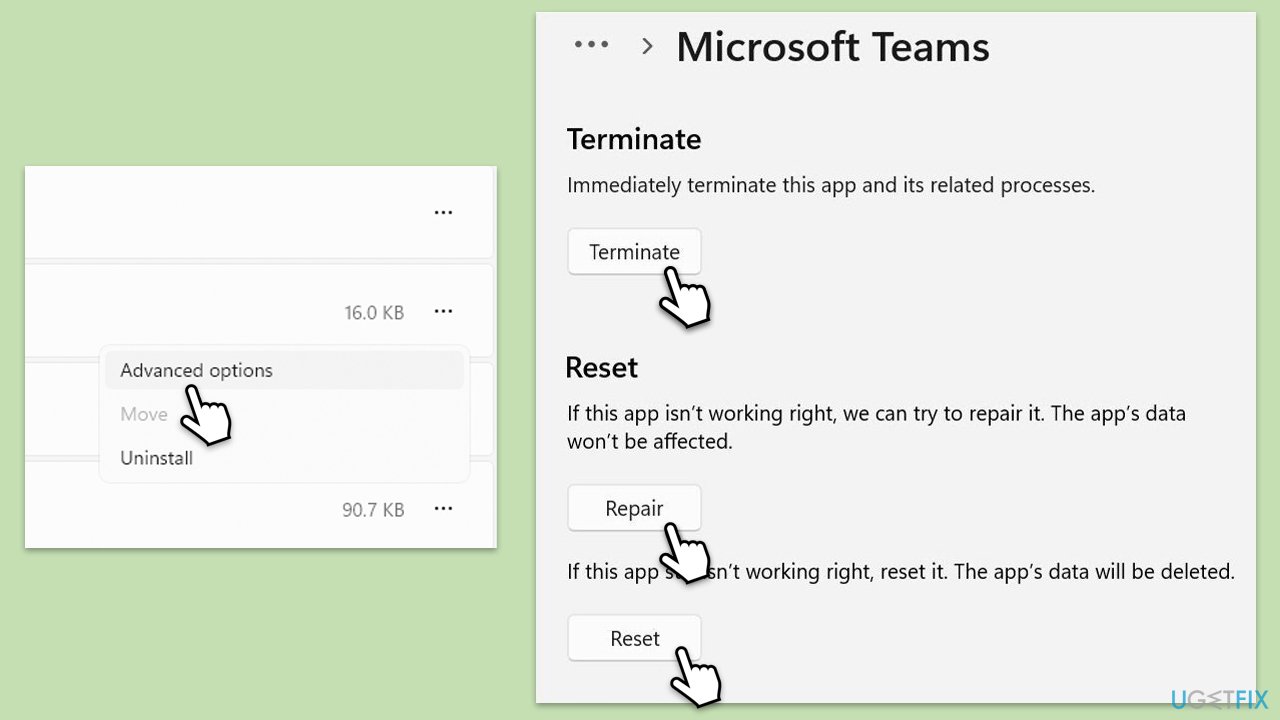
- Click on the three vertical dots and pick Advanced options.
- Click Terminate to ensure that the app is not running.
- Under the Reset section, click Repair and see if that solved your issue.
- If not, then try the Reset option.
Fix 7. Reinstall Teams
- Type Control Panel in Windows search and press Enter.
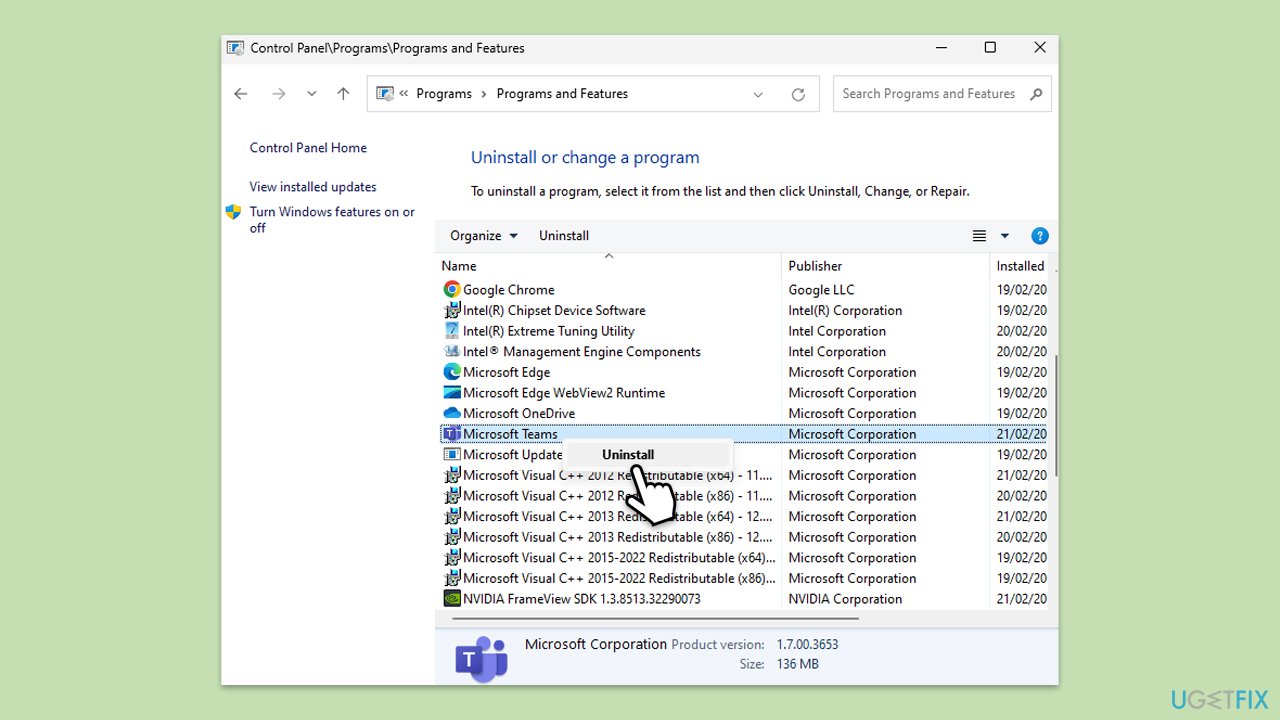
- Go to Programs > Uninstall a program.
- Find Microsoft Teams, right-click, and select Uninstall.
- Follow the prompts to remove the app.
- Once done, press Win + E to open File Explorer.
- In the View tab at the top of the window, enable Hidden Files.
- Go to C:\Program Files\WindowsApps location.
- Scroll down to find the Microsoft Teams folder and delete it (alternatively, you can rename it).
- Now type %AppData% in Windows search and press Enter.
- Delete the Teams folder here.
- Finally, restart your system and reinstall the app.
Bottom line
To fix the 'Couldn't load your calendar' error, ensure Microsoft Teams is updated to the latest version, verify your network connection, and re-log into your account. Cleaning the app's cache may also help resolve the issue. If none of these solutions work, consider seeking further assistance or checking for additional troubleshooting steps.
Frequently asked questions
First, ensure that your Windows 10 is up to date and check your internet connection. If the issue persists, try signing out of Teams and signing back in.
Yes, clearing the Teams cache can often resolve loading issues; you can do this by closing Teams, navigating to the cache folder, and deleting its contents before restarting the app.
If the error began after a Windows update, consider rolling back the update or checking for any additional updates that might fix compatibility issues with Teams on Windows 10 or 11.




Report an issue
What's wrong with this guide? We review every report and update or remove content.
Report received — thank you. We'll review and fix it.
You need a free account to submit a report.
Be the first to comment