How to fix
Teams error “Failed to connect to settings endpoint”
on Windows
Resolve the "Failed to connect to settings endpoint" error in Windows 10 and 11 easily. Get expert-tested solutions to restore Teams functionality fast!


What causes How to fix Teams error “Failed to connect to settings endpoint” in Windows?
- Network connectivity issues
- Firewall restrictions blocking the app
- Outdated version of Teams
- Incorrect proxy settings
- Corrupted installation files
Repairs Windows system files, removes malware, and restores a clean OS state — without reinstalling.
I was setting up my new laptop and as soon as I installed Teams, I see the "Error code - online_check_failed: exceeded retry attempts. Failed to connect to settings endpoint." What is this and how do I fix it?
Microsoft Teams is a powerful collaboration platform that helps communication and file sharing within organizations. It includes video calls, chat, and project sharing, opening opportunities for team collaboration.
Yet, just like any software, Teams is not perfect, and one frequent issue Windows users encounter is the "Failed to connect to settings endpoint" error. This message often appears with a variation, such as "Error code - online_check_failed: retry limit exceeded. Error: Unable to connect with settings endpoint."
This can cause problems with key features disappearing or becoming unusable. The error usually occurs when Teams cannot communicate with the configuration server. There are many reasons for this, including network connectivity issues (e.g., intermittent internet access) or firewall restrictions blocking the app from communicating with Microsoft's server.
If you are using an outdated version of Teams, a "Failed to connect to settings endpoint" error may also appear because newer updates sometimes require configurations not supported by older versions. Incorrect proxy settings or corrupted installation files may also cause Teams to fail to connect successfully to its settings endpoint, leading to repeated connection attempts.
There are several steps you can take to resolve the issue. Ensuring a good internet connection and verifying that Microsoft Teams is not being blocked by firewall or antivirus software is essential. Checking to make sure that you are running the latest version of Teams might resolve compatibility issues, and reinstalling the app could be another way to go. Additionally, the [d1] PC repair tool can automatically address underlying Windows issues, ensuring smooth and error-free system performance.

Fix 1. Check Teams' servers
Sometimes, the error might be caused by an issue with Microsoft’s servers rather than your system. If Teams’ servers are down, it won't be able to connect, and you’ll encounter the "Failed to connect to settings endpoint" error.
- Open your browser.
- Navigate to the official Microsoft Service Health page.
- Check the Teams (Consumer) status.

Fix 2. Disable security software
Firewalls or antivirus software can sometimes block Microsoft Teams from connecting to its servers. Temporarily disabling your security software may allow Teams to function properly and connect to the settings endpoint.
- Open your security software.
- Navigate to the Settings or Protection section.
- Temporarily disable the firewall or real-time protection features.
- Open Microsoft Teams and check if the error persists.
Fix 3. Run Network troubleshooter
Network problems could be the root cause of the error. The Windows Network troubleshooter can identify and fix underlying network-related issues that might prevent Teams from connecting.
Windows 11
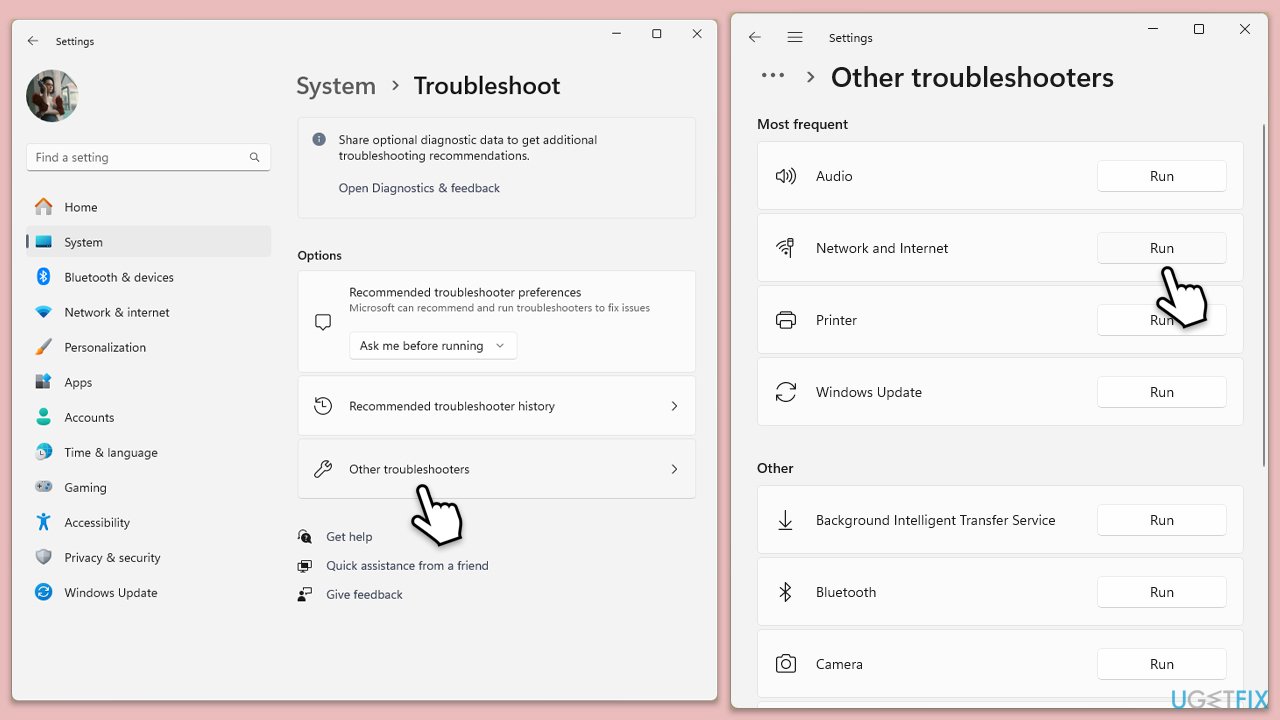
- Type Troubleshoot in Windows search and hit Enter.
- Select Other troubleshooters.
- Locate Network & Internet troubleshooter from the list and click Run.
- Wait till the process is finished and apply the recommended fixes.
- Restart your system.
Windows 10
- Right-click on Start and pick Settings.
- Go to the Network & Internet section.
- On the right side, find the Advanced network settings section.
- Click Network troubleshooter and wait.
- The fixes will be automatically applied.
Fix 4. Update Teams
An outdated version of Microsoft Teams can cause compatibility problems, which may prevent the app from connecting to its servers. Updating to the latest version ensures you have the latest features and bug fixes.
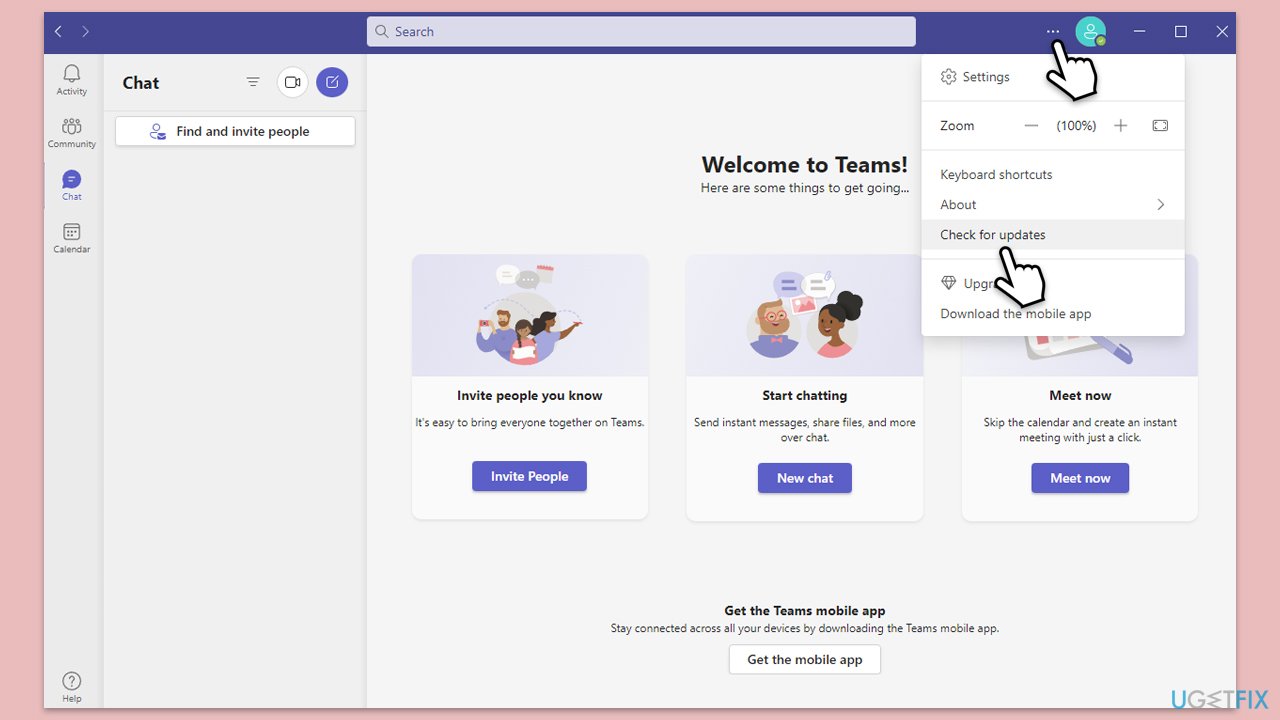
- Open Microsoft Teams.
- Click on the Settings and more button at the top-right corner.
- Select Check for updates.
- Teams will automatically download and install any available updates.
- Restart Teams after the update is completed.
Fix 5. Perform Clean Boot
Starting Windows in a clean boot environment can help identify if any third-party applications are interfering with Microsoft Teams’ connectivity. In this state, only essential services are running, allowing you to isolate the issue.
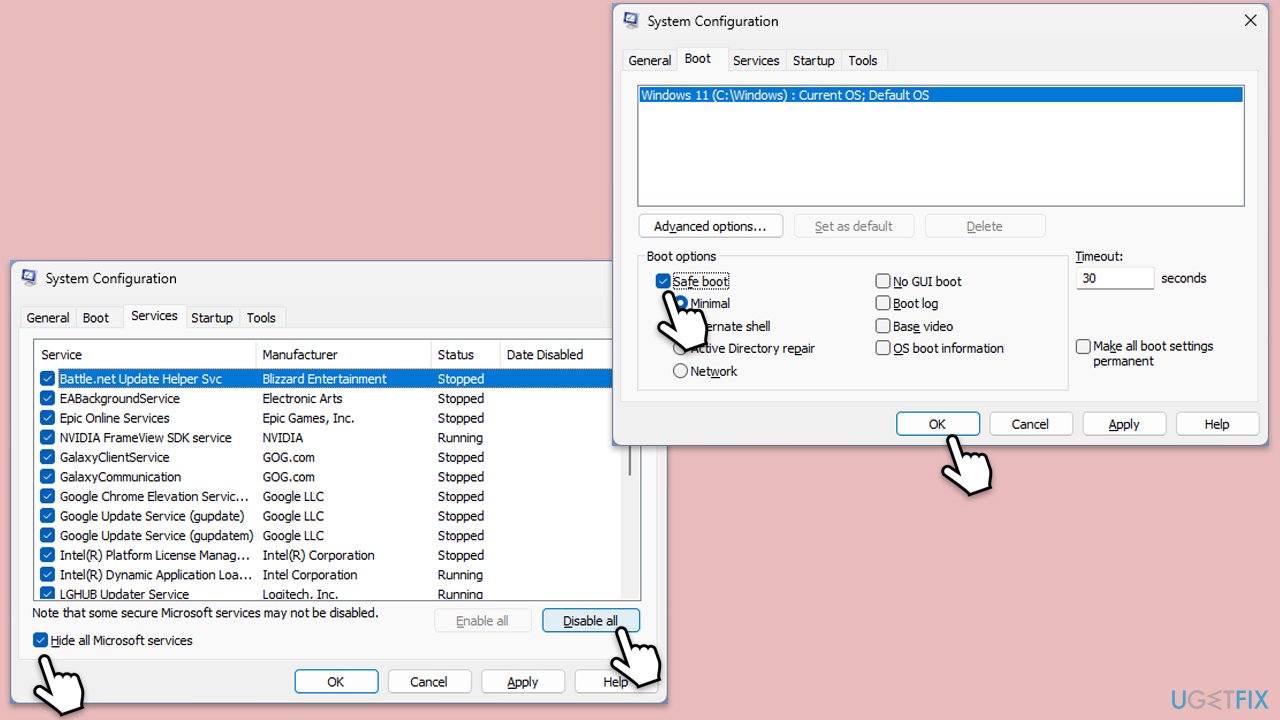
- Type msconfig in the Windows search box and press Enter.
- Pick the Services tab.
- Mark Hide all Microsoft services and select Disable all.
- Select the Startup tab and click Open Task Manager.
- In the Task Manager, right-click on each of the items and select Disable, then close the Task Manager.
- Go to the Boot tab, mark the Safe Boot option, then click Apply and OK.
- On the System Configuration window, click OK.
- Restart your computer.
- If resolved, you can start enabling services and startup items one by one (or in groups) to identify the culprit.
Fix 6. Reinstall Microsoft Teams
If none of the other fixes work, reinstalling Microsoft Teams can resolve the issue by removing any corrupted files and installing a fresh copy of the app.
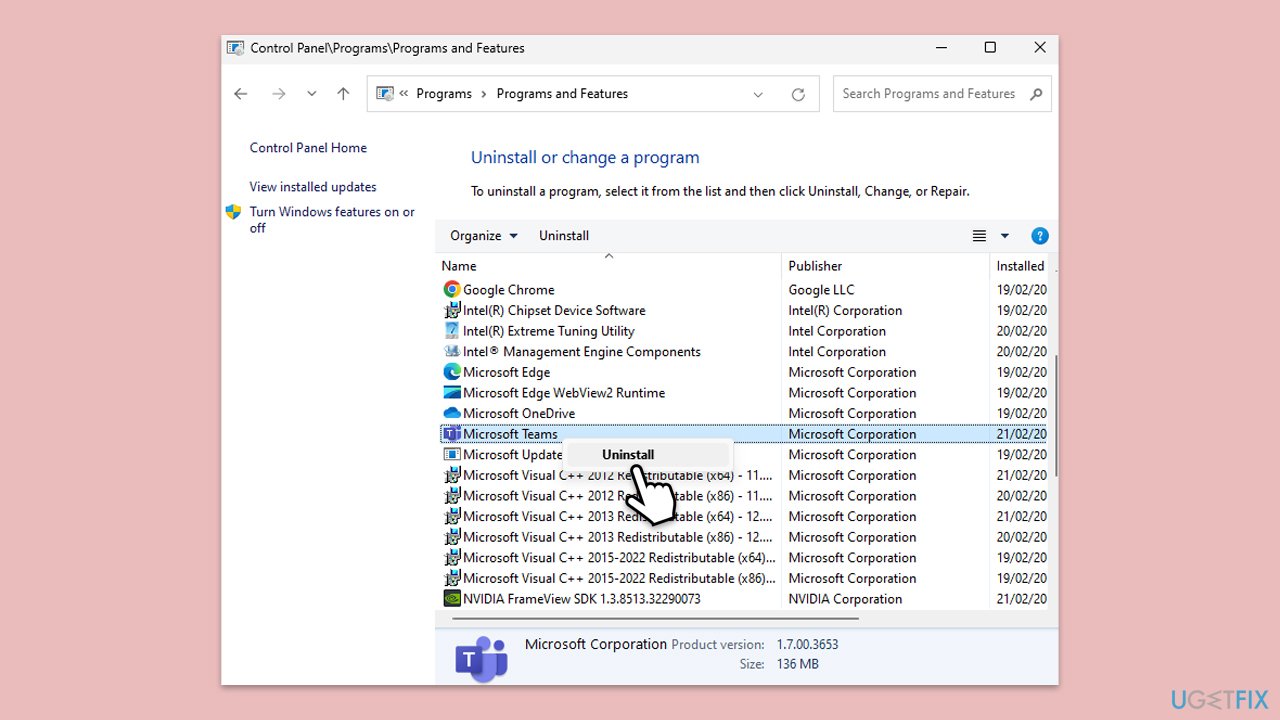
- Type Control Panel in Windows search and press Enter.
- Go to Programs > Uninstall a program.
- Find Microsoft Teams, right-click, and select Uninstall.
- Follow the prompts to remove the app.
- Once done, press Win + E to open File Explorer.
- In the View tab at the top of the window, enable Hidden Files.
- Go to C:\Program Files\WindowsApps location.
- Scroll down to find the Microsoft Teams folder and delete it (alternatively, you can rename it).
- Now type %AppData% in Windows search and press Enter.
- Delete the Teams folder here.
- Finally, restart your system and reinstall the app.
Bottom line
To fix the 'Failed to connect to settings endpoint' error, ensure a stable internet connection, check firewall and antivirus settings, update Teams to the latest version, and consider reinstalling the app. If these steps do not resolve the issue, using a PC repair tool may help address underlying Windows problems.
Frequently asked questions
This error is often caused by network connectivity issues, incorrect proxy settings, or outdated Teams application files. Checking your internet connection and ensuring that Teams is up to date can help resolve the issue.
To reset Teams, close the app, press 'Windows + R', type '%appdata%\Microsoft\Teams', and delete the contents of the folder. Restart Teams to see if the error is resolved.
Yes, ensure that Teams has the necessary permissions to access the internet and that your firewall or antivirus software is not blocking it. You may also need to check if your user account has the appropriate permissions to modify application settings.




Report an issue
What's wrong with this guide? We review every report and update or remove content.
Report received — thank you. We'll review and fix it.
You need a free account to submit a report.
Be the first to comment