How to fix
Teams Meetings add-in not showing in Outlook
on Windows
Resolve the Teams Meetings add-in issue in Outlook for Windows 10 and 11 effortlessly. Get expert-tested solutions and troubleshoot in minutes.

What causes How to fix Teams Meetings add-in not showing in Outlook?
- Add-in is disabled
- Outdated version of Outlook
- Corrupted program files
- Improper activation of the add-in
Repairs Windows system files, removes malware, and restores a clean OS state — without reinstalling.
For some reason, the Teams add-in in Outlook has gone missing and I am not sure how t o get it back. I use it for work and I really need it working again. Please advise on what to do.
Outlook, the popular email client from Microsoft, incorporates a number of add-ins to increase user productivity by providing extra features inside the program. These add-ins include collaboration tools like the Microsoft Teams Meetings add-in, productivity tools, and social network integration. The goal of add-ins for Outlook is to enhance user operations by providing a plethora of capabilities right from the email client, eliminating the need to go between other programs.
Some users, however, can experience a problem with Outlook not showing the Teams Meetings add-in. Due to its ability to book Teams meetings directly from Outlook, this add-in is essential for anyone who uses Microsoft Teams for communication and meeting scheduling. It may become more difficult to plan and oversee meetings if this add-in is not present, disrupting the workflow.
Establishing virtual meetings without ever leaving Outlook is made convenient for users by the Teams Meetings add-in, which acts as a bridge between Microsoft Teams and Outlook. For organizing, joining, and managing Teams meetings, it offers a simple and seamless experience by integrating functionality right into the calendar and email interface.
The primary reason for the Teams Meetings add-in not appearing in Outlook could be that the add-in is simply disabled. Outlook allows users to manage their add-ins, and sometimes an add-in may be inadvertently disabled or not activated correctly. A version of Outlook that is out of current and may not support the newest add-ins, as well as corrupted program files that may impair add-in functionality within the client, are additional possible reasons for this problem.
Below you will find numerous solutions for the Teams Meetings add-in that is missing in Outlook. But before you proceed with a manual solution, we highly recommend trying a powerful PC repair tool [d1] - automatic solutions for most of your Windows problems, as well as the cleaning process of accumulated cache files and trackers.
Fix 1. Enable the add-in in Outlook settings
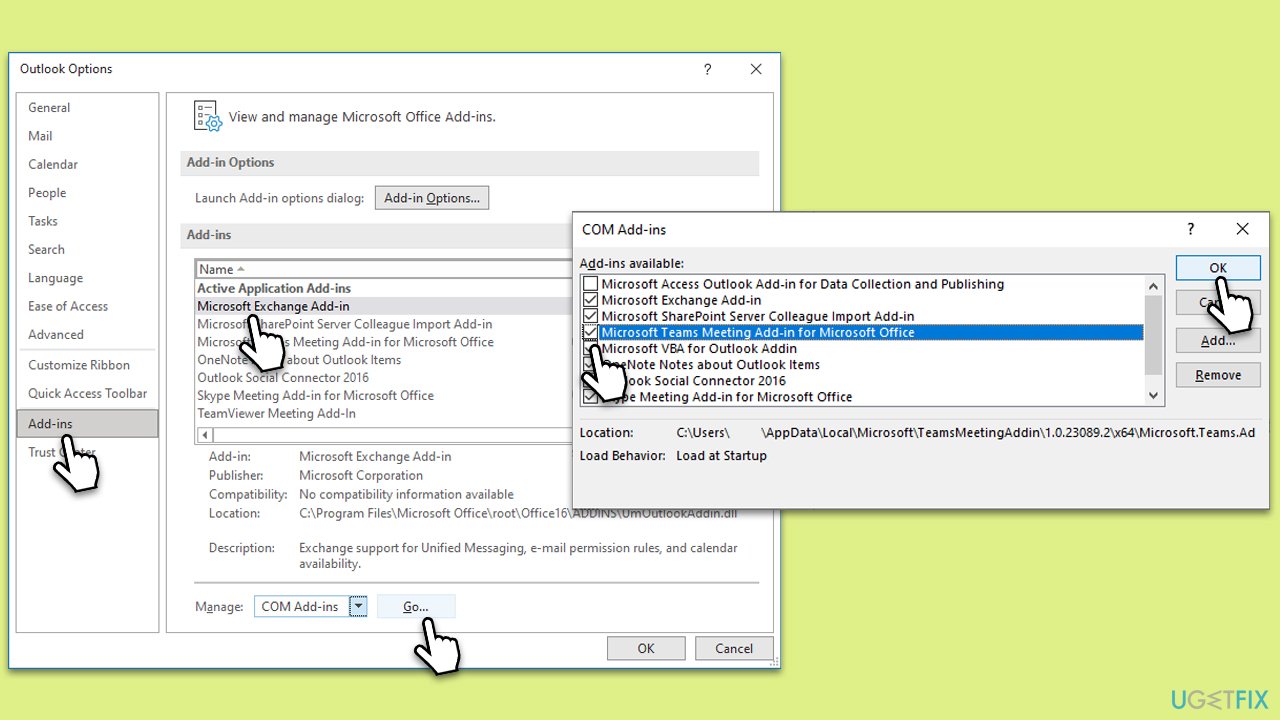
This solution works by manually checking if the Teams Meetings add-in is disabled within Outlook and re-enabling it to restore its functionality. The add-in may become disabled due to an error or during an update, and enabling it again can make it appear in Outlook.
- Open Outlook on your computer.
- Click on the File menu at the top left corner of the screen.
- Select Options from the list to open the Outlook Options window.
- Navigate to the Add-ins section on the left pane.
- At the bottom of the window, you will see a Manage drop-down menu; ensure COM Add-ins is selected and click Go.
- In the COM Add-ins window, look for the Microsoft Teams Meetings Add-in for Microsoft Office entry.
- If it is unchecked, tick the checkbox next to it to enable the add-in.
- Click OK to save your changes and close the window.
- Restart Outlook to apply the changes.
Fix 2. Update Outlook
Updating Outlook ensures that you have the latest version of the software, which includes bug fixes and improvements that may resolve issues with add-ins. An outdated version of Outlook may not support certain add-ins or may have unresolved bugs that affect add-in functionality.
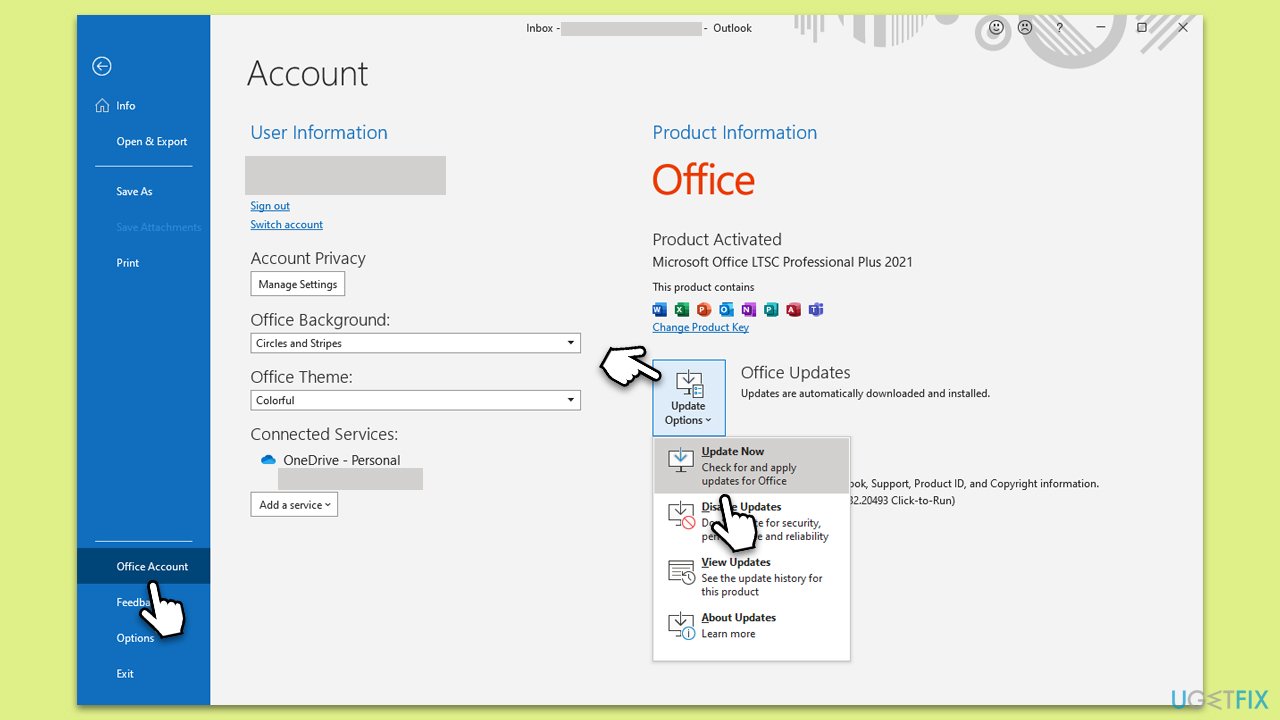
- Open Outlook and click on the File menu.
- Choose Office Account or Account (the option may vary depending on your version of Outlook).
- Under the Product Information section, you will find an Update Options button. Click it and select Update Now.
- Outlook will check for and install any available updates.
- Once the update is complete, restart Outlook for the changes to take effect.
Fix 3. Log out of Outlook and log back in
This simple solution works by refreshing your Outlook session, which can sometimes resolve minor glitches or issues with add-ins. Logging out and then logging back into your account can help reset the add-in's status.
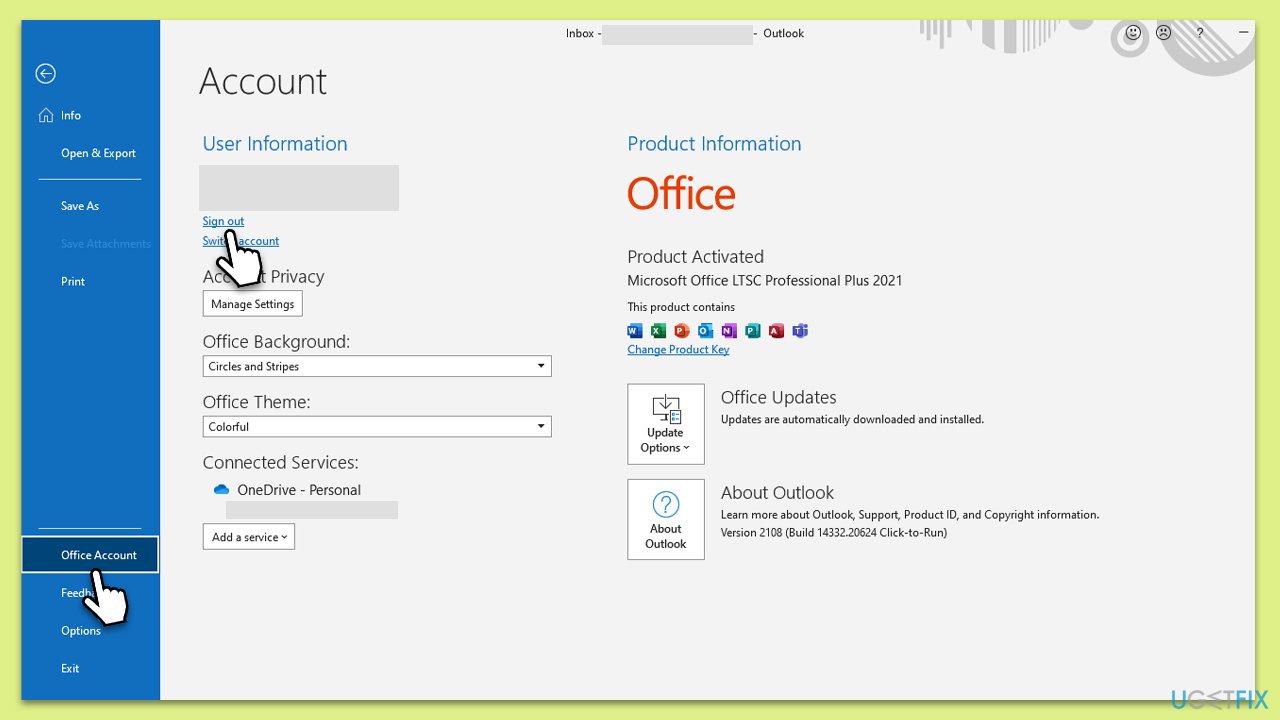
- Open Outlook and click on the File menu.
- Select Office Account.
- Under the Account Information section, click on Sign out.
- Close Outlook after signing out.
- Reopen Outlook and sign back into your account with your credentials.
- Check if the Teams Meetings add-in is now visible.
Fix 4. Run Microsoft Support and Recovery Assistant
Microsoft provides a diagnostic tool that can automatically identify and fix issues related to the Teams Meetings add-in not appearing in Outlook.
- Download Microsoft Support and Recovery Assistant [direct link].
- Double-click SataSetup.exe and install the app.
- Agree to the terms and click Next.
- Select Outlook from the list, and follow the instructions provided by the app.
Fix 5. Re-register Microsoft.Teams.AddinLoader.dll file
Re-registering the DLL file associated with the Teams Meetings add-in can fix issues where the add-in is not properly loaded into Outlook. This process involves using command prompt commands to re-register the DLL file in Windows.
- Press Win + E to open File Explorer.
- Navigate to the following location:
C:\Users\USERNAME\AppData\Local\Microsoft\TeamsMeetingAddin\VERSION\x86 - Place your cursor at the address bar, mark it all, and press Ctrl + C to copy it.
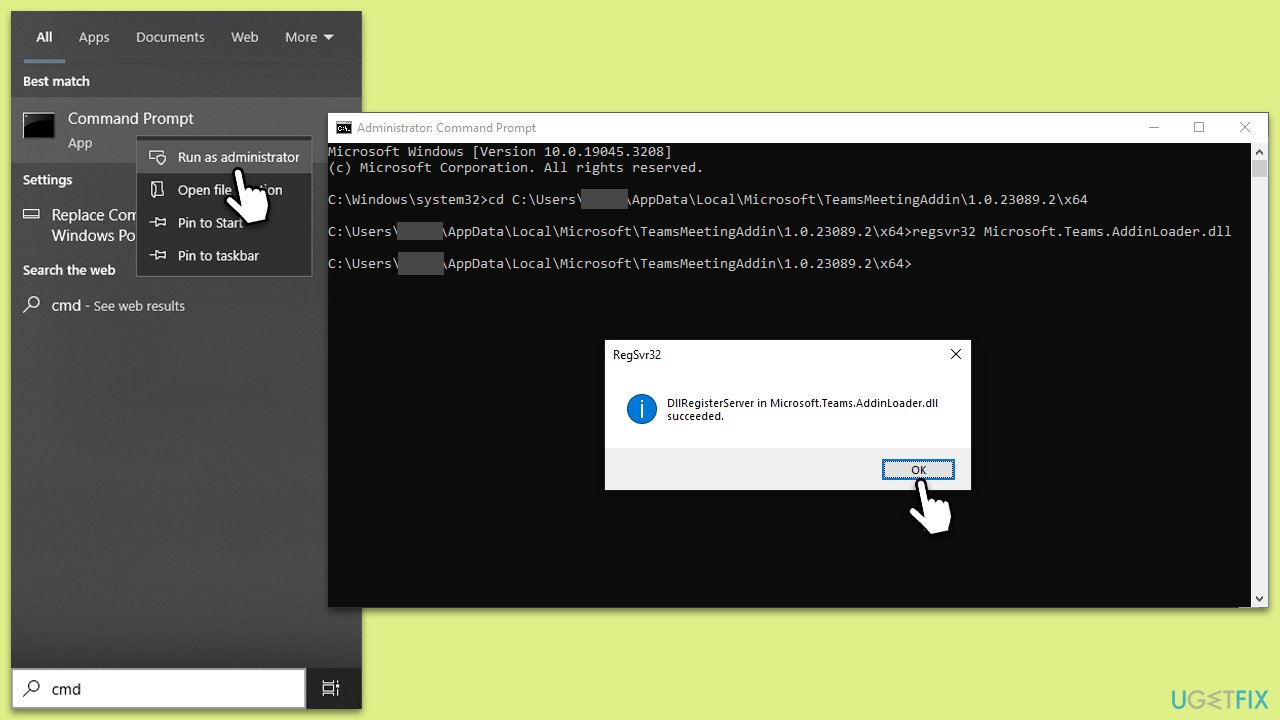
- Type cmd in Windows search.
- Right-click on Command Prompt and select Run as administrator.
- In the Command Prompt window, type the following command and press Enter (note that you need to paste what you have copied before with the correct username and app version):
cd C:\Users\USERNAME\AppData\Local\Microsoft\TeamsMeetingAddin\VERSION\x86
regsvr32 Microsoft.Teams.AddinLoader.dll - Close the Command Prompt and restart your computer.
- Open Outlook and check if the Teams Meetings add-in is now visible.
Fix 6. Enable the Add-in via Registry
This solution involves modifying the Windows Registry to ensure the Teams Meetings add-in is enabled. Caution is advised when editing the registry, as incorrect changes can cause system instability.
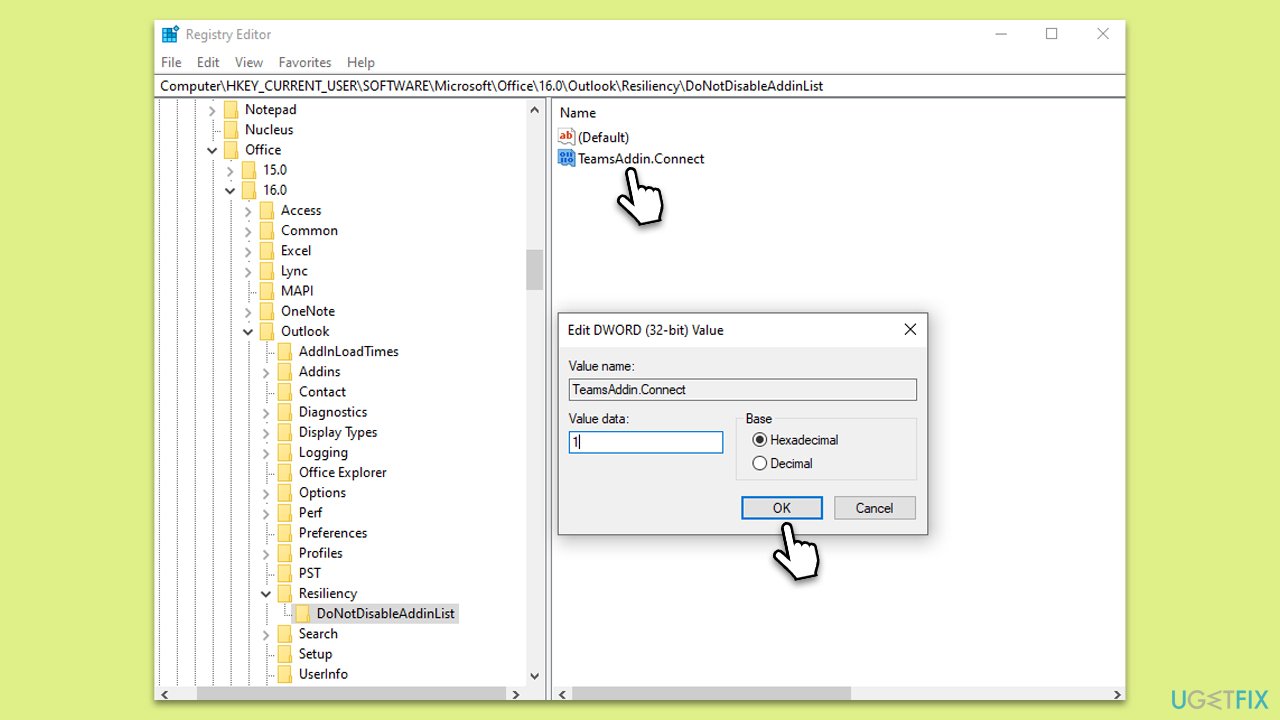
- Type regedit in Windows search and press Enter to open the Registry Editor.
- Navigate to the following path: Computer\HKEY_CURRENT_USER\Software\Microsoft\Office\16.0\Outlook\Resiliency\DoNotDisableAddinList
- On the right side of the window, double-click the TeamsAddin.Connect key.
- Set the Value to 1 and click OK.
- Close Registry Editor and see if the problem is resolved.
Bottom line
To resolve the issue of the Teams Meetings add-in not showing in Outlook, you can try enabling the add-in, updating Outlook, or repairing corrupted files. If these solutions do not work, consider using a powerful PC repair tool to address potential underlying Windows problems.
Frequently asked questions
The Teams Meetings add-in may not appear in Outlook if the Microsoft Teams application isn't installed or if the add-in is disabled in Outlook settings. Ensure that both Teams and Outlook are properly installed and updated on your Windows 10 system.
To enable the Teams Meetings add-in in Outlook on Windows 11, go to File > Options > Add-ins, and check if it's listed under Disabled Items. If it is, select it and click 'Enable' to activate the add-in.
If the add-in is still missing after reinstalling Teams, try repairing Office from the Control Panel, and ensure all updates for both Office and Teams are installed on your Windows 10 device.




Report an issue
What's wrong with this guide? We review every report and update or remove content.
Report received — thank you. We'll review and fix it.
You need a free account to submit a report.
Be the first to comment