How to fix
Teams Polls not working
on Windows
Fix Teams Polls not working on Windows 10 and 11 effortlessly with expert-tested solutions. Get your polls back up and running in minutes!

What causes How to fix Teams Polls not working in Windows?
- Polls feature may not be enabled by the team's administrator
- Software glitches
- Compatibility issues with Windows or Teams version
- Outdated software or lack of updates
Repairs Windows system files, removes malware, and restores a clean OS state — without reinstalling.
Hi. I use Teams for work every day, but today I've noticed that the Polls feature is not working. Any idea on how to fix this?
Microsoft Teams is a comprehensive communication tool designed to facilitate efficient teamwork through its diverse range of features. One such feature is the Polls function, a powerful engagement tool that allows team leaders to conduct quick surveys, gauge opinions, or make collaborative decisions. With Polls, members can participate in real-time voting, providing instantaneous feedback. It is a means of bridging communication gaps and encouraging open interaction.
However, certain users have encountered issues with the Polls feature not functioning properly in Windows. Despite its designed simplicity and easy-to-use interface, this issue can disrupt smooth operations, leading to potential hindrances in the flow of communication within a team.
There could be several reasons why the Polls function isn't working as intended. One of the most common reasons is that the feature may not have been enabled by the team's administrator. It's important to note that certain features in Teams, including Polls, may be subject to administrative control. This means they can be enabled or disabled by the organization's IT team or the Teams admin. If this is the case, reaching out to the IT department or the Teams admin would be the first course of action.
Another possible reason could be software glitches or compatibility issues with the version of Windows or Teams that is being used. Software updates and patches are regularly released to address such issues, so ensuring that the software is up to date can help rectify any malfunctions.
Further details on these and more in-depth troubleshooting solutions can be found in the comprehensive guide below this article. This guide is designed to provide users with step-by-step instructions to identify and resolve any issues that may arise with the Polls feature.
Additionally, maintaining your PC's health is paramount to smooth operations. Using a comprehensive PC repair tool like [d1] can help optimize your system performance, indirectly supporting a seamless Teams experience.
Fix 1. Check for updates
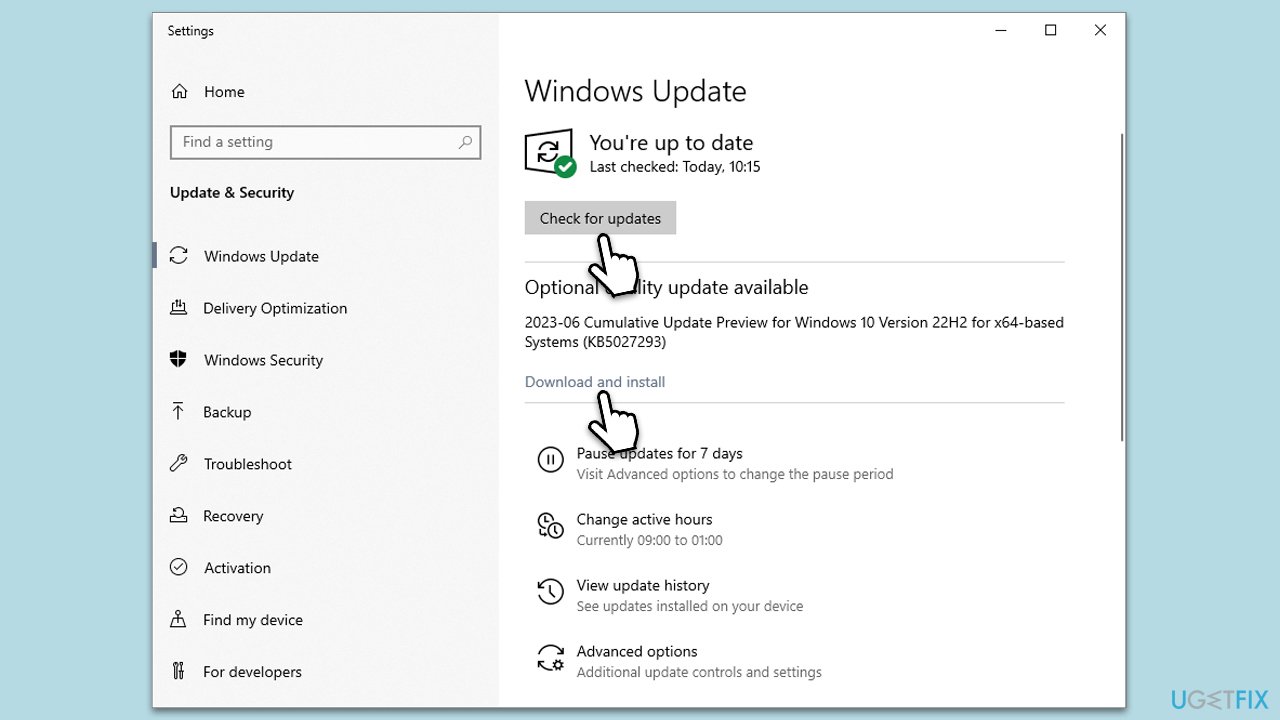
Microsoft Teams and Windows frequently release updates to fix bugs and enhance user experience. Sometimes, the Polls feature may not work due to outdated software.
- Click on the Start button and open the Settings app.
- Click on Update & Security.
- Under Windows Update, click Check for updates.
- If updates are available, install them.
- Open Microsoft Teams and click on your profile picture.
- Click Check for updates.
Fix 2. Enable Teams Polls feature
Sometimes, the Polls feature might be disabled by the admin. You can request your admin to enable it.
- Contact your Teams admin.
- Request them to check if the Polls feature is enabled.
- If not, ask them to enable it.
Fix 3. Clear Teams cache
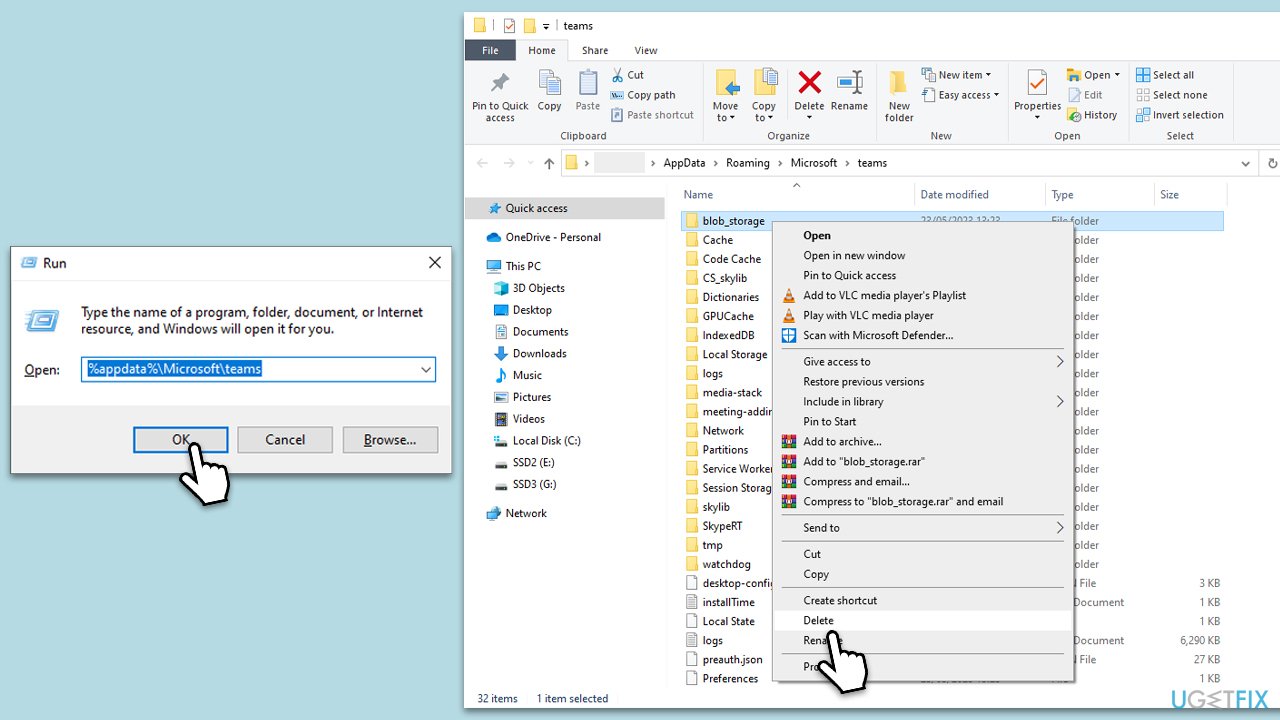
Clearing the cache of Teams can often resolve issues with the app, including problems with Polls.
- Close Microsoft Teams.
- Press Win + R to open the Run dialog box.
- Type %appdata%\Microsoft\teams and press Enter.
- Delete the contents of the following folders:
blob_storage,
cache,
databases,
GPUCache,
IndexedDB,
Local Storage,
tmp. - Restart Teams and check if Polls works.
Fix 4. Reinstall Teams
If the Polls issue persists, uninstalling and reinstalling Teams can help.
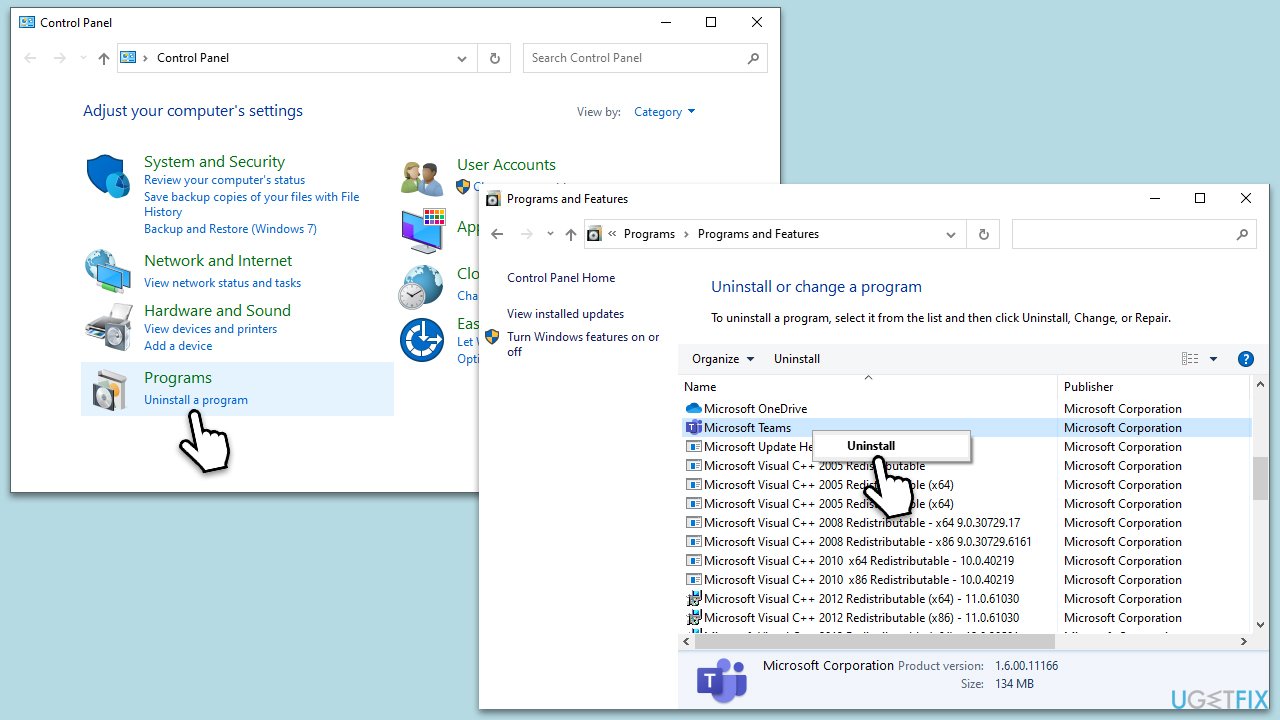
- Go to Control Panel > Programs > Programs and Features.
- Select Microsoft Teams and click Uninstall.
- Download the latest version of Teams from the Microsoft website.
- Install Teams and check if Polls works.
Fix 5. Use Teams web version
If the problem still persists, try using the Teams web version, which might resolve the Polls issue.
- Open your browser and go to teams.microsoft.com.
- Sign in using your Teams credentials.
- Check if the Polls feature works in the web version.
Fix 6. Run Windows apps troubleshooter
The built-in Windows apps troubleshooter can diagnose and fix common problems with Windows apps, including Microsoft Teams.
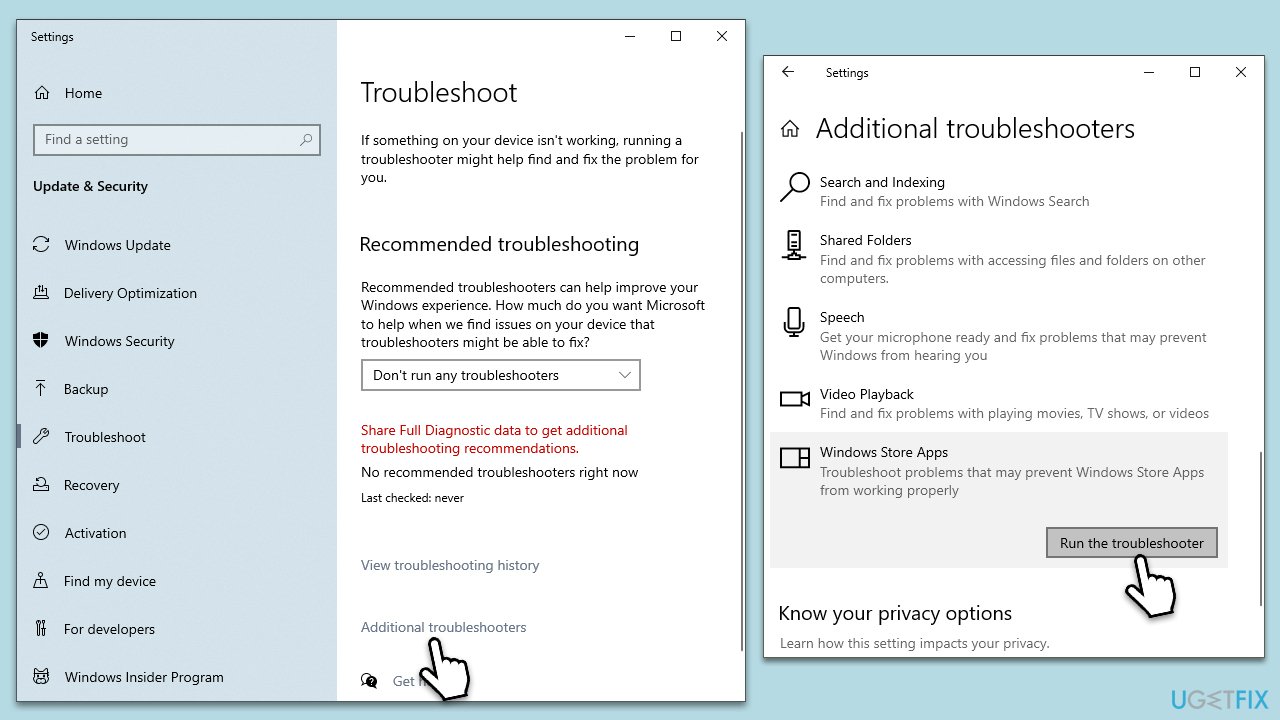
- Type Troubleshoot in Windows search and hit Enter.
- Select Additional troubleshooters/Other troubleshooters.
- Find Windows Update from the list and click Run the troubleshooter/Run.
- The troubleshooter will automatically scan your system for potential problems and display any issues it finds.
- If the troubleshooter finds any issues, it will provide recommended solutions - apply them as necessary.
Bottom line
To fix the Polls not working in Teams, check if the feature is enabled by your administrator, ensure your software is up to date, and troubleshoot any potential glitches. If these solutions do not resolve the issue, consider reaching out to your IT department or consulting the comprehensive guide for further assistance.
Frequently asked questions
Ensure that your Microsoft Teams app is updated to the latest version, as updates often fix bugs and improve features. Additionally, check your organization's settings to confirm that Polls are enabled for your account.
Try clearing the Teams cache by closing the app, navigating to %appdata%/Microsoft/Teams, and deleting the contents of the Cache folder. Restart Teams afterwards to see if the issue is resolved.
Make sure that your Teams app has the necessary permissions to access the internet and your Microsoft account settings are correctly configured. You can also check your firewall settings to ensure Teams is allowed to communicate.




Report an issue
What's wrong with this guide? We review every report and update or remove content.
Report received — thank you. We'll review and fix it.
You need a free account to submit a report.
Be the first to comment