How to fix
Teams sign-in error 80090311
on Windows
Resolve the Teams sign-in error 80090311 on Windows 10 and 11 quickly and efficiently. Get actionable solutions from our expert-tested guide!

What causes How to fix Teams sign-in error 80090311 in Windows?
- Authentication problem
- Barrier in communication between device and Microsoft Teams server
- Outdated Trusted Platform Module (TPM) driver
- Issues with TPM keys
- Underlying Windows issues
Repairs Windows system files, removes malware, and restores a clean OS state — without reinstalling.
Hi, I can't seem to be able to log in to Teams. I keep receiving an 80090311 error whenever I try. Teams is extremely important for my work-at-home routine so I need it to be fixed as soon as possible.
Microsoft Teams is an integral collaboration platform that integrates seamlessly with Office 365, offering features that facilitate chat, meetings, and collaboration. This tool has significantly transformed how businesses and educational institutions operate, making communication and collaboration smoother and more efficient. The platform's alignment with other Microsoft applications ensures users can share, collaborate, and communicate without multiple application shifts.
However, no software is without its occasional hiccups. A prominent issue some users of Microsoft Teams face is the sign-in error 80090311. This error, 80090311, typically indicates an authentication problem, suggesting there might be a barrier in the communication between the user's device and the Microsoft Teams server.
One of the primary causes behind the sign-in error is the Trusted Platform Module (TPM). TPM is a component on devices that stores encryption keys vital for system security. An issue with the TPM, such as an outdated driver, can interfere with the authentication process, leading to the 80090311 error in Microsoft Teams. Resetting TPM keys might also work.
It's worth noting that while 80090311 can be a source of frustration, especially when trying to sign in for an important meeting or when on a tight deadline, it's one of the many errors that software platforms can occasionally present. However, with the right information and tools, these issues can often be resolved efficiently.
For those who might not be tech-savvy or wish to ensure their system runs optimally, tools like the [d1] PC repair tool can be invaluable. While it doesn’t directly address the 80090311 error, this tool aids in rectifying underlying Windows issues automatically, promoting a more stable and efficient user experience.
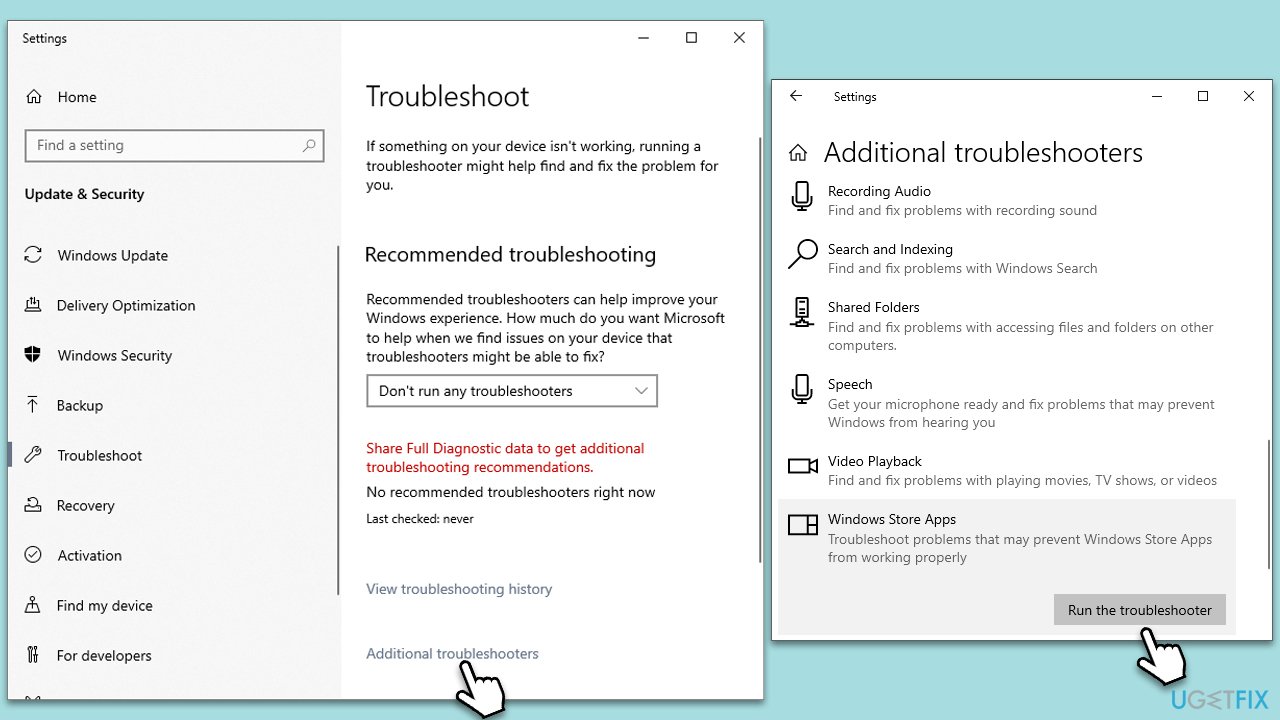
Fix 1. Run Windows Store Apps troubleshooter
The Windows Store Apps troubleshooter is a built-in tool designed to detect and automatically resolve problems with Windows apps. By running this troubleshooter, you can identify issues with Microsoft Teams or any app-related glitches.
- Type Troubleshoot in Windows search and hit Enter.
- Select Additional troubleshooters/Other troubleshooters.
- Find Windows Update from the list and click Run the troubleshooter/Run.
- The troubleshooter will automatically scan your system for potential problems and display any issues it finds.
- If the troubleshooter finds any issues, it will provide recommended solutions - apply them as necessary.
Fix 2. Disconnect and re-connect to your work or school account
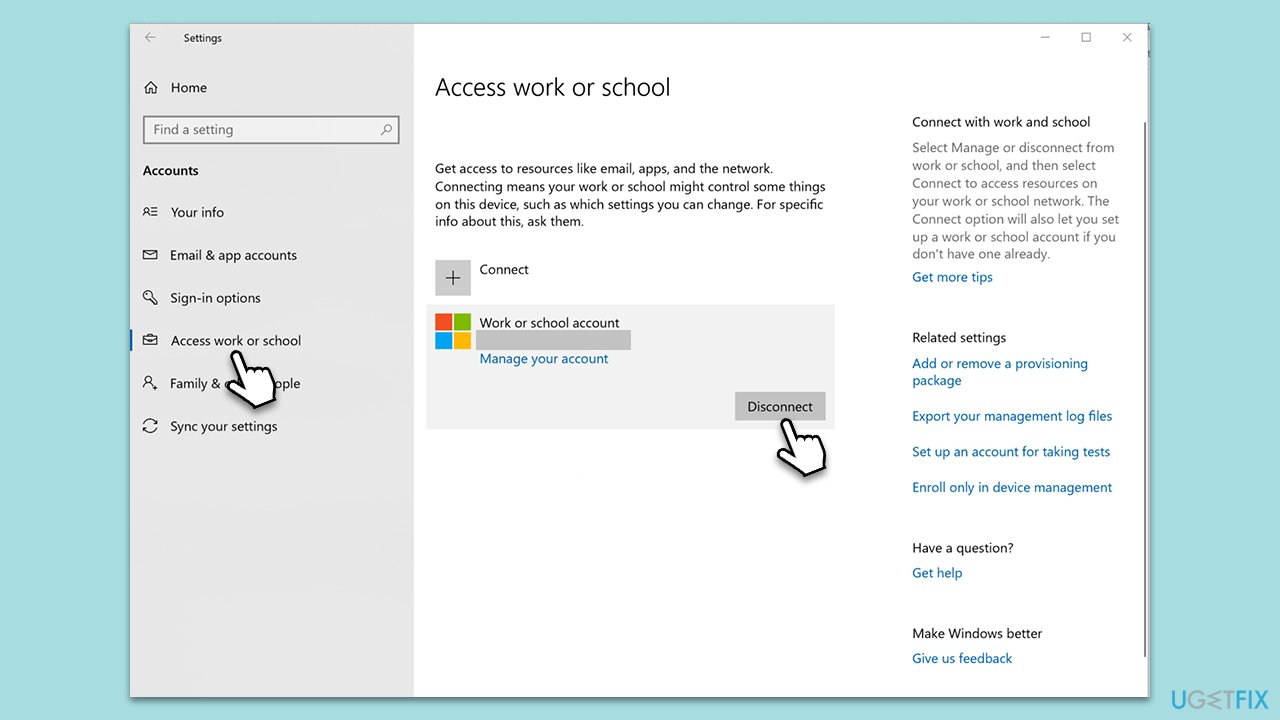
Sometimes, account-related issues can interfere with Microsoft Teams' sign-in process. By disconnecting and then reconnecting to your account, you effectively reset your connection, which can solve the problem. It's also recommended to delete specific folders to clear any residual data.
- Open Settings (Win + I).
- Click on Accounts.
- Select Access work or school.
- Click on your account and then Disconnect.
- Navigate to C:\users\USERNAME\AppData\Local\Packages (replace USERNAME with your actual username).
- Delete the contents of the folder.
- Restart your computer.
- Return to "Access work or school" and connect your account again.
Fix 3. Clear MS Teams cache
Over time, the cache accumulated by Microsoft Teams might become corrupted, leading to various errors. Clearing the cache can solve many such issues by removing outdated or corrupted data.
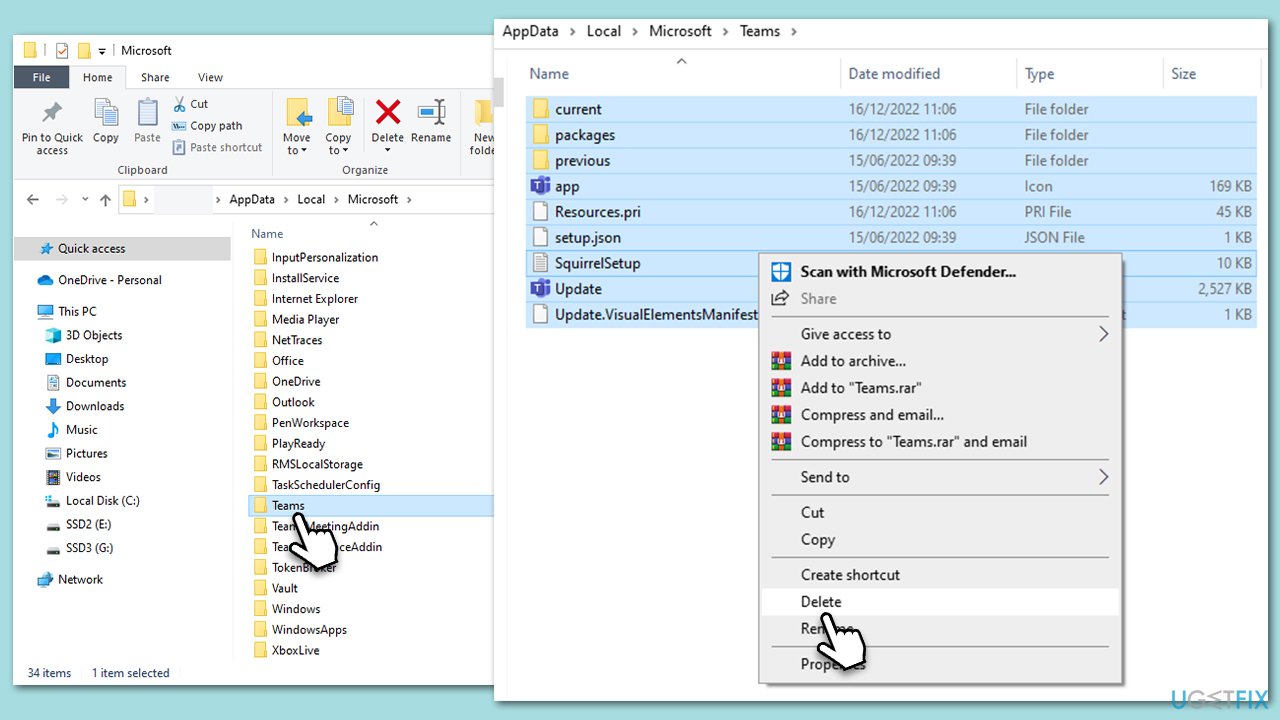
- Close Microsoft Teams.
- Press Win + R on your keyboard to open the Run dialog.
- Type AppData and press Enter or click OK.
- Go to the following location:
C:\Users\User\AppData\Local\Microsoft - Delete all the files and folders located in the Teams folder.
Fix 4. Clear TPM keys
The TPM (Trusted Platform Module) can sometimes store keys or data that interfere with the authentication process. Clearing these keys can resolve such issues.
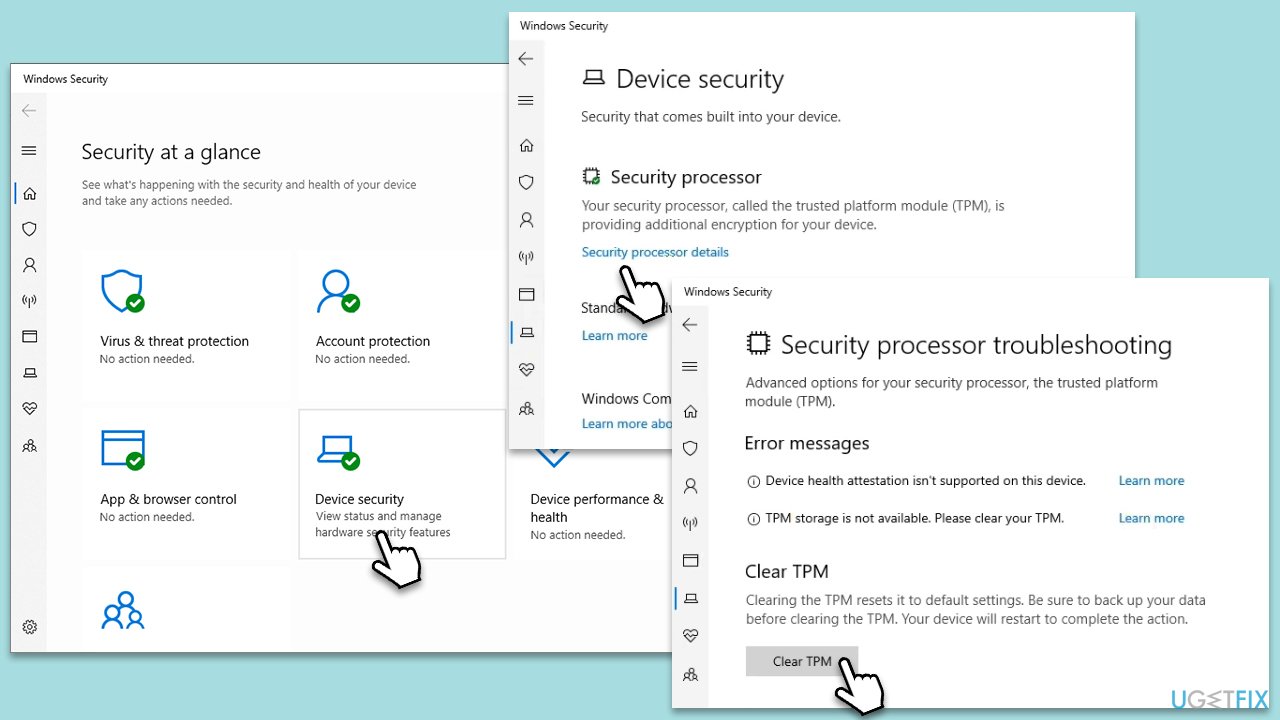
- Open the Windows Security app.
- Navigate to Device Security.
- In the Security processor section, click on Security processor details.
- Click on Security processor troubleshooting, then click on Clear TPM.
- Confirm the action and follow the prompts to clear the TPM.
Fix 5. Update Trusted Platform Module driver
Outdated drivers can lead to compatibility issues, including sign-in errors. By updating the TPM driver, you ensure that the module communicates effectively with Microsoft Teams.
- Right-click on the Start button and select Device Manager.
- Expand Security devices.
- Right-click on Trusted Platform Module and select Update driver.
- Choose Search automatically for drivers and follow the on-screen instructions.
- Once done, restart your system.
For a quicker and more hands-off approach to the driver update process, we recommend using [rev id="DriverFix"].
Fix 6. Repair or reset Teams [Win 11 only]
If Microsoft Teams has internal issues, repairing the installation can reset the application to its default state without losing your data.
- Click on Start and pick Settings.
- Go to the Apps section.
- Locate Microsoft Teams from the list.
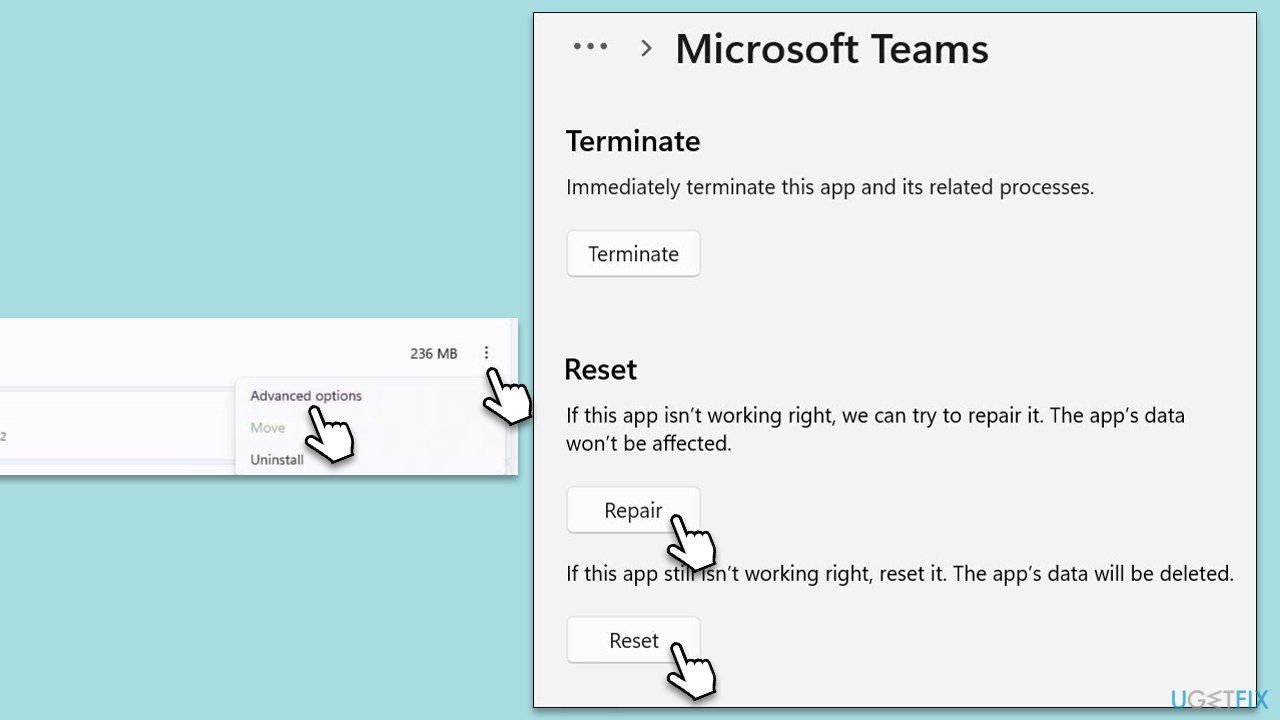
- Click on the three vertical dots and pick Advanced options.
- Click Terminate to ensure that the app is not running.
- Under the Reset section, click Repair and see if that solved your issue.
- If not, then try the Reset option.
Bottom line
To fix the Teams sign-in error 80090311, you can run the Windows Store Apps troubleshooter and consider resetting TPM keys. If these solutions do not work, it may be helpful to use a PC repair tool to address any underlying Windows issues.
Frequently asked questions
The Teams sign-in error 80090311 typically indicates an issue with authentication, often related to expired credentials or problems with the certificate used for signing in.
To resolve this error on Windows 11, try clearing the Teams cache by navigating to %appdata%/Microsoft/Teams and deleting the contents of the Cache folder.
Yes, ensuring that your Windows 10 is up to date can help fix the Teams sign-in error 80090311, as updates may include important patches for authentication issues.




Report an issue
What's wrong with this guide? We review every report and update or remove content.
Report received — thank you. We'll review and fix it.
You need a free account to submit a report.
Be the first to comment