How to fix
Temp folder opening automatically
on Windows
Discover effective solutions to stop the Temp folder from opening automatically in Windows 10 and 11. Expert-tested fixes for a smoother experience!


What causes How to fix Temp folder opening automatically in Windows?
- Corrupted system files
- Third-party programs causing interference
- Malware infection
- Incorrect system settings
Repairs Windows system files, removes malware, and restores a clean OS state — without reinstalling.
Hello. I encountered a weird issue where the Temp folder keeps opening automatically on my Windows desktop. How do I stop it?
Recently, a lot of Windows customers have encountered an odd problem where the Temp folder always starts opening on their desktop. Users may find this unexpected behavior to be highly upsetting and baffling, and they may question its causes and ramifications.
The Windows operating system has a folder called "Temporary Folder," or simply "Temp." It's intended to house temporary files produced by different programs and websites. The responsiveness of related programs and websites depends heavily on these temporary files. They aid in enhancing system performance by caching data that may be promptly accessed when required.
The Temp folder starting to appear on the desktop automatically, however, can cause a number of problems. First off, it may be a major distraction that interferes with desktop organization and workflow in general. Users can find themselves continually closing the folder, which can be annoying.
Additionally, worries about the stability and security of the system may be sparked by the unexpected emergence of the Temp folder on the desktop. The fear and uncertainty caused by some users' fears that it's a symptom of malware or a system issue can be unfounded.
Regarding potential fixes, resolving this problem often entails identifying the underlying reason and putting the right remedy in place. Users may need to verify their system settings, seek for third-party programs that might be the issue, or even scan their systems for malware.
In this guide, you will find 4 steps that should help you fix Temp folder opening automatically in Windows. You can also run a maintenance tool like [d1] that can fix most system errors, BSODs,[ref en-1] corrupted files, and registry[ref en-2] issues. Otherwise, follow the step-by-step instructions below.
Solution 1. Fix Corrupted System Files
Use Command Prompt commands to repair system file corruption:
- Open Command Prompt as administrator
- Use the following command and press Enter:
sfc /scannow
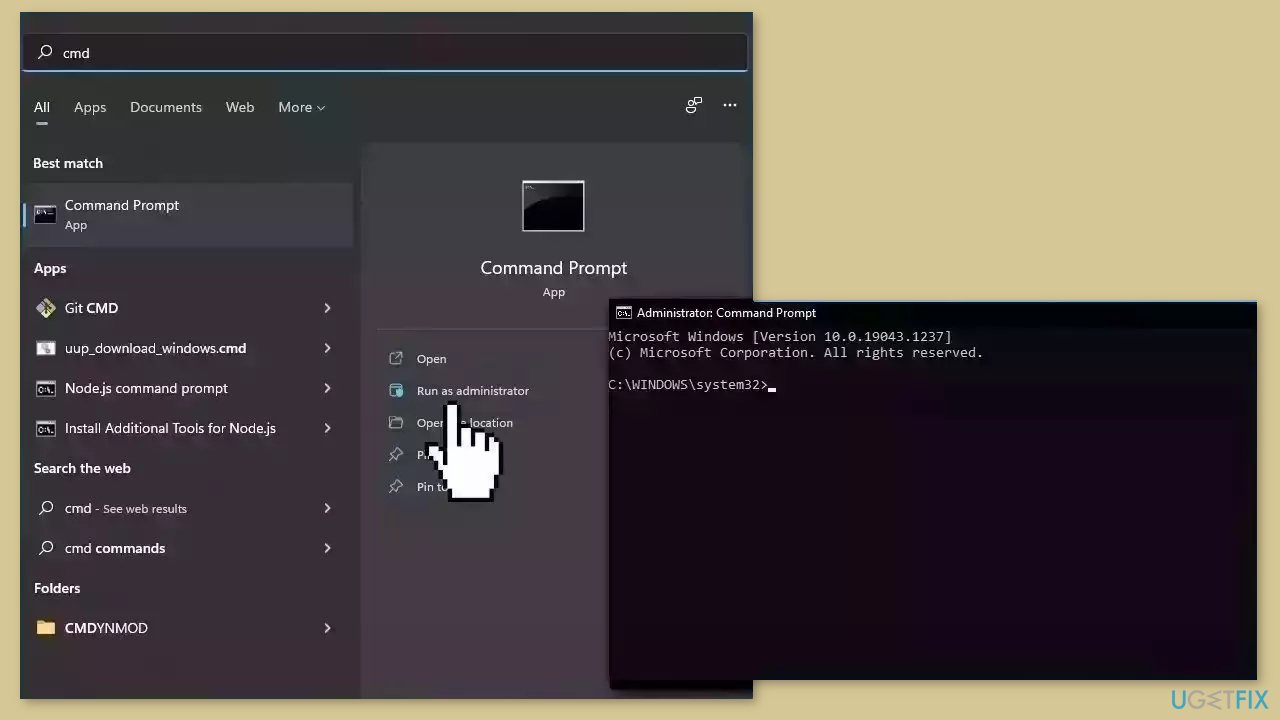
- Reboot your system
- If SFC returned an error, then use the following command lines, pressing Enter after each:
DISM /Online /Cleanup-Image /CheckHealth
DISM /Online /Cleanup-Image /ScanHealth
DISM /Online /Cleanup-Image /RestoreHealth
Solution 2. Scan for Malware
It is possible that a malware infection may be the cause of Temp folder opening automatically in Windows. It is important to run a comprehensive security scan to rule out this possibility and ensure that the computer is not infected. This can help to prevent further issues with the Windows operating system and ensure that it is functioning properly.
If you have access to a security scanner, or if your organization pays for one, you can use it to scan your entire system to check for a virus infection. Otherwise, you can use Windows Defender to scan your system:
- Click on the Windows Start menu or press the Windows key on your keyboard.
- Type Microsoft Defender in the search bar and click on Microsoft Defender Antivirus to open the application.
- Click on the Virus & threat protection option in the left-hand menu.
- Click on the Quick scan or Full scan option, depending on your preference.
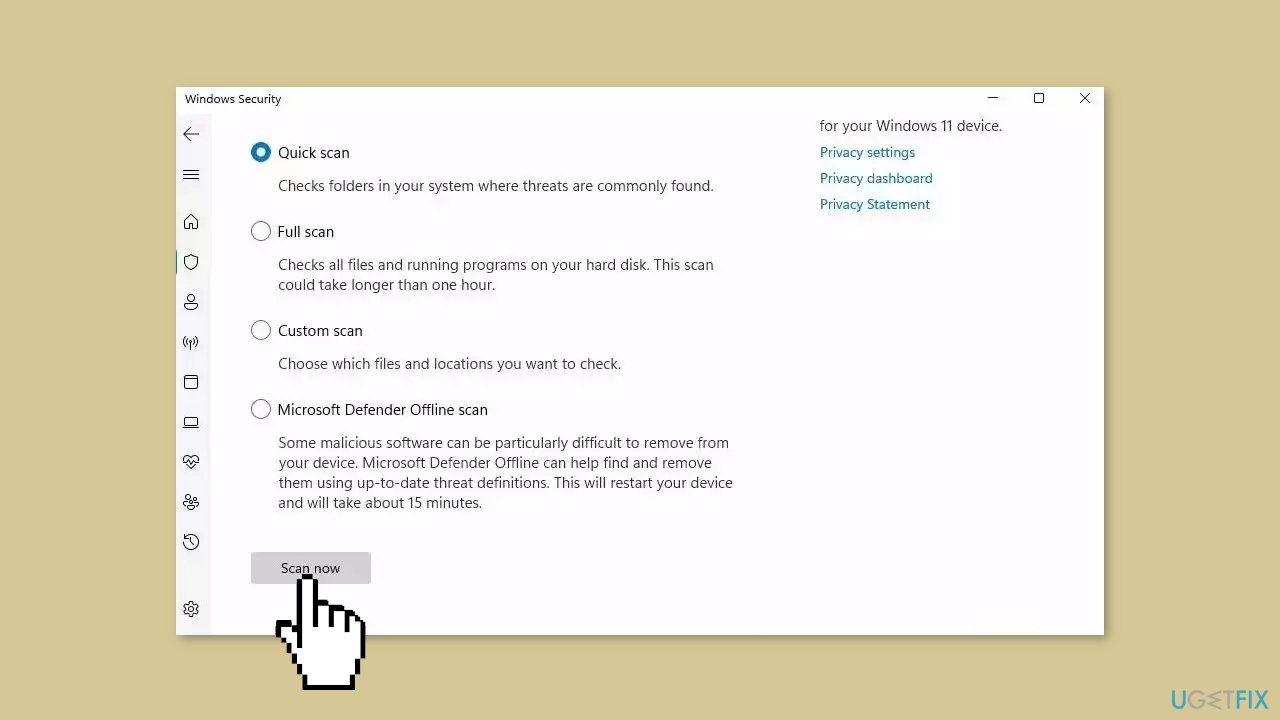
- If you choose Quick scan, Microsoft Defender Antivirus will scan the most vulnerable and commonly infected areas of your computer.
- If you choose Full scan, Microsoft Defender Antivirus will scan your entire computer, including all files, folders, and programs.
- Click on the Scan now button to start the selected scan type and wait for the scan to complete.
- The time it takes will depend on the size of your hard drive and the number of files being scanned.
- Once the scan is complete, you will be informed of any detected threats, and you can choose to quarantine or remove them.
- If no threats are found, Microsoft Defender Antivirus will inform you that your device is secure.
Solution 3. Delete suspicious files in the Startup Folder
- Press the Windows key + R.
- In the Run window, type the following command and hit Enter:
shell:startup
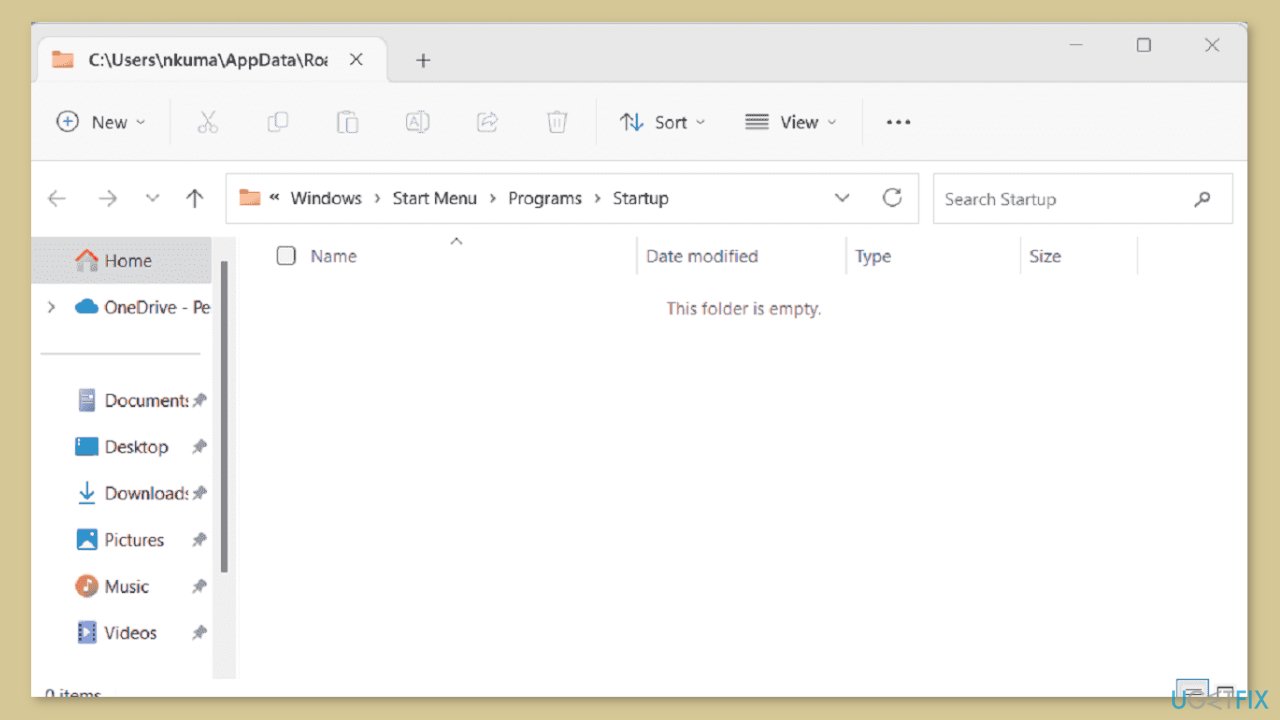
- This will open the Startup files folder.
- You will notice shortcuts and files. Please delete any suspicious ones. If you don’t understand any of the files, then you may also delete all contents of the folder. They will be rebuilt later when you fix the settings.
Solution 4. Try Clean Boot
- Open the Search menu, type in system configuration, and press Enter.
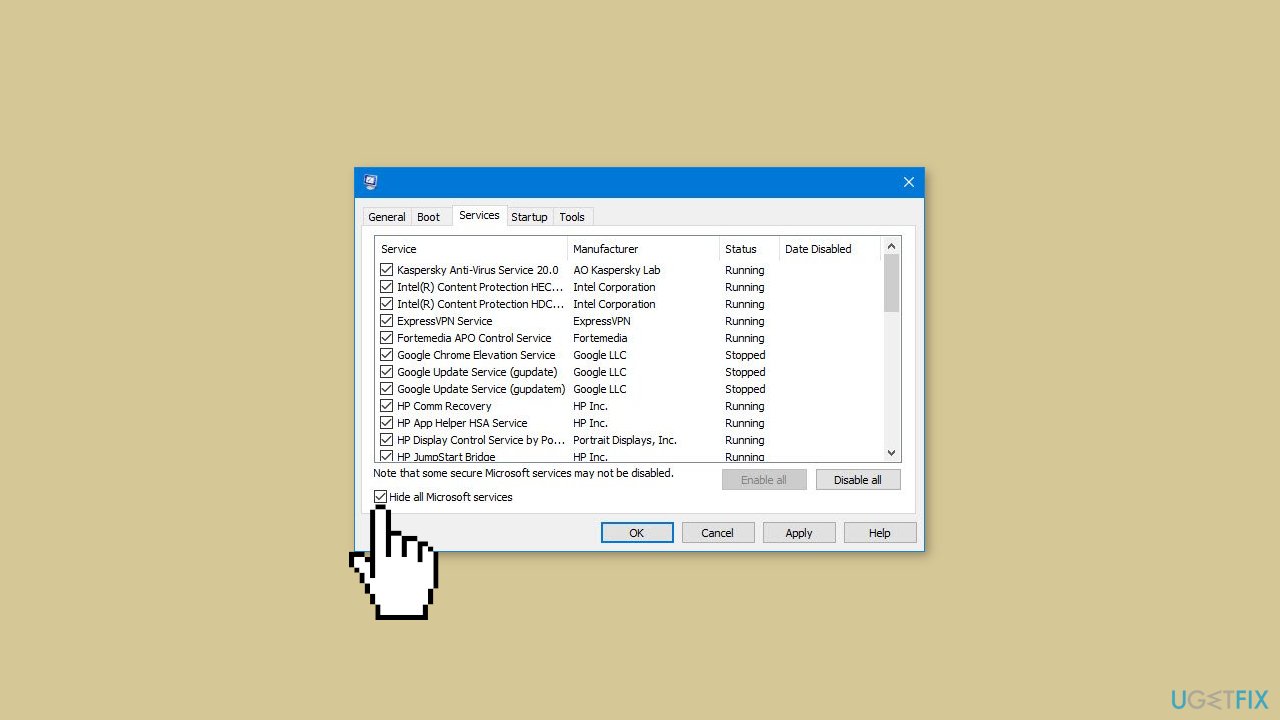
- Under the Services tab, tick the Hide all Microsoft services box.
- Click on Disable all button.
- Head over to the Startup tab and click on Open Task Manager.
- Select a third-party program and click on Disable at the top.
- Repeat this step to disable all third-party apps and programs.
- Restart your PC to enter the clean boot state and see if the issue persists.
- If the issue disappeared in the clean boot state, then you can be certain that a third-party app is causing it.
- Go through all recently installed apps or programs and remove them one by one.
Bottom line
To fix the issue of the Temp folder opening automatically, users can repair corrupted system files using Command Prompt, check for interfering third-party programs, and scan for malware. If these solutions do not resolve the problem, consider running a maintenance tool to address system errors.
Frequently asked questions
This issue may occur due to certain applications or background processes that improperly access the Temp folder. Checking your startup programs and scheduled tasks can help identify the culprit.
You can disable any problematic startup applications or adjust the settings of programs that frequently access the Temp folder. Additionally, running a virus scan can rule out malware causing this behavior.
Yes, you can modify specific registry keys related to startup programs that may be accessing the Temp folder. However, be cautious and back up the registry before making changes.




Report an issue
What's wrong with this guide? We review every report and update or remove content.
Report received — thank you. We'll review and fix it.
You need a free account to submit a report.
Be the first to comment