
That verification method isn't working right now: how to fix it on a Microsoft account?

Prefer to fix it yourself? The manual steps follow.
- 7methods
- 2 minutes to 30 days
- Easy
Applies to Personal Microsoft accounts (Outlook.com, Hotmail, Live, Xbox, Microsoft 365 Personal and Family) when you sign in, reset a password or change account settings, on any device and browser
7 methods in this guide
I wanted to reset my Microsoft password, but when I try to do that it says "That verification method isn't working right now. Please try another method." What should I do?
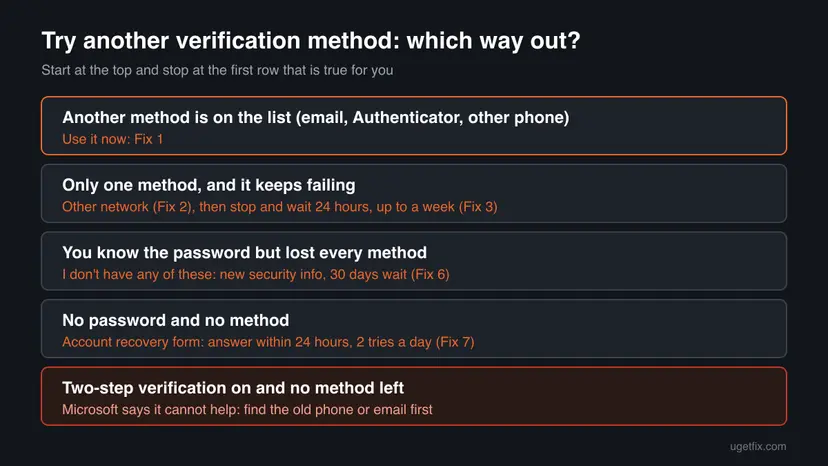
The message That verification method isn't working right now is a Microsoft account block, not a Windows fault. Microsoft has stopped sending codes to this phone or email for a while, usually after unusual activity or too many requests. Pick another method on the same screen first, then switch network and wait a day.
Microsoft has paused codes to the method you chose, usually because of unusual activity or too many code requests. Fix 1: go back and choose another method on the list, such as an email code or the Authenticator app. With only one method, switch network, then stop trying for 24 hours. Repeated attempts can reset the time lock.
| Error | Try another verification method with the text That verification method isn't working right now. Please try another method. and a Learn more link. |
|---|---|
| Where it appears | In the Microsoft account window in a browser or in a Windows sign-in window, right after you pick a phone number or email to receive a security code: at sign-in, at password reset or when you change security info. |
| Main cause | A temporary block on that method: unusual activity, a high volume of code requests, or heavy compromised traffic from your region. Microsoft lists all three. |
| Fastest fix | Choose another verification method connected to the account (Fix 1). With only one, try another network (Fix 2) and wait (Fix 3). |
| Also written as | that method isn't working right now, this verification method is not working, verify another way that method isn't working right now, Try another verification method Microsoft. |
| Affects | Personal Microsoft accounts on any device. Work and school accounts get different two-step verification messages from their organisation. |
| Microsoft's status | A documented block, not a bug. Microsoft's verification code page tells you to try another method, another network, or wait a day and up to a week (checked 15 October 2026). |
| What does not help | Microsoft support: agents are not allowed to send verification codes, password reset links or change account details. |
| Time to fix | Minutes with a second method. A day to a week when the block must expire. 30 days when you replace all security info. |
Facts checked on 15 October 2026. Steps written for the Microsoft account sign-in and password reset pages in Edge, Chrome and Firefox on Windows 11 (25H2 and 26H2) and Windows 10 22H2, read against Microsoft Support.
What "That verification method isn't working right now" means
Before Microsoft lets you sign in, reset a password or change a setting, it asks you to prove who you are with a code sent to a phone or email on the account. When you pick one of them and Microsoft will not send to it, the window changes to Try another verification method with this text: That verification method isn't working right now. Please try another method.
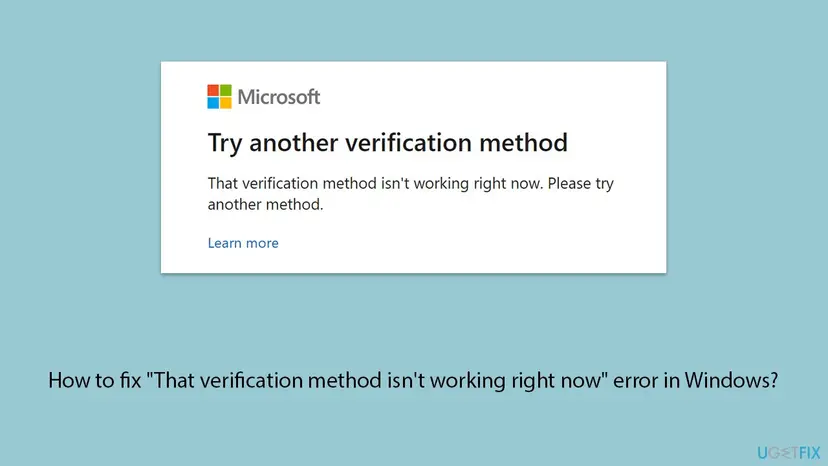
Nothing is broken on your PC. Microsoft scores every sign-in and every code request, and when yours looks risky it blocks that one method for a while. That is why the text says right now and points you to another method. The same block can come back in shorter forms:
| What you see or search | What it is |
|---|---|
| That method isn't working right now. Please try another way to verify it's you | The same block in newer wording. Same fixes. |
| Verify another way with that method isn't working right now | The same block on the Verify your identity screen. |
| Learn more under the message | Opens Microsoft's page Troubleshoot Microsoft verification code issues, the main source of this guide. |
| We can't send a text message to this number | A close relative: the same reasons, plus a VOIP number, which Microsoft does not accept. |
err.factor.deny_no_confirm_methods | An internal error key some users search for. Its words read as "denied, no methods to confirm". We could not confirm which service shows it, and Microsoft does not document it. |
The old title says Windows because the window often opens in Windows. The block lives on Microsoft's servers. A Windows repair, SFC, a driver update or a new browser install cannot lift it. Only another method, another network, time or Microsoft's recovery path can.
Why this verification method is not working: causes from the most common
Microsoft lists four reasons for the block and four reasons why codes do not arrive. We ranked them by how often they explain a single failing method. Treat the order as our reading of Microsoft's page and of the Microsoft Q&A threads, not as a statistic.
| How often | Cause | Typical sign | Fix |
|---|---|---|---|
| Most often | High volume of requests: you or someone else asked for many codes to the same phone or email | You pressed Send code again and again, or asked for a reset several times. | Fix 1, Fix 3 |
| Often | Unusual activity: a new device, new country, VPN or a pattern unlike yours | You travel, use a VPN or a new PC, or the account was attacked. | Fix 2, Fix 3 |
| Often | Heavy compromised traffic from your region | It happens in some countries more than others. Microsoft says it clears by itself. | Fix 1, Fix 3 |
| Less often | The phone number cannot receive codes: a VOIP number, a wrong number, texts from unknown senders blocked | Text a code always fails, email works. | Fix 1, Fix 5 |
| Less often | A stale sign-in session in the browser, or two Microsoft accounts signed in at once | The alternate email is another Outlook.com account. | Fix 4 |
| Rarely | The account is locked or flagged, or broke the terms of service | Every method fails for days, or you saw an account locked page. | Fix 6, Fix 7 |
Microsoft does not list the browser cache as a cause. A fresh private window costs a minute and rules out a stale session, so it is Fix 4, after the methods Microsoft names.
How to fix "That verification method isn't working right now"
The fixes follow the order Microsoft gives on its verification code page, then the recovery paths. After each fix, request one code only, and wait a few minutes for it before you ask again. When the code arrives and the page moves on, you are done.
| Your situation | Start with | Then |
|---|---|---|
| Another phone, email or the Authenticator app is on the list | Fix 1 | Fix 3 |
| Only one method, on mobile data or a VPN | Fix 2 | Fix 3 |
| You pressed Send code many times in a row | Fix 3 | Fix 1 |
| Your alternate email is another Outlook.com or Hotmail address | Fix 4 | Fix 1 |
| You are still signed in on some device | Fix 5 | Fix 1 |
| You know the password but lost every method | Fix 6 | Fix 7 |
| You know neither the password nor any method | Fix 7 | Still blocked section |
Fix 1. Go back and choose another verification method
2 minutesNo riskEveryone whose account lists more than one way to verify: a second phone, an alternate email or the Microsoft Authenticator app.
Microsoft says the block may be tied to the one method you are using. If texts to your phone are blocked, a code to the alternate email usually still goes through, because the block sits on the method, not on the whole account.
- Close the message and select Back, or start the sign-in or password reset again.
- On Verify your identity, pick a method you did not use before, such as Email instead of Text.
- Type the hidden part of the address or number when Microsoft asks for it. It shows only the first two characters of an email and the last two digits of a phone.
- Select Get code once and give it a few minutes.
- Look in the junk folder too. Real codes come from an @accountprotection.microsoft.com address.
- Enter the code and continue.
Microsoft advises adding @accountprotection.microsoft.com to your safe senders, so the next code lands in the inbox.
It worked if: The code arrives on the second method and Microsoft accepts it: you are signed in or see the new password page.
If not: If the second method shows the same message, or there is no second method, switch network with Fix 2.
Fix 2. Switch to another network and turn off the VPN
5 minutesNo riskYou have only one method, you use a VPN or proxy, or you are on public, hotel or office Wi-Fi.
Microsoft's risk check looks at where the request comes from. Its own fix list says to switch between Wi-Fi and mobile data or to choose another Wi-Fi network. A VPN exit address shared by many users can look like the compromised traffic Microsoft blocks.
- Disconnect any VPN or proxy on the PC or phone you use for the sign-in.
- If you were on Wi-Fi, turn Wi-Fi off on your phone and use mobile data. If you were on mobile data, join your home Wi-Fi.
- Use a device and a place where you usually sign in, such as your own PC at home.
- Start the sign-in or reset again and ask for one code.
If the PC itself has no connection problem, nothing else on Windows needs to change. If pages load slowly or not at all, check the connection first: How to check your internet connection in Windows.
It worked if: Microsoft sends the code and shows the box to enter it, without the Try another verification method window.
If not: If the message comes back on every network, the block is on the account side. Stop and wait with Fix 3.
Fix 3. Stop requesting codes and wait 24 hours, up to a week
1 to 7 daysNo riskYou asked for many codes, every method fails, or Fix 1 and Fix 2 did not help.
The block is a time lock. Microsoft writes that waiting a day is often enough, that repeated attempts may reset the time lock, and that after 24 hours you should wait longer, as long as possible up to a week.
- Close every Microsoft sign-in window on all your devices.
- Do not request codes, reset the password or open the recovery form during the wait.
- After 24 hours, try once, from your usual device and network.
- If the message is still there, wait again, up to a week in total, and try once more.
- Wait a full day between attempts
- Keep using devices that are still signed in
- Write down when you last asked for a code
- Press Send code again and again
- Switch between many methods in a few minutes
- Create a new account with the same phone number
It worked if: After the wait, the code arrives at the first request and the page moves on.
If not: If a week passed and the method still fails, check your security info with Fix 5 or replace it with Fix 6.
Fix 4. Start a fresh browser session in a private window
5 minutesNo riskThe page behaves oddly, you are signed in to several Microsoft accounts, or your alternate email is itself an Outlook.com, Hotmail, Live or MSN address.
Microsoft explains that when you open the second Microsoft account to read the code, most browsers sign you out of the first one, the one that asked for the code. Two private windows keep both sessions apart. A private window also starts without old cookies.
- In Edge press Ctrl + Shift + N for an InPrivate window. In Chrome press Ctrl + Shift + N for an Incognito window. In Firefox press Ctrl + Shift + P.
- Start the sign-in or password reset for the account you want to open, and ask for the code to the alternate email.
- Do not close that window. Open a second private window.
- In the second window sign in to the alternate email, find the message from the Microsoft account team and copy the code.
- Go back to the first window, enter the code and follow the instructions.
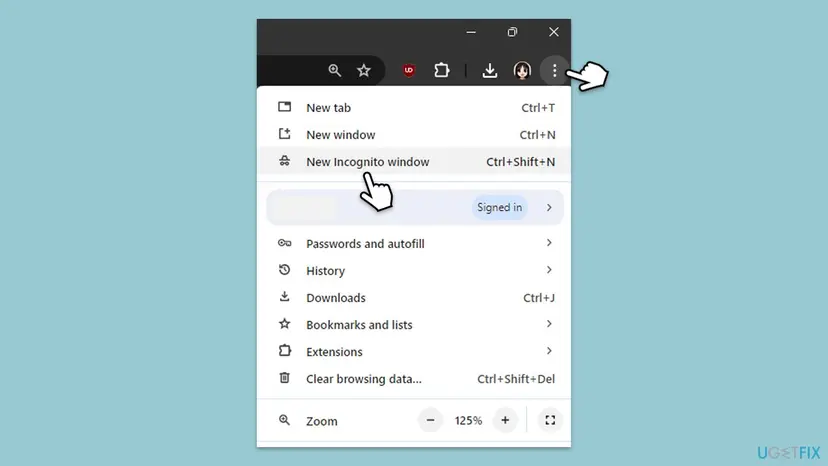
If a normal window still misbehaves after that, clear the cookies and cache for the last hour or day. Clearing cookies signs you out of other sites. Step by step: Clear the browser cache and cookies
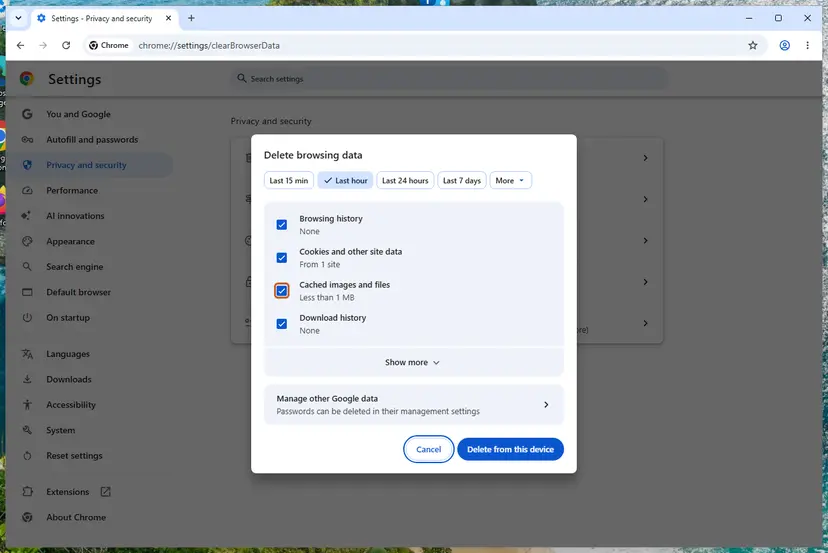
It worked if: The code from the alternate account works in the first window and you get past Verify your identity.
If not: If the code never arrives in a private window either, the block is still on. Go back to Fix 3, or fix the security info with Fix 5.
Fix 5. Check and update your security info from a device that is still signed in
10 minutesLow riskYou are still signed in to the account somewhere (Outlook on your phone, a PC, Xbox) and the phone number or email on file is wrong, old or a VOIP number.
Microsoft does not accept VOIP numbers for codes, shows only part of each number or address, and cannot send to info you no longer have. Adding a working method while you are signed in gives Microsoft a second route for the next time.
- On the signed-in device, open account.microsoft.com and select Security.
- Open Advanced security options. Microsoft may ask you to verify once more with a method that works.
- Under Ways to prove who you are, expand each entry and check the phone number and email.
- Select Add a new way to sign in or verify and add a mobile number from a regular carrier, an email you use or the Authenticator app.
- Enter the code Microsoft sends to the new method and select Next.
- Only then expand the method you lost or that is a VOIP number and select Remove, then Remove again.
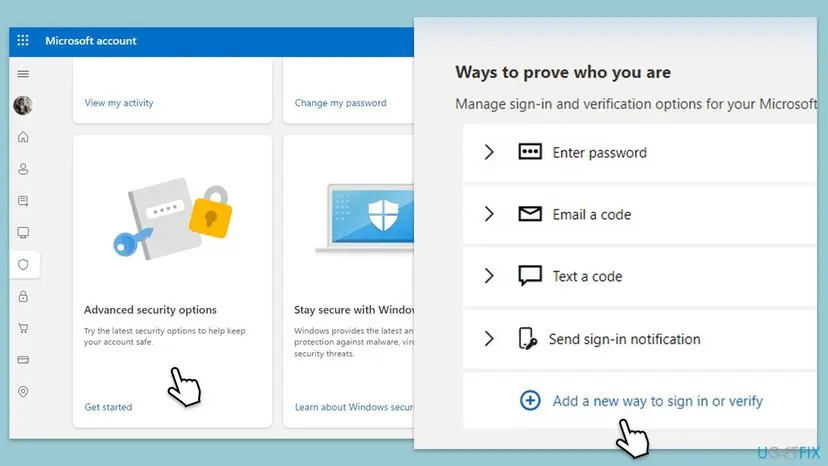
Microsoft warns that changing all your security info at the same time can restrict the account for 30 days. Add the new method, confirm it, and remove only the method you lost. Keep at least one old method you can still reach.
It worked if: The new method shows under Ways to prove who you are, and the next code request reaches it.
If not: If you are signed in nowhere and every method is lost, use Fix 6.
Fix 6. Run the Sign-in helper and replace your security info
15 minutes, then 30 daysLow riskYou know your password, but you no longer have any of the phones or emails on the account.
This is Microsoft's own path for a known password with all security info lost. The 30-day wait protects the account: if a thief started the change, you can still stop it with the old info.
- Open Microsoft's Sign-in helper from the page Troubleshoot Microsoft verification code issues and answer its questions. It may find a path that fits your case.
- If it sends you to sign in, start the sign-in to your Microsoft account with your password.
- At the Verify your identity prompt, select I don't have any of these.
- Follow the instructions to add new security info and confirm it with the code sent there.
- Wait 30 days. Microsoft then lets you sign in with the new info.
If you get back an old phone or email during the 30 days, you can still sign in with it, but Microsoft then cancels the pending change.
It worked if: Microsoft confirms that your security info will change and names the date. After 30 days you sign in with the new phone or email.
If not: If you do not know the password either, or the helper sends you to recovery, fill in the form with Fix 7.
Fix 7. Fill in the Microsoft account recovery form
30 minutes, answer within 24 hoursNo riskYou know neither the password nor any working method, and the account does not use two-step verification.
The form is an automated check that asks what only the owner can know. Microsoft reviews the answers and replies within 24 hours. It is the last route Microsoft offers, and support staff cannot bypass it.
- Prepare a working email address that is not the locked account. A friend's address or a new free Outlook.com account is fine.
- Collect what you can: old passwords, contacts you wrote to, exact subject lines of recent emails, Skype contacts, the hardware ID of an Xbox you used.
- Use a device and a place where you often used the account, such as your home PC.
- Open the recovery form from Microsoft's page Help with the Microsoft account recovery form.
- Answer every question you can. Microsoft says guessing is fine and wrong answers do not count against you.
- Wait for the result at the working email, within 24 hours. If Microsoft could not verify you, try again, up to two times a day.
Microsoft states that if you turned on two-step verification and cannot reach any of your methods, it cannot help, and support agents are not allowed to send reset links. Before you give up, look hard for the old phone, SIM, email or recovery code.
It worked if: An email from Microsoft at the working address with instructions to sign back in.
If not: If the form keeps failing, read the next section on what support can and cannot do.
Still blocked: what support can do and when the account is out of reach
Microsoft support can explain your options, but it cannot lift the block for you. Microsoft writes that its agents are not allowed to send verification codes or password reset links, or to access and change account details. Knowing this saves hours of chat.
| Situation | What to do |
|---|---|
| The block stays after a week on every method | Run the Sign-in helper again and follow the path it gives. Then Fix 6 or Fix 7. |
| The recovery form says it could not verify you | Gather more facts (old passwords, exact subject lines) and send it again, up to two times a day, from your usual device and place. |
| You saw a page that says the account is locked | Follow Microsoft's locked account steps. Users on Microsoft Q&A report that such blocks lasted from a week to more than a month. |
| Two-step verification is on and no method is left | Microsoft cannot restore access. Find the old phone, SIM or recovery code, or start a new account. |
| A work or school account | This guide does not apply. Ask your IT or helpdesk to reset your verification methods. |
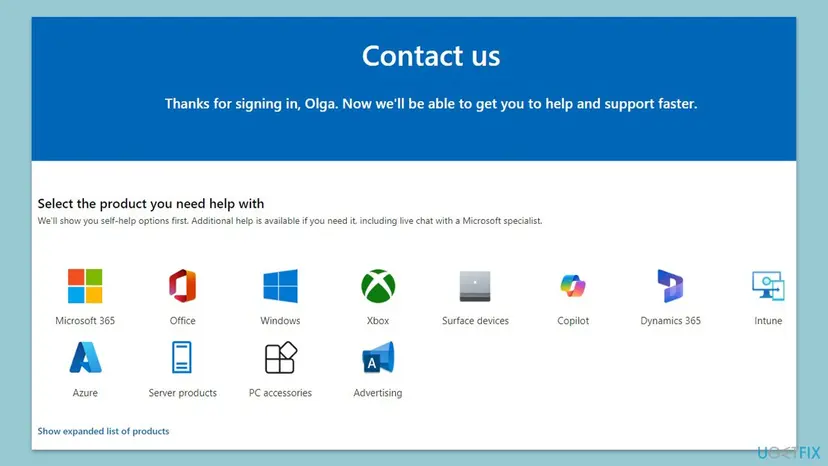
To reach a person, go to support.microsoft.com, open Contact Microsoft Support, type your problem and select Get Help, then Contact Support. Tell them which message you see, when it started and what you tried.
Prevent the block next time
- Keep two or more methods on the account: a mobile number, an email you check and the Microsoft Authenticator app.
- Do not rely on SMS alone. Microsoft says it is phasing out SMS as a way to sign in and recover personal Microsoft accounts.
- Never use a VOIP number for codes. Microsoft does not accept them.
- Request one code and wait for it. Repeated requests are a listed cause of the block.
- Stay signed in on one trusted device, such as your phone, so you can fix security info from there.
- Update your info before you change number, and never change all methods on the same day.
If a Microsoft code arrives that you did not request, someone may be trying your account. Do not share or enter it. Microsoft says your account is safe without the code, and going passwordless stops these attempts.
Frequently asked questions
How do I fix this problem?
Go back on the sign-in screen and choose another verification method, such as an email code instead of a text. If you have only one method, switch to another network, turn off any VPN, and stop asking for codes for 24 hours. Microsoft says waiting a day is often enough and repeated attempts may reset the lock. If you lost every method, use I don't have any of these, or the account recovery form when you also forgot the password.
Why isn't my verification method working?
Microsoft has blocked that method for a while. Its page names four reasons: unusual activity on the account, too many code requests to the same phone or email, a breach of the terms of service, and heavy compromised traffic from your region. The phone number itself can also be the problem: a VOIP number is not accepted, and some phones block texts from unknown senders. None of these is a fault on your Windows PC.
How long does the "Try another verification method" block last?
Microsoft gives no fixed time. It writes that waiting a day can be enough, and that with no change after 24 hours you should wait longer, as long as possible up to a week. Do not keep trying in the meantime, because repeated attempts may reset the time lock. Region blocks clear by themselves, Microsoft says. Replacing all your security info takes a fixed 30 days.
What does "Password sign-in isn't available. Try another method." mean?
It is a related screen: Microsoft will not accept a password for this sign-in and wants another way to prove it is you. We could not confirm a Microsoft page for this exact text. One likely case is an account that went passwordless, because Microsoft says going passwordless removes the password. Pick another way from the list, such as the Authenticator app, Windows Hello or an email code, and use the fixes above if that method is blocked too.
What is err.factor.deny_no_confirm_methods?
It is an internal error key, not a message written for people. Its words read as a denial because no method to confirm the action is available, which matches this block. We could not confirm which service or app shows it, and Microsoft does not document it. If you see it on a Microsoft sign-in, treat it like this message: choose another method, switch network and wait. If it appears in another service, contact that service.
Outlook says "This page isn't working right now". Is it the same error?
No. That text is a page loading error, not a verification block. It usually means the site or your browser session failed to load the page. Reload with Ctrl + F5, or try a private window or another browser. If Outlook then asks you to verify and shows That verification method isn't working right now, use the fixes on this page.
Can Microsoft support send me a code or unlock my account?
No. Microsoft states that its support agents are not allowed to send verification codes or password reset links, or to access and change account details. They can point you to the Sign-in helper, the security info change and the recovery form. If a website or a person offers to restore a Microsoft account for a fee, treat it as a scam.
Why does Microsoft not send codes to my Google Voice or internet phone number?
Microsoft does not accept VOIP numbers as a way to sign in or to receive verification codes. Services such as Google Voice and other internet numbers fall into that group. Add a mobile number from a regular carrier, an email address or the Authenticator app instead, and remove the VOIP number only after the new method is confirmed.
I can't sign in to Windows with my PIN either. Is that the same problem?
Not quite. Windows Hello PIN errors happen on the PC and have their own fixes, while this message comes from your Microsoft account online. They meet when Windows asks you to verify the account to reset the PIN, and the code is blocked. Then fix the code with this page first. For PIN lockouts on the PC itself, see our guide on the incorrect PIN too many times error.
Sources
- Microsoft Support: Troubleshoot Microsoft verification code issues (How to fix Try another verification method error message) (support.microsoft.com)
- Microsoft Support: Help with the Microsoft account recovery form (support.microsoft.com)
- Microsoft Q&A: How to fix "this verification method isn't working" message after several days? (learn.microsoft.com)
Did this fix work?
One click, no account. It tells the next reader which guides are worth their time.
Questions and experiences: That verification method isn't working right now: how to fix it on a Microsoft account
Still broken, or found a fix we did not cover? Ask here: members and our editors answer. Reading is open; writing needs a free account.
…