How to fix
The action cannot be completed because the file is open in another program
on Windows
Resolve the "file is open" error on Windows 10 and 11 with expert-tested solutions. Get your files working again in minutes, no traces left!


What causes How to fix The action cannot be completed because the file is open in another program?
- File is being used by a specific program
- Windows system is accessing the file
- File is locked due to a background process
- File permissions are preventing deletion
- Antivirus software may be scanning the file
Repairs Windows system files, removes malware, and restores a clean OS state — without reinstalling.
Hello, I have an issue with a PDF file that cannot be opened nor deleted. I try to delete them from the particular folder, and the window named File In Use appears with "The action cannot be completed because the file is open in another program" message. But all the possible programs are closed. I even tried to restart the PC and delete them before opening anything. It repeats all the time. I can rename them, and do other things, but not delete or move the file or the whole folder. Help?!
The action cannot be completed because the file is open in another program is the problem that people get stuck with. The problem is related to files, so the issue is a bit difficult to solve, but it is fixable. This is not crucial and cannot lead to any system damage, so you shouldn't panic.
Even though the "The action cannot be completed because the file is open in another program" message is not giving out any details about the issue, this problem triggers other issues with the machine because it prevents access to various folders and files.
"The action cannot be completed because the file is open in another program" is the message that appears as an error in Windows Explorer, and in most cases, it means that people have the particular file opened and in use with a specific program. However, users complain about the error window that occurs out of nowhere and when any application does not open the file.[ref en-1]
The whole issue with this "The action cannot be completed because the file is open in another program" error is not posing any danger, it is rather annoying and frustrating for the user. The message gives no particular information about what causes the disturbance, and even when you close the programs, the error still frustrates you.
In general, the error should appear when the program or Windows system uses the file you want to rename, delete, or move.[ref en-2] But "The action cannot be completed because the file is open in another program" when the error occurs even though the folder or file is not locked, it may be the symptom of another PC issue regarding more severe problems with your device.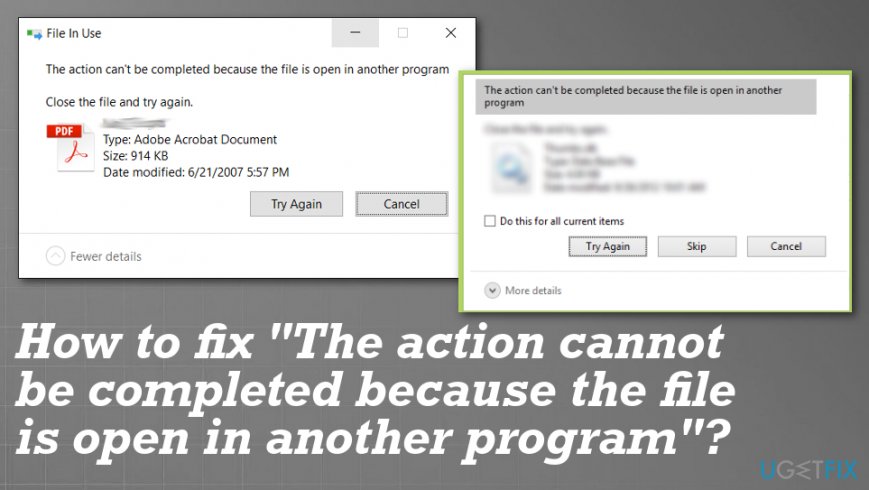
Computer errors as "The action cannot be completed because the file is open in another program" can occur sooner or later after some particular damage on the machine. It mainly happens with Microsoft Office files and PDF files and, there is no particular version of Windows that is not getting the pop-up. There are a few reasons why you can get the error: the error is caused by Windows Explorer, or the file is actively used by the background running program that possibly can be malicious.[ref en-3]
How to fix "The action cannot be completed because the file is open in another program"
If you struggle with finding how to fix "The action cannot be completed because the file is open in another program" error, you should learn about possible reasons and causes. If the PDF or image file is the one that cannot be moved, the issue might be with a feature of Windows Explorer.
Any glitch in the program can create issues with handling the folder or file. There is a solution for that - disabling file previews, for example. Also, we can recommend running a check on the system before doing anything else. Some files and programs may be related to malware, so scan the machine with an anti-malware tool or a security program to find any possible intruders and to make sure that malware is not involved.
In general, file issues can be triggered by infections, other alterations that you have done unknowingly or not on purpose. You can repair some issues with files and even edit the registry with tools like [d1]. This is the application that can clear or replace any corrupted data and help you with registry editing when needed. However, more in-depth methods require manual interference.
Perform a clean boot
- Open the Run box by clicking the Win key and R at the same time.
- Then type MSConfig in the bar.
- Click OK.
- Once the window is opened, make sure you are on the General tab.
- Click selective startup.
- Check Load system service and Load startup items.
- Go to Services.
- Check Hide All Microsoft Services.
- Click Disable all.
- Go to the Startup tab and select Open Task Manager.
- Disable all applications you are not using.
- Hit OK to apply changes.
Turn off File previews in Windows Explorer
- Open the Run dialog box and type Control folders. Press Enter.
- File Explorer Options appears on the screen.
- Go to View tab and then find Advanced settings to make sure that the box Always show icons, never thumbnails is enabled is checked.
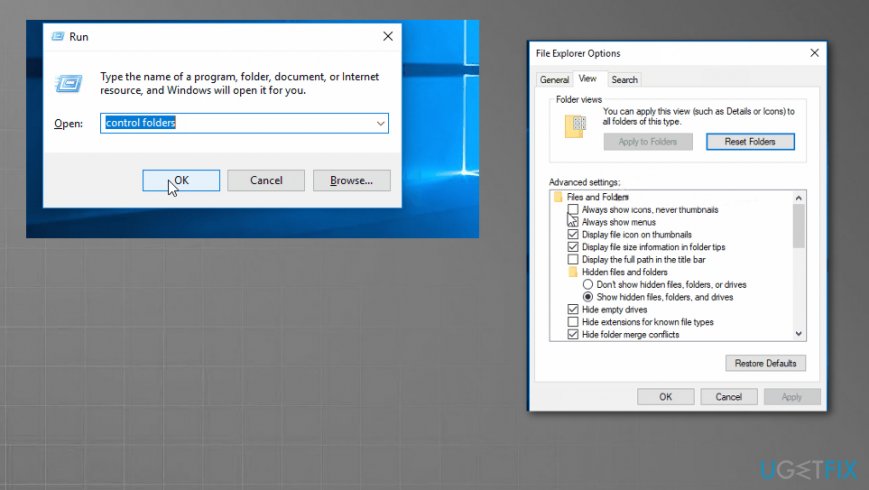
How to fix the action cannot be completed because the file is open in another program control folders - Select Apply to save these changes and check if the file can be handled without the error.
Edit registry manually
- Open Run window by pressing Win + R and then typing regedit in.
- Once it opens the Registry Editor navigate to:
HKEY_CURRENT_USER\\Software\\Microsoft\\Windows\\CurrentVersion\\Explorer\\Advanced - Locate IconsOnly DWORD and double-click it.
- Change the Value.
- Enter 1 to show icons or 0 to show thumbnails.
- Click OK.
- Go to:
HKEY_CURRENT_USER\\SOFTWARE\\Microsoft\\Windows\\CurrentVersion\\Policies\\Explorer - Find DisableThumbnails DWORD on the right and if that is not there create it.
- Choose new and then DWORD (32bit) Value.
- Enter DisableThumbnails on the new DWORD.
- Double-click and open properties.
- Set Value data to 0 and click OK.
- Go to:
HKEY_CURRENT_USER\\Software\\Policies\\Microsoft\\Windows - Right-click the Windows key and choose new, then key.
- Enter Explorer as the name of the new key.
- Go to the newly created key and right-click the empty space.
- Choose New and then DWORD value.
- Enter DisableThumbsDBOnNetworkFolders as the name.
- Double-click DisableThumbsDBOnNetworkFolders to open properties.
- Set value data to 1 and click OK.
Find and close the program that leaves the particular file open and causes the error
"The action cannot be completed because the file is open in another program" error that causes the struggle can be caused by a particular process. With Resource Monitor, you can locate what triggers the error and close it down completely.
- Open the same Run dialog box and type resmon.exe. Press Enter to open the Resource Monitor tool.
- Navigate to the CPU tab once it opens and then scroll down to Associated Handles.
- Type the name of a particular file and investigate processes that use the file.
- Right-click on the process and choose End process.
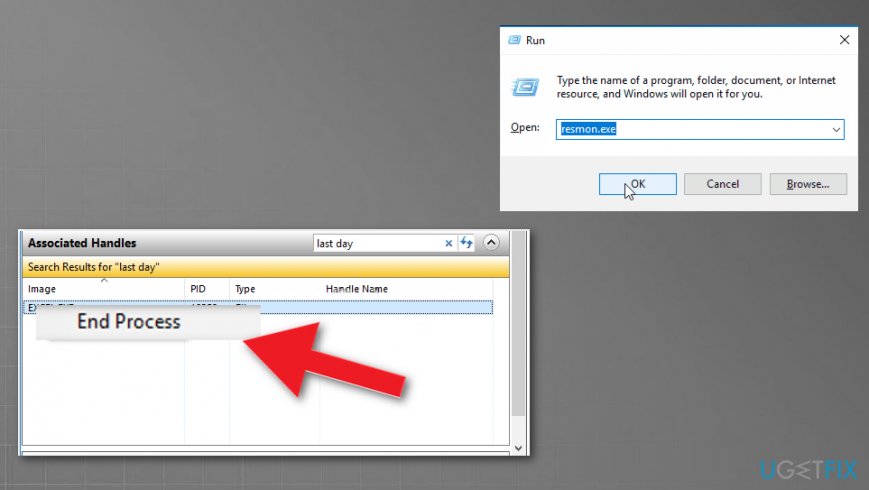
How to fix the action cannot be completed because the file is open in another program handles - Repeat if needed and check if the error "The action cannot be completed because the file is open in another program" appears again.
Use Disk Cleanup and repair HDD to fix The action cannot be completed because the file is open in another program error
- Go to Search and type disk cleanup.
- Choose the tool from results and then select system drive.
- Press OK.
- When the drive is scanned, choose the Thumbnails option and hit OK.
- Wait for the cleanup.
Disable thumbnails via Performance options
- Search for advanced system settings.
- Click the Control panel option to View advanced system settings.
- Choose the Settings button.
- When the Performance Options window opens up, choose the Show thumbnails instead of icons and uncheck.
- Click on Apply.
- Then OK to save changes.
Restart the Windows Explorer
- Find the File Explorer, previously known as Windows Explorer and restart the program entirely to fix the issue with "The action cannot be completed because the file is open in another program" error.
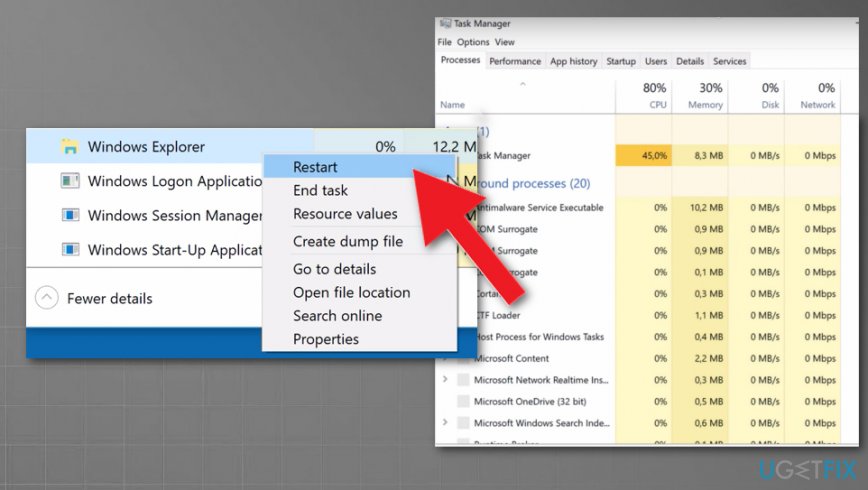
How to fix the action cannot be completed because the file is open in another program windows explorer
Bottom line
To resolve the issue, you can try closing all applications, restarting your PC, or using Task Manager to end any processes that may be using the file. If these steps do not work, consider checking file permissions or temporarily disabling antivirus software.
Frequently asked questions
Try closing any programs that might be using the file, such as text editors or media players. If you can't find the program, use Task Manager to end the task associated with the file.
You can use the Resource Monitor by typing 'resmon' in the Run dialog (Win + R) and navigating to the 'CPU' tab to see which handles are associated with the file.
Restarting your computer can often release the file lock, allowing you to perform the desired action afterwards.




Report an issue
What's wrong with this guide? We review every report and update or remove content.
Report received — thank you. We'll review and fix it.
You need a free account to submit a report.
Be the first to comment