How to fix
The address list cannot be displayed error in Outlook
on Windows
Resolve the "address list cannot be displayed" error in Outlook on Windows 10/11 effortlessly. Get expert-tested solutions to fix it in minutes!


What causes How to fix The address list cannot be displayed error in Outlook?
- Sync issues in cached mode
- Corrupted Autocomplete List
- Corrupted PST file
- Corrupted Outlook installation
- Wrongly configured user profile
- Non-encryption of data between the Exchange Server and Outlook
Repairs Windows system files, removes malware, and restores a clean OS state — without reinstalling.
Hello. I tried to open a folder that contains contacts from Microsoft Outlook but I was met with an error message "The address list cannot be displayed." What could the issue be?
Outlook is a personal information manager software system from Microsoft. Even though it is primarily an email client, it also includes such functions as calendaring, task managing, contact managing, note-taking, journal logging, and web browsing. It can be used by individuals and organizations as multi-user software.
However, some users have run into issues when using Outlook. People report that when they try to select a public folder that contains contacts from the address book list in Microsoft Outlook 2016, Outlook 2019, or Outlook for Office 365, they receive the following error message even if they have permission to read all objects of the folder:
The address list cannot be displayed. The Contacts folder associated with this address list could not be opened; it may have been moved or deleted, or you do not have permissions. For information on how to remove this folder from the Outlook Address Book, see Microsoft Outlook Help.
"The address list cannot be displayed" error in Outlook may be caused by sync issues in cached mode, a corrupted Autocomplete List, and PST file,[ref en-1] corrupted Outlook installation, wrongly configured user profile and non-encryption of data between the Exchange Server and Outlook.
In this guide, you will find 6 methods that could help you fix The address list cannot be displayed error. If you want to avoid a lengthy troubleshooting process, you can also try using a maintenance tool like [d1]. It can fix most system errors, corrupted files, BSODs,[ref en-2] and registry[ref en-3] issues. Otherwise, proceed with the steps provided below.
Solution 1. Reinstall the Outlook Address Book
- Open Outlook
- On the Tools menu, click E-mail Accounts
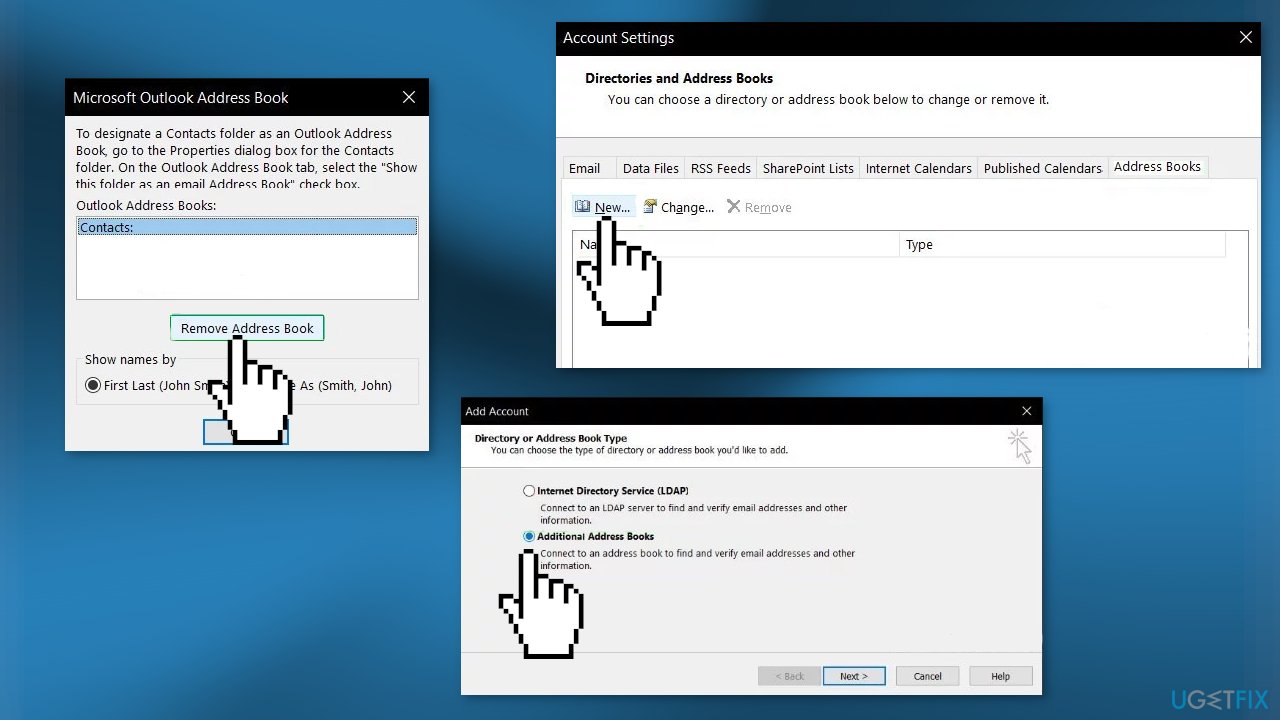
- Press on View or change existing directories or address books, and then click Next
- Choose Outlook Address Book, and then click Remove
- Click Yes when you receive the prompt to confirm the removal and press Add
- Click on Additional Address Books, and then press Next
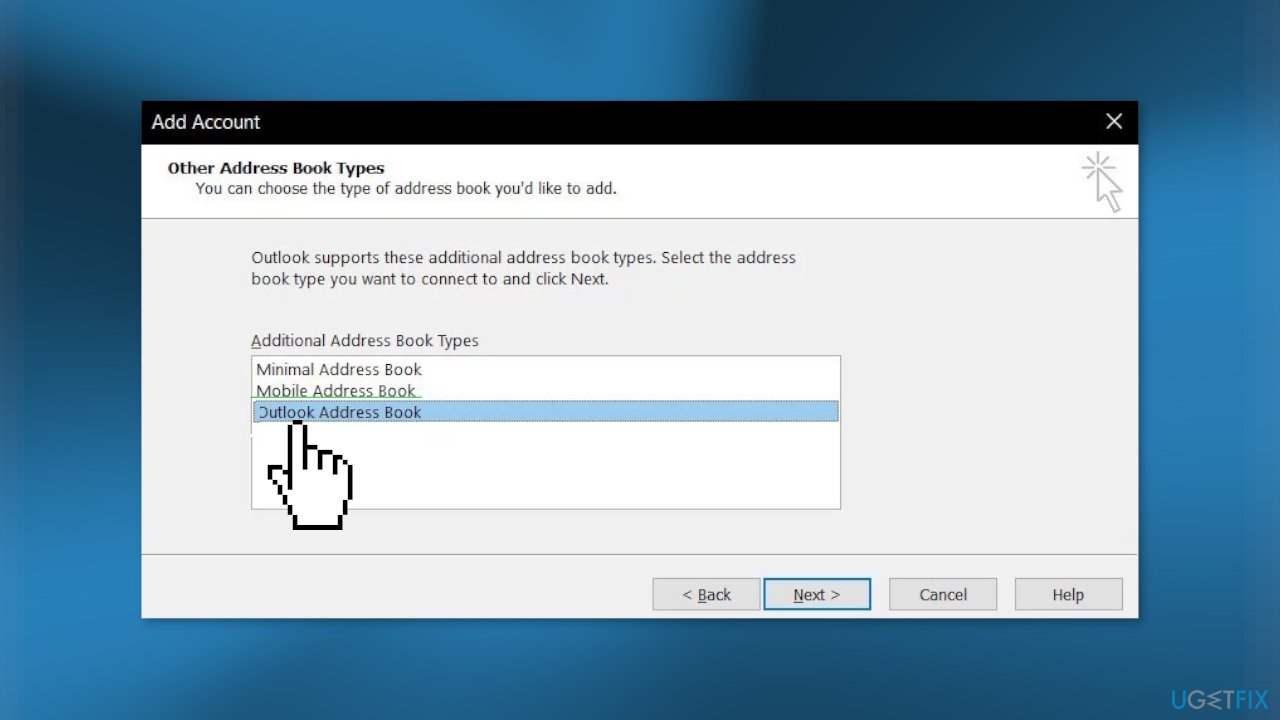
- Click Outlook Address Book, and then click Next again
- Click OK when you receive the message to restart Outlook
- Click on Finish and Exit on the File menu to quit Outlook
- Restart the app
- In the Folder list, right-click the folder that you want to use with the Address Book
(for example, right-click Contacts), and then click Properties - Click the Outlook Address Book tab
- Select the Show this folder as an e-mail Address Book check box, and then click OK
Solution 2. Use the Online Mode
- Launch Outlook and click on the File tab
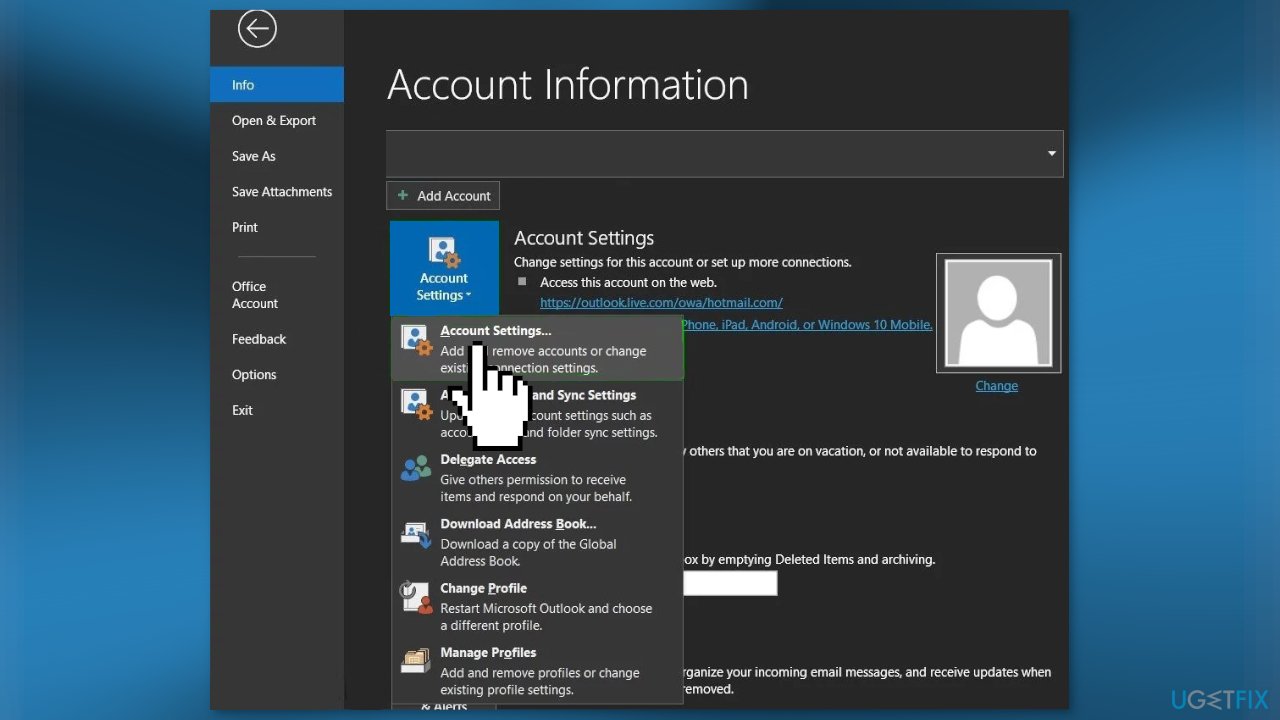
- In the right pane of windows, click on the Account Settings and choose Account Settings
- In the Email tab, click on Change after selecting your account
- Click on More Settings
- Press on the Advanced tab and then uncheck the option Use Cached Exchange Mode
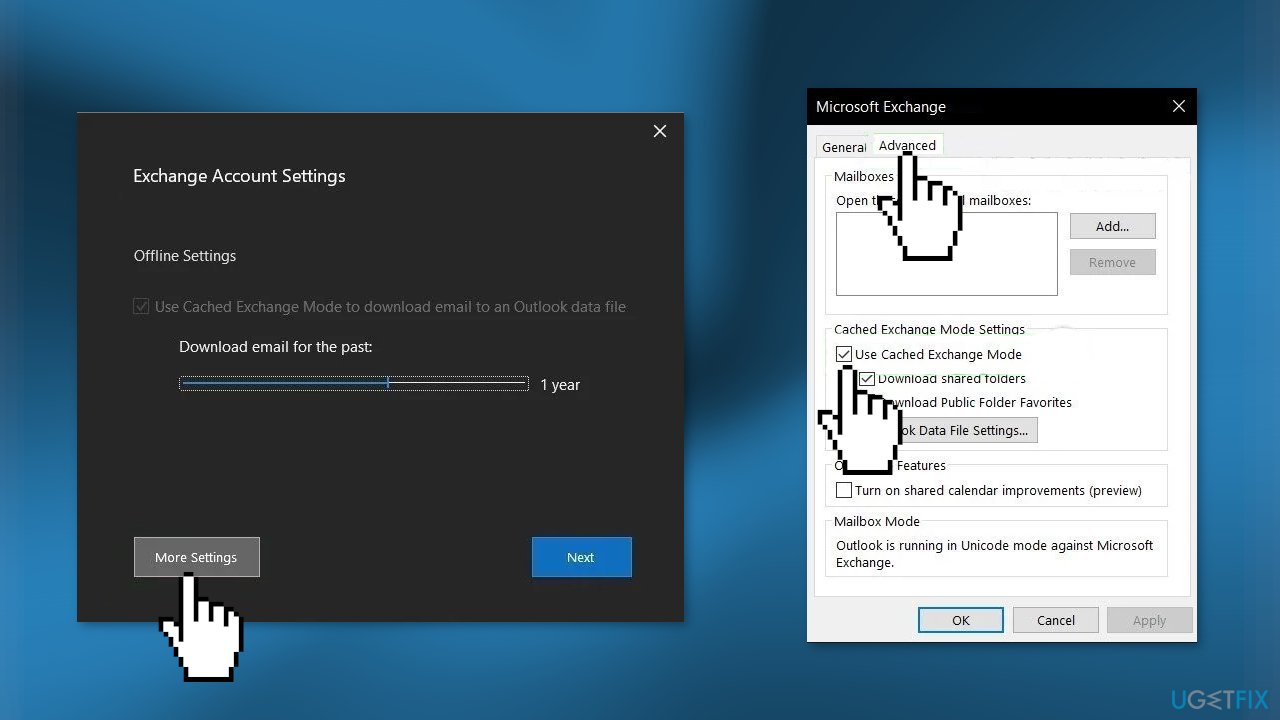
- Click Apply and then OK
- Restart Outlook
Solution 3. Repair the PST File
- Press the Windows button and type Outlook in the search box
- Right-click on Outlook and then click on Open File Location
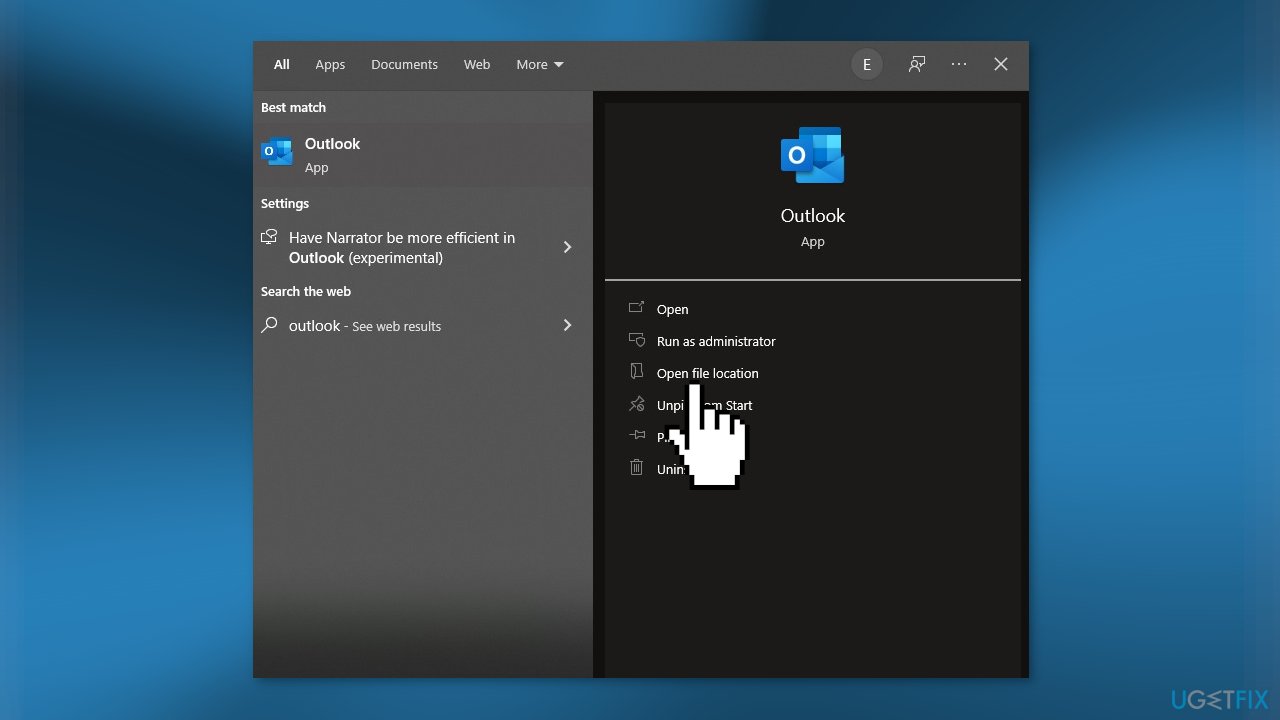
- The following folder will be opened that contains shortcuts of the program:
C:\\ProgramData\\Microsoft\\Windows\\Start Menu\\Programs
- Right-click on the Outlook shortcut icon and then click on the Open File Location
- The following folder will be opened:
C:\\Program Files (x86)\\Microsoft Office\\root\\Office16
- Locate SCANPST.EXE file, right-click on it and then click on Run as Administrator
- Press the Browse button in Microsoft Outlook Inbox Repair
- Then select the PST file
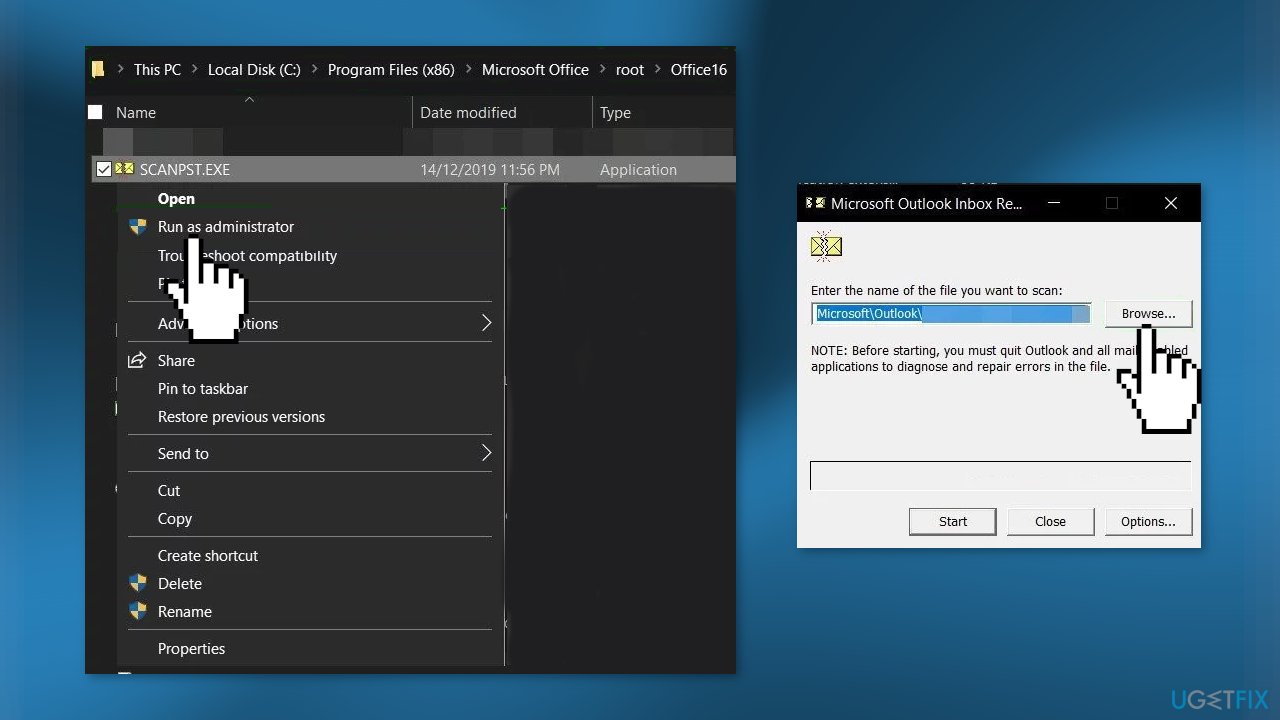
The location of the .pst file depends on various things like version of Outlook, version of Windows, and how the user’s account was set up. Following are the default locations of the PST file as per the Windows version:
- Windows 10:
drive:\\Users\\<username>\\AppData\\Local\\Microsoft\\Outlook
drive:\\Users\\<username>\\Roaming\\Local\\Microsoft\\Outlook
- Older Windows Version:
drive:\\Documents and Settings\\<username>\\Local Settings\\Application Data\\Microsoft\\Outlook
- Click on the Start button to initiate scanning of the PST file
- If prompted, click on Repair to fix the issues
- Restart Outlook
Solution 4. Enable Encryption of Data Between Exchange Server and Outlook
- Open Outlook and then click on the File tab
- Click on Account Settings and then in the drop-down list again click on Account Settings
- TIn the Email tab, click on user account and click on Change
- Click on More Settings
- Press on the Security tab and then check the Encrypt Data Between Microsoft Outlook And Microsoft Exchange option
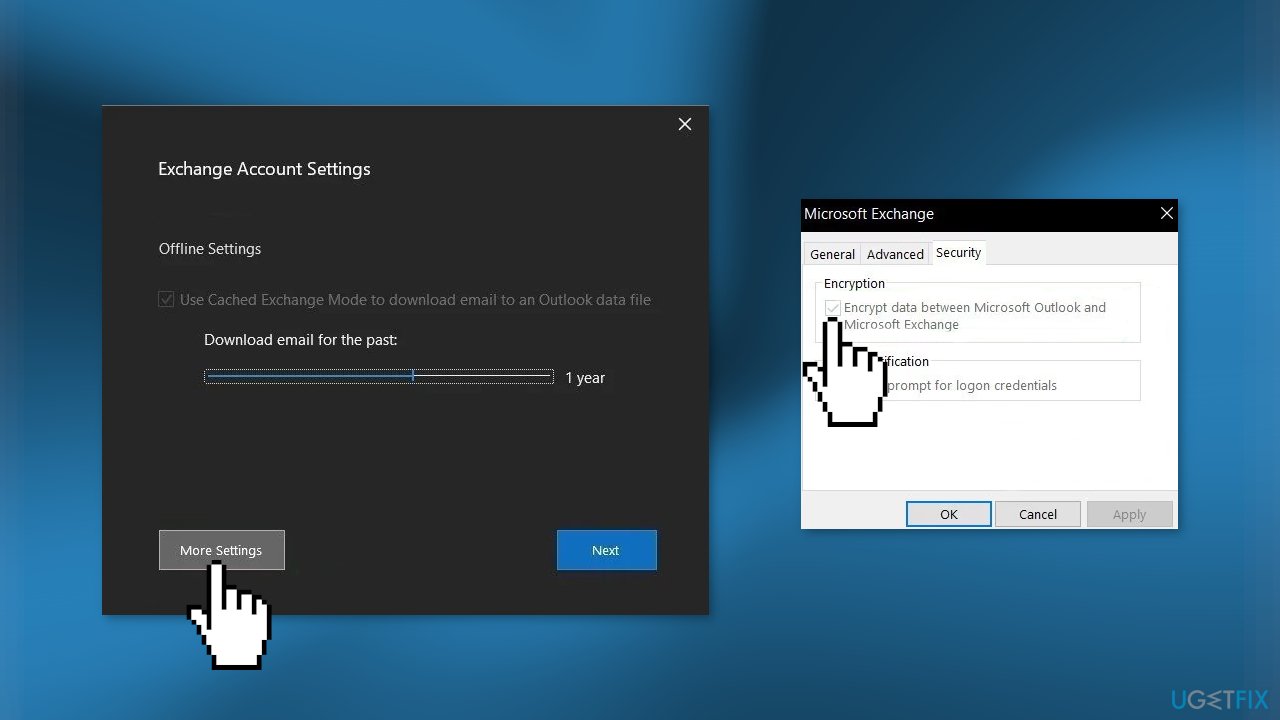
- Restart Outlook
Solution 5. Empty the Autocomplete List
- Click on the File tab and then click on the Options
- Select the Mail
- In the Send messages section, click on Empty Auto-Complete List
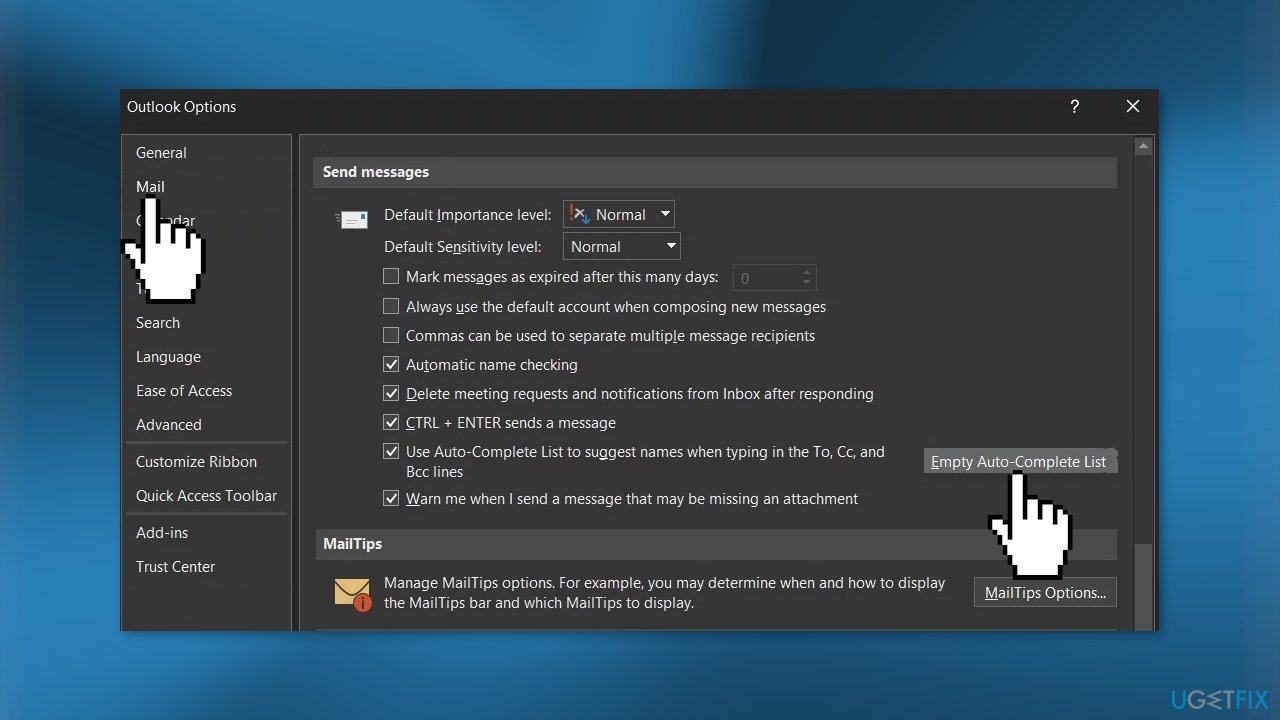
- In the confirmation dialogue box, select Yes
- Restart Outlook and check if Outlook Address Book is functioning normally
Solution 6. Delete Offline Address Books Folder Contents
- Press Windows key + E to open File Explorer and enter the following address in it
C:\\Users\\%USERNAME%\\AppData\\Local\\Microsoft\\Outlook\\Offline Address Books
- Press Ctrl + A to select all the contents of the folder and then press Shift + Delete to delete all the contents
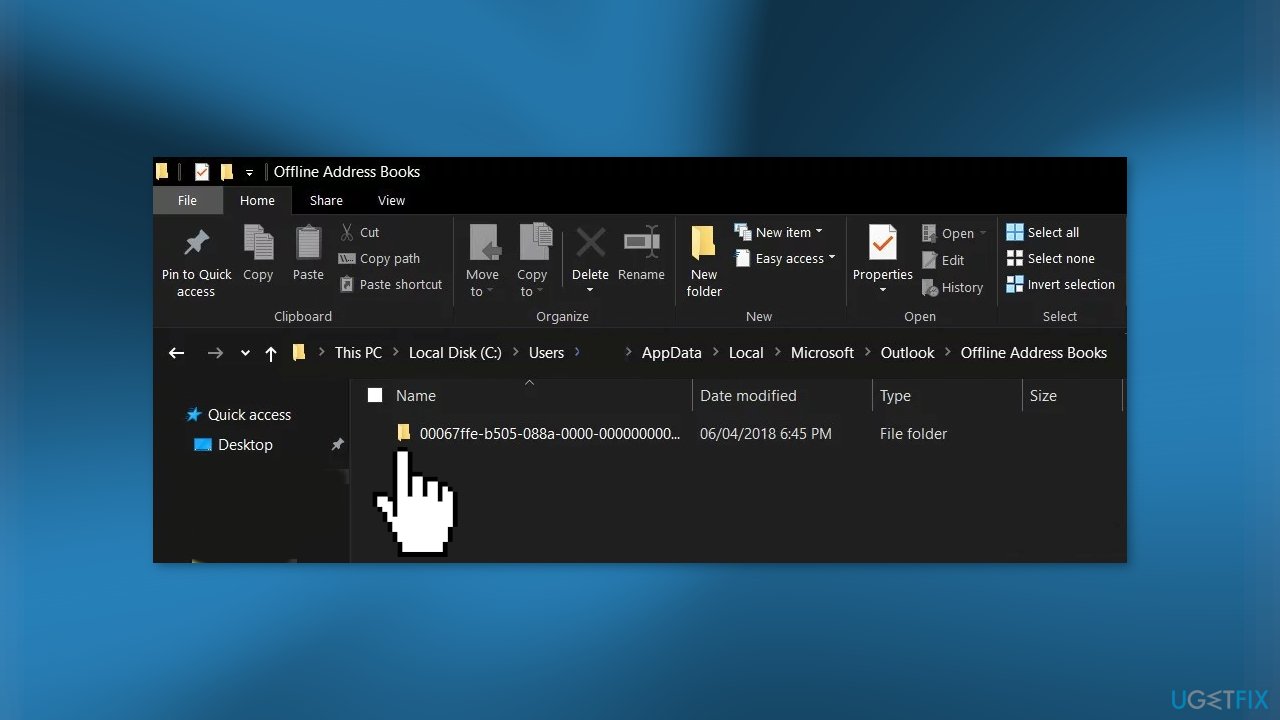
- Now launch Outlook and check if Outlook has started to operate fine
Bottom line
This guide provides several methods to fix the 'The address list cannot be displayed' error in Outlook, including reinstalling the Outlook Address Book and checking for sync issues. If these solutions do not resolve the problem, consider using a maintenance tool to address system errors.
Frequently asked questions
This error typically occurs due to issues with the Outlook profile or problems with the address book settings. Corrupted data files or incorrect configurations can also trigger this error.
To repair your Outlook profile, go to Control Panel > Mail > Show Profiles, then select your profile and click on 'Repair'. Follow the prompts to complete the repair process.
Yes, you should ensure that the correct address book is selected under Account Settings and verify that your email account is properly configured. Additionally, check that the Offline Address Book is up to date.




Report an issue
What's wrong with this guide? We review every report and update or remove content.
Report received — thank you. We'll review and fix it.
You need a free account to submit a report.
Be the first to comment