How to fix
The AMD High Definition audio device driver problems
on Windows
Resolve AMD High Definition audio device driver issues effortlessly on Windows 10 or 11. Get expert-tested solutions and fix it in minutes!

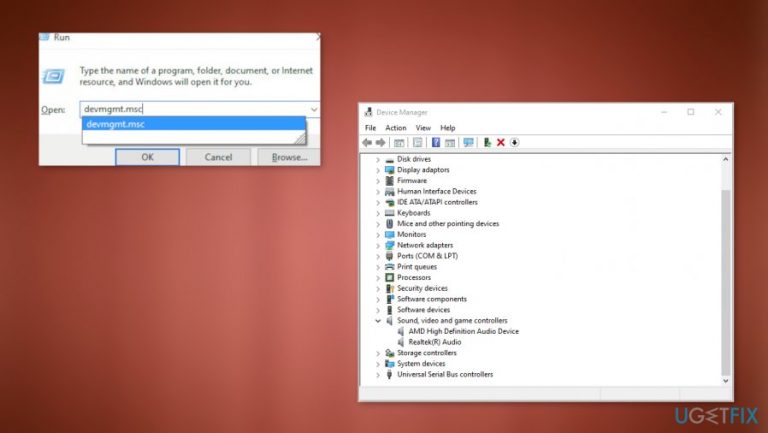
What causes How to Fix the AMD High Definition audio device driver problems?
- Driver issue
- Missing or out of date drivers
- Incompatible drivers with machine or OS
- Misconfigured system settings
- Malware or potentially unwanted programs
- Corrupted graphics card
Repairs Windows system files, removes malware, and restores a clean OS state — without reinstalling.
Hello. I have an issue with my PC. It appears that AMD High Definition audio device driver is not working. Something is wrong because the alert states that audio devices are not plugged in. I restarted the device, hoping that would help - results. Can I update or reinstall the driver or the device? I am afraid to do so. Help!
AMD High Definition audio device problems are common because this is an audio mechanism inbuilt in various AMD modules. When the computer greyed out the playback device and the message about a not plugged-in device or not working device appears.
Such issues often affect computers and la[toms, so users[ref en-1] report the issue in online forums and ask for answers and solutions. This common AMD High Definition audio device not working error can be solved, so do not panic. This audio device is responsible for sending sound over HDMI and DisplayPort connections. This error is fixable, and there are some solutions for it.
First of all, we should determine the cause of the AMD High Definition audio device driver problem. Most common reason - driver issue. These pieces can be missing, out of date, or incompatible with your machine, OS, or particular programs. Also, system settings, in general, can be misconfigured, so the problem occurs.
Another reason for the AMD High Definition audio device driver problems on the computer can be related to malware or potentially unwanted, dangerous programs installed on the machine.[ref en-2] There corruption of files or settings can come from because infections trigger unwanted changes and damage on the computer directly.
You might encounter the AMD High Definition audio device not working issue when the graphics card is corrupt due to various factors too. Sometimes faulty Windows OS updates can trigger issues. Especially Windows 10 recent upgrades[ref en-3] There are various reasons, and it depends on each and every device. Solutions might differ too, and not every step is forking for everyone the same.
How to fix the AMD High Definition audio device driver problems
AMD High Definition audio device driver can be the issue related to corrupted or missing files, issues with cyber infections. You can quickly tackle these problems with an anti-malware tool, security program, or application like [d1]. This tool provides system checks and can show or even fix particular affected or damaged files on the system.
Other methods that can help fix the AMD High Definition audio device not working issue rely on particular reason: whether is the driver update or corruption thing or the program and compatibility issue - you can find a solution. The most recommended ones are listed here, so try at least a few before giving up.
Run the DISM Command and System File Checker
- Open the Command Prompt with administrator rights.
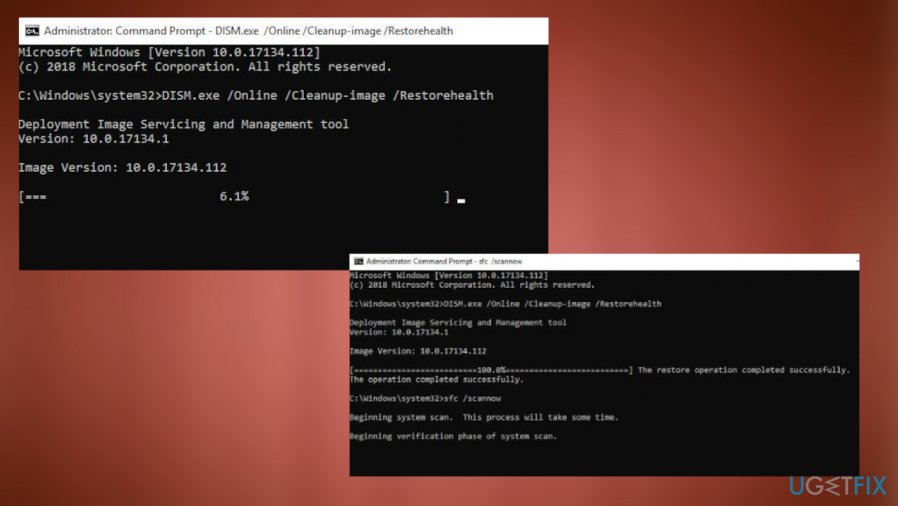
How to fix amd device not working command - Paste these commands and press Enter after each one.
DISM.exe / Online /Cleanup-image /Restorehealth
sfc /scannow - Allow the PC to restart to save changes and check if the problem got resolved.
Update the driver to fix AMD High Definition audio device not working issue
- Open the Device Manager.
- You can do that via Run box search or the general Search on the PC.
- Find AMD High Definition audio device and right-click on it.
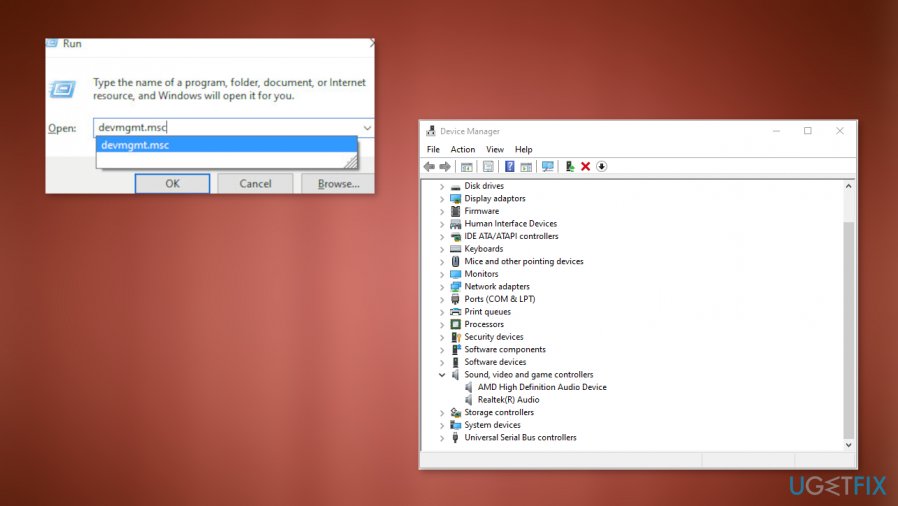
How to fix amd device not working device manager - Choose Update driver software.
- Select to Search automatically for updates.
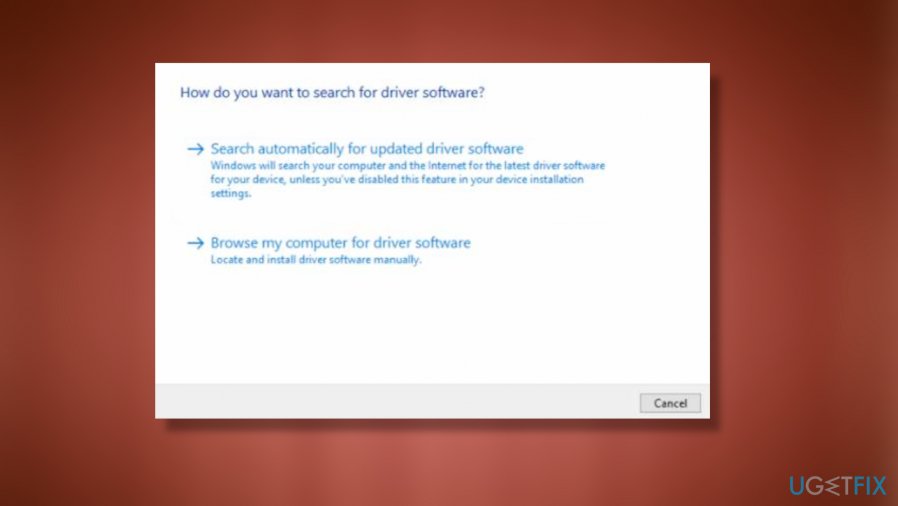
How to fix amd device not working automatic search
Uninstall the device
- Go to Device Manager.
- Sound, video, and game controllers
- Right-click on the device.
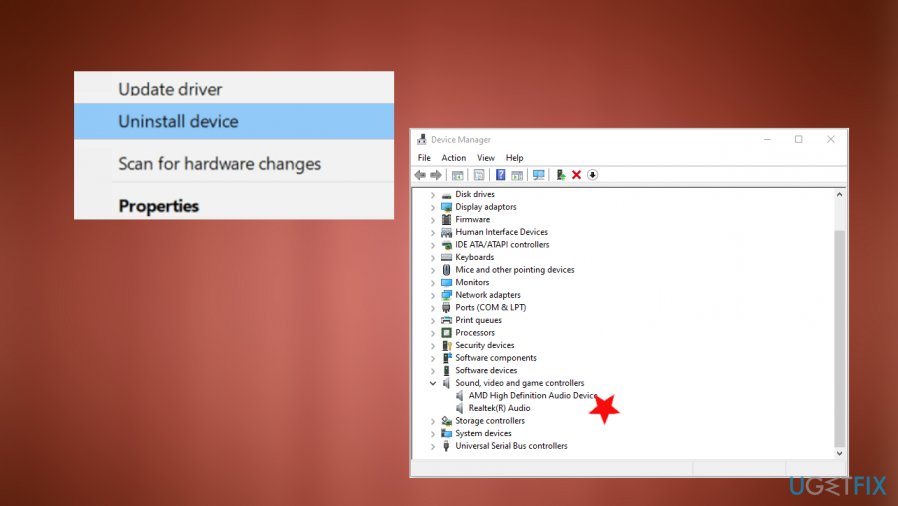
How to fix amd device not working uninstall - Choose Uninstall the AMD High Definition audio device driver.
- Tick the box near Delete the driver software for this device and Uninstall.
- Restart the PC.
Restore Default Settings to fix the AMD High Definition audio device driver problems
- Open Control Panel and find Sound settings.
- Right-click the Speakers part and choose Properties.
- Find Advanced and click Restore defaults.
Bottom line
The AMD High Definition audio device driver problems can often be resolved by updating or reinstalling the driver, checking system settings, or scanning for malware. If these solutions do not work, consider seeking further assistance or exploring additional troubleshooting steps.
Frequently asked questions
First, ensure that your Windows 10 is fully updated, then try reinstalling the AMD High Definition audio driver through Device Manager by selecting 'Update driver'.
You can troubleshoot sound issues by right-clicking the speaker icon in the taskbar, selecting 'Troubleshoot sound problems', and following the prompts to detect and fix any issues.
Yes, it is recommended to uninstall the old driver to prevent conflicts, which you can do through Device Manager by right-clicking the driver and selecting 'Uninstall device'.




Report an issue
What's wrong with this guide? We review every report and update or remove content.
Report received — thank you. We'll review and fix it.
You need a free account to submit a report.
Be the first to comment