How to fix
“The application is not responding” error
on Windows
Resolve "The application is not responding" error on Windows 10/11 effortlessly. Get expert-tested solutions to fix it in minutes and enhance your exper…


What causes How to fix “The application is not responding” error on Windows?
- Malfunction of the application
- Corrupted files related to the program
- Running too many applications
- Outdated drivers
- Memory issues
- Malware presence
Repairs Windows system files, removes malware, and restores a clean OS state — without reinstalling.
Hello. I lately get the problem with my Windows 10, and the "The application is not responding" error. It seems that no matter what program gets opened, the issue persists. Games, browser, looking for pictures. I can only reset, and this still appears. Help me, please.
"The application is not responding" error on Windows is the issue that can occur on Windows 10 or Windows 11 devices and is often caused by the malfunction of the application or the corrupted files related to the program that fails to lead to the error. It is possible that the machine runs too many applications, and those fail when there are not enough resources, so the system crashes in some cases.
Users[ref en-1] report these issues on various machines, and it can be an annoying problem when the person is working on a major project, and the "The application is not responding" error on Windows appears to disturb the work. These errors can appear due to buggy programs or even operating systems or problematic OS updates.[ref en-2]
It is possible that these issues occur after the upgrade of the Windows or the installation of other programs, so those recent changes might be responsible for the error that appears when a program is crashing. This error can be triggered by outdated drivers and memory issues, so checking those parts of the machine could be helpful.
You might experience the error due to malware[ref en-3] too, so these problems can be fixed by running a tool like [d1] that finds malware leftovers and repairs issues with the altered or damaged system files, corrupted data on the machine. So try to fix the "The application is not responding" error on Windows with the proper system tool first to improve the performance overall. Then, you can follow the guide below.
Method 1. Run the file checker
- Type in cmd in Windows search.
- Right-click on Command Prompt and pick Run as administrator.
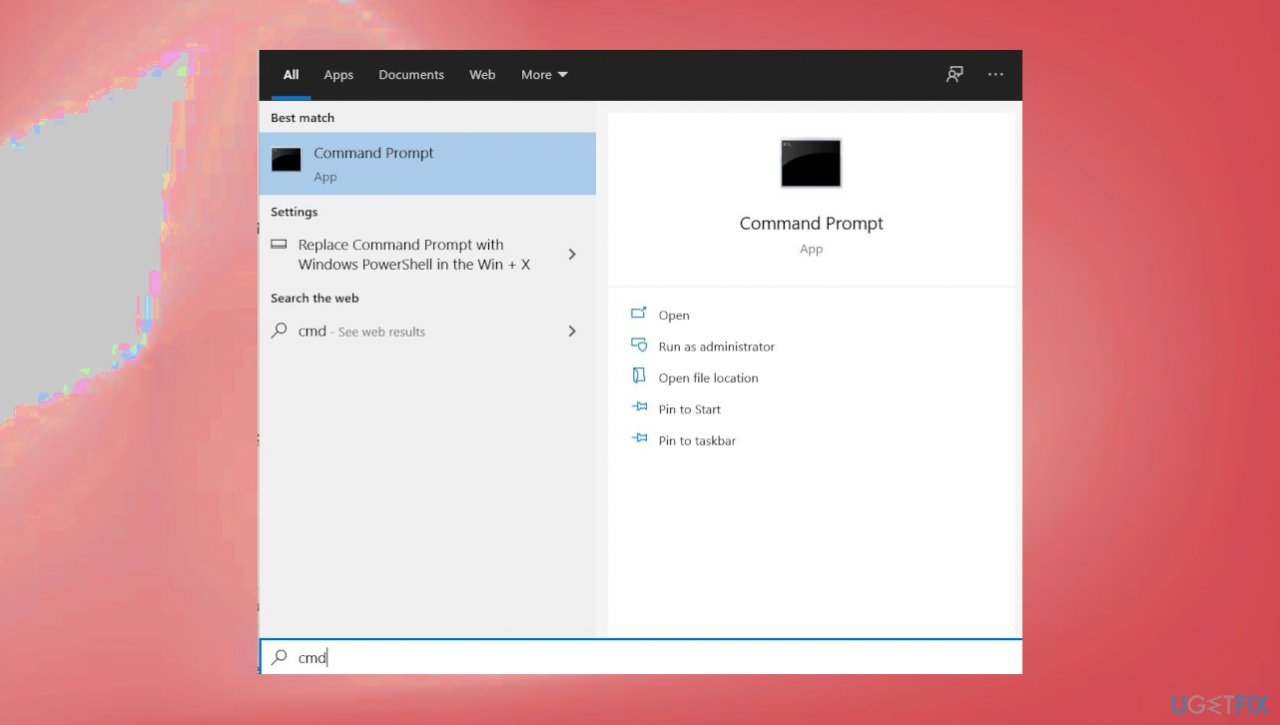
The application is not responding cmd - When the User Account Control window shows up, click Yes.
- In the new window, type in sfc /scannow and press Enter.
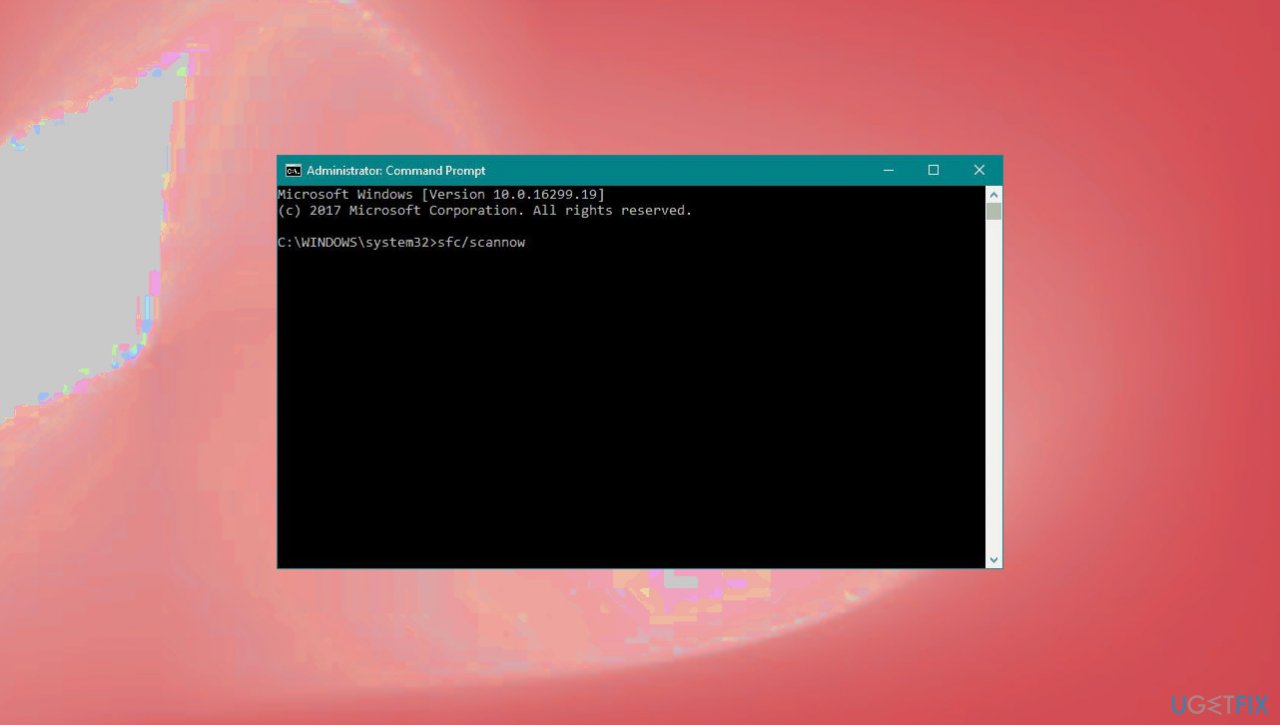
The application is not responding driver sfc - Restart the machine.
Method 2. Update faulty drivers
- Right-click on Start and pick Device Manager.
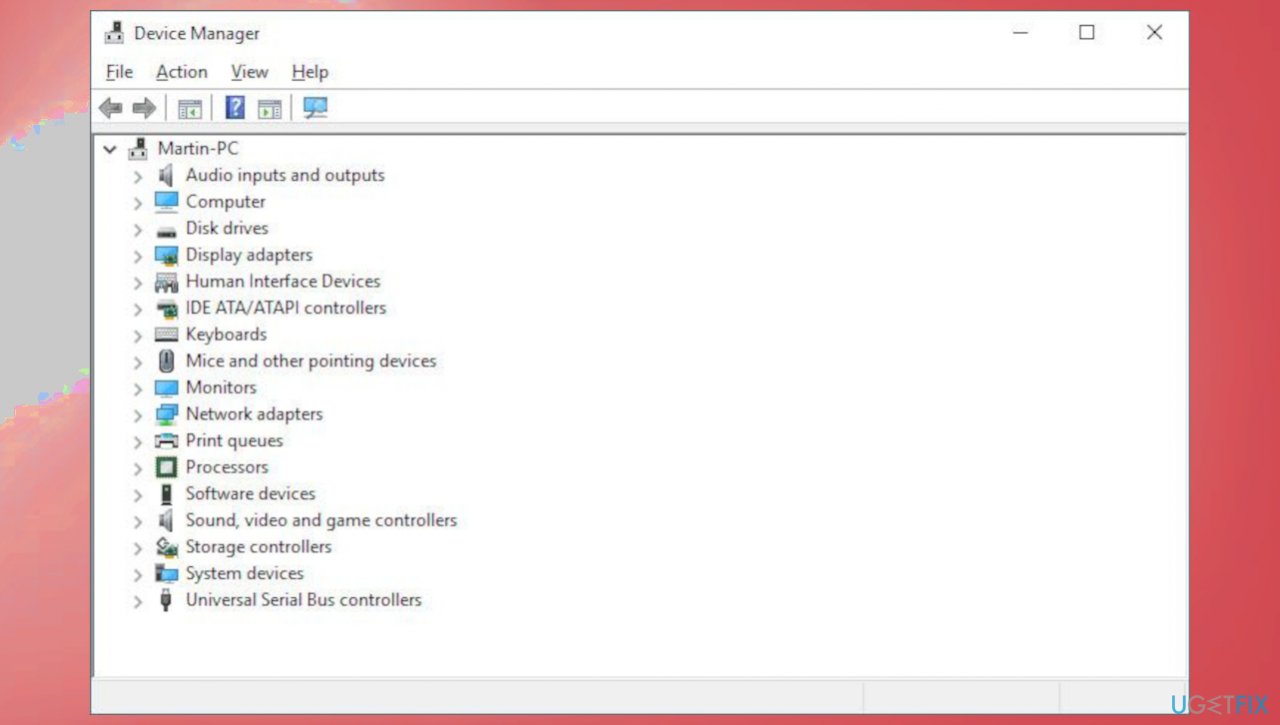
The application is not responding device manager - Expand one of the sections, for example, Network or Display adapters.
- Right-click on your network adapter and select Update Driver.
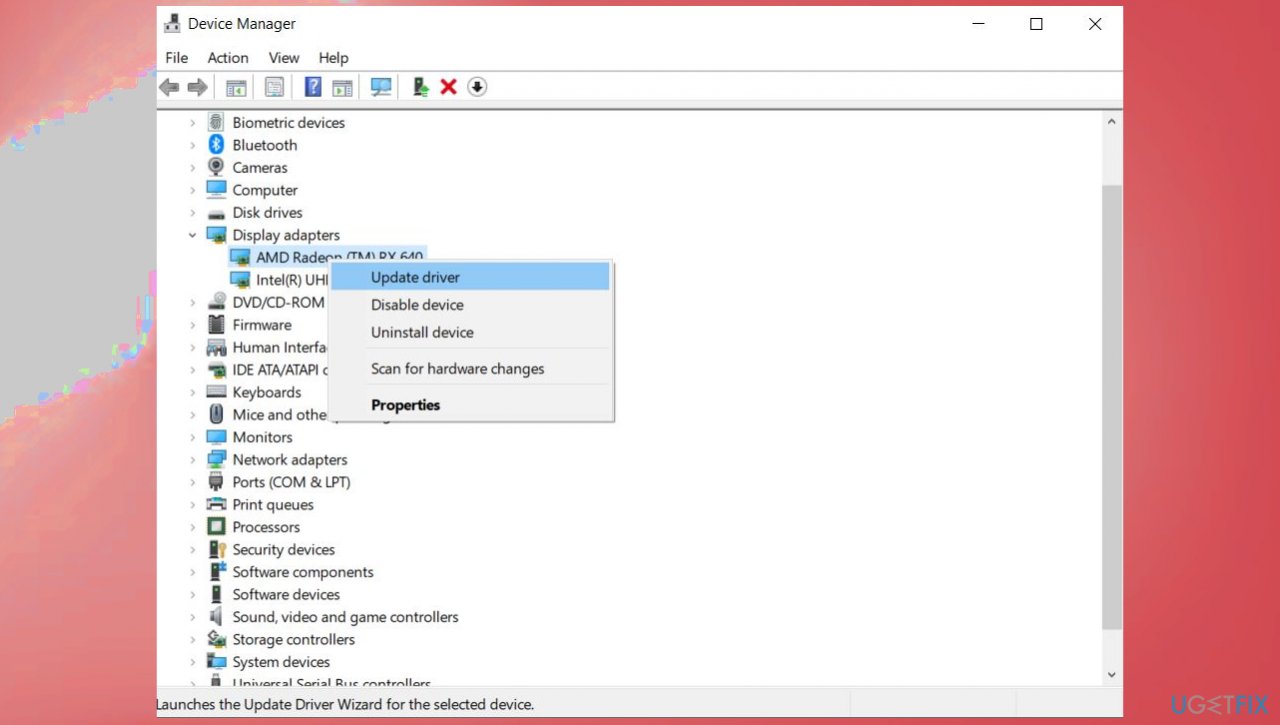
The application is not responding driver updt - Pick Search automatically for drivers.
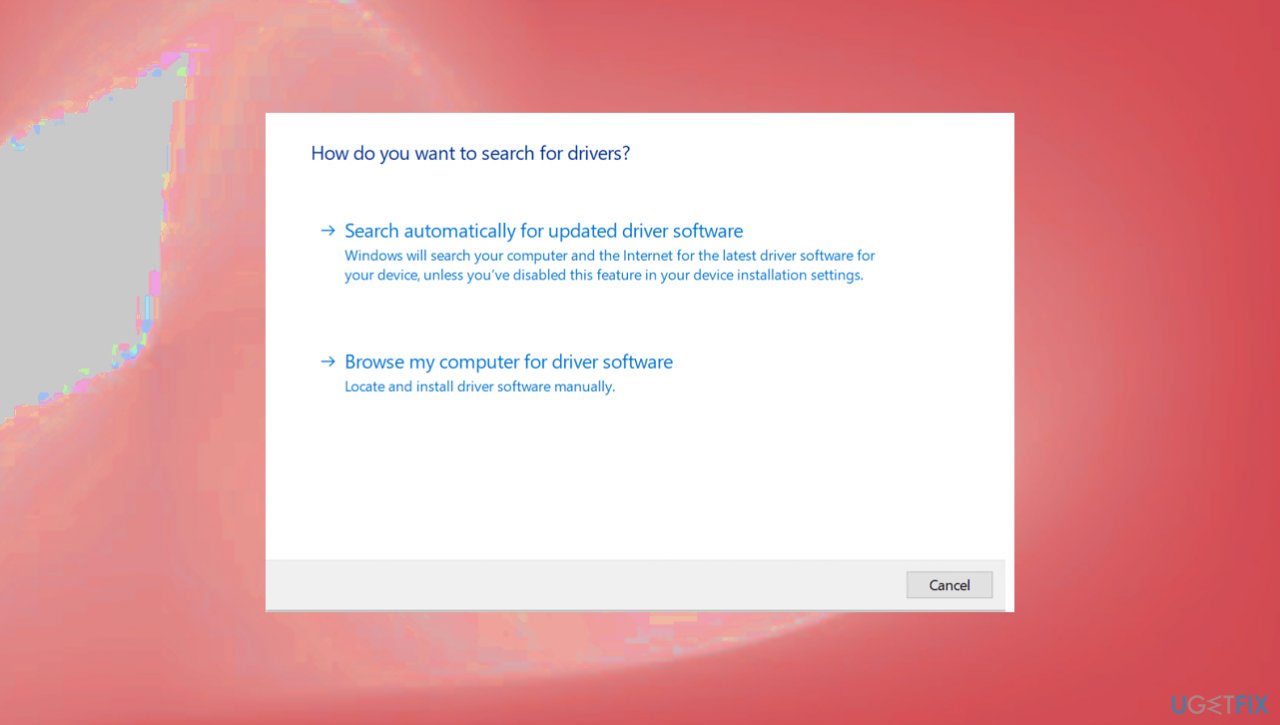
The application is not responding driver search - Wait till the drivers are found and installed on your system.
- Restart your PC.
Method 3. Install latest Windows
- Right-click on Start and pick Settings.
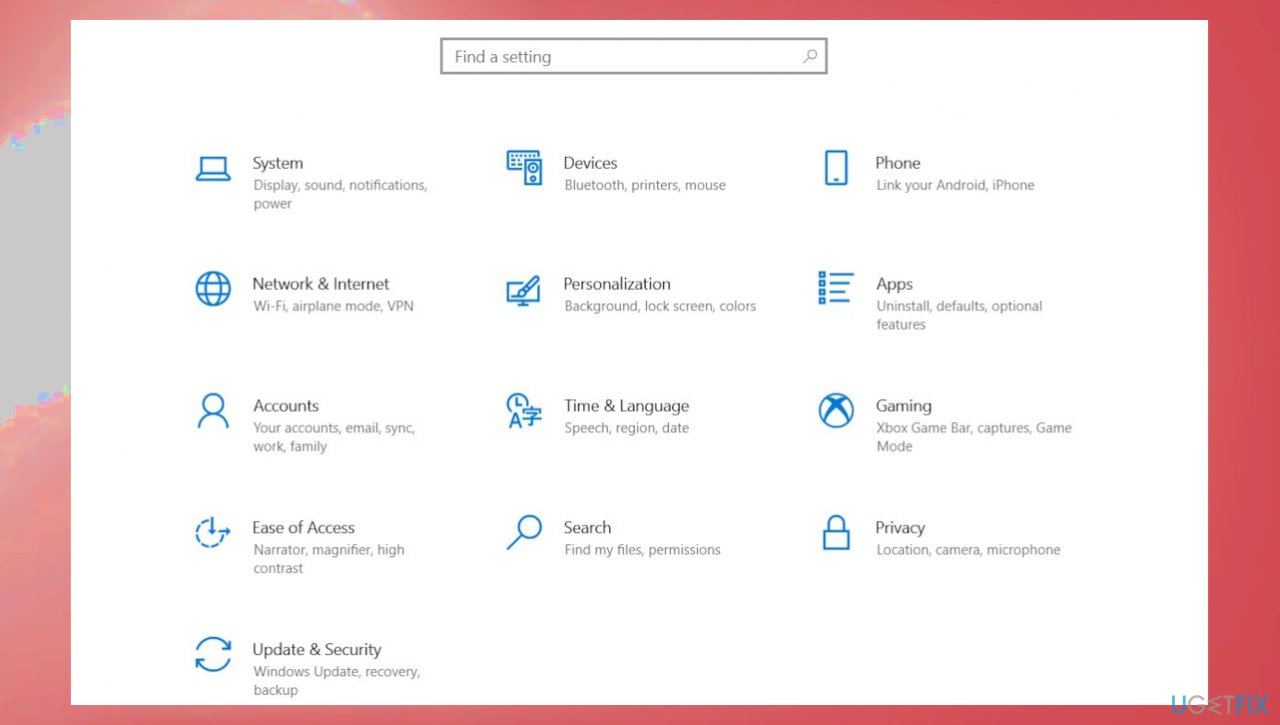
The application is not responding settings - Go to the Update & Security section.
- Click Check for updates.
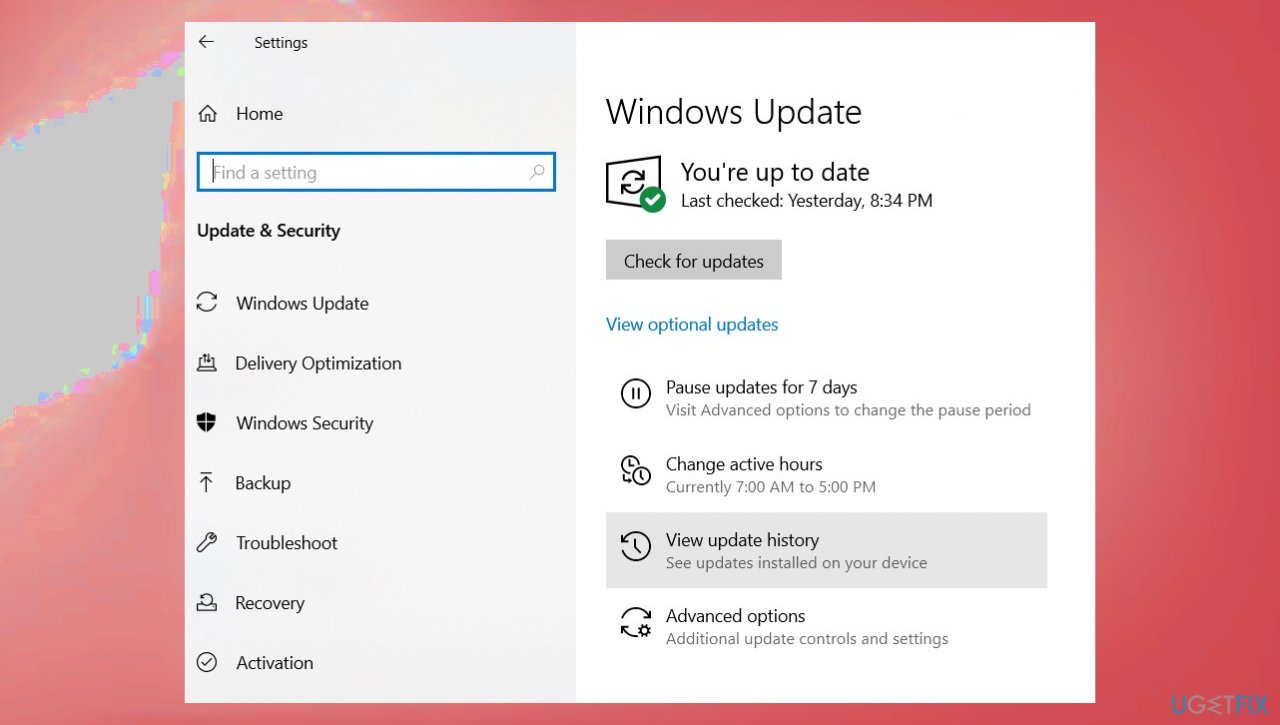
The application is not responding update - You might see the View optional updates option – click it.
- Select everything you want and then pick Download and install.
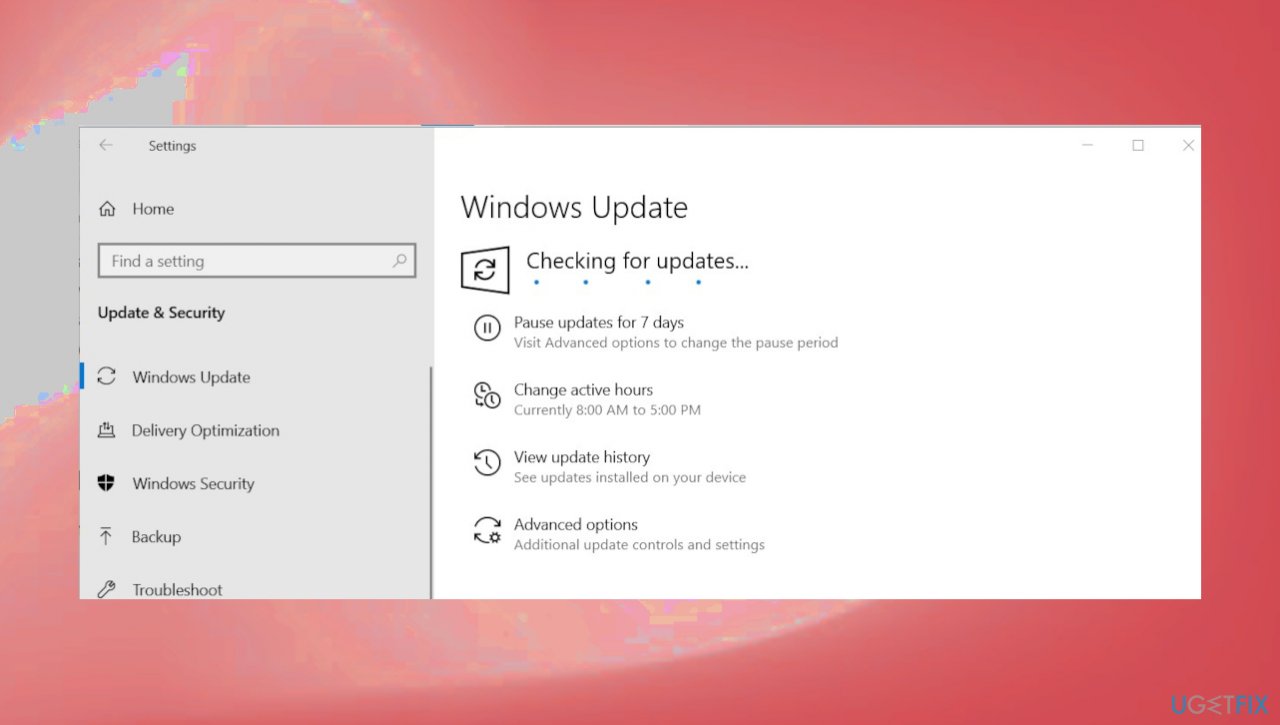
The application is not responding check for upds
Method 4. Check for memory leaks
- Press Win + R key combination to open the Run dialog box.
- Enter mdsched.exe and press Ok.
- Choose whether you want to perform a full scan now or when you restart the computer.
- Once the computer is restarted, the scan starts automatically.
- Detected errors will get solved.
Method 5. Reinstall the problematic program
- Click the Start button and select Settings.
- Choose Apps from the menu.
- Scroll down in the right pane, click on the app you want to eliminate, and select Uninstall.
- Reinstall the app and check if it works.
Method 6. Check for malware
- Press the Windows key.
- Go to the Gear icon and find Settings.
- Type in Virus & threat protection at the top.
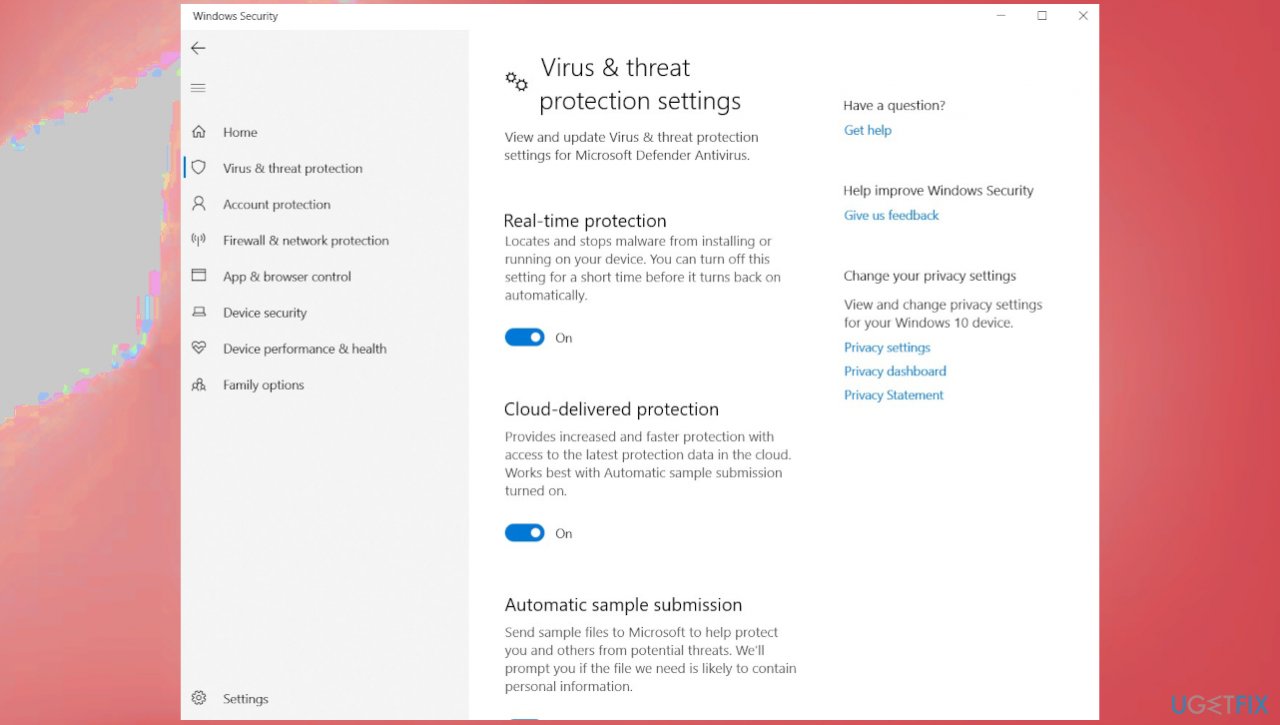
The application is not responding virus protection - Hit Enter.
- Click Scan options.
- Select the radio button present before the Full scan.
- Click Scan now.
- If any malware is found during the scanning, hit Clean Threat.
- Click Remove and then Start actions.
- Restart Windows.
Bottom line
To fix the 'The application is not responding' error on Windows, you can run the file checker using Command Prompt with the command 'sfc /scannow'. If the issue persists after trying these fixes, consider checking for malware or reviewing recent changes to your system.
Frequently asked questions
You can try closing the unresponsive application through Task Manager by right-clicking the taskbar and selecting 'Task Manager', then ending the task. If the issue persists, consider restarting your computer to clear any temporary glitches.
Check for updates for both Windows and the application, as outdated software can cause performance issues. Additionally, running the built-in Troubleshooter for Windows Store Apps may help resolve the problem.
To minimize the chances of applications freezing, ensure your Windows 10 or Windows 11 system has enough memory and resources, and regularly update your software. Closing unnecessary programs running in the background can also improve performance.




Report an issue
What's wrong with this guide? We review every report and update or remove content.
Report received — thank you. We'll review and fix it.
You need a free account to submit a report.
Be the first to comment