How to fix
“The cloud operation was unsuccessful” OneDrive error
on Windows
Resolve the "cloud operation was unsuccessful" error in Windows 10 and 11 with our expert-tested solutions. Fix it in minutes and get back to work!

What causes How to fix “The cloud operation was unsuccessful” OneDrive error in Windows?
- Hard drive is full or nearly full
- Insufficient space for file uploads
- Issues with OneDrive account linking
- Firewall settings blocking OneDrive
- Corrupted OneDrive installation
Repairs Windows system files, removes malware, and restores a clean OS state — without reinstalling.
Hello. I tried to download files from OneDrive to my Windows laptop but I received the "The cloud operation was unsuccessful" error. How do I fix this?
The "The cloud operation was unsuccessful" error in OneDrive is a common problem for cloud storage service users. Microsoft OneDrive is a cloud-based file hosting service that allows users to store and access their files from any internet-connected device. One of its primary benefits is the ability to access files from any location, which is useful for users who need to work on the go or share files with others.
This error can have a number of consequences for users. When the device's hard drive is full or nearly full, OneDrive may not have enough space to store the files being uploaded, resulting in the "The cloud operation was unsuccessful" error. Users may be unable to access or upload their files as a result, causing inconvenience and potentially impeding productivity.
There are several possible solutions to this problem, including freeing up space on the local drive, resetting OneDrive, disabling the Windows Defender firewall, and reinstalling OneDrive. These solutions can assist in resolving the "The cloud operation was unsuccessful" error and restoring OneDrive functionality.
In this guide, you will find 7 steps that should help you fix "The cloud operation was unsuccessful" OneDrive error in Windows. Keep in mind, that the manual troubleshooting process can be lengthy. You can use a maintenance tool like [d1] that can fix most system errors, BSODs,[ref en-1] corrupted files, registry[ref en-2] issues, or clear cookies and cache.[ref en-3] Otherwise, follow the step-by-step instructions below.
Solution 1. Re-link OneDrive Account
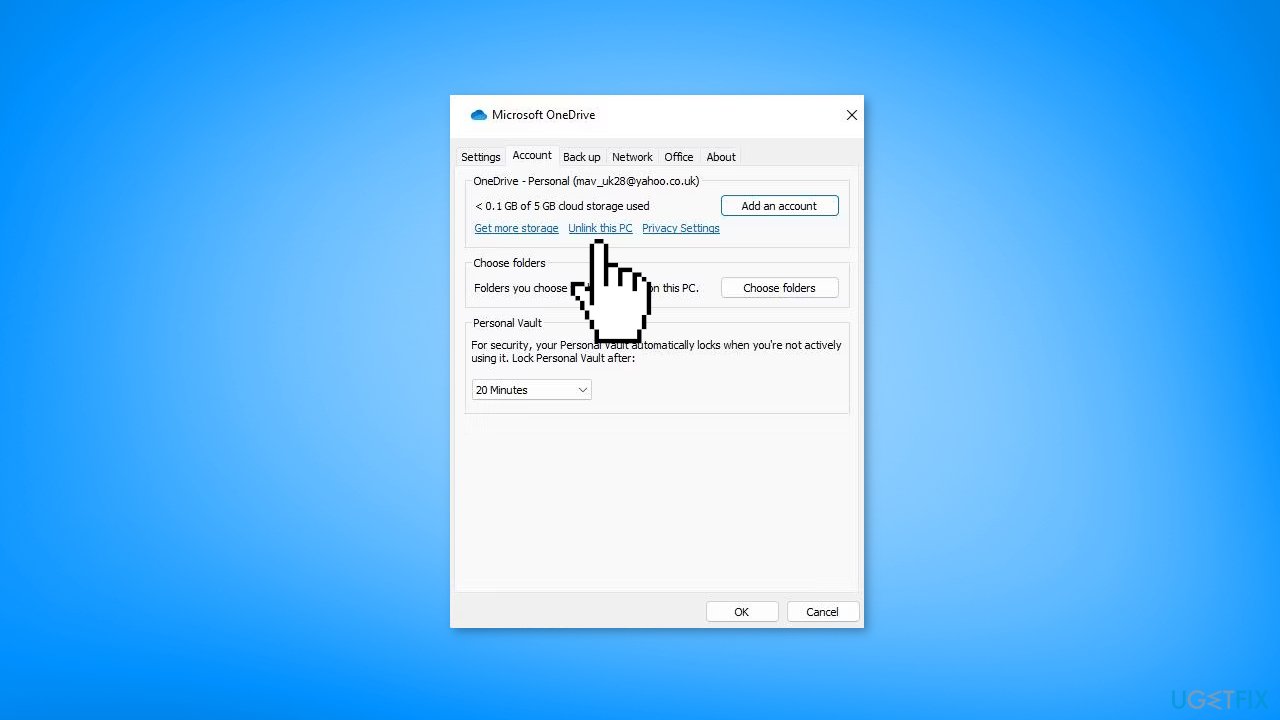
- Right-click the OneDrive icon in the system tray
- Click the Help & Settings cog button
- Select Settings, then click the Account tab
- Click the Unlink this PC option and select Unlink account to sign out
- If a sign-in window doesn't automatically open, search for OneDrive in Windows and open it from there
- Input your OneDrive email address (for your Microsoft account) and click the Sign in option
- Enter your password and press the Sign in button
- Keep clicking Next until you reach the last option on the OneDrive setup window
- Press the Open my OneDrive folder button
Solution 2. Free up your Hard Drive
"The cloud operation was unsuccessful" error can occur when there is limited free space on the local drive, resulting in the hard drive not having enough space for the larger files in OneDrive cloud storage.
- Launch File Explorer and click This PC
- The C: drive icon shows the amount of free storage available
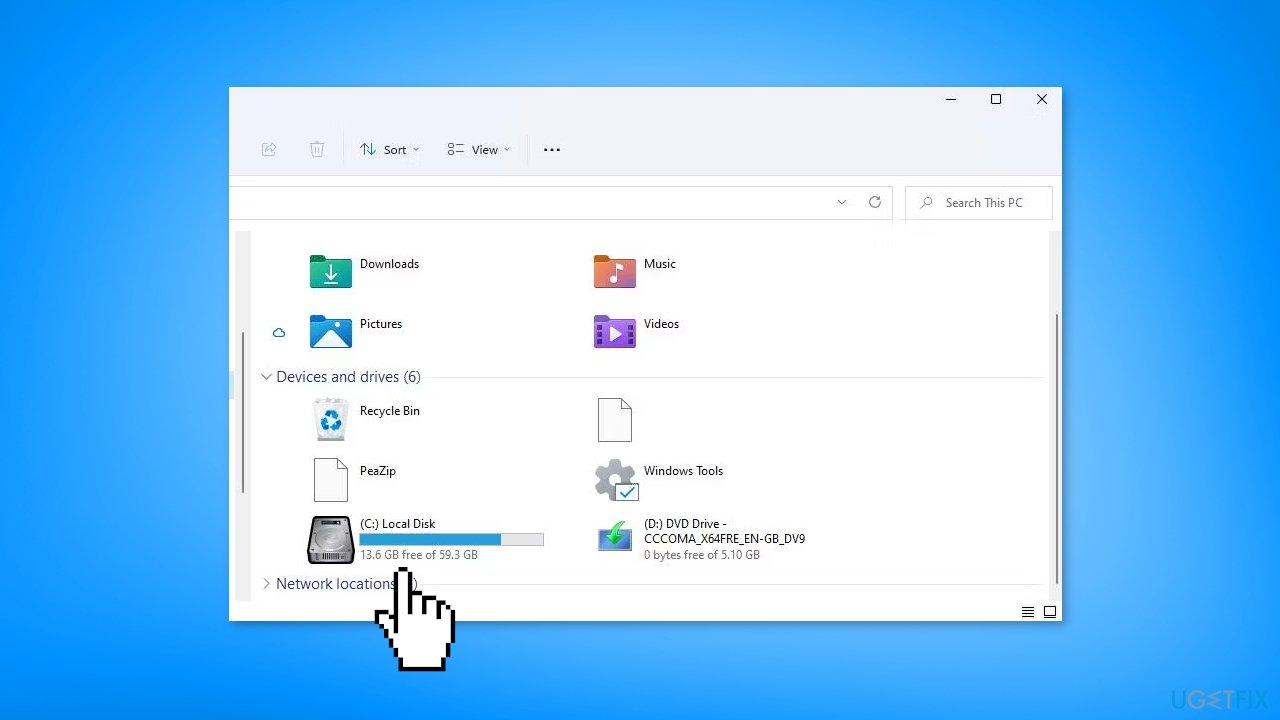
- If the hard drive is full or close to it, free up some storage space by:
Uninstalling software
Deleting unneeded user files
Erasing junk data
Solution 3. Reset OneDrive
- Bring up the Power User shortcuts menu by pressing the Windows key + X
- Select Run
- Type or paste the following command:
%localappdata%\Microsoft\OneDrive\OneDrive.exe /reset
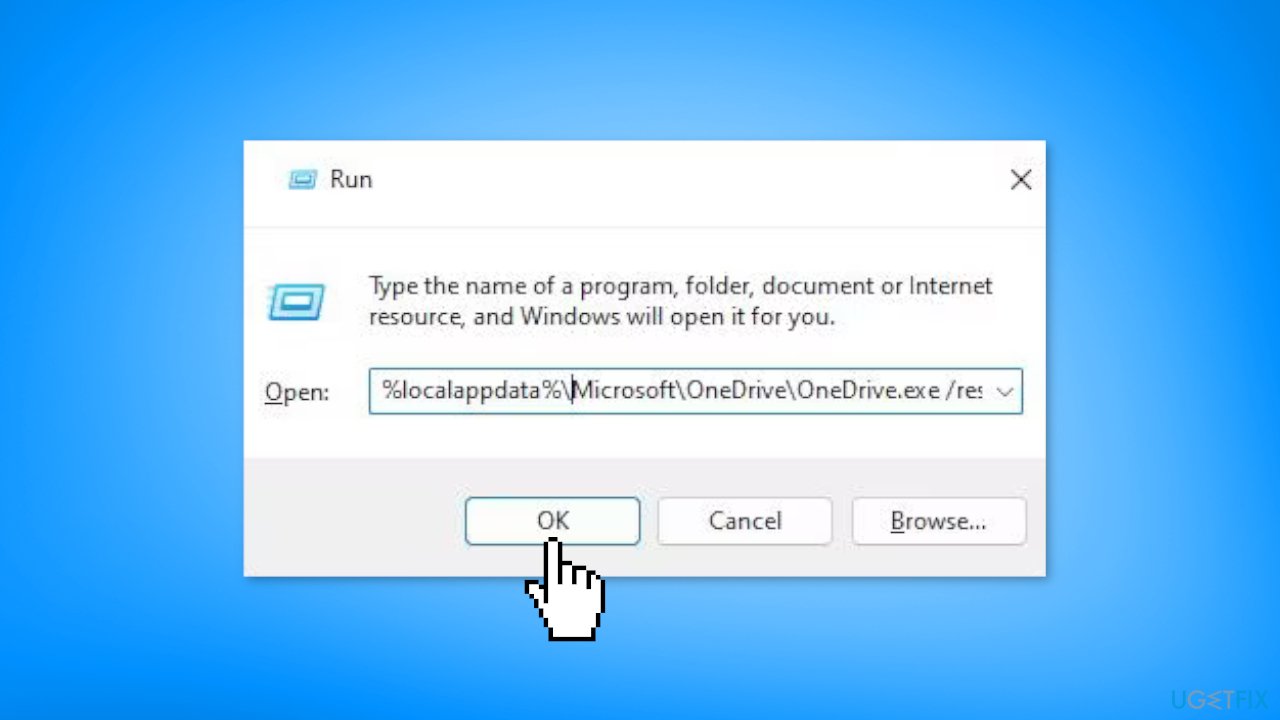
- Click OK to reset OneDrive
- If the OneDrive icon doesn't reappear after the reset, type the following command into Run and click OK:
%localappdata%\Microsoft\OneDrive\onedrive.exe
Solution 4. Sync OneDrive to another Location
- Unlink OneDrive as outlined in Solution 1
- Input the email address and password for the Microsoft account associated with OneDrive
- Press the Sign in button
- Click the Change location option and select an alternative drive partition on your PC
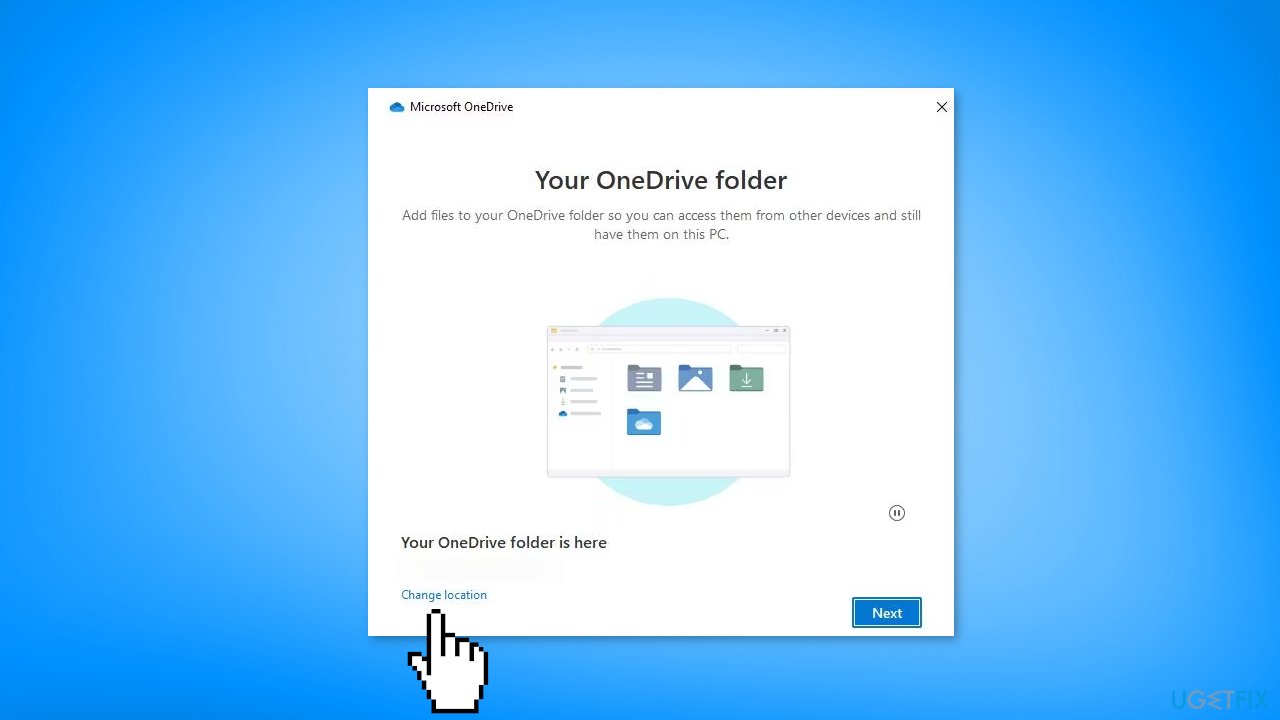
- Click Select Folder to confirm the chosen location
- Keep clicking Next until you reach the last option
- Select the Open my OneDrive folder option
Solution 5. Make the files Available Offline
- Press the Windows key + E to open File Explorer
- Click the arrow for your OneDrive storage in File Explorer
- Right-click the file affected by the error and select Always keep on this device
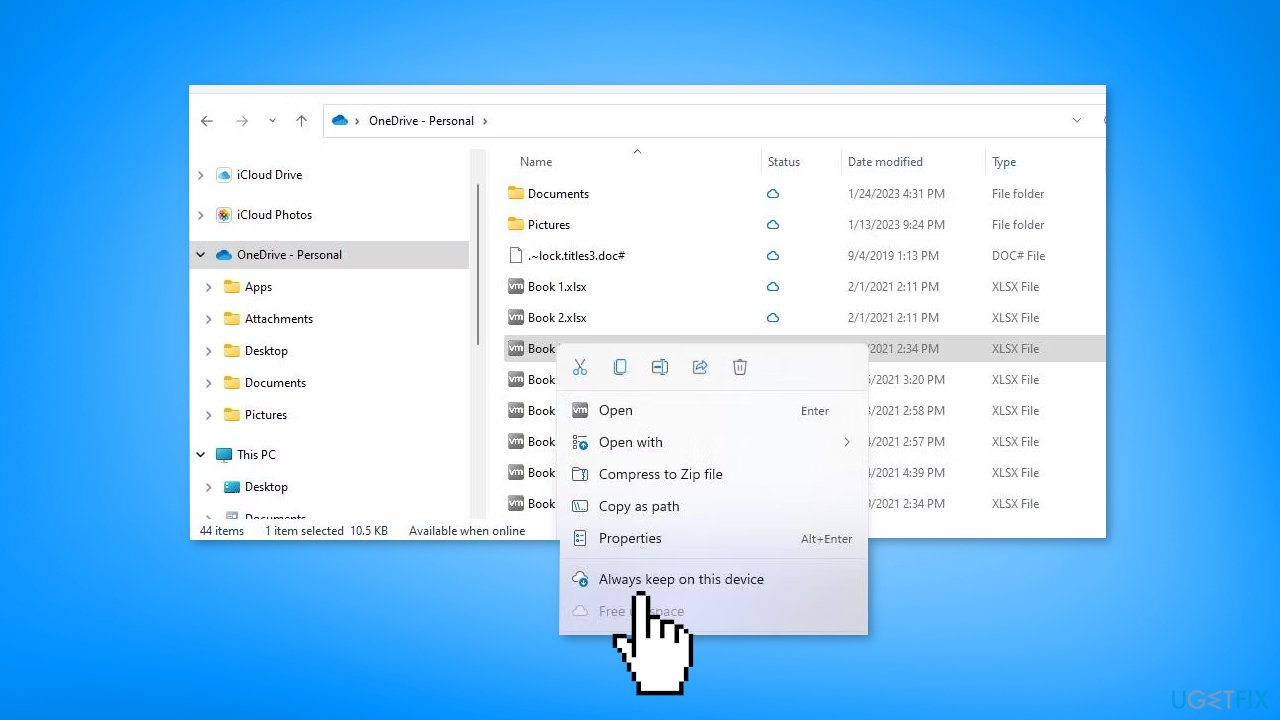
- Right-click the same file again and select Free up space
- Repeat these steps for all inaccessible files
Solution 6. Turn off Windows Defender Firewall
- Click the search box or magnifying glass icon on the Windows taskbar
- Input Windows Defender Firewall
- Select the Windows Defender Firewall search result
- Click Turn Windows Defender Firewall on or off to access the settings
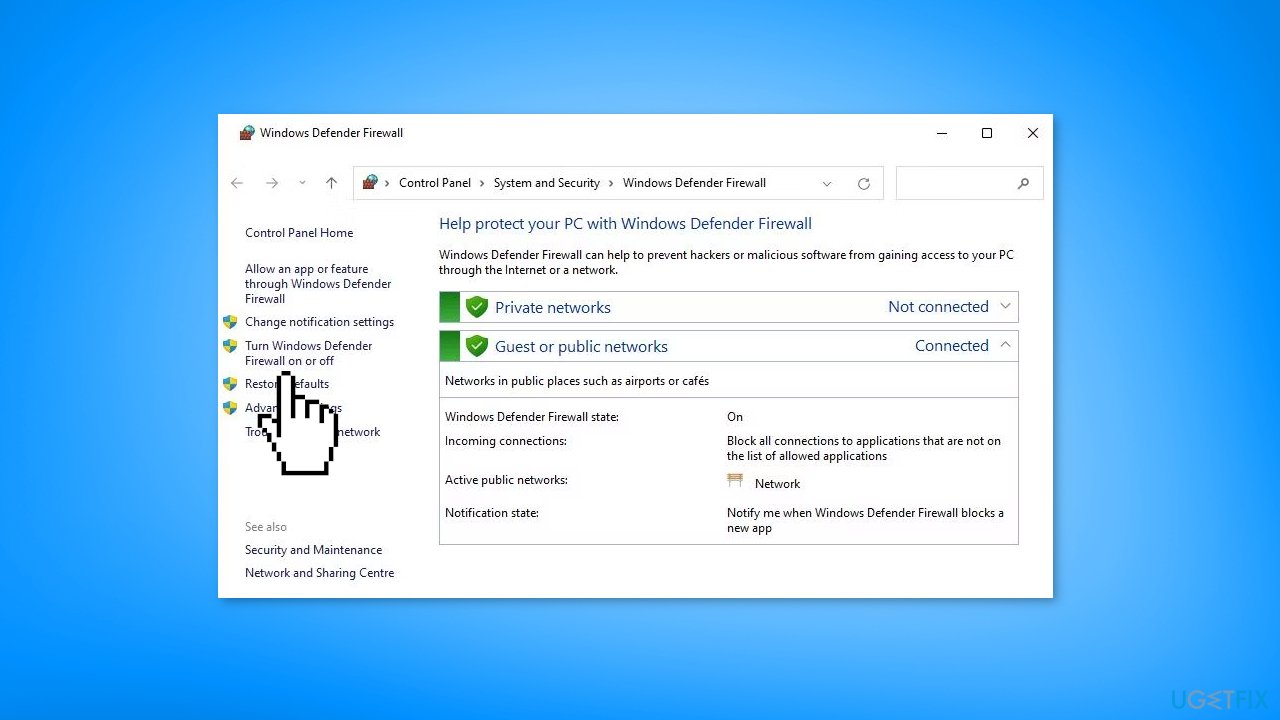
- Select the two Turn off Windows Defender Firewall network settings and click OK to apply the changes
- Return to OneDrive to see if the error still persists with the firewall off
Solution 7. Reinstall OneDrive
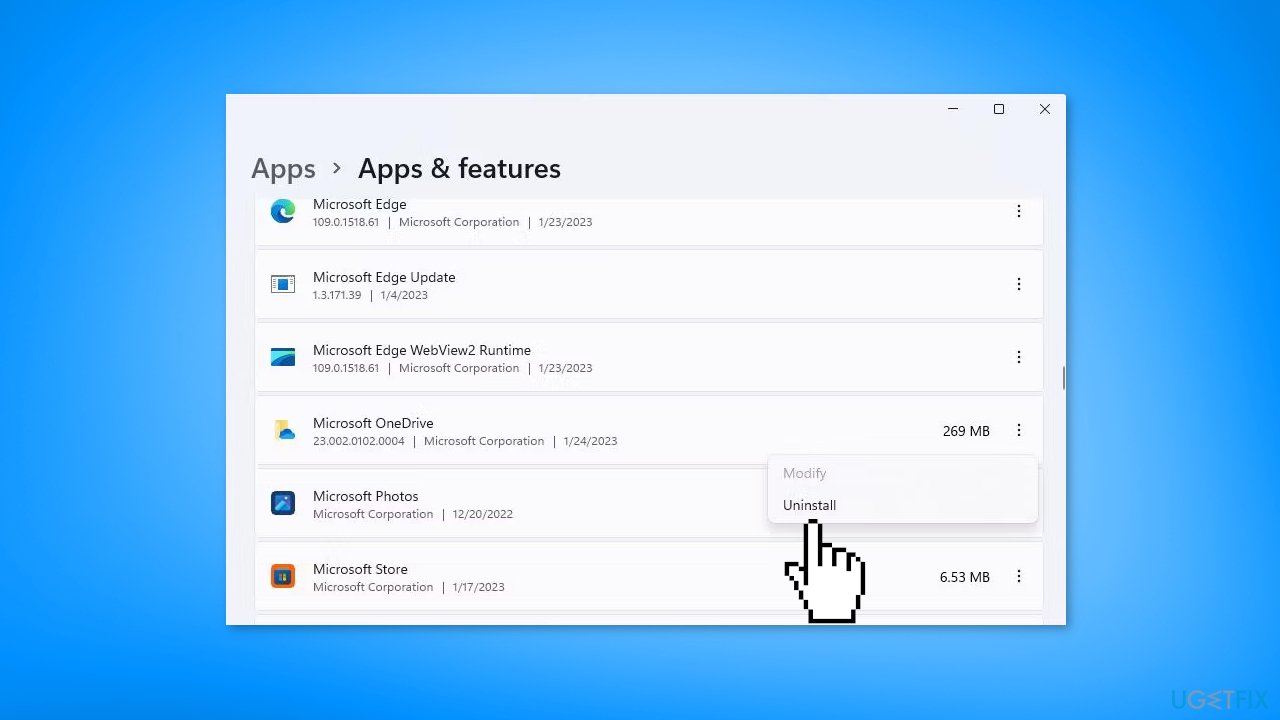
- Launch Run and input ms-settings:appsfeatures
- Select OK to open Apps & features in Settings
- Click the three-menu button for OneDrive and click Uninstall
- Open the OneDrive page on the Microsoft Store
- Click the Get button on the OneDrive page
- Select Open Microsoft Store to view the OneDrive page in the app
- Click Get to reinstall OneDrive
Bottom line
To fix the "The cloud operation was unsuccessful" error in OneDrive, you can try freeing up space on your local drive, resetting your OneDrive account, disabling the Windows Defender firewall, or reinstalling OneDrive. If these solutions do not resolve the issue, consider using a maintenance tool to address potential system errors.
Frequently asked questions
This error typically occurs due to synchronization issues, corrupted files, or network connectivity problems affecting OneDrive on Windows 10.
To fix the error on Windows 11, try resetting OneDrive by pressing Win + R, entering 'onedrive.exe /reset', and then restarting the app.
Yes, you can check the OneDrive status by clicking the cloud icon in the taskbar to see if there are any ongoing sync issues or alerts related to your account.




Report an issue
What's wrong with this guide? We review every report and update or remove content.
Report received — thank you. We'll review and fix it.
You need a free account to submit a report.
Be the first to comment