How to fix
“The deployment operation failed because the volume is offline” error
on Windows
Fix "The deployment operation failed because the volume is offline" error in Windows 10 or 11 quickly. Expert-tested solutions, zero traces left.

What causes How to fix “The deployment operation failed because the volume is offline” error in Windows?
- Target drive or partition is marked as offline
- External storage devices are disconnected or improperly configured
- System misconfigurations
- Corrupted files
- Permissions issues
- File system inconsistencies
Repairs Windows system files, removes malware, and restores a clean OS state — without reinstalling.
For some reason, whenever I attempt to install a game from Microsoft Store, I get "The deployment operation failed because the volume is offline" error. The download works fine, but it fails when it comes to the installation process. The game is Microsoft Flight Simulator and I do have it purchased, so I am not sure what is going on.
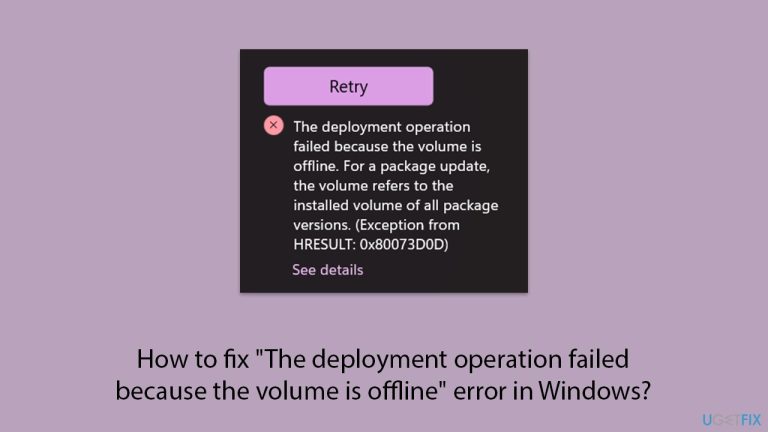
The error message "The deployment operation failed because the volume is offline" is a frustrating issue that can appear when attempting to install or update apps through the Microsoft Store or the Xbox app in Windows. This issue is commonly associated with installing games or large applications, with the error code 0x80073d0d often accompanying it. Many users report encountering this when trying to download games through the Xbox app, particularly when the target installation drive is not properly accessible.
The "The deployment operation failed because the volume is offline" error typically indicates that the system cannot interact with the volume required to complete the deployment process. In some cases, the target drive or partition may be marked as offline or disconnected, preventing the operation from proceeding.
This problem is more likely to occur if you’re using external storage devices such as USB drives, external hard disks, or network-attached storage as the default location for app installations. If these devices are disconnected or improperly configured, the error is triggered.
Additionally, system misconfigurations, corrupted files, or permissions issues can exacerbate the problem. Users have reported that the Xbox app and Microsoft Store sometimes fail to correctly recognize the target drive's status, leading to deployment failures. Furthermore, file system inconsistencies or outdated Windows updates can also contribute to the "The deployment operation failed because the volume is offline" error.
Addressing the issue often involves diagnosing the state of the drive and ensuring that it is set to online and accessible. Properly configuring storage settings, checking for corrupted files, or reassigning installation paths may help mitigate the issue. For persistent cases, you might want to consider using an automatic repair tool like [d1], which is designed to resolve file corruption, permissions issues, and system configuration errors effectively.

Fix 1. Check if the drive is online
This error often occurs because the target drive or volume is offline or not accessible. Ensuring the drive is online allows the system to access it for installations.
- Right-click on Start and select Disk Management.
- Locate the drive you are installing to.
- If the drive shows as Offline, right-click it and select Online.
- Close Disk Management and retry the installation.
Fix 2. Verify and configure storage settings
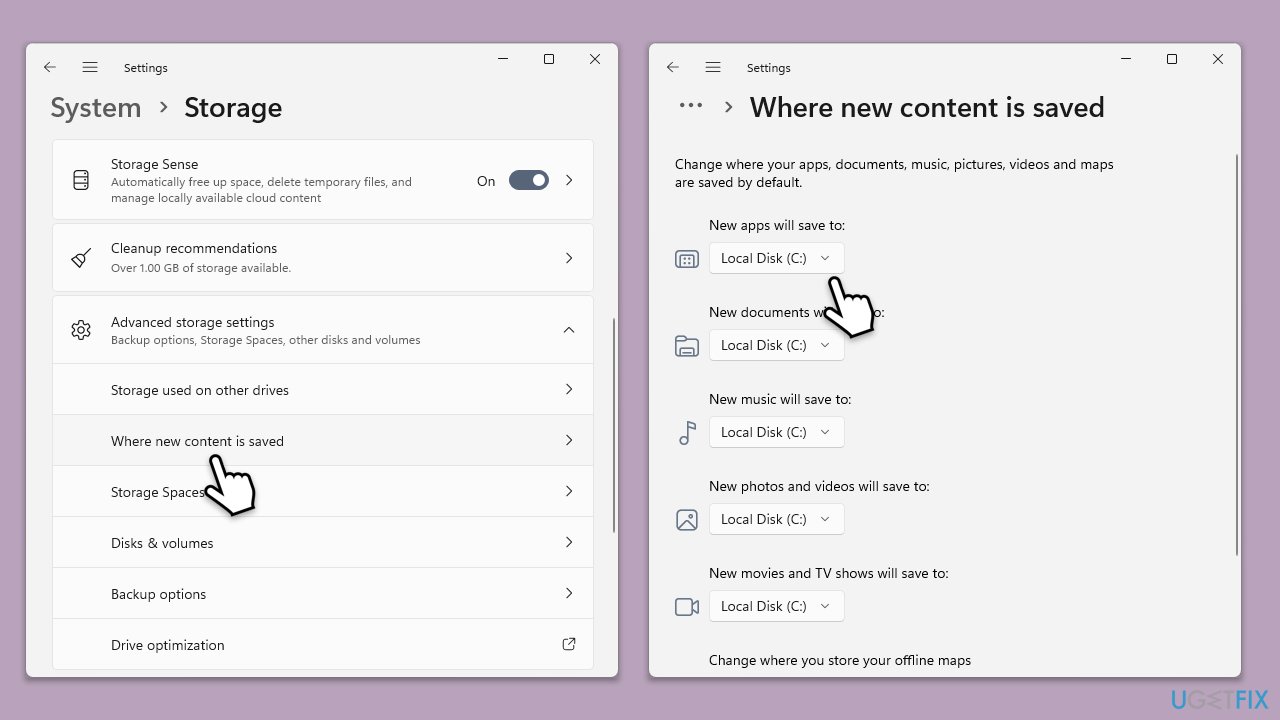
Improper default storage settings in the Microsoft Store or Xbox app may lead to this error. Ensuring the correct drive is set for installations can help.
- Open Settings and go to System.
- Navigate to Storage and select Advanced storage settings.
- Under Where new content is saved, ensure the default location is the correct drive (C: by default).
- Save changes and try the installation again.
Fix 3. Check for drive connection issues
External or removable drives can sometimes disconnect or fail to connect properly, causing this error.
- Ensure the external drive is connected to the system.
- Try plugging it into a different USB port.
- Restart your PC and attempt the installation again.
Fix 4. Run Windows Update
Outdated system components can sometimes prevent the Xbox app or Microsoft Store from functioning properly. Updating your system ensures compatibility.
- Type Updates in Windows search and hit Enter.
- In the new window, click Check for updates and wait till everything is installed.
- Make sure you also install any available optional updates.
- When done, restart your device to implement the changes.

Fix 5. Repair/reset Microsoft Store or Xbox app
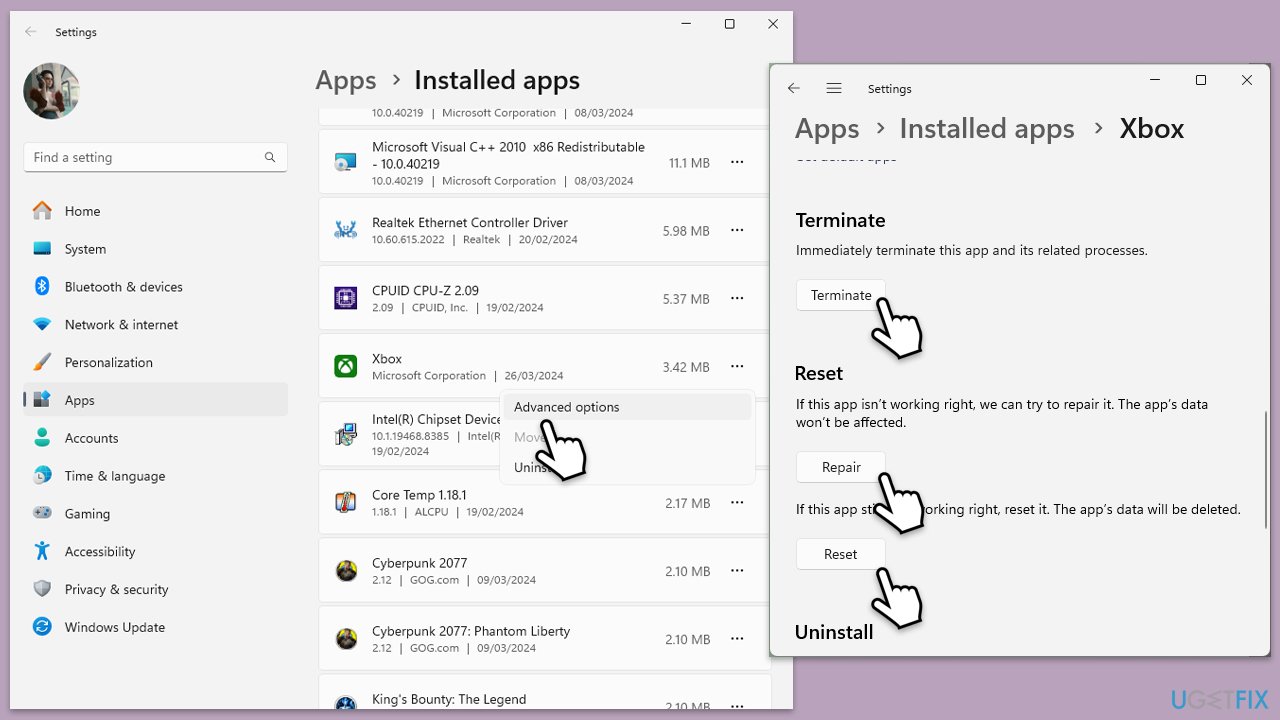
Corrupted app files can interfere with installation operations, leading to this error. Repairing or resetting the apps may resolve the issue.
- Right-click on Start and select Apps & Features/Installed apps.
- Scroll down to find Microsoft Store and click Advanced options.
- Scroll down again and click Terminate and Repair.
- If that does not work, try using Reset.
- Repeat this process with the Xbox app if necessary.
Fix 6. Run the SFC and DISM tools
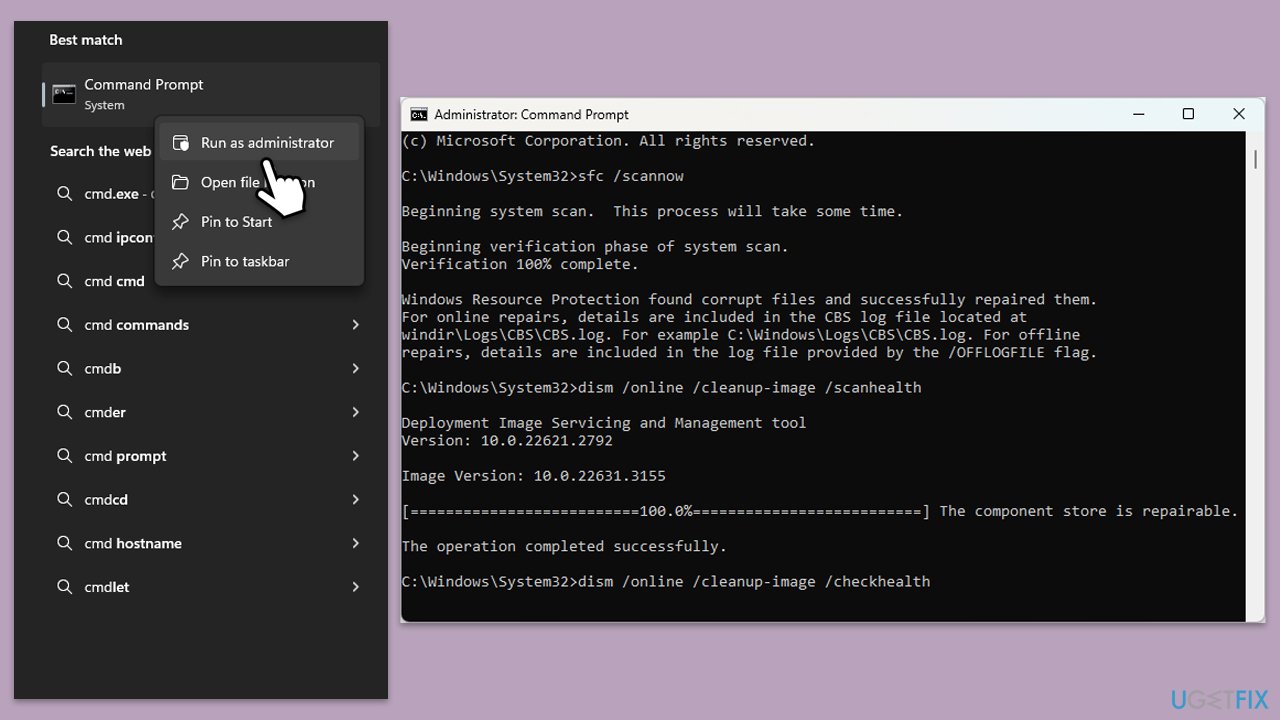
Corrupted system files can cause installation errors. These tools scan and repair missing or damaged files to resolve the problem.
- Type cmd in Windows search.
- Right-click on Command Prompt and pick Run as administrator.
- User Account Control window will show up - click Yes when prompted.
- Then, copy and paste the following command, pressing Enter after:
sfc /scannow - Wait till the scan is finished. If Windows finds system file integrity violations, it will attempt to fix them. After this, use the set of the following commands, pressing Enter each time:
DISM /Online /Cleanup-Image /CheckHealth
DISM /Online /Cleanup-Image /ScanHealth
DISM /Online /Cleanup-Image /RestoreHealth - (Note: if you get an error executing this last command, add /Source:C:\RepairSource\Windows /LimitAccess to it and try again).
- Close down the Command Prompt and restart your system.
Fix 7. Reinitialize the target drive
If the target drive has file system inconsistencies, reinitializing or reformatting the drive can help. Note that this will erase all data on the drive, so back up important files first.
- Open Disk Management and right-click the problematic drive.
- Select Format and choose the appropriate file system (NTFS is recommended).
- After formatting, assign a drive letter and retry the installation.
Fix 8. Reinstall Xbox app or Microsoft Store
A complete reinstall of the problematic app can help resolve deeper issues.
- Right-click on Start and pick Installed apps/Apps & features.
- Locate the Xbox app, click Uninstall, and confirm the prompts.
- Visit the official Microsoft website to download and reinstall the app.
To reinstall Microsoft Store, follow these steps:
- Type PowerShell in Windows search.
- Right-click on PowerShell and select Run as administrator.
- When UAC shows up, click Yes.
- In the PowerShell window, copy and paste the following command, pressing Enter after:
Get-AppxPackage Microsoft.WindowsStore | Remove-AppxPackage - With the next command, you can install the Store:
Add-AppxPackage -register "C:\Program Files\WindowsApps\Microsoft.WindowsStore*\AppxManifest.xml" -DisableDevelopmentMode - Press Enter and close down PowerShell.
Fix 9. Reset Windows update components
Issues with update-related components can lead to deployment failures. Resetting these components ensures proper functionality.
- Open Command Prompt as administrator.
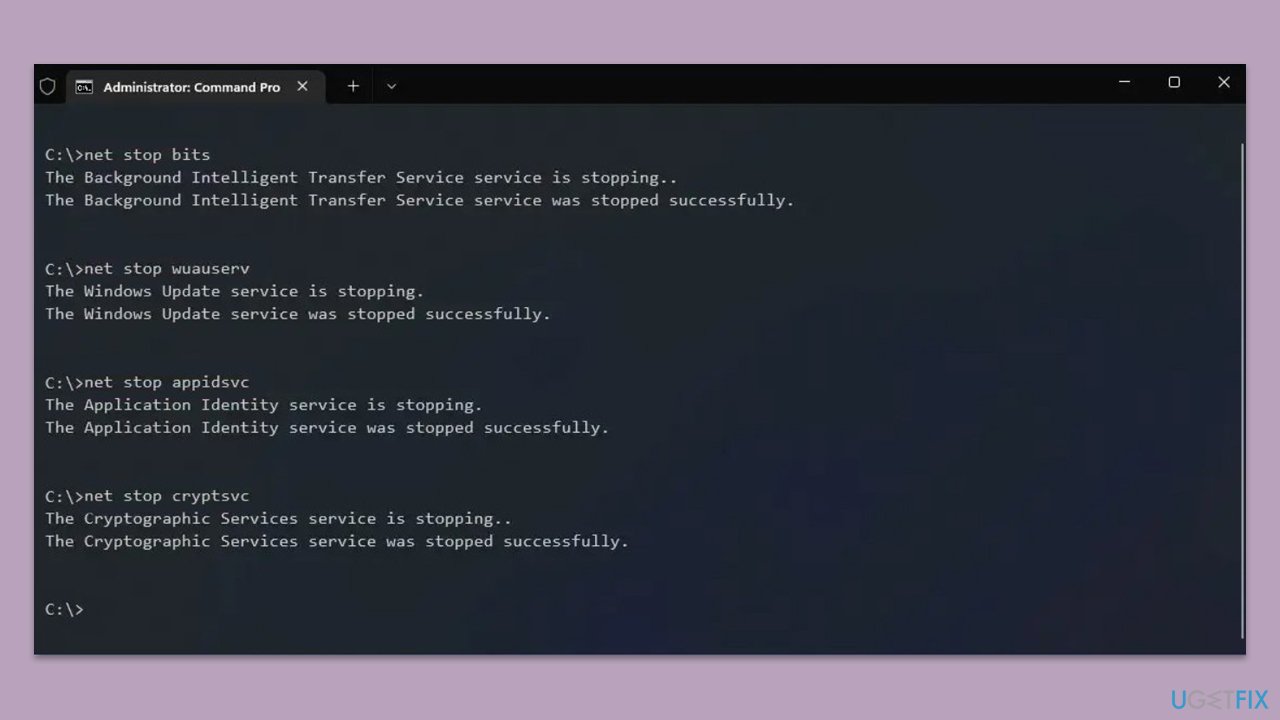
- Stop the Windows Update-related services by running the following commands one at a time, pressing Enter after each one:
net stop wuauserv
net stop cryptSvc
net stop bits
net stop msiserver - Rename the SoftwareDistribution and Catroot2 folders by running the following commands:
ren C:\Windows\SoftwareDistribution SoftwareDistribution.old
ren C:\Windows\System32\catroot2 Catroot2.old
Note: If your Windows installation is not on the C drive, replace "C" with the appropriate drive letter. - Restart the Windows Update-related services by running the following commands:
net start wuauserv
net start cryptSvc
net start bits
net start msiserver - Restart your computer.
Bottom line
To fix the error, ensure the target drive is online and accessible, check for corrupted files, and properly configure storage settings. If the issue persists, consider using an automatic repair tool to resolve file corruption and permissions issues.
Frequently asked questions
This error indicates that the system is unable to access the specified volume, which may be due to it being disconnected or not initialized. You can resolve this by checking the Disk Management tool to ensure the volume is online.
To bring a volume online in Windows 11, open Disk Management, right-click on the offline volume, and select 'Online' from the context menu. This should resolve the deployment error if the volume was simply offline.
If the volume still remains offline, you may need to check for hardware issues or run a disk check using the Command Prompt with the 'chkdsk' command to address any underlying problems.




Report an issue
What's wrong with this guide? We review every report and update or remove content.
Report received — thank you. We'll review and fix it.
You need a free account to submit a report.
Be the first to comment