
[Fix] Error 1075: The dependency service does not exist or has been marked for deletion

Prefer to fix it yourself? The manual steps follow.
- 8methods
- 5 minutes to find the cause, 10 to 30 minutes to fix it
- Intermediate
Applies to Windows 11, Windows 10
8 methods in this guide
- What the error means
- Causes, most likely first
- The fixes
- 1. Find the missing dependency
- 2. Restart to finish a deletion
- 3. Workstation and SMB 1.0
- 4. Reinstall what provided it
- 5. Remove the dead dependency
- 6. Reset the network
- 7. Repair system files
- 8. Restore or repair install
- If it is still broken
- Prevent it
- FAQ
A couple of days ago, I installed a Windows 10 update, which caused my Wi-Fi adapter to stop working. At the moment, I receive this error message: "Error 1075: The dependency service does not exist or has been marked for deletion." What should I do? Thanks in advance!
Error 1075 means Windows tried to start a service, but a service it depends on is not installed or is waiting to be deleted. The service you clicked is usually fine. Find the missing dependency first with sc qc, then restore it or take the dead name out of the list.
Open an administrator Command Prompt and run sc qc with the name of the service that will not start. Then run sc query on each name under DEPENDENCIES: the one that answers 1060 is missing (Fix 1). Restart if it is marked for deletion (Fix 2). Otherwise reinstall what provided it, or remove the dead name from the list (Fix 3 to Fix 5).
| Error | System error 1075, ERROR_SERVICE_DEPENDENCY_DELETED, 0x433: "The dependency service does not exist or has been marked for deletion." |
|---|---|
| Where it appears | A Services dialog that starts with "Windows could not start the <name> service on Local Computer", the output of net start or sc start, and Service Control Manager errors in Event Viewer. |
| Main cause | The service's dependency list still names a service or driver that was removed, never installed, or is marked for deletion. |
| Fastest fix | Find the missing name with sc qc <service> and sc query <name> (Fix 1), then restart, reinstall or remove the dead name. |
| Also written as | Error 1075, system error 1075, error 1075 the dependency service, "dependent service unavailable", and translated texts such as Fehler 1075 or ошибка 1075. |
| Services it hits | Any service with dependencies. Reports name Workstation, DHCP Client, WLAN AutoConfig, Security Center, Print Spooler and services of VPN or security software. |
| Related codes | 1060: the service does not exist. 1072: the service has been marked for deletion. 1068: the dependency exists but failed to start. |
| Microsoft's status | Not a bug. It is a standard Windows error code. Microsoft documents the dependency list (depend=) and the Workstation and SMB 1.0 case. |
| Time to fix | 5 minutes to find the missing dependency. 10 to 30 minutes to fix it, plus a restart. |
Facts checked on 15 October 2026. Steps written for Windows 11 (25H2 and 26H2) and Windows 10 22H2.
What "Error 1075: The dependency service does not exist or has been marked for deletion" means
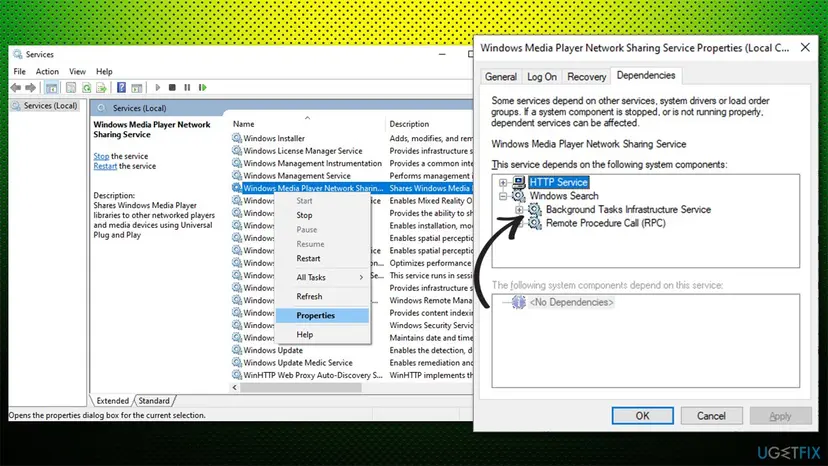
Many Windows services need other services or drivers to run first. That list is stored with each service and is shown on the Dependencies tab in Services. Before Windows starts a service, it starts everything on that list. If one name on the list cannot be found, the start stops at once with error 1075.
Microsoft's list of system error codes names it ERROR_SERVICE_DEPENDENCY_DELETED, value 1075 (0x433), with the text "The dependency service does not exist or has been marked for deletion." So the message is about the other service, not the one you clicked. People also search it as "dependent service unavailable", which is the same idea in other words.
The dialog in Services (the service name changes)
Windows could not start the Security Center service on Local Computer.
Error 1075: The dependency service does not exist or has been marked for deletion.| Code | Microsoft's text | What it tells you |
|---|---|---|
| 1075 | The dependency service does not exist or has been marked for deletion. | A service on the dependency list is gone or about to go. |
| 1060 | The specified service does not exist as an installed service. | The name you queried is not installed. You see it when you check the dependency in Fix 1. |
| 1072 | The specified service has been marked for deletion. | The service is being removed and waits for a restart. |
| 1068 | The dependency service or group failed to start. | The dependency exists but would not start. A different problem. |
Why error 1075 appears, most common cause first
The error has one technical trigger: a name on a service's dependency list that Windows cannot find or is deleting. What differs is why the name went missing, and that decides the fix.
| Why the dependency is missing | How it looks | Fix |
|---|---|---|
| It was just uninstalled, or a program is still removing it, so it is marked for deletion. | The error started right after you removed a program or a driver, often without a restart. | Fix 2 |
SMB 1.0 was removed, but the Workstation service still lists mrxsmb10. | "Windows could not start the Workstation service on Local Computer" with error 1075; network shares and mapped drives fail. | Fix 3 |
| A VPN, antivirus, firewall or network tool was removed and left its name in another service's list. | sc query answers 1060 for a name that is not a Windows service. | Fix 4 or Fix 5 |
| A network driver was replaced or removed by an update. | Wi-Fi or DHCP stopped after an update, as in the question at the top. | Fix 4, then Fix 6 |
| A Windows service or driver is damaged or missing. | The missing name is a Microsoft service, and nothing was uninstalled. | Fix 7, Fix 8 |
- Malware. Some malware deletes or replaces services, and some removal tools take a service out but leave the names that point to it. If you recently cleaned an infection, the missing name may be a leftover. Scan with Windows Security before you edit anything: How to scan for malware with Microsoft Defender
- Windows updates. An update rarely removes a dependency by itself, but it can replace a driver. Fix 4 covers that case.
How to fix error 1075, the dependency service does not exist or has been marked for deletion
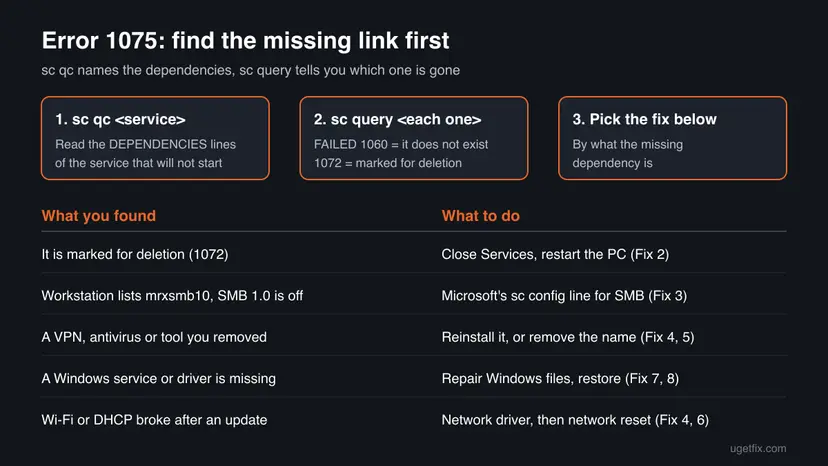
Fix 1 finds the missing dependency and takes five minutes. Every other fix depends on what it finds, so do not skip it. The table shows where to go next.
| What Fix 1 found or what you see | Go to |
|---|---|
| The dependency is marked for deletion, or you just uninstalled something. | Fix 2 |
The Workstation service fails and its list names mrxsmb10. | Fix 3 |
| Wi-Fi, Ethernet or DHCP stopped after an update or a driver change. | Fix 4, then Fix 6 |
| The missing name belongs to a program you still use. | Fix 4 |
| The missing name belongs to a program you removed for good. | Fix 5 |
| The missing name is a Windows service and nothing was removed. | Fix 7, then Fix 8 |
Fix 1. Find which dependency is missing with sc qc and sc query
5 minutesNo riskEveryone with error 1075, before changing anything.
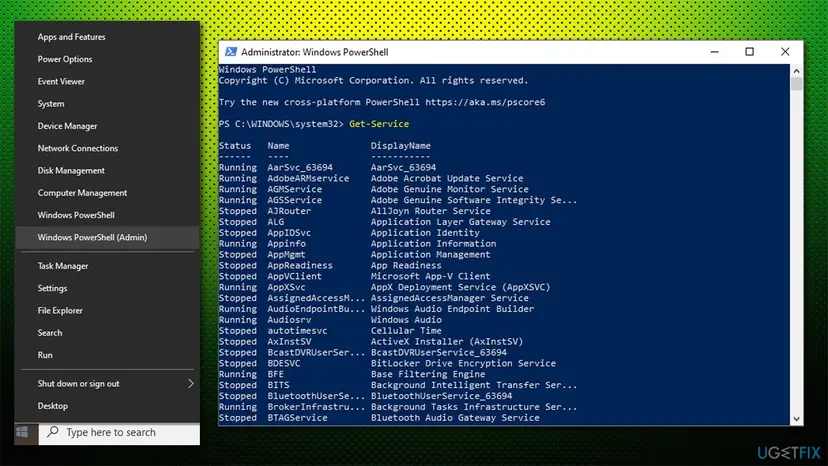
Error 1075 never names the missing service, and the Dependencies tab often shows empty boxes when a name on the list is gone. sc qc reads the raw list, and sc query shows which name Windows cannot find.
- In Services, open the failing service's Properties and copy the Service name at the top of the General tab, for example
LanmanWorkstationfor Workstation. - Type
cmdin search, right-click Command Prompt and select Run as administrator. - Run
sc qcfollowed by the service name, and note every name under DEPENDENCIES. - Run
sc querywith each of those names, one at a time. - The name that answers
FAILED 1060is the missing dependency. Note it for the next fixes. - If every name answers with a STATE line, run
sc qcon each of them too: the missing name may be one level deeper.
Command Prompt as administrator (example: the Workstation service)
sc qc LanmanWorkstation
sc query bowser
sc query mrxsmb10
sc query mrxsmb20
sc query nsi- In PowerShell or Terminal, type
sc.exe, notsc. In PowerShell,scis a short name for another command. - A name that starts with + is a load order group, not a service. Groups are rarely the cause.
- The service name is not the display name. Workstation is
LanmanWorkstation, DHCP Client isDhcp, WLAN AutoConfig isWlanSvc.
It worked if: One name under DEPENDENCIES answers FAILED 1060, or the error points to a service that is marked for deletion.
If not: If every dependency exists and starts, the error may come from a deeper level or a group. Read the System log as the still-broken section explains, then try Fix 7.
Fix 2. Close Services and restart Windows to finish a pending deletion
3 minutesNo riskYou just uninstalled a program or driver, or a dependency answers 1072, "The specified service has been marked for deletion."
The second half of the message, "has been marked for deletion", means a removal has started but not finished. Windows finishes it at restart, and the uninstaller or a reinstall can then put a working service back.
- Close the Services window, Task Manager and any setup or uninstall program that is still open.
- Restart from Start > Power > Restart. Use Restart, not Shut down.
- If you were reinstalling a program, run its setup again after the restart.
- Try to start the service again in Services.

How to find, start and restart a service in both Windows versions: Check and restart Windows services
It worked if: The service starts, or Fix 1 now shows the dependency as installed and running.
If not: If the dependency answers 1060 after the restart, it is gone for good. Use Fix 4 to put it back or Fix 5 to remove its name.
Fix 3. Workstation service error 1075: match its dependencies to SMB 1.0
5 minutes plus a restartLow risk"Windows could not start the Workstation service on Local Computer" with error 1075, and sc qc LanmanWorkstation lists mrxsmb10.
The Workstation service's list includes the SMB 1.0 driver mrxsmb10 only while SMB 1.0 is on. Microsoft's own commands change the list together with the driver. If SMB 1.0 was removed but the list was not changed, Workstation looks for a driver that is gone.
- Open Command Prompt as administrator.
- Run
sc.exe qc lanmanworkstationand check whether mrxsmb10 is listed. - Run
sc query mrxsmb10. If it answers 1060, SMB 1.0 is not installed. - Run Microsoft's command for a PC without SMB 1.0, shown below. Keep the space after
depend=. - Restart the PC. Microsoft says the change needs a restart.
Command Prompt as administrator: Workstation without SMB 1.0 (Microsoft's command)
sc.exe config lanmanworkstation depend= bowser/mrxsmb20/nsiSMB 1.0 is an old protocol. Microsoft says it is not installed by default in any edition of Windows 11, nor in Windows 10 editions other than Home and Pro. Turn it on only if an old device you must use needs it, with Enable-WindowsOptionalFeature -Online -FeatureName SMB1Protocol.
If you do need SMB 1.0, the matching list is bowser/mrxsmb10/mrxsmb20/nsi. Microsoft gives both lines on the same page.
It worked if: After the restart, sc qc LanmanWorkstation lists bowser, mrxsmb20 and nsi, and the Workstation service shows Running.
If not: If mrxsmb20 or bowser answers 1060 too, Windows itself is damaged. Go to Fix 7.
Fix 4. Reinstall the program or network driver that provided the missing service
10 to 15 minutesLow riskThe missing name belongs to a program you still use, such as a VPN or security product, or your Wi-Fi or Ethernet adapter stopped after an update.
A reinstall puts the missing service or driver back and registers it again, so every list that names it works again. It is safer than editing lists, because the program's own setup knows exactly what it needs.
- Match the missing name to a program: search for the name, look in the program's install folder, or compare with Get-Service on a working PC.
- For a program, open Settings > Apps > Installed apps (Windows 10: Settings > Apps > Apps & features), uninstall it and restart.
- Install the current version from the maker's website and restart again.
- For a network adapter, download its driver from the PC or adapter maker first, because you may be offline after the next step.
- Open Device Manager, right-click the adapter under Network adapters, select Uninstall device, then restart and install the driver you downloaded.
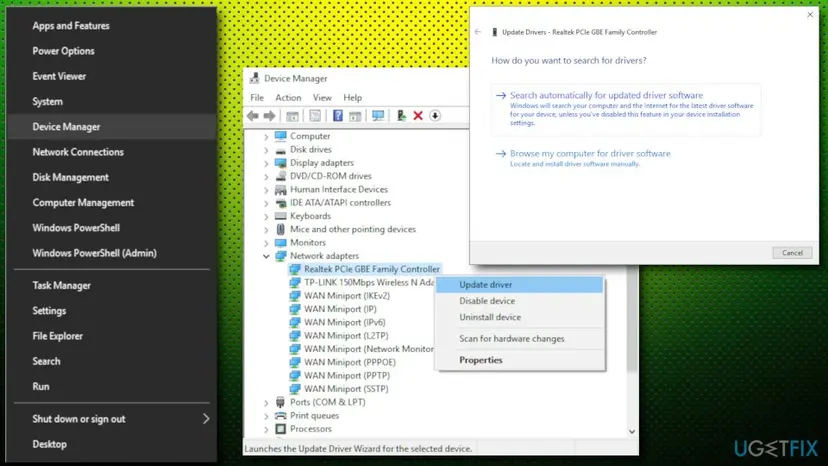
Driver update, rollback and reinstall for both Windows versions: Update, roll back or reinstall a driver Removing a program: Uninstall a program or app in Windows
It worked if: sc query on the missing name now shows a STATE line, and the failing service starts.
If not: If you no longer want the program, or no installer exists, go to Fix 5. For Wi-Fi or DHCP that still fails, go to Fix 6.
Fix 5. Remove a dead name from the service's dependency list
10 minutesRead the warningFix 1 found a missing name that belongs to a program you removed for good, and Fix 2 did not bring it back.
The dependency list is just a list of names. If a removed program left its name there, the service will fail until the name is taken out. sc config with depend= writes a new list, as Microsoft documents.
A wrong list can stop the service, or the network, from starting. Export HKEY_LOCAL_MACHINE\SYSTEM\CurrentControlSet\Services\<service name> before the change, so you can import it back: Back up the registry before editing it Never remove a Microsoft service from the list to make the error go away.
- Back up the service's registry key as the warning says.
- Run
sc qc <service>again and write down every dependency name. - Remove only the missing name and join the rest with forward slashes, as Microsoft's syntax requires.
- Run
sc config <service> depend= <list>with a space afterdepend=. In PowerShell, typesc.exe. - Run
sc qc <service>to check the new list, then restart the PC.
Example: a service that needs RpcSs and Tcpip, plus OldVpnDrv from a removed VPN
sc qc MyService
sc config MyService depend= RpcSs/Tcpip
It worked if: sc qc shows the shorter list without the dead name, and the service starts after the restart.
If not: If the service now fails with another error, import the .reg backup, restart, and go to Fix 7.
Fix 6. Reset the network stack and adapters when Wi-Fi or DHCP fails
10 minutes plus a restartLow riskDHCP Client or WLAN AutoConfig fails with error 1075, and the network driver from Fix 4 did not help.
Network services depend on a chain of network drivers. A network reset removes and reinstalls every adapter and puts the network components back to their defaults, which rebuilds that chain.
- Write down your Wi-Fi password and VPN settings. A full reset removes them.
- Open Command Prompt as administrator and run
netsh winsock reset, then restart. - If the error stays, open Settings > Network & internet > Advanced network settings > Network reset (Windows 10: Settings > Network & Internet > Status > Network reset).
- Select Reset now, confirm, and let the PC restart.

Every command and the full network reset in order: Reset the network and flush DNS
It worked if: After the restart the adapter connects, and DHCP Client and WLAN AutoConfig show Running in Services.
If not: If they still fail with 1075, run Fix 1 on them again and follow the name it finds.
Fix 7. Repair Windows system files with DISM and SFC
15 to 30 minutesNo riskThe missing dependency is a Windows service or driver and you removed nothing.
When a Microsoft service or driver is the missing name, Windows files are damaged. DISM repairs the store of Windows components and SFC then puts damaged system files back from it.
- Open an elevated command window. Right-click Start and select Terminal (Admin), or type cmd in the search box, right-click Command Prompt and select Run as administrator. Select Yes when Windows asks for permission.
- Run DISM first. Type the command below and press Enter. DISM downloads clean copies of damaged components from Windows Update, so it can take several minutes. Wait until it says The operation completed successfully.
DISM.exe /Online /Cleanup-Image /RestoreHealth - Run System File Checker. In the same window, type the command below and press Enter. Do not close the window until the verification reaches 100%.
sfc /scannow - Read the result and restart. Compare the last message with the table below this guide, then restart the PC so that repaired files are loaded.
These steps were written for Windows 11 24H2 and 25H2. The full page with the other versions and what each result means: Run DISM and SFC to repair Windows system files

It worked if: SFC reports no integrity violations or says it repaired them, and the service starts after a restart.
If not: If the dependency still answers 1060, go to Fix 8.
Fix 8. Go back to a restore point or reinstall Windows over itself
30 to 90 minutesRead the warningA Windows service is still missing after Fix 7, or the error began after a change you cannot find.
System Restore puts back the services, drivers and registry of an earlier day in one step. A repair install replaces every Windows file and service while it keeps your files and apps.
Your documents stay. Programs, drivers and updates installed after the restore point are removed. Back up important files first, especially before a repair install: Back up your files (Windows Backup, File History, Time Machine)
- Press Win + R, type
rstruiand press Enter. - Choose a restore point from before the error started and select Scan for affected programs.
- Select Next and Finish, and let the PC restart.
- With no usable restore point, reinstall Windows while you keep your files and apps.
System Restore step by step: Undo recent changes with System Restore Repair install: Reinstall Windows without losing files
It worked if: The missing service is back, and the failing service starts.
If not: Collect the details in the next section before you ask Microsoft or the program's maker for help.
If error 1075 is still there: what to read and what to collect
Error 1075 is always about a list and a name, so the facts that matter are the list and the name. Collect them before you ask for help, and add them to a post in Microsoft's forum or a ticket with the program's maker.
- The full output of
sc qc <service>for the failing service, and ofsc queryfor each dependency. - The System log. In Event Viewer, open Windows Logs > System and filter by the source Service Control Manager. The errors at the time of the failure name the service and often the dependency.
- What changed. Run
perfmon /relto open Reliability Monitor. It shows installs, updates and removals day by day. - Your Windows version and build. Press Win + R, type
winverand note both. - What the missing name belongs to, if Fix 1 found it. The program's support needs that name.
| Sign | What it means |
|---|---|
| The error is 1068, not 1075. | The dependency exists but fails to start. Start that dependency and read its own error. |
| The error is 1058. | The service is disabled. Set its startup type back in Services. |
| Many services fail with different errors at once. | Windows is damaged. Go to Fix 7 and Fix 8. |
| The network adapter is missing in Device Manager. | A driver or hardware problem. Check the adapter maker's driver or the hardware. |
Windows 10 left support on 14 October 2025. A Windows 10 PC with services that keep breaking gets no more security fixes, so a repair install is a good moment to plan the move to Windows 11.
How to avoid error 1075 in the future
- Restart right after you uninstall a VPN, antivirus or network tool, before you install anything new.
- Remove programs with their own uninstaller or from Installed apps, not by deleting folders.
- Keep System Protection on for drive C:, so a restore point exists before big changes.
- Change SMB 1.0 with Microsoft's commands, which change the Workstation list too.
- Export a service's registry key before you edit it.
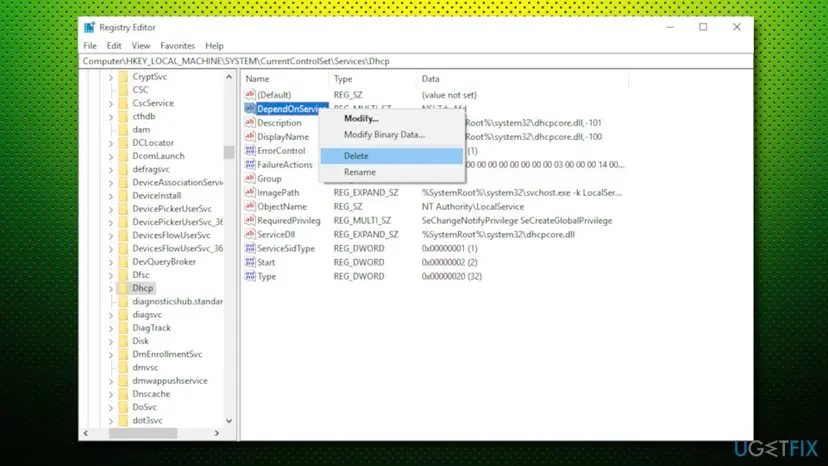
- Do not delete a service's whole DependOnService value. Remove only the missing name.
- Do not delete services with
sc deletebecause a guide or a cleaner tool told you to. - Do not disable Microsoft services to speed up Windows; other services depend on them.
- Do not use registry cleaners on the Services key.
Frequently asked questions
What does error 1075 mean?
Error 1075 means Windows could not start a service because a service it depends on does not exist or has been marked for deletion. Microsoft's list of system error codes names it ERROR_SERVICE_DEPENDENCY_DELETED, with the value 0x433. The service you tried to start is usually not damaged. One name on its dependency list points to a service or driver that was removed, never installed, or is being removed. Run sc qc on the failing service to see the list, and sc query on each name to find the missing one.
How do I fix "The dependency service does not exist or has been marked for deletion"?
Start by finding the missing dependency with sc qc and sc query in an administrator Command Prompt, as Fix 1 shows. If it is marked for deletion, restart the PC. If it belongs to a program you still use, reinstall that program or its driver. If it belongs to a program you removed for good, back up the service's registry key and write a new list without that name with sc config and depend=. If the missing name is a Windows service, repair Windows with DISM and SFC.
Windows could not start the Workstation service on Local Computer, error 1075. What now?
This is the most common case. Run sc.exe qc lanmanworkstation and look for mrxsmb10 in the list. If sc query mrxsmb10 answers 1060, SMB 1.0 is not installed, but the Workstation service still asks for it. Microsoft's command for a PC without SMB 1.0 is sc.exe config lanmanworkstation depend= bowser/mrxsmb20/nsi, run as administrator and followed by a restart. Fix 3 has the steps. Do not turn SMB 1.0 back on unless an old device really needs it.
Is it safe to delete the DependOnService value in the registry?
Not as a first step. Older guides, including the earlier version of this page, told you to delete the whole DependOnService value of the DHCP Client service. That removes every dependency, including the ones that exist and must start first. Remove only the name that is missing, with sc config and the depend= option, after you export the key as a backup. If you already deleted the whole value and the network misbehaves, import your backup or use System Restore.
Why did Wi-Fi stop with error 1075 after a Windows update?
Network services such as DHCP Client and WLAN AutoConfig depend on network drivers and other services. If an update replaced or removed the adapter's driver, or a network component did not install cleanly, one name in that chain can go missing. Run Fix 1 on the service that fails to find the name. Then reinstall the adapter driver from the PC or adapter maker (Fix 4), and reset the network if that is not enough (Fix 6).
What is the difference between error 1075, 1068 and 1060?
They are three steps of the same story. Error 1075 means a dependency of the service does not exist or is marked for deletion. Error 1060, "The specified service does not exist as an installed service", is what you get when you query that missing name directly. Error 1068, "The dependency service or group failed to start", means the dependency exists but would not start. Error 1072 means a service has been marked for deletion. All four texts come from Microsoft's list of system error codes.
Is error 1075 the same on Windows 11?
Yes. The code, the text and the cause are the same on Windows 10 and Windows 11, and so are sc qc, sc query and sc config. The menu paths in Settings differ a little, and each fix gives both. One difference matters: SMB 1.0 is not installed by default in any edition of Windows 11, so the Workstation case from Fix 3 is common after an upgrade. Windows 10 left support on 14 October 2025.
I see this error in German, Russian or Spanish. Is it the same?
Yes. The text is translated with Windows, but the code 1075 and the fixes are the same. Fehler 1075: Der Abhängigkeitsdienst ist nicht vorhanden oder wurde zum Löschen markiert is the German text. Ошибка 1075: дочерняя служба не существует или была отмечена для удаления is the Russian one. Error 1075: el servicio de dependencia no existe o se ha marcado para ser eliminado is the Spanish one. The commands sc qc, sc query and sc config are not translated, so the steps work as written.
Is "Gemini error 1075" or ER1075 the same problem?
We could not confirm that. This page is about Windows system error 1075, which appears when a Windows service cannot start. Searches for Gemini error 1075, ER1075 or ERKR-1075 reach this page, but we found no documentation that ties those codes to the Windows error. If the message comes from an app or a website and does not mention a dependency service, it is a different error. Check that app's own help pages instead of changing Windows services.
Sources
- Microsoft Learn: System Error Codes (1000-1299), ERROR_SERVICE_DEPENDENCY_DELETED 1075 (0x433), 1058, 1060, 1068 and 1072 (learn.microsoft.com)
- Microsoft Learn: sc.exe config (depend= list separated by forward slashes, space after the equal sign) (learn.microsoft.com)
- Microsoft Learn: Detect, enable, and disable SMBv1, SMBv2, and SMBv3 in Windows (lanmanworkstation dependency commands) (learn.microsoft.com)
Did this fix work?
One click, no account. It tells the next reader which guides are worth their time.
Questions and experiences: [Fix] Error 1075: The dependency service does not exist or has been marked for deletion
Still broken, or found a fix we did not cover? Ask here: members and our editors answer. Reading is open; writing needs a free account.
…