How to fix
The Error Code 0x8007042c
on Windows
Resolve error code 0x8007042c on Windows 10 and 11 swiftly with our expert-tested solutions. Get your system back on track in minutes!

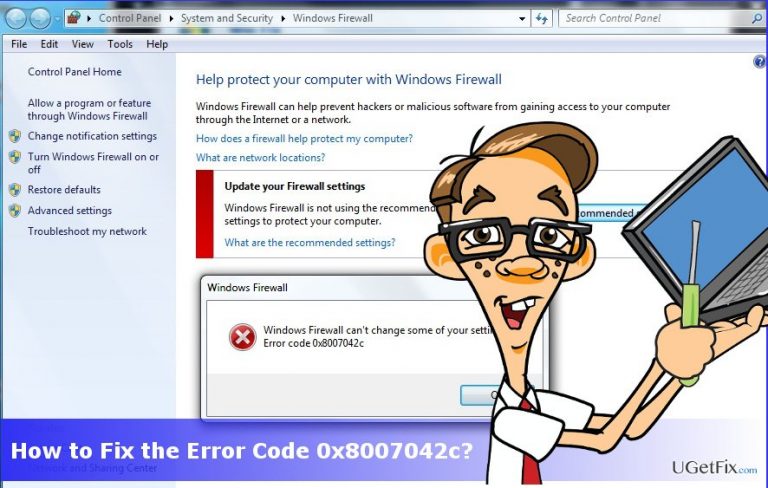
What causes How to Fix the Error Code 0x8007042c?
- Third-party anti-virus software
- Disabled Windows Firewall service
- Enabled EventLog service
- Software conflicts
- Blocking Windows Updates
Repairs Windows system files, removes malware, and restores a clean OS state — without reinstalling.
I keep on getting the error code 0x8007042c, which says that some network problems were detected or that I’m not connected to the network at all. But I AM connected and can browse the net normally except that I’m not allowed to modify settings on the system.
For the past two weeks, UGetFix research team members have noticed an increasing number of people’s complaints related to the error code 0x8007042c. While some of them claim that the bug prevents them from modifying Windows 10 Insiders from modifying system’s settings, the others face this problem when installing Windows Updates or random applications. No matter under what circumstances the 0x8007042c error shows up, it’s very irritating as it may not allow people to keep their PC’s up-to-date or customized according to their preferences. Windows 10 experts have already analyzed this issue and come up with a conclusion that the culprit is related to third-party anti-virus, disabled Windows Firewall service or enabled EventLog service. Luckily, the 0x8007042c error fixes are not difficult, so you can fix it manually. To start with, you should disable third-party anti-virus. If this method did not help, check if Windows Firewall service is enabled. If it has been disabled, you will have to enable it. Besides, UGetFix team found that many people managed to fix the 0x8007042c error by disabling the Windows EventLog service, so we will explain how to do that.
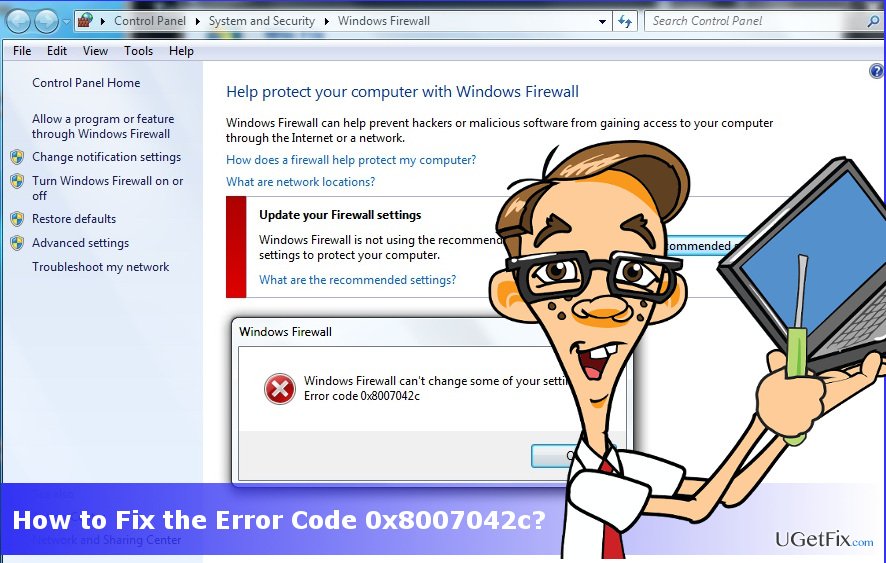
Solution 1. Disable your anti-virus
If you are using Windows Defender only, the chances that it is triggering the 0x8007042c error are very low. If, however, you are using a third-party antivirus software, it may be causing software conflicts, blocking Windows Updates or initiate other problems. Therefore, we would recommend you to disable it first and then, if the 0x8007042c error was fixed, uninstall it permanently.
- Open Task Manager by clicking Ctrl + Alt + Delete.
- Locate your anti-virus, click on its process, and select End Task.
- After that, click on its icon on the Toolbar and select Disable.
If these steps helped you to remove 0x8007042c error from Windows 10, we would strongly recommend removing the third-party anti-virus and relying on a more reputable tool. To uninstall it permanently, you can use software removal tool like [rev id="Perfect Uninstaller"] or perform the following steps:
- Right-click on Windows key and select Control Panel.
- Open Programs & Features applet and locate your antivirus.
- Click it and select Uninstall.
- After that, close Control Panel and open Windows Registry. For that, press Windows key + R, type regedit in the run, and press Enter.
- Type the name of your anti-virus in the Registry Editor’s search and delete all detected entries.
Solution 2. Enable Windows Firewall
- Press Windows key, type services.msc and press Enter.
- Find Windows Firewall service and right-click it.
- Select Properties and open Start-up type.
- Set it to Automatic.
- Find Services status and select Start.
- Finally, click OK and close everything.
Solution 3. Disable Windows EventLog service
- Press Windows key, type services.msc and press Enter.
- Look for the following services:
windows EventLog : running
Remote Procedure Call (RPC) :running
Windows Update :running - All these services have to be enabled and running. According to the people’s reports, EventLog service is often disabled for unknown reasons. To enable it, you should right-click on it, and select Start.
Finally, we would strongly recommend you to check the system for damaged registry entries, corrupted files, program leftovers, and malware. Run a scan with [d1] and let it fix all problems.
Bottom line
The error code 0x8007042c can be fixed by disabling third-party anti-virus software, enabling the Windows Firewall service, or disabling the Windows EventLog service. If these methods do not resolve the issue, further investigation may be needed.
Frequently asked questions
The error code 0x8007042c typically indicates that the Windows Firewall or another essential service is not running properly, which can prevent updates or other features from functioning correctly.
To fix the 0x8007042c error on Windows 10, you can try restarting the Windows Firewall service through the Services app or running the System File Checker to repair corrupted system files.
Yes, you can resolve error code 0x8007042c on Windows 11 by using the built-in troubleshooter for Windows Update or by resetting the network settings to restore connectivity.




Report an issue
What's wrong with this guide? We review every report and update or remove content.
Report received — thank you. We'll review and fix it.
You need a free account to submit a report.
Be the first to comment