How to fix
“The file can’t be found” when plugging in iPhone
on Windows
Resolve the "The file can't be found" error on Windows 10 or 11 when connecting your iPhone. Quick solutions with expert-tested tips!

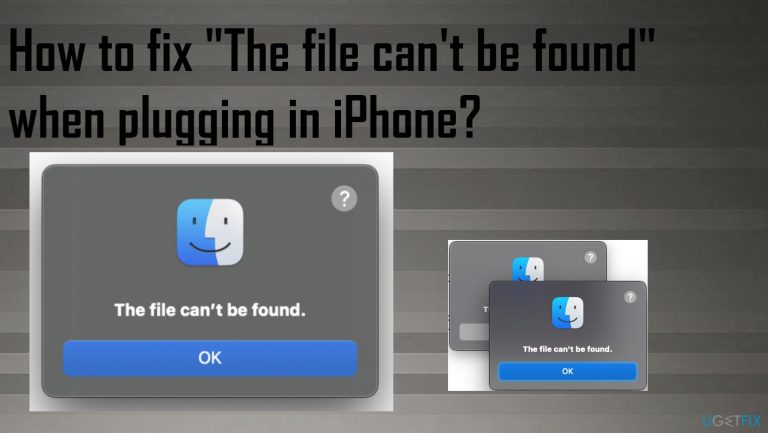
What causes How to fix “The file can’t be found” when plugging in iPhone?
- Connection failure between iPhone and Mac
- Recent macOS update causing bugs
- Multiple pop-ups due to a simple bug
- Temporary issue with USB connection
- No relation to malicious programs
Repairs Windows system files, removes malware, and restores a clean OS state — without reinstalling.
Hello. I get this "The file can't be found" error when I plug my iPhone into the computer via USB port. I think it is connected with the latest OS update, but other issues do not occur. The pop-up appears, and it can be closed. I find my device via Finder, but I would like to know how to fix this and why it is appearing in the first place.
"The file can't be found" is the pop-up that occurs when the connection between iPhone and a Mac computer fails. Users[ref en-1] connect this issue with the recent macOS[ref en-2] update, so the problem is common and occurs in various instances. It can be determined that this is not a crucial OS issue or bug because the device can be accessed via Finder, in most cases, even though the pop-up appears on the screen.
The error pop-up is not a serious trigger that would call crashes or different issues on the machine. It is not related to malicious programs or anything like that. Even though, Mac malware is a real thing.[ref en-3] "The file can't be found" when plugging in iPhone problem has some workarounds and can be fixed.
The first quick and obvious fix for the "The file can't be found" when plugging in iPhone pop-up is to close the error window and proceed with your day by finding the device other ways. Of course, this is a quick and simple way to work with the pop-up, but not the solution for the cause of the problem.
Some users get a few of these pop-ups, and that is annoying, but this macOS Big Sur update issue that keeps you from accessing files is a simple bug in the computer. When you try to connect the device via USB cable, it keeps appearing until the iPhone or different piece is disconnected.
You can fix "The file can't be found" when plugging in the iPhone problem, and the methods below show how. But if you have any additional issues with the performance, we recommend running a tool like [d1] to solve any other problems with the OS that may interfere with the solutions listed.
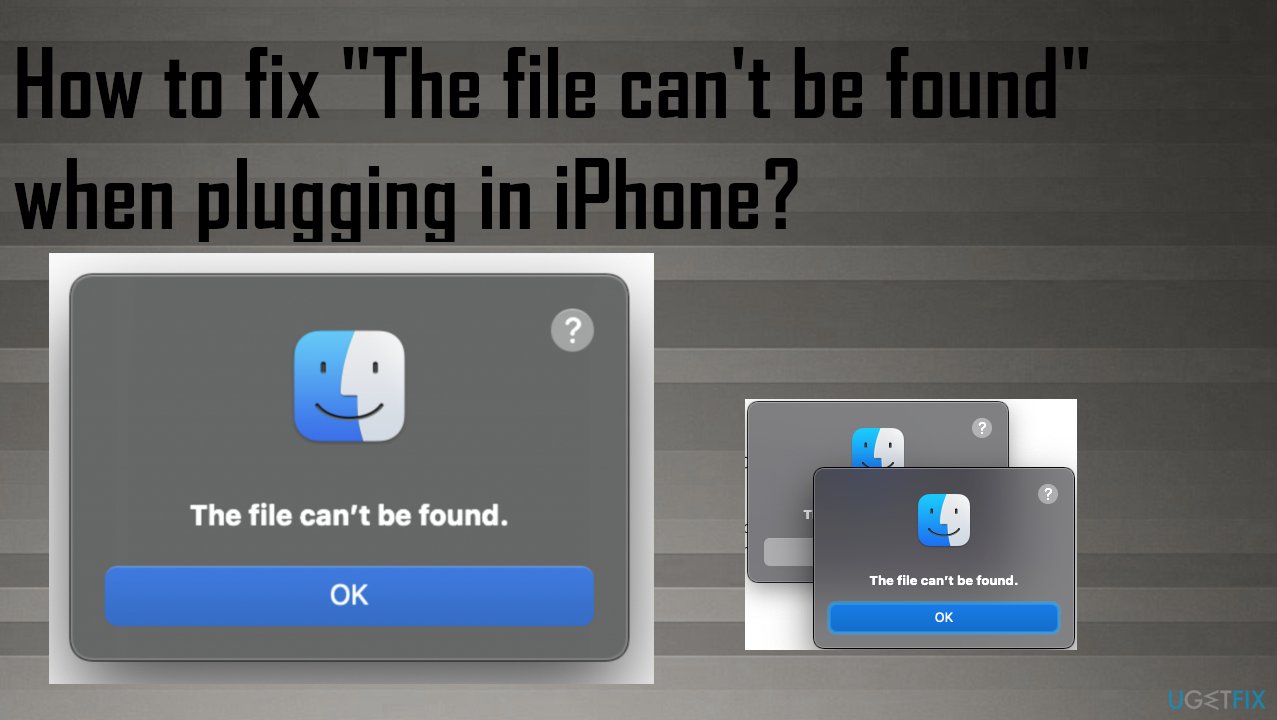
1. Check for the latest OS update to fix "The file can't be found" when plugging in iPhone
- Click the Apple to access the menu.
- Choose About this Mac and go for Software Update.
- If there is an update available – install it.
2. Edit Image Capture feature
- Open Image Capture by finding it in the Applications folder.
- Once the app launched, click three dots to open more.
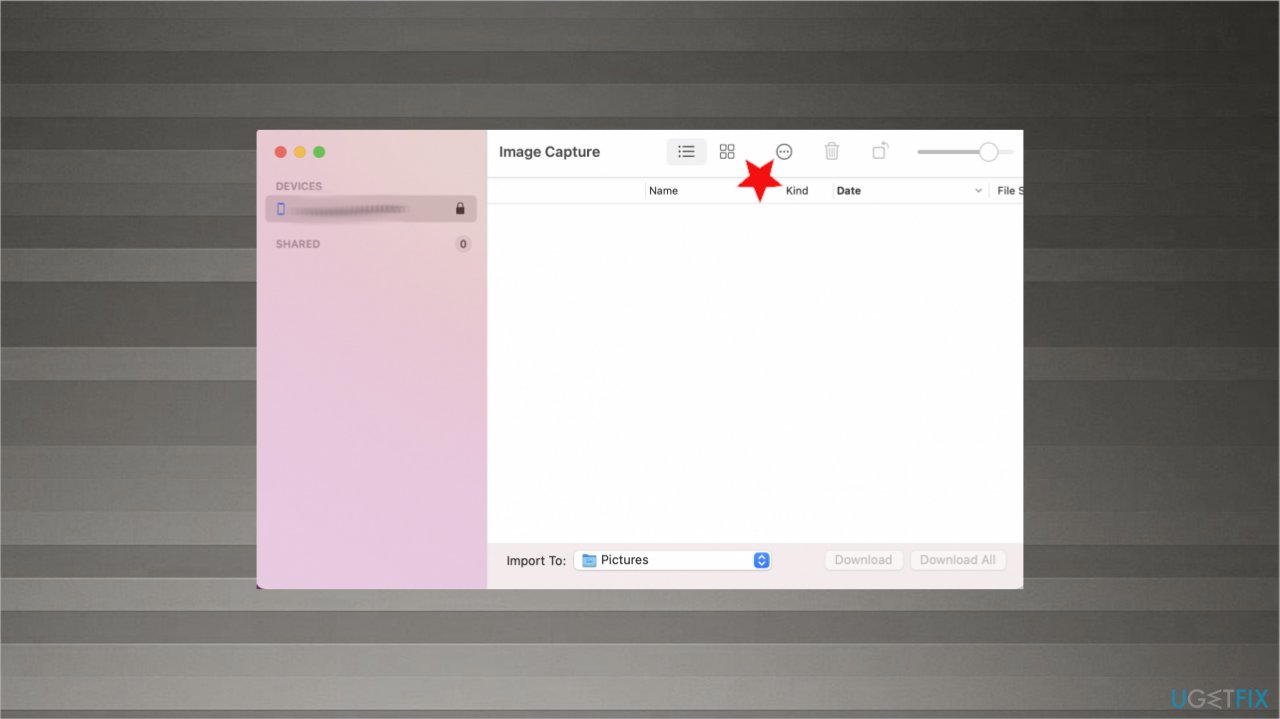
The file cant be found error fix more - You will see the drop-down menu and indication about connection.
- Choose Other.
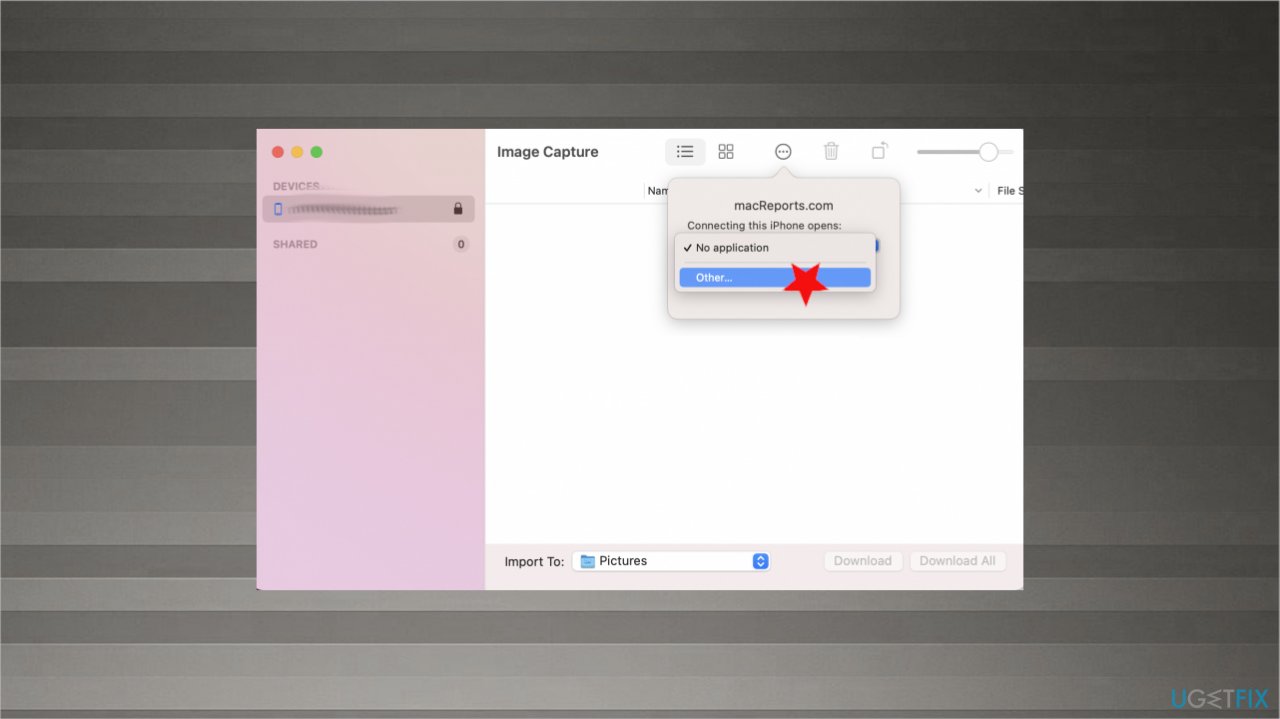
The file cant be found error fix other - Finder opens.
- You should see the Application shortcut. Click on it.
- Choose Image Capture.
- Quit Image Capture.
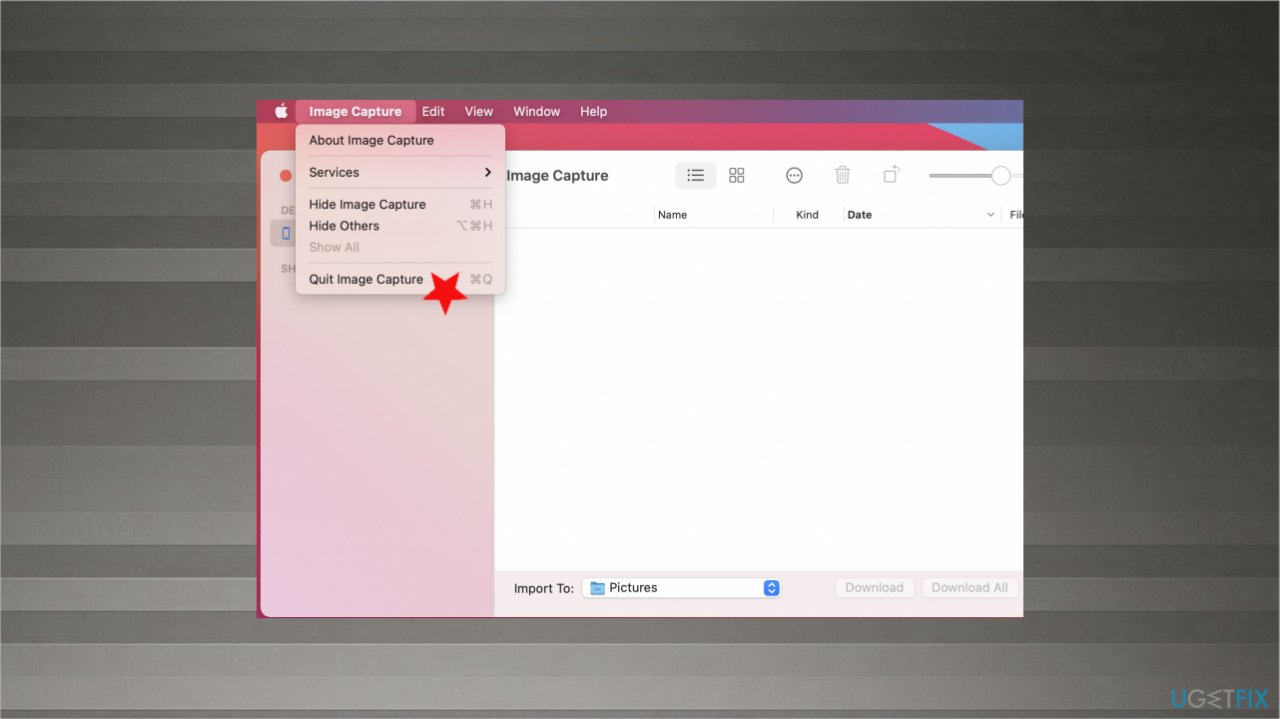
The file cant be found error fix quit - Disconnect the device and reconnect.
3. Stop Image Capture from opening itself
- Open Image Capture on Mac.
- Connect Your iPhone to Mac.
- From the Drop Down under the more button next to the Delete icon.
- Select “No Application“.
4. Reset the SMC to fix "The file can't be found" when plugging in iPhone
- Shut down the device.
- Hold Shift and Control buttons on your left keyboard side.
- Press and hold the Option button on the keyboard.
- Press the power button while holding all three buttons.
- Hold all of them for 10 seconds.
- Release and press the power button to turn the mac on.
5. Enter the Safe Mode
- Turn on your Mac.
- During the startup process, press and hold the Shift key.
- Release the key when you see the login screen.
- Find the Safe Boot option at the top-right.
- Log in to your Mac.
Bottom line
To fix the 'The file can't be found' error, you can close the pop-up and access your device through Finder. If the issue persists, consider checking your USB connection or looking for updates. If none of these solutions work, running a diagnostic tool may help resolve underlying performance issues.
Frequently asked questions
This error often occurs due to outdated drivers or issues with the iPhone's connection settings. Ensure your Windows 10 has the latest updates and try reinstalling the Apple Mobile Device USB Driver.
On Windows 11, check the USB cable and port for damage, and ensure that your iPhone is unlocked and trusted by your PC. You may also want to reset the location and privacy settings on your iPhone.
First, verify that your iPhone is recognized in File Explorer; if not, try disconnecting and reconnecting the device. If the problem persists, consider updating iTunes or using the Windows troubleshooter for hardware and devices.




Report an issue
What's wrong with this guide? We review every report and update or remove content.
Report received — thank you. We'll review and fix it.
You need a free account to submit a report.
Be the first to comment