How to fix
The Finals error code TFLA0002
on Windows
Resolve The Finals error code TFLA0002 effortlessly on Windows 10 and 11. Get quick fixes and expert-tested solutions for smooth gameplay!

What causes How to fix The Finals error code TFLA0002 in Windows?
- Connectivity Issues
- Game Server Downtime
- Local Network Problems
- Corruption of Game Files
- Malfunctioning Drivers
Repairs Windows system files, removes malware, and restores a clean OS state — without reinstalling.
I tried to play The Finals yesterday, but I kept getting the TFLA0002 error code. I thought this was a temporary thing, so I tried it today, and the error keeps showing up, preventing me from launching the game. Is there anything I can do to bypass this and launch the game as usual?
The Finals is one of the latest highlights in gaming. Developed by Embark Studios and released on December 8, 2023, this first-person shooter heavily focuses on combat, teamplay, and destructible terrain, giving players much freedom during gameplay. While the game faced some criticism for poor frame rate during beta testing and the use of AI text-to-speech features instead of using real voice actors, it was overall positively received.
Despite this, some users face issues - one of which is The Finals error code TFLA0002, which typically shows up when attempting to log into the game, displaying the following message:
Connection Failed. Your login attempt failed. Please try again. Error code TFLA0002.
Unfortunately, simply retrying often does not resolve the issue, leaving players unable to enter the game servers.
The root causes of the TFLA0002 error are generally related to connectivity issues, including problems with the game's servers, such as unexpected downtimes or maintenance periods, to local network problems on the player's end. In rarer cases, the issue may lie with the corruption of game files or malfunctioning drivers.
Several things can be done to fix The Finals TFLA0002 error. Checking whether the game's servers are online is a good starting point, as this is the most likely reason for this error - you need to simply wait it out if the servers are down. If they are indeed in working order, you should then check the local network settings and ensure your internet connection is stable.
If that still does not work, verifying the integrity of game files or updating drivers might be a solution. Keep in mind that there is no one solution for everyone, so keep going through the steps below until you find one that works for you. Before proceeding, we recommend checking out [d1] repair software for Windows, which can repair many of the underlying OS issues automatically.
Fix 1. Check the server status
Your first task should be finding out whether this issue is related to the game's servers being down. Since The Finals is relatively new, it does not have a dedicated page for server status as of yet. However, you can check the status in one of the following ways:
- Follow The Finals subreddit.
- Check the official X/Twitter account.
- Join the official Discord channel.
You can use a few methods to be sure, but usually one of these is enough. Typically, maintenance lasts for a few hours and usually involves patching the game. Once this process is complete, you will be asked to download and install the latest patch to be able to play the game. Note that occasional unplanned issues, such as a cyberattack, can also affect game servers.
Fix 2. Run Network troubleshooter
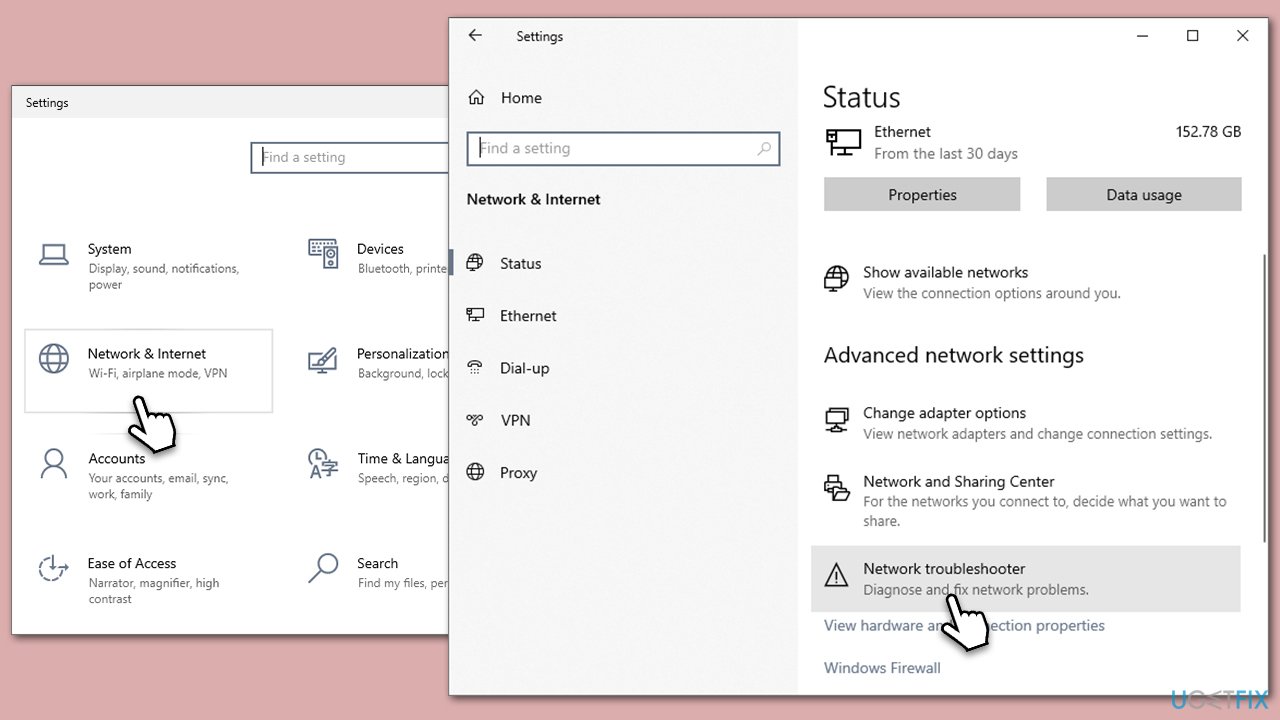
Troubleshooters are excellent tools that can ease the remediation process of various Windows issues. When dealing with network issues, you should employ a Network troubleshooter as follows:
- Right-click on the Start button and select Settings.
- Go to the Network & Internet section.
- Here, locate the Advanced network settings section.
- Click the Network troubleshooter to run it.
- Wait for the results to show up and apply the suggested fixes.
Fix 3. Disable third-party antivirus and check VPN software
To fix The Finals TFLA0002 error, it's important to consider the effects of antivirus and VPN software. Antivirus programs, designed to block threats, might mistakenly stop the game from connecting to its servers. VPNs, which change your internet route for privacy, can also cause connection issues. However, sometimes using a VPN can help, especially if the problem is with local servers or internet providers.
Fix 4. Reset your internet connection
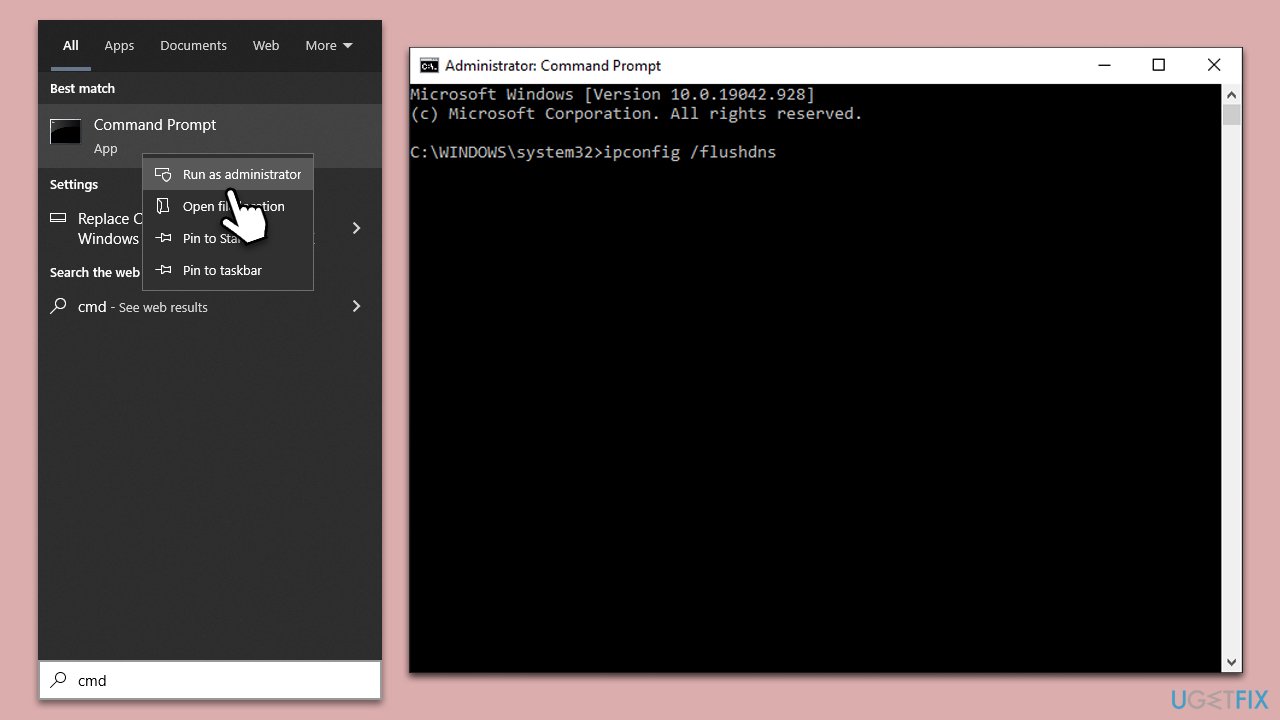
You can run several commands via elevated Command Prompt in order to reset your internet connection.
- Type in cmd in Windows search.
- Right-click on Command Prompt and select Run as administrator.
- User Account Control will ask you whether you allow making changes to the system - click Yes.
- Copy and paste each of the following commands, pressing Enter after each:
ipconfig /flushdns
ipconfig /registerdns
ipconfig /release
ipconfig /renew
netsh winsock reset - Restart your computer.
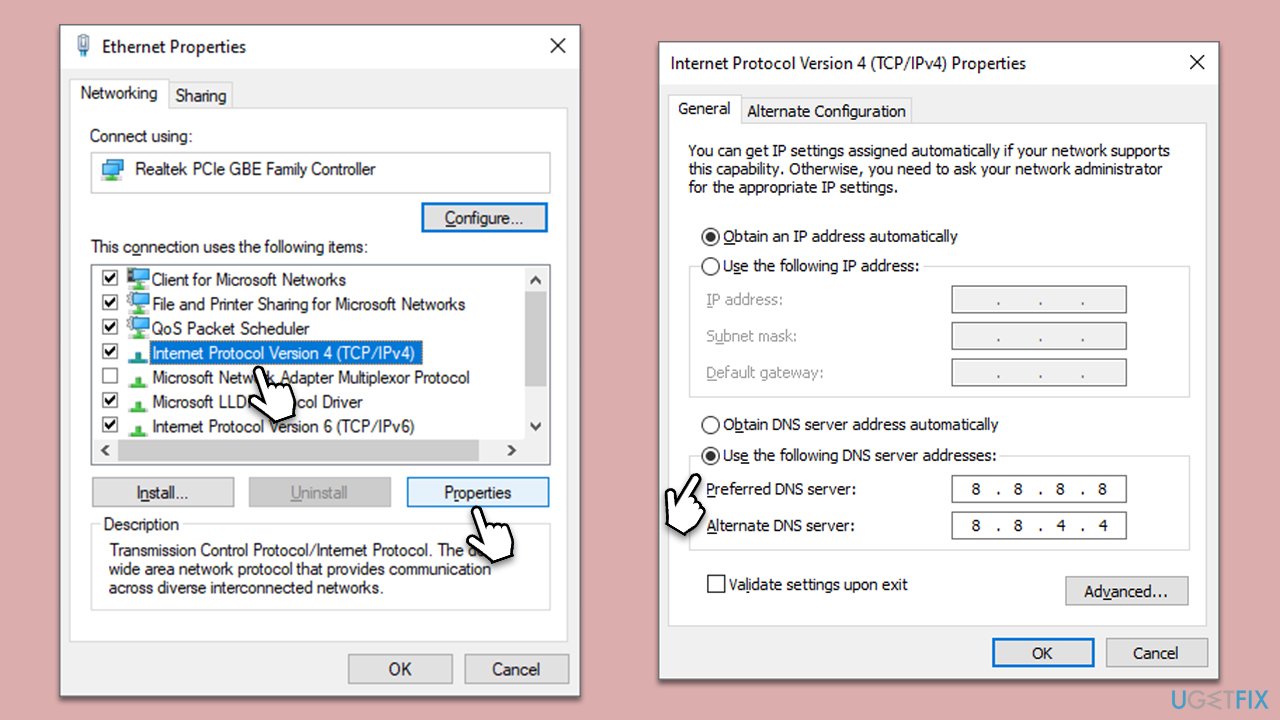
Fix 5. Change DNS
Changing DNS might connect you to a more efficient or reliable server, improving your internet connection and communication with the game's servers. You can use Google's DNS, which is reliable and free.
- Right-click on Start and select Settings.
- Go to the Network and Internet section.
- Click on Change adapter options.
- Right-click on your internet connection and pick Properties.
- Click Internet Protocol Version 4 (TCP/IPv4) once and go to Properties
- Select Use the following DNS server addresses option and set your DNS to Google's:
Preferred DNS server: 8.8.8.8
Alternate DNS server: 8.8.4.4 - Click OK.
Fix 6. Update GPU drivers
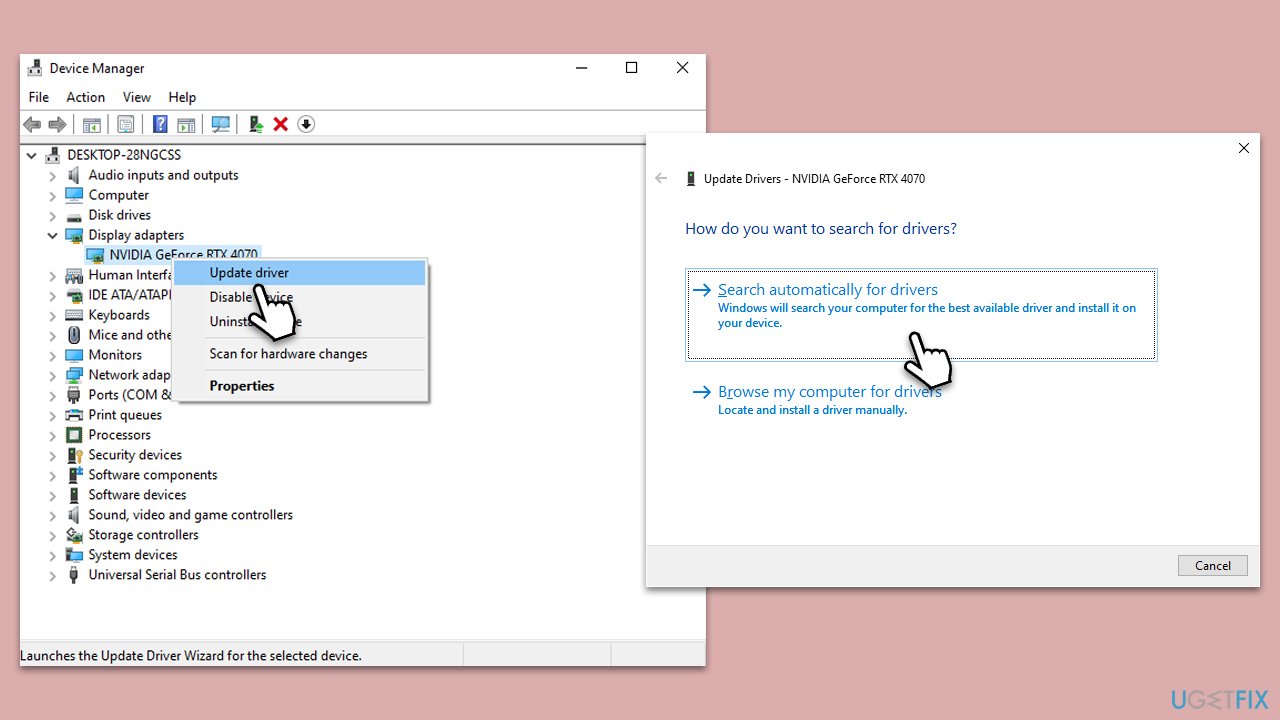
Video drivers are extremely important when it comes to gaming, so make sure they are updated. For a quick solution, you can always rely on automatic tools such as [rev id="DriverFix"].
- Right-click on Start and pick Device Manager.
- Expand the Display Adapters section.
- Right-click on your graphics card and select Update Driver.
- Select Search automatically for drivers and wait.
- Once done, restart your computer.
Fix 7. Verify the integrity of game files
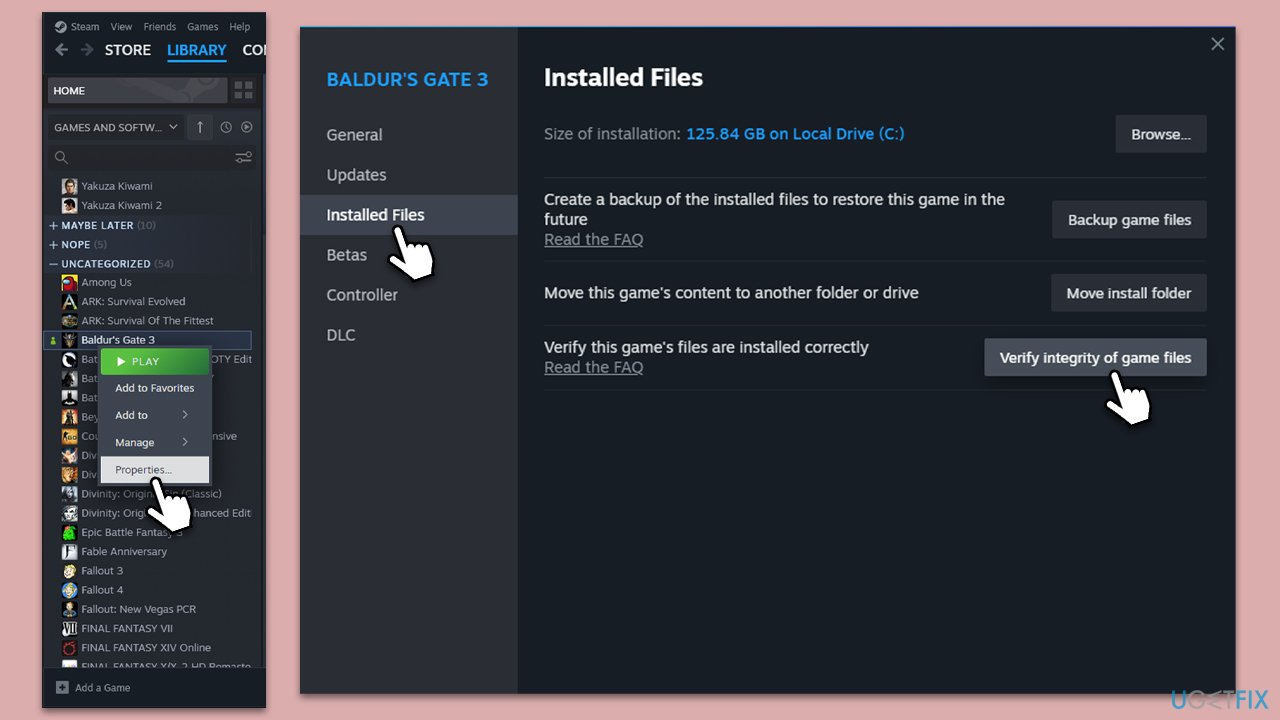
Lastly, try verifying the integrity of game files via Steam.
- Open Steam.
- Go to your game Library and right-click on The Finals.
- Select Properties and go to the Installed Files tab.
- Click on Verify integrity of game files and wait for the process to complete.
- Try launching the game as usual.
Bottom line
To fix The Finals error code TFLA0002, start by checking if the game servers are online. If the servers are operational, verify your local network settings and ensure your internet connection is stable. If issues persist, consider verifying the integrity of game files or updating your drivers; if none of these solutions work, continue troubleshooting until the issue is resolved.
Frequently asked questions
The error code TFLA0002 typically indicates a connection issue or server problem affecting the game's ability to launch properly on Windows systems.
To resolve the TFLA0002 error, ensure your network connection is stable, and try restarting your router or switching to a wired connection if possible.
Yes, check your firewall and antivirus settings to ensure that The Finals is allowed through, as these can block the game's connection and trigger the TFLA0002 error.




Report an issue
What's wrong with this guide? We review every report and update or remove content.
Report received — thank you. We'll review and fix it.
You need a free account to submit a report.
Be the first to comment