How to fix
“The folder can’t be displayed” error in OneDrive
on Windows
Resolve "The folder can’t be displayed" error in OneDrive for Windows 10/11 effortlessly. Follow our expert-tested solutions for quick fixes.


What causes How to fix “The folder can’t be displayed” error in OneDrive?
- Connectivity problems
- Issues with the OneDrive app
- Outdated OneDrive version
- Windows app troubleshooter not run
- Internet connection issues
Repairs Windows system files, removes malware, and restores a clean OS state — without reinstalling.
OneDrive gives me an error that tells “The folder can’t be displayed” and I cannot access any of my files. I restarted my computer and tried a couple of times again. However, nothing has helped!
“The folder can’t be displayed” is an error message that might be delivered when you try to access a specific folder on OneDrive.[ref en-2] Judging from the user’s reports, the majority of people who have encountered this error are Windows 10 users.[ref en-3] However, there’s no information that this issue cannot be encountered on older OS versions.
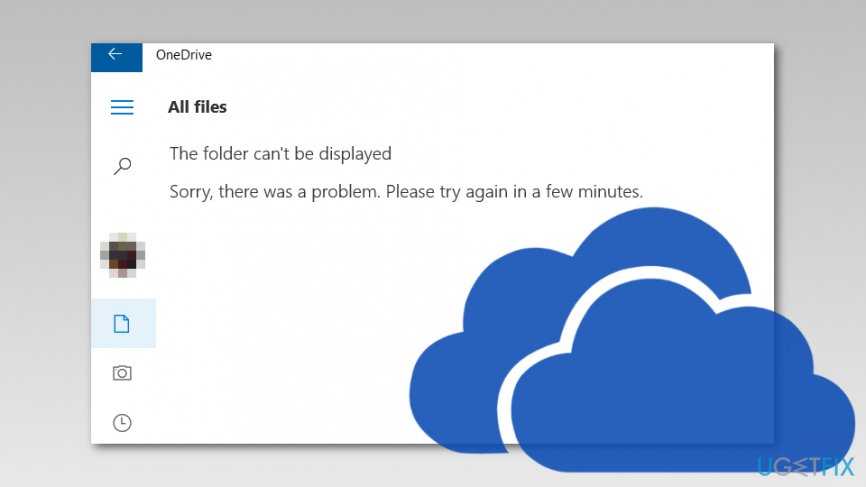
When trying to access a folder on OneDrive, users just see a blank page and an error message:
The folder can’t be displayed
Sorry, there was a problem. Please try again in a few minutes.
Often “The folder can’t be displayed” OneDrive error is triggered by connectivity problems. It’s a UWP app which requires an internet connection to operate properly. Hence, if you are not connected to Wi-FI or your cable connection was disturbed, you might not be able to access folders on OneDrive.
Methods to fix “The folder can’t be displayed” error in Windows 10
Below you can find methods that should help to fix this OneDrive error in Windows 10. However, before you start, you have to make sure that your internet connection is proper. If you are using Wi-Fi, you should connect using a cable (or opposite). OneDrive is UWP app[ref en-1] that requires an internet connection to operate properly.
However, if your connection is perfect and the error persists, you should try these methods:
Method 1. Run Windows troubleshooter for apps
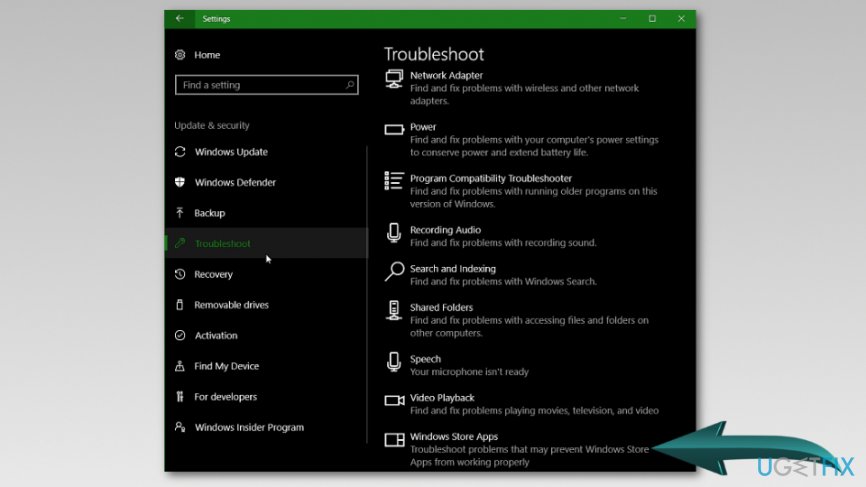
Windows app troubleshooter helps to fix various problems with apps installed from Microsoft Store. Therefore, this built-in tool might help to solve “The folder can’t be displayed” error too. Follow these steps:
- Right-click Start.
- Choose Settings.
- Navigate to Update & Security.
- Choose Troubleshoot which is located in the left pane.
- At the end of the page, you should find Windows Store apps troubleshooter option. Expand it.
Run windows troubleshooter for apps - Click Run the troubleshooter button.
- Windows should find the solution and fix it automatically.
Method 2. Update OneDrive
Updates quite often cause problems and make programs crash. Therefore, this OneDrive error may have occurred due to the available updates. Follow these steps to update the app:
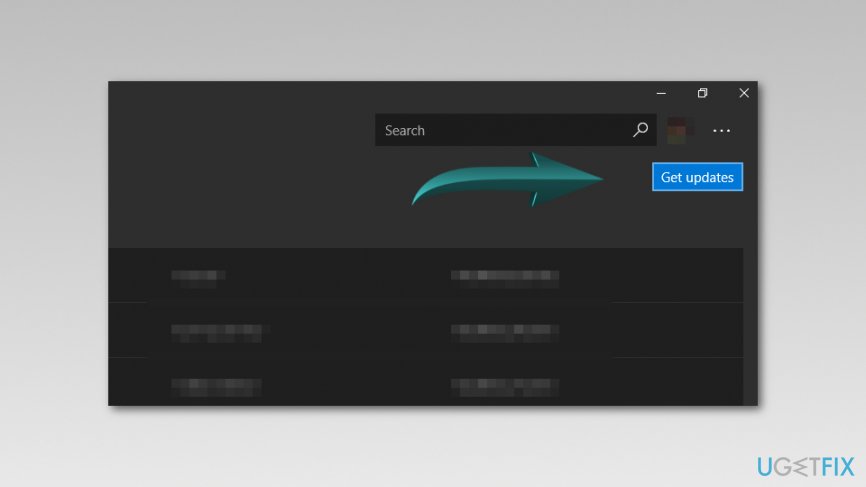
- Open Microsoft Store.
- Click on the three-dot menu.
- Choose Download and updates option.
- Click Get updates button.
Update onedrive - Wait until installation finishes and check if the error comes back.
Method 3. Sign out and sign in to your OneDrive account
Logging out from your OneDrive account and logging in again is one of the easiest methods to fix “The folder can’t be displayed” error in Windows 10. Follow these steps:
- Open OneDrive.
- Click on the menu icon and expand its options.
- Click Accounts to see your OneDrive (or Microsoft) account.
- Choose Sign out.
- Close program and open it again.
- Follow the previous steps and sign in using your username and password.
Method 4. Uninstall and reinstall OneDrive
If none of the methods helped to fix “The folder can’t be displayed” error, there’s nothing else left to do, just reinstall the app. Follow these steps to uninstall OneDrive from your Windows computer:
- Open the Settings app by clicking Windows key + I.
- Click on the Apps in the menu.
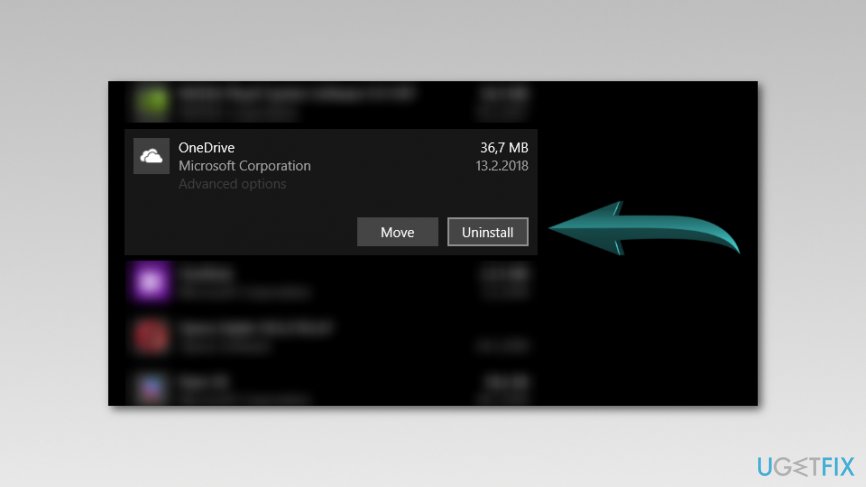
- Under the Apps and features section, you have to find OneDrive.
- Click on it and hit Uninstall button.
Uninstall onedrive
After uninstallation, you might need to reboot your computer. Then you have to open Microsoft Store, find OneDrive and install it again.
Bottom line
To fix the 'The folder can’t be displayed' error in OneDrive, ensure your internet connection is stable, run the Windows troubleshooter for apps, and update OneDrive. If these methods do not resolve the issue, consider checking for additional connectivity problems or reinstalling the OneDrive app.
Frequently asked questions
You can try resetting OneDrive by pressing Windows + R, typing 'onedrive.exe /reset', and hitting Enter. If that doesn't work, check for Windows updates and ensure your OneDrive app is up to date.
Open OneDrive settings by right-clicking the OneDrive icon in the taskbar, then select 'Settings' and check the 'Account' tab to see if your files are properly syncing. If not, you may need to re-link your account.
Yes, you can right-click the affected folder in OneDrive, select 'Properties', go to the 'Security' tab, and ensure your user account has the necessary permissions. Adjust permissions if needed and apply the changes.




Report an issue
What's wrong with this guide? We review every report and update or remove content.
Report received — thank you. We'll review and fix it.
You need a free account to submit a report.
Be the first to comment