How to fix
“The function attempted to use a name that is reserved” error 0x80071A90
on Windows
Resolve the "function attempted to use a name that is reserved" error 0x80071A90 in Windows 10 or 11 easily. Expert-tested solutions available!

What causes How to fix “The function attempted to use a name that is reserved” error 0x80071A90 in Windows?
- Lack of disk space
- Corrupted system files
- Locked system files
- Problems with Windows Update
- Issues with System Restore
Repairs Windows system files, removes malware, and restores a clean OS state — without reinstalling.
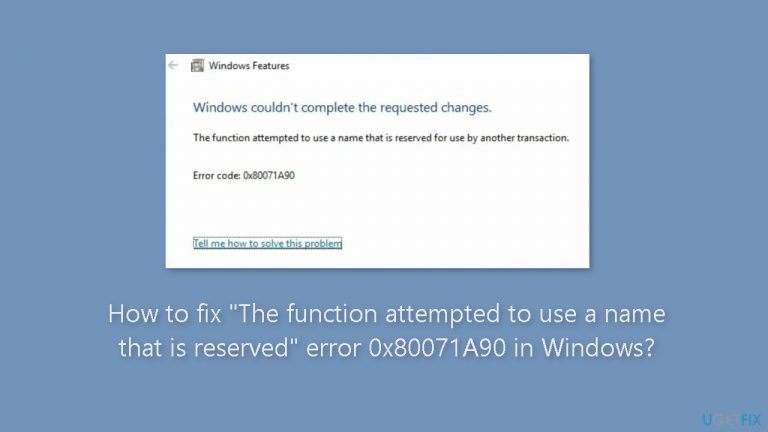
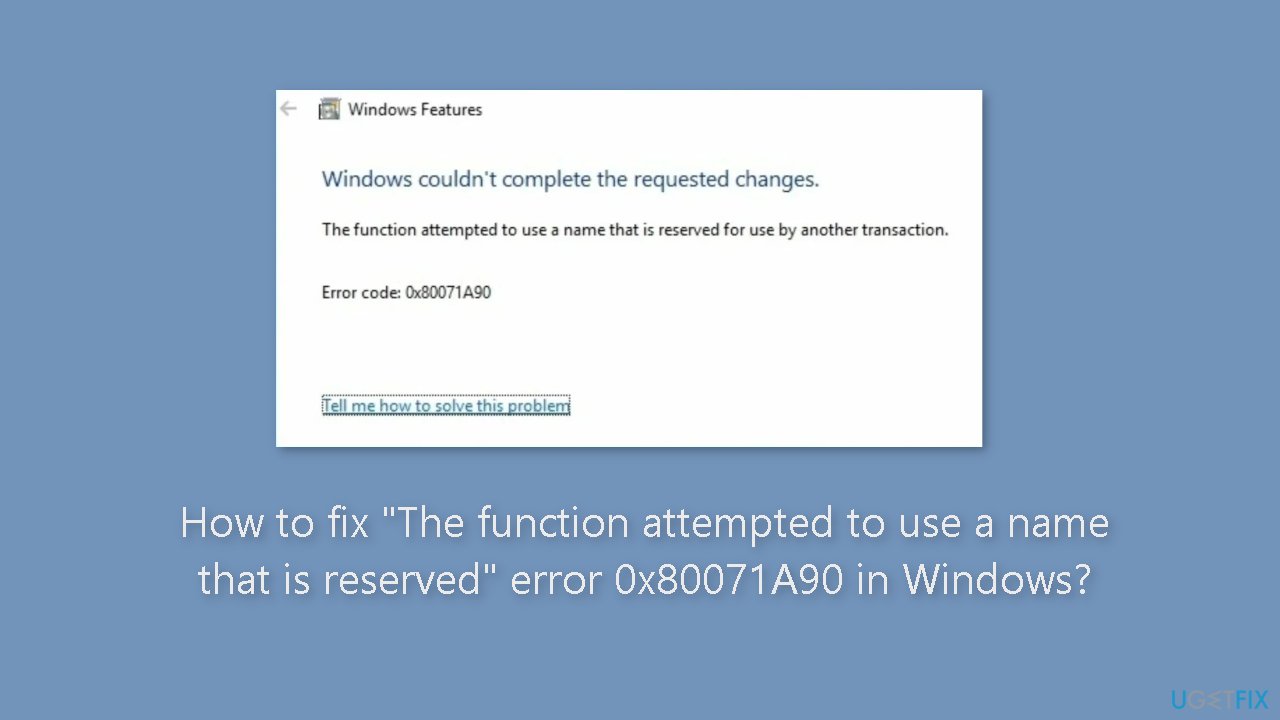
Hello. I tried to enable Hyper-V but I received a message - "Windows couldn’t complete the requested changes. The function attempted to use a name that is reserved for use by another transaction. Error code: 0x80071A90". How can I fix this?
Error 0x80071A90 is a message that Windows users may receive when attempting to enable Hyper-V,[ref en-1] install the .NET Framework, or enable any Windows feature. This error message indicates that "The function attempted to use a name that is reserved."
This error could be caused by a lack of disk space, corrupted or locked system files, or problems with Windows Update or System Restore. If the problem is not resolved, users might struggle to enable or use certain Windows features and applications, affecting their productivity and ability to use their computers effectively.
Depending on the cause of the error, users may need to take several steps to resolve this issue. Freeing up disk space, running a system file checker to repair any corrupted system files, disabling third-party antivirus software, or running the Windows Update troubleshooter are all possible solutions. Users may need to reset Windows components or perform a clean boot in some cases to identify and resolve conflicts with third-party applications.
In this guide, you will find 7 steps that should help you fix "The function attempted to use a name that is reserved" error 0x80071A90 in Windows. You can also use a system repair tool like [d1] that can fix most system errors, BSODs,[ref en-2] corrupted files, and registry[ref en-3] issues. Otherwise, follow the step-by-step instructions below.
Method 1. Fix Corrupted System Files
Use Command Prompt commands to repair system file corruption:
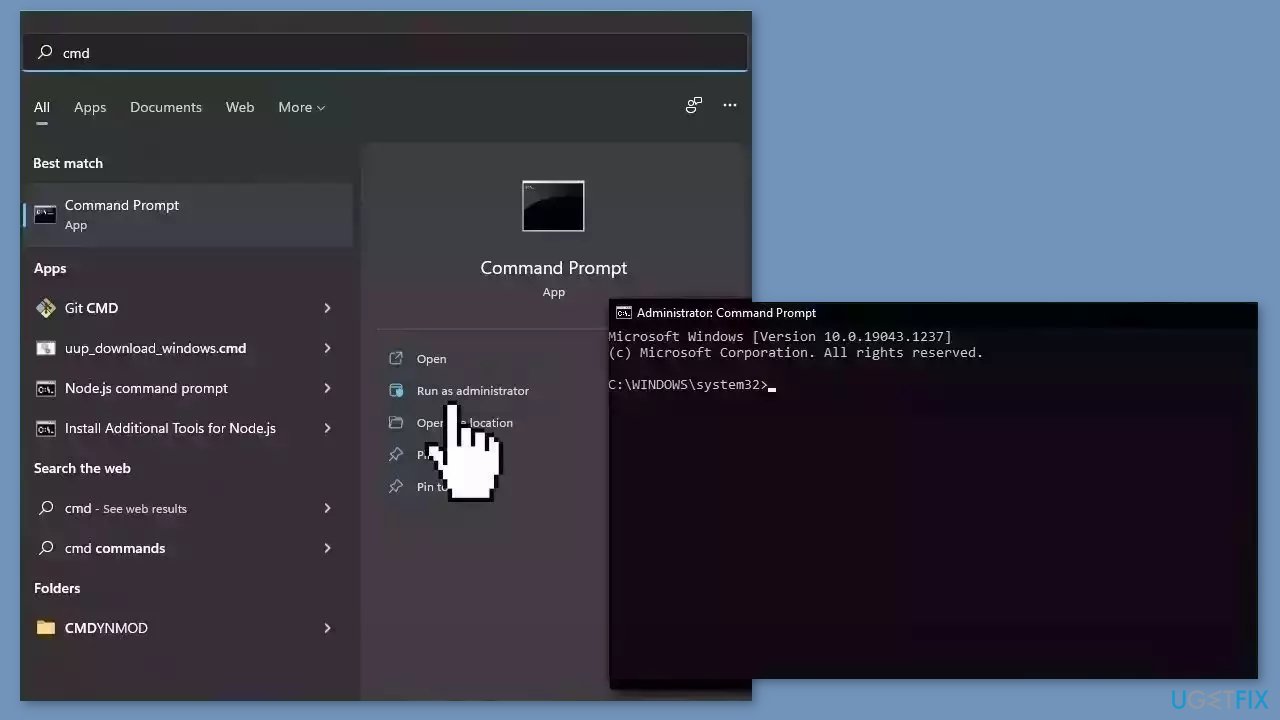
- Open Command Prompt as administrator
- Use the following command and press Enter:
sfc /scannow
- Reboot your system
- If SFC returned an error, then use the following command lines, pressing Enter after each:
DISM /Online /Cleanup-Image /CheckHealth
DISM /Online /Cleanup-Image /ScanHealth
DISM /Online /Cleanup-Image /RestoreHealth
Method 2. Disable Third-Party Antivirus
If you encounter error code 0x80071a90 while updating Windows Feature, it could be due to third-party antivirus software. To resolve this, you should temporarily disable any antivirus software and confirm that there is sufficient space on your storage disk.
Method 3. Run Windows Update Troubleshooter
- Press the Windows key + I to open the Settings app.
- Select Update & Security from the Settings window.
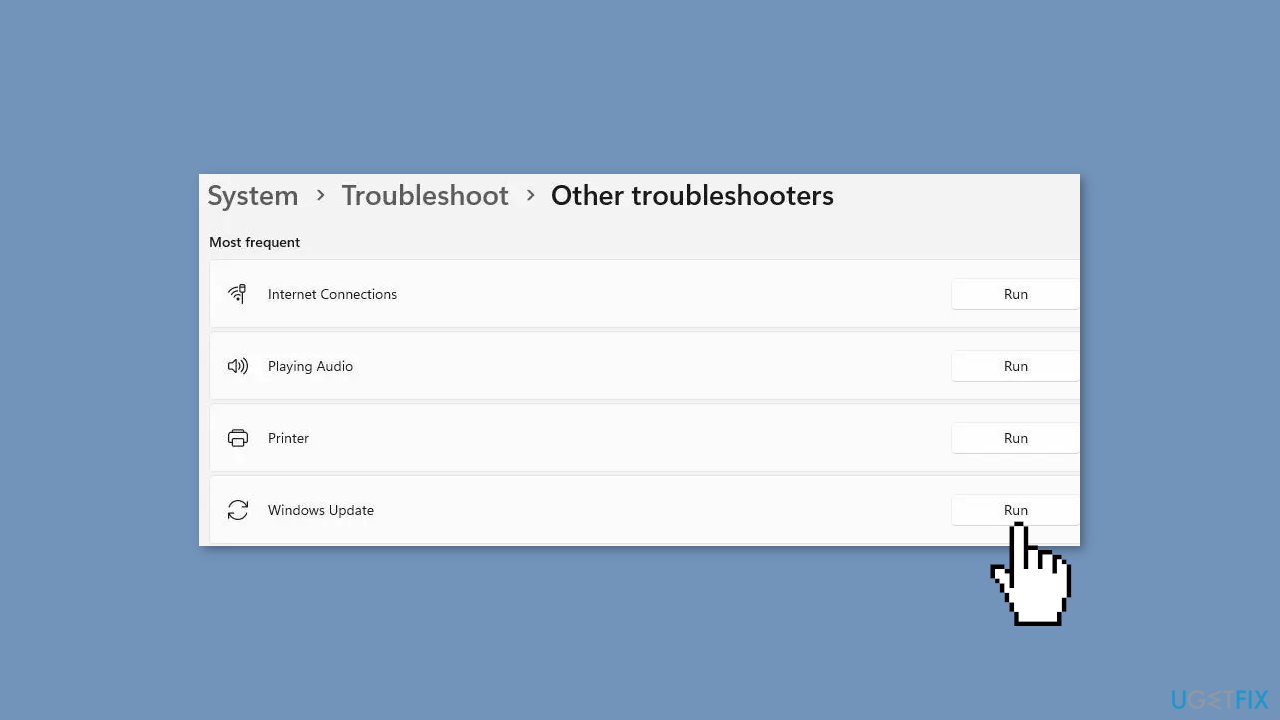
- On the left side of the screen, click on Troubleshoot and then select Additional troubleshooters.
- Find the Windows Update troubleshooter and expand it.
- Choose to Run the troubleshooter.
- If the troubleshooter is unable to fix the issue, it will provide further instructions on what to do.
- Follow the on-screen directions to resolve any unresolved issues.
- Once the troubleshooting is complete, reboot your computer.
- Check if the issue has been resolved.
Method 4. Disconnect Peripherals
Disconnecting peripherals can help solve the problem because external devices can sometimes interfere with the update process. A faulty USB device or external hard drive, for example, may cause errors when updating Windows. Disconnecting all peripherals, including printers, scanners, external hard drives, USB drives, and other devices, can prevent these devices from interfering with the update process.
Method 5. Use Disk Cleanup
- Type disk cleanup in the search box and select Open in the search results. Alternatively, you can open the Disk Cleanup tool by pressing the Windows key + R, typing cleanmgr, and then hitting Enter on your keyboard.
- Choose the drive you want to free up and select OK.
- Tick the boxes next to the files you want to remove and select OK.
- If you want to clean up system files, select Clean up system files. This will free up unnecessary files from your Windows system.
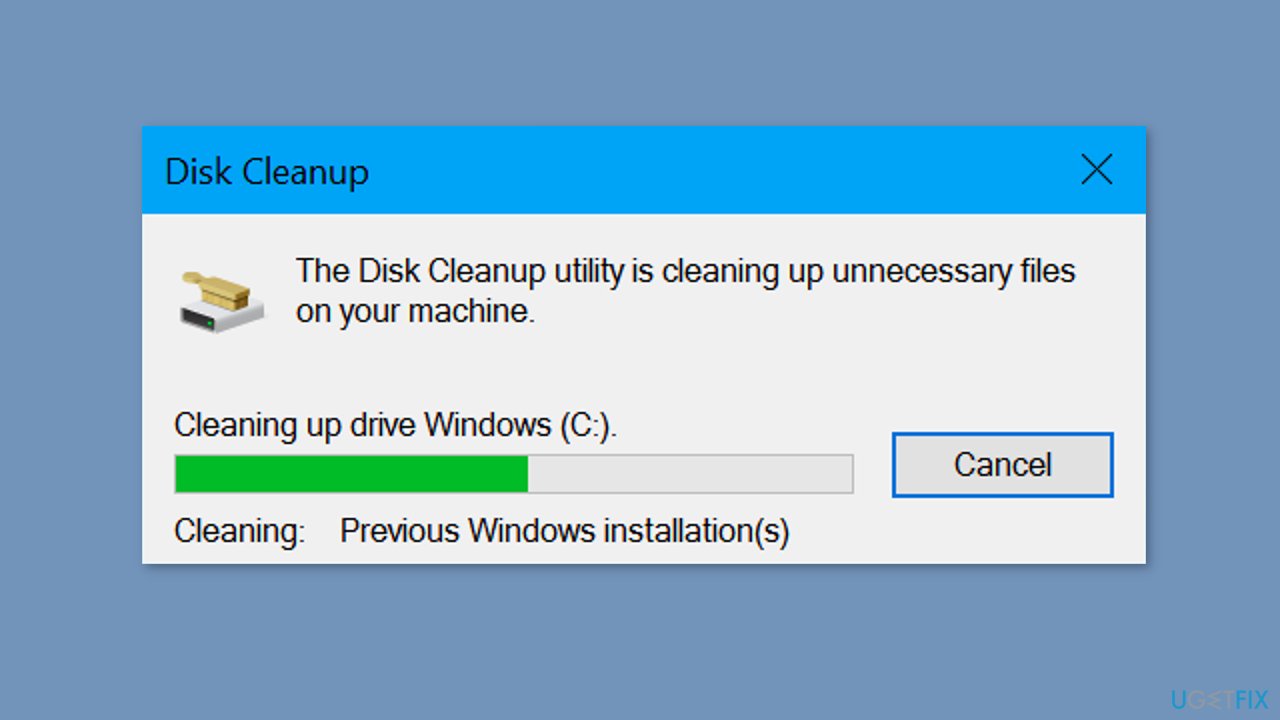
- A message pop-up will appear; select Delete files.
Method 6. Rebuild the WMI Repository
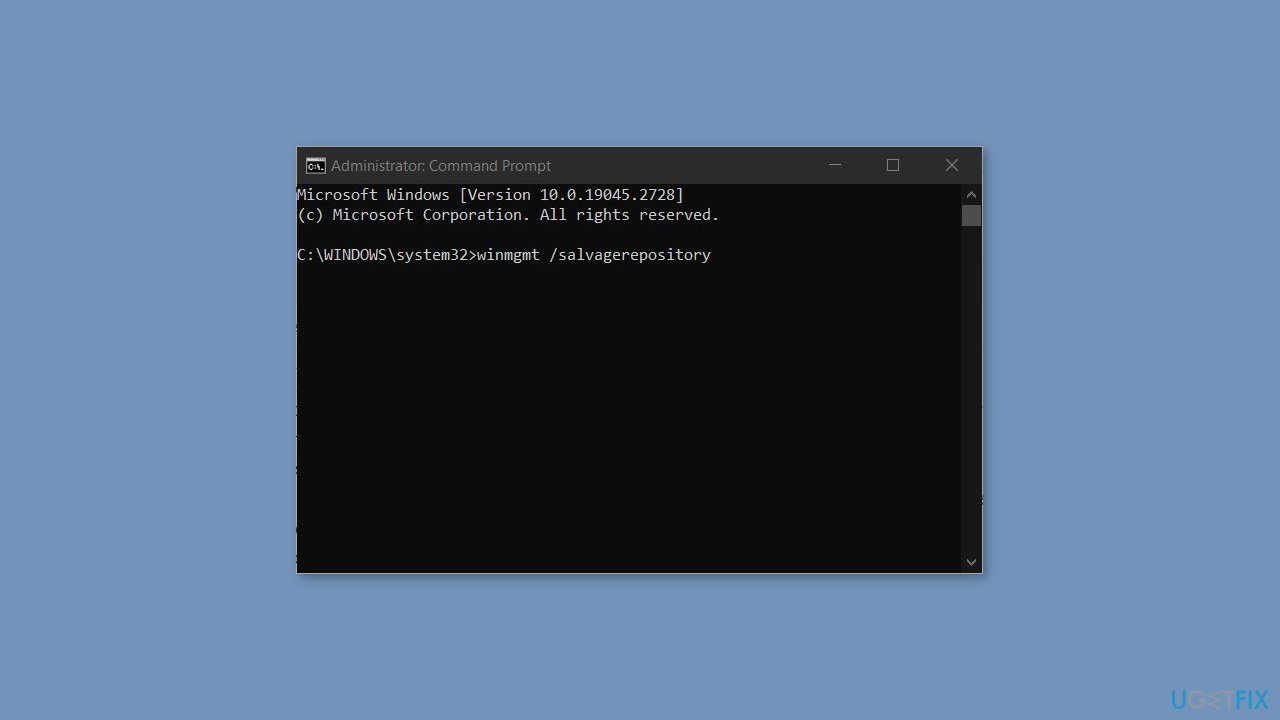
- Open the Command Prompt as an Administrator.
- Copy and paste the following commands one by one and press Enter:
winmgmt /salvagerepository
winmgmt /verifyrepository
winmgmt /resetrepository
Method 7. Enable the Windows Feature in Clean Boot State
- Open the Run dialog box by pressing the Windows key + R.
- Type msconfig and press Enter on your keyboard to open System Configuration.
- In the new window, select Services.
- Tick the box next to Hide all Microsoft Services.
- Select Disable all and then click OK.
- Go to Startup and select Open Task Manager.
- Right-click on each third-party program and select End Task.
- Restart your computer and check if the issues have been fixed.
- Once in Clean Boot State, type Windows Feature in the search box and select Open.
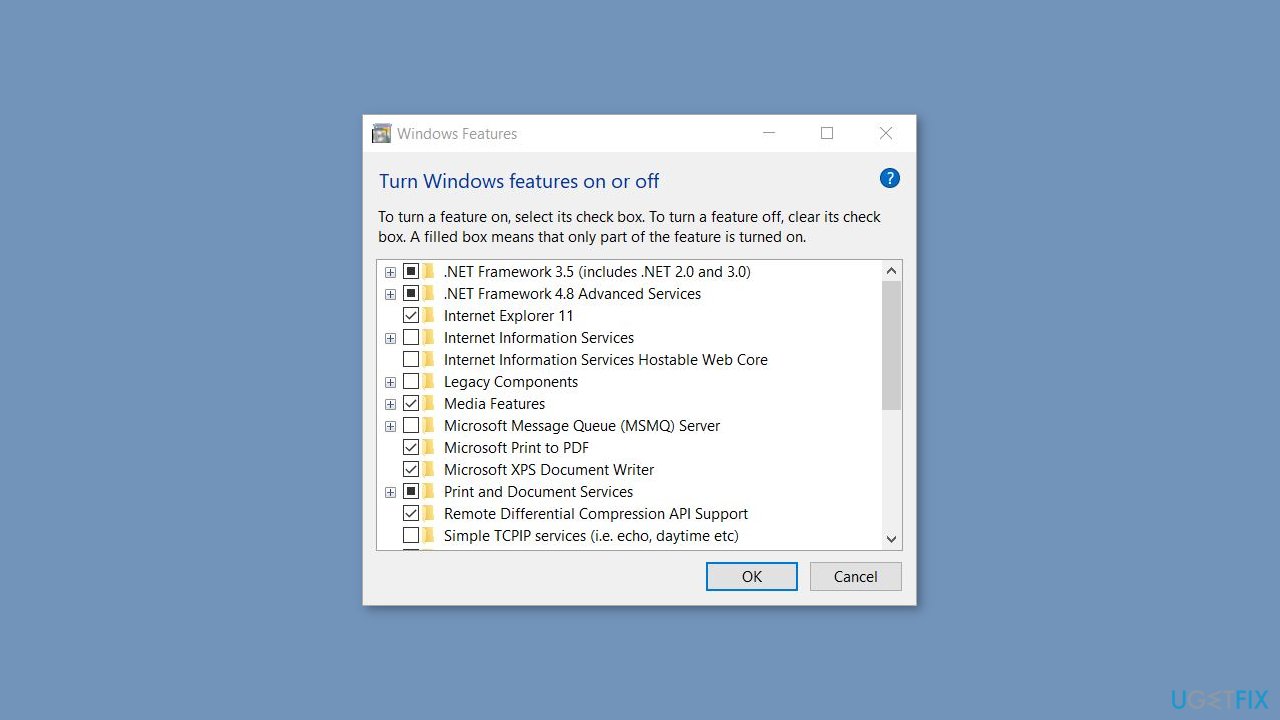
- In the new small window, locate the Windows Feature you want to enable and tick the box next to it.
- Follow the on-screen directions to complete the process.
Bottom line
To fix the error 0x80071A90, you can try freeing up disk space, running a system file checker, disabling third-party antivirus software, or using the Windows Update troubleshooter. If these steps do not resolve the issue, consider resetting Windows components or performing a clean boot to identify conflicts.
Frequently asked questions
The error 0x80071A90 typically occurs due to issues with the file system or reserved names being used in the system, often linked to corrupted files or improper updates.
To resolve this error on Windows 11, you can run the System File Checker tool by opening Command Prompt as an administrator and executing the command 'sfc /scannow'.
In Windows 10, you can try performing a disk check by using the command 'chkdsk /f /r' in an elevated Command Prompt to fix any underlying file system issues.




Report an issue
What's wrong with this guide? We review every report and update or remove content.
Report received — thank you. We'll review and fix it.
You need a free account to submit a report.
Be the first to comment