
How to fix "The group or resource is not in the correct state" error on Windows

Prefer to fix it yourself? The manual steps follow.
- 8methods
- 5 to 60 minutes
- Intermediate
Applies to Windows 11 and Windows 10 PCs where explorer.exe, a desktop app, the Microsoft Store or a Store app shows the message
8 methods in this guide
Hello. I tried to open the Microsoft Store, but I received a message: "The group or resource is not in the correct state." What does this mean?
This message is Windows error 5023, ERROR_INVALID_STATE (0x8007139F): a program asked Windows for something that was not ready, so the request was refused. It is not a disk or hardware fault. Start by restarting Windows Explorer and then the PC with Restart, not Shut down.
A program or Windows Explorer asked Windows to do something while the object it needed was in the wrong state, and Windows refused. If the box is titled explorer.exe, restart Windows Explorer in Task Manager, then restart the PC with Restart (Fix 1 and Fix 2). If one app shows it, update or repair the Microsoft Edge WebView2 Runtime and the app (Fix 4).
| Error | The group or resource is not in the correct state to perform the requested operation. |
|---|---|
| Where it appears | In an error box titled explorer.exe after sign-in, when a desktop app or the Microsoft Store opens, and inside apps built on Microsoft Edge WebView2. |
| Main cause | A Windows component or app was stuck in a half-started or half-closed state: after an unfinished update, a crashed Explorer, or a faulty WebView2 Runtime. |
| Fastest fix | Restart Windows Explorer (Fix 1), then a full Restart of the PC (Fix 2). |
| Also written as | 0x8007139F, 0x139F, error 5023, ERROR_INVALID_STATE, "the group of resource is not in correct state". |
| Affects | Windows 11 and Windows 10, also Windows Server. Windows 10 left support on 14 October 2025. |
| Vendor status | Microsoft lists the code among its system error codes. One case is a confirmed WebView2 bug, fixed in WebView2 Runtime 129.0.2779.0 and later. We found no Microsoft notice for the explorer.exe case. |
| Time to fix | 1 to 5 minutes for Fix 1 to 3, 30 minutes for DISM and SFC, an hour for a repair install. |
Facts checked on 15 October 2026. Steps written for Windows 11 (25H2 and 26H2) and Windows 10 22H2.
What "The group or resource is not in the correct state to perform the requested operation" means
Microsoft's list of system error codes names error 5023 (hex 0x139F) ERROR_INVALID_STATE. Its text reads "The group or resource is not in the correct state to perform the requested operation." A program that wraps the error in a COM result code shows it as 0x8007139F.
The code sits among the Failover Cluster errors, which is where "group" and "resource" come from. On a home PC there is no cluster: Windows components and apps reuse the same code to say "the object I asked for is not ready", for example a window or a background component that is still starting or already closing.
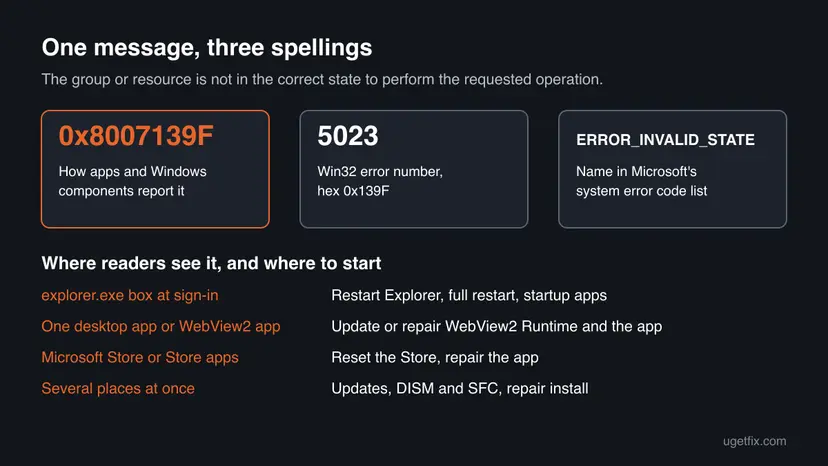
The message itself never names the cause. The title of the error box does: explorer.exe, the name of an app, or Microsoft Store. Note it before you close the box, because it picks your first fix in the table below.
What causes the "group or resource is not in the correct state" error, most common first
All causes come down to timing or damage: something asked for a component before it was ready, or the component broke while it ran. The table ties each cause to its fix.
| How often | Cause | Sign | Fix |
|---|---|---|---|
| Most often | Windows Explorer or a shell component started in a bad state after sign-in | The box is titled explorer.exe, the taskbar or desktop acts strangely | Fix 1, Fix 2 |
| Often | An update that was not finished, or Fast Startup restoring an old state | Windows Update shows a pending restart, or the error came after an update | Fix 2, Fix 3 |
| Often | A faulty or outdated Microsoft Edge WebView2 Runtime used by the app | One desktop app shows the message at start or when it opens a window | Fix 4 |
| Less often | A startup app or shell extension that Explorer loads | The message appears only at sign-in, every time | Fix 5 |
| Less often | A damaged Microsoft Store cache or Store app | The Store or one Store app shows it | Fix 6 |
| Rarely | Damaged Windows system files or user profile | Several programs fail, SFC finds errors | Fix 7, Fix 8 |
In Microsoft's WebView2 feedback tracker, apps that started several copies at once on Windows Server failed with 0x8007139F while creating their WebView2 window. Microsoft reproduced it and says it is fixed in WebView2 Runtime 129.0.2779.0 and later. The issue was closed as completed.
How to fix "The group or resource is not in the correct state"
Start with the fix for the window that shows the message. Fixes 1 to 3 take a few minutes and solve the explorer.exe box for most readers. Fixes 7 and 8 repair Windows itself and come last.
| What you see | Start with | Then |
|---|---|---|
| A box titled explorer.exe after sign-in | Fix 1 | Fix 2, Fix 5 |
| The message came after a Windows update | Fix 3 | Fix 2 |
| One desktop app shows it when it opens | Fix 4 | Fix 7 |
| The Microsoft Store or a Store app shows it | Fix 6 | Fix 7 |
| Several programs show it, or nothing above helped | Fix 7 | Fix 8 |
Fix 1. Restart Windows Explorer from Task Manager
1 minuteNo riskThe error box is titled explorer.exe, or the taskbar, Start menu or desktop stopped responding with it.
explorer.exe draws the taskbar, the desktop and File Explorer. Restarting only this process brings its windows and components back in a clean state, without closing your other programs.
- Close the error box with OK.
- Press Ctrl + Shift + Esc to open Task Manager.
- On the Processes page, select Windows Explorer.
- Select Restart task (Windows 10: Restart). The taskbar disappears for a moment and comes back.
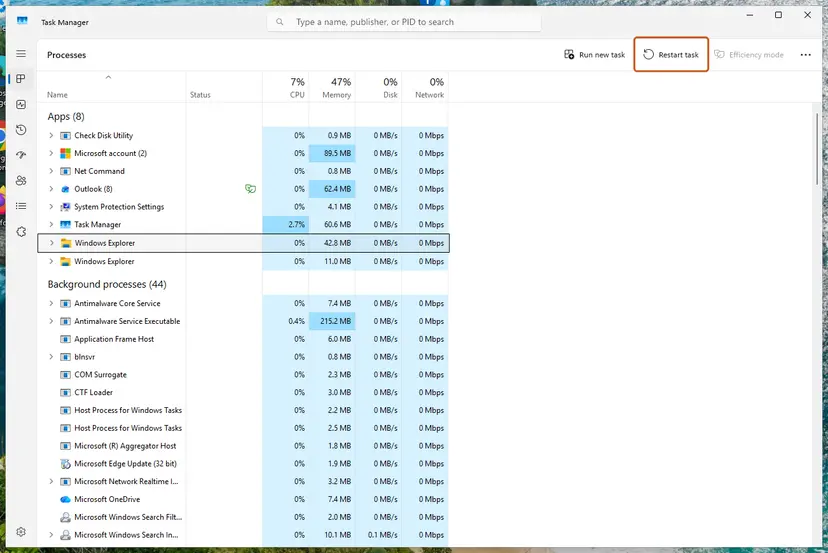
With the command line version and what to do if the taskbar stays gone: Restart File Explorer
It worked if: The taskbar returns and the explorer.exe box does not come back while you work.
If not: If the box returns at the next sign-in, go to Fix 2.
Fix 2. Restart the PC with Restart, not Shut down
3 minutesNo riskThe message appears at every sign-in, or in several places at once.
With Fast Startup on, Shut down saves the Windows core to disk and loads it again at the next start, so a component stuck in the wrong state can come back with it. Restart always starts Windows fresh.
- Save your work and close your programs.
- Open Start, select the Power button and Restart.
- Sign in and wait a minute before you open the program that failed.
- If the error is gone but returns after the next Shut down, turn off Fast Startup for a test: Turn off Fast Startup
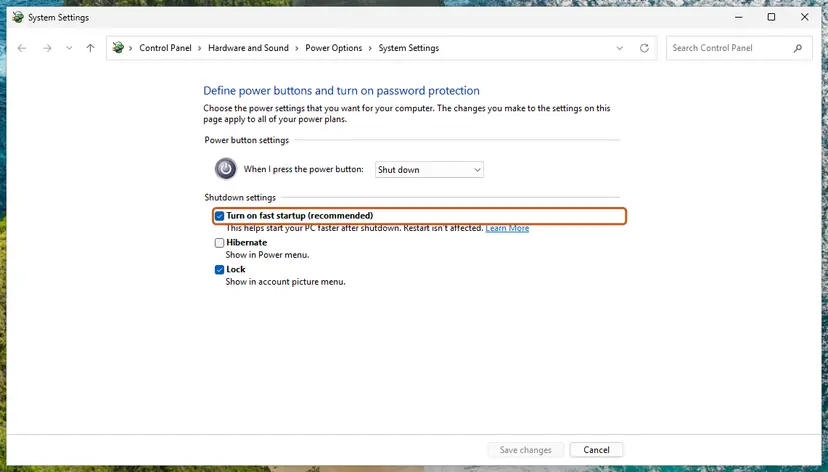
It worked if: Windows signs in, the taskbar and desktop load normally, and no explorer.exe box or app error appears in the first minutes.
If not: If the message is back right after sign-in, check for updates in Fix 3, then startup apps in Fix 5.
Fix 3. Finish pending Windows updates
15 minutesLow riskWindows Update shows a pending restart or failed update, or the error started right after an update.
A half-installed update can leave old and new versions of shell files side by side until the next restart. Finishing it puts every component on the same version.
- Press Win + I and open Windows Update (Windows 10: Update & Security > Windows Update).
- If you see Restart now, select it.
- Otherwise select Check for updates and install everything offered.
- Restart again when the updates are installed.
- If an update keeps failing, reset Windows Update: Reset Windows Update components
It worked if: Windows Update shows that you are up to date and the message does not return after the restart.
If not: If the error came only after one update and stays, you can remove that update for a test: How to uninstall a Windows update
Fix 4. Update or repair the Microsoft Edge WebView2 Runtime and the app
10 minutesLow riskOne desktop app shows the message when it starts or opens a window, and Windows Explorer works.
Many desktop apps draw their windows with WebView2. Microsoft confirmed a WebView2 bug that returned exactly this error and fixed it in Runtime 129.0.2779.0, so an old or damaged runtime is the first suspect.
- Press Win + I and open Apps > Installed apps (Windows 10: Apps > Apps & features).
- Find Microsoft Edge WebView2 Runtime and note its version. Anything below 129.0.2779.0 is affected by the known bug.
- Select the three dots (Windows 10: select the entry), then Modify, and allow the change. The runtime is repaired and brought up to date.
- In the same list, find the app that shows the message and use Modify or Repair if it offers one.
- If it has no repair, reinstall it from its maker's site: Uninstall a program or app in Windows
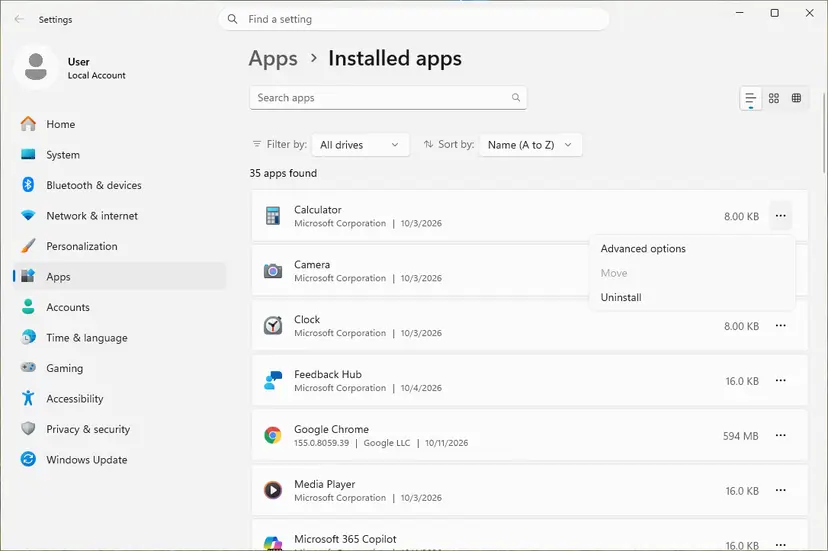
It worked if: The app opens its window without the message.
If not: If only this app fails after the update, send its maker the exact message and the WebView2 version. If other apps fail too, go to Fix 7.
Fix 5. Find the startup app or add-on that triggers it with a clean boot
20 minutesLow riskThe explorer.exe box appears at every sign-in, even after Fix 1 to 3.
Explorer loads startup apps and shell extensions from other programs, such as cloud drive icons and right-click menu add-ons. If one of them starts too early or crashes, Explorer reports the state error.
- Press Ctrl + Shift + Esc and open the Startup apps page.
- Note the apps with the status Enabled and select Disable on all that are not from Microsoft.
- Restart. If the message is gone, turn the apps back on one or two at a time, restarting after each, until it returns.
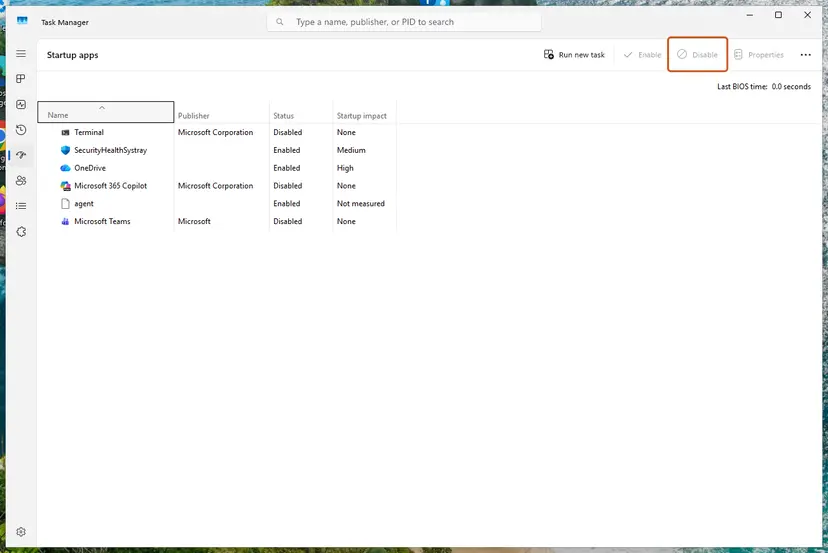
If disabling startup apps is not enough, a clean boot also stops third-party services: How to perform a clean boot in Windows
It worked if: Windows signs in without the box. The last app you turned back on before it returned is the cause: update it or remove it.
If not: If the message stays in a clean boot, the cause is inside Windows: go to Fix 7.
Fix 6. Reset the Microsoft Store and repair the Store app that fails
10 minutesLow riskThe Microsoft Store or one Store app (Photos, Calculator, Xbox and others) shows the message.
The Store keeps a cache and a licence state for every app. When that state is out of date, the app or the Store asks for something that is not ready and stops with the error.
- Press Win + R, type
wsreset.exeand press Enter. A blank window opens, then the Store opens by itself. - If the Store still fails, open Settings > System > System components (Windows 10: Apps > Apps & features), find Microsoft Store and open Advanced options.
- Select Repair. If that does not help, select Reset.
- For another Store app, use the same Advanced options > Repair on that app.
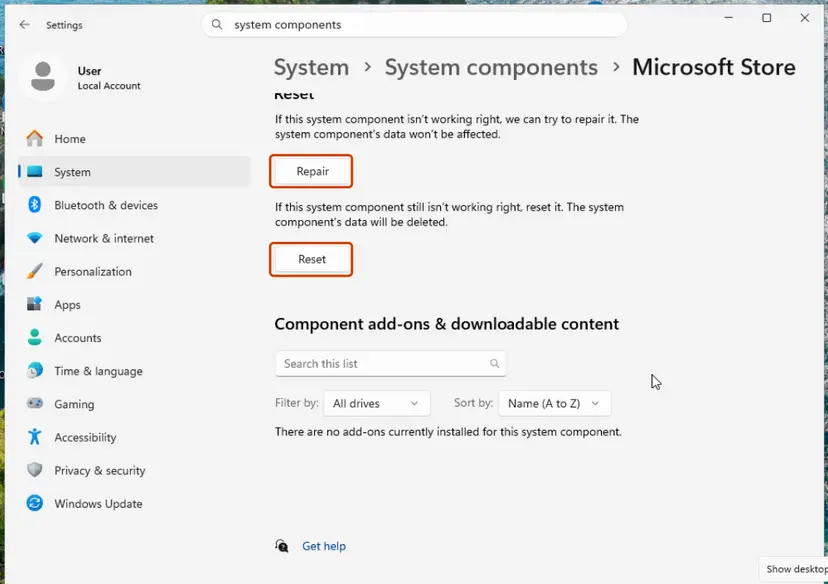
Step by step: Reset the Microsoft Store. If Store apps will not open at all: How to re-register Microsoft Store apps with PowerShell
It worked if: The Store or the app opens normally.
If not: If several Store apps fail the same way, run Fix 7.
Fix 7. Repair Windows system files with DISM and SFC
30 minutesNo riskSeveral programs show the message, or Fixes 1 to 6 did not help.
If the files of Explorer or a Windows component are damaged, it can fail to reach a ready state at all. DISM repairs the component store, then SFC replaces damaged system files from it.
- Open an elevated command window. Right-click Start and select Terminal (Admin), or type cmd in the search box, right-click Command Prompt and select Run as administrator. Select Yes when Windows asks for permission.

Search for cmd and choose Run as administrator. Screenshot: Windows 11 26H2. - Run DISM first. Type the command below and press Enter. DISM downloads clean copies of damaged components from Windows Update, so it can take several minutes. Wait until it says The operation completed successfully.
DISM.exe /Online /Cleanup-Image /RestoreHealth
DISM /RestoreHealth running. Screenshot: Windows 11 26H2. - Run System File Checker. In the same window, type the command below and press Enter. Do not close the window until the verification reaches 100%.
sfc /scannow
sfc /scannow at 100%. Screenshot: Windows 11 26H2. - Read the result and restart. Compare the last message with the table below this guide, then restart the PC so that repaired files are loaded.

The result line tells you what SFC did. Screenshot: Windows 11 26H2.
These steps were written for Windows 11 24H2 and 25H2. The full page with the other versions and what each result means: Run DISM and SFC to repair Windows system files
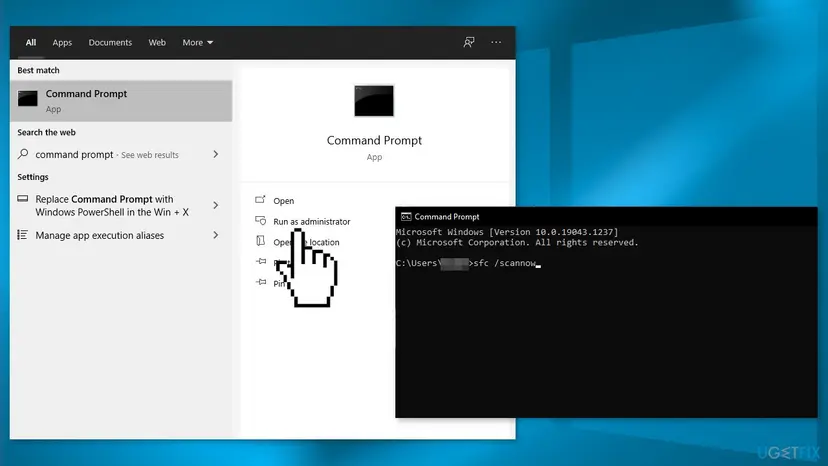
It worked if: SFC reports that it repaired corrupt files or found no integrity violations. Restart and check whether the message is gone.
If not: If SFC cannot repair some files, or finds nothing and the error stays, go to Fix 8.
Fix 8. Test a new user account, then repair-install Windows
15 minutes for the test, 60 minutes or more for the repairRead the warningThe message survives every fix above.
If the error is gone in a fresh account, the cause is in your user profile and you can move your files there. If it stays, an in-place repair install rewrites every Windows file while keeping your files and apps.
A repair install keeps files and apps when you choose to keep them, but a power cut or a wrong choice can cost data. Copy your documents to an external drive or cloud storage first: Back up your files (Windows Backup, File History, Time Machine)
- Create a second local account and sign in to it: Create a new user account to test a problem
- Open the program that failed. If it works there, move your files to the new account and use it.
- If the message appears in the new account too, start the repair install and choose Keep personal files and apps: Reinstall Windows without losing files
- Use Reset this PC with Keep my files only if the repair install is not possible. It removes your installed apps.
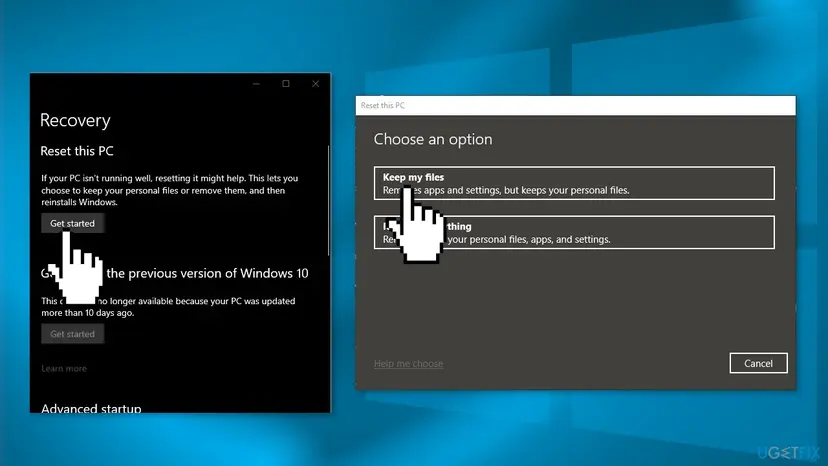
It worked if: Windows starts with your files, and the program or Explorer runs without the message.
If not: If the error survives a repair install, read the next section on what to check and send.
Still seeing the error: where the cause is written
The error box never says which component was in the wrong state. These logs often do, and they are what support will ask for.
- Event Viewer > Windows Logs > Application: look for an Error at the time of the message with the source Application Error and the faulting module named in the text.
- Event Viewer > Windows Logs > System: errors at the same minute from a service that failed to start.
- SFC log
C:\Windows\Logs\CBS\CBS.log: files SFC could not repair. - For a WebView2 app, the WebView2 Runtime version from Fix 4 and the app's own log, if its maker keeps one.
| Where to ask | When |
|---|---|
| The app's maker | Only one third-party app shows the error after Fix 4 |
| Microsoft Support or Microsoft Q&A | explorer.exe or a Windows tool still fails after Fix 7 and Fix 8 |
| Your IT department | A Windows Server or a work PC in a cluster shows the error |
How to keep the error from coming back
- Use Restart, not Shut down, when Windows behaves oddly.
- Let updates finish and restart when Windows Update asks.
- Keep the WebView2 Runtime and Edge updated; they update together through Microsoft's updater.
- Keep only the startup apps you need.
- Uninstall the WebView2 Runtime: apps and Windows parts depend on it.
- Use registry cleaners or tweak tools on Explorer settings.
- Turn the PC off while updates install.
- Install shell add-ons from unknown sites.
Windows 10 left support on 14 October 2025. If the explorer.exe box keeps returning on an old Windows 10 install, moving to Windows 11 on supported hardware replaces every shell file at once.
Frequently asked questions
What does "The group or resource is not in the correct state to perform the requested operation" mean?
It means a program asked Windows to do something with an object that was not ready, so Windows refused. Microsoft lists it as system error 5023, ERROR_INVALID_STATE, shown by apps as 0x8007139F. The words group and resource come from Windows server clusters, where the code started, but home PCs see it when a component is half started or half closed. It is a software state, not a broken disk.
Why does explorer.exe show this error at startup?
Users report the explorer.exe box mostly at sign-in, after an update or after Explorer crashed. Explorer starts many parts at once, from the taskbar to add-ons of other programs, and one of them was not ready. Restart Windows Explorer in Task Manager (Fix 1), then restart the PC with Restart (Fix 2). If it comes back at every sign-in, a startup app or add-on is the likely trigger, which Fix 5 finds. We found no Microsoft notice that names one cause for this case.
Is "the group of resource is not in correct state" the same error?
Yes. The real message says "group or resource", and people often type "group of resource", "group resource" or leave out "to perform the requested operation". Every spelling is the same Windows error 5023 with the code 0x8007139F, and this page covers them all. What matters for the fix is not the spelling but the title of the box: explorer.exe, an app or the Microsoft Store. Pick your first fix from the table above.
What is "correct state" in this error?
Windows components move through states: starting, running, closing, stopped. An action is allowed only in some of them; for example, a window can be drawn only while its component is running. The correct state is the one the action needs. If a program asks too early or too late, Windows answers with this error. That is why restarting, which puts every component back to a clean start, fixes most cases.
Does this error appear with Microsoft Edge WebView2 apps?
Yes. In Microsoft's WebView2 feedback tracker, apps that started several copies at once on Windows Server 2016 and 2022 failed with 0x8007139F while creating their WebView2 window, with runtime 126.0.2592.113. Microsoft reproduced the bug and fixed it in WebView2 Runtime 129.0.2779.0 and later. Update or repair the runtime in Fix 4. Developers who still see it should file a new issue there with a current runtime version.
Can I see this error in Outlook or other Microsoft 365 apps?
People search for it with Outlook, and the new Outlook draws its windows with WebView2, so Fix 4 applies to it. Repair the WebView2 Runtime first, then repair Office from Installed apps with Modify and Quick Repair: How to repair Microsoft 365 or Office. We found no Microsoft article that ties this message to one Outlook version, so treat it like any other app that shows it.
Is the error a sign of a virus or a hardware problem?
Rarely. The code says a component was in the wrong state, which is a software situation. Malware can cause it only by damaging Windows files or adding a faulty startup entry, and Fix 5 and Fix 7 deal with both. If you want to be sure, run a full scan: How to scan for malware with Microsoft Defender. Hardware plays a part only when a failing disk damages files again and again, which shows as SFC finding new damage after every restart.
Do I need to reset my PC to fix it?
Almost never. A restart, an Explorer restart, finished updates and a WebView2 repair fix most cases in minutes. Reset this PC removes all your installed apps, so it is the very last step. Before it, try a new user account and the repair install in Fix 8, which keeps your apps. The old advice to update the network adapter driver or run the Program Compatibility Troubleshooter has no link to this error.
I see this message in another language or on a phone. Is this page for me?
This page is about Windows 11 and Windows 10. The message is translated in other Windows languages, but the code 0x8007139F stays the same, so the fixes above apply. Readers asking in Indonesian, Hindi, Vietnamese, Spanish and Arabic what the message means and how to fix it get the same answer: note the title of the error box and start with the matching fix in the table. On a Mac, the message comes from a Windows app or virtual machine, not macOS.
Sources
- Microsoft Learn: System Error Codes (4000-5999), ERROR_INVALID_STATE 5023 (0x139F) (learn.microsoft.com)
- Microsoft Edge WebView2 Feedback, issue 4731: 0x8007139F when launching multiple instances, fixed in 129.0.2779.0 (github.com)
- Microsoft Q&A: error when opening a desktop app on Windows 10 (learn.microsoft.com)
Did this fix work?
One click, no account. It tells the next reader which guides are worth their time.
Questions and experiences: fix "The group or resource is not in the correct state" error on Windows
Still broken, or found a fix we did not cover? Ask here: members and our editors answer. Reading is open; writing needs a free account.
…