How to fix
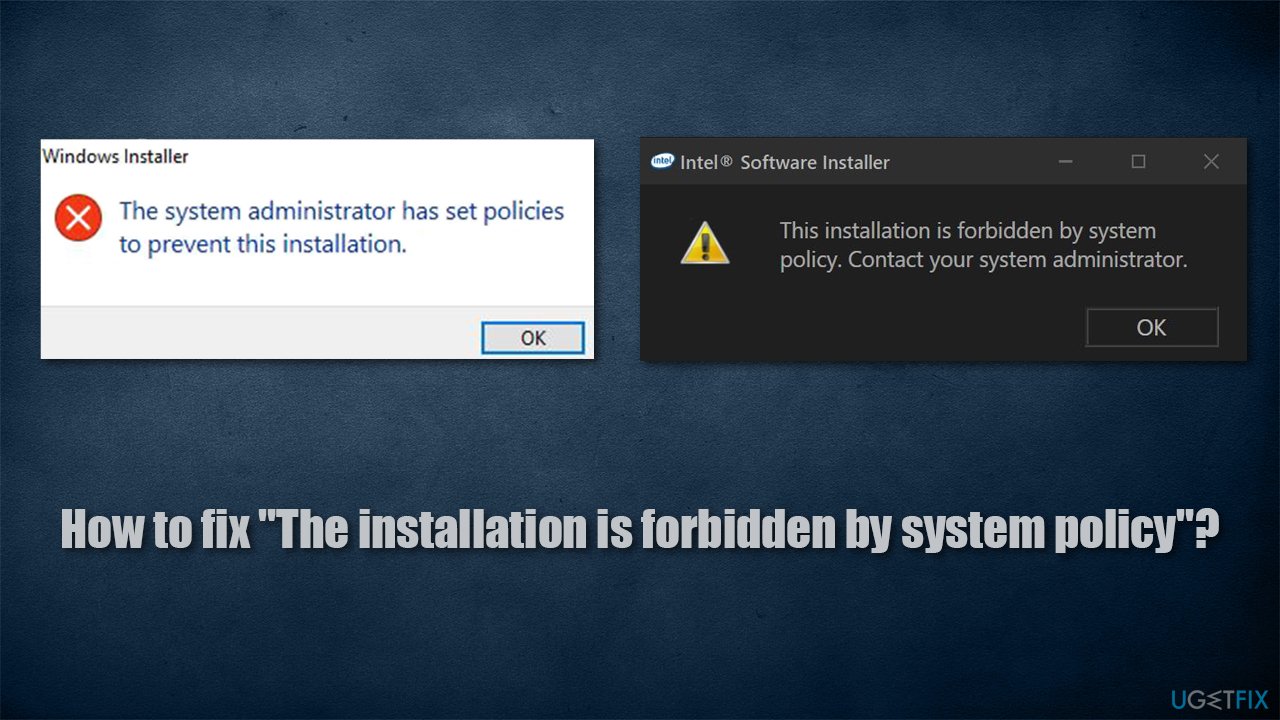
“The installation is forbidden by system policy” error
on Windows
Resolve "The installation is forbidden by system policy" error on Windows 10 and 11 quickly and easily with expert-tested solutions. Fixed in minutes!


What causes How to fix “The installation is forbidden by system policy” error?
- Insufficient rights to install new software
- Default permission settings not allowing installations
- User account control settings preventing installation
- Group policy restrictions on software installations
- Recent changes to network settings affecting driver installations
Repairs Windows system files, removes malware, and restores a clean OS state — without reinstalling.
Hello. I recently tried to install my Intel Wireless adapter drivers from the official Intel site, and it failed with an error "This installation is forbidden by system policy. Contact your administrator." I did not change anything on my PC settings since installing Windows, although I did change my router recently. What is going on?
Device drivers are one of the most important components of the Windows operating system, as they allow software and hardware to communicate correctly. While some devices, such as dedicated graphics cards, can work minimally without them, the absence of drivers might prevent hardware from working.
Since we are talking about wireless adapter drivers here, the "This installation is forbidden by system policy" error would prevent major functions of this device, including WiFi, as well as Bluetooth[ref en-3] connections. Without a doubt, if no ethernet is available to replace WiFi connection, this might become a major issue, as internet connection would simply not be accessible.
The error "This installation is forbidden by system policy" can occur not only when installing wireless drivers. Users said that they received the same error when installing Autocad (Error code 1625, 509), Python[ref en-2] (0x80070659), mouse drivers (G500), and other software.
As the error message suggests, the reason for it to occur is insufficient rights to install new software, regardless if it is drivers or applications. While it may seem that running the installer as administrator might suffice, it is usually not the case here (although you should definitely try it as a first solution), so other permission settings need to be altered.
There are several different ways to change permissions on a Windows computer - most users are not aware of those policies as they rarely need to use them (since default settings usually work pretty well). Below you will find several methods on how to fix "This installation is forbidden by system policy" error, which consequently will allow you to install the software in question.
Before we begin, we highly advise you to scan the device with a powerful system repair tool [d1]. If the error is caused by underlying OS issues such as file corruption, it can fix it in just a few minutes automatically.
Solution 1. Try automatic driver updater
If you received an error when trying to install drivers manually, we recommend you try an automatic solution instead - our suggestion is [rev id="DriverFix"]. This driver updater can backup all the existing drivers and install the correct ones automatically. After employing this tool, you will never have to bother with the driver updating process and get rid of the issues that incompatible, or corrupted drivers might cause - BSODs,[ref en-1] errors, crashes, etc.
Solution 2. Edit Local Group Policy
One of the easiest ways to change permissions on your Windows is to edit Group Policy. Here's how:
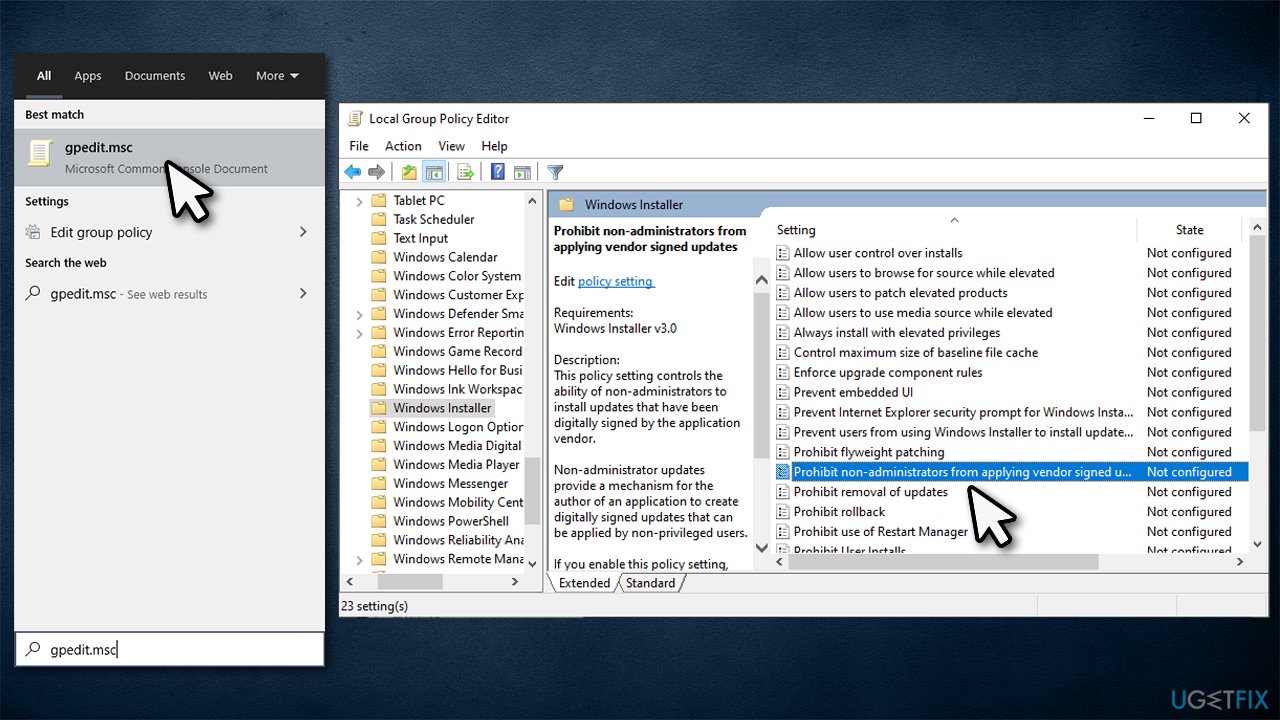
- Type in gpedit.msc in Windows search and press Enter
- Once Group Policy opens, navigate to the following location:
Local Computer Policy > Computer Configuration > Administrative Templates > Windows Components > Windows Installer.
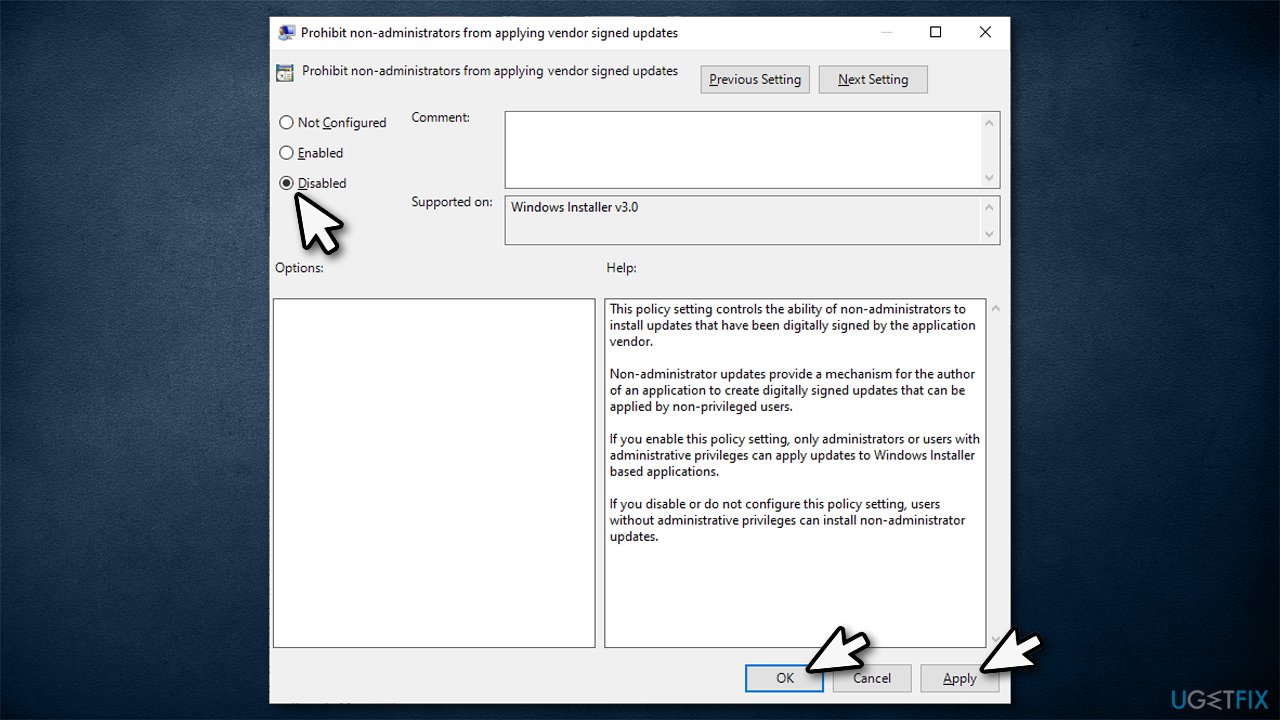
- On the right side of the window, double-click the Prohibit non-administrators from applying vendor signed updates entry
How to fix the installation is forbidden by system policy error edit group policy - In the new window, select Disabled
- Click Apply and OK.
How to fix the installation is forbidden by system policy error edit group policy2
Note: Ensure you are logged in as an administrator for these and the rest of the policies to be changed without issues.
Solution 3. Check Local Security Settings
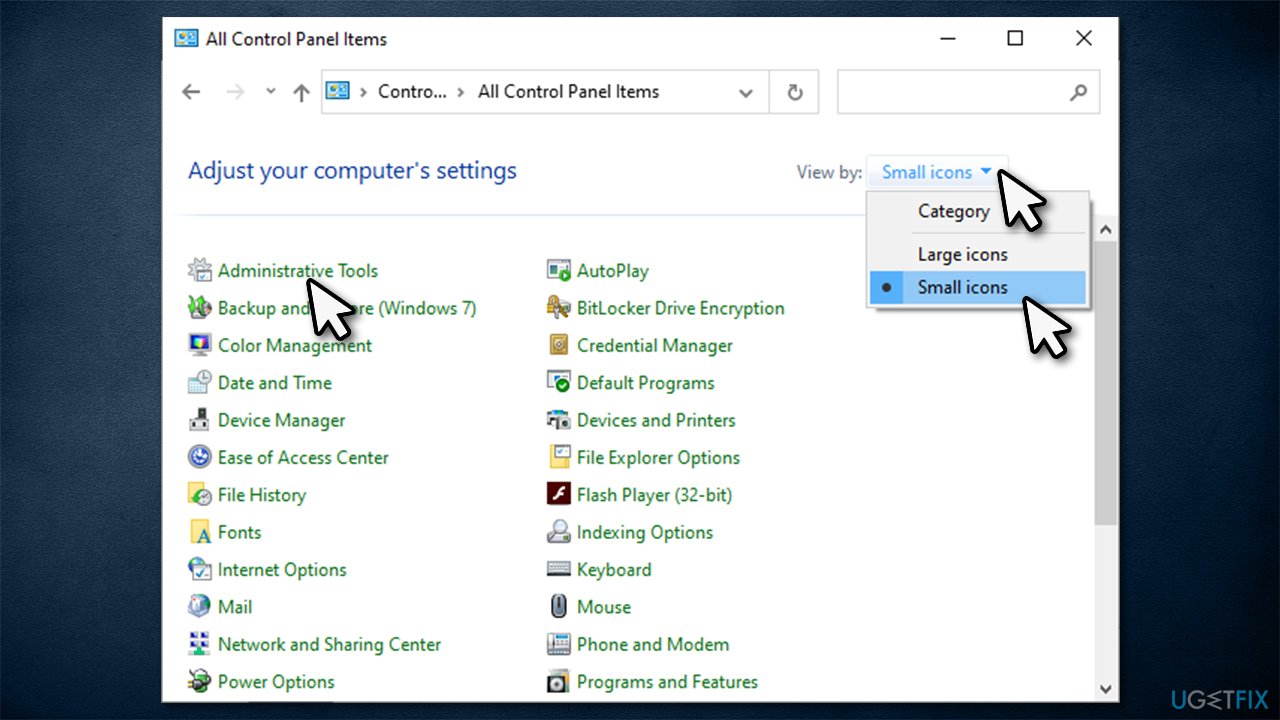
- Type in Control Panel in Windows search and press Enter
- Under View by, select Small icons from the drop-down menu
- Pick Administrative Tools
How to fix the installation is forbidden by system policy error change local security settings - Double-click Local Security Policy
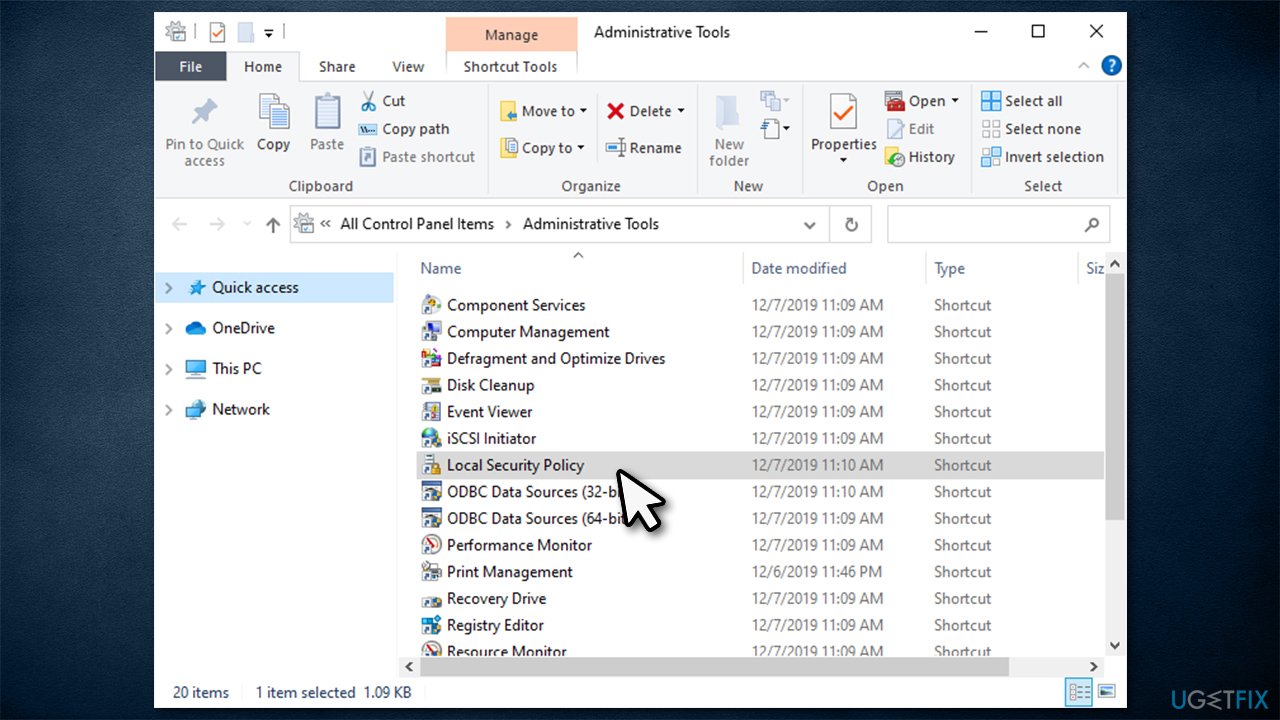
How to fix the installation is forbidden by system policy error change local security settings2 - Once the new window opens, click on Software Restriction Policies on the left. You should see the following text on the right:
No Software Restriction Policies Defined
- Now right-click on Software Restriction Policies and pick New Software Restriction Policies
- Double-click on Enforcement on the right
- Tick the All users except local administrators option
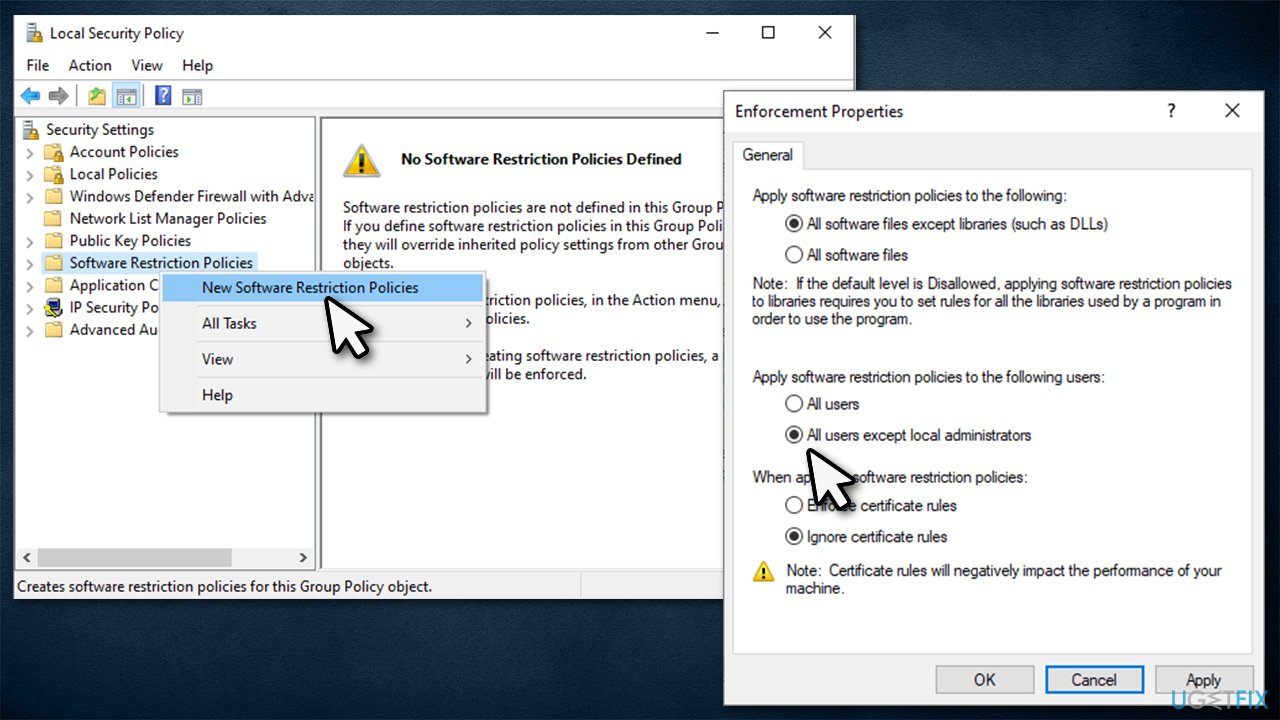
How to fix the installation is forbidden by system policy error change local security settings3 - Click Apply and OK.
Solution 4. Enable Windows Installer service
- Type in services.msc in Windows search or Run dialog (Win + R) and press Enter
- In the Services window, scroll down until you reach Windows Installer service
- Right-click on it and select Start
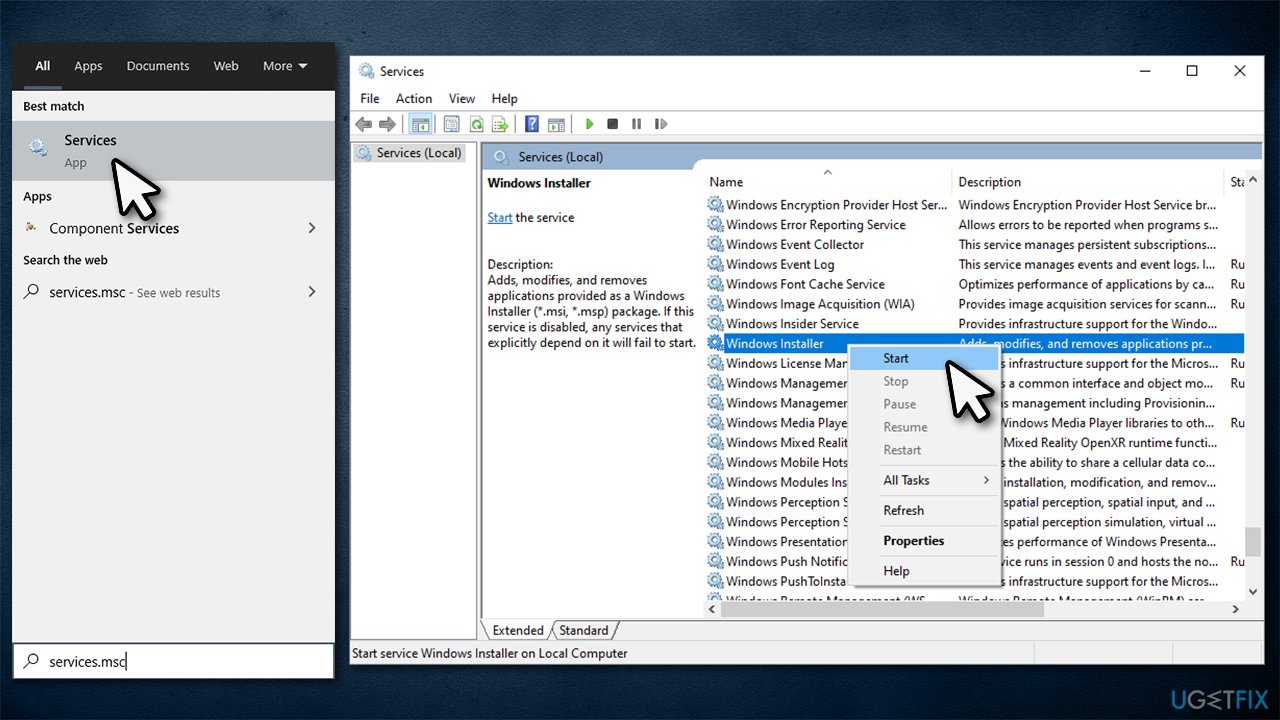
How to fix the installation is forbidden by system policy error start windows installer service - Close down Services and see if that helped you to remove "This installation is forbidden by system policy" error.
Solution 5. Change BIOS settings
This method helped users who were unable to install wireless drivers due to the error. For that, you need to access your BIOS:
- Reboot your computer
- Before the login screen animation, spam F2, F8, Del, Esc, or another button (depends on your motherboard manufacturer) on your keyboard
- Once in BIOS, you will have to change Wireless settings
- Go to Wireless Switch and remove the ticks from WLAN and Bluetooth options
- Go to Wireless Device Enable and tick WLAN and Bluetooth to enable them
- Reboot your PC.
Solution 6. Change Windows registry
Warning: you should always backup your registry before changing any settings within, otherwise incorrectly modified registry can cause system instability or even failure.
- Type in regedit.msc in Windows search or Run dialog and press Enter
- When User Account Control shows up, click Yes
- Navigate to the following location:
HKLM\\Software\\Policies\\Microsoft\\Windows\\Installer
- If you can't see DisableMSI entry on the right, proceed with the following:
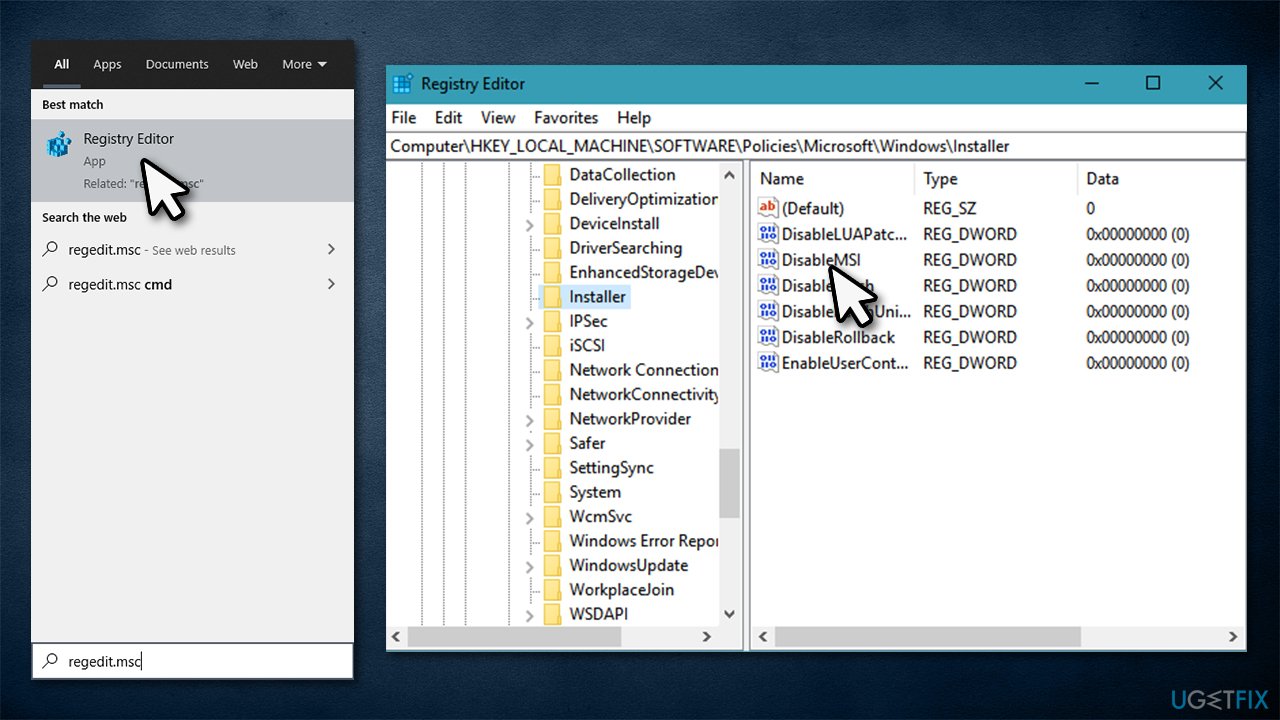
How to fix the installation is forbidden by system policy error modify windows registry - Right-click on the empty space on the right side of the window and select New > DWORD (32-bit) Value
- Name it DisableMSI and double-click it
- Set Value to 0 and click OK
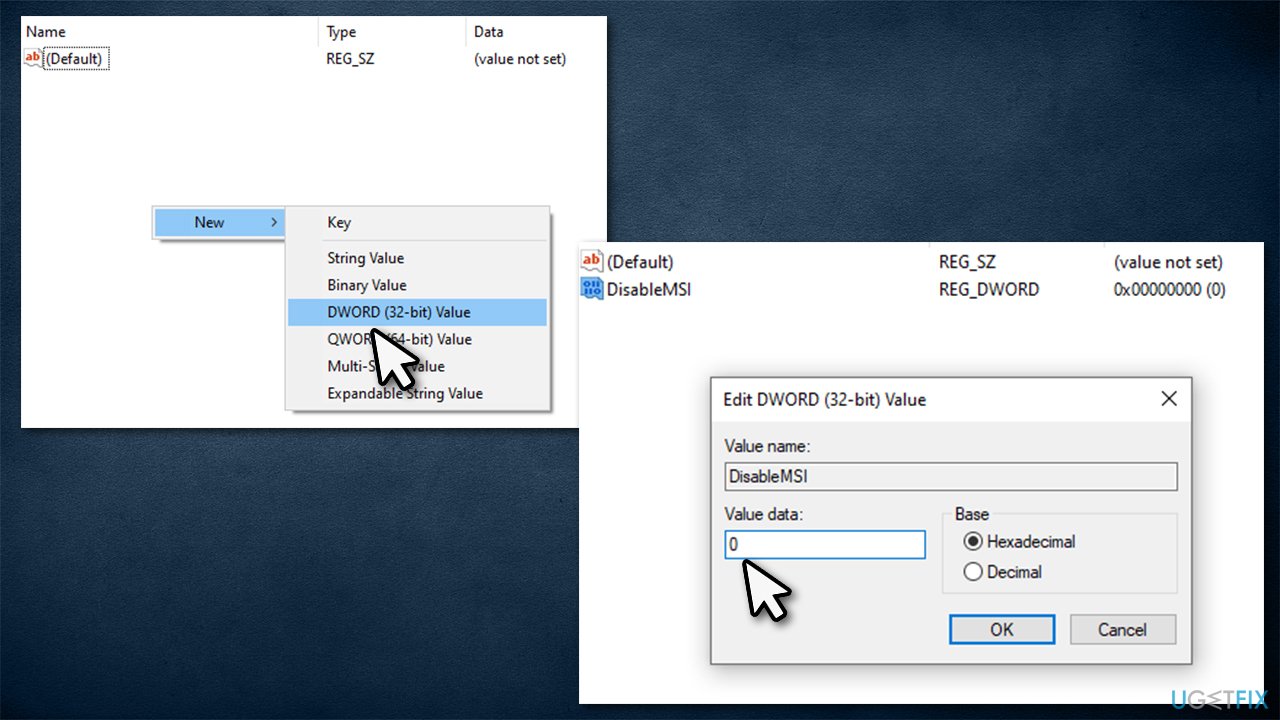
How to fix the installation is forbidden by system policy error modify windows registry2 - Close down the Registry Editor and see if this solution worked for you.
Bottom line
To fix the "This installation is forbidden by system policy" error, you can try running the installer as an administrator, changing permission settings, or adjusting user account control settings. If these methods do not resolve the issue, consider scanning your device with a system repair tool or checking for group policy restrictions.
Frequently asked questions
This error typically arises due to Group Policy settings or restrictions set by an administrator that prevent software installations. It can occur on both Windows 10 and Windows 11 systems, especially in corporate environments.
To change Group Policy, press Win + R, type 'gpedit.msc', navigate to 'Computer Configuration' > 'Administrative Templates' > 'Windows Components' > 'Windows Installer', and adjust the relevant settings to allow installations.
You can try running the installer as an administrator by right-clicking it and selecting 'Run as administrator', which may help bypass certain restrictions.




Report an issue
What's wrong with this guide? We review every report and update or remove content.
Report received — thank you. We'll review and fix it.
You need a free account to submit a report.
Be the first to comment