How to fix
The Issue with Constantly Refreshing Explorer.exe
on Windows
Resolve the annoying issue of constantly refreshing Explorer.exe on Windows 10 and 11. Expert-tested solutions guarantee quick fixes and smooth performa…

What causes How to Fix the Issue with Constantly Refreshing Explorer.exe?
- Slideshow wallpapers
- Dynamic accent colors
- Explorer.exe process freezing
- User's choice of settings
Repairs Windows system files, removes malware, and restores a clean OS state — without reinstalling.
I recently upgraded from Windows 8.1 to Windows 10. Everything seems OK in general, but one problem doesn’t let me to be calm. When I access File Explorer, each time I scroll down to a particular location in a folder, for some reason the window freezes for several seconds, and then scrolls to the top of the folder automatically. I can’t rename files and folders too because when I try doing so, some kind of refresh happens and again, I’m exposed to the top of the window again. I heard some rumors that this irritating refreshing is related to explorer.exe file. Could you please explain why this happens and how to solve this issue?
Freezes, crashes, and reloads that happen when browsing for the files in folders are, indeed, caused by explorer.exe process. In other words, those freezes and crashes are not caused by the mentioned process, but actually the process itself freezes and then reloads. This, let us call, error is very irritating because it prevents the user from finding needed files, naming/renaming folders, and often make the user to open the wrong files accidentally.
What is explorer.exe process?
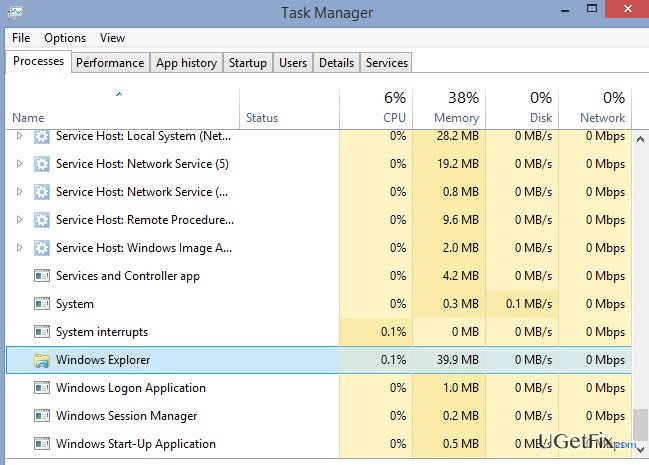
Explorer.exe is a one of the core parts of Windows Operating System. It is also known as Windows Explorer file, which is basically used for browsing files and folders within Microsoft Windows system. When this file is run, an application window is launched simultaneously and the user is able to scroll down the content of folders and files stored in them. It is assumed that a constant explorer.exe refreshing on Windows happens due to slideshow wallpapers and dynamic accent colors. Although Microsoft technicians are aware of this issue, they claim that it happens due to user’s choice to render slideshow wallpapers and dynamic accent colors, which is why this issue is not going to be fixed automatically. Having this in mind, you have to fix explorer.exe refresh error manually.
How to fix explorer.exe refreshing constantly?
As soon as you notice issues like continuous explorer.exe refresh, it’s advisable to install a PC optimization tool and troubleshoot the system with it. As you probably already know, various system errors may occur due to registry failure, startup programs, cache, and so on. You should do the same if you experience system slowdowns, freezes or crashes. There are various free PC optimization tools on the Internet, thus it may be difficult to pick out the right one. Our experts highly recommend using [d1].
Solution 1. Disable Wallpaper Slideshow
As noted before, wallpaper slideshow may be the cause of frequent explorer.exe refresh, which leads to inconveniences when looking for files in Windows folders. There are lots of comments on Reddit, Windows Central and similar forums claiming that prove that disabling the wallpaper slideshow is a reasonable solution. In order to do so, you have to:
- Right-click on a random place of your desktop (not folder or another file) and select Personalize.
- Find Background option and click on drop down menu below it.
- Here you should see that Slideshow option is set. Change it to a Picture or a Solid Color.
- Select a picture to set as your wallpaper.
In case this did not help, try to fix explorer.exe refresh issue the other way, which is as easy as this one.
Solution 2. Disable Dynamic Accent Colors
If the core of explorer.exe error is not wallpaper slideshows, then, according to Appuals, it can be triggered by dynamic access colors. People who already had this issue have pointed out that explorer.exe refreshes simultaneously with the accent color of the background. Therefore, disable automatic change of accent colors by performing these simple steps:
- Right-click on a random place of your desktop (not folder or another file) and select Personalize.
- Find Colors on the left pane and click on it.
- Locate an option Automatically pick an accent color from my background and slide a toggle below it to Off instead of On.
- Select a color that you prefer and close the Personalize window.
Bottom line
To fix the explorer.exe refreshing issue, it is advisable to install a PC optimization tool and troubleshoot the system. If the problem persists after trying these solutions, further investigation into system settings or contacting support may be necessary.
Frequently asked questions
The issue can be triggered by corrupt system files, conflicting third-party applications, or issues with Windows Explorer settings.
You can try restarting Windows Explorer through Task Manager or running the System File Checker tool to repair any corrupted files.
Yes, disabling unnecessary startup programs can reduce conflicts and alleviate the refreshing issue with explorer.exe.




Report an issue
What's wrong with this guide? We review every report and update or remove content.
Report received — thank you. We'll review and fix it.
You need a free account to submit a report.
Be the first to comment