
How to fix "The network you are using may require you to visit its login page" error in Windows

Prefer to fix it yourself? The manual steps follow.
- 6methods
- 2 to 15 minutes
- Easy
Applies to Windows 11, Windows 10; Google Chrome and other Chromium browsers; Firefox; public, guest, hotel, school and office networks
6 methods in this guide
Hello. When I tried to connect to a public Wi-Fi, I received the "The network you are using may require you to visit its login page" error. What should I do?
"The network you are using may require you to visit its login page." is a page of Google Chrome, not a Windows fault: the Wi-Fi or cable network wants you to sign in or accept its terms before it lets you online. Select Connect on that page and finish the network's sign-in. If no sign-in page opens, open it by hand with a plain HTTP address.
Nothing is broken on your PC. The network you joined has a sign-in page, called a captive portal, and blocks secure sites until you pass it. Select Connect on Chrome's page, then accept the terms or enter the room number or access code the network asks for (Fix 1). If no sign-in page appears, type http://www.msftconnecttest.com/redirect in the address bar (Fix 2), and turn off any VPN until you are signed in (Fix 3).
| Error | Connect to network (or Connect to Wi-Fi): "The network you are using may require you to visit its login page." with a Connect button. |
|---|---|
| Where it appears | In a Google Chrome tab on Windows, in place of the site you opened, right after you join a public, guest, hotel, school or office network. |
| Main cause | The network has a sign-in page (a captive portal) that you have not passed yet, so it holds back secure (HTTPS) sites. |
| Fastest fix | Select Connect and finish the network's sign-in (Fix 1). |
| Also written as | "The Wi-Fi you are using may require you to visit its login page.", "The Wi-Fi you are using ([name]) may require you to visit its login page.", and a version that names the login address in bold. |
| Firefox wording | "You must log in to this network before you can access the internet." |
| Windows signs | The network icon shows an alert, and hovering over it says "No connectivity" or "Limited Internet access". Windows may open the sign-in page in the default browser by itself. |
| Vendor status | Expected behaviour, not a bug. Microsoft calls the browser that opens on such networks "by design". Chromium's text describes the page as the one shown when a captive portal blocks a secure request. |
| Time to fix | About 1 minute when the sign-in page opens. Up to 15 minutes when the network settings need a reset. |
Facts checked on 15 October 2026. Steps written for Windows 11 (25H2 and 26H2) and Windows 10 22H2, with Google Chrome, Microsoft Edge and Firefox as their makers describe them.
What "The network you are using may require you to visit its login page" means
The message comes from Google Chrome, not from Windows. Chrome shows it when a secure (HTTPS) page cannot load because the network in between wants you to sign in first. Such a network is called a captive portal: hotels, airports, cafés, trains, libraries, schools and many company guest networks use one. Its page asks you to accept terms, enter a room number or an access code, or sign in with an account.
Chromium's source has six versions of the sentence. The heading says Connect to network on a cable connection and Connect to Wi-Fi on a wireless one. When Chrome knows the name of the Wi-Fi or the address of the login page, it adds them. The button under the text is always Connect.
| What you see | When Chrome shows this version |
|---|---|
| Connect to network: "The network you are using may require you to visit its login page." | Cable (Ethernet) connection, login address not known. |
| Connect to network: "The network you are using may require you to visit [address]." | Cable connection, login address known. |
| Connect to Wi-Fi: "The Wi-Fi you are using may require you to visit its login page." | Wi-Fi, login address not known. |
| Connect to Wi-Fi: "The Wi-Fi you are using ([name]) may require you to visit its login page." | Wi-Fi, the network name is known. |
| Connect to Wi-Fi: "The Wi-Fi you are using may require you to visit [address]." | Wi-Fi, the login address is known, with or without the network name. |
Chromium's own description of the page: it appears "when a secure request is blocked because a captive portal is manipulating" the connection. The network holds the connection until you sign in. Once you do, the same site loads.
- People also type it as "the wifi you are using may require you to visit", "the wifi you are using may require" or "connect to network the network you are using may require you to visit its login page". All of them are this page.
- Microsoft Edge is built on the same Chromium code. We could not confirm on a Microsoft page that Edge uses the same wording, but the cause and the fixes are the same.
Why the login page does not open by itself
Windows checks every new network on its own. Microsoft describes the test: Windows looks up www.msftconnecttest.com and asks for the file http://www.msftconnecttest.com/connecttest.txt over plain HTTP. A captive portal answers with its sign-in page instead, the test fails, and Windows opens the default browser with that page. When this chain breaks, you land on Chrome's page instead.
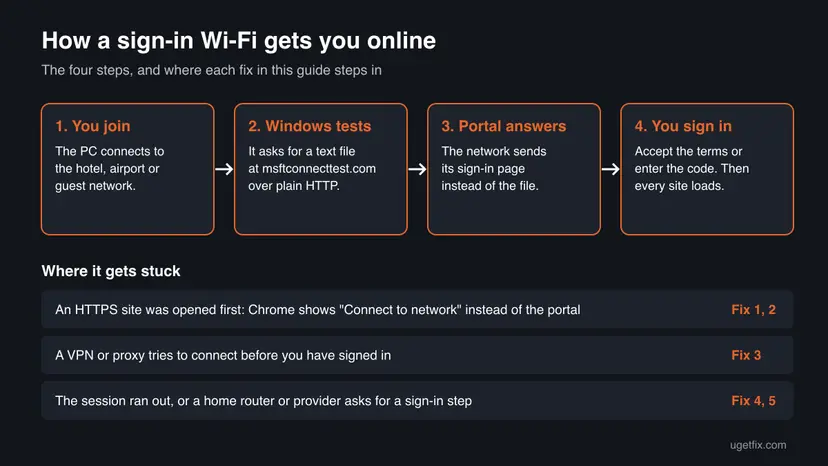
Most often you simply have not signed in yet and opened a secure site first. Less often a VPN or proxy tries to connect before the network lets anything through. Rarely the sign-in session has ended, or the message appears on your own home network because the router or the provider wants a sign-in or setup step.
| Cause | How often | How to tell | Fix |
|---|---|---|---|
| You have not passed the network's sign-in page yet. | Most often | You just joined a hotel, airport, café or guest network. | Fix 1 |
| The sign-in page did not open by itself, or you closed it. | Often | Chrome's page shows, but Connect leads nowhere or the tab stays blank. | Fix 2 |
| A VPN or proxy tries to connect before you have signed in. | Often | A VPN starts with Windows, or a proxy is set in Windows or the browser. | Fix 3 |
| The session ended, or Windows kept an old state of the network. | Sometimes | It worked earlier on the same network, then stopped. | Fix 4 |
| Your own router or provider asks for a sign-in or setup step. | Rarely | The message appears at home, on every device on the network. | Fix 5 |
| The Windows network settings are damaged. | Rarely | Other devices sign in to the same network, this PC never does. | Fix 6 |
Microsoft notes that the same test fails on networks that reach the internet through a proxy server. Windows may then open the MSN page in the browser after connecting. That is described under "If it is still there" below.
Firefox, Windows and other wordings of the same problem
Other programs warn about the same sign-in page in their own words. The fixes in this guide work for all of them, because the cause is the network, not the browser.
| Where | What you see |
|---|---|
| Google Chrome | Connect to network or Connect to Wi-Fi with "The network you are using may require you to visit its login page." |
| Firefox | "You must log in to this network before you can access the internet." Firefox also opens the sign-in page in a new tab. |
| Windows taskbar | An alert on the network icon. Hovering over it shows "No connectivity" or "Limited Internet access". |
| Windows itself | The default browser opens with the network's sign-in page, or with the MSN page on some company networks. |
| The network's own page | Its own words, such as a request to log in to use the internet hotspot service, accept the terms or enter a code. |
Firefox tests the network on its own by loading http://detectportal.firefox.com/canonical.html. Mozilla writes that this check "does not by itself mean that your network is unsafe". It only means the network may need a sign-in step before normal internet access works.
How to fix "The network you are using may require you to visit its login page"
Fixes 1 to 3 get you through the sign-in page of a public, guest or office network, and work for most readers. Fixes 4 and 5 are for a network that worked before or for your home network. Fix 6 repairs the Windows network settings. Open a site after each fix to test it.
| What you see or have | Start with |
|---|---|
| You just joined a hotel, airport, café, train or guest network. | Fix 1 |
| You select Connect and nothing opens, or the tab stays blank. | Fix 2 |
| A VPN app runs on the PC, or you use a proxy. | Fix 3, then Fix 1 |
| It worked on this network earlier, then stopped. | Fix 4 |
| Firefox says "You must log in to this network before you can access the internet." | Fix 1 in Firefox, then Fix 2 |
| The message appears at home on your own Wi-Fi. | Fix 5 |
| Phones sign in to the same network, this PC never does. | Fix 4, then Fix 6 |
Fix 1. Select Connect and finish the network's sign-in
1 minuteNo riskYou see Chrome's page right after joining a public, guest, hotel or school network.
The page is Chrome's way of saying the network is waiting for you. The Connect button opens the network's own sign-in page. Once you accept its terms or sign in, the network lets your traffic through, and Microsoft notes that the alert on the network icon then goes away.
- On Chrome's page, select Connect.
- Wait for the network's sign-in page to open in a tab.
- Check that the page belongs to the place you are in: the hotel, airport, café or company named on the Wi-Fi.
- Accept the terms, or enter what the page asks for: a room number and surname, an access code, an email address or an account.
- Select the button that finishes the sign-in, such as Connect, Accept or Log in.
- Open the site you wanted again.
Mozilla warns not to enter passwords, payment details or other sensitive information into an unfamiliar sign-in page just because the browser says the network needs one. Make sure you joined the network's official Wi-Fi name and that the page belongs to the organization that runs it. Ask the staff if you are not sure.
- Firefox opens the sign-in page in a new tab by itself and closes it after you sign in. Mozilla says it can stay open when the network shows a message from its owners. Then just close it.
- The page asks for payment you did not expect. Ask the staff for the access code instead. Many places print it on a card or a receipt.
It worked if: The sign-in page says you are connected, sites load in every tab, and the alert on the network icon disappears.
If not: If Connect opens nothing or a blank tab, go on to Fix 2.
Fix 2. Open the network's login page by hand
2 minutesNo riskNo sign-in page opens, Connect leads nowhere, or you closed the sign-in tab by mistake.
A captive portal can only send you to its page through a plain HTTP address, because secure HTTPS sites refuse to be redirected. The address Windows itself uses for its test is such an address, and Microsoft documents that it leads to the portal. Firefox's test address works the same way.
- Open a new tab in your browser.
- Type this address exactly, with
httpand nothttps, and press Enter.http://www.msftconnecttest.com/redirect - If the network's sign-in page opens, finish it as in Fix 1.
- If nothing opens, try Firefox's test address in the same way.
http://detectportal.firefox.com/canonical.html - If it still does not open, press Ctrl + Shift + N in Chrome (Ctrl + Shift + P in Firefox) for a private window and try both addresses there.
- Still nothing: disconnect from the Wi-Fi, connect again and repeat step 2.
Mozilla suggests a private browsing window to avoid cached sessions that can block the portal. A private window starts with no cookies or stored pages, so an old copy of a site cannot hide the sign-in page. If the portal works only there, clear the browser's cookies afterwards: Clear the browser cache and cookies
Mozilla's other advice for this case is to visit any website, because most captive portals send you to the sign-in page. That works only with a plain HTTP site. Bookmarks and the start pages of browsers almost always use HTTPS, which is why the two test addresses above are the safer choice.
It worked if: The network's sign-in page appears in the tab instead of Chrome's page or an empty tab.
If not: If you use a VPN or proxy, go to Fix 3. Otherwise go to Fix 4.
Fix 3. Turn off the VPN or proxy until you have signed in
3 minutesLow riskA VPN app starts with Windows, a VPN browser extension is on, or a proxy is set in Windows.
Mozilla explains that a VPN or proxy can keep the browser from reaching the captive portal, because the network needs you to sign in before the VPN or proxy connection can be built. The VPN keeps trying, and the sign-in page never gets a chance.
- Disconnect the VPN in its app, or turn off the VPN extension in the browser.
- Press Win + I and open Network & internet > Proxy.
- Under Manual proxy setup, turn off a proxy you did not set on purpose for this network.
- Disconnect from the Wi-Fi and connect to it again.
- Open the sign-in page as in Fix 1 or Fix 2 and finish it.
- Turn the VPN back on only after normal sites load.
On a public network a VPN is worth having. Switch it off only for the sign-in, and connect it again as soon as the network lets you through. Mozilla's advice: if the portal works only with the VPN off, look in the VPN maker's help for its captive portal setting.
It worked if: The sign-in page opens with the VPN off, and after you sign in, sites load with the VPN on again.
If not: If you use no VPN or proxy, or turning them off changed nothing, go on to Fix 4.
Fix 4. Forget the network and connect to it again
3 minutesLow riskIt worked on this network earlier and then stopped, or the sign-in page keeps coming back after you signed in.
Windows tests a network again each time a network interface changes, Microsoft explains. Forgetting the network and joining it fresh starts the test and the portal's sign-in from the beginning. It also helps when the access you had on the network has ended and the portal wants a new sign-in.
- Press Win + I and open Network & internet > Wi-Fi.
- Select Manage known networks.
- Find the public network in the list and select Forget.
- Select the network icon on the taskbar, choose the network and select Connect.
- Enter its password if it has one, then wait for the sign-in page or open it as in Fix 2.
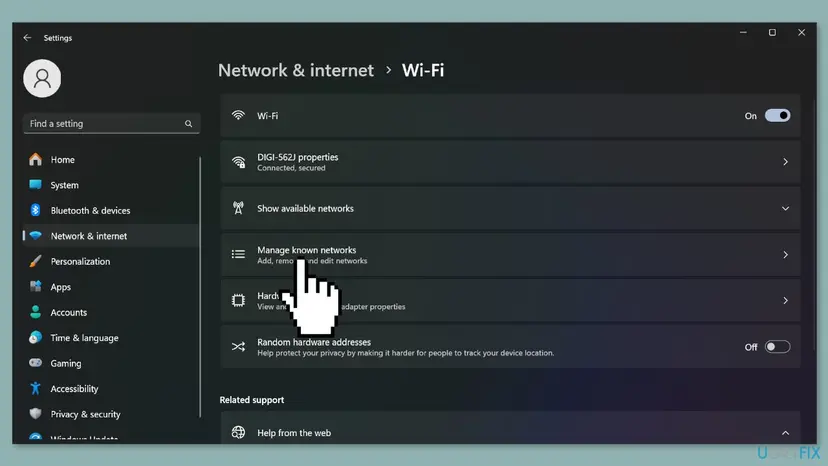
- Windows 10: open Settings > Network & Internet > Wi-Fi > Manage known networks, select the network and then Forget.
- Forget only the network that fails. The old version of this guide told you to forget every saved network. That is not needed and makes you type every password again.
- On a cable connection, unplug the cable, wait a few seconds and plug it in again.
It worked if: After you join again, the sign-in page opens, and sites load once you finish it.
If not: If the message appears at home, go to Fix 5. On a public network, go to Fix 6.
Fix 5. On your home or office network: restart the router and check the provider
10 minutesLow riskThe message appears on your own Wi-Fi or cable network at home or in a small office.
A captive portal is not limited to public Wi-Fi. Mozilla notes that a home or office network can show one when the router, the internet provider or a network administrator wants a sign-in or setup step first. Browsers can also detect a portal when a router redirects requests in an unexpected way.
- Check whether phones and other devices on the same network can open sites.
- Unplug the router, and the modem if it is a separate box, and wait at least 30 seconds.
- Plug the modem in first, wait until its lights stop blinking, then plug in the router.
- Connect the PC again and open
http://www.msftconnecttest.com/redirectas in Fix 2. - If a page from the router or the provider opens, read it: it may ask you to sign in, finish setup or confirm your service.
- If every device stays offline, call the provider: the problem is with the router or the line.
Step by step, with a test of the router and the DNS server from Command Prompt: How to check your internet connection in Windows

It worked if: After the restart, sites load on every device, or the router's own page tells you which step it is waiting for.
If not: If other devices work and only this PC shows the message, go to Fix 6.
Fix 6. Reset the Windows network settings
15 minutesLow riskOther devices pass the sign-in page on the same network, and this PC never does, even after Fixes 1 to 4.
When this PC alone never reaches the portal, its network settings may hold an old DNS answer, a damaged TCP/IP setup or a leftover setting from a removed VPN. The reset commands return them to defaults, so the PC asks the network for fresh settings.
- Open an elevated command window. Right-click Start and select Terminal (Admin), or type cmd in the search box, right-click Command Prompt and select Run as administrator. Select Yes when Windows asks for permission.
- Flush the DNS cache. Type the command below and press Enter. Windows forgets the website addresses it looked up earlier and asks for them again.
ipconfig /flushdns - Reset Winsock. Type the command below and press Enter. It returns the Windows sockets catalog to its default state.
netsh winsock reset - Reset TCP/IP. Type the command below and press Enter. If you entered an IP address or DNS server by hand, note it first: you may need to enter it again.
netsh int ip reset - Get a new IP address. Run these two commands one after the other. The connection drops for a moment between them.
ipconfig /release ipconfig /renew - Restart the PC. Restart Windows so the Winsock and TCP/IP resets take effect, then test the connection. If it still does not work, continue with the network reset below.
These steps were written for Windows 11 24H2 and later. The full page with the other versions and what each result means: Reset the network and flush DNS
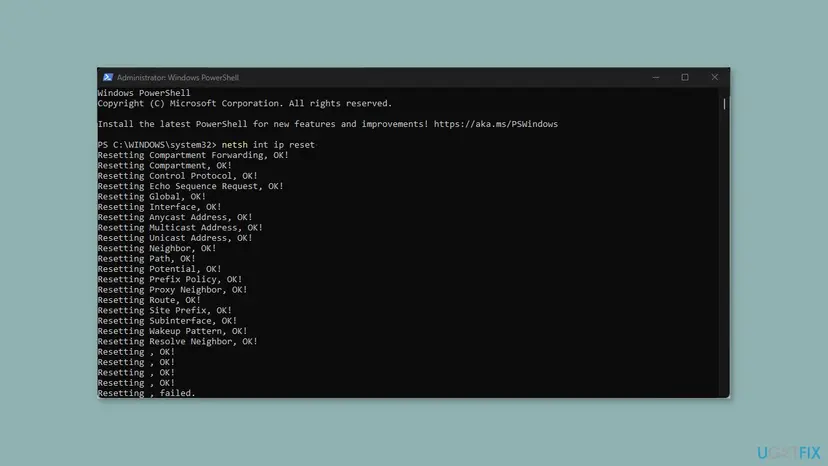
netsh int ip reset in PowerShell on Windows 11: one line per part that was reset.If you once typed an IP address or a DNS server by hand, write it down before the reset. You may need to enter it again. A line that ends in "failed." is common and does not mean the reset did not work.
The full Network reset in Settings removes and reinstalls every network adapter, and VPN apps may need to be set up again. Use it only when the commands did not help: Reset the network and flush DNS
It worked if: After the restart, joining the network opens its sign-in page, and sites load after you finish it.
If not: Read the next section: the network may block this PC, or it may need the staff's help.
If the login page message is still there
Chrome writes no log for this page, so check where the problem sits. The question is whether it is this PC, this browser or the network.
| What you see | What it means | What to do |
|---|---|---|
| Your phone signs in to the same network, the PC does not. | The network works. Something on the PC blocks the portal. | Fix 3, Fix 4, then Fix 6. |
| No device gets the sign-in page. | The portal itself is down or full. | Ask the staff or the network operator. Mozilla gives the same advice. |
| Firefox signs in, Chrome does not. | The browser kept an old page or a cookie. | Fix 2 in a private window, then clear the browser's data. |
| Sites load, and the network icon still shows an alert. | Windows' test failed, but your connection works. | Wait a little: Microsoft says the alert goes once other apps connect. |
| A company PC opens the MSN page after connecting. | The network uses a proxy and Windows' test cannot get through. | Ask the IT team (see below). |
- What to tell the staff or IT team. The network name, the time, the exact message, whether other devices sign in, and whether a VPN runs on the PC.
- For the IT team of a company network. Microsoft says the browser stops opening on connect when the network firewall allows
*.msftncsi.comand*.msftconnecttest.comon port 80. - When it is a limit of the network. Some portals allow only a set number of devices per room or per code. Only the operator can change that.
- When it is hardware. It almost never is. If the PC cannot join any network at all, the Wi-Fi adapter or its driver is the next suspect, not this page.
Microsoft documents registry values and policies that switch off the test, and says it does not recommend that. Outlook may then fail to reach the mail server and Windows may fail to download updates, even when the PC is online. It also does not sign you in to the network.
How to keep the login page problem from coming back
- After you join a public network, open a plain HTTP address such as
http://www.msftconnecttest.com/redirectfirst, so the sign-in page can show. - Sign in to the portal first, then connect the VPN.
- Check the network name with the staff before you join it.
- Keep the access code or receipt: many portals ask again after some hours or on the next day.
- Forget public networks you will not use again.
- Do not type passwords or card details into a sign-in page you cannot tie to the place you are in.
- Do not switch off the Windows network test to hide the alert.
- Do not leave the VPN off for the rest of the session after you signed in.
- Do not forget every saved network when only one fails.
Frequently asked questions
What does "the Wi-Fi you are using may require you to visit its login page" mean?
It means the Wi-Fi you joined has a sign-in page that you have not passed yet. Google Chrome shows the message when a secure site cannot load because the network holds the connection until you sign in or accept its terms. Chrome uses this Wi-Fi wording on wireless connections and "The network you are using" on a cable. Select Connect and finish the sign-in. Your PC is not at fault, and nothing needs to be repaired.
How do I force the Wi-Fi login page to open on Windows?
Type a plain HTTP address in a new tab: http://www.msftconnecttest.com/redirect is the one Windows uses for its own network test, and Microsoft documents that it leads to the portal. Firefox's address http://detectportal.firefox.com/canonical.html works too. A captive portal can redirect only plain HTTP pages, not secure ones. If it still does not open, use a private window, turn off any VPN, and disconnect and reconnect to the Wi-Fi.
What does "Additional log on information may be required" mean?
It is a Windows notice about the same thing: the network wants you to sign in before it gives full internet access. Microsoft writes that older versions of Windows show a message that you must take further action to connect fully, and that you click it to open a browser. Newer versions open the default browser with the sign-in page by themselves. Click the notice, or open http://www.msftconnecttest.com/redirect, and finish the network's sign-in.
Why does Firefox say "You must log in to this network before you can access the internet"?
Firefox found a captive portal on the network. It tests every network by loading a small page from detectportal.firefox.com, and when the network answers with something else, it shows this message and opens the sign-in page in a new tab. Finish the sign-in there. Mozilla says Firefox can also flag a portal when a router redirects requests in an unexpected way. If the message keeps coming back while sites load, restart Firefox and reconnect to the network.
Is the network login page a scam?
Usually not: a sign-in page is the normal way public and guest networks give access. Mozilla notes that the check itself does not mean the network is unsafe. Still, anyone can name a Wi-Fi after a hotel or a café. Ask the staff for the exact network name, check that the page names the place you are in, and do not enter passwords or card details on a page you cannot tie to it. Connect your VPN once you are signed in.
Why does the login page keep refreshing or coming back?
Most often the sign-in did not finish, or the network's session has ended and it wants you to sign in again. A VPN that keeps trying to connect can also loop you back to the page. Forget the network, join it again and finish the sign-in with the VPN off. If the page keeps reloading even then, try a private window or another browser. If no device can pass it, the portal itself has a problem, and only the network operator can fix that.
Why do I get the login page message on my home Wi-Fi?
Because your router or internet provider is redirecting your traffic to a page of its own. Mozilla lists this case: the router may want a login or setup step, or the provider may want you to sign in or confirm your service. Restart the modem and router, check whether other devices go online, then open the router's settings page. If every device stays offline, call your provider. If only this PC shows it, reset its network settings.
What does "Action required: re-attest your network access" mean?
It is not Chrome's captive portal page. The words point to a network access system that an employer or a school runs, which asks your device to prove again that it may use the network. We could not confirm which product shows this exact text. Follow the steps on that page or ask the IT team of the organization that runs the network. Changing Windows settings will not pass such a check.
What is "Please log in to use the internet hotspot service"?
That is the network's own sign-in page, not an error. Hotspot systems in hotels, cafés and shops show a line like this before they let you online. Enter what the page asks for: a code from a card or receipt, a room number, or an email address. If you have no code, ask the staff. If the page does not open at all, go to Fix 2 to open it by hand.
Can I turn off the Windows network test so the message stops?
You can, but Microsoft does not recommend it, and it will not get you online. The test only finds out whether the network wants a sign-in. Microsoft warns that with the test off, Outlook may not reach the mail server and Windows may fail to download updates. The network still holds your traffic until you sign in. Sign in to the network instead, or, on a company network, ask the IT team to allow the test addresses through.
Sources
- Microsoft Learn: An Internet Explorer or Edge window opens when your computer connects to a corporate network or a public network (KB 4494446) (learn.microsoft.com)
- Chromium source: security_interstitials_strings.grdp, the texts of the captive portal page (github.com)
- Mozilla Firefox Help: Captive portal detection (support.mozilla.org)
Did this fix work?
One click, no account. It tells the next reader which guides are worth their time.
Questions and experiences: fix "The network you are using may require you to visit its login page" error in Windows
Still broken, or found a fix we did not cover? Ask here: members and our editors answer. Reading is open; writing needs a free account.
…