How to fix
The Photos app not working
on Windows
Discover effective solutions to fix the Photos app not working in Windows 10 or 11. Get your images back in view, expert-tested for quick results!

What causes How to fix the Photos app not working in Windows?
- Program crashes
- Stalling
- Error warnings when opening or editing photographs and videos
- Long loading times
- App not responding
Repairs Windows system files, removes malware, and restores a clean OS state — without reinstalling.
Hello. When I try opening photos with the Photos app in Windows it won't work. How do I fix this?
The default tool for viewing, organizing, and manipulating images and videos is the built-in Photos app in the Windows operating system. It is an easy-to-use platform created to give people a practical way to access and manage their multimedia material. The Photos app also has fundamental editing tools that let users make quick changes to their photos and videos, such cropping, rotating, and adding filters.
However, problems with the Photos app may interfere with the smooth operation of Windows. Users frequently complain about the Photos app not functioning properly. This problem may show up in a variety of ways, such as program crashes, stalling, or error warnings when opening or editing photographs and videos. It can be frustrating for users if the app takes a long time to open or doesn't respond to their commands, especially if they need to immediately access or share their media assets.
Users who depend on the Photos app to manage their visual assets, especially those who use it for professional or personal purposes, may have substantial consequences if it malfunctions. When trying to access multimedia content stored on their Windows device, it might impede workflows, delay the sharing of crucial photographs or films, and be inconvenient. Additionally, the aggravation brought on by the app's dysfunction may have a negative effect on how satisfied a user is with Windows overall.
Users can try a number of solutions to fix problems with the Photos app, including updating, resetting, or fixing it with PowerShell commands. Compatibility problems can also be resolved by checking for Windows updates and making sure the device's graphics drivers are current. It's important to remember, though, that different solutions may be effective depending on the root of the issue.
In this guide, you will find 5 steps that should help you fix Photos app not working in Windows. You can also run a maintenance tool like [d1] that can fix most system errors, BSODs,[ref en-1] corrupted files, and registry[ref en-2] issues. Otherwise, follow the step-by-step instructions below.
Solution 1. Run the Windows Store Apps Troubleshooter
- Press the Windows key + I to open the Settings app.
- In the System tab, scroll down and click on Troubleshoot.
- Next, open Other troubleshooters.
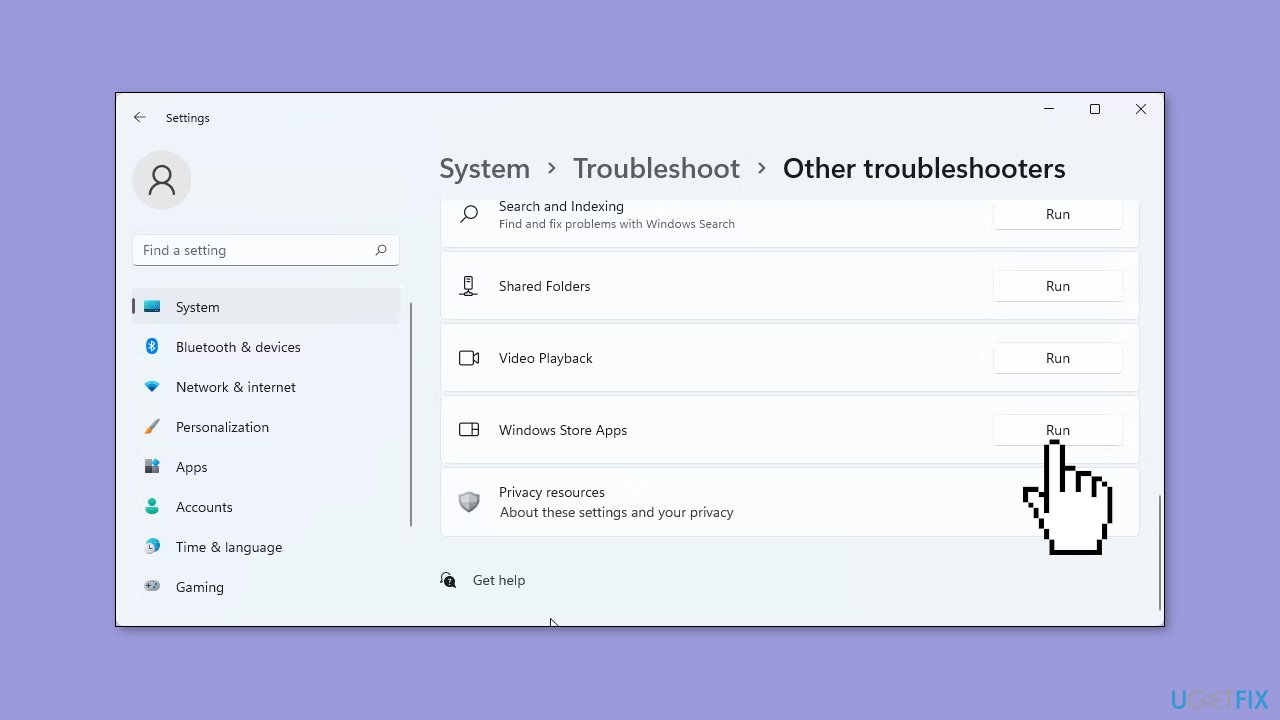
- Scroll down to Windows Store Apps and click the Run button.
- Wait for the troubleshooter to scan and fix any issues.
- If required, follow the on-screen instructions to apply any recommended changes.
Solution 2. Install Updates
- Click Start and select Settings.
- Go to the Windows Update section.
- Click Check for updates and wait.
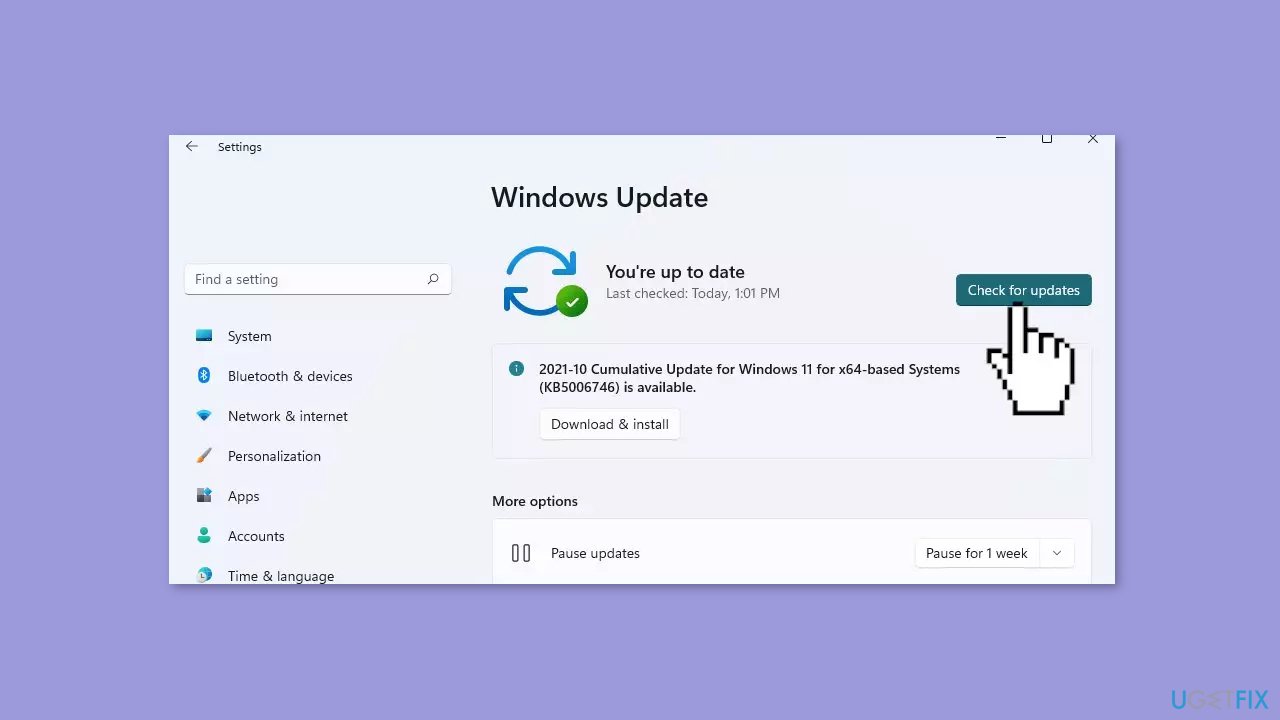
- Go to the Advanced options and install optional updates.
- Reboot your system.
Solution 3. Reset the Photos App
- Press the Windows key + R to open Run.
- Type ms-settings: and click OK to open Settings.
- Next, open the Apps tab in the left pane.
- Click on the Apps & features option.
- Now, locate the Microsoft Photos app. You can either perform a search or scroll through the app list to find it.
- Click the three-dots menu beside the Photos app and select Advanced options.
- Scroll down and click on the Reset button. Then, click the Reset button once more to confirm the action.
- To Repair the Photos app, go to Start > Settings > Apps > Apps and features. Here, locate the Photos app.
- Then, click the three-dots menu next to it and select Advanced options.
- Next, scroll down and click the Repair button to begin the process. If successful, a checkmark will appear next to the Repair button.

Solution 4. Disable OneDrive Cloud-Only Content
- Launch the Photos app and wait for it to load.
- Next, click the three-dot menu at the top left corner and select Settings.
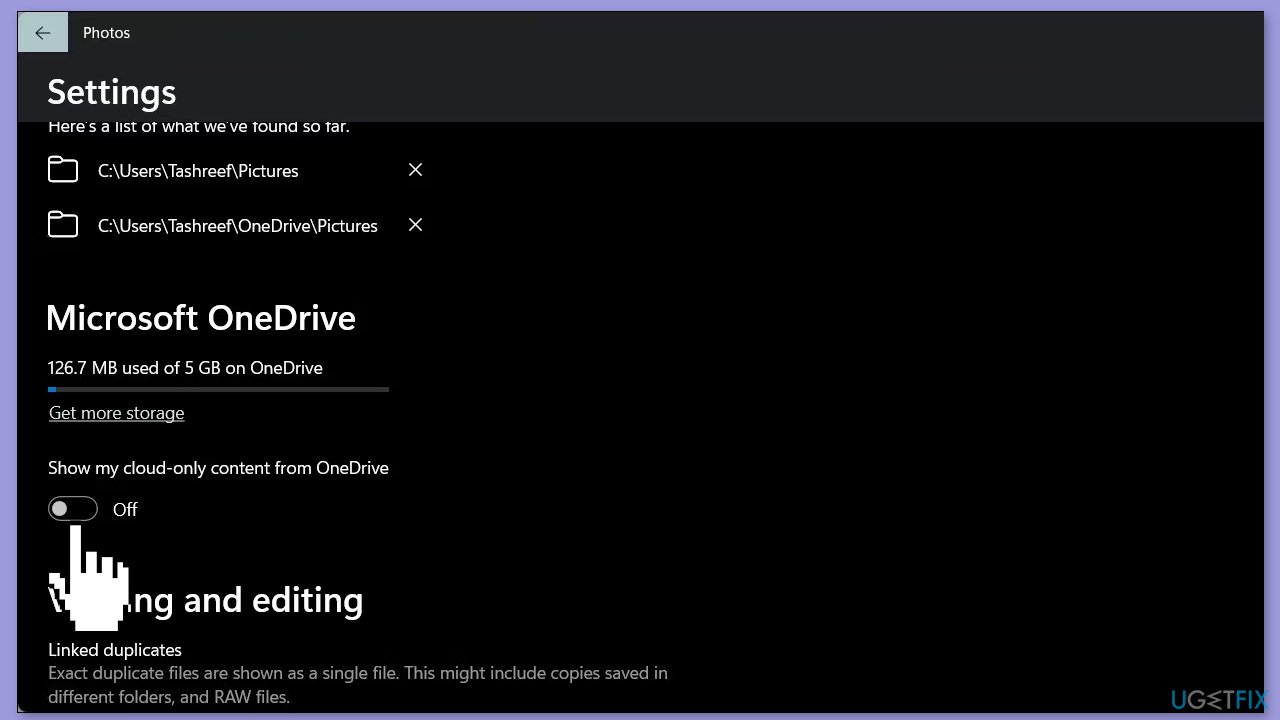
- Toggle the switch for Show my cloud-only contents from OneDrive and set it to Off.
- Close and open the Photos app, and it should load faster than before.
Solution 5. Reinstall the Photos App
- Press the Windows key, and type powershell.
- Right-click on Windows PowerShell and select Run as administrator from the search result.
- In the PowerShell window, type the following command to view a list of all installed apps:
Get-AppxPackage -AllUsers
- Next, locate the Microsoft.Windows.Photos package from the list. To find the app, right-click on the PowerShell toolbar and select Edit > Find. Type Microsoft.Windows.Photos and hit enter to locate the app. Then, copy the PackageFullName for the Photos app. In this case, it looks something like this:
Microsoft.Windows.Photos_2021.21100.20007.0_x64__8wekyb3d8bbwe

- To uninstall the app, enter the following command, using the copied PackageFullName:
Remove-AppxPackage Microsoft.Windows.Photos_2021.21100.20007.0_x64__8wekyb3d8bbwe
- The FullPackageName (app version) changes with every new update the Windows app receives. So, it is important to find and use the correct FullPackageName to uninstall the app.
Bottom line
To fix the Photos app not working in Windows, users can try updating, resetting, or repairing the app using PowerShell commands. Additionally, checking for Windows updates and ensuring graphics drivers are current may resolve compatibility issues. If none of these solutions work, consider running a maintenance tool to fix system errors.
Frequently asked questions
Try resetting the Photos app by going to Settings > Apps > Apps & features, selecting Photos, and clicking on 'Advanced options' to find the reset option.
You can repair the Photos app by going to Settings > Apps > Apps & features, selecting Photos, and then clicking on 'Modify' to initiate a repair.
Ensure that your Windows is updated to the latest version, as updates often fix compatibility issues that may affect the Photos app.




Report an issue
What's wrong with this guide? We review every report and update or remove content.
Report received — thank you. We'll review and fix it.
You need a free account to submit a report.
Be the first to comment