How to fix
“The properties for this item are not available”
on Windows
Resolve the "The properties for this item are not available" error on Windows 10 and 11 effortlessly with expert-tested solutions for quick fixes.

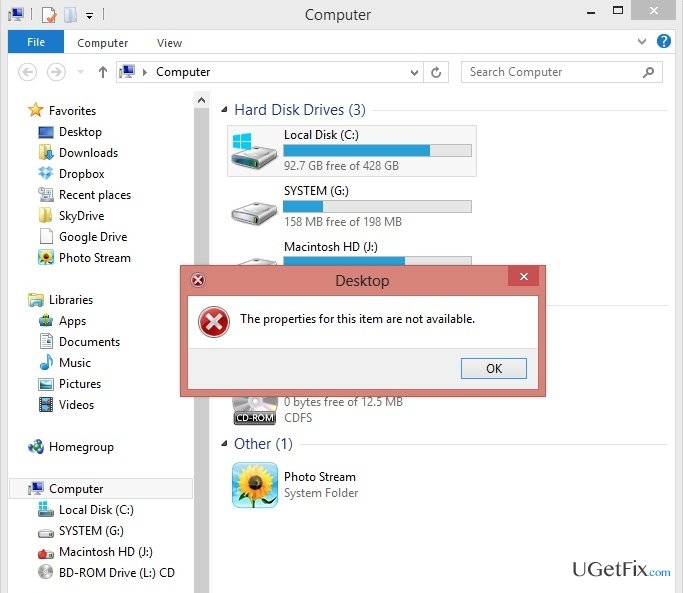
What causes How to Fix “The properties for this item are not available” on Windows?
- Corrupted registry keys
- Missing registry keys
- Damaged registry keys
- System upgrade issues
- Windows update issues
Repairs Windows system files, removes malware, and restores a clean OS state — without reinstalling.
Hello. Recently I upgraded from Windows 7 to Windows 10. However, after an upgrade some problems started to happen. I’m not able to see the properties of any folder, file or driver. When I right click, for example, on D:/ drive to check much of free space has remain on it, the system freezes and instead of a drop down menu I receive the following: "The properties for this item are not available". What should I do?
The properties for this item are not available is an error message that, for some reason, occurs on laptops and PCs running Windows 7 and Windows 10 only. Usually, this error shows up out of the blue without performing any major system changes. However, sometimes The properties for this item are not available error shows up after upgrading Windows 7 to Windows 10 or running an update for the running OS, e.g. Anniversary Update for Windows 10.
When does The properties for this item are not available error message occur?
Several users reported that after upgrading the system, the The properties for this item are not available error shows up on the desktop and remained until the user booted to the Safe Mode. However, such cases are very rare. In most of the cases, Windows users face this error when trying to check properties of some folders, files or drivers in particular. To be more precise, when a user access My Computer (Windows 7) or This PC (Windows 10) and right-clicks on any drives that is connected to a PC (HDD, SSD, DVD, CD, USB, etc.), he/she receives an error The properties for this item are not available instead of information about that driver. No need to say that this issue is rather annoying as it prevents user from finding out how much free space is left on a particular drive or performing other important tasks with the drives.
What triggers this error?
Luckily, The properties for this item are not available error causes are not serious like virus or malware. According to Windows specialists, this issue is triggered by corrupted/missing/damaged registry keys. Therefore, it’s quite easy to fix The properties for this item are not available issue.
How to Fix an error The properties for this item are not available?
The easiest way to fix registry-related problems is to install a reliable PC optimization tool. Registry key damage is by far the most common issue that causes Windows system to slow down, freeze, and deliver errors. Thus, PC optimization tools have been designed to check, restore, and maintain registry keys. If you want to fix The properties for this item are not available error easily and be sure that every registry key is took care of, install [d1] or [rev id=”RegCure Pro”] and run it.
Manual The properties for this item are not available Error fix
Windows 7 devices
- According to researchers from Appuals, to fix this issue, you have to download a Registry Editor. Find it online, download and then open the folder where the saved .RED file is stored.
- Double click on it and click Yes on a confirmation window.
- Now you have to wait for a while and let the .REG file to be added to your registry.
- If you have received a confirmation window, then the process has successfully been completed and now The properties for this item are not available error when right-clicking on your drives should be gone.
Windows 10 devices
First of all, check if your Windows 10 system is up-to-date. If it needs to be updated, do that right now. If the error did not vanished, use System and Maintenance Troubleshooter. To launch it, follow these steps:
- Click Windows key and X at once. Now choose Control Panel.
- Opt for large icons view by clicking the option on the top right of the window.
- Select Troubleshooting -> System and Security.
- Select Run maintenance tasks and restart your computer.
If you computer did not improve, perform a Clean boot to get rid of software conflicts or use [d1].
Bottom line
To fix the 'The properties for this item are not available' error, you can try repairing the registry, booting into Safe Mode, or checking for system updates. If none of these solutions work, consider seeking further technical support or reinstalling the operating system.
Frequently asked questions
This error can occur due to corrupted system files, incorrect permissions, or issues with the file or folder itself. Running a system file check can help diagnose and fix these problems.
You can try resetting the Windows Explorer process or checking for updates to ensure your system is running smoothly. If the issue persists, consider creating a new user profile to see if the error is user-specific.
Yes, you can use built-in tools like the System File Checker (SFC) and DISM to repair corrupted system files without reinstalling Windows 10 or Windows 11.




Report an issue
What's wrong with this guide? We review every report and update or remove content.
Report received — thank you. We'll review and fix it.
You need a free account to submit a report.
Be the first to comment