How to fix
“The publisher has been blocked from running software on your machine” Error
on Windows
Resolve the "publisher blocked" error on Windows 10 and 11 with our expert-tested solutions. Get back to smooth operation in minutes!

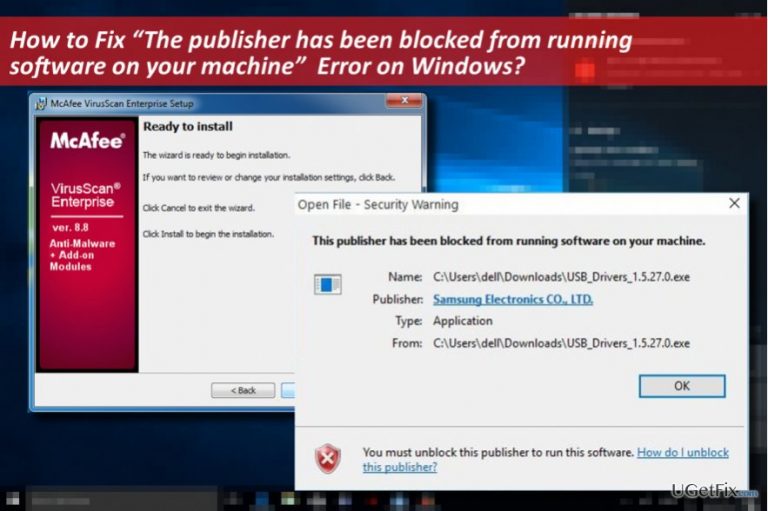
What causes How to Fix “The publisher has been blocked from running software on your machine” Error on Windows?
- Issues regarding digital certificates of particular software
- The program may not be safe or legitimate
- CertLock Trojan has infiltrated the system
- Certificates of trusted security vendors have been injected into the disallowed registry key
- The system recognizes the security software as inappropriate
Repairs Windows system files, removes malware, and restores a clean OS state — without reinstalling.
I tried to install McAfee, but the installation ended up with an error “The publisher has been blocked from running software on your machine.” It seems strange to me as I find McAfee a reliable tool. What could be the culprit for that?
“The publisher has been blocked from running software on your machine” is a Windows error message that indicates the issues regarding digital certificates of particular software. Digital Signature consists of specific digits that serve as an identity of programs, just like password or username of a person. All legitimate applications are digitally signed, meaning that the developer takes all responsibility for the product and ensure that it’s safe to use. “The publisher has been blocked from running software on your machine” error shows up when trying to download or install security software. If you have received this pop-up alert, double-check if the program you opt for installing is hundred percent safe.
Other “The publisher has been blocked from running software on your machine” causes
If the security software that you want to install or run is legitimate and has been digitally signed, the reason why your PC generates “The publisher has been blocked from running software on your machine” alert may be the CertLock Trojan. This Trojan horse might have infiltrated into the after executing a malicious email attachment, fake pop-up advertisement, drive-by-download or by using other illegal methods. As soon as it gets into the target system, it injects the certificates of trusted security vendors into the HKLM\SOFTWARE\Microsoft\SystemCertificates\Disallowed\Certificates\ Registry key. Consequently, the system recognizes the corresponding security software as inappropriate.

The list of programs blocked by CertLock Trojan
As reported by Bleepingcomputer, “The publisher has been blocked from running software on your machine” alert prevents from installing the following programs:
AVAST, AVG, Adaware, Avira, Bitdefender, BullGuard, CURIOLAB, Check Point Software, Comodo, Doctor Web Ltd, ESET, Emsisoft, F-Secure, FRISK, GData, K7, Kaspersky Lab, Malwarebytes, McAfee, PC Tools, Panda, SUPERAntiSpyware, Safer Networking, Symantec, ThreatTrack Security, Total Defense, Trend Micro, and Webroot.
What is the purpose of this Trojan Horse?
While CertLock is not a virus itself, security experts highly recommend removing it immediately. The purpose of this cyber threat is to weaken PC’s security and open the backdoor to serious viruses. Along with the unresponsive software programs and “The publisher has been blocked from running software on your machine” alert, the Trojan may also cause system’s slowdowns and freezes.
Fixing “The publisher has been blocked from running software on your machine” error
The only reliable way to uninstall CertLock Trojan and fix “The publisher has been blocked from running software on your machine” error is to run a thorough scan with a professional anti-malware. If the one that you are running on the system are blocked by the virus, we would recommend booting the system into Safe Mode and then download the program, which digital signature is not included into the Disallowed signatures list. Our recommendation would be to use [d1]. But before that, make sure to boot Windows into Safe Mode:
1. Press Windows key and navigate to the Power button using your mouse’s cursor.
2. Press and hold the Shift button and select Restart.
3. When the system boots into Windows Startup screen, select Troubleshoot.
4. Click Advanced Options and select Startup Settings.
5. Select Restart and then press F5 to enable Safe Mode with Networking.
6. Once done, run a scan with [d1] or another anti-virus, which is not blocked by the CertLock Trojan.
Bottom line
To fix the error, ensure the software is legitimate and check for the presence of the CertLock Trojan. You may need to remove the Trojan and restore the certificates. If none of these solutions work, consider seeking professional assistance.
Frequently asked questions
You can try running the application as an administrator or adjusting the User Account Control settings to allow the software to run.
Navigate to Windows Security, go to 'App & browser control', and adjust the settings under 'Reputation-based protection' to allow the program.
Yes, you can right-click the application, select 'Properties', and under the 'General' tab, click 'Unblock' to potentially resolve the issue.




Report an issue
What's wrong with this guide? We review every report and update or remove content.
Report received — thank you. We'll review and fix it.
You need a free account to submit a report.
Be the first to comment