How to fix
“The remote device or resource won’t accept the connection” error
on Windows
Resolve "The remote device or resource won’t accept the connection" error on Windows 10/11 effortlessly with expert-tested solutions for quick fixes.

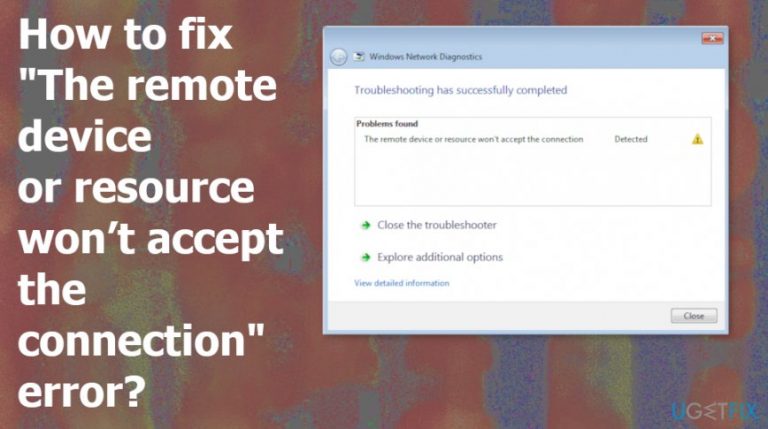
What causes How to fix “The remote device or resource won’t accept the connection” error?
- Issues with the configuration of the network settings
- Enabled proxy gate or incorrectly configured IE settings
- Changed and incorrectly set LAN settings
- Malware affecting connection and proxy settings
- Corporate network modifications to LAN settings
Repairs Windows system files, removes malware, and restores a clean OS state — without reinstalling.
Hello. I tried to run network diagnostics because I had serious internet connection issues. I was hoping to get any answers but another error appeared. I don't know what to do now. The error states "The remote device or resource won’t accept the connection". Can I fix it somehow?
"The remote device or resource won’t accept the connection" error message pops up during various processes, but troubleshooting problems and general browser opening are the most common, according to users online.[ref en-1]
It occurs when there are issues with the configuration of the network settings on the device. It can be the issues with an enabled proxy gate or IE settings that are incorrectly configured.
This particular "The remote device or resource won’t accept the connection" error also can show up when your LAN settings are changed and incorrectly set. It can be done by malware that is running on your device.[ref en-2] Unfortunately, there are many forms of malicious programs that can affect the connection and proxy settings.[ref en-3]
The main reasons behind "The remote device or resource won’t accept the connection" error are related to corporate networks because the IT department may modify your LAN settings to use their proxy server to access the internet.
So when you try to connect the same laptop from home and settings remain the same it cannot correctly connect to the web and you receive the error.
There are a few reasons and causes for the "The remote device or resource won’t accept the connection" pop-up, but we have a few workarounds and fixes too. 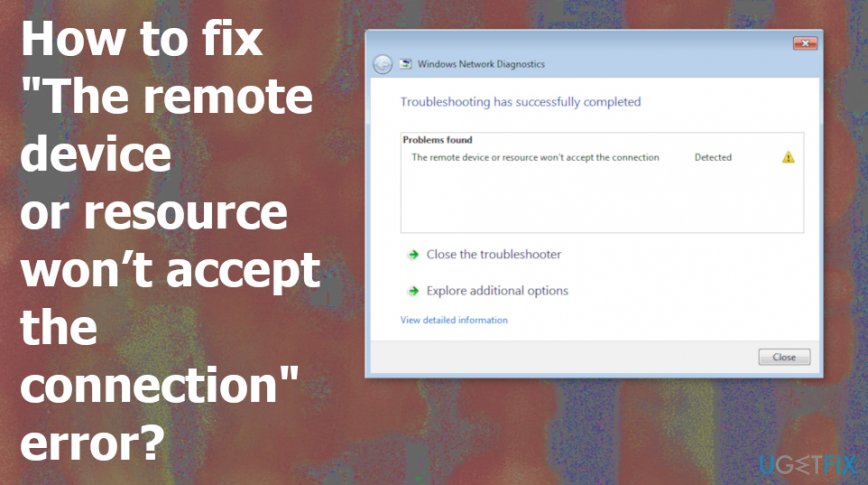
How to fix "The remote device or resource won’t accept the connection" error
Since there is a possible reason that you find the error on the screen due to malware infection or affected settings, the best way to fix "The remote device or resource won’t accept the connection" error should be with a tool like [d1] that might fix corrupted settings or files problem and possibly indicate any cyber threats for you. Then, you feel free to go with other methods and try to fix the issue yourself.
Disable your LAN proxy settings to fix "The remote device or resource won’t accept the connection" error
- Open Internet options.
- Choose Internet properties and then go to the Connections tab.
- There unselect the Use proxy server for your LAN and choose Automatically detect settings.
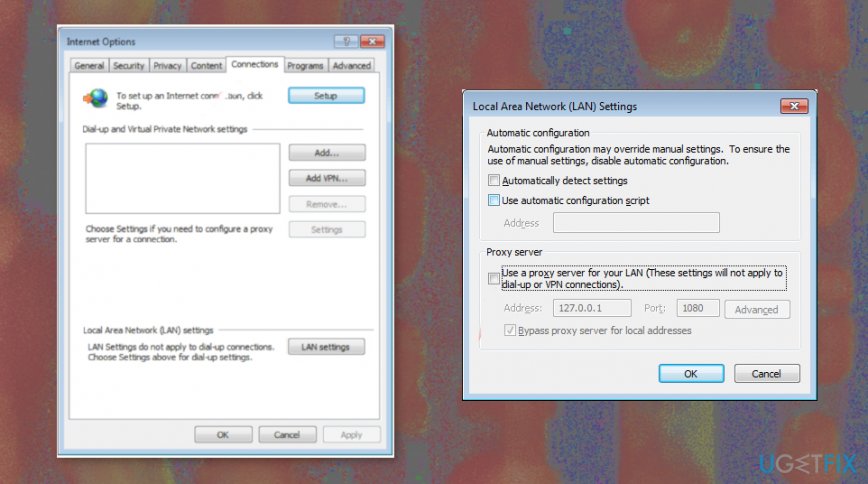
The remote device cannot connect fix lan
Reset the Internet Explorer settings to default
- Open the Run dialog window by pressing the Windows and R button at the same time.
- Put in inetcpl.cpl and press Enter.
- Choose the Advanced tab and press Reset.
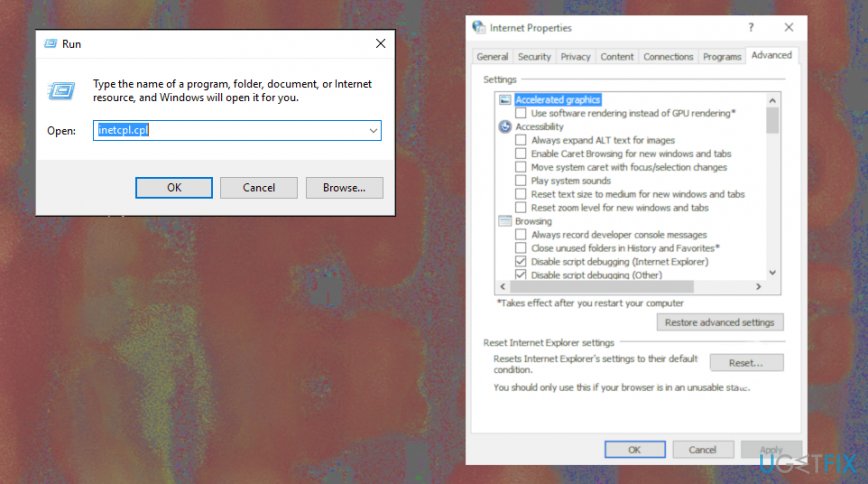
The remote device cannot connect fix proxy - Check the option Delete personal settings.
- Click Reset and restart the device.
Disable the antivirus software temporarily
Since the "The remote device or resource won’t accept the connection" error can be caused due to the third-party program interference, you may need to disable the program for a period and check if the issue occurs again. If this resolves the problem, contact the software developers and ask them for advice, or install a different anti-malware tool that may not bring the error on the screen.
Bottom line
To fix the error, you can use a tool to repair corrupted settings or files and check for cyber threats. Additionally, disabling your LAN may help resolve the issue. If none of these methods work, further troubleshooting may be necessary.
Frequently asked questions
First, check your internet connection and ensure that the remote server is online. If the problem persists, try disabling your firewall temporarily to see if it's blocking the connection.
You can resolve this by ensuring the network drive is properly mapped and accessible, and checking if the necessary network services are running. Additionally, resetting your network settings may help.
Yes, you can troubleshoot this by disconnecting and reconnecting your VPN, and checking if your VPN settings are correctly configured. If issues continue, try reinstalling the VPN client.




Report an issue
What's wrong with this guide? We review every report and update or remove content.
Report received — thank you. We'll review and fix it.
You need a free account to submit a report.
Be the first to comment