How to fix
“The remote procedure call failed and did not execute” Error
on Windows
Resolve the "The remote procedure call failed" error on Windows 10 and 11 with expert-tested solutions to get your system running smoothly again. Fixed …


What causes How to Fix “The remote procedure call failed and did not execute” Error on Windows?
- Issues with Remote Procedure Call (RPC)
- Malware infection
- Presence of potentially unwanted programs (PUP)
- Corrupted system files
- Problems with DCOM and COM servers
Repairs Windows system files, removes malware, and restores a clean OS state — without reinstalling.
At first, Explorer froze, and I had to restart it. Unfortunately, I wasn't able to use it anymore. Then, I wanted to rename several files on my computer, and “The remote procedure call failed and did not execute” error popped up. It happened only once so far, but I am wondering whether it is a temporal bug or something more serious. Can you give me a piece of advice on this matter?
“The remote procedure call failed and did not execute” Error is the issue that indicates problems with Remote Procedure Call. The procedure fails on various Windows devices and on systems from 7, 8, or even 10. This problem keeps the user from opening documents, photos, or even running Windows applications and using operating system features.
If the error occurs and those issues persist - this problem needs serious fixing. “The remote procedure call failed and did not execute” message is an error that is related to the Remote Procedure Call (RPC)[ref en-1]. Usually, this protocol helps the specific program request service from another software not located on the same computer.
Furthermore, experts note that RPC manages DCOM and COM servers[ref en-2]. In other terms, it does the following actions on the computer:
- Gathers unnecessary objects (garbage);
- Performs object exporter resolutions and activation requests.
Therefore, users should keep Remote Procedure Call running for the computer's safety. Despite how often you receive the “The remote procedure call failed and did not execute” error, it is important to fix the problem before your computer is damaged. Likewise, we strongly advise you to make sure that it is not infected with malware or even a potentially unwanted program (PUP)[ref en-3].
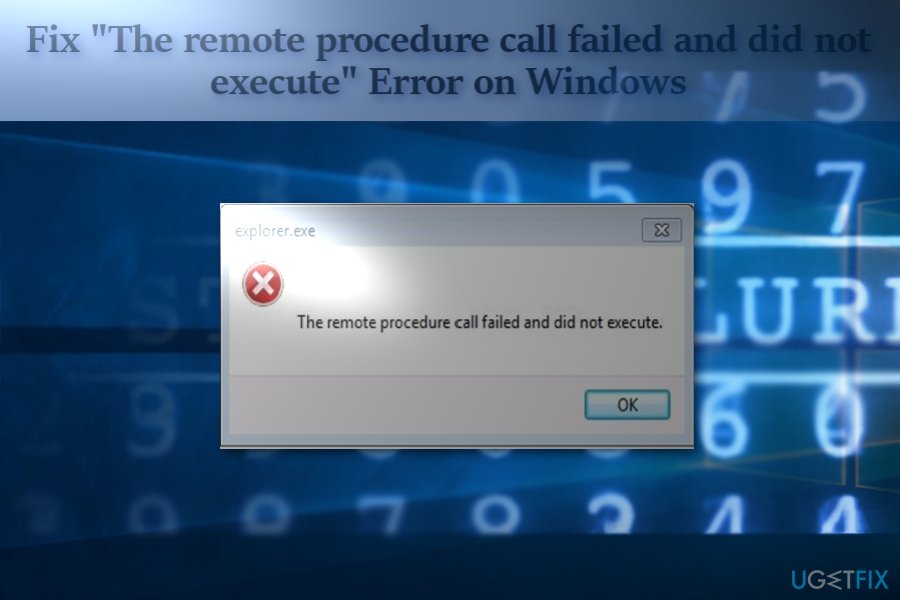
Below you will find ways how to get rid of the “The remote procedure call failed and did not execute” pop-up displayed by explorer.exe. After you fix this issue, you will be able to use Explorer and continue renaming, moving, and creating new files and folders on your computer without any errors.
Use the video guide below to get more details about the "The remote procedure call failed and did not execute” error and its elimination. You can also follow our step-by-step tutorial listed below.
[youtube T4DYN6fA9VA]
How to fix “The remote procedure call failed and did not execute” error on Windows 10
“The remote procedure call failed and did not execute” issue is related to the process that is responsible for any actions on the machine. Activation requests, unnecessary file gathering, and other features may stop working when these problems occur. You need to ensure that the Remote Procedure Call is running the computer smoothly. These failures mean that folders or files cannot be opened or applications launched for a reason.
You can clean your computer and fix the “The remote procedure call failed and did not execute” error automatically by scanning the files with [d1] or another tool that repairs OS files, data in registries, DLL files, or different needed pieces. You can try to run reputable antivirus software. Our experts highly recommend using it at all times if you want to keep your system safe. You can make sure that the machine is not affected by malware this way.
When particular system features get repaired, and malware checks came back clear, you can try to fix “The remote procedure call failed and did not execute” Error manually by relying on the methods below. The error can be caused by system corruption, services issues or user account corruption, damage to other files. Try a few methods in combination to fix the problem.
Troubleshoot the issue
- Search for troubleshooting options.
- Go to Troubleshoot settings and click Windows Store Apps, Run the troubleshooter.
- Follow instructions on the screen.
Configure RPC settings
If the error notification appears from to time, follow these steps:
- Click on the Start button and type Services.
- Then scroll down to locate Remote Procedure Call (RPC).
- Check whether the Startup type is set to Automatic.
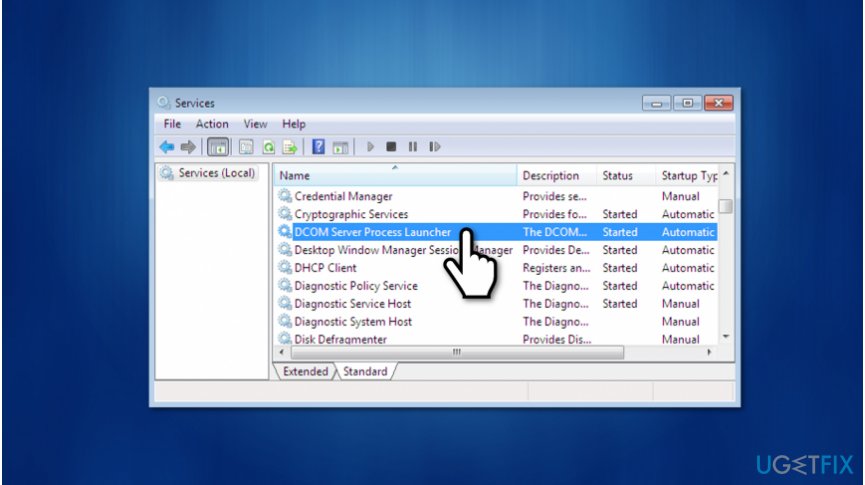
Dcom server process launcher - Then, scroll up and select DCOM Server Process Launcher. Here, the Startup type should be Automatic as well.
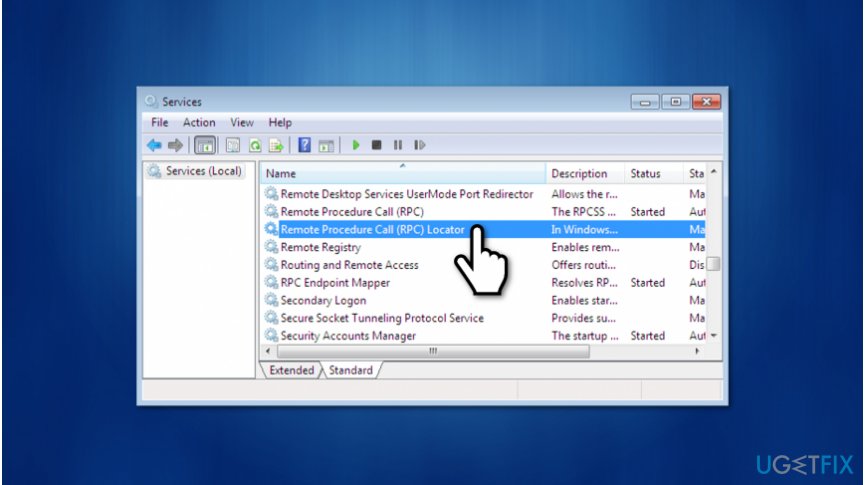
Remote procedure call locator - If these settings were set as indicated above and you still get bothered by the issue, locate Remote Procedure Call (RPC) Locator.
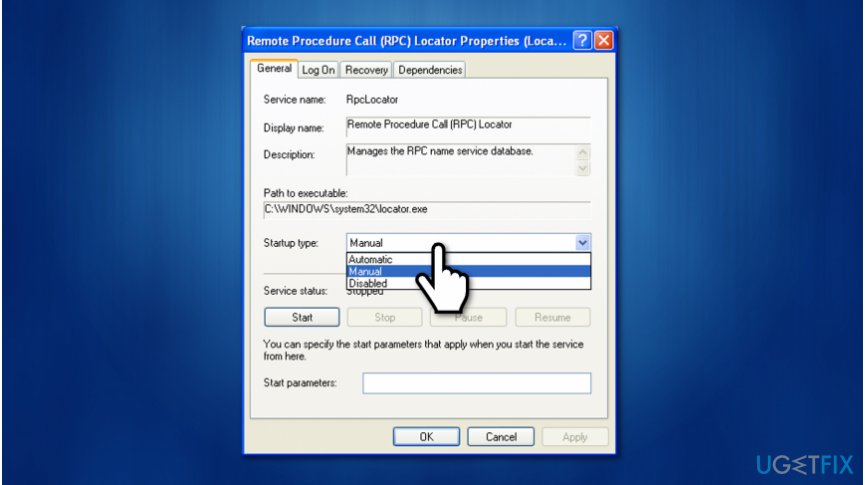
Remote procedure call locator startup type - In the General tab, make sure Manual is selected as startup type.
- Reboot the system for the changes to take effect.
Repair corrupted files to fix “The remote procedure call failed and did not execute” Error
In case the issue lies in damaged files, there is a probability that you may find a solution with Command Prompt functionality.
- Click on the Start button, type Command. Select Command Prompt and right-click on it to run it as administrator.
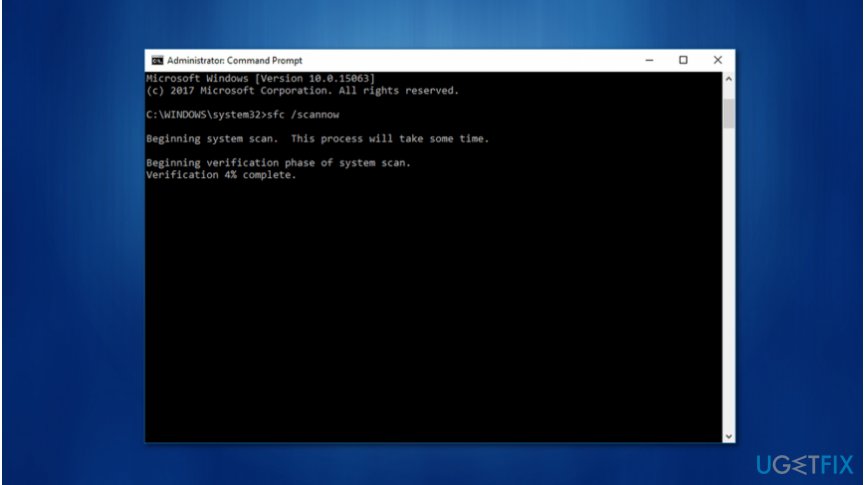
Sfc scannow on command prompt - Once the software launches, type sfc /scannow.
- Wait for the command to finish.
In case, File Explorer does not open, right-click on the desktop and enter Display settings. Under the headline of Multiple Displays, check whether one monitor is chosen as the default.
Bottom line
To resolve the 'The remote procedure call failed and did not execute' error, ensure that Remote Procedure Call is running, check for malware or PUPs, and repair any corrupted system files. If these solutions do not work, consider seeking professional technical support.
Frequently asked questions
This error often occurs due to issues with system services, corrupted files, or conflicts with third-party applications. It's essential to check the RPC service status and run system scans to identify underlying problems.
To restart the RPC service on Windows 11, press Win + R, type 'services.msc', find 'Remote Procedure Call (RPC)', right-click it, and select 'Restart'. This can help resolve temporary glitches causing the error.
Yes, advanced steps include running the System File Checker (SFC) and DISM tools to repair corrupted system files, as well as checking for Windows updates that might fix underlying issues.




Report an issue
What's wrong with this guide? We review every report and update or remove content.
Report received — thank you. We'll review and fix it.
You need a free account to submit a report.
Be the first to comment