How to fix
“The request is not supported” error when trying to launch apps
on Windows
Resolve "The request is not supported" error when launching apps in Windows 10 or 11. Quick fixes and expert-tested solutions await you!

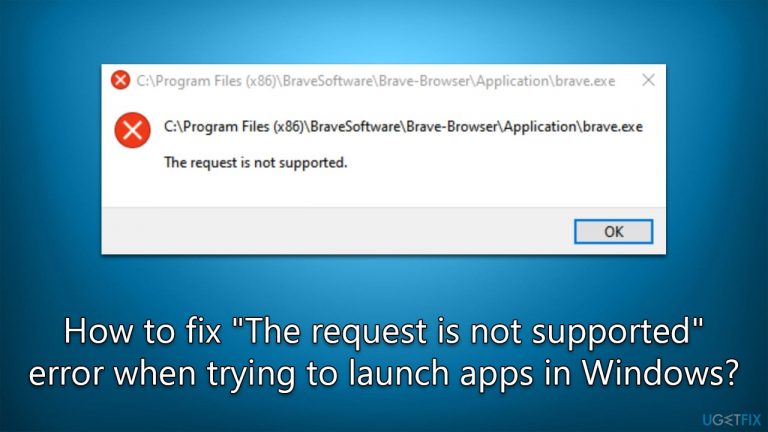
What causes How to fix “The request is not supported” error when trying to launch apps in Windows?
- Software conflicts between the host system service and another application
- Damaged disks
- Corrupted system files
- Issues related to the Windows registry
- Problems with system settings
Repairs Windows system files, removes malware, and restores a clean OS state — without reinstalling.
Hello, I have an issue with Windows apps. Many times, when I try to open something like Skype, I receive an error "The request is not supported," and the app does not start at all because of it. I was wondering whether you could help me with this - all the tips are appreciated. I am not fond of reinstalling Windows, by the way.
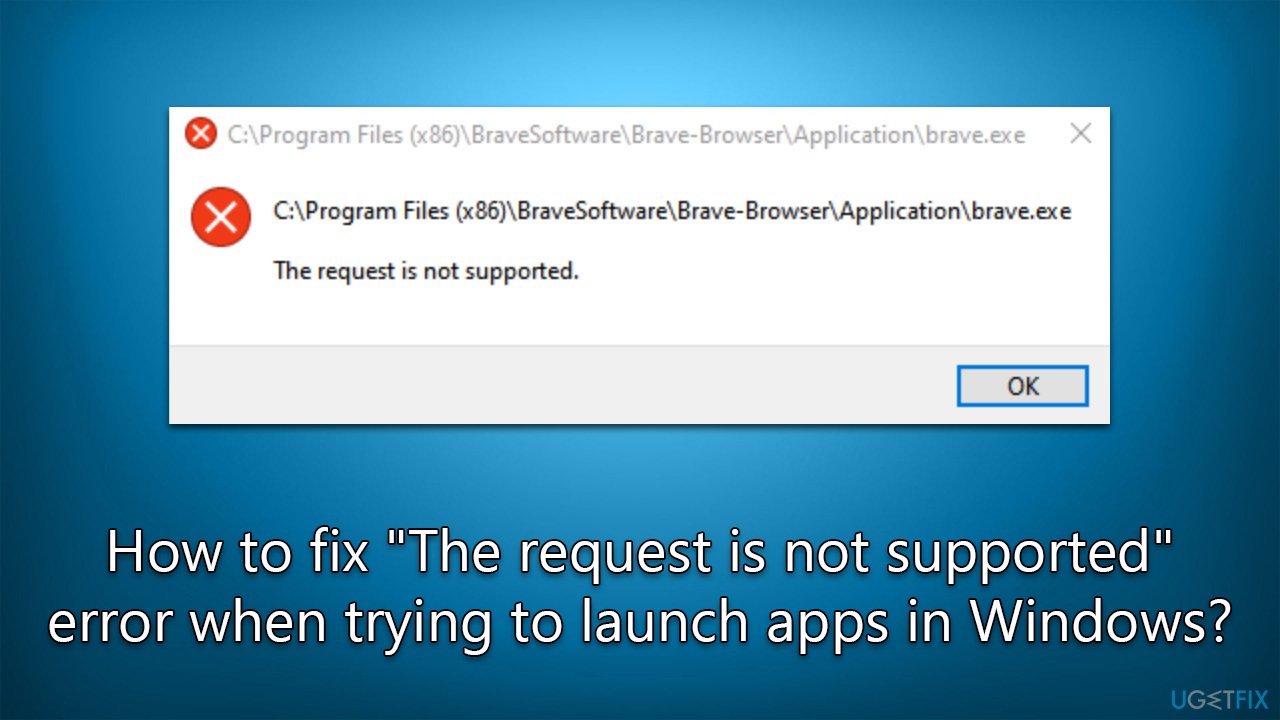
"The request is not supported" error might show up whenever users are attempting to launch applications native to Windows, including Skype or Photos app, as well as important Windows components such as Services or the Task Manager. In some cases, third-party apps could also be affected by this issue. The error may seem quite confusing, as it does not really explain anything in particular, only stating that the request is not supported.
If you receive an error prompt stating "The request is not supported" when launching system programs, Microsoft Store apps, or non-Store applications on your Windows computer, there's a good chance this is caused by software conflicts between the host system service and another application. In other cases, the reasons could range from damaged disks to corrupted system files.
Keep in mind that each Windows machine is different, so there is no solution-for-all here. Therefore, you might have to try several fixes we provide below before you find one that works for you.
If the steps below to fix the "The request is not supported" error in Windows 10 or 11 seem too confusing or time-consuming, we recommend trying a reputable PC repair application [d1]. It can fix problems related to the Windows registry, system files, and settings that can cause the system to crash or run slowly. The software scans the entire system, including the Windows registry, for any issues that may be causing problems. Once the scan is complete, it will provide a list of problems that it has detected.
The user can then choose which issues they want to fix. The app also includes a feature called "PC Optimization," which can be used to improve the overall performance of the system. It can help to speed up the system by removing unnecessary files, optimizing the registry, and disabling unnecessary startup programs.
Fix 1. Run Windows Store Apps troubleshooter
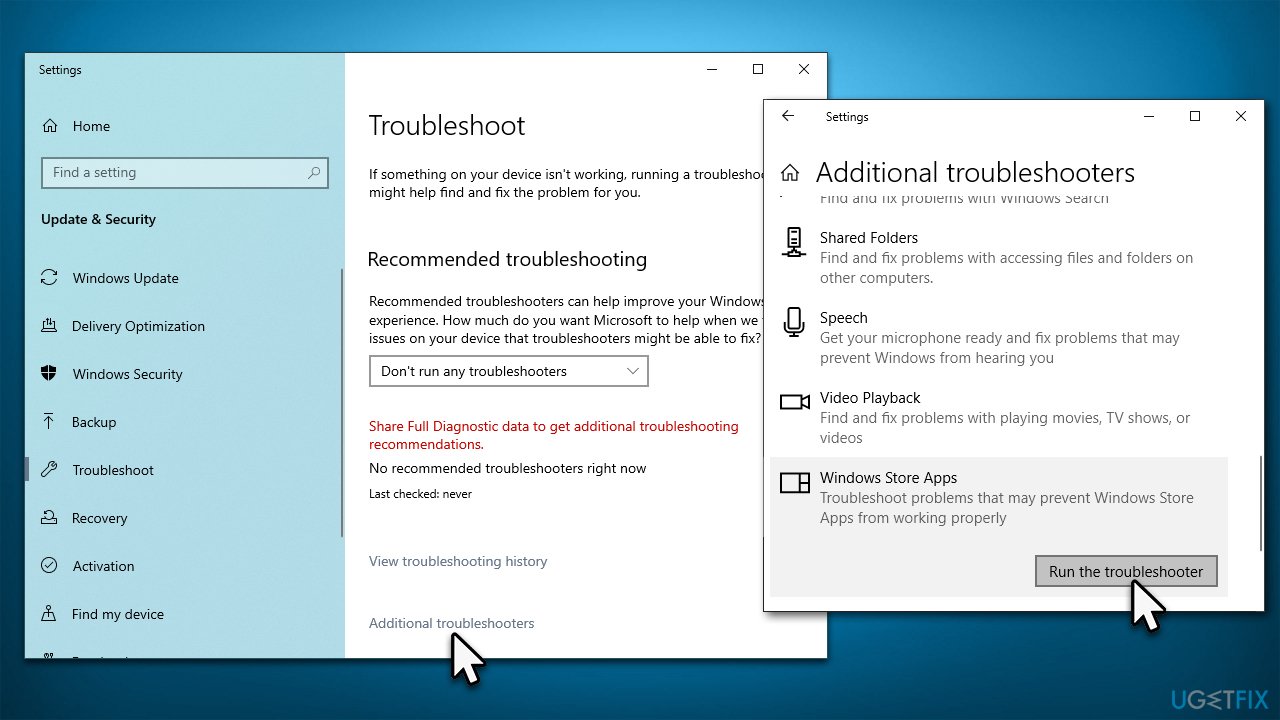
If you experience the "The request is not supported" error whenever you attempt to launch Windows applications only, Windows Store Apps troubleshooter might be able to help here:
- Type in Troubleshoot in Windows search and hit Enter.
- Pick Additional Troubleshooters/Other troubleshooters option.
- Scroll down to find Windows Store Apps section.
- Click Run the troubleshooter/Run and wait for the troubleshooter to finish scanning the system.
- Follow the on-screen instructions to fix any issues that the troubleshooter has found.
Fix 2. Temporarily disable third-party anti-virus
Some anti-virus solutions might be overly aggressive, thus preventing you from opening apps and mistakingly interpreting them as malicious. If you have third-party security software installed, you should disable or uninstall it for a short period and see if that helps. If it does, you can either switch to a different anti-malware provider and configure security settings so that they wouldn't be as aggressive. If needed, contact the support of your security app.
Fix 3. Repair damaged system files
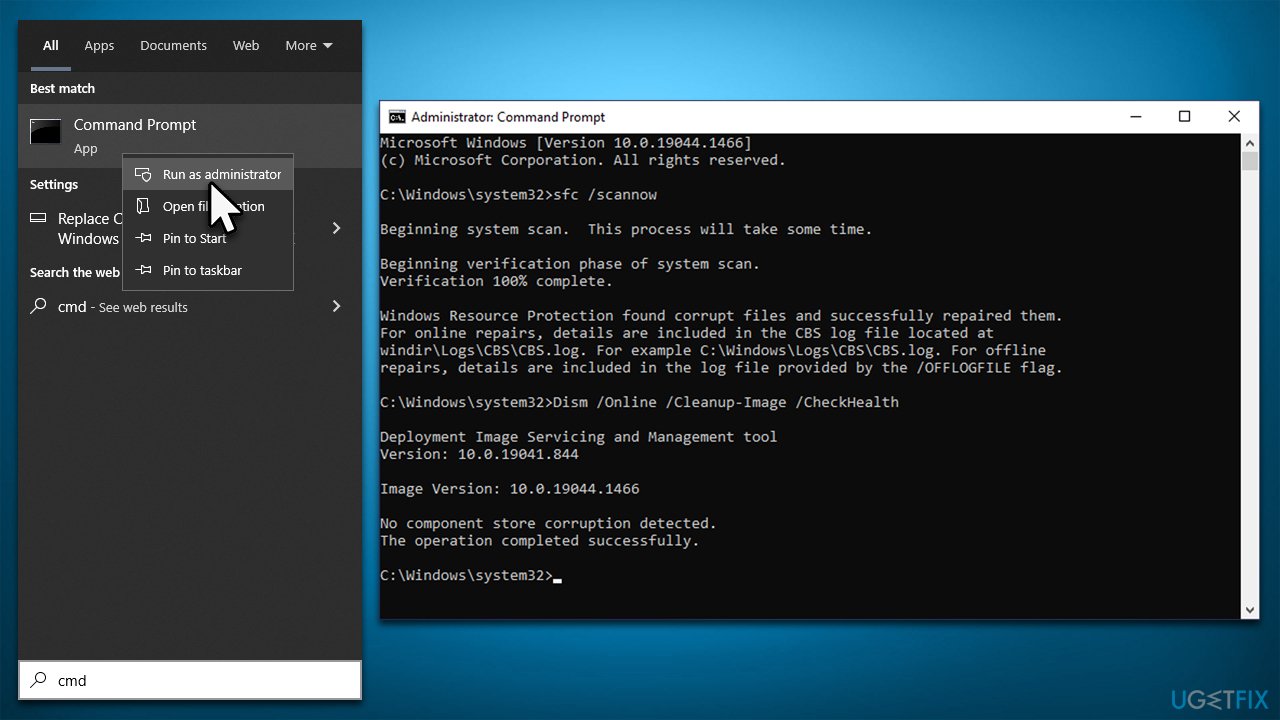
You can check whether corrupted system files or registries are causing this error and repair them as necessary. Follow these steps:
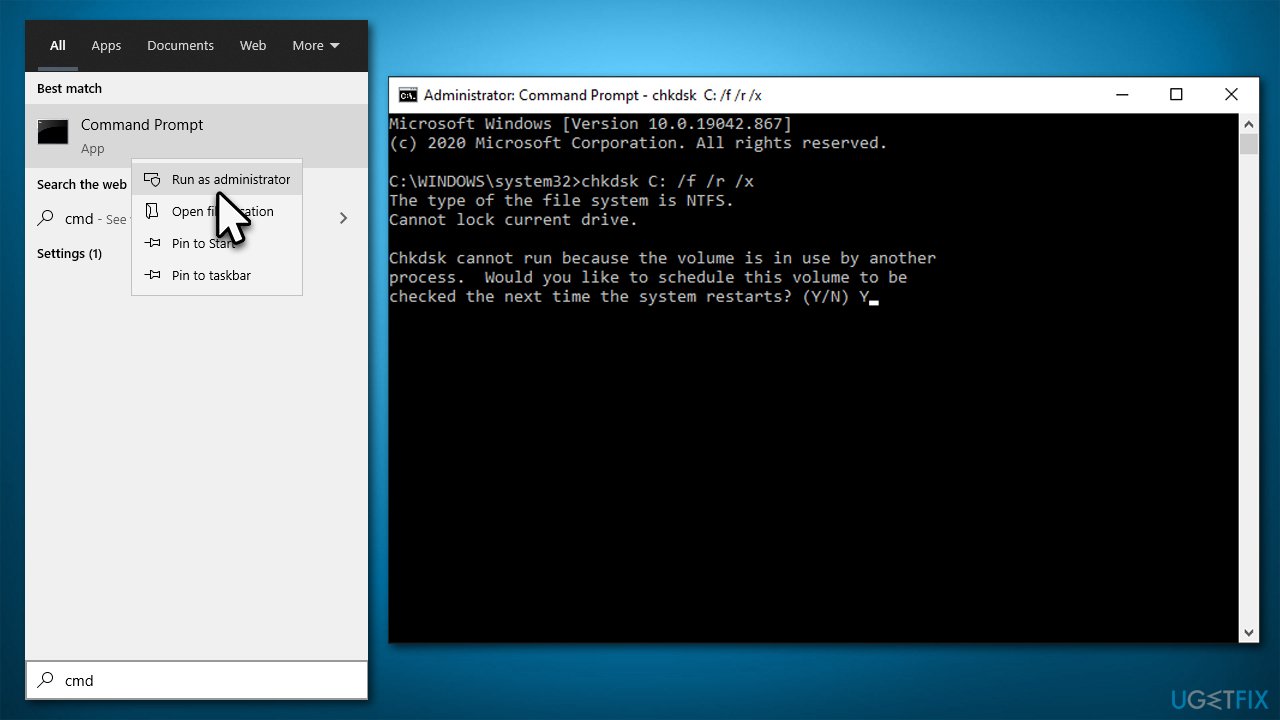
- Type cmd in Windows search.
- Right-click on the Command Prompt result and select Run as administrator.
- User Account Control (UAC) will ask if you want to make changes - click Yes.
- Now copy and paste the following commands, pressing Enter every time:
sfc /scannow
DISM /Online /Cleanup-Image /CheckHealth
DISM /Online /Cleanup-Image /ScanHealth
DISM /Online /Cleanup-Image /RestoreHealth - Close down the Command Prompt and restart your PC.
Fix 4. Check your disk
- Open Command Prompt as administrator, as explained previously.
- In the new window, type in the following command and press Enter after:
chkdsk c: /f
(Note: use chkdsk c: /f /r /x command if you are using SSD as your primary partition). - If you receive an error, type in Y, close down Command Prompt and restart your device.
- After a restart, Windows will begin to scan your disk. You can find the results in the Event Viewer after your system boots back up.
Fix 5. Use Clean Boot
Troubleshooting the source of an error can be a tedious process, but if it doesn't occur in a Clean Boot environment, you'll need to find and remove the faulty application. To make this method as efficient as possible, boot into a clean environment and systematically turn items on/off until you pinpoint the problematic app or service. It may take some time if done one at a time; however, marking off half of them each round-trip through your system will decrease diagnostic efforts significantly.
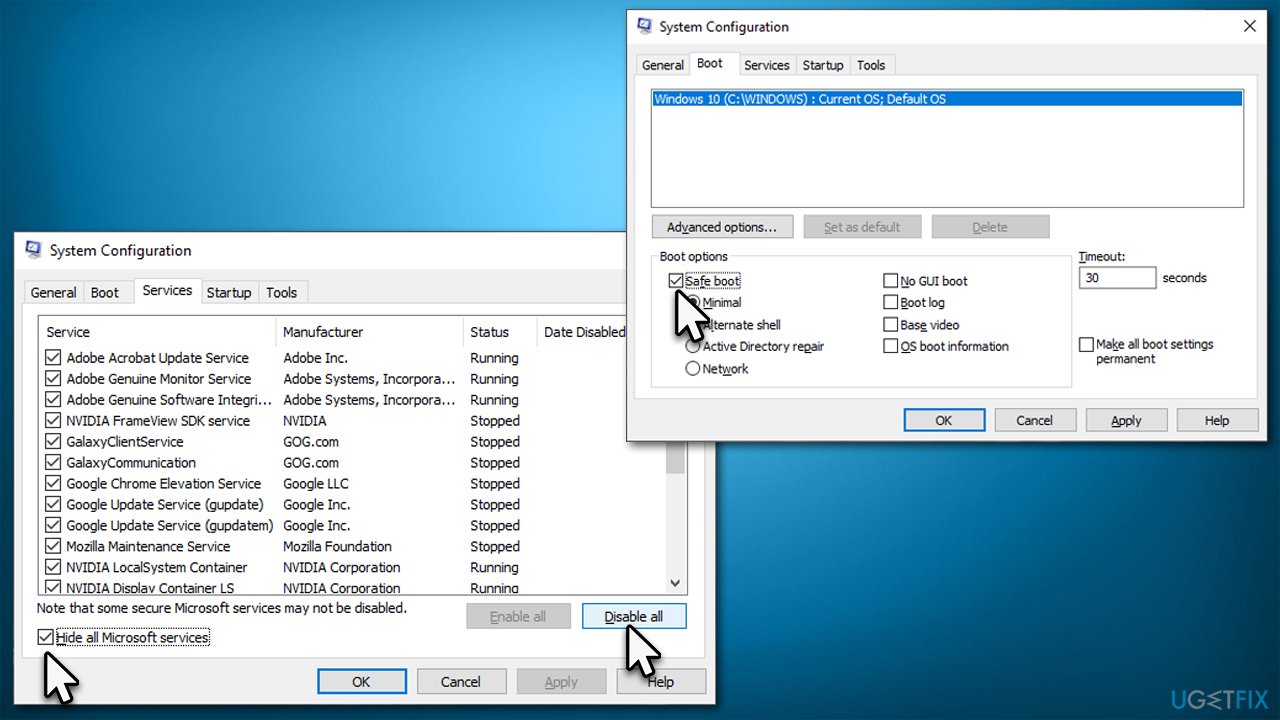
- Type msconfig in Windows search and press Enter.
- Select Services tab.
- Check the Hide all Microsoft services box and pick Disable all.
- Go to the Startup tab and select Open Task Manager.
- In the Task Manager, right-click on every entry and select Disable, then close the Task Manager.
- Go to the Boot tab, tick Safe Boot, then click Apply and OK
- Restart your PC.
Fix 6. Reset Windows
Resetting Windows might help you resolve the situation. Before proceeding, disconnect unnecessary peripherals and uninstall or disable your third-party antivirus. Make copies of files before proceeding.
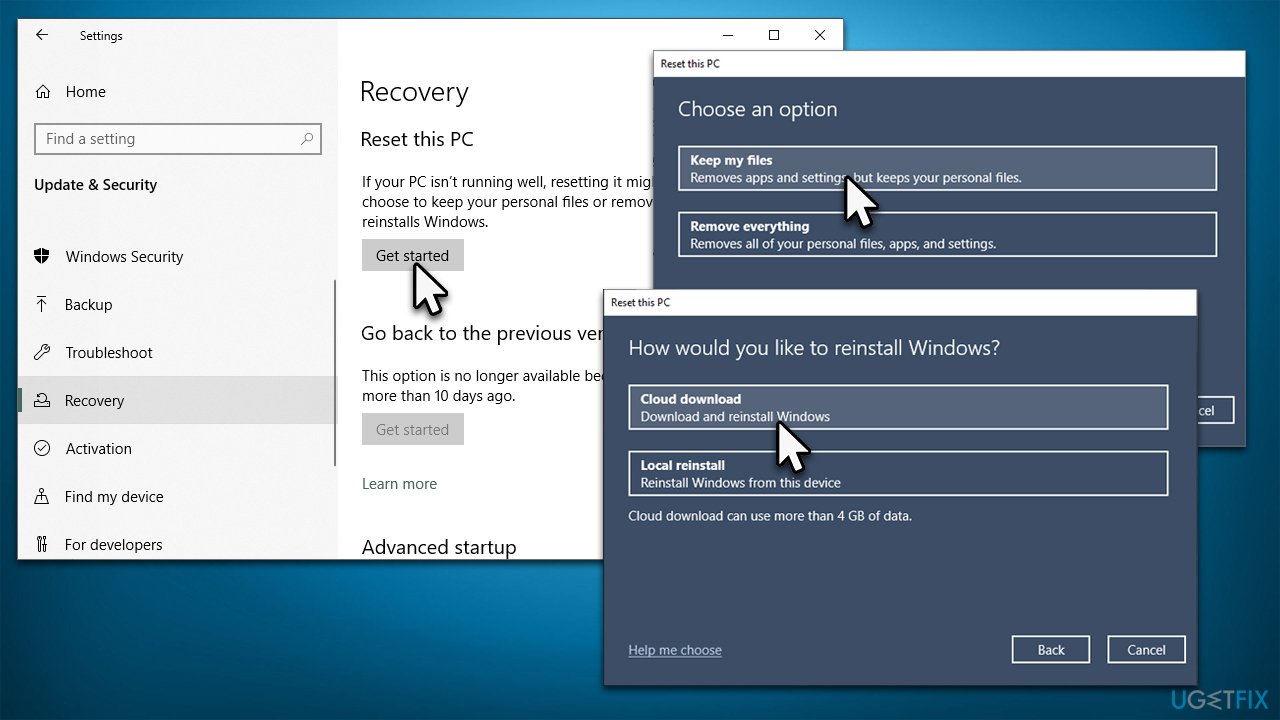
- Right-click on Start and pick Settings.
- Go to Update & Security and pick Recovery.
- Find Reset this PC section and click Get Started.
- Select Keep my files > Cloud download.
- Proceed with the on-screen instructions (your PC may restart several times).
Bottom line
To fix the 'The request is not supported' error, you can try several methods including using a PC repair application to scan for issues, checking for corrupted system files, and addressing software conflicts. If none of these solutions work, consider seeking professional help or reinstalling the affected applications.
Frequently asked questions
This error typically occurs due to corrupted system files, incompatible applications, or issues with Windows settings. Ensuring your system is updated and running a file integrity check can help resolve the issue.
To run a System File Checker scan, open Command Prompt as an administrator and type 'sfc /scannow', then press Enter. This process will check for and repair corrupted system files that may be causing the error.
Yes, you should verify that the app is compatible with your version of Windows and check its permissions in the app settings. Additionally, ensure that any required dependencies or frameworks are properly installed.




Report an issue
What's wrong with this guide? We review every report and update or remove content.
Report received — thank you. We'll review and fix it.
You need a free account to submit a report.
Be the first to comment