How to fix
“The Requested Resource is in Use” Error
on Windows
Resolve the “The Requested Resource is in Use” error on Windows 10 and 11 quickly. Expert-tested solutions for seamless performance, fixed in minutes!


What causes How to Fix “The Requested Resource is in Use” Error?
- Computer infected with a rootkit known as SmartService
- SmartService Trojan identified by some researchers
- Rootkits modify operating system settings
- Rootkits perform malicious activities
- SmartService installs malicious programs and PUPs
- SmartService protects certain processes from being removed
Repairs Windows system files, removes malware, and restores a clean OS state — without reinstalling.
Hello, all. Could someone please help why do I receive an error “The Requested Resource is in Use” when I try to delete GeekBuddy and a couple of other programs. On top of that, this message is shown when I try to run a scan with anti-malware software. I’m currently using Avast. Please help!
If you get “The Requested Resource is in Use” error when trying to remove a particular application or perform a system scan with anti-malware or another security software, it means that your computer has been infected with a rootkit[ref en-1] known as SmartService.
Some researchers identify this infection as SmartService Trojan, so do not be surprised if you see this title on some Internet forums. Rootkits are far more severe computer infections than common viruses. They root deeply into the operating system, modify a bunch of settings, and then start performing malicious activities, including another virus infection or even identity theft. Therefore, “The Requested Resource is in Use” message can lead to severe consequences, especially if not handled carefully.
Rootkits are set to operate silently, perform software eavesdropping, and, if needed, provide a backdoor for the attacker to control the computer remotely. The purpose of SmartService malware is entirely different. Its primary goal is to install malicious programs and PUPs[ref en-2] on the system and protect them from being recognized and deleted.
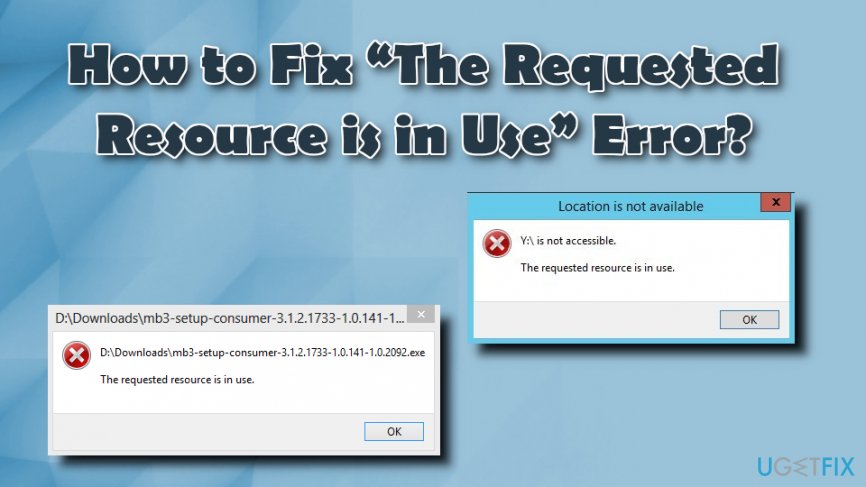
Therefore, in case you have started receiving “The Requested Resource is in Use” error message when launching your antivirus and trying to remove a particular application, it’s clear that your PC is infected with SmartService virus, and possibly other potentially dangerous applications like browser hijacker, adware or other PUP.
“The Requested Resource is in Use” error message always contains the file name and the full path of the executable that is being blocked, for example, mbam.exe, egui.exe, zam.exe, a2start.exe or mcshield.exe. At the moment of writing, this irritating rootkit is set to protect these processes from being removed:
- dataup.exe;
- cpx.exe;
- svcvmx.exe;
- szpsrv.exe;
- splsrv.exe;
- qdcomsvc.exe;
- ct.exe;
- vmxclient.exe.
Additionally, there is a long list of file names and digital signatures[ref en-3] that “The Requested Resource is in Use” rootkit recognizes and immediately blocks the software that contains these strings. In some cases, as an alternative to the error mentioned above message, people may get the following message:
Unable to Terminate Process
The operation could not be completed.
Keep in mind that leaving the Trojan, as well as other malware, on the system pose a high-risk of further virus infection or the loss of personal information. Therefore, it’s vital to fix “The Requested Resource is in Use” error immediately. The only way to do so is to remove SmartService Trojan.
The culprit of “The Requested Resource is in Use” error message is the SmartService rootkit. Its task, as we have already pointed out, is to prevent security software from removing it and malicious or potentially unwanted programs that it usually installs on the system.
Although currently, it is unknown how SmartService Trojan spreads, malware analysts believe that it is currently distributed via typical malware propagation channels, for instance, suspicious emails, fictitious pop-up ads offering to install bogus software updates or other evil means. Therefore, it’s critical to keep your system protected adequately to prevent any security breaches. If, however, SmartService virus managed to infect your PC, do not postpone its removal.
To fix “The Requested Resource is in Use” error, you have to remove the rootkit first. Unfortunately, but the only way to do that is to use a professional anti-malware or antivirus along with the anti-rootkit tool. We will provide several suggestions of what kind of software might be capable of fixing the issue.
As soon as your system will be free of the described malware and “The Requested Resource is in Use” will no longer show up, we suggest you run [d1] to restore missing files, optimize the system and remove any malware and spyware remains that other suggested tools may have missed during the scan.
If, however, “The Requested Resource is in Use” error message blocks your antivirus, try to install an alternative one. If you are not allowed to install any security tool, you may try one of the following suggestions:
Enter Safe Mode with Networking to start the “The Requested Resource is in Use” fix
Before you do anything, you should enter Safe Mode with Networking. This mode allows Windows to start with a bare minimum of resources, and it is the best environment to perform malware removal in. To enter Safe Mode with Networking, follow these steps:
- Restart your computer and wait for Sign in screen
- Press and hold Shift, click on the Power button and select Restart
- When the system configuration window shows up, pick Troubleshoot
- Click on Advanced Options
- On the Startup Settings screen, select Enable Safe Mode with Networking and then Restart
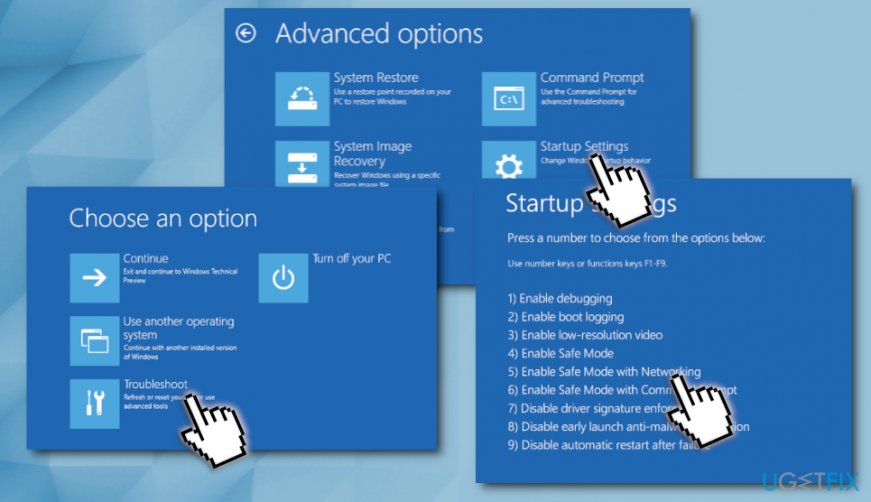
The requested resource is in use boot in safe mode
Method 1. Run system scan with Windows Defender (Offline Mode)
To start Windows Defender Offline scan, follow these steps:
- Right-click on Start and select Settings > Update & Security
- Pick Windows Security on the left pane and click on Virus & Threat protection
- Click on Run a new advanced scan
- Select Windows Defender Offline scan and click Scan now
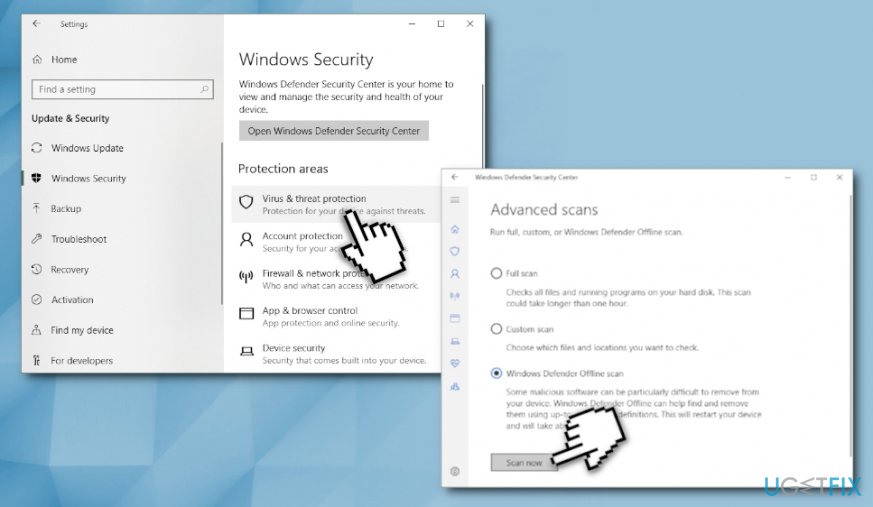
The requested resource is in use scan with windows defender offline
If you're using Windows 7 version, do the following:
- Find a free CD, USB, or another portable data storage device. Download and run Windows Defender Online (32-bit version or 64-bit version). The tool will help you create a removable media
- Restart your PC using the Windows Defender Offline media and scan the computer for malware and spyware.
- Eliminate detected software from the system
Method 2. Eliminate using anti-rootkit tool
- Download and run Malwarebytes Anti-Rootkit beta
- Update the database and select Scan (make sure Drivers, Sectors and System boxes are ticked)
- Once the scan is completed, click on Cleanup button. Once the process finishes, your computer will be restarted.
- Now you should get access to your anti-malware or antivirus programs. You can either use your antivirus, Malwarebytes software or programs like [d1]. Remember that different programs have different functionalities, and none of them are capable of deleting absolutely every existing virus, so if one fails, try another.
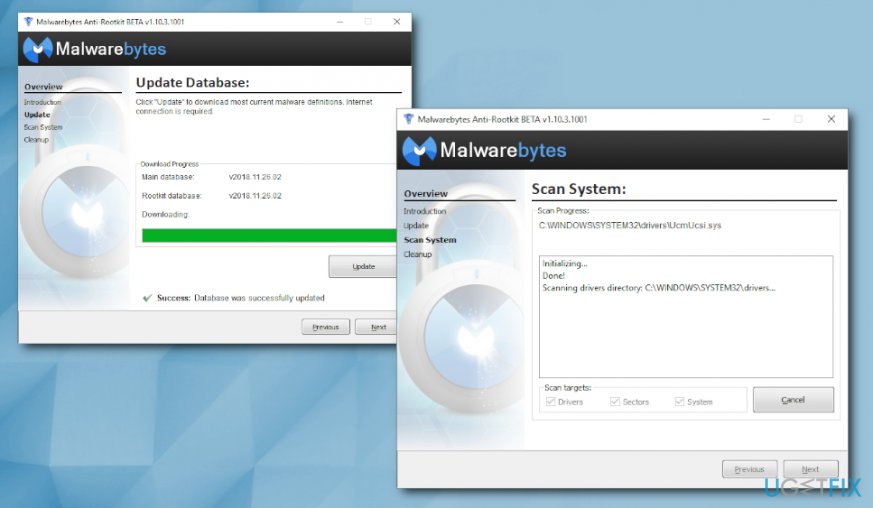
The requested resource is in use use malwarebytes anti rootkit
Method 3. Use system Restore
If you have a System Restore Point created, try to fix The Requested Resource is in Use” error by using the point that was created before the emergence of the issue:
- Type Control Panel into the Cortana's search box
- Go to System and Security > System
- Select System Protection on the left pane and then click on System Restore
- Select the appropriate restore point (before the trojan infected your PC) and follow on-screen instructions
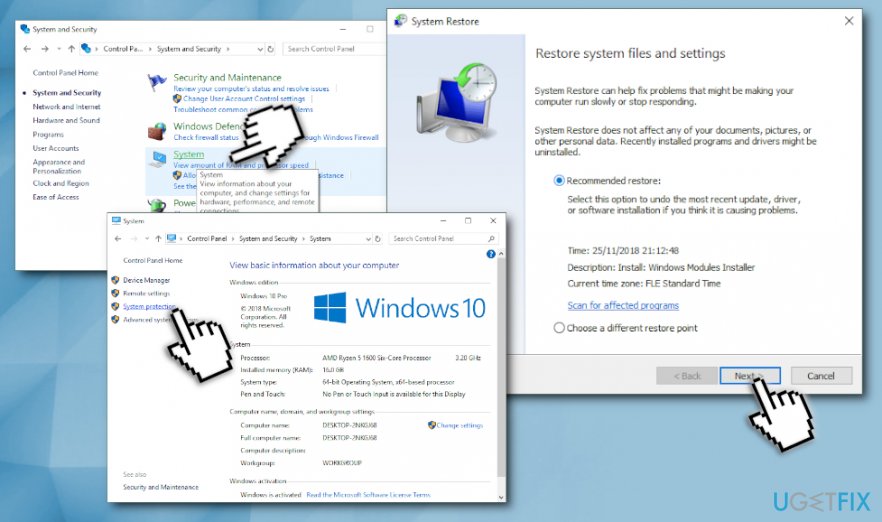
The requested resource is in use perform system restore
Method 4. Reinstall Windows
- If everything else fails, you might need to reinstall the operating system to fix the “The Requested Resource is in Use” issue quickly. You can download Windows 10 installation media tool for here.
In case you're not dealing with a rootkit or Trojan....
In some cases, people receive “The Requested Resource is in Use” error message when trying to copy or transfer files from one folder to another. In such case, the Preview Pane might be causing the issue. Once you open the folder where files you want to move are stored, click on Organize > Layout, and deselect Preview Pane option. Now try to move or copy whatever you want again - everything should be fine now.
Bottom line
To resolve the 'The Requested Resource is in Use' error, it is essential to remove the SmartService rootkit and any associated malware. This may involve using specialized anti-malware tools or performing a system scan. If these solutions do not work, consider seeking professional help.
Frequently asked questions
This error often occurs when a file or program is currently open or being used by another process, preventing access to the resource. It can also be triggered by system settings or permissions issues.
To fix this error, you can try closing any applications that may be using the resource, restarting your computer, or using the Task Manager to end processes that are stuck.
Yes, you can use the built-in Resource Monitor or Process Explorer to identify which processes are using the resource, allowing you to take appropriate action to resolve the issue.




Report an issue
What's wrong with this guide? We review every report and update or remove content.
Report received — thank you. We'll review and fix it.
You need a free account to submit a report.
Be the first to comment