
How to fix "The resource loader cache doesn't have loaded MUI entry" 0x80073B01 in Windows

Prefer to fix it yourself? The manual steps follow.
- 7methods
- 10 to 60 minutes
- Intermediate
Applies to Windows 11 and Windows 10 PCs where System Restore, Microsoft Defender, Windows Update or another program stops with error 0x80073B01
7 methods in this guide
When I'm trying to create a system restore point, I get the following message: "The resource loader cache doesn't have loaded MUI entry 0x80073B01." Can you help me with fixing this?
Error 0x80073B01 is the Windows system error ERROR_MUI_FILE_NOT_LOADED: a program asked for its language text (its MUI resources) and Windows had none loaded. It is not a disk or hardware fault. Repair the program that shows it first, then check the display language and Windows' own system files.
The program that shows the message could not load its language resource file (.mui), so it stopped. If it is a third-party app, repair or reinstall it in the same language as Windows (Fix 1). If it is a part of Windows, such as System Restore or Defender, check the display language (Fix 2) and repair system files with DISM and SFC (Fix 3).
| Error | The resource loader cache doesn't have loaded MUI entry. with code 0x80073B01. |
|---|---|
| Where it appears | In the error box of the program that failed: users report it from System Restore when creating a restore point, from Windows Defender and Security Essentials at start, and from Windows Update. |
| Main cause | The program's language resource file (.mui) for the current display language is missing, damaged or not loaded. |
| Fastest fix | Repair or reinstall the program that shows the message (Fix 1). For Windows' own tools, DISM and SFC (Fix 3). |
| Also written as | 0x80073b01, 0x3B01, error 15105, ERROR_MUI_FILE_NOT_LOADED, "resource loader cache doesn't have loaded mui entry". |
| Affects | Any Windows version since Vista uses MUI. Reports cluster on Windows 7 and 8.1; the fixes here are for Windows 11 and Windows 10 22H2, which left support on 14 October 2025. |
| Vendor status | Microsoft documents the code in its list of system error codes. We found no Microsoft notice tying it to one update. |
| Close relative | 0x80073AFC (15100) "The resource loader failed to find MUI file." Same family, same fixes. |
| Time to fix | 10 minutes for Fix 1 or 2, 30 minutes for DISM and SFC, an hour for a repair reinstall. |
Facts checked on 15 October 2026. Steps written for Windows 11 (25H2 and 26H2) and Windows 10 22H2.
What "The resource loader cache doesn't have loaded MUI entry" (0x80073B01) means
MUI is the Multilingual User Interface: Windows keeps the text of menus and messages apart from the program code, in language resource files that end in .mui. A program asks the resource loader for its text in the current display language, and the loader keeps the files it has opened in a cache.
Microsoft's list of system error codes names error 15105 (hex 0x3B01) ERROR_MUI_FILE_NOT_LOADED with the text "The resource loader cache doesn't have loaded MUI entry." A program that wraps this error in a COM result code shows it as 0x80073B01. So the message on screen is: The resource loader cache doesn't have loaded MUI entry. (0x80073B01)
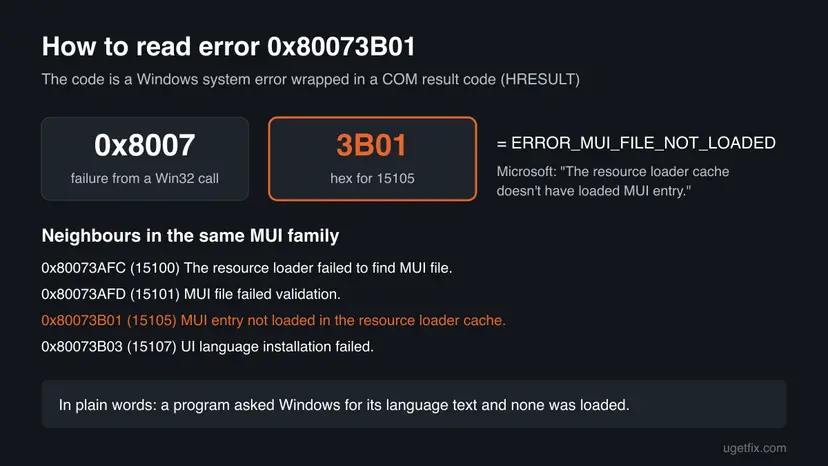
The "resource loader cache" lives in the memory of the running program. It is not a folder or a registry key. Deleting MUI cache entries, as some guides advise, does not reload a missing language file.
What causes error 0x80073B01, most common first
Every cause comes down to one thing: the language file the program expects is not there, not readable, or not in the language Windows now uses. The table ties each cause to its fix.
| How often | Cause | Sign | Fix |
|---|---|---|---|
| Most often | The program's own .mui file is missing or damaged after a broken install or update | Only one program shows the message | Fix 1 |
| Often | The display language was changed or a language pack was removed or half installed | Several programs or Windows tools fail since a language change | Fix 2 |
| Often | Damaged Windows system files, including the .mui files of Windows tools | System Restore, Defender or Windows Update shows the code | Fix 3, Fix 6 |
| Less often | Malware that disabled or damaged the security program | Defender or another antivirus fails with the code after a suspicious site or download | Fix 4 |
| Rarely | A third-party program locks or blocks the tool while it runs | The error stops in a clean boot | Fix 5 |
Most public reports of 0x80073B01 come from Windows Defender and Microsoft Security Essentials on Windows 7 and 8.1. In one Microsoft Q&A thread, Defender failed with the code right after a malicious redirect, and the advice was a malware scan from a separate rescue disk.
How to fix error 0x80073B01
Start with the program that shows the message. If that program is part of Windows, skip to Fix 2 and Fix 3. Fixes 5 to 7 are for errors that stay after the first repairs.
| What you see | Start with | Then |
|---|---|---|
| A third-party app or game shows the message | Fix 1 | Fix 2 |
| You changed or removed a display language recently | Fix 2 | Fix 3 |
| System Restore fails when creating a restore point | Fix 3 | Fix 5 |
| Microsoft Defender or Windows Security will not start | Fix 4 | Fix 3 |
| Windows Update fails with 0x80073B01 | Fix 3 | Fix 6 |
| Nothing above helped | Fix 7 |
Fix 1. Repair or reinstall the program that shows the message
10 minutesLow riskOne third-party program, game or Store app shows the error and other programs work.
The language files of a program are installed with it, usually in a language subfolder such as en-US next to the program. A repair or a fresh install writes them back, so the resource loader finds them again.
- Note the program's name in the title bar of the error box.
- Press Win + I and open Apps > Installed apps (Windows 10: Apps > Apps & features).
- Find the program, select the three dots and Advanced options (Store apps) or Modify (desktop programs).
- Select Repair. If there is no Repair, uninstall the program and install it again from its maker's site.
- When the installer asks for a language, pick the same language Windows uses.

Step by step for Store apps: How to repair or reset an app in Windows. For desktop programs: Uninstall a program or app in Windows
It worked if: The program opens in your language and the message does not return.
If not: If the program is part of Windows, or a reinstall did not help, go to Fix 2.
Fix 2. Check that the display language and its language pack match
10 minutesLow riskThe error started after you changed the Windows display language, removed a language, or installed a language pack.
Programs load the .mui file for the current display language. If that language is only partly installed, or a program has no files for it, the loader has nothing to load and returns 0x80073B01.
- Press Win + I and open Time & language > Language & region (Windows 10: Time & Language > Language).
- Read the Windows display language at the top.
- Under Preferred languages, check that this language shows a complete language pack. If it says the pack is still downloading, wait for it to finish.
- To test, set the display language to English (United States) or the language Windows came with, then sign out and sign back in.
- Try the failing program again.
If a language change leaves Windows unable to start with stop code MUI_NO_VALID_SYSTEM_LANGUAGE, that is a different problem: How to fix the MUI_NO_VALID_SYSTEM_LANGUAGE blue screen.
It worked if: The program works in the test language. Add your own language back once Windows has started in it cleanly.
If not: If the error stays in every language, the files are damaged rather than missing: run Fix 3.
Fix 3. Repair Windows' own language files with DISM and SFC
30 minutesNo riskA Windows tool shows the error: System Restore, Microsoft Defender, Windows Update or a Control Panel page.
The .mui files of Windows tools are protected system files. DISM repairs the Windows component store, then SFC replaces damaged or missing system files from it, the language files included.
- Open an elevated command window. Right-click Start and select Terminal (Admin), or type cmd in the search box, right-click Command Prompt and select Run as administrator. Select Yes when Windows asks for permission.

Search for cmd and choose Run as administrator. Screenshot: Windows 11 26H2. - Run DISM first. Type the command below and press Enter. DISM downloads clean copies of damaged components from Windows Update, so it can take several minutes. Wait until it says The operation completed successfully.
DISM.exe /Online /Cleanup-Image /RestoreHealth
DISM /RestoreHealth running. Screenshot: Windows 11 26H2. - Run System File Checker. In the same window, type the command below and press Enter. Do not close the window until the verification reaches 100%.
sfc /scannow
sfc /scannow at 100%. Screenshot: Windows 11 26H2. - Read the result and restart. Compare the last message with the table below this guide, then restart the PC so that repaired files are loaded.

The result line tells you what SFC did. Screenshot: Windows 11 26H2.
These steps were written for Windows 11 24H2 and 25H2. The full page with the other versions and what each result means: Run DISM and SFC to repair Windows system files
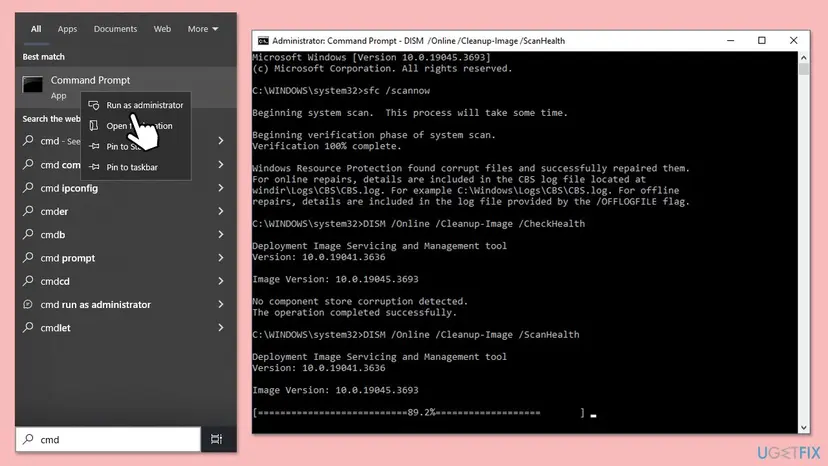
It worked if: SFC reports that it found and repaired corrupt files, or found no integrity violations. Restart and try the tool again.
If not: If SFC cannot repair some files, run Fix 6 to install updates and then Fix 7.
Fix 4. Scan for malware when Microsoft Defender shows the error
20 minutesLow riskMicrosoft Defender or Windows Security fails to start with 0x80073B01, especially after a suspicious site or download.
Malware that targets security software can damage or block its files. The Microsoft Defender Offline scan restarts the PC and scans before Windows loads, where such malware cannot interfere.
- Open Windows Security > Virus & threat protection > Scan options.
- Select Microsoft Defender Offline scan and Scan now. Save your work first: the PC restarts.
- After the restart, open Protection history and read what was found and removed.
- If Windows Security will not open at all, run Fix 3 first, then come back to this scan.
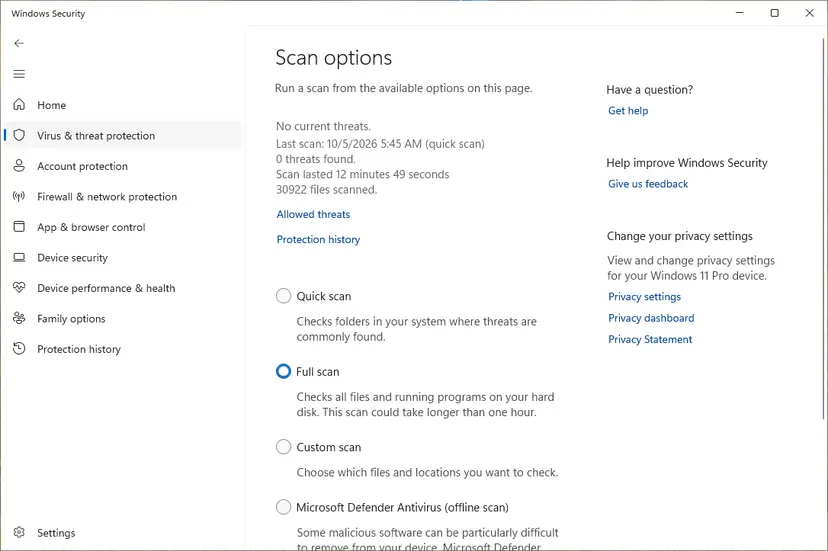
All scan types with screenshots: How to scan for malware with Microsoft Defender
It worked if: The scan ends with no current threats and Microsoft Defender starts without the error.
If not: If Defender still fails, run Fix 3. If you suspect a pop-up scam that shows this code, read the FAQ below.
Fix 5. Create the restore point after a clean boot
15 minutesLow riskSystem Restore fails with the code while creating a restore point, and Fix 3 found nothing.
A clean boot starts Windows with only Microsoft services. If a third-party service or backup tool interferes while System Protection creates the point, the error stops in a clean boot and you know where to look.
- Open System Configuration. Select Search on the taskbar, type msconfig and select System Configuration from the results.
- Hide Microsoft services. On the Services tab, select the Hide all Microsoft services check box. Only services from other companies stay in the list.

With Hide all Microsoft services ticked, only third-party services stay in the list. Screenshot: Windows 11 26H2. - Disable the remaining services. Select Disable all, then select Apply.
- Open Task Manager. On the Startup tab of System Configuration, select Open Task Manager.

The Startup tab only links to Task Manager. Screenshot: Windows 11 26H2. - Disable the startup apps. On the Startup apps tab in Task Manager, select each item whose status is Enabled and select Disable. Write down or take a screenshot of the items you disable: you need the list to turn them back on.

Select an app, then Disable. Screenshot: Windows 11 26H2. - Confirm the changes. Close Task Manager. On the Startup tab of System Configuration, select OK.
- Restart and test. Restart the PC. Windows now starts in a clean boot environment: try again the thing that failed (run the app, install the update, uninstall the program).
These steps were written for Windows 11 25H2 and 26H2. The full page with the other versions and what each result means: How to perform a clean boot in Windows
- After the clean boot restart, type Create a restore point in the Start search and open it.
- On the System Protection tab, select the system drive and Create, then give the point a name.
- If it works, turn the services back on a few at a time to find the one that blocks it.
It worked if: Windows reports that the restore point was created successfully.
If not: If the error comes back in a clean boot, the cause is inside Windows: go to Fix 6 and Fix 7.
Fix 6. Install all pending Windows updates
20 minutesLow riskWindows Update shows updates waiting, or an update failed shortly before the error started.
Cumulative updates replace Windows system files together with their language files. A half-installed update can leave a tool's code and its .mui file at different versions.
- Press Win + I and open Windows Update (Windows 10: Update & Security > Windows Update).
- Select Check for updates and install everything offered, optional language updates included.
- Restart, even if Windows does not ask for it.
- If Windows Update itself fails with 0x80073B01, reset its components: Reset Windows Update components
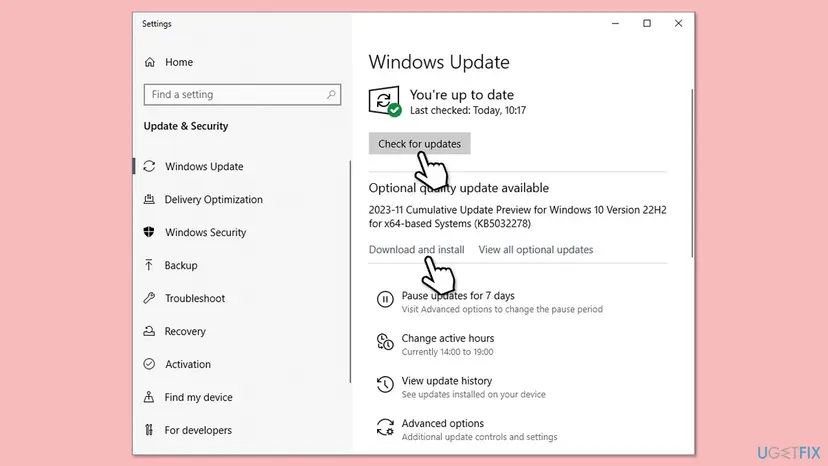
It worked if: Windows Update shows that you are up to date and the failing tool works after the restart.
If not: If updates fail or the error stays, go to Fix 7.
Fix 7. Repair-install Windows and keep your files
60 minutes or moreRead the warningDISM and SFC cannot repair all files, or the error appears in several Windows tools.
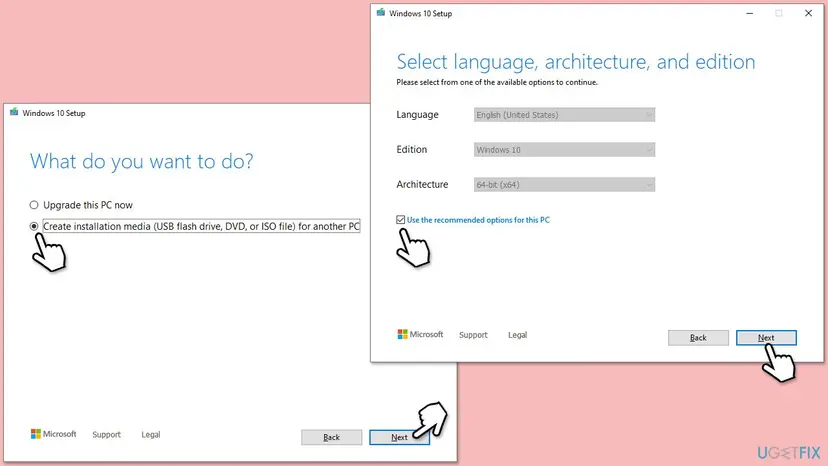
An in-place upgrade from Microsoft's media rewrites every Windows file and language pack while keeping your files, apps and settings. It is the last step before a clean install.
A repair install keeps files and apps when you choose to keep them, but a power cut or a wrong choice can cost data. Copy your documents to an external drive or cloud storage before you start, and choose Keep personal files and apps.
- Open Recovery in Settings. Open Settings > System > Recovery. Next to Fix problems using Windows Update, select Reinstall now. This keeps your apps, files and settings.

Fix problems using Windows Update reinstalls the current version and keeps apps, files and settings. Screenshot: Windows 11 26H2. - Start the reinstall. Choose whether the PC may restart on its own 15 minutes after the installation, then select OK.
- Wait and restart. Windows Update downloads and installs a repair copy of your current Windows version. Keep the PC plugged in and online, and restart it when asked.
- If that did not help: Reset PC. Back in Settings > System > Recovery, next to Reset this PC, select Reset PC. This keeps your personal files but removes installed apps and settings.
- Choose Keep my files. Select Keep my files. Do not select Remove everything.
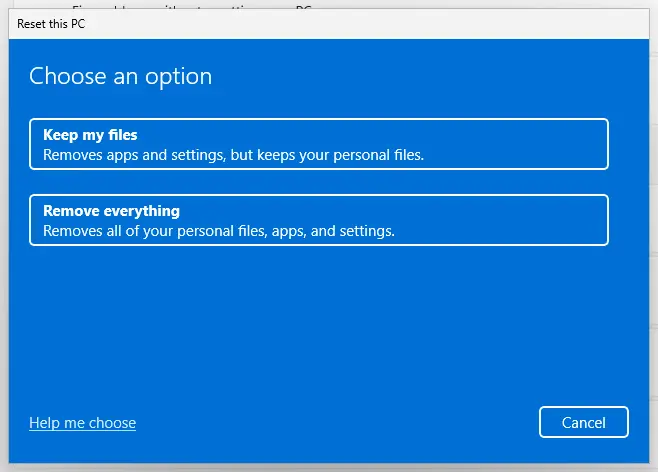
Keep my files removes apps and settings but keeps personal files. Screenshot: Windows 11 26H2. - Choose where Windows comes from. Select Cloud download to download a fresh copy of Windows, or Local reinstall to use the files already on the PC (faster, but may not include the latest updates).
- Reset. Review the summary and select Reset. The PC restarts several times.
These steps were written for Windows 11 22H2 and later. The full page with the other versions and what each result means: Reinstall Windows without losing files
It worked if: Windows restarts with your files and apps, and the tool that showed 0x80073B01 works.
If not: If the error survives a repair install, read the next section on what to check and send.
Still getting 0x80073B01: where the cause is written
The error box rarely says which file was missing. These logs often do, and they are what support will ask for.
- Event Viewer > Windows Logs > Application: look for an Error at the time of the message, with the program's name as source.
- SFC log
C:\Windows\Logs\CBS\CBS.log: search for.muito see which language files SFC could not repair. - DISM log
C:\Windows\Logs\DISM\dism.log: errors here mean the component store itself is damaged. - For System Restore, Event Viewer entries with the source SystemRestore or VSS at the time of the failure.
| Where to ask | When |
|---|---|
| The program's maker | Only one third-party program shows the error after Fix 1 |
| Microsoft Support or Microsoft Q&A | A Windows tool still fails after Fix 3 and Fix 7 |
| A repair shop | SFC keeps finding new damaged files: test the disk |
How to keep the MUI error from coming back
- Add a new display language in Settings and let its pack finish before you switch.
- Install programs in the same language as Windows when the installer asks.
- Let updates finish and restart before you turn the PC off.
- Create a restore point before language changes: Undo recent changes with System Restore
- Delete .mui files or language folders such as en-US to save space.
- Use registry cleaners that delete MUI cache entries.
- Install language packs from sites that rehost Microsoft files.
- Turn the PC off while a language pack or update installs.
Windows 10 left support on 14 October 2025. If the error keeps returning on an old Windows 10 install, a repair install of Windows 11 on supported hardware replaces every language file at once.
Frequently asked questions
What is the MUI cache in Windows?
Two different things carry the name. The resource loader cache in this error is memory inside a running program: it holds the language files the program has opened, and it is gone when the program closes. Separately, the Windows shell keeps a list called MuiCache in the registry with the display names of programs you ran. That list does not hold language files, and clearing it does not fix 0x80073B01. Searches for mui cache keys usually mean this registry list, which forensic tools read to see what ran on a PC.
Is the MUI cache corrupted, and should I clean it in the registry?
No. A corrupted MuiCache registry list can only show wrong program names in some menus. It cannot stop System Restore or Defender. The old advice to delete a MUICache folder in AppData does not match anything we could confirm on Windows 11 or Windows 10. Registry cleaners that empty MUI entries add risk without fixing the missing language file. If you edit the registry for any reason, back it up first: Back up the registry before editing it
What does "The resource loader failed to find MUI file" mean?
It is the neighbouring error 15100, ERROR_MUI_FILE_NOT_FOUND, shown as 0x80073AFC. The difference is small: 0x80073AFC says the language file is not on disk, while 0x80073B01 says it was not loaded. The causes and fixes are the same. Repair or reinstall the program in Fix 1, check the display language in Fix 2 and repair Windows files with DISM and SFC in Fix 3. People also search for missing mui reference, which describes the same situation.
Is bootmgr.exe.mui related to this error?
Only by name. bootmgr.exe.mui is the language file of the Windows Boot Manager, the screen that appears before Windows starts. If it is damaged, the problem shows at boot, not as 0x80073B01 inside a program. We found no source that ties this one file to the error. If your SFC log names it, let SFC or Startup Repair restore it: Run Startup Repair. Never copy .mui files from another PC or a download site.
Can I see "MUI no valid system language" from the same cause?
It is a related but different problem. MUI_NO_VALID_SYSTEM_LANGUAGE is a blue screen that stops Windows at start because no language pack exists for the default display language. Error 0x80073B01 appears inside a running program, so Windows itself still starts. Both often follow a removed or half-installed language. If your PC no longer starts, follow our guide to the MUI_NO_VALID_SYSTEM_LANGUAGE blue screen instead of this page.
Is "Error Code: 0x80073b01" in my browser a real Windows warning?
No. Some tech support scam pages show this code in a browser window with a phone number and a warning that your PC is infected. Windows never shows error codes in a web page and never asks you to call a number. Close the tab with Task Manager if it will not close, do not call, and run the offline scan in Fix 4 to be safe. Such scams are covered on our sister site about security threats.
Is error 0x80073B01 a hardware problem?
Rarely. The code says a language file was not loaded, which is a software state. Hardware plays a part only when a failing disk damages files again and again. If SFC repairs files and finds new damaged ones after every restart, check the disk with your PC maker's tool or chkdsk, and back up your files first. Otherwise treat the error as a damaged program or Windows file.
Does Windows Update error 0x80073B01 need a different fix?
The cause is the same: a Windows Update component could not load its language file. Run DISM and SFC first (Fix 3), because DISM repairs the component store that Windows Update uses. Then reset the Windows Update components and try again (Fix 6). If one update keeps failing, install it by hand from the Microsoft Update Catalog: Install an update from the Microsoft Update Catalog. Repair install is the last step.
I did all of these steps and it still does not work. What now?
Open the logs in the section on where the cause is written and look for the name of a .mui file or the program that failed. Send that, the exact message and your Windows version to the program's maker or Microsoft Support. A repair install (Fix 7) fixes nearly every damaged Windows file, so an error that survives it points to one third-party program or to the disk. Readers who wrote in Turkish, French, Czech, Spanish and Arabic that nothing worked are asking the same: start with the logs.
Sources
- Microsoft Learn: System Error Codes (12000-15999), ERROR_MUI_FILE_NOT_LOADED 15105 (0x3B01) (learn.microsoft.com)
- Microsoft Q&A: Windows Defender error on initialization (0x80073b01) (learn.microsoft.com)
Did this fix work?
One click, no account. It tells the next reader which guides are worth their time.
Questions and experiences: fix "The resource loader cache doesn't have loaded MUI entry" 0x80073B01 in Windows
Still broken, or found a fix we did not cover? Ask here: members and our editors answer. Reading is open; writing needs a free account.
…