How to fix
The Sea of Thieves Services is temporarily unavailable
on Windows
Resolve the "Sea of Thieves Services is temporarily unavailable" error on Windows 10 or 11. Quick solutions with screenshots, expert-tested for guarante…

What causes How to fix The Sea of Thieves Services is temporarily unavailable?
- Problems with the game's server
- Poor Internet connection
- Corrupted game files
- Issues with IP address
- Router configuration problems
Repairs Windows system files, removes malware, and restores a clean OS state — without reinstalling.
Hello. I tried to play The Sea of Thieves but I receive an error "The Sea of Thieves Services is temporarily unavailable." What should I do?
Sea of Thieves is a 2018 action-adventure game developed by Rare and published by Microsoft Studios. It is one of the biggest pirate and open-world games. Users love the ship combat, multiplayer, visuals, and physics of the video game. However, some gamers have difficulties when trying to play it.
Some people have experienced crashes, infinite loading and recently - not being able to launch because of a “The Sea of Thieves Services is Temporarily Unavailable” error. Generally, the error appears when there are problems with the game's server.
However, players report that the issue happened even when the servers were active. The error can appear because of a poor Internet connection. We recommend using an ethernet connection because it provides the best stability. Additionally, you will find 4 steps in this guide that could help you fix The Sea of Thieves Services is temporarily unavailable error message.
You can also try running a maintenance tool like [d1] that can fix various system errors, BSODs,[ref en-1] corrupted files, and registry[ref en-2] issues. Besides, this powerful software can automatically clear cookies and cache[ref en-3] which are often the culprits of many malfunctions. Otherwise, follow the instructions below.
Method 1. Flush DNS
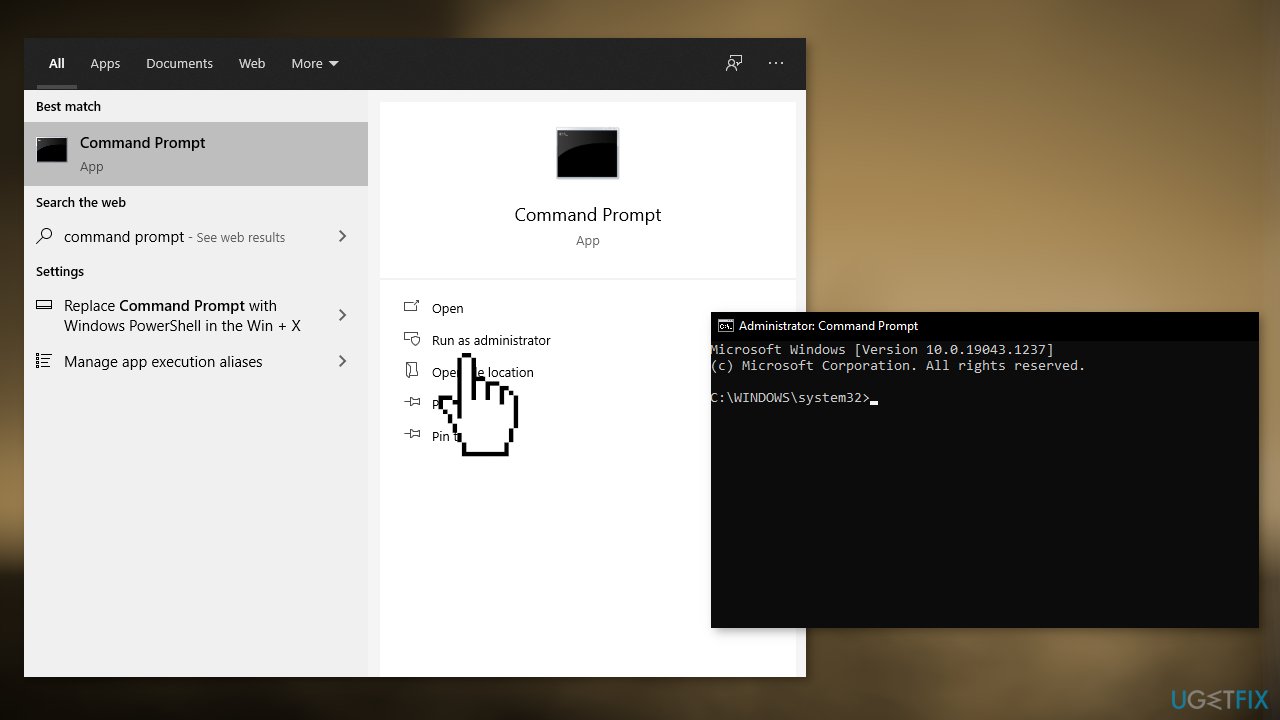
- Go to the Start Menu and type Command Prompt
- Select the option of Run as Administrator
- Type the following commands and press Enter:
ipconfig/flushdns
Exit
- Restart your system and relaunch the game
Method 2. Reset your Router
Resetting your router can fix Internet connection problems. It will change or reset your IP address which could be the culprit of connection problems and The Sea of Thieves Services is temporarily unavailable error.
Method 3. Verify Integrity of game files
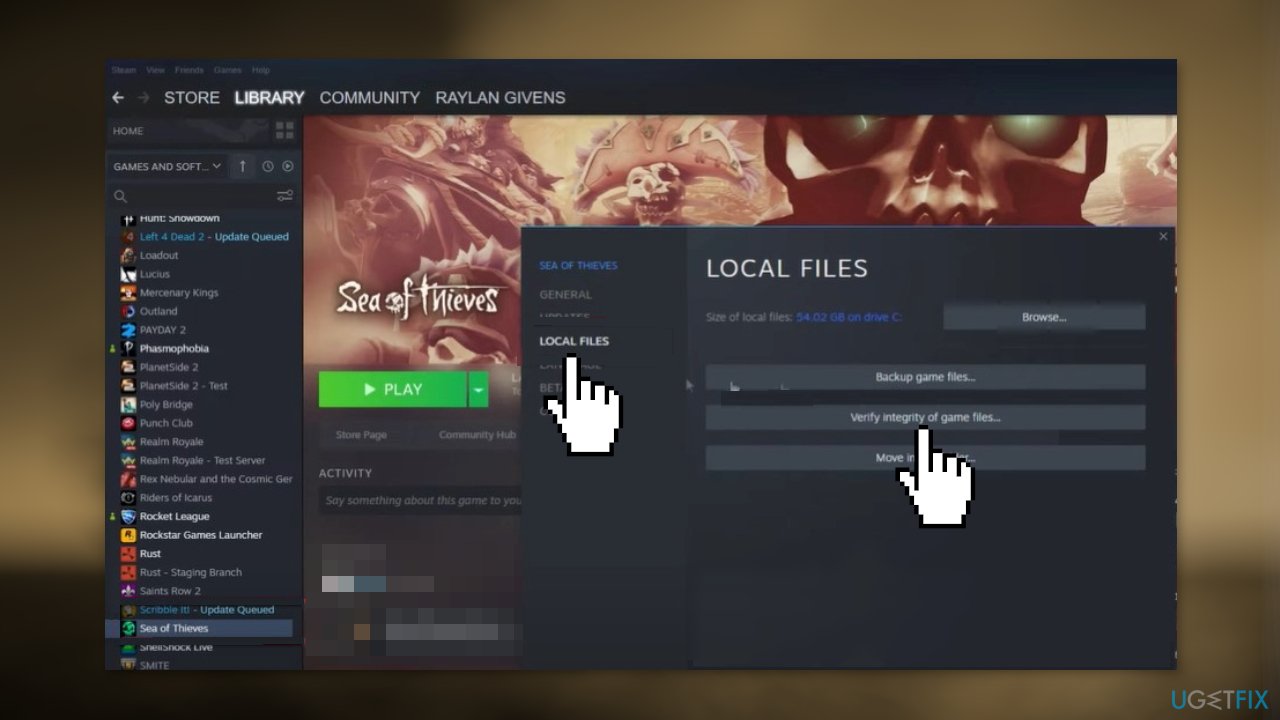
- Open the Steam app and right-click on the Sea of Thieves
- Select the properties and click on the Local Files
- Click on Verify the Integrity of the game
- Launch the game again and check if the problem is fixed
Method 4. Sign Out and Sign In again
- Open the Sea Thieves game
- Click on the sign-out option. Then click on start game
- A login dialogue box from Microsoft will open
- Type in your credentials and log in to the account
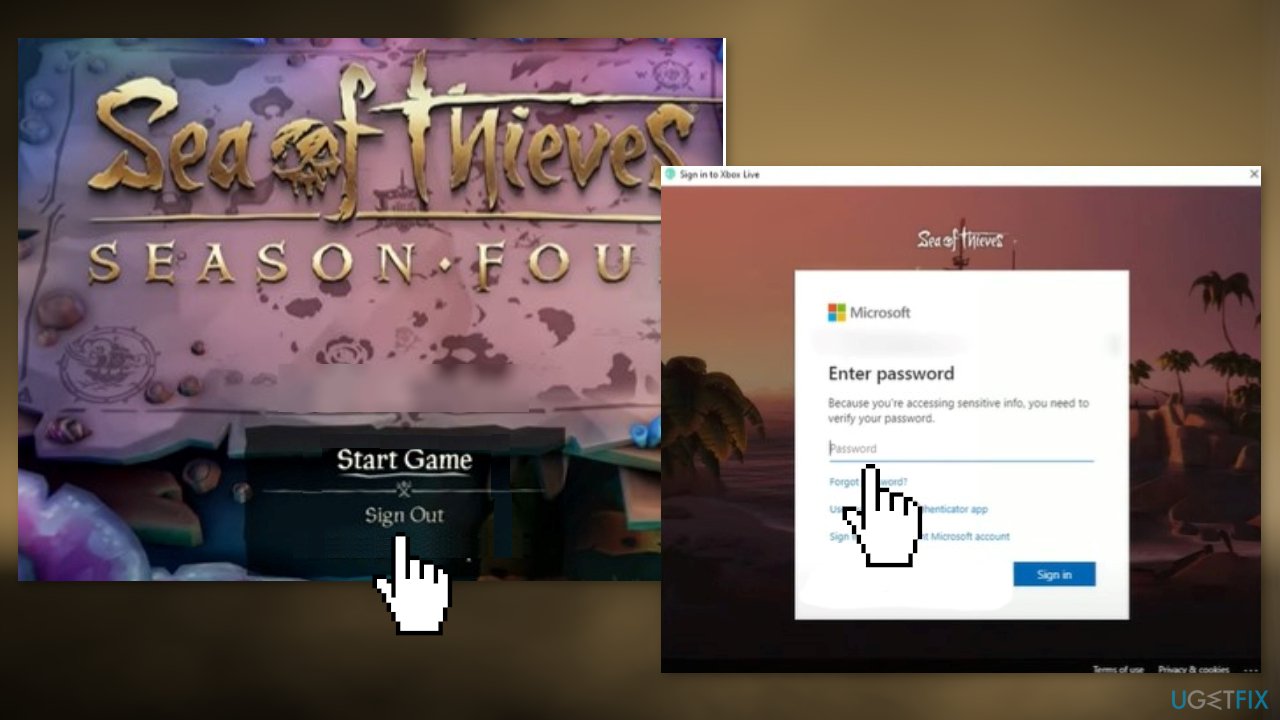
- Click on the Let’s Go option
- The game should start without any problems
Bottom line
To fix the 'The Sea of Thieves Services is temporarily unavailable' error, you can try flushing the DNS, resetting your router, verifying the integrity of game files, or signing out and back into your account. If none of these solutions work, consider using a maintenance tool to address potential system errors.
Frequently asked questions
First, check the game's server status online to ensure there are no ongoing outages. If the servers are operational, try restarting your PC and launching the game again.
Yes, you can try resetting the Microsoft Store cache by running 'wsreset.exe' in the Run dialog. Additionally, ensure that your Windows 11 system is fully updated and that your internet connection is stable.
Yes, you can troubleshoot network issues by running the Network Troubleshooter in Windows 10 or Windows 11 settings, or by resetting your router to improve connectivity.




Report an issue
What's wrong with this guide? We review every report and update or remove content.
Report received — thank you. We'll review and fix it.
You need a free account to submit a report.
Be the first to comment