How to fix
“The Security Center service can’t be started” error message
on Windows
Resolve the "Security Center service can't be started" error on Windows 10 or 11 quickly and effectively. Expert-tested solutions that fix issues in min…


What causes How to fix “The Security Center service can’t be started” error message on Windows?
- Issues with Security Center configuration
- Windows updates affecting Security Center
- Malware infection
- User attempts to disable Security Center
- Automatic stopping of Security Center service
Repairs Windows system files, removes malware, and restores a clean OS state — without reinstalling.
Hello. I wonder why my Windows Security Center is turned off (I did not turn off it by myself) and why can’t I turn it on. When I open Security center and click Turn on, the message "The Security Center service is turned off" shows up. Need help.
"The Security Center service is turned off" error appears due to the issues with Security Center that is an in-built Windows tool, which is set to scan the system on a regular basis and inform its user about a pending update, missing software, turned off antivirus, and similar issues.[ref en-1] All alerts generated by Security Center are generated in a form of a pop-up at the bottom-right corner of the screen right above the taskbar.
Very often, people get annoyed by these "The Security Center service is turned off" messages and decide to turn off Security Center, which is not recommended due to the fact these messages help people to maintain the system and keep their best performance. Unfortunately, but for some obscure reasons, the Security Center might stop working automatically and cannot be turned on.
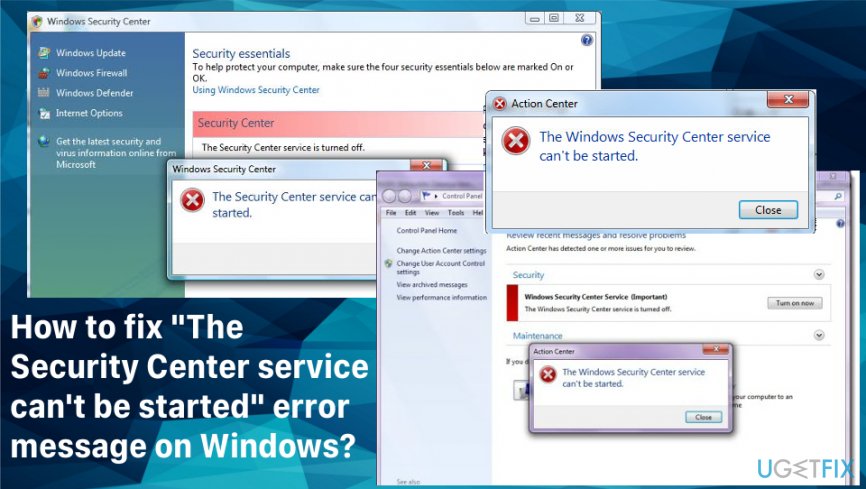
To be more precise, “Windows Security Center” icon might be appended with a red flag out of nowhere, which once clicked redirects to the Security Center with a notification that "The Security Center service is turned off". If the user attempts to turn on the Security Center alerts, "The Security Center service can't be started" pop-up is thrown up. A full message reads as:
The Security Center service can't be started.
If you continue to try, you still can't turn on the Security Center.
According to Microsoft engineers, this issue may arise due to the Windows updates,[ref en-2] which might have messed up Security Center configuration. To fix "The Security Center service can't be started" error message, try updating the OS to more recent version first. And then proceed with our suggestions below.
Methods to fix "The Security Center service can't be started" error
Different reasons can cause "The Security Center service can't be started" error. It might be that your PC is infected by malware. Another reason for this failure might be related to corrupted registries.[ref en-3] Therefore, we would highly recommend scanning your PC with a professional software utility, such as [d1] to remove malware and fix registry keys before attempting any of the manual steps.
Start Security Center service
- Click Win key + I or Click Start and type Settings in the search bar. By this, you will open Settings.
- In the Settings search box, type services, and select View local services. (Windows 8, 8.1, and 10)
- Click Start, type services in the search box, and select Services from the list.
- On the details pane, locate Security Center, and right-click on it. (Windows 7 and Vista)
- Select Properties.
- In the middle of the window, find Startup type, click on the arrow to open a drop-down menu, and select Automatic (Delayed Start).
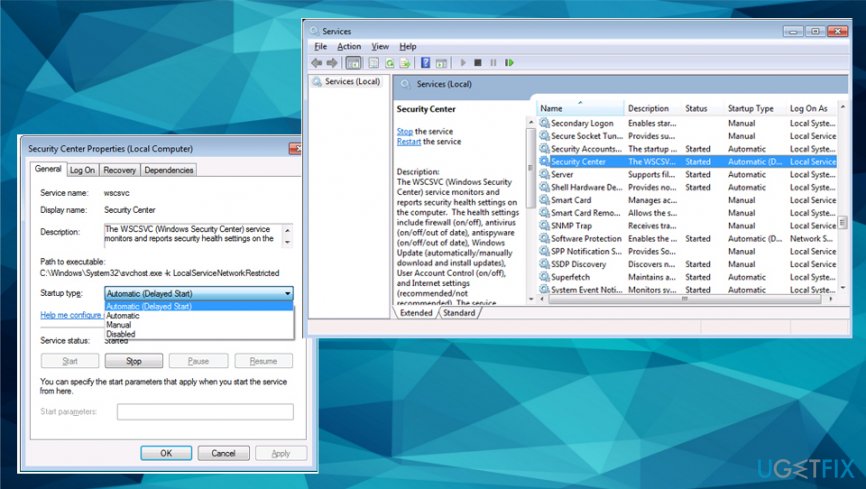
How to fix the security center service cant be started error message on windows services - Then find Service Status below and click on Start.
- If the service has been successfully turned on, click Apply and then OK.
Reconfigure Security Center service
Very often, the execution of the steps listed above ends up with the following error message:
Windows could not start the Security Center service on Local Computer. Error 1079: The account specified for this service differs from the account specified for other services running in the same process.
It means that the Security Center service has to be reconfigured in order to log on the user for the service. This can be done by performing the following steps:
- Open Security Center and open Properties.
- Click on the Log On tab and select Browse.
- When the Enter the object name to select window shows up, enter the name of your PC.
- Select Check Names and click OK.
- In the Password box, type your administrator password and retype it in the Confirm password box.
- Click Apply and OK to save the changes.
Fix "The Security Center service can't be started" error by fixing your registry
- Locate to Registry Editor via run dialogue or start button and search.
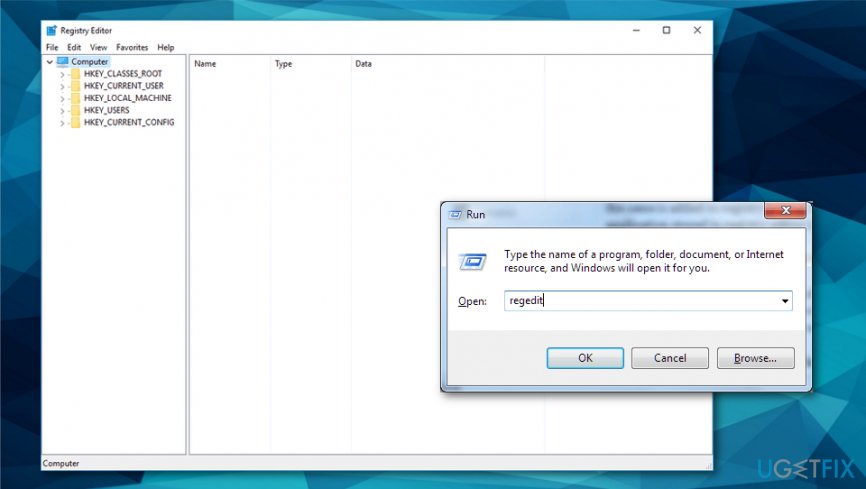
How to fix the security center service cant be started error message on windows registry editor - You need to log in as an administrator so you can make changes.
- Click on File and Export and choose the location to export the current registry.
- This helps to back up your registry.
Now you can fix the entries:
- Navigate to HKEY_LOCAL_MACHINE >> SYSTEM >> CurrentControlSet >> services >> wscsvc
- Click on the subkey and select Delete. Then Yes.
- Open the Notepad and copy-paste the following:
Windows Registry Editor Version 5.00 [HKEY_LOCAL_MACHINE\\SYSTEM\\CurrentControlSet\\services\\wscsvc]
“DisplayName”=”@%SystemRoot%\\\\System32\\\\wscsvc.dll,-200”
“ErrorControl”=dword:00000001
“ImagePath”=hex(2):25,00,53,00,79,00,73,00,74,00,65,00,6d,00,52,00,6f,00,6f,00,\\
74,00,25,00,5c,00,53,00,79,00,73,00,74,00,65,00,6d,00,33,00,32,00,5c,00,73,\\
00,76,00,63,00,68,00,6f,00,73,00,74,00,2e,00,65,00,78,00,65,00,20,00,2d,00,\\
6b,00,20,00,4c,00,6f,00,63,00,61,00,6c,00,53,00,65,00,72,00,76,00,69,00,63,\\
00,65,00,4e,00,65,00,74,00,77,00,6f,00,72,00,6b,00,52,00,65,00,73,00,74,00,\\
72,00,69,00,63,00,74,00,65,00,64,00,00,00
“Start”=dword:00000002
“Type”=dword:00000020
“Description”=”@%SystemRoot%\\\\System32\\\\wscsvc.dll,-201”
“DependOnService”=hex(7):52,00,70,00,63,00,53,00,73,00,00,00,57,00,69,00,6e,00,\\
4d,00,67,00,6d,00,74,00,00,00,00,00
“ObjectName”=”NT AUTHORITY\\\\LocalService”
“ServiceSidType”=dword:00000001
“RequiredPrivileges”=hex(7):53,00,65,00,43,00,68,00,61,00,6e,00,67,00,65,00,4e,\\
00,6f,00,74,00,69,00,66,00,79,00,50,00,72,00,69,00,76,00,69,00,6c,00,65,00,\\
67,00,65,00,00,00,53,00,65,00,49,00,6d,00,70,00,65,00,72,00,73,00,6f,00,6e,\\
00,61,00,74,00,65,00,50,00,72,00,69,00,76,00,69,00,6c,00,65,00,67,00,65,00,\\ 00,00,00,00
“DelayedAutoStart”=dword:00000001
“FailureActions”=hex:80,51,01,00,00,00,00,00,00,00,00,00,03,00,00,00,14,00,00,\\
00,01,00,00,00,c0,d4,01,00,01,00,00,00,e0,93,04,00,00,00,00,00,00,00,00,00
[HKEY_LOCAL_MACHINE\\SYSTEM\\CurrentControlSet\\services\\wscsvc\\Parameters]
“ServiceDllUnloadOnStop”=dword:00000001
“ServiceDll”=hex(2):25,00,53,00,79,00,73,00,74,00,65,00,6d,00,52,00,6f,00,6f,\\ 00,74,00,25,00,5c,00,53,00,79,00,73,00,74,00,65,00,6d,00,33,00,32,00,5c,00,\\
77,00,73,00,63,00,73,00,76,00,63,00,2e,00,64,00,6c,00,6c,00,00,00
[HKEY_LOCAL_MACHINE\\SYSTEM\\CurrentControlSet\\services\\wscsvc\\Security]
“Security”=hex:01,00,14,80,c8,00,00,00,d4,00,00,00,14,00,00,00,30,00,00,00,02,\\
00,1c,00,01,00,00,00,02,80,14,00,ff,01,0f,00,01,01,00,00,00,00,00,01,00,00,\\
00,00,02,00,98,00,06,00,00,00,00,00,14,00,fd,01,02,00,01,01,00,00,00,00,00,\\
05,12,00,00,00,00,00,18,00,ff,01,0f,00,01,02,00,00,00,00,00,05,20,00,00,00,\\
20,02,00,00,00,00,14,00,9d,01,02,00,01,01,00,00,00,00,00,05,04,00,00,00,00,\\
00,14,00,8d,01,02,00,01,01,00,00,00,00,00,05,06,00,00,00,00,00,14,00,00,01,\\
00,00,01,01,00,00,00,00,00,05,0b,00,00,00,00,00,28,00,15,00,00,00,01,06,00,\\
00,00,00,00,05,50,00,00,00,49,59,9d,77,91,56,e5,55,dc,f4,e2,0e,a7,8b,eb,ca,\\
7b,42,13,56,01,01,00,00,00,00,00,05,12,00,00,00,01,01,00,00,00,00,00,05,12,\\
00,00,00
- Save the file by naming the file Hkey.reg
- Import this file on Registry Editor by clicking File and then Import.
- Click OK and exit the editor.
- Restart your PC and check if the Security Center is running.
"The Security Center service can't be started" error fix using Command Prompt
- Open Command Prompt with administrative rights and enter the following commands to run automatic scanners:
sfc/scannow for System File Checker
DISM/Online/Cleanup-Image/RestoreHealth for Deployment Image Servicing and Management.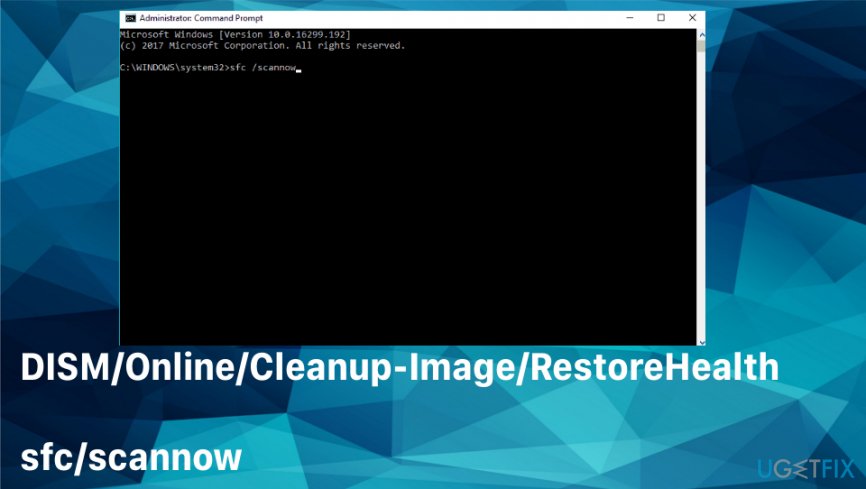
How to fix the security center service cant be started error message on windows command
Bottom line
To fix the 'The Security Center service can't be started' error message, try updating your operating system to a more recent version and follow the suggested methods in the guide. If these steps do not resolve the issue, further investigation may be necessary.
Frequently asked questions
You can try restarting the Security Center service by opening the Services app, locating 'Security Center', and clicking 'Start'. If that doesn't work, ensure that the 'Remote Procedure Call (RPC)' service is also running.
On Windows 11, you can fix the error by running the System File Checker tool through the Command Prompt to repair any corrupted system files that might be preventing the Security Center from starting.
Yes, you can check the status of the Security Center service by typing 'services.msc' in the Run dialog, finding 'Security Center', and verifying that its Startup Type is set to 'Automatic'.




Report an issue
What's wrong with this guide? We review every report and update or remove content.
Report received — thank you. We'll review and fix it.
You need a free account to submit a report.
Be the first to comment