How to fix
“The semaphore timeout period has expired” error code 0x80070079
on Windows
Resolve the "semaphore timeout period has expired" error code 0x80070079 on Windows 10 effortlessly with expert-tested solutions and updated methods.


What causes How to Fix “The semaphore timeout period has expired” error code 0x80070079 on Windows 10?
- Corrupted Windows files
- Missing core files
- Issues with external hard drive connectivity
- Problems with accessing remote shared folders
- Backup of large files
Repairs Windows system files, removes malware, and restores a clean OS state — without reinstalling.
I get an error message "The semaphore timeout period has expired" on my Windows 10 PC. This happens when I try to open files and folders on HDD connected via USB. Besides, when I try to disconnect HDD safely, it says "Windows is unable to stop the device..." What can I do to fix that?
"The semaphore timeout period has expired" is yet another commonly encountered Windows error. Usually, it is referred to as a backup error and marked with the code 0x80070079.
In most of the cases, the problem occurs when the PC/laptop user attempts to backup huge size files or create Windows image backup. Sometimes "The semaphore timeout period has expired" error may pop-up when trying to open or transfer some files from/to an external hard drive (HDD) or data located on a local network.[ref en-1]
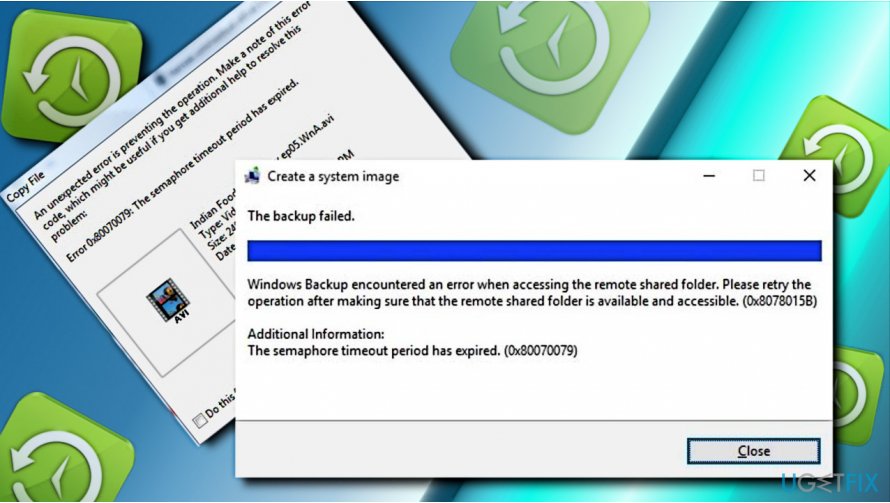
The error 0x80070079 message states the following:
The backup failed.
Windows Backup encountered an error when accessing the remote shared folder. Please retry the operation after making sure that the remote shared folder is available and accessible. (0x8078015B)
Additional Information:
The semaphore timeout period has expired. (0x80070079)
Although the 0x80070079 error has been harassing people for many years (the last related threat was submitted in 2007), it seems that Microsoft did not manage to solve it permanently. To tell the truth, there’s no relevant information both from Microsoft and other reliable sources at all.
Our team analyzed the "The semaphore timeout period has expired" error, but, unfortunately, we did not reveal the culprit, but several methods may help you fix 0x80070079 "The semaphore timeout period has expired" error.
Fix 1. Run SFC and DISM tools to check for corrupted Windows files
Any operation on Windows can be terminated if the system contains damaged/corrupted files or is missing for some core files. To check that, you should run the System File Checker (SFC)[ref en-3] scan and run the Deployment Image Servicing and Management (DISM) tool
- Type in Command Prompt or cmd into Cortana's search box
- Right-click on the search result and select Run as administrator
- Once the new window opens, type in sfc /scannow and hit Enter
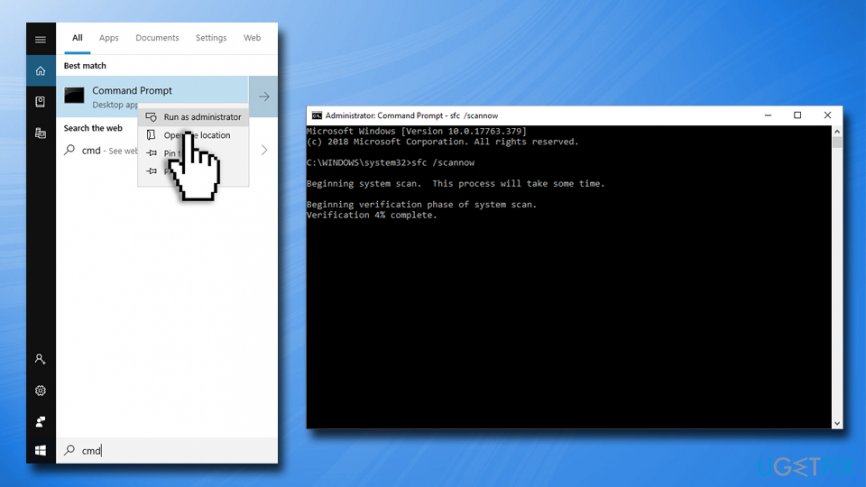
The semaphore timeout period has expired 0x80070079 fix run system file checker - Wait till Windows scans your computer
- After the procedure is finished, the system will inform you if anything was found and what was fixed
To perform DISM scan, go back to the Administrator: Command Prompt:
- Copy and paste DISM /Online /Cleanup-Image /RestoreHealth command
- Press Enter to execute it and wait for the scan results
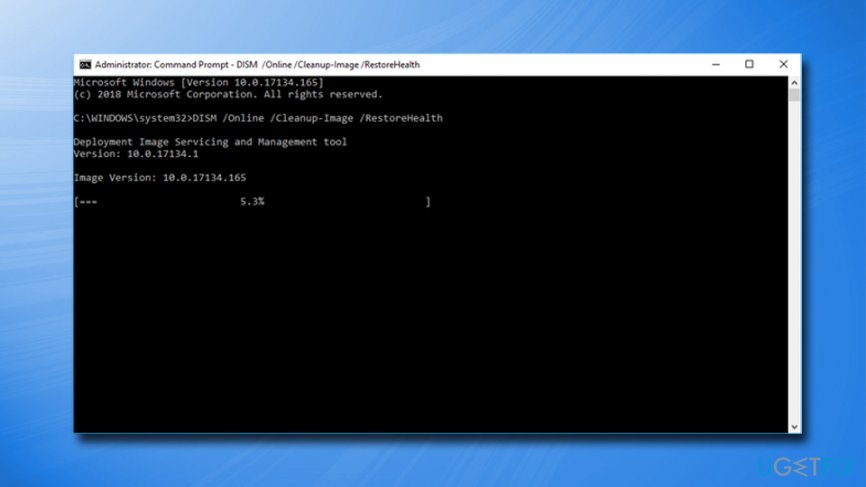
The semaphore timeout period has expired 0x80070079 fix run dism scan
Fix 2. Temporarily disable antivirus and Firewall
If the 0x80070079 error shows up during file transfer to the cloud over a wireless network, you should temporarily disable your antivirus and Windows Firewall. To deactivate your antivirus, simply right click on the icon located in in the right corner of the Taskbar and pick Disable or Quit.
To temporarily stop your Firewall, follow these steps:
- In Cortana's search box, type Firewall.cpl and press Enter
- Select Turn Windows Firewall On or Off option
- Under Private Network Settings pick Turn off Windows firewall
- Repeat this step for Public Network Settings
- Click OK
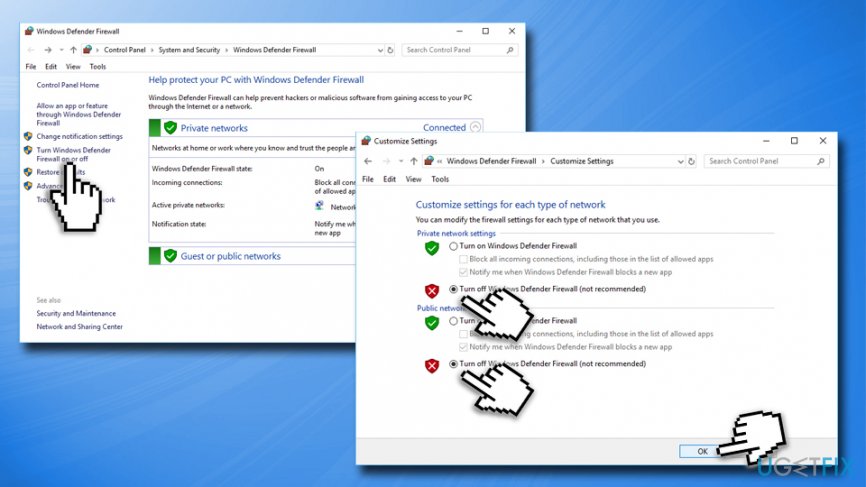
The semaphore timeout period has expired 0x80070079 fix disable firewall
Fix 3. Update Wireless network adapters
Update Network adapters as explained below:
- Right-click on Start button and select Device Manager
- Expand Network adapters section and right-click on your network adapter
- Select Update Driver Software and and then pick Search automatically for updated driver software
- Finally, reboot your PC
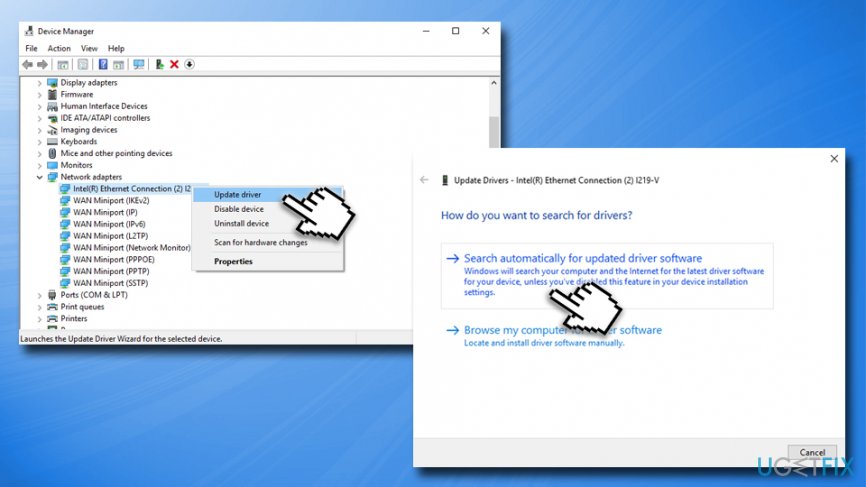
The semaphore timeout period has expired 0x80070079 fix update network adapters
Fix 4. Remove HDD entries via Device Manager
If "The semaphore timeout period has expired" error prevents you from using HDD normally, you should check for old entries of external drives on Device Manager and, if there are any, remove them.
- Right-click on Start button and select Device Manager
- Expand the Universal Serial Bus Controllers section
- Check the list of devices. If your HDD is included in that list, right-click on it and select Disable device
Fix 5. Ensure your external device is set to NTFS mode
If you need to transfer a large file to the external drive (especially the flash drive), you need to make sure that is set to NTFS[ref en-2] mode (IMPORTANT: make sure you backup all your data on before formatting the device, as all the files located on it will be erased):
- Right-click on your connected device
- Select Format
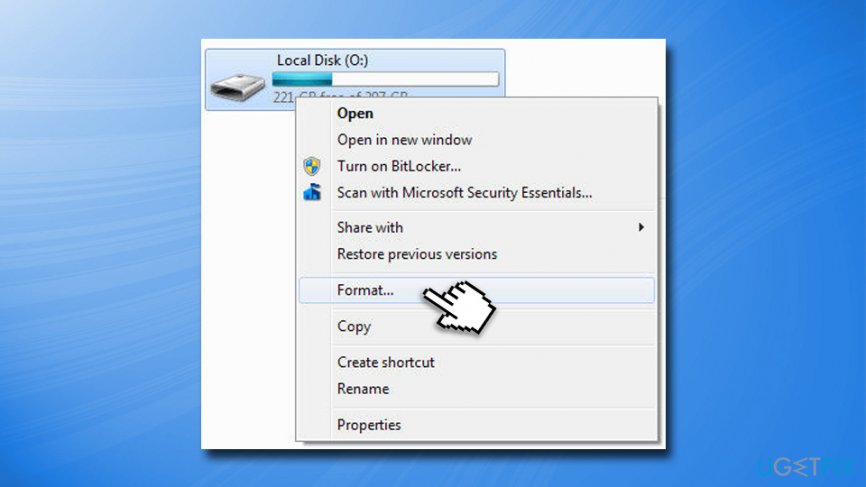
The semaphore timeout period has expired 0x80070079 fix format external drive - In the next prompt, select NTFS
- Pick Quick Format
- Proceed copying your file without getting "The semaphore timeout period has expired" error
Bottom line
To fix the 'The semaphore timeout period has expired' error, you can run the System File Checker (SFC) and the Deployment Image Servicing and Management (DISM) tools to check for corrupted or missing files. If these methods do not resolve the issue, consider checking your external hard drive connections or reviewing your backup processes.
Frequently asked questions
This error often occurs due to issues with network connectivity or hardware malfunctions, particularly with external devices like USB drives or network adapters.
To fix this error on Windows 11, try updating your device drivers, checking your network connection, and ensuring that your external devices are properly connected.
You can run the 'sfc /scannow' and 'chkdsk' commands in the Command Prompt to repair corrupted system files and check for disk errors that may be causing the issue.




Report an issue
What's wrong with this guide? We review every report and update or remove content.
Report received — thank you. We'll review and fix it.
You need a free account to submit a report.
Be the first to comment