How to fix
The “Show taskbar buttons on all taskbars” resetting
on Windows
Fix the issue of "Show taskbar buttons on all taskbars" resetting in Windows 10 and 11. Restore your settings effortlessly with expert-tested solutions.

What causes How to fix the “Show taskbar buttons on all taskbars” resetting in Windows?
- Recent Windows updates
- Glitches in File Explorer
- Complications from reconnecting monitors
- Driver-related glitches
- Corrupted user profiles
Repairs Windows system files, removes malware, and restores a clean OS state — without reinstalling.
Why does the "Show taskbar buttons on all taskbars" setting in Windows repeatedly reset to its default value, even after being manually adjusted? Could this be due to a system bug or is there something deeper going on? Please advise.
The "Show taskbar buttons on all taskbars" setting in Windows is an essential feature for multi-monitor users, allowing taskbar buttons to display on all monitors or just one. However, many users have reported that this setting fails to retain their preferences. It often resets to the default configuration after a system restart, resuming from sleep, or adjusting display settings, disrupting workflows for those relying on dual-monitor setups.
"Show taskbar buttons on all taskbars" resetting after system sleep may result from various causes. Some users suspect it is linked to recent Windows updates, such as KB5043064, which might have introduced the bug. Others point to glitches in File Explorer or complications arising when monitors are reconnected.
Temporary fixes include restarting File Explorer through Task Manager, re-enabling the setting after sleep, or disconnecting and reconnecting the monitor. While these approaches can resolve the issue momentarily, the problem often recurs.
For more lasting solutions, several steps can be taken. Updating display drivers ensures compatibility and addresses potential driver-related glitches. A clean boot can help identify and resolve software conflicts causing the issue.
Uninstalling problematic updates may restore functionality, while creating a new user account can circumvent issues stemming from corrupted user profiles. Running System Restore to revert the system to a previous state can also be effective in resolving the problem.
A repair tool like [d1] will make the process of troubleshooting easy and fix some general system errors automatically. It can optimize the performance of your system, fix common bugs, and reduce the recurrence of similar issues.

Fix 1. Re-enable the setting
Re-enabling the "Show taskbar buttons on all taskbars" setting refreshes the configuration of the taskbar to force Windows to reapply the changes. This works particularly well if this setting has failed to persist after a reboot or sleep.
- Open Settings by pressing Windows key + I.
- Go to Personalization and select Taskbar.
- Toggle the Show taskbar buttons on all taskbars setting off and then back on.
- Check if the issue is resolved after re-enabling the setting.
Fix 2. Restart File Explorer
Sometimes, the glitch in the taskbar interface can be resolved by restarting File Explorer. It reloads the components of the taskbar and often fixes the problem temporarily.
- Press Ctrl + Shift + Esc to open Task Manager.
- Locate Windows Explorer in the list of processes.
- Right-click on it and select Restart.
- Check if the taskbar buttons appear on all taskbars after the restart.

Fix 3. Update graphics driver
Updating GPU driver ensures compatibility with your system and can resolve display-related bugs. You can update your driver in numerous ways, such as downloading it from your official GPU manufacturer website, employing automatic tools like [rev id="DriverFix"] or simply using Device Manager:
- Right-click on the Start button and select Device Manager from the menu.
- Expand the Display adapters section.
- Right-click on your device and select Update driver.
- Pick Search automatically for drivers.
- If updates are found, allow them to install.
- Restart your computer after updating all necessary drivers.

Fix 4. Roll back graphics driver
If the problem started recently after updating the graphics drivers, rolling back to the previous version can resolve compatibility issues and get things back to normal.
- Right-click on the Start button and select Device Manager from the menu.
- Expand the Display adapters section.
- Right-click on your graphics card and select Properties.
- Go to the Driver tab at the top.
- Here, you will see an option to Roll Back Driver.
- Click it and follow the on-screen instructions to finish the process.

Fix 5. Perform Clean Boot
A Clean Boot starts Windows with only core drivers and services to see whether background programs might be interfering. After entering Clean Boot mode, test if the taskbar buttons are working as they should without interference.
- Type msconfig in Windows Search and press Enter to open the System Configuration window.
- Click on the Services tab and check the Hide all Microsoft Services box.
- Click Disable all to disable non-Microsoft services, then click the Startup tab.
- Open the Task Manager, disable all startup items, and close the Task Manager.
- Go to the Boot tab and mark the Safe boot option.
- Click OK on the System Configuration window and restart your computer.
- If "Show taskbar buttons on all taskbars" setting works correctly, it means that third-party software is causing the problem. To determine which app it is, enable half of the services and reboot your PC, checking if the problem is still there. Repeat the process until you find the culprit.

Fix 6. Create new user account
The problem with the taskbar could be due to a corrupted user profile. Creating a new user account provides a fresh environment to test if the issue is related to your current profile.
- Open Windows Settings.
- Go to Accounts then Family/Family & other users.
- Under Other users, click Add account/Add someone else to this PC.
- Follow the prompts to create a new user account. If you don't have Microsoft account details, you can choose I don't have this person's sign-in information followed by Add a user without a Microsoft account.
- Assign a username and password for the new account and complete the setup.
- Then go back to the Accounts section. Under Family/Family & other users, select the newly created account and click Change account type.
- Under Account type, pick Administrator and click OK.

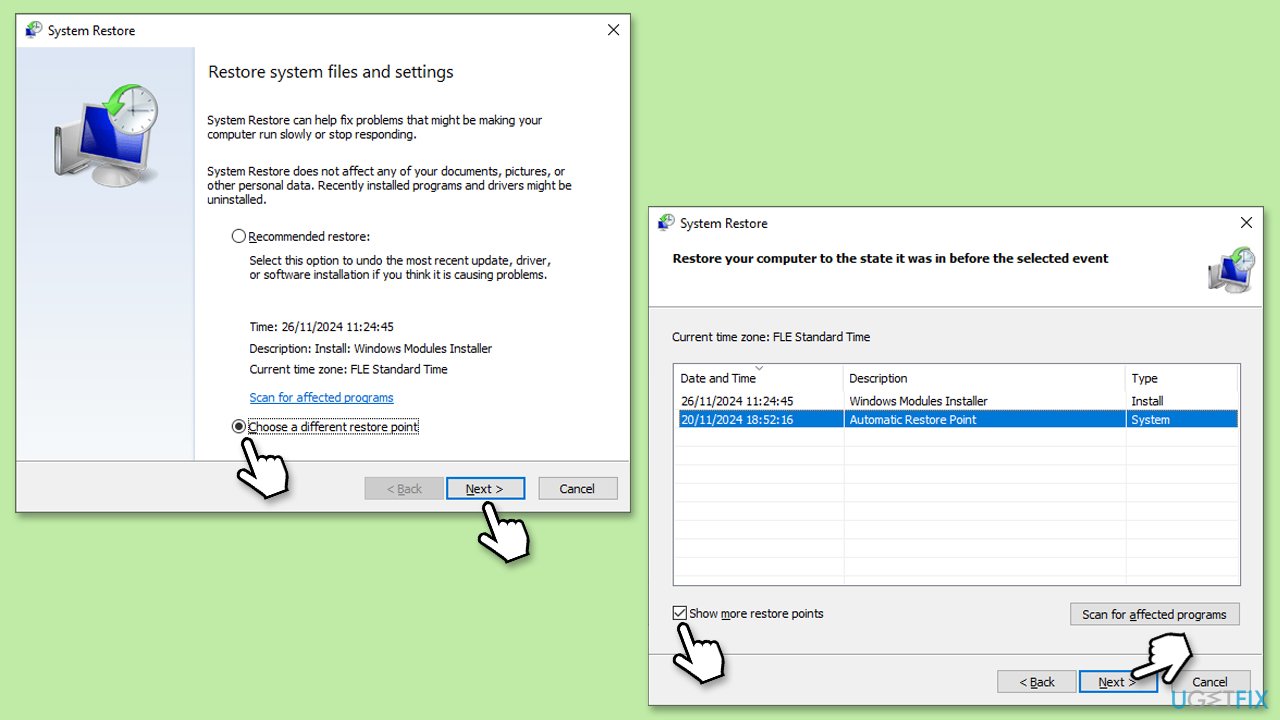
Fix 7. Run System Restore
Running a System Restore can return your system to a previous state when the taskbar issue was not present. This can undo changes made by recent updates or software installations.
- Type in Create a restore point in Windows search and hit Enter.
- In the System Protection tab, pick System restore.
- Pick Choose a different restore point (if available) and click Next if not available.
- Click Show more restore points (if available).
- Pick the time before the problem occurred and click Next.
- Your computer will restart as required.
Bottom line
To address the issue of the 'Show taskbar buttons on all taskbars' setting resetting, users can try re-enabling the setting, updating display drivers, performing a clean boot, or creating a new user account. If these solutions do not resolve the problem, consider running System Restore or using a repair tool to fix underlying system errors.
Frequently asked questions
This issue may occur due to corrupted user profiles or conflicts with third-party applications. Ensure your Windows 10 is updated and consider creating a new user profile if the problem persists.
To prevent resetting, check for any third-party software that might interfere with taskbar settings and ensure Windows 11 is fully updated. Additionally, running the System File Checker may help resolve underlying issues.
Try disabling any startup programs that may be affecting the taskbar settings and check your group policy settings if you're on a Windows 11 Pro version. If the issue continues, consider performing a clean boot to isolate the problem.




Report an issue
What's wrong with this guide? We review every report and update or remove content.
Report received — thank you. We'll review and fix it.
You need a free account to submit a report.
Be the first to comment