How to fix
“The specified domain either does not exist or could not be contacted”
on Windows
Resolve "The specified domain could not be contacted" error on Windows 10 and 11 with expert-tested solutions for a seamless experience. Fixed in minutes!


What causes How to fix “The specified domain either does not exist or could not be contacted” in Windows?
- Computer was previously connected to a domain
- User reset the operating system
- Windows is attempting to contact a domain during login
- Incorrect DNS settings may be involved
- User may have forgotten their password
Repairs Windows system files, removes malware, and restores a clean OS state — without reinstalling.
Hello, I reset my PC, and now I can't log in anymore. I instead get the "The specified domain either does not exist or could not be contacted" error. Please help me to resolve this, as I can't use my computer at all...
Every Windows computer can be protected by a password, a pin, or a combination of both - there are also additional security measures that users can employ if required. The login lockscreen is extremely important when it comes to privacy and computer safety, especially when it comes to public or corporate computers. Likewise, home users can also use the feature to prevent curious household members from accessing their accounts.
Unfortunately, some users might forget their passwords, or errors when logging in might occur. While usually, the incorrect password would simply result in an error message that would say so, some users have encountered something completely different - "The specified domain either does not exist or could not be contacted" error.
While the error can also be encountered when trying to join a domain network, it can usually be resolved by changing the DNS settings. However, this instance is completely different, as it seems like Windows is attempting to contact a domain upon when a login attempt to the system is made.
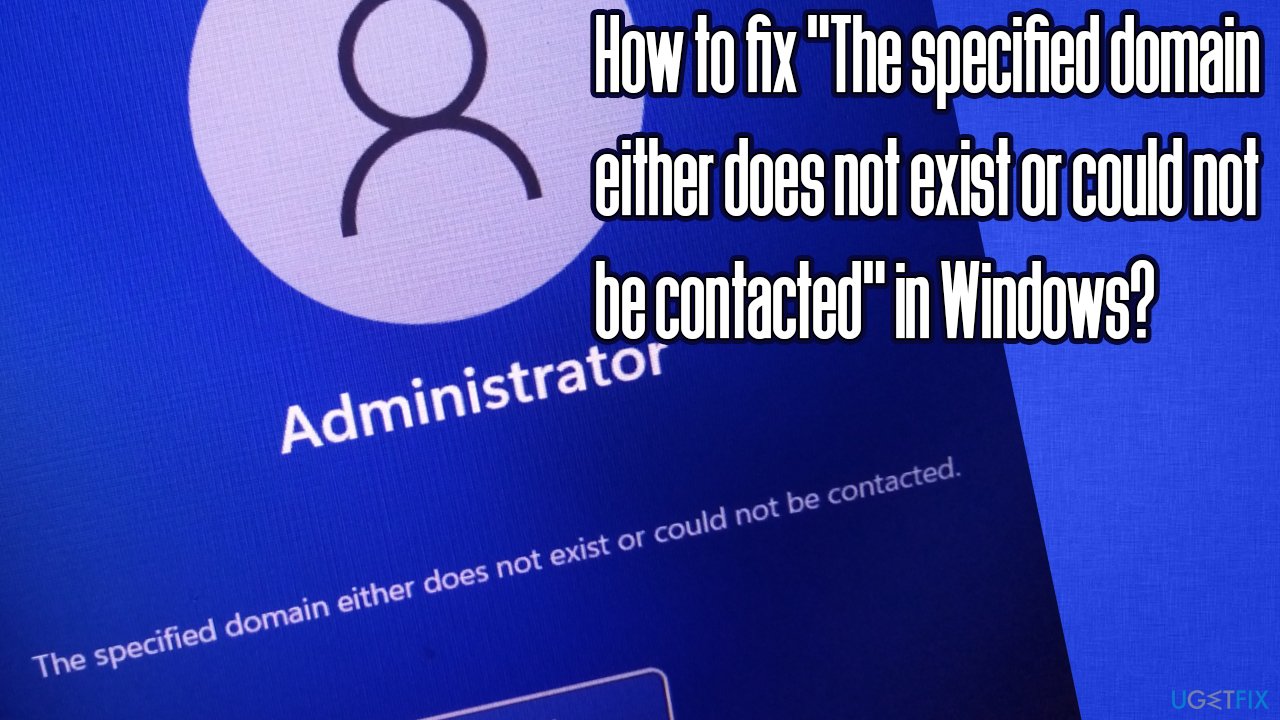
In most cases, the "The specified domain either does not exist or could not be contacted" error occurs when the computer was connected to a domain previously. When users try to reset the operating system for one reason or another - that's when the issue shows up, preventing users from logging in at all.
It goes without saying that such an error might cause significant issues, as users are essentially locked out of their PCs and are not able to connect. In order to fix the "The specified domain either does not exist or could not be contacted" error, you will have to access the Windows Recovery environment and perform actions there.
Access Windows Recovery Environment
Since there is no way for you to log into your account (which also means you can't use regular Windows components such as the Start menu or navigate through files and folders via File Explorer), you need to try to perform actions via Windows Recovery Environment, which can be accessed in the following way:
- Press and hold the Shift button on your keyboard and then click Power > Restart from your login screen

How to fix the specified domain either does not exist or could not be contacted in windows restart in recovery environment - Once the system restarts, you should enter the Recovery environment
- Then, proceed with the solutions we provide below.
Fix 1. Set your account as administrator
You might receive a login error when Windows perceives you as an unauthorized party. Therefore, setting yourself as an Administrator might help you solve the problem:
- In the Recovery Environment, select the Advanced Options and then go to Troubleshoot
- Here, you should be able to call up Command Prompt
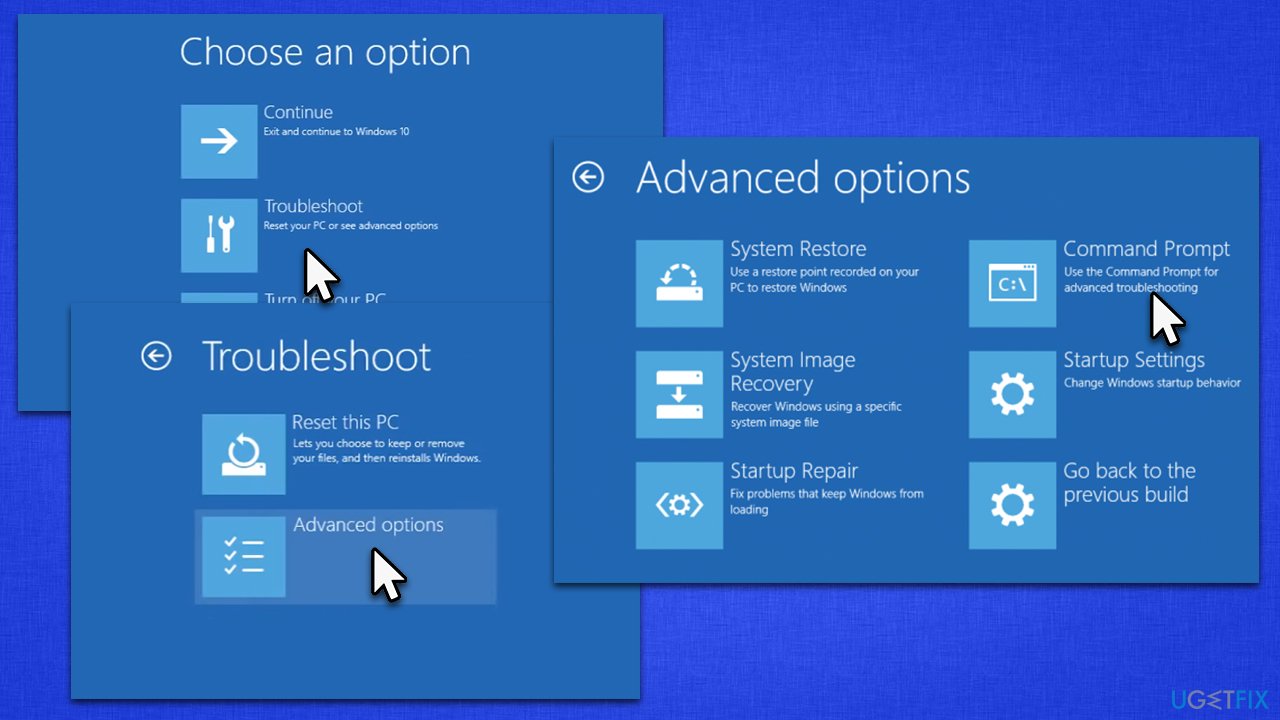
How to fix the specified domain either does not exist or could not be contacted in windows open command prompt - In the Command Prompt window, paste the following command and press Enter:
net user Administrator /active:yes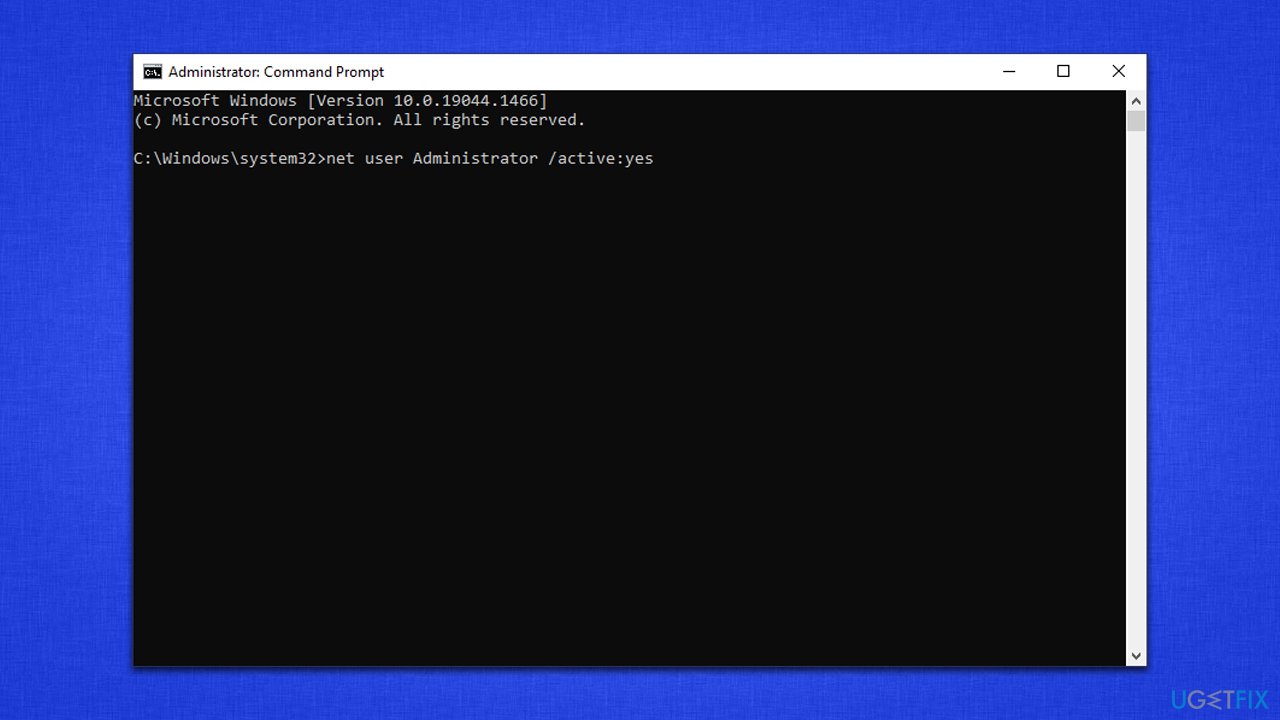
How to fix the specified domain either does not exist or could not be contacted in windows set administrator - Close down the window and restart your PC
- Check if you can log in again.
Fix 2. Change logon parameters via Registry Editor
You can change the parameters within the registry in order to fix the issue. Within the Registry,[ref en-2] we have to look for logon parameters as follows:
- Open Command Prompt via the Recovery Environment once again
- Type in the following command and press Enter:
regedit - When the Registry Editor opens, navigate to the following location:
HKEY_LOCAL_MACHINE\\System\\CurrentControlSet\\Services\\Netlogon\\Parameters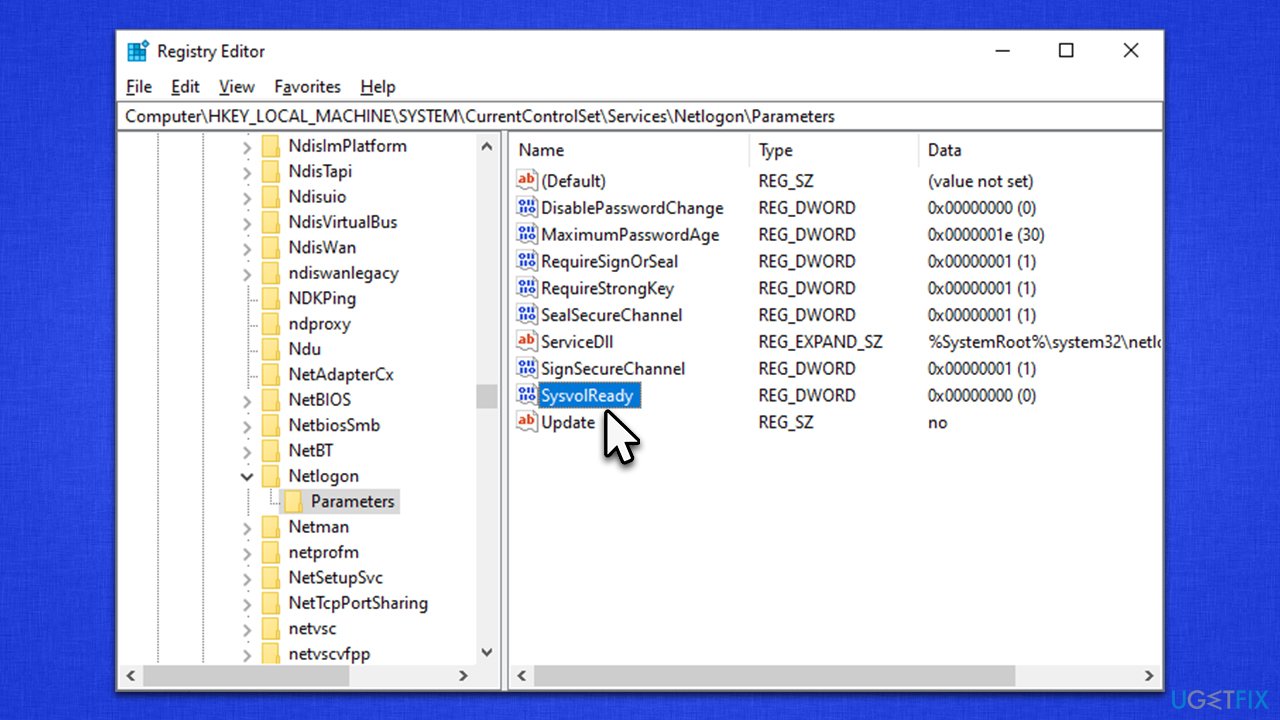
How to fix the specified domain either does not exist or could not be contacted in windows open registry editor - On the right side of the window, find the SysvolReady entry and double-click it
- Here, change the Value data from 0 to 1 and click OK
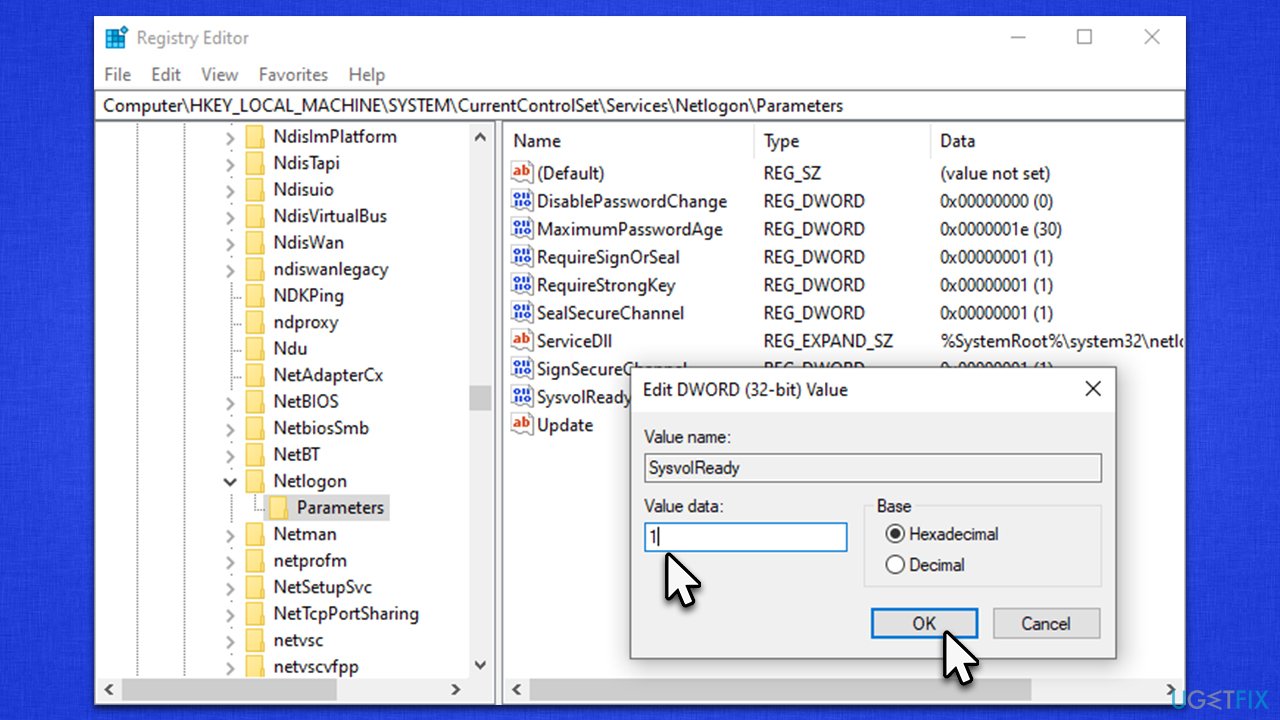
How to fix the specified domain either does not exist or could not be contacted in windows open set value to one - Close down everything and restart.
Fix 3. Reinstall Windows
To perform this step, you will have to prepare a working Windows ISO, thus you require a computer that is working, and you can log in to.
- Visit the official Microsoft website and download Windows 10 installation media (Windows 11 version)
- Double-click the installer and select Yes when UAC shows up
- Agree to terms
- Pick Create installation media (USB flash drive, DVD or ISO file) for another PC option and click Next
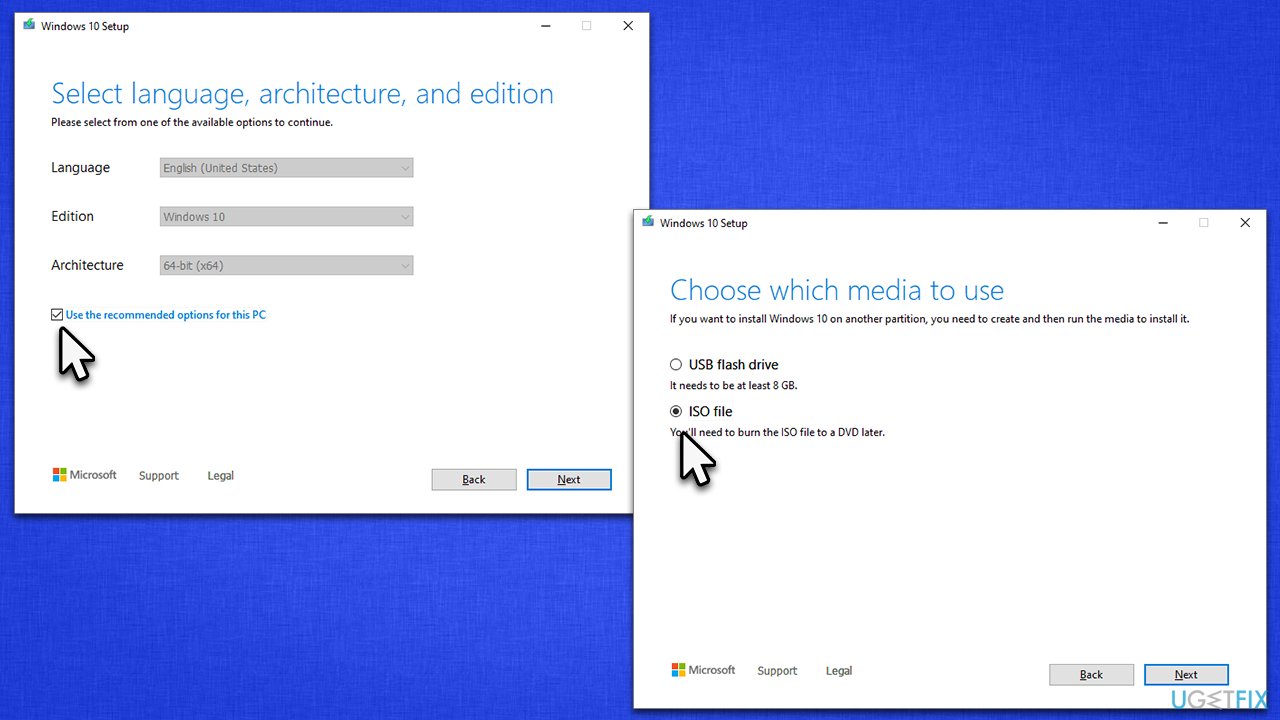
How to fix the specified domain either does not exist or could not be contacted in windows reinstall windows - Select the Use Recommended options for this PC checkbox and click Next
- Choose ISO file and click Next
- Once you have prepared the ISO, put it into the malfunctioning PC
- Restart your machine and rapidly press F8, F10, F12, Del, or another button that would let you load into BIOS
- Here, go to the Boot section and set the boot priority to Flash drive
- Restart your system and then proceed with on-screen instructions to reinstall Windows.
Protip: if you are having issues with your Windows machine, we strongly recommend using the [d1] PC repair tool, which can be used to fix various common issues such as BSODs,[ref en-3] registry errors, DLL[ref en-1] discrepancies, malware damage, and much more.
Bottom line
To fix the error, you will need to access the Windows Recovery Environment and perform actions such as changing DNS settings or other recovery options. If these fixes do not resolve the issue, further troubleshooting may be necessary.
Frequently asked questions
This error typically occurs when there's a problem with network connectivity or when the domain controller is unreachable due to configuration issues. It can also happen if the domain does not exist or the computer is not properly joined to the domain.
To troubleshoot this error on Windows 11, ensure that your network connection is stable, check DNS settings, and verify that the domain name is correct. You may also need to restart the computer and try rejoining the domain.
Yes, you can fix the domain error by resetting the network settings, ensuring proper DNS configuration, and running the 'netdom' command to reestablish the trust relationship with the domain. Reinstalling Windows is usually not necessary.




Report an issue
What's wrong with this guide? We review every report and update or remove content.
Report received — thank you. We'll review and fix it.
You need a free account to submit a report.
Be the first to comment