How to fix
The upside down Skype camera
on Windows
Easily fix your upside-down Skype camera on Windows 10 or 11 with our expert-tested tips. Get your video calls back on track in minutes!


What causes How to fix the upside down Skype camera on Windows?
- Webcam software settings
- Webcam drivers
- Skype settings
- Mirroring options enabled
Repairs Windows system files, removes malware, and restores a clean OS state — without reinstalling.
I have a problem with upside down Skype camera whenever I make a video call. How to fix it?
Skype[ref en-1] is popular communication program that allows making video calls which are convenient in order to chat with friends or relatives living abroad or having an important business call. However, upside down Skype camera issue prevents from having the best experience.
Additionally, Skype users report that their videos are flipped horizontally, flipped or mirrored on Windows computers. Most of the time these issues are related to:
- Webcam software;
- Webcam drivers;
- Skype settings.
Altering particular settings, updating or reinstalling webcam drivers can help to fix upside downs Skype camera problem. Our team offers to try five different methods to solve this annoying problem.

Methods to fix upside down Skype camera on Windows
Below you can find few methods that helped many computer users to solve the problem. Hopefully, they will help you as well.
Method 1. Check webcam software
If your Skype camera is mirrored, the issue is most likely to be related to webcam software:
- Go to Settings.
- Disable flip or mirroring options.
However, if these settings were not enabled or the issue remains, try the second method.
Method 2. Update webcam drivers
Updating webcam drivers requires learning your hardware ID. Then you will be able to download the right software and check if Skype camera upside down issue is solved.
- Click Windows Key + X and choose Device Manager[ref en-2] from the appeared list.
- In the Device Manager look up for your webcam driver and double-click it.
- In the appeared properties window, go to Details tab.
- Choose Hardware Ids from the Property list.
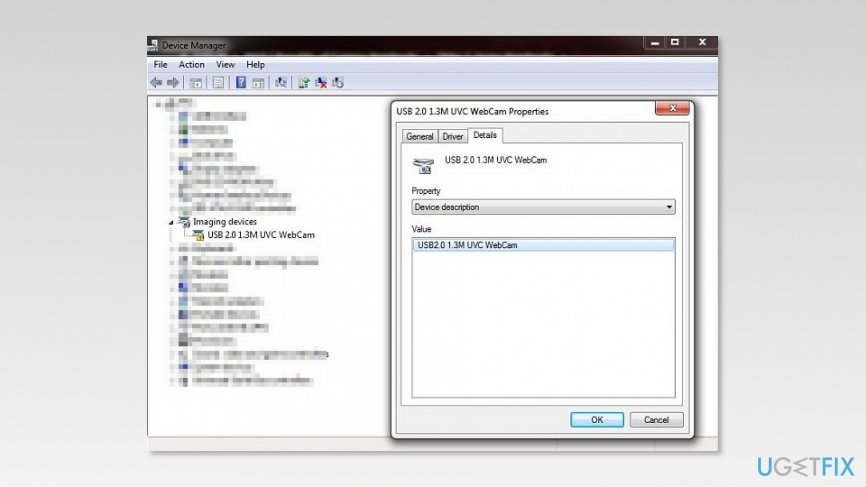
Webcam properties window - In the Value list, you will see several entries. Copy the name of your webcam driver.
- Go to the developer's website and search for the latest version of your webcam driver there.
Once you install it, the issue should be solved. Keep in mind that you have to download drivers only from manufacturer’s website. Third-party websites might contain corrupted or even malicious drivers that might harm the system.
Method 3. Disable Mirror Horizontal and Mirror Vertical options in Skype
- Open Skype.
- Go to Tools and choose Options…
- Go to Video settings section in the left pane.
- Open Advanced tab.
- Under Image mirror section you should see Mirror Horizontal and Mirror Vertical options.
- Remove the ticks if these entries are selected.
Method 4. Reinstall webcam driver
If none of the previous methods helped to fix the upside down Skype camera, you might need to reinstall your webcam driver:
- Hit Windows Key + X and choose Device Manager from the list.
- When in Device Manager, find your webcam driver and right-click it.
- Choose Uninstall device option from the list.
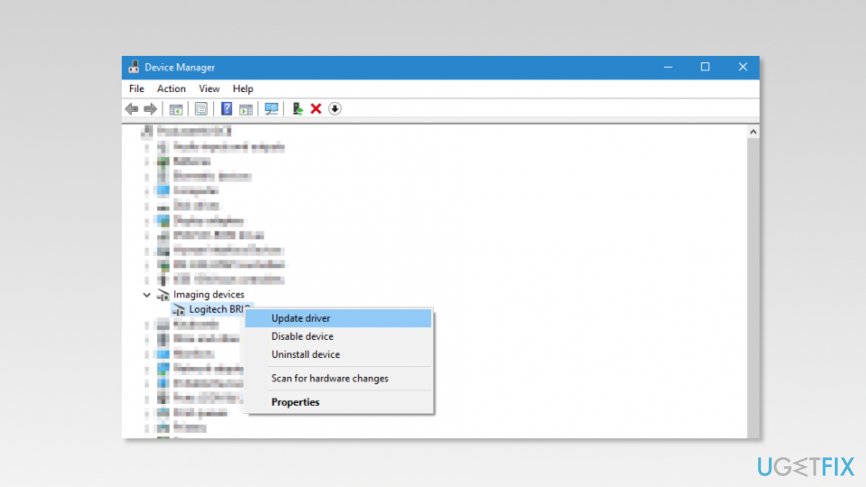
Update webcam drivers - In the Uninstall Device box, you might see Delete the driver software for this device checkbox. Mark the tick near it and click Uninstall button.
- When the driver is uninstalled, you can either click Scan for hardware changes icon in the Device Manager or restart your computer to trigger the automatic installation of the missing driver.
When Windows OS reinstalls the diver, you should check if Skype camera issues were fixed. If the problem still exists, there’s a fifth method that might help - modification of registry.
Method 5. Modify Windows Registry
Before making changes to Windows Registry, we highly recommend creating backups first. [ref en-3] It will save from accidental damage or deletion of the important entries. In order to do that, follow these steps:
- Hit Windows Key + R and type regedit in the Run box. Click OK.
- In the Registry Editor click File and choose Export…
- In the appeared box, enter the name of the backup.
- Set Export range to All.
- Click Save to create the backup.
Once it’s done, follow these steps:
- Navigate to HKEY_LOCAL_MACHINE\\SYSTEM\\CurrentControlSet\\Control\\Class\\{6BDD1FC6-810F-11D0-BEC7-08002BE2092F}\\0000\\Settings key which is in the left pane.
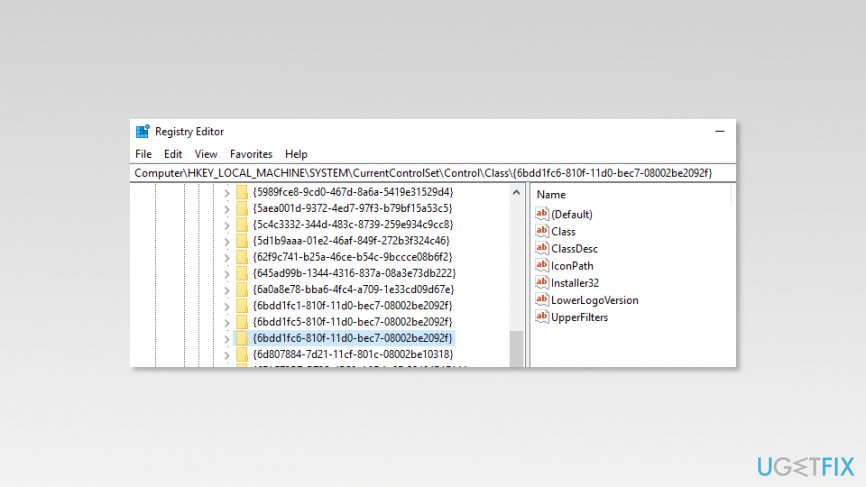
Modify registry to fix skype upside down camera - Now you should see DWORD called Flip in the right pane. Double click it.
- In the DWORD properties box, you have to:
-
- Set value data to 0 if it was set to 1;
- Set value data to 1 if it was set to 0. - Click OK to save the changes.
Note. If you cannot find DWORD or it is located in another location, this solution won’t help you to fix the upside down Skype camera on Windows issue.
Bottom line
To fix the upside down Skype camera issue, you can check and disable mirroring options in the webcam software, update your webcam drivers, or adjust Skype settings. If these methods do not resolve the problem, consider reinstalling the webcam drivers or checking for additional software conflicts.
Frequently asked questions
The upside down camera issue on Skype for Windows 10 often occurs due to incorrect camera settings or driver problems. You can fix this by adjusting the camera settings in Skype or updating your camera driver.
To rotate your Skype camera feed on Windows 11, go to the video settings in Skype and adjust the camera orientation if available. If not, consider updating your camera driver or using third-party software to rotate the video feed.
If your Skype camera is still upside down after updates on Windows, try reinstalling Skype or resetting the camera settings in the device manager. Additionally, check for any camera-specific settings in the manufacturer's software.




Report an issue
What's wrong with this guide? We review every report and update or remove content.
Report received — thank you. We'll review and fix it.
You need a free account to submit a report.
Be the first to comment