How to fix
“The User Profile Service failed the logon“ Error
on Windows
Resolve the "User Profile Service failed the logon" error on Windows 10 and 11 effortlessly. Get expert-tested solutions and fix it in minutes.

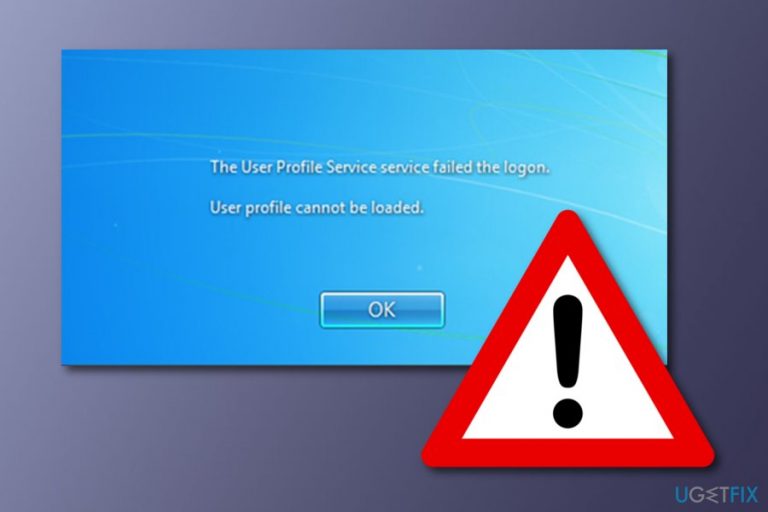
What causes How to Fix “The User Profile Service failed the logon“ Error on Windows?
- Antivirus scan during logon
- Malware infection
- Corrupted user profile
- System file corruption
- Improper shutdown
Repairs Windows system files, removes malware, and restores a clean OS state — without reinstalling.
Yesterday, I was trying to log into my user account and received an error “The User Profile Service failed the logon”. I have tried several times and the same error keeps showing up. I have Windows 10 on my computer. Could you help me fix this issue?
To access the desktop, Windows[ref en-2] users can use User Profile[ref en-4] or Public Profile. Usually, home users have one, i.e. User Profile, which, once opened, provides access to all applications, personal files (photos, documents, videos, etc.), and system settings. Unfortunately, sometimes User Profile fails to work due to the error message that reads: "The User Profile Service failed the logon“, meaning that the access to the desktop and all data is denied.
This issue might happen on all Windows versions (Windows 7, 8, 8.1, 10, Vista, XP) but, according to a recent research, it prevails on Vista, 7, and 10 versions. According to Microsoft[ref en-3], "The User Profile Service failed the logon“ error may happen due to various reasons, such as an antivirus scan during the log on. No matter what the exact reason is in your case, there is a way to fix it and we have provided some instructions below.
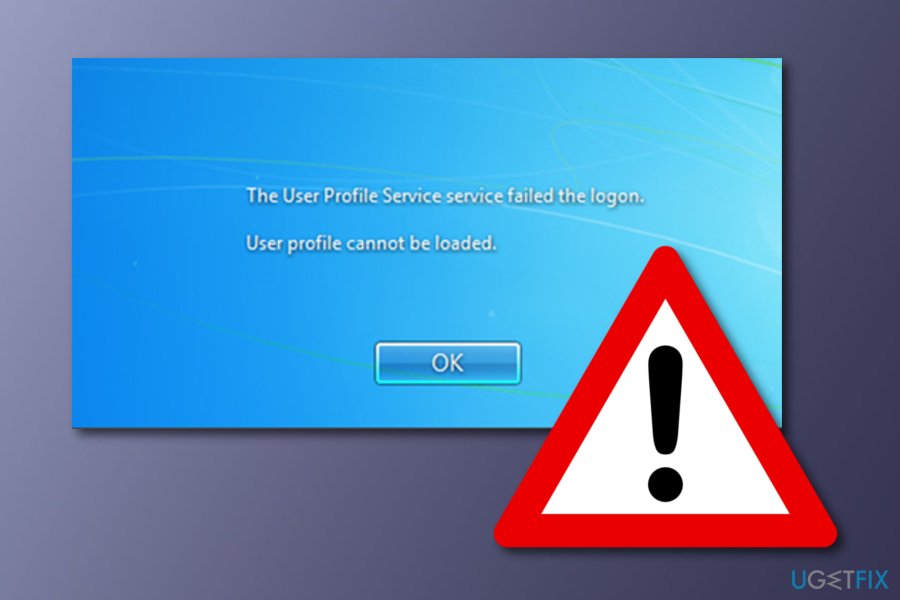
Ways to fix The User Profile Service failed the logon error
There might be some cases when errors such as "The User Profile Service failed the logon“ might be a result of a malware infection hiding on the computer for some time. If you have completed the following methods and none of them appeared to be helpful, try performing a full system scan with [d1] as there is a big chance that this antivirus program[ref en-1] will detect the problem. However, before that you should try methods given below.
Method 1: Reboot your computer to Safe Mode with Networking on Windows
To start with, try to restart your PC and log on to your User Profile one more time. If that did not work, then the following fixes should help you.
NOTE: To fix “The User Profile Service failed the logon”, it’s advisable to boot the system in Safe Mode and backup the registries. To boot in Safe Mode, you have to:
Windows 7 / Vista / XP
- Click Start and select Shutdown
- Then click Restart and OK
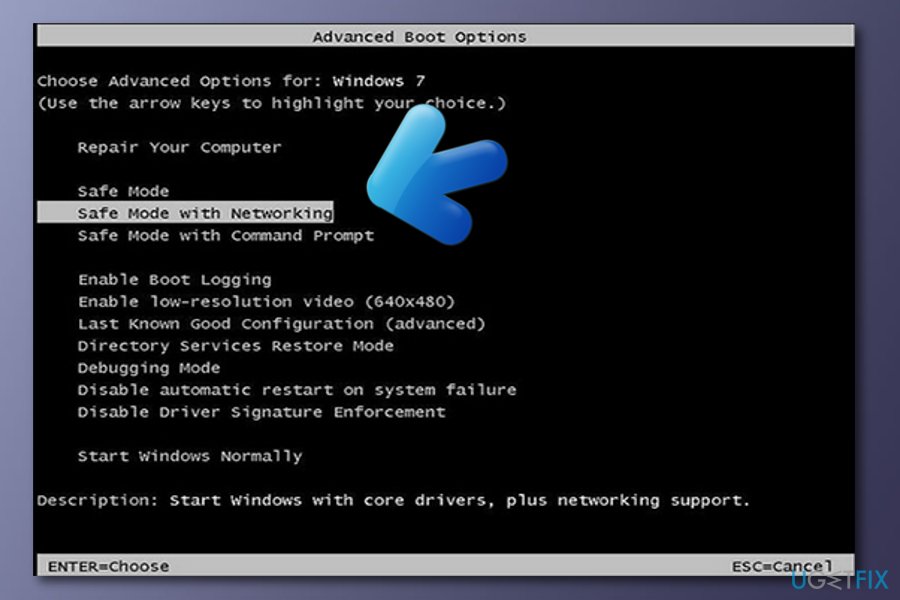
- When the Windows startup window shows up, press F8 until you see Advanced Boot Options window
- Click Safe Mode with Networking.
Windows 10 / Windows 8
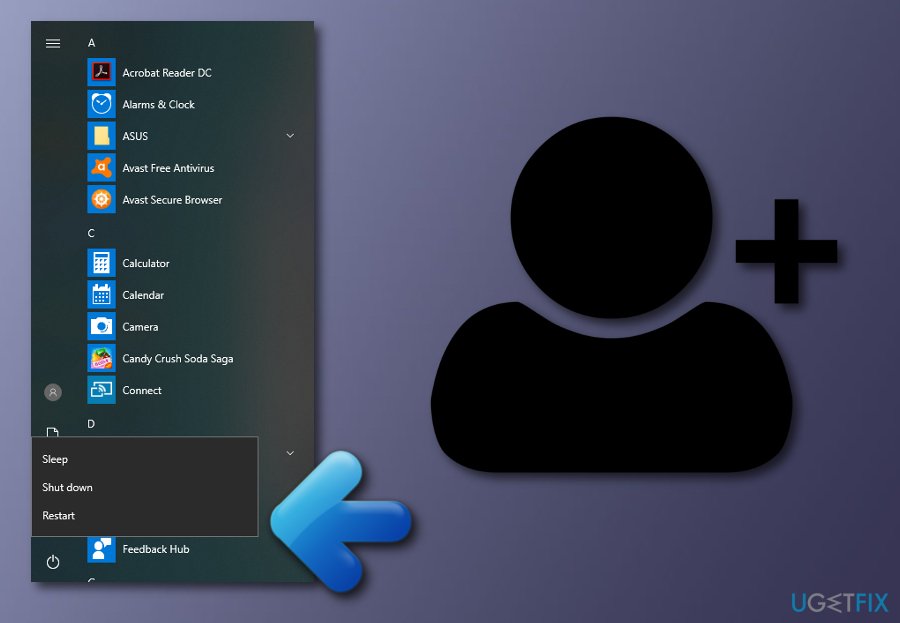
- Click Power button and press Shift key
- Select Restart and the Troubleshoot
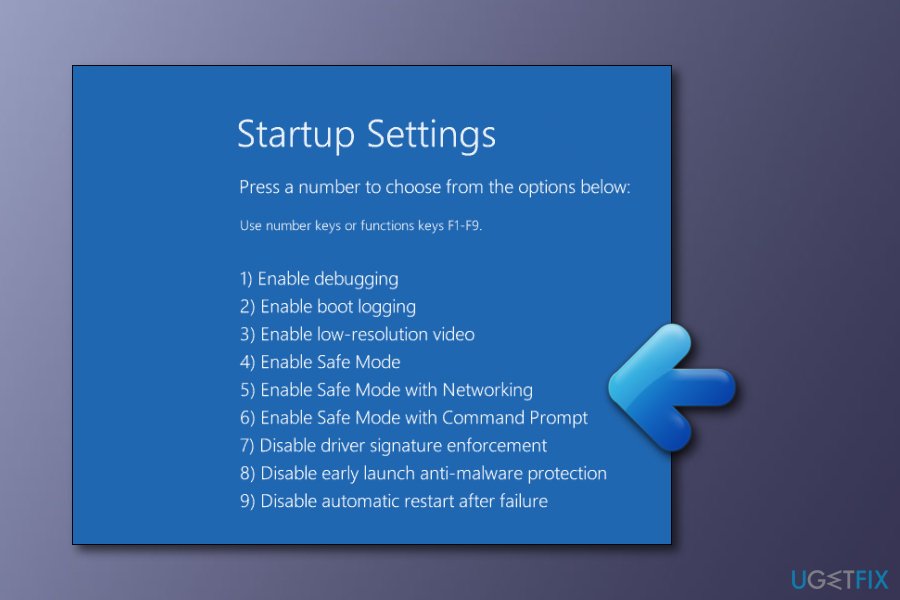
- Click Advanced options and select Startup Settings
- Finally, select Restart.
- When the system boots up, select Enable Safe Mode with Networking.
Method 2: Fix the error by changing registry entries
Once done, you can move on with the “The User Profile Service failed the logon” fix. Be very careful because this method requires making changes on the Registries. Thus, make sure that you perform each step as explained below:
- Click Start (or Win key), type regedit, and press Enter.
- Once the Registry Editor is open, type HKEY_LOCAL_MACHINE\\SOFTWARE\\Microsoft\\Windows NT\\CurrentVersion\\ProfileList and press Enter.
- Using the navigation pane on the left side, find a folder, which name starts with S-1-5 (SID key).
- Open that folder by double-clicking on it and find ProfileImagePath entry.
- If you have noticed two S-1-5 folders followed by a long sequence of numbers, check if one of them ends with a suffix .bak.
- If there is such an entry, you have to rename the folder that ends with the suffix .bak. For this purpose, you have to right-click on the folder without .bak ending and select Rename.
- Type .ba and hit Enter.
- The right-click on the folder with the .bak ending and select Rename.
- Remove .bak suffix and press Enter.
- Then go back to the folder .ba and select Rename. Change .ba to .bak, and press Enter.
- In case you have found only one folder that ends with .bak, right-click on it, and select Rename.
- Remove the suffix (.bak) and press Enter.
- Now click on the that you have just renamed, click twice on the RegCount, type 0 value, and click OK.
- After that, click the folder again, find State and double-click on it.
- Type value 0 and press OK.
- Close Registry Editor and Reboot your PC.
Method 3: Create a new user's profile
- Open Control Panel and then click on User Accounts.
- Press on "Manage another account" and enter the password if you are asked too.
- Create a new account with a different name.
- Reboot your machine.
- Copy your files by logging in as Administrator or Guest.
- Go to the defected user account by pressing on Start, after that click Computer and double-click on the hard drive which Windows is installed on. Afterwards, enter the Users folder.
- Click My Documents.
- Copy all files except these ones: Ntuser.dat, Ntruser.dar.log, Ntuser.ini.
- Restart your PC and log into the new User account.
Bottom line
To fix the 'User Profile Service failed the logon' error, you can try rebooting your computer in Safe Mode, backing up your data, and performing a full system scan with an antivirus program. If these methods do not resolve the issue, further troubleshooting may be necessary.
Frequently asked questions
This error typically occurs due to a corrupted user profile or issues with the User Profile Service not starting properly during the logon process.
You can resolve this issue by booting into Safe Mode and creating a new user account, then transferring your files to the new profile.
Yes, you can try repairing the user profile by modifying the registry or using System Restore to revert to a previous state before the issue occurred.




Report an issue
What's wrong with this guide? We review every report and update or remove content.
Report received — thank you. We'll review and fix it.
You need a free account to submit a report.
Be the first to comment