How to fix
The Windows taskbar not hiding issue
on Windows
Windows taskbar not hiding issue in Windows 10 and 11 can stem from auto-hide settings, active apps, or Explorer glitches; four fixes restore normal behavior.

Repairs Windows system files, removes malware, and restores a clean OS state — without reinstalling.
Fix Windows Taskbar Not Hiding Issue in Windows 10/11
The taskbar can stay visible even when auto-hide is supposed to keep it out of sight, which interrupts the normal desktop layout and leaves less room on the screen. That behavior usually points to a setting or interface state that is preventing the taskbar from collapsing the way Windows expects.
One possible cause is that auto-hide was not applied correctly in the taskbar settings. Another is that an open app, notification, or system element is keeping the taskbar active. In some cases, the issue is tied to the Windows 10 or Windows 11 display state rather than the taskbar setting itself.
The taskbar is the Windows bar that holds the Start button, app shortcuts, and system icons, so its visibility affects how the desktop behaves throughout the session. When it refuses to hide, the problem is usually less about the taskbar itself and more about the state Windows is holding in the background.
Here are 4 solutions to fix the Windows taskbar not hiding issue.
Fix 1. Reapply taskbar auto-hide
Reapplying the auto-hide setting can clear a taskbar configuration that is not being saved or applied correctly.
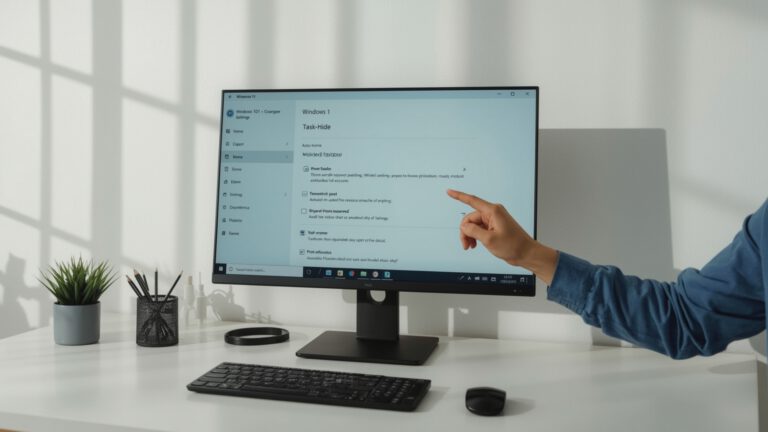
Right-click the taskbar, then open Taskbar settings and the taskbar behavior options. Turn on Automatically hide the taskbar, then close the settings window.
Fix 2. Close open taskbar triggers
Any active interface element can keep the taskbar visible, so clearing those triggers gives Windows a chance to hide it again.
Check whether any app is open on the taskbar, then close notification panels and dismiss any system pop-ups. Return to the desktop and watch whether the taskbar hides.
Fix 3. Restart Windows Explorer
Restarting Windows Explorer refreshes the shell that controls the taskbar, which can clear a display state that is stuck.
Press Ctrl + Shift + Esc, open Task Manager, find Windows Explorer, and select Restart. Wait for the desktop to reload.
Fix 4. Check display behavior in Windows 10 or 11
If the taskbar still stays visible, the desktop state in Windows 10 or Windows 11 may be holding it open even after the setting is changed.
Go back to the desktop, open the taskbar settings again, and confirm that auto-hide remains enabled. Look for anything still active on the screen, then test whether the taskbar hides after the desktop settles.
Šaltinis: easeus.com




Report an issue
What's wrong with this guide? We review every report and update or remove content.
Report received — thank you. We'll review and fix it.
You need a free account to submit a report.
Be the first to comment