How to fix
“There are no more files” error
on Windows
Resolve the "There are no more files" error on Windows 10 quickly and easily. Get expert-tested solutions to restore your system's functionality!

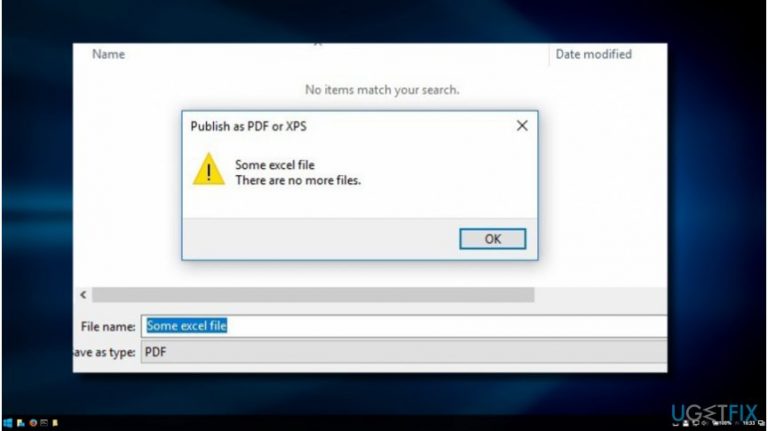
What causes How to fix “There are no more files” error on Windows 10?
- Irrelevant update components
- ASUS Data Security Manager (ADSM)
- Third-party security tools
- Windows 10 Cumulative Update KB4022725
Repairs Windows system files, removes malware, and restores a clean OS state — without reinstalling.
I’ve installed Windows 10 updates on the 15th of June. When the system rebooted, I’ve started receiving an error message saying “There are no more files.”
It happens when I try to save anything on my local hard drives. Believe me or not, but this issue is more than irritating and there is no information about it anywhere. Could someone please help?
According to the latest reports, Windows 10 Cumulative Update[ref en-1] KB4022725 released in June 13, 2017 initiated some problems one of which is broken Microsoft Edge and the other “There are no more files” error. Since we have already described the problem related to Edge, this article will address the latter problem.
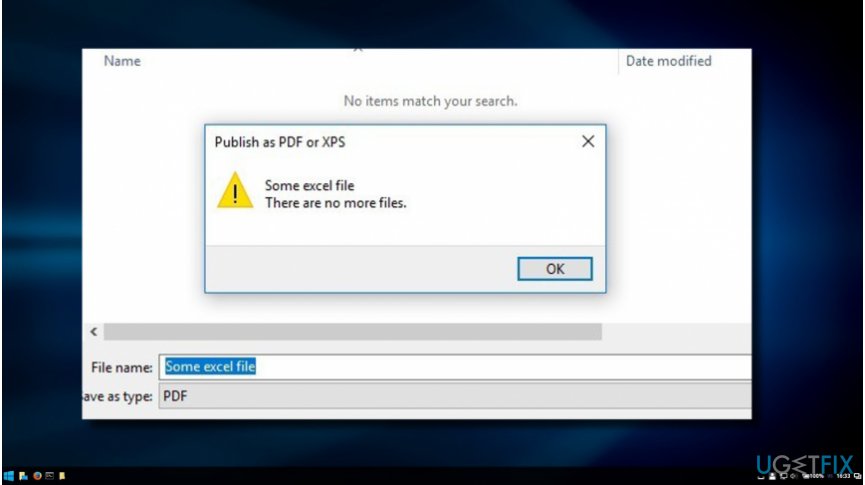
“There are no more files” error specificities
“There are no more files” error pop-up mainly occurs on ASUS[ref en-2] computers running Windows 10 Pro and Home versions. Initially, it has been registered on June 13, the same day when the cumulative update KB4022725 (OS Build 15063.413 and 15063.414) has been released. Therefore, all speculations about the bug turns to one direction - the irrelevant update components.
The “There are no more files” error message prevents PC users from saving files on the local hard drive. The problem is not related to a specific file type as it may occur while trying to save MS Office Suite 2010, Adobe Acrobat X, Adobe Photoshop, photos (.jpeg, .png), videos, and others.
The bad thing is that the “There are no more files” error hasn’t been officially confirmed yet and does not have fixes. However, the good thing is that several tech-savvy people grasped the footprints of “There are no more files” culprit and helped many people to resolve it.
According to them, this error is usually triggered by ASUS Data Security Manager (ADSM) or third-party security tools.
Fixing “There are no more files” error
If you are using ASUS computer, which runs Windows 10 and started experiencing “There are no more files” error after the installation of KB4022725 update, we would strongly recommend you to stop ADSM[ref en-3] service and delete the ASUS data security management program:
Fix 1. Stop ADSM service
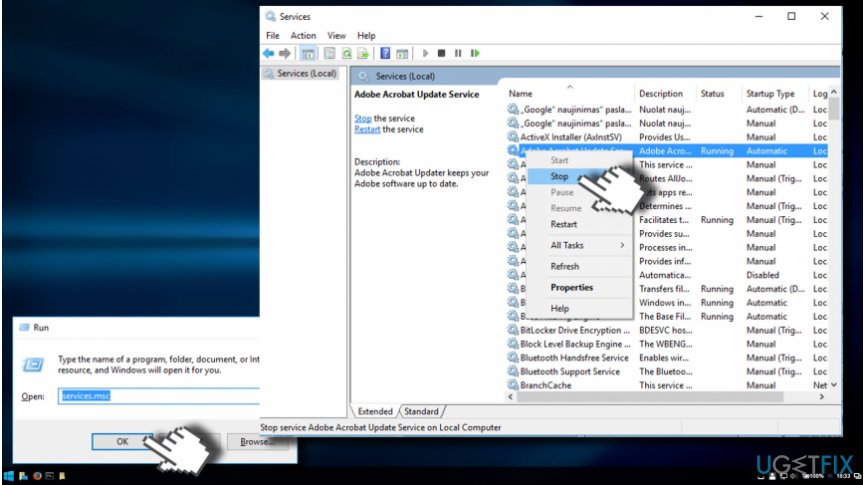
- Open Start menu, type services.msc, and press Enter.
- Scroll down to find ADSM service.
- Double-click on it and select Stop. If the service is disabled, proceed with the following steps.
- Right-click on Windows key and select Control Panel.
- Open Programs and Features and find ASUS data security management application.
- Click on it and select Uninstall.
- Finally, reboot the system.
Fix 2. Try Clean Boot
If the removal of ASUS data security management program did not help to fix “There are no more files,” it might be that the culprit of the problem is third-party security software or other tools. To check that, try a clean Windows boot:
- Press Windows key + R, type msconfig, and press OK.
- Open Services tab and mark Hide all Microsoft services box.
- Select Disable all.
- Then open Startup tab and select Open Task Manager.

- Click on each startup item separately and select Disable.
- Once done, close Task Manager and click OK.
- Restart the system.
If Clean Boot resolved the “There are no more files” and you can successfully save files to the local hard drive, you should enable startup items one-by-on to isolate the problematic software.
Once found, uninstall the program that triggers Save As command error “There are no more files.” To ensure that all associated registry entries were removed alongside, we would strongly recommend running a full scan with [d1].
Bottom line
To fix the 'There are no more files' error, it is recommended to stop the ADSM service and delete the ASUS data security management program. If these fixes do not resolve the issue, further investigation into other potential causes may be necessary.
Frequently asked questions
This error typically occurs due to corruption in the file system or issues with the application trying to access files. It can also arise from outdated drivers or system updates.
You can try running the System File Checker (SFC) tool or performing a disk check using the CHKDSK command to repair any file system issues.
Yes, keeping your Windows 10 updated can resolve compatibility issues and bugs that may trigger the error.




Report an issue
What's wrong with this guide? We review every report and update or remove content.
Report received — thank you. We'll review and fix it.
You need a free account to submit a report.
Be the first to comment