How to fix
“There is a problem with this website’s security certificate” error while loading legitimate web pages
on Windows
Resolve the “security certificate” error on Windows 10 and 11 effortlessly. Get quick fixes and expert tips to restore web access in minutes. Expert-tes…

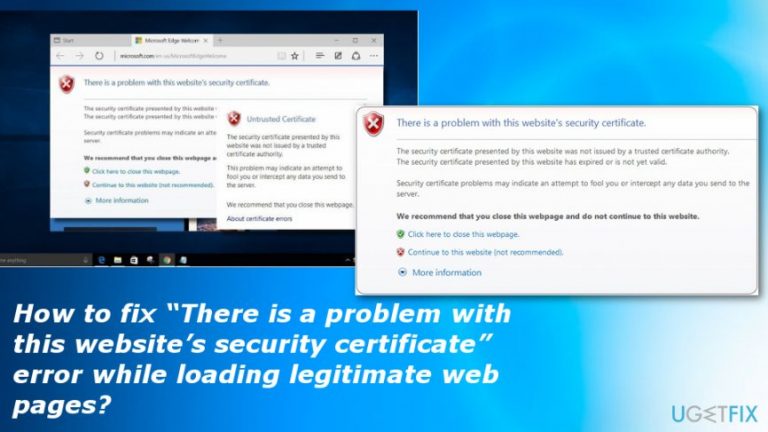
What causes How to fix “There is a problem with this website’s security certificate” error while loading legitimate web pages?
- Certificate not installed correctly
- No trusted root certificate installed for the Certification Authority (CA)
- System clock not set correctly
- Malicious programs
- Corrupted system files
- Faulty browser settings
Repairs Windows system files, removes malware, and restores a clean OS state — without reinstalling.
Hello. I constantly receive an error “There is a problem with this website’s security certificate” on my device when I try to access popular and certainly legit websites. It's not supposed to happen if the page is safe and all, yes? Could someone help me with this?
Did you encounter an error “There is a problem with this website’s security certificate” when loading pages like Twitter, Facebook, eBay or other legitimate domains? This is a common issue encountered by the users of Windows 10[ref en-1] and older Windows versions. The problem is not defined by a particular web browser because people reported this security certificate issue on Google Chrome, Mozilla Firefox, Microsoft Edge, and others.
Some people cannot launch one particular website, while others cannot access a bunch of legitimate domains.[ref en-2] According to Microsoft specialists, “There is a problem with this website’s security certificate” error may occur if the website’s certificate is not installed correctly or there is no trusted root certificate installed for the Certification Authority (CA).
Therefore, to fix the issue, you should contact the owner of the problematic website or install the root certificate for the Certification Authority (CA). In case the problem is not related to certificates, you should check if the clock of the system is set correctly. Thus, to fix “There is a problem with this website’s security certificate” bug on Edge or another web browser, you should follow our guides and try a few methods at the time to make sure it works.
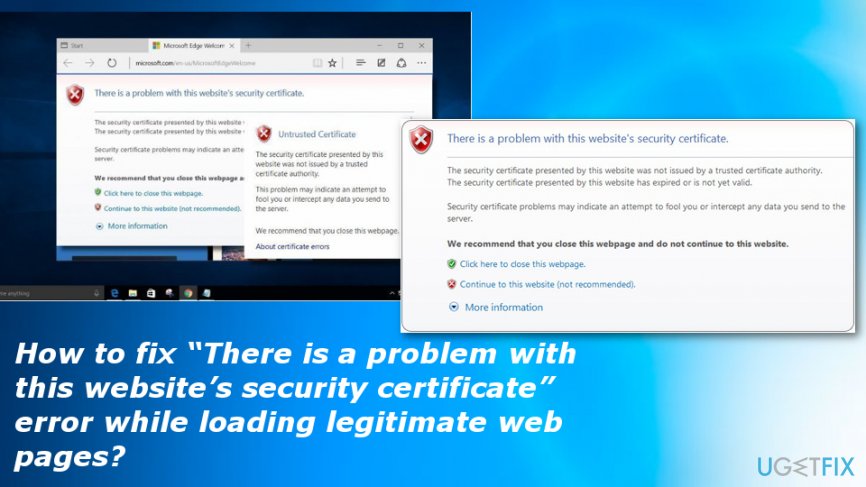
Methods to fix “There is a problem with this website’s security certificate”
We would highly recommend you to check the system for malware[ref en-3] before trying any other method. The “There is a problem with this website’s security certificate” error may also be caused by malicious programs or corrupted system files. To fix them, try using [d1] or any similar PC repair tool.
This “There is a problem with this website’s security certificate” issue may appear on all browsers, so you may also try resetting the browser that encounters this error to default. This can change faulty settings or disable functions that can affect the performance.
Remove the problematic Windows update
Often recent updates can be released with issues that need additional fixing so you if you encountered “There is a problem with this website’s security certificate” error after the system update make sure to check if there is a newer update available or go back to the previous version in the meantime.
Disable “There is a problem with this website’s security certificate” pop-up by installing required certificates
Since the bug usually occurs on Microsoft Edge, we will explain how to install certificates on it.
- When the error message shows up, click on Continue to this website (not recommended) option.
- Then press Certificate Error button next to the red Address Bar.
- When the information window shows up, click on View Certificates option.
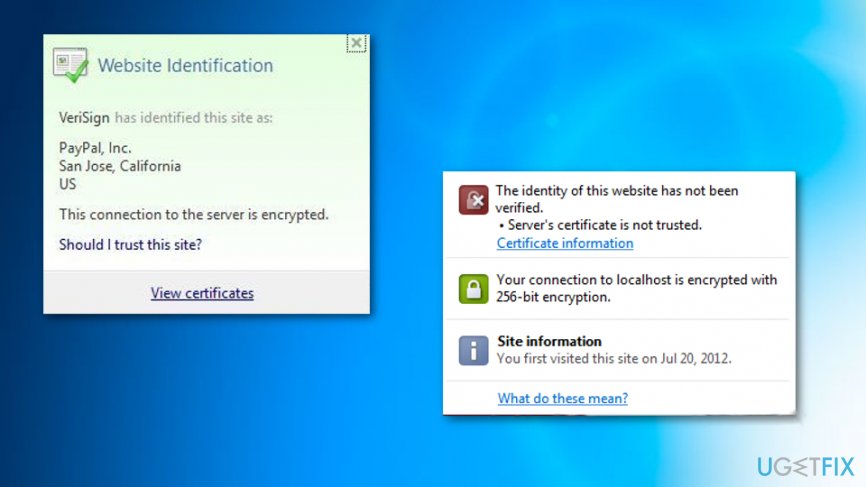
How to fix there is a problem with this websites security certificate ebsite certificate - Select Install Certificate and follow the instructions.
- If you receive a confirmation window, click Yes to proceed.
NOTE: DO NOT perform these steps on the websites with a poor or unknown reputation. Otherwise, you can download a certificate for a malicious domain.
Check if the Date & Time settings are correct
Microsoft specialists reported that “There is a problem with this website’s security certificate” pop-up is commonly triggered by incorrect date and time settings of the system. Date and time settings can be modified without your knowledge by malware or other third-party software. To check that, you should:
- Right-click on a date and time widget on the toolbar and select Adjust Date/Time.
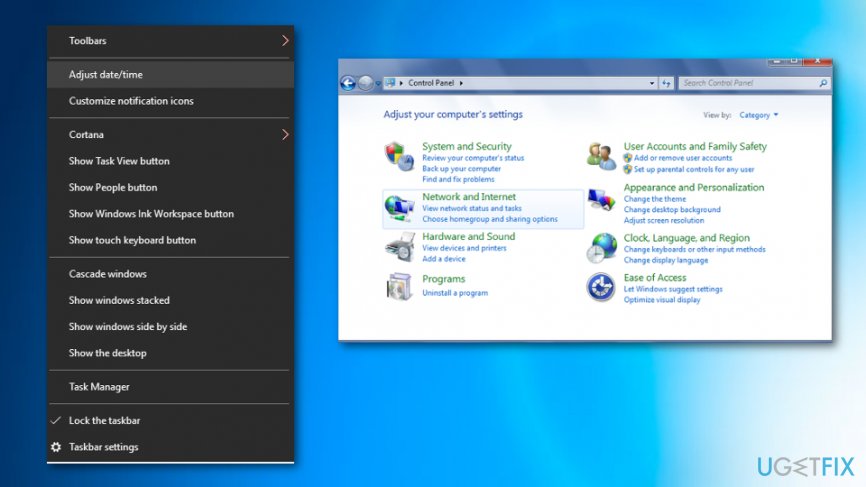
How to fix there is a problem with this websites security certificate error date time settings - Carefully check the settings and modify them if needed.
- Once done, click OK and close everything.
Disable the “Warn about certificate address mismatch” option
The “There is a problem with this website’s security certificate” error may occur due to the enabled “Warn about certificate address mismatch” option. To check that and disable this option, you have to:
- Right-click Windows key and open Control Panel.
- Select Internet Options and open Advanced tab.
- Locate Security section and open it.
- Find the Warn about certificate address mismatch option and uncheck it.
- Click Apply and OK to save the changes.
- Finally, reboot your PC.
Bottom line
To fix the error, you should contact the website owner or install the root certificate for the CA. Additionally, check your system clock, scan for malware, and consider resetting your browser to default settings. If none of these methods work, try using a PC repair tool.
Frequently asked questions
You can try clearing your browser's cache and cookies, and ensure that your system date and time are set correctly. If the issue persists, consider resetting your browser settings or updating your Windows 10 to the latest version.
In Windows 11, you can check a website's security certificate by clicking on the padlock icon in the address bar and selecting 'Certificate.' This will show you details about the certificate and whether it is trusted.
If you're facing this issue across multiple websites, ensure that your antivirus or firewall software isn't blocking secure connections, and consider running the Windows Troubleshooter for network issues. Additionally, check for any pending Windows updates that might address the problem.




Report an issue
What's wrong with this guide? We review every report and update or remove content.
Report received — thank you. We'll review and fix it.
You need a free account to submit a report.
Be the first to comment