How to fix
“There is a problem with your game’s setup” in Origin
on Windows
Resolve the "There is a problem with your game's setup" error in Origin on Windows 10 and 11 easily. Expert-tested solutions provided, fixed in minutes!

What causes How to fix “There is a problem with your game’s setup” in Origin?
- Corrupted installation of Origin
- Outdated drivers
- Missing Media Feature Pack
- Missing or corrupted DLL files
Repairs Windows system files, removes malware, and restores a clean OS state — without reinstalling.
Hello. I tried to play a game that I recently purchased through Origin but I received a message "There is a problem with your game's setup." How can I fix this issue?
Origin is a digital distribution platform developed by Electronic Arts. It allows users to purchase video games and play them. It also provides features such as profile management, networking with friends, direct game joining along with streaming via Twitch. The Origin client can update automatically and let users download games, expansion packs, content booster packs, and patches from one place.
Unfortunately, sometimes people run into issues when trying to play video games installed from Origin. Recently, users reported seeing a "There is a problem with your game's setup" message when trying to launch various games. The problem was reported on both Windows 10 and 11. It seems that there are various possibilities for this error.
Some users found that the issue was fixed by simply reinstalling Origin. Others discovered that their drivers[ref en-1] were outdated. The problem could also be caused by the missing Media Feature Pack. Finally, most often some applications fail to launch because of missing or corrupted DLL[ref en-2] files.
DLLs are system files containing code and data that can be used by multiple programs at the same time. That is why users may fail to open multiple video games or other applications and receive the same error. Usually, DLLs are accidentally deleted by users themselves or malfunction because of corrupted installations.
In this guide, you will find 4 steps that could help you fix "There is a problem with your game's setup" in Origin. If you want to avoid doing changes to your computer and the Origin client, you can try using the [d1] optimization tool. It can find the underlying Windows issues, automatically fix BSODs,[ref en-3] missing DLL errors, registry[ref en-4] problems, and more.
Solution 1. Reinstall Origin
"There is a problem with your game's setup" could be triggered by a corrupted installation of Origin. Reinstall it to see if it fixes the issue.
- Go to Apps & Features
- Find Origin in the list
- Click on it and press Uninstall
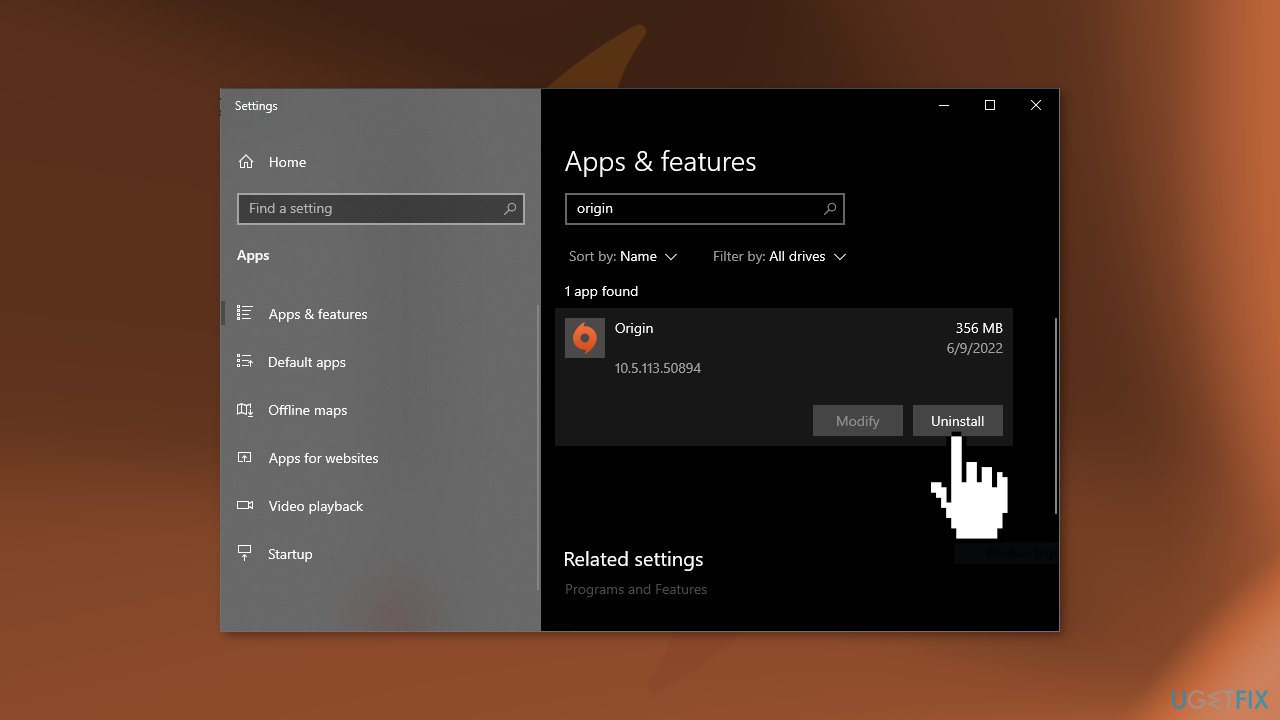
- Go to the official Origin website and reinstall the application
Solution 2. Update Drivers
Outdated drivers can prevent people from performing certain tasks. Make sure your drivers are up-to-date.
- Open the Windows Start Menu
- Type in Check for updates and click on the first result
- Press on View optional updates
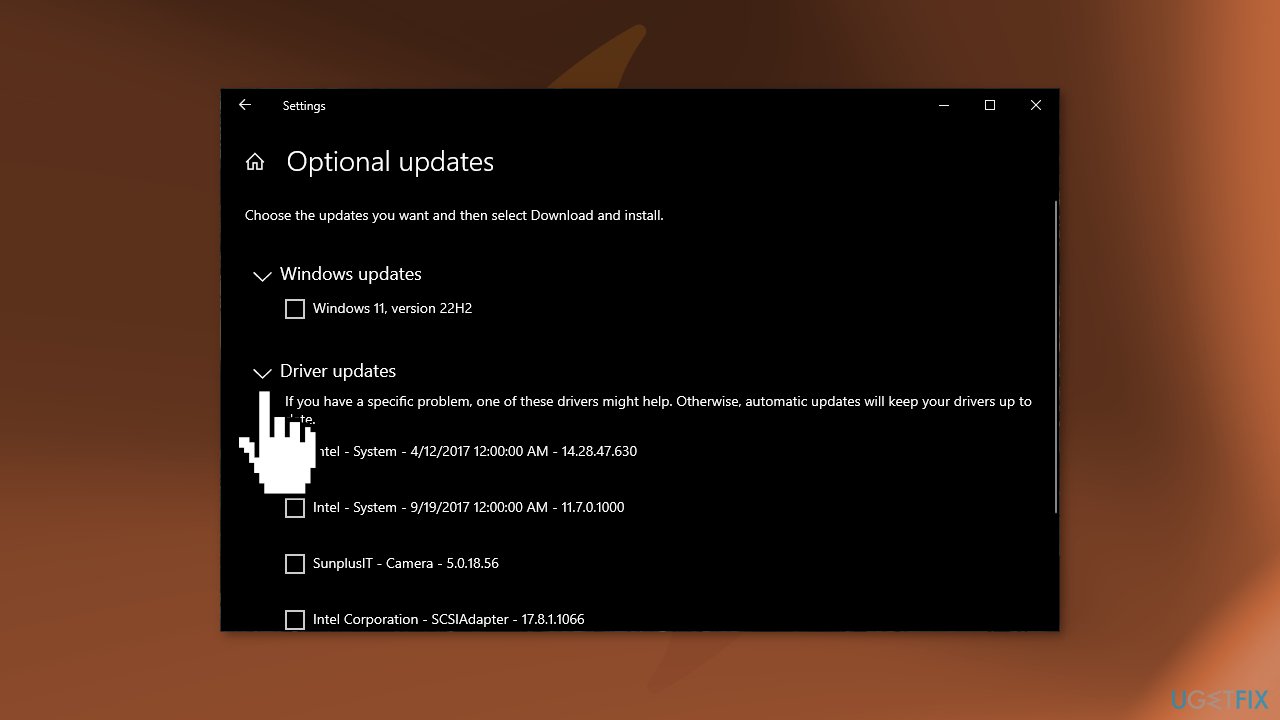
- Click on the arrow near Driver updates and install the missing updates
Solution 3. Install the Media Feature Pack
- Go to the official Microsoft website
- Select the appropriate edition
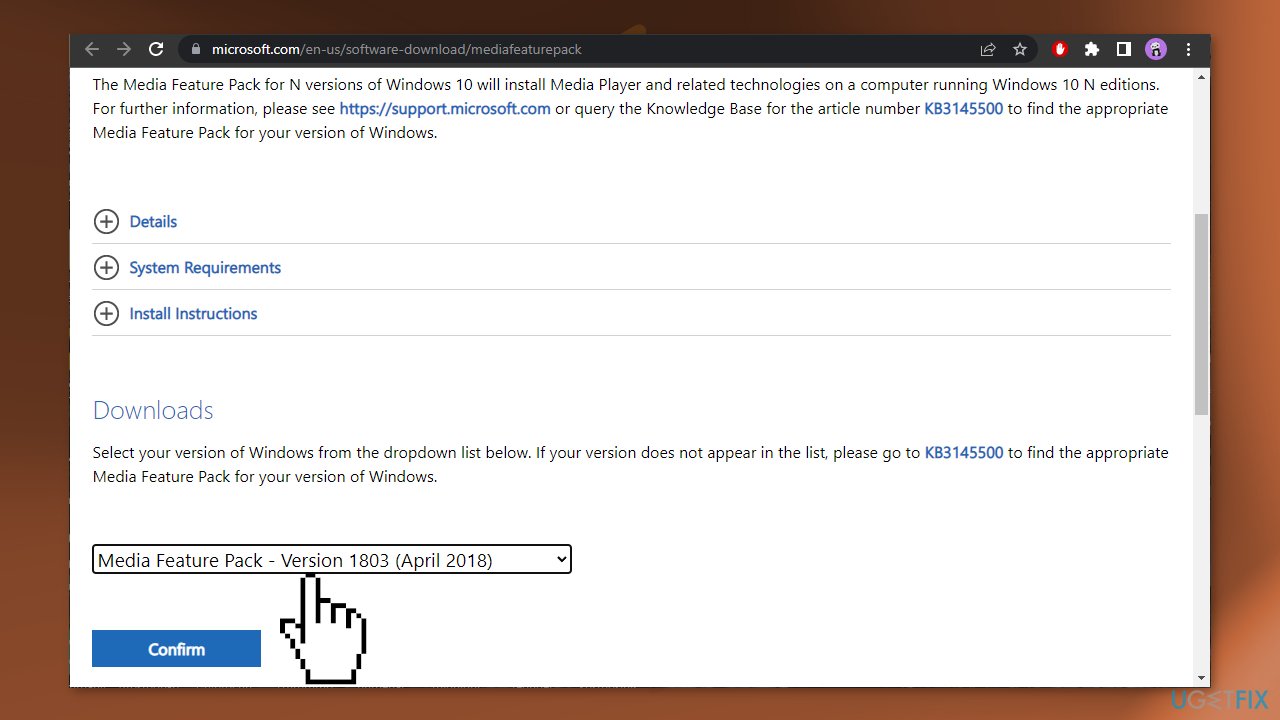
- Open the downloaded file and proceed with the on-screen instructions
- Restart your system and check if the problem was fixed
Solution 4. Download DirectX Web Installer
- Go to C:/windows/system32 and delete the d3dcompiler43.dll file
- Visit the official Microsoft website and download DirectX End-User Runtime Web Installer
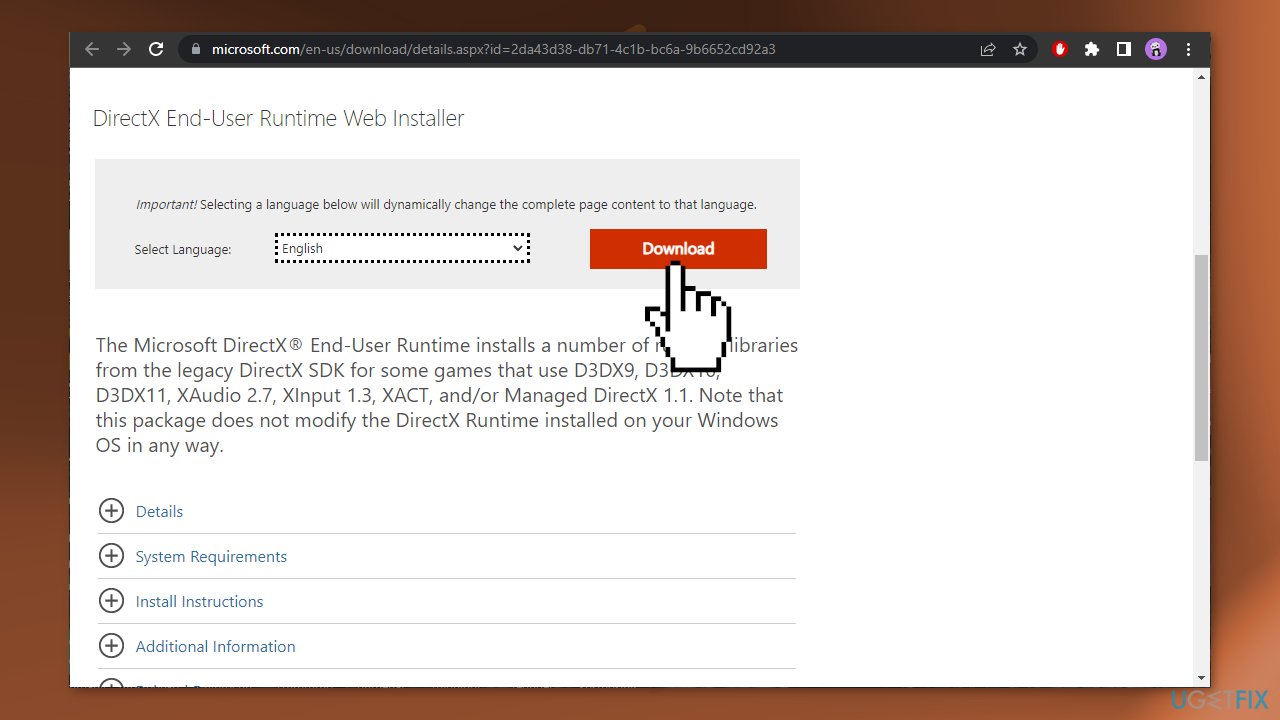
- Install the application and then let it download the missing files
- Go to your Nvidia control panel and manage 3D setting, then Program setting
- Click on Add
- Go to the game directory that is failing to run, select it and then launch it to see if it fixed the issue
Bottom line
To fix the error message "There is a problem with your game's setup," you can try reinstalling Origin, updating your drivers, ensuring the Media Feature Pack is installed, or repairing any missing or corrupted DLL files. If none of these solutions work, consider using an optimization tool to find and fix underlying Windows issues.
Frequently asked questions
First, try repairing the game through Origin by right-clicking on the game title and selecting 'Repair.' If that doesn't work, reinstall the game after ensuring that your Windows 10 system is fully updated.
Yes, the same steps apply for Windows 11; utilize the 'Repair' option in Origin and consider reinstalling the game if the error persists.
Ensure your Windows 10 or Windows 11 PC meets the game's minimum requirements, including RAM, processor, and graphics card specifications, as insufficient resources can cause setup issues.




Report an issue
What's wrong with this guide? We review every report and update or remove content.
Report received — thank you. We'll review and fix it.
You need a free account to submit a report.
Be the first to comment