How to fix
“There is already a file with the same name in this location” error
on Windows
Resolve the "file with the same name" error in Windows 10 and 11 quickly. Our expert-tested guide ensures you can access your files hassle-free!


What causes How to fix “There is already a file with the same name in this location” error in Windows?
- Hidden or system-level files with the same name
- Leftover metadata or cached file data
- Filename conflict between a file and a folder
- Recent Windows update causing the issue
Repairs Windows system files, removes malware, and restores a clean OS state — without reinstalling.
Help! I need to copy a few files to my main drive but every time I try I keep getting a message "There is already a file with the same name in this location" while there are no files of the same name. What is happening?
Help! I need to copy a few files to my main drive but every time I try I keep getting a message "There is already a file with the same name in this location" while there are no files of the same name. What is happening?
Seeing the "There is already a file with the same name in this location" message in Windows can be frustrating, especially when there seems to be no duplicate file in view. This error typically appears when users try to move or copy files or folders, and Windows detects a naming conflict - though not always for reasons that are immediately obvious.
One of the more common causes of the "There is already a file with the same name in this location" issue is hidden or system-level files that share the same name as the one you’re working with. These items might not show up in File Explorer by default, which makes it look like the destination is empty when in fact it’s not. Users who have newly renamed or relocated a file can also face this issue if the leftover metadata or cached file data has not been purged.
The other scenario is a filename conflict between a file and a folder. A file and a folder in Windows cannot share the same name within the same directory. If there is already a folder named "Document," saving or dragging the same-named file into the directory will result in the error, even though the folder might seem to be empty at first glance.
There have also been user reports suggesting the "There is already a file with the same name in this location"error began occurring more and more following a recent Windows update, although this does not appear to be true for all users. In some cases, the problem may be due to a bug in File Explorer or a cloud service syncing issue with services like OneDrive.
While the message itself might sound straightforward, the underlying reasons for it can vary. Fortunately, there are several workarounds and system-level checks that may help resolve the issue - these are outlined below. If the problem appears to be persistent or tied to a deeper system issue, you might consider using [d1] to repair your Windows configuration automatically.

Fix 1. Refresh File Explorer
Sometimes Windows File Explorer doesn’t update immediately after changes. This can cause it to display outdated information, like showing an empty folder when a hidden file still exists.
- Press Win + E to open File Explorer.
- Press Ctrl + R on your keyboard while inside File Explorer to refresh the view.
- Alternatively, close and reopen File Explorer.
- Try moving or copying the file again.
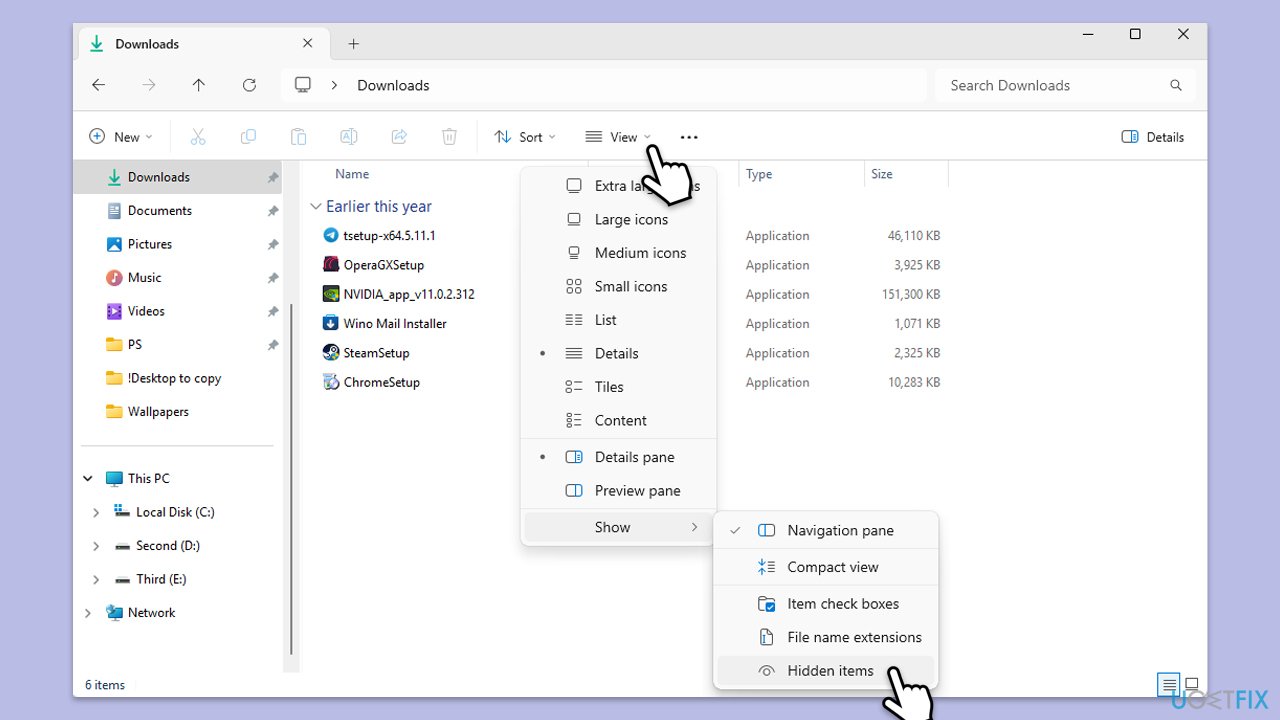
Fix 2. Check for hidden files
Windows may be hiding files that share the same name. These invisible files can still block new ones with the same name.
- Open the folder where you want to move or copy the file.
- Click the View tab in the top menu.
- Select Show, then choose Hidden items.
- See if a hidden file or folder is there with the same name and delete or rename it.
Fix 3. Restart your computer
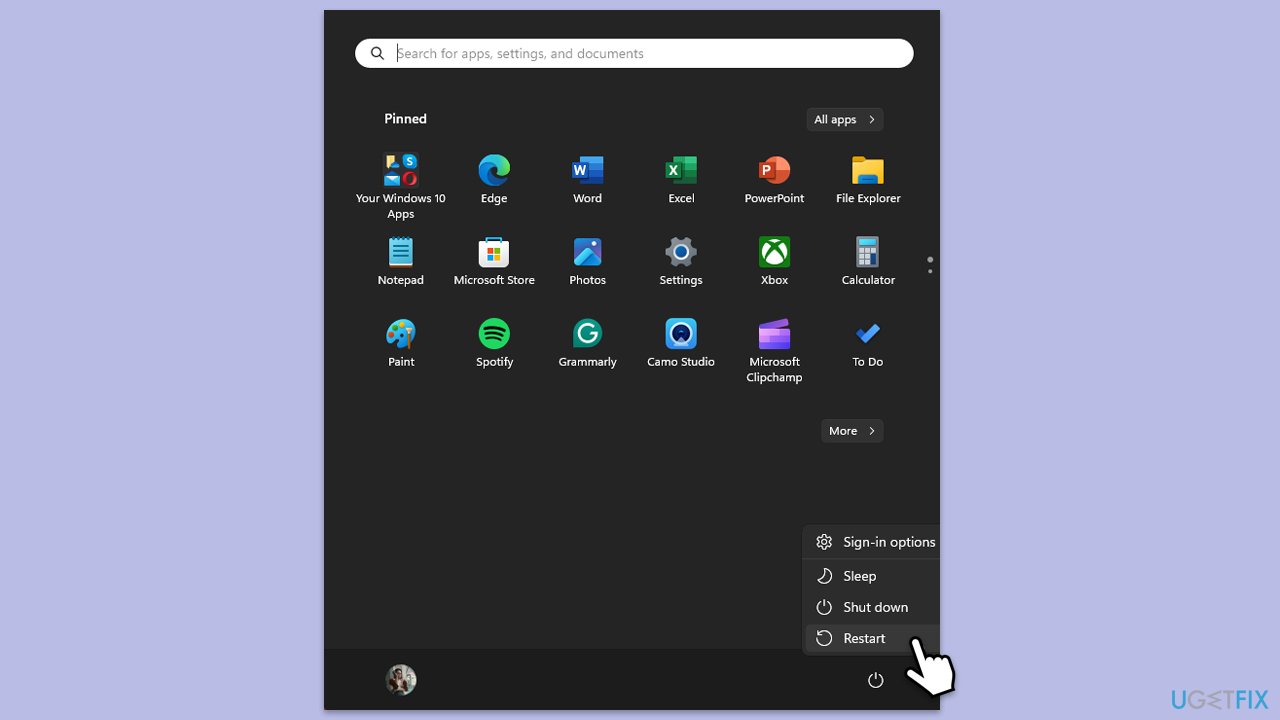
A simple restart can clear cache issues or locked file references that may be causing the error.
- Close all applications.
- Click on the Start menu.
- Select Restart.
- Wait for your PC to reboot.
Fix 4. Rename the file or folder
Avoid conflict by changing the name of the item you're copying or moving.
- Right-click the file or folder.
- Select Rename.
- Enter a different name and press Enter.
Fix 5. Delete Temporary files
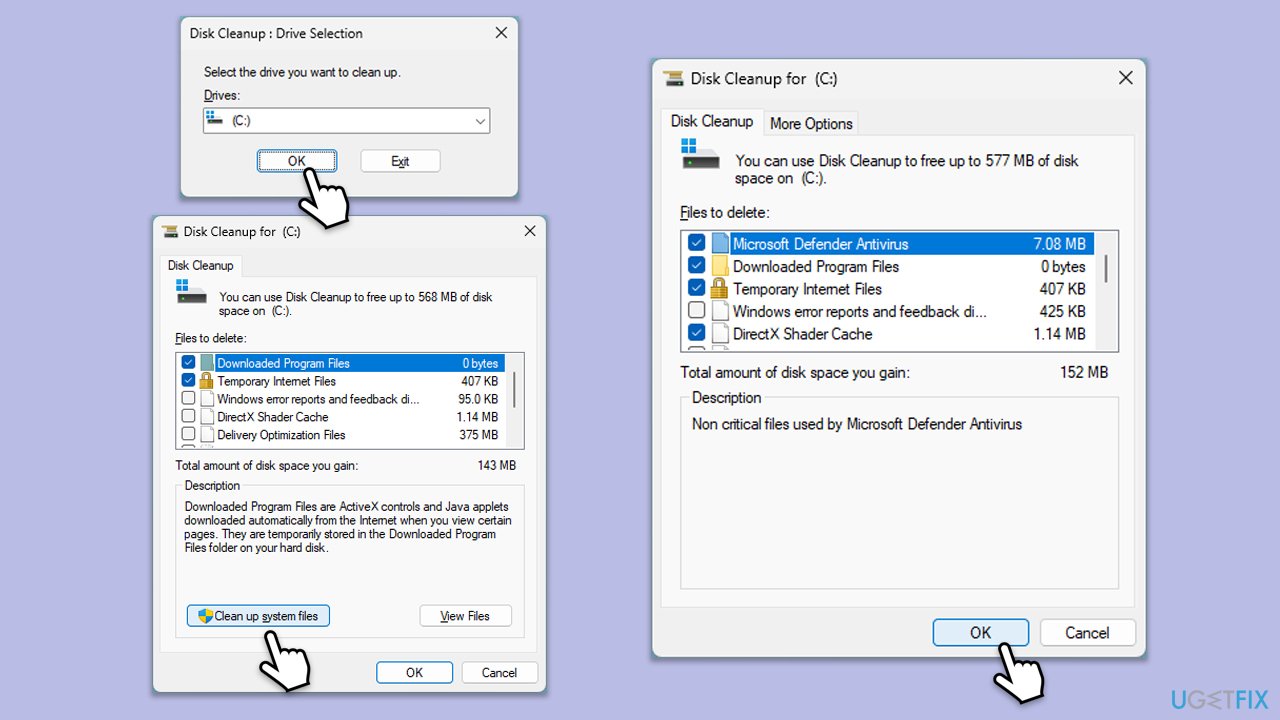
Corrupted temporary data can cause Explorer to misreport files.
- Open the Windows search bar and type Disk Cleanup.
- Press Enter to open the Disk Cleanup utility.
- In the Disk Cleanup window, select the drive where your Windows operating system is installed (usually drive C:) and click OK.
- Click Clean up system files.
- Select the drive again and click OK.
- In the list of files that can be cleaned up, select the largest portions of data, such as Temporary Files, Windows Update, and others.
- Click OK to begin the cleanup process.
Fix 6. Disable OneDrive or Cloud sync
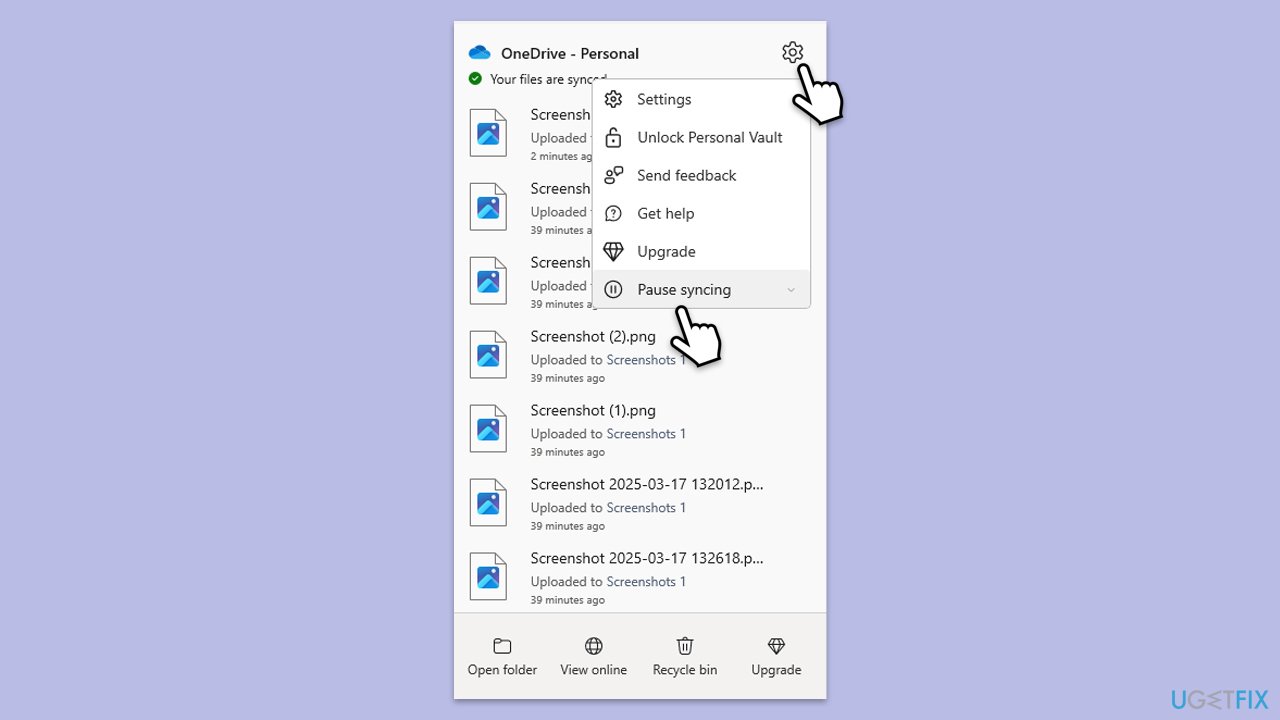
Syncing conflicts may result in duplicate metadata or invisible placeholders.
- Right-click the OneDrive icon on the taskbar.
- Select Settings.
- Click Pause Syncing.
- Quit OneDrive.
Fix 7. Use Command Prompt to check directory
If File Explorer can’t see a file, Command Prompt might.
- Type cmd in Windows search.
- Right-click on Command Prompt and select Run as administrator.
- When User Account Control window pops up - click Yes.
- To list all files, including hidden and system files, type the following and press Enter:
dir /a - If a file with the same name exists, use the following command to remove or rename it:
del - or
ren - Close down Command Prompt.
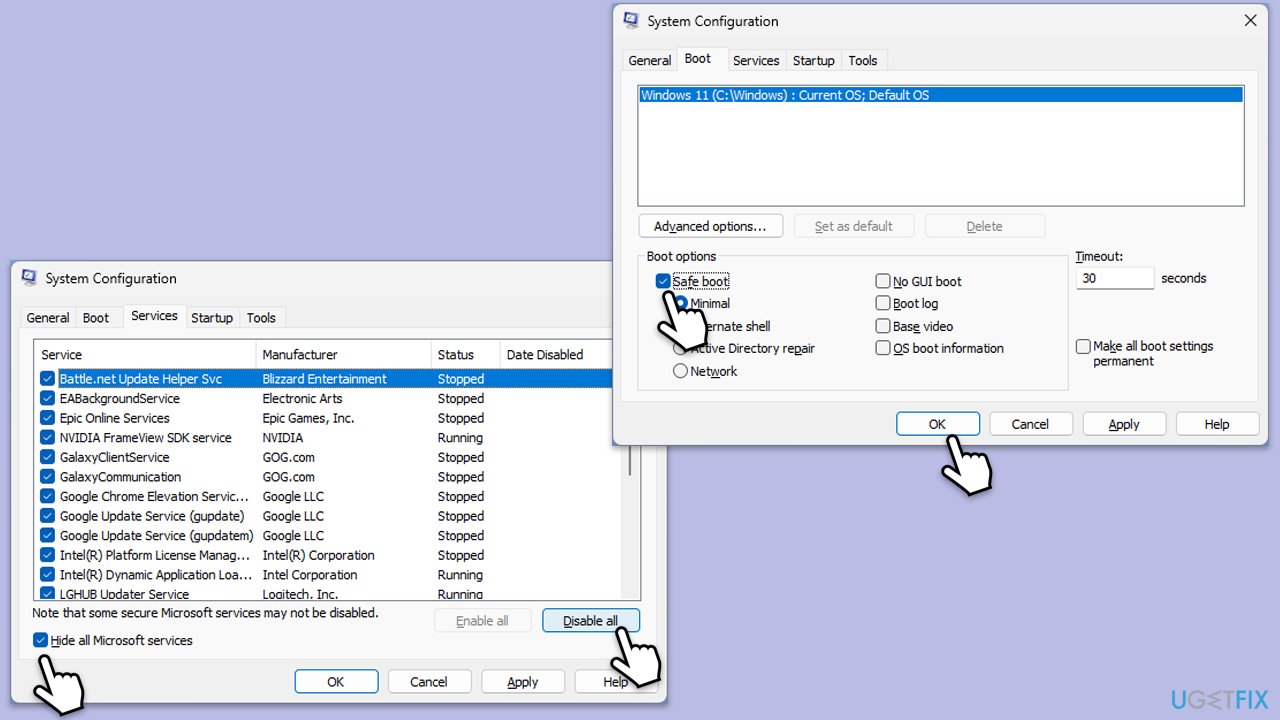
Fix 8. Boot into Clean Boot
If background services or third-party apps are interfering, Safe Mode can help you isolate the issue.
- Type msconfig in Windows Search and press Enter.
- Click on the Services tab and check the Hide all Microsoft Services box.
- Click Disable all to disable non-Microsoft services, then click the Startup tab.
- Open the Task Manager, disable all startup items, and close the Task Manager.
- Go to the Boot tab and mark the Safe boot option.
- Click OK on the System Configuration window and restart your computer.
- If the problem does not exist, third-party software is at fault. To determine which app is causing it, try enabling half of the available programs, restarting, and checking if the problem is still absent. Continue till you find the offending software and either update or uninstall it.
Bottom line
To fix the error, you can check for hidden files, clear cached data, and ensure there are no naming conflicts between files and folders. If these solutions do not resolve the issue, consider further troubleshooting or seeking additional support.
Frequently asked questions
You can try renaming the file you are copying to avoid the conflict, or delete the existing file with the same name if it's no longer needed.
Ensure that the destination folder does not contain a file with the same name, or use the 'Skip' option to bypass the existing file during the operation.
You can check for hidden files in the destination folder that might be causing the conflict, and use the 'Show hidden files' option in File Explorer settings to view them.




Report an issue
What's wrong with this guide? We review every report and update or remove content.
Report received — thank you. We'll review and fix it.
You need a free account to submit a report.
Be the first to comment